
How to Configure Local Disk Backup
Introduction
Local Disk Backup stores backup files directly on the RingQ server’s internal storage, and this will serve as the system’s default storage location unless another external backup destination (such as FTP, SFTP, or AWS S3) is configured. By default, all generated backup files are saved locally within the server environment, ensuring immediate availability and faster restore operations within the same server instance.
Backup Configuration
Log in to your RingQ Admin Dashboard.
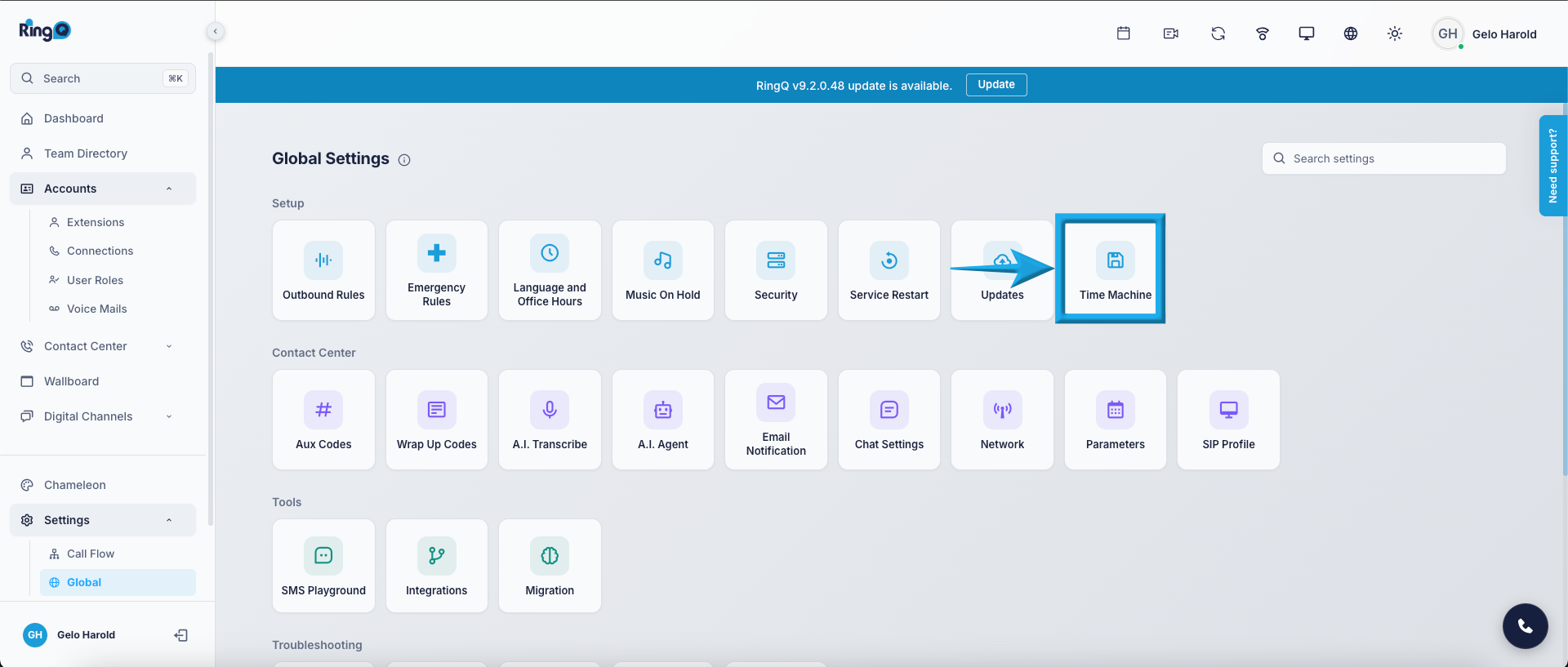
Go to Settings → Global → Time Machine.
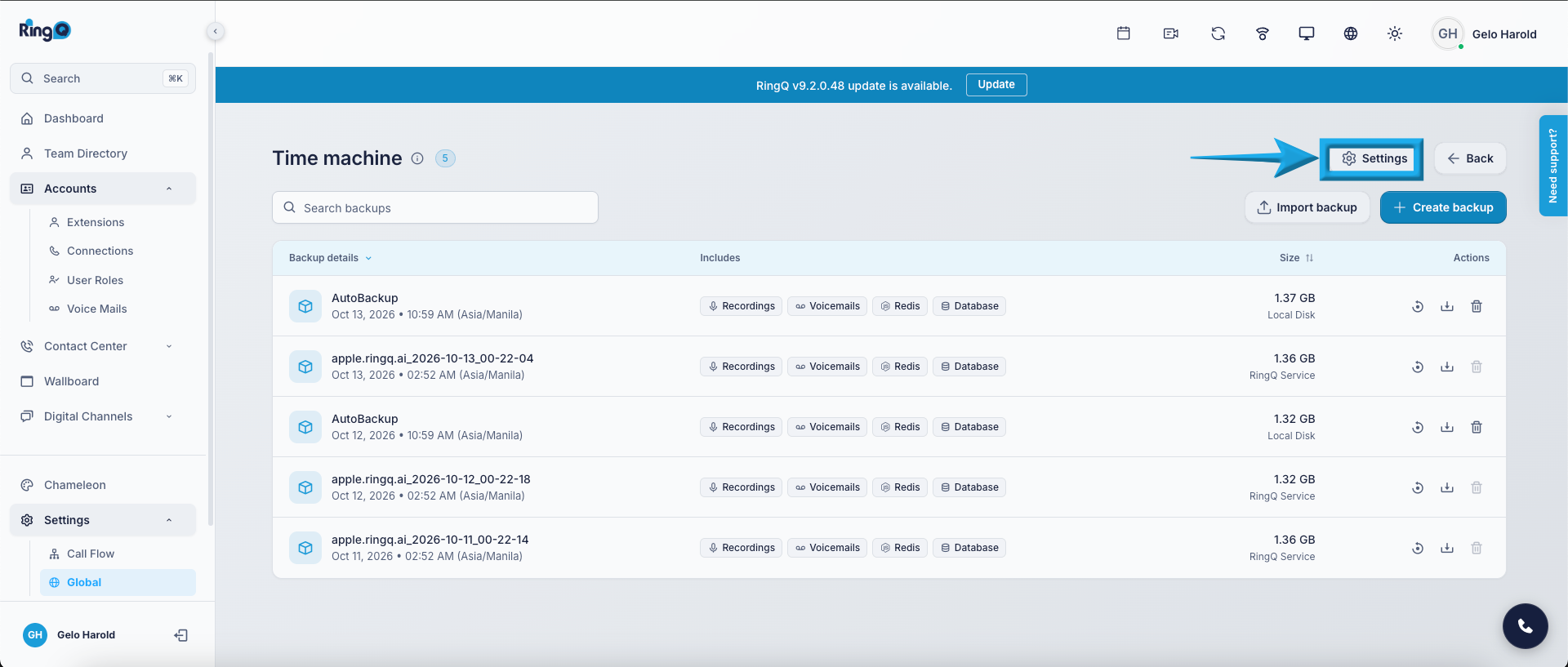
Click Settings in the top-left corner.
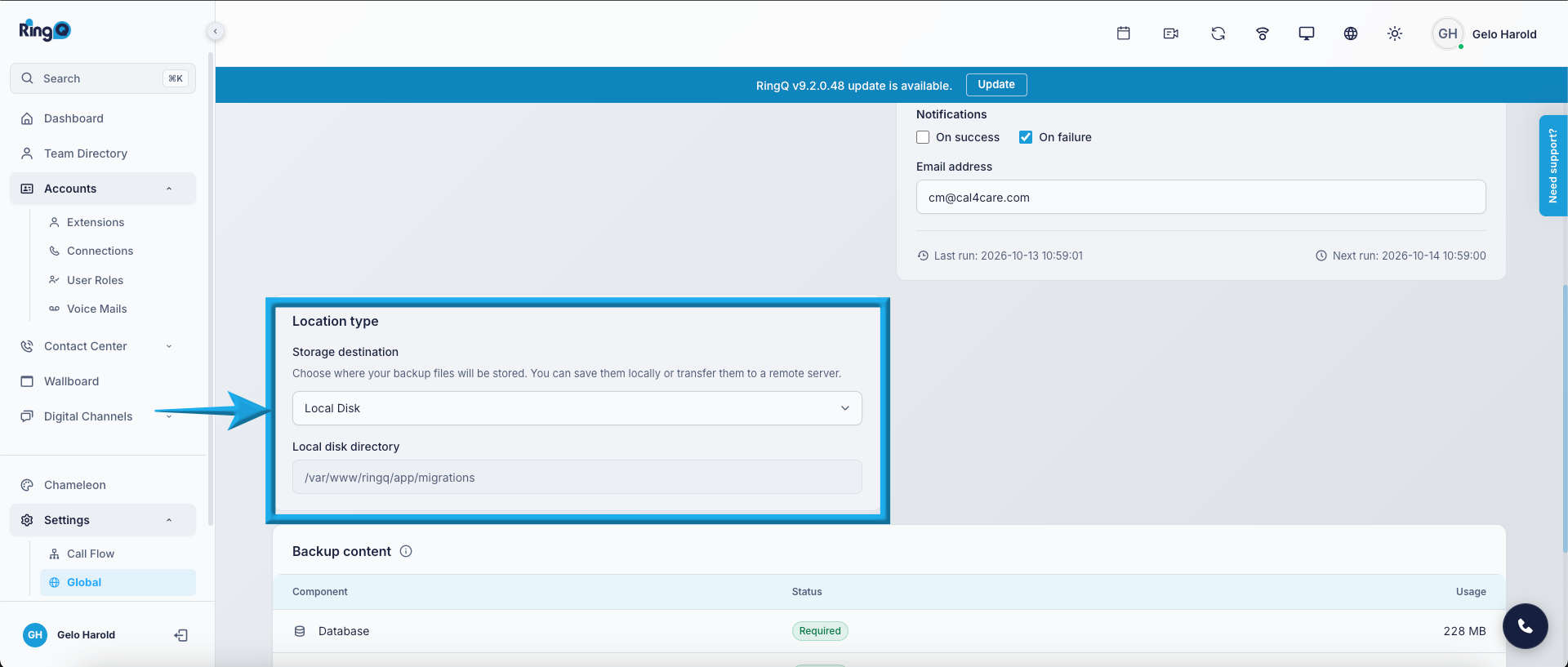
Scroll down to Location Type.
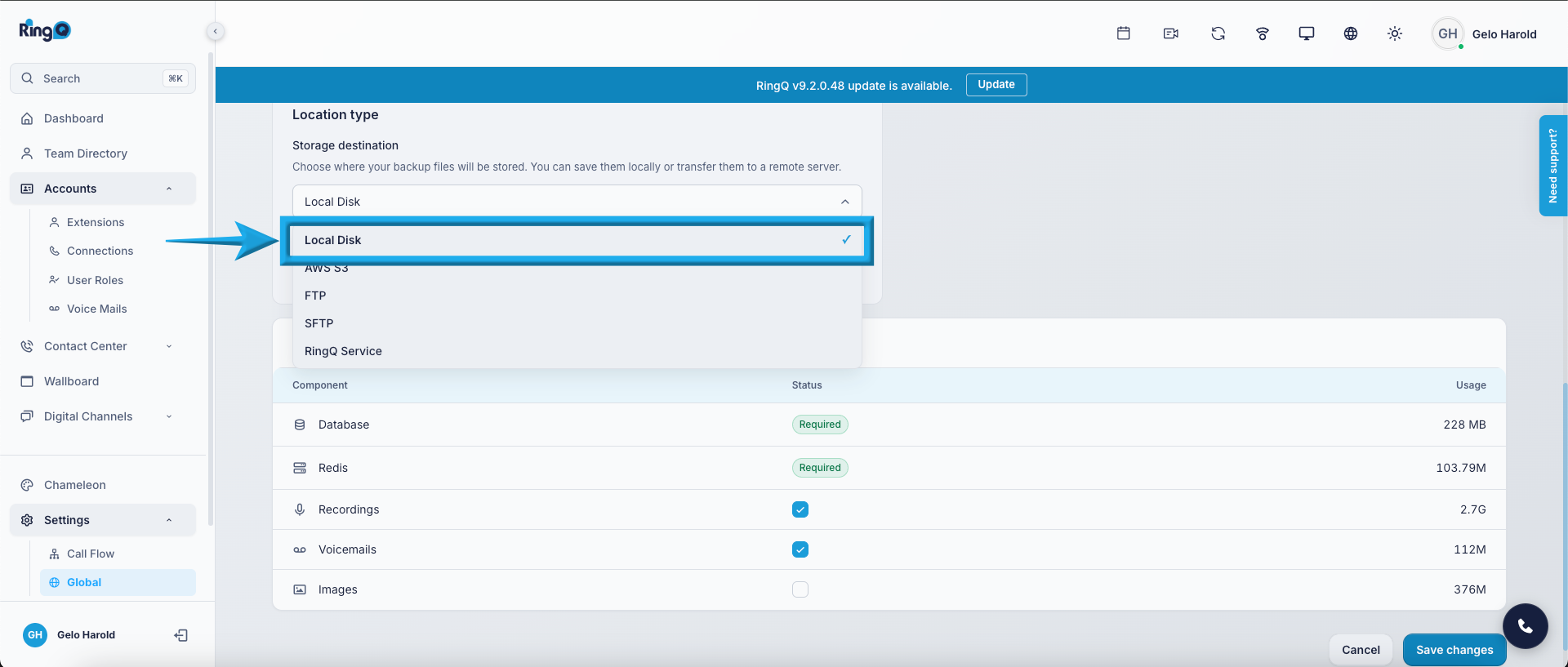
Click Storage Destination and select Local Disk.
When Local Disk is selected as the storage type, the system automatically assigns the directory to RingQ’s local disk. No additional fields are required, and no further configuration is needed.
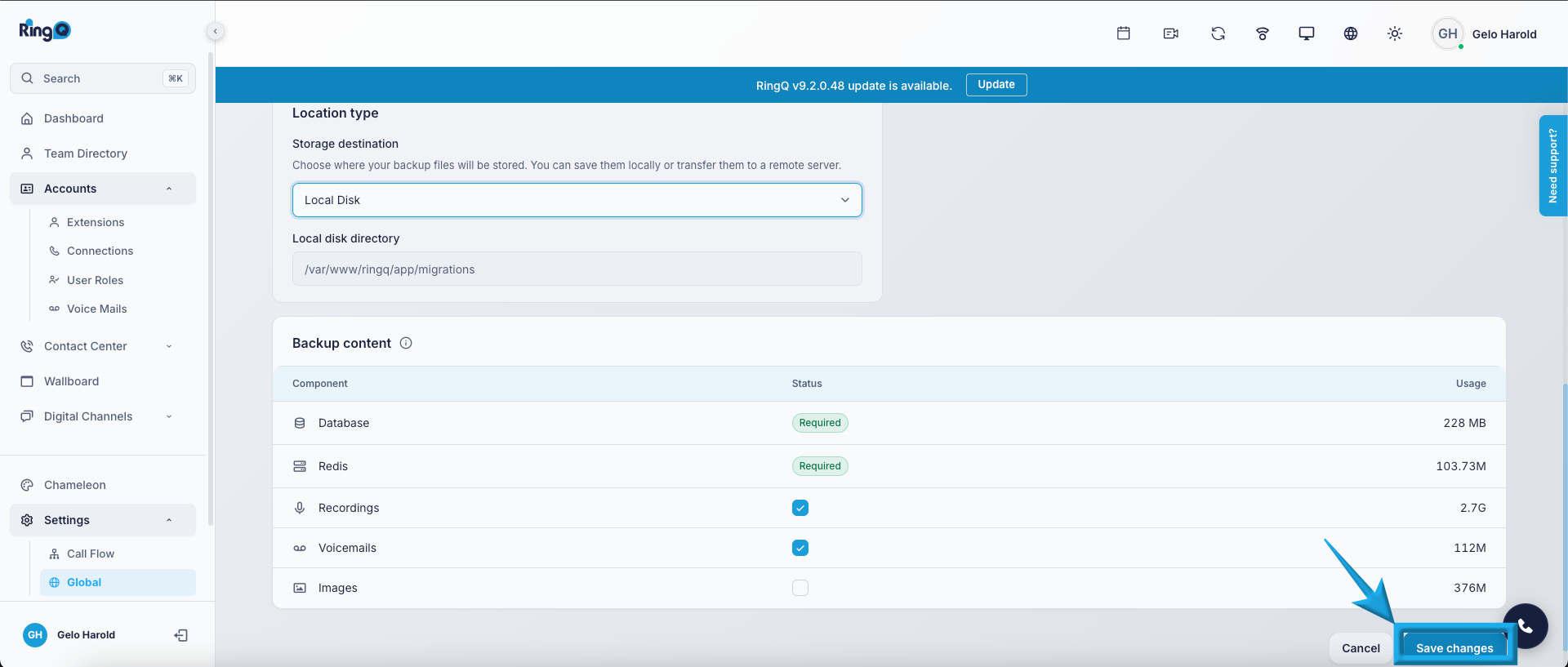
Click Save changes.