
AI Call Insights
Know How Every Call Went, Without Listening to It
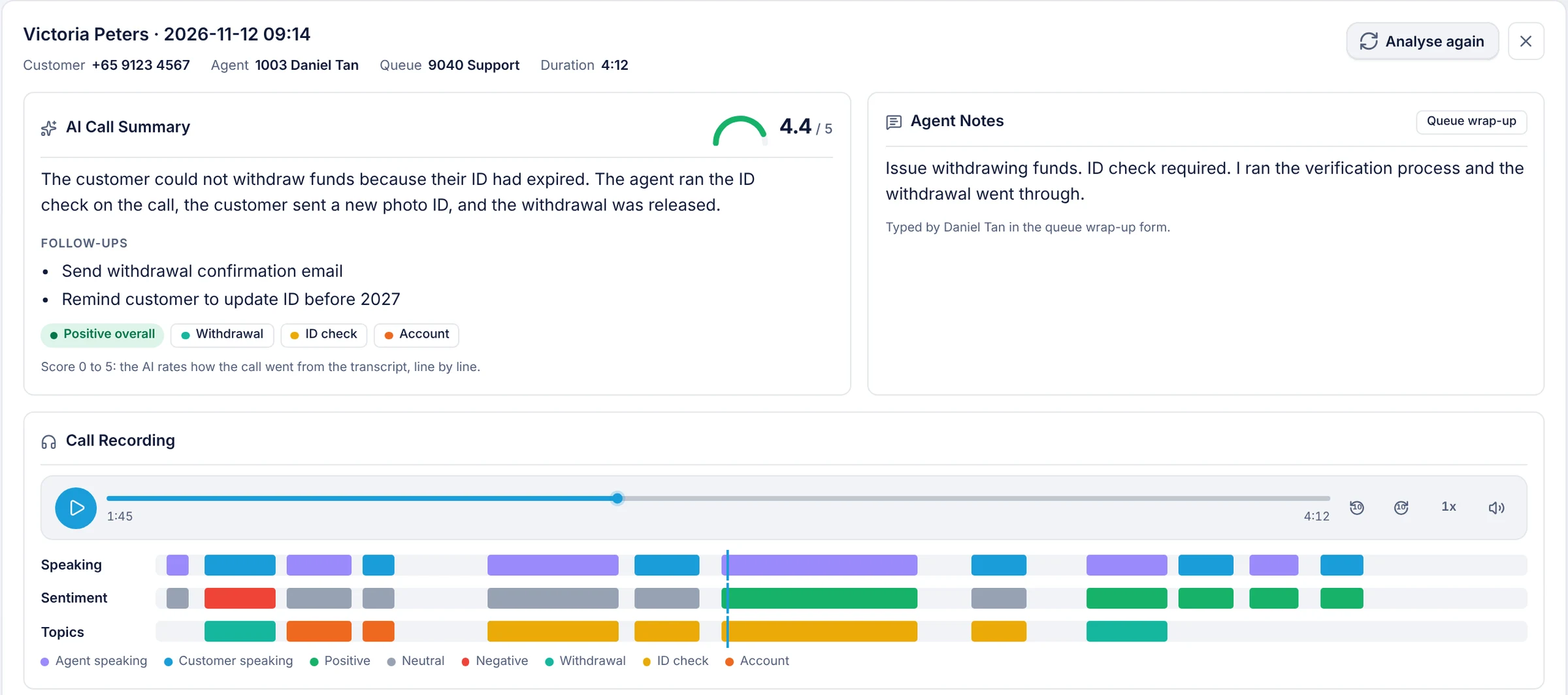
RingQ AI Call Insights turns each recorded call into an AI summary, a call score from 0 to 5, sentiment and topics on the recording timeline, and a transcript that shows who said what.
- 0-5
- Call score
- 3
- Timeline lanes
- 5
- Report filters
- 1
- Report for all calls
Call Analytics Built Into Your Phone System
Every recorded call gets the same set of AI insights, in the same place as your call logs and queue reports. Supervisors review more calls in less time, and agents get clear, fair feedback.
AI Call Summary
A short, plain summary of every recorded call, with the follow-ups the agent promised.
Call Score from 0 to 5
The AI rates how each call went, line by line, so the best and the worst calls stand out.
Sentiment Analysis
Positive, neutral or negative for the whole call and for every line, on the recording timeline.
Call Topics
Topics like billing, refunds or bookings, marked where they come up in the call and counted in the report.
Labelled Transcript
Who said what and when, with Agent and Customer labels. Click a line to play the call from there.
Agent Notes Beside the AI
The agent's queue wrap-up or call pop-up notes sit next to the AI summary for a full picture.
- 01One Report for Every Call
Call Quality at a Glance
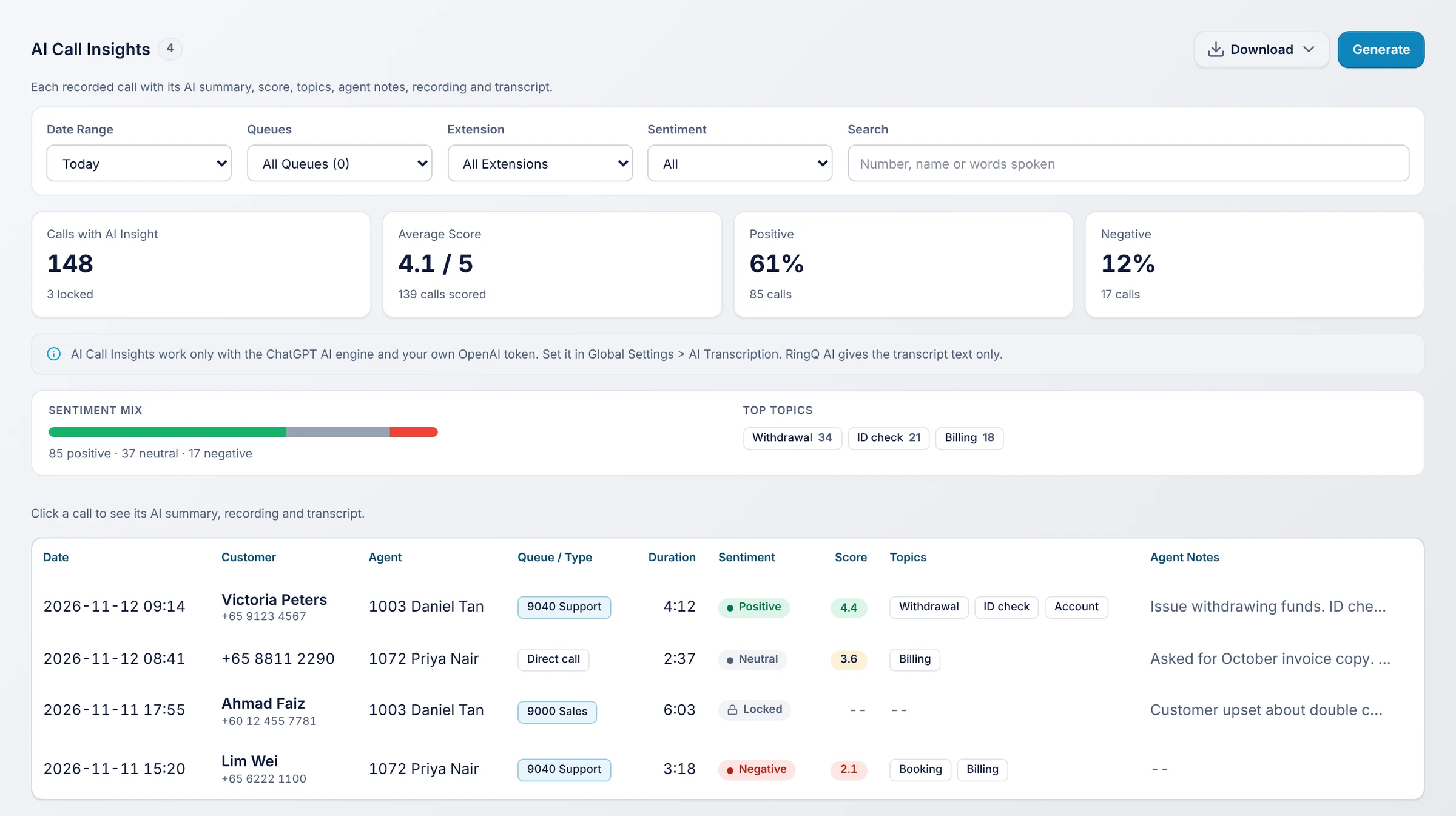
The AI Call Insights report lists each recorded call with its customer, agent, queue, sentiment, score, topics and agent notes. The tiles on top show the average call score and the share of positive and negative calls, and the top topics show what customers call about most. Filter by date, queue, extension or sentiment, or search the words spoken on the call.
- Average call score
- Sentiment mix
- Top topics
- Search by words spoken
- 02Recording Timeline
See the Whole Call Before You Press Play
Under the recording, three lanes show who is speaking, how the mood changes and which topic is being discussed. Jump straight to the moment the customer got upset, or to the part where the refund was agreed, instead of listening to the whole call.
- Speaking
- Sentiment
- Topics

- 03Transcript
A Transcript You Can Actually Use
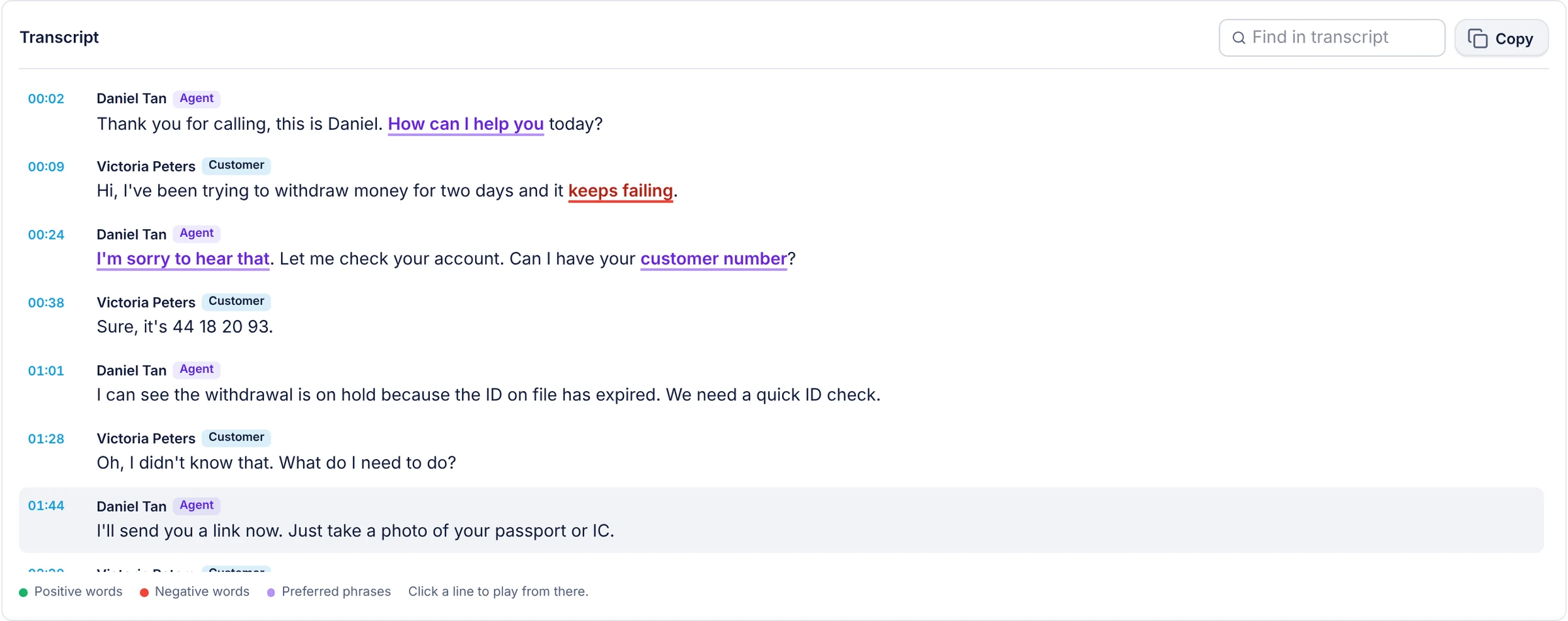
Each line shows its time and whether the agent or the customer said it. Positive words are marked green, negative words red, and your preferred phrases purple, so coaching is quick: you can see whether agents used the greeting and the empathy lines you train them on. Find a word, copy the transcript, or click any line to play it.
- Agent and Customer labels
- Timestamps
- Preferred phrases
- Click to play
- 04Agent Notes
What the Agent Wrote, Next to What the AI Heard
For queue calls, the agent's wrap-up notes appear beside the AI summary. For other calls, it shows the notes typed in the call pop-up. Supervisors can compare both in one place and spot calls where the notes and the conversation don't match.
- 05Your Data, Your AI Account
Runs on Your Own OpenAI Account
AI Call Insights uses the ChatGPT AI engine with your company's own OpenAI token, so you choose the AI account, see the usage and keep control of the data. Recordings and transcripts can be encrypted on the server, and access to them is limited by user permissions.
Set up in minutes
Three steps to AI insights on every call
- 1
Turn on call recording
Record the queues, ring groups or extensions you want insights for.
- 2
Choose ChatGPT AI
In Global Settings > AI Transcription, pick ChatGPT AI and paste your OpenAI token.
- 3
Open the report
Go to Reports > AI Call Insights. New recorded calls get their summary, score and transcript automatically.
Step-by-step instructions with screenshots: AI Call Insights guide
Frequently asked questions
What is AI Call Insights in RingQ?
AI Call Insights is a RingQ report that turns each recorded call into an AI summary, a call score from 0 to 5, follow-ups, sentiment, topics and a labelled transcript, shown next to the recording and the agent's notes.
How is the call score calculated?
The AI reads the transcript line by line and rates how the call went from 0 to 5, based on whether the customer's issue was solved, the customer's mood through the call and how the agent handled it.
Which AI engine does it use?
AI Call Insights works with the ChatGPT AI engine and your own OpenAI token, set in Global Settings > AI Transcription. The RingQ AI engine gives the transcript text only, without the score, sentiment and topics.
Does it work for calls that are not in a queue?
Yes. Any recorded call can have insights. For queue calls, the agent's wrap-up notes are shown, and for other calls, the notes from the call pop-up.
Can I get the report by email?
Yes. Like other RingQ reports, you can download AI Call Insights or schedule it to be emailed daily, weekly or monthly.
What happens to older calls?
Calls recorded before you turned it on can be analysed on demand: open the call in the report and press Analyse again.
Why Contact Centers Use AI Call Insights
Supervisors read a summary and a score instead of listening to every recording, and only open the calls that need attention.