
Accessibility
A phone system every person on your team can use
RingQ lets each person change how the app looks and how they control it: larger text, stronger contrast, calmer motion, an easy-to-read font, and keyboard shortcuts they can set themselves.
- 4
- text sizes, up to 150%
- 7
- display settings
- 6
- shortcuts you can change

One settings page
Every option in the same place
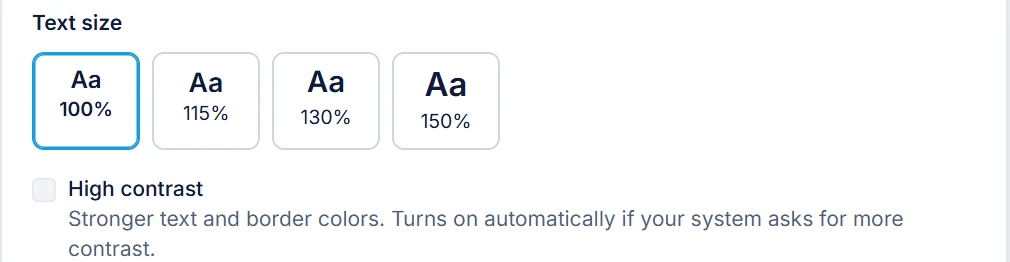
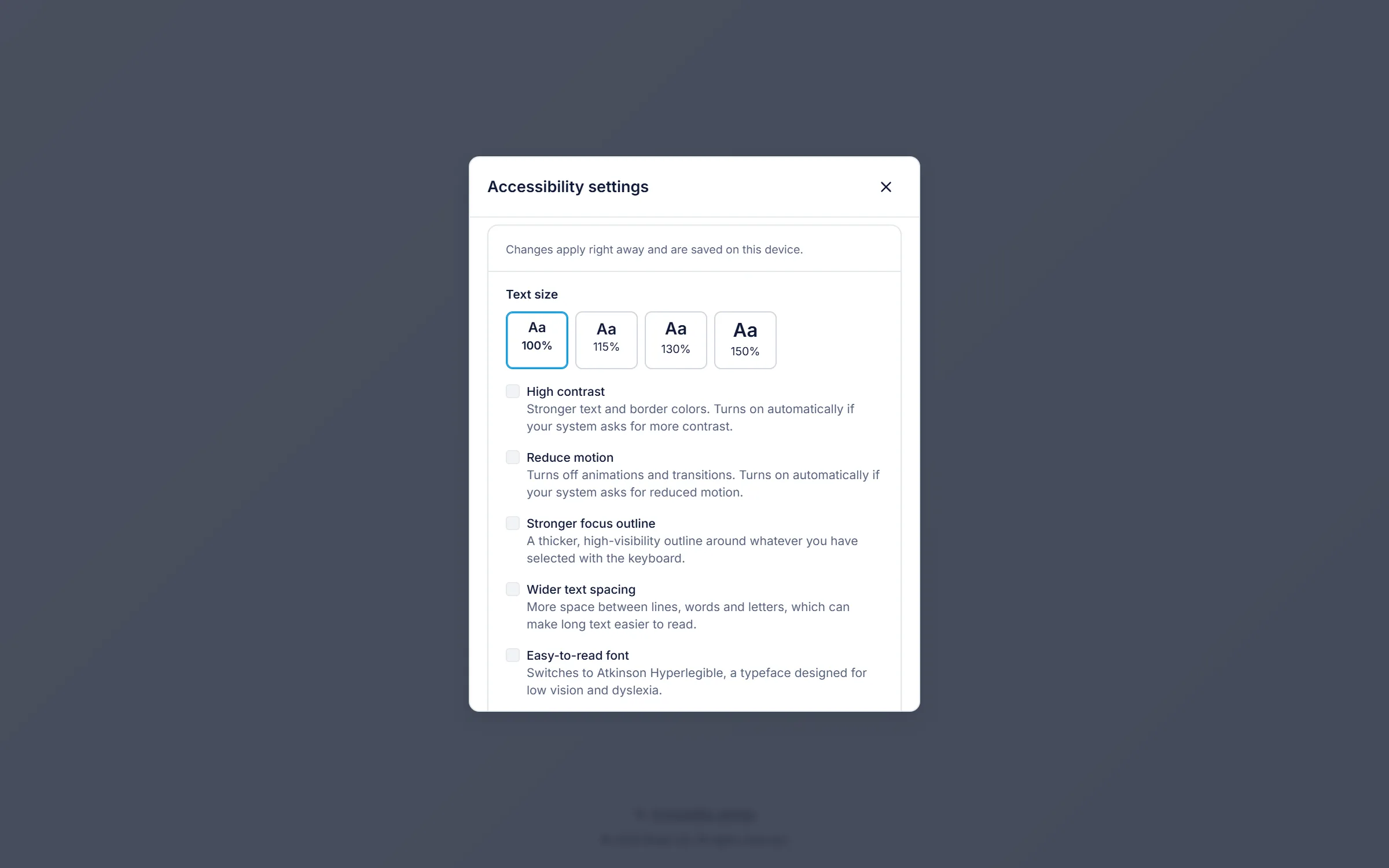
Everything is on one page, applies the moment you choose it, and is remembered on that device. Nobody needs an admin to switch it on.
Text size
Choose 100%, 115%, 130% or 150%. The whole app scales together.
Contrast, motion and focus
Turn on high contrast, switch off animations, and make the keyboard focus outline stronger.
Spacing, font and theme
Add space between lines and words, switch to an easy-to-read font, or follow your computer's light and dark setting.
Keyboard shortcuts
See every shortcut and change the ones you want, straight from this page.
Make it fit you
Change how RingQ looks, in one click
Bigger text, stronger contrast and calmer screens, for the people who need them and the days they do.
Bigger text when you need it
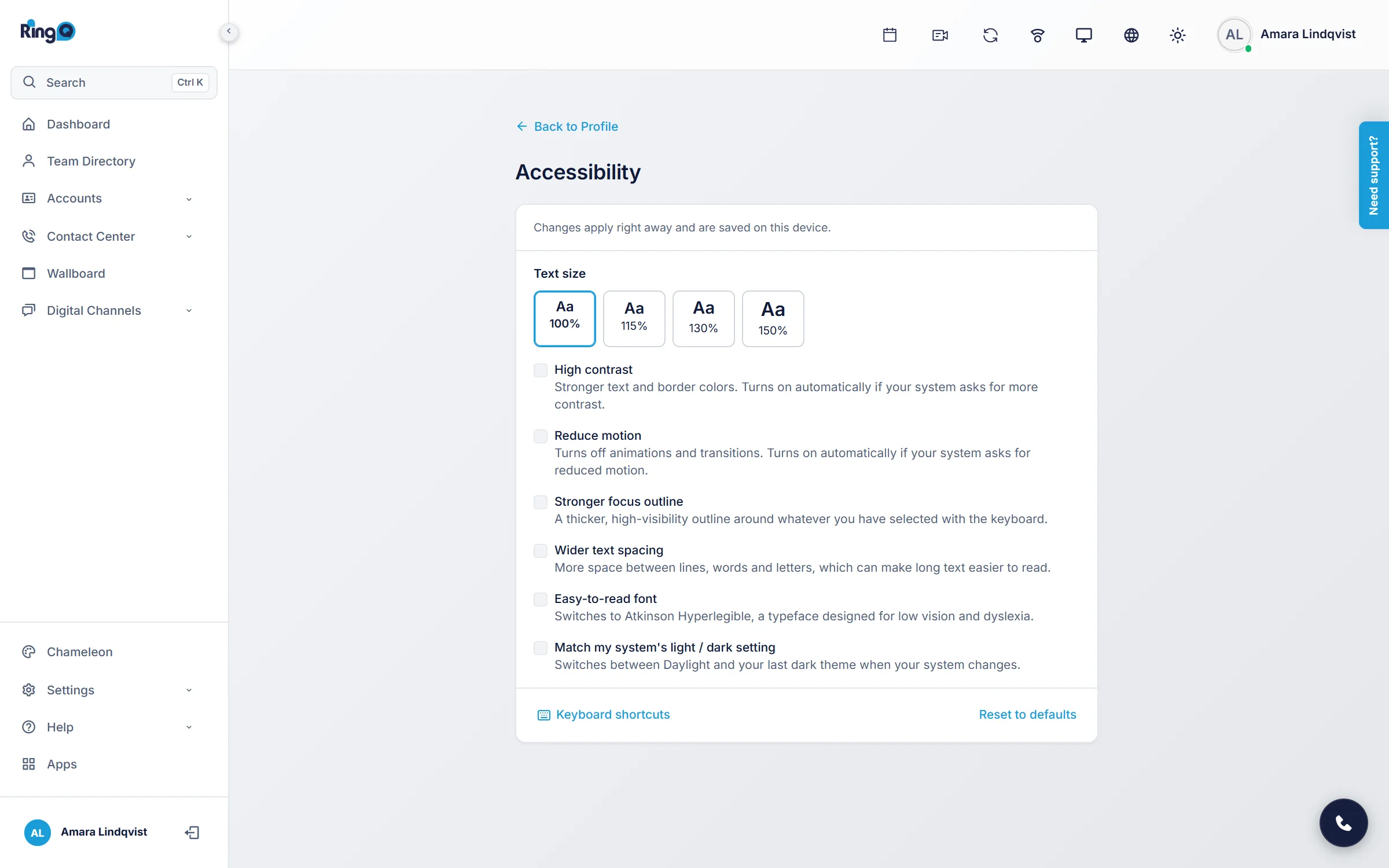
Choose 100%, 115%, 130% or 150%. The whole app scales together, from the menus to the tables, and the layout reflows to keep everything readable.
- Four sizes, from the default up to 150%
- Applies to every screen, not just one page
- Changes straight away, with no reload

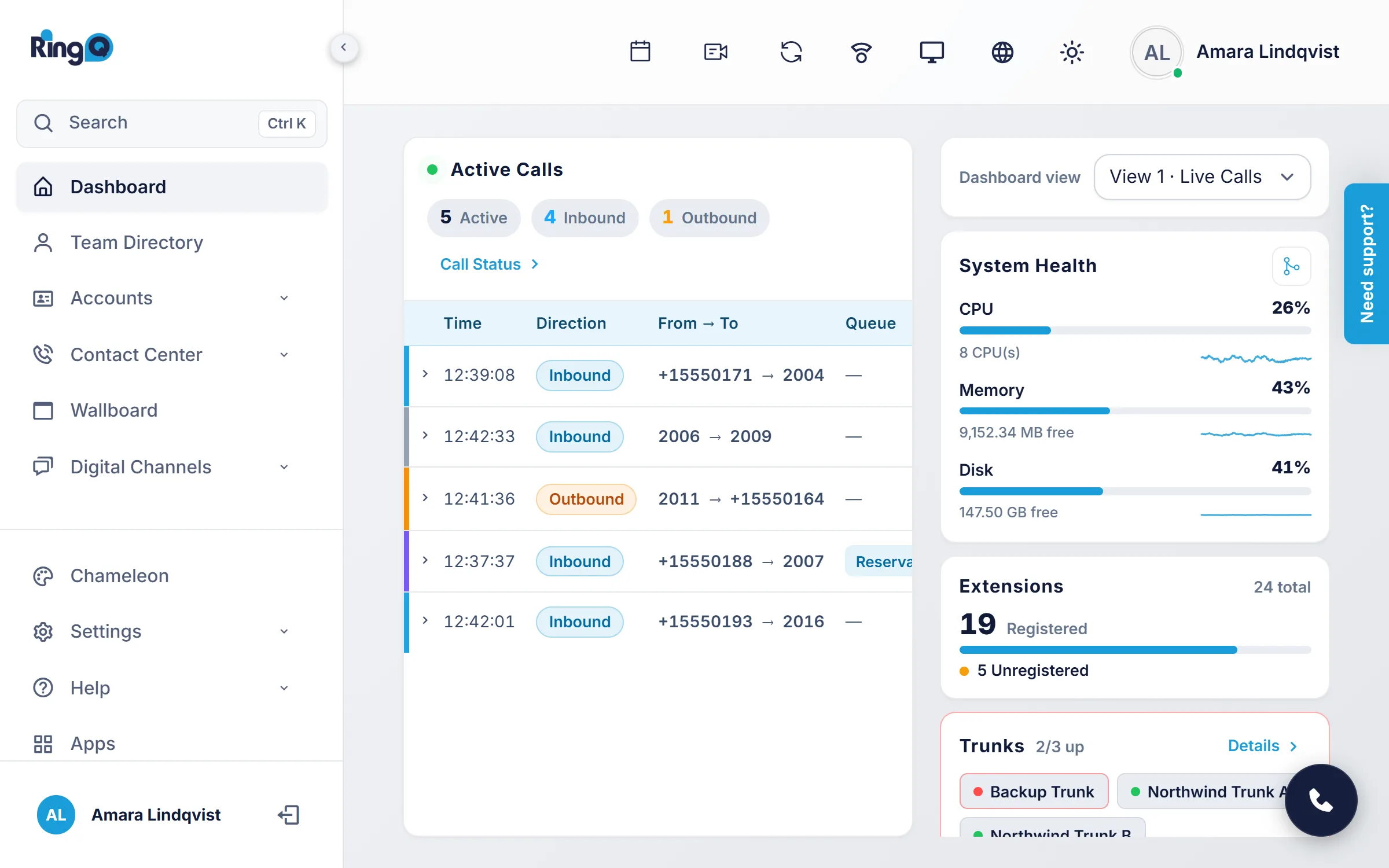
Stronger contrast for text and controls
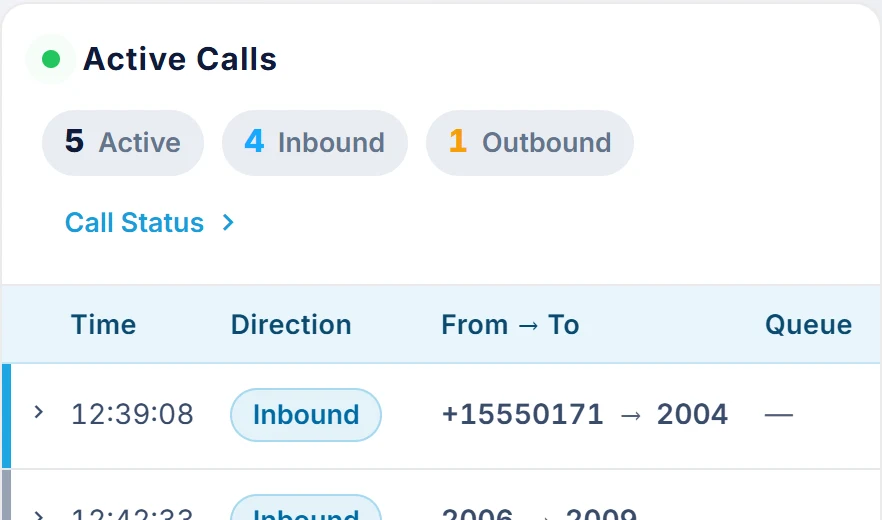
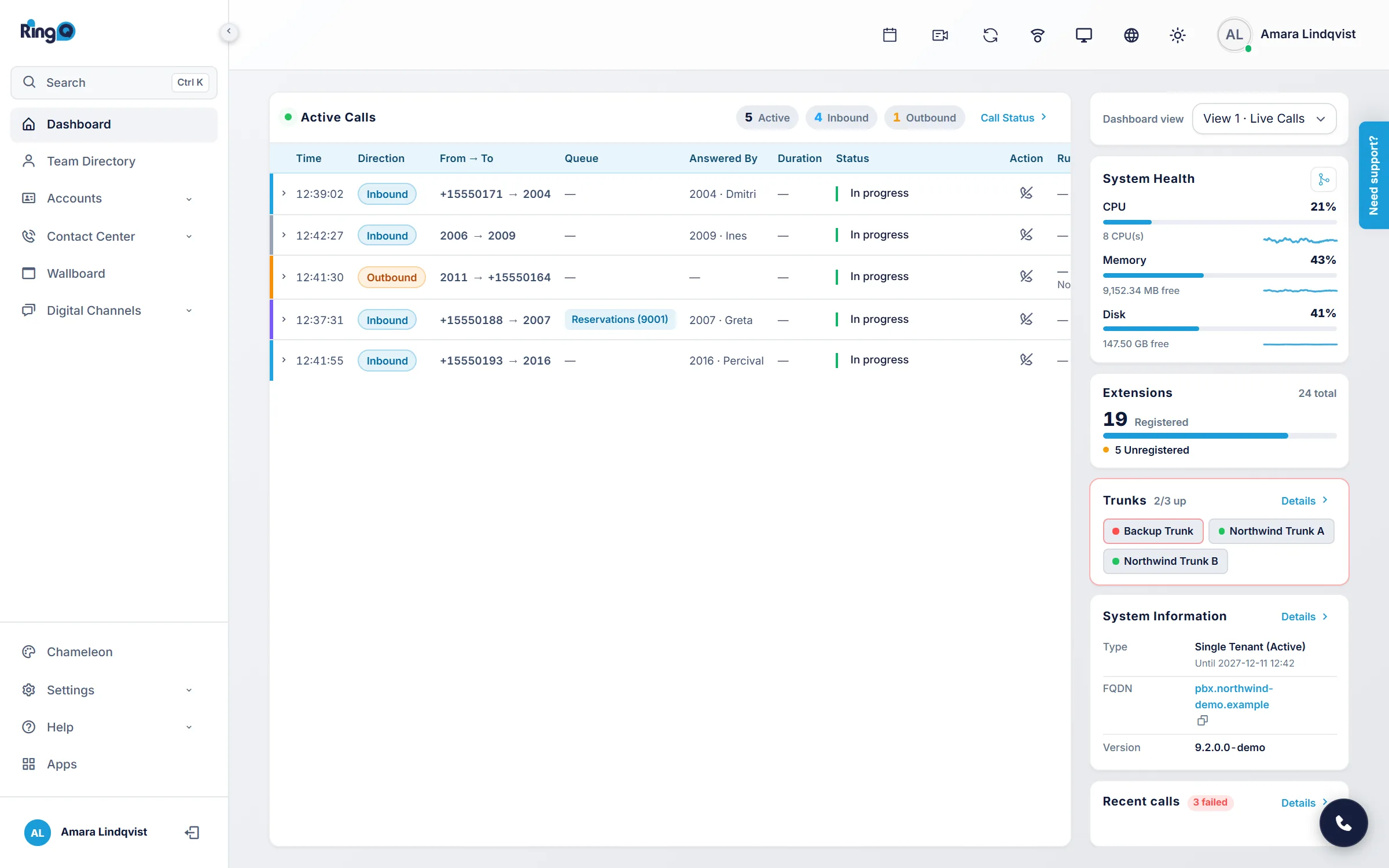
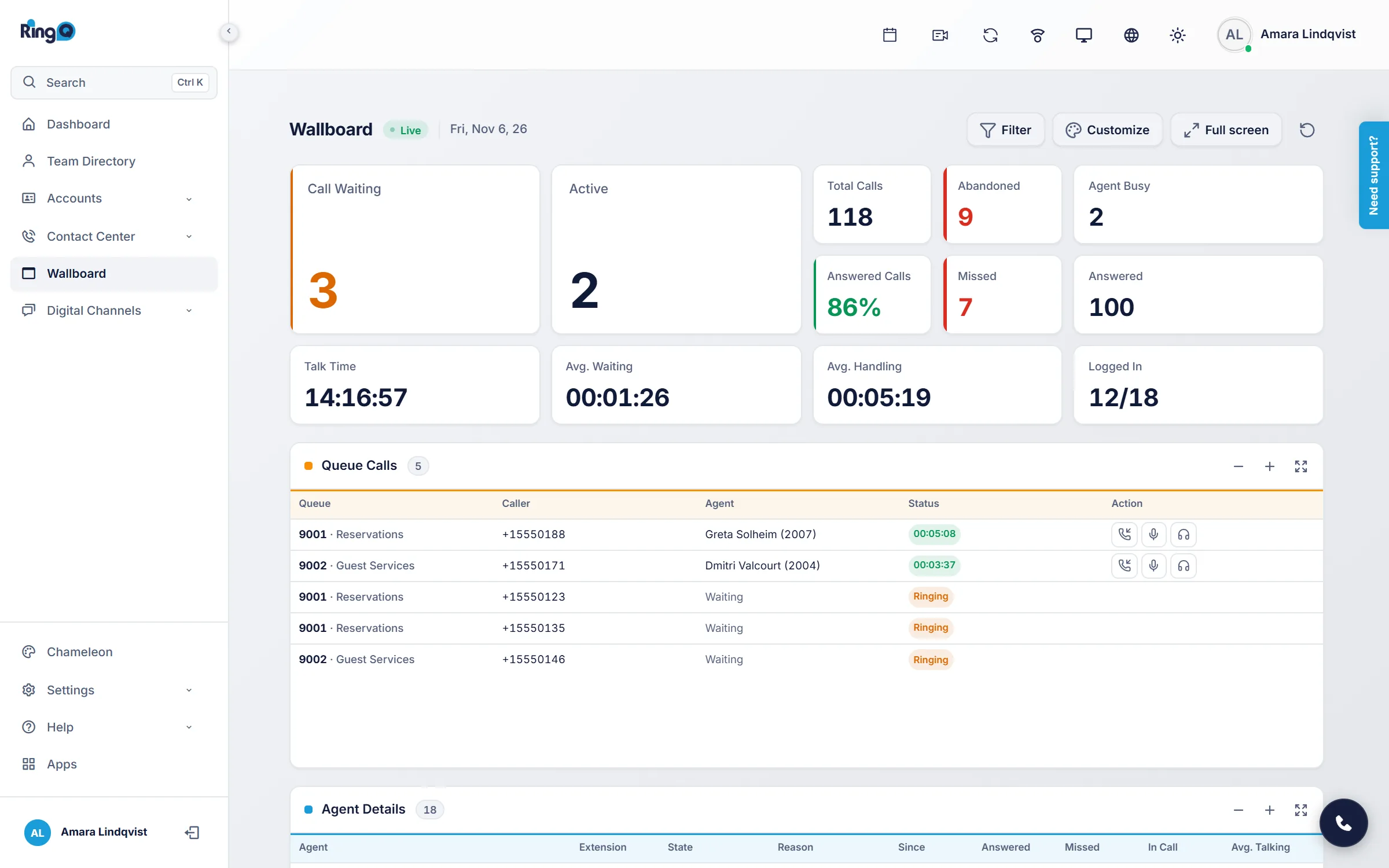
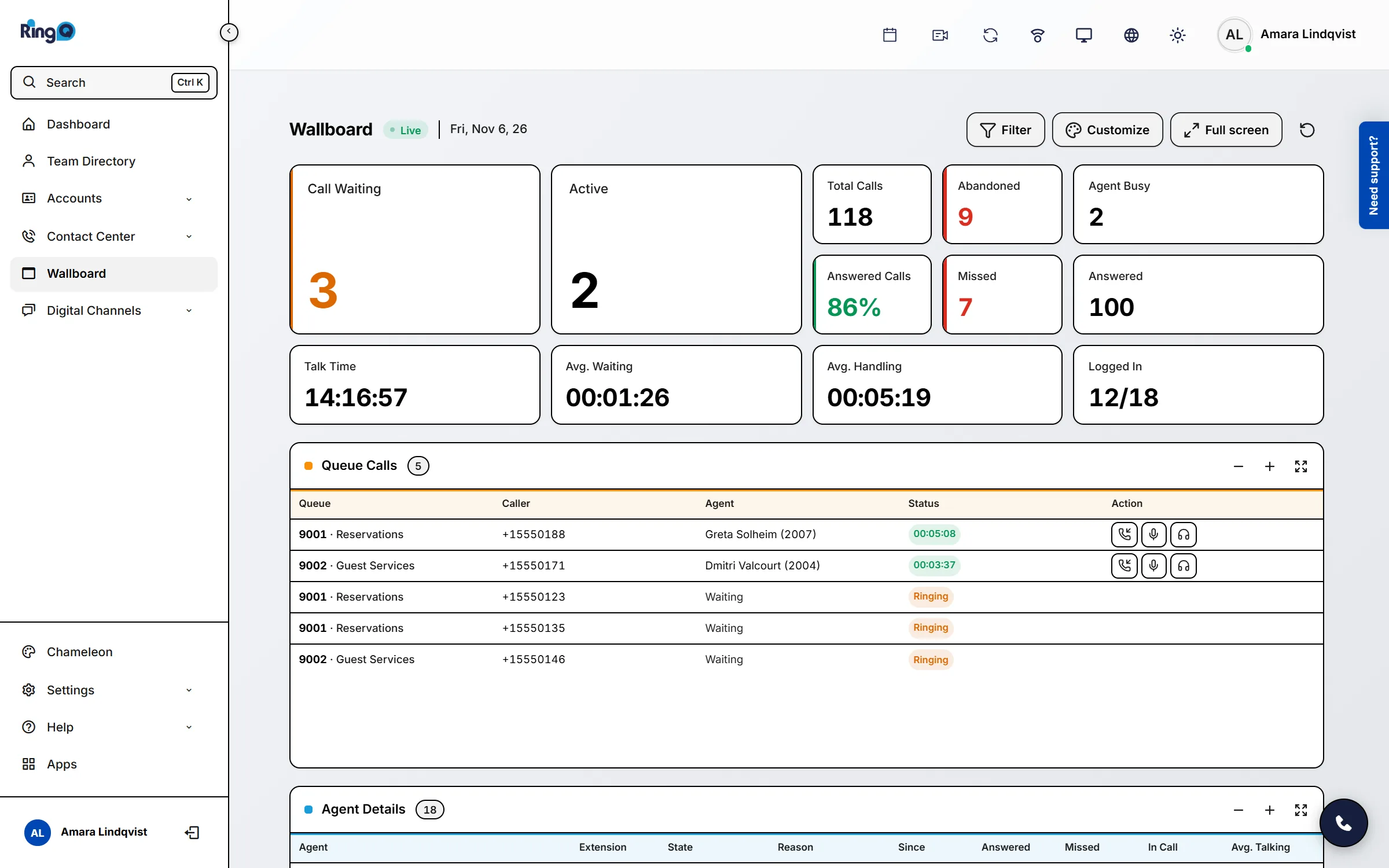
High contrast gives text and borders more definition, so labels, fields and buttons stand out from the page. It also turns on by itself when your computer asks for more contrast.
- Black text and clear outlines on every card, table and field
- A visible outline on whatever you have selected
- Works with the Daylight theme and the dark themes

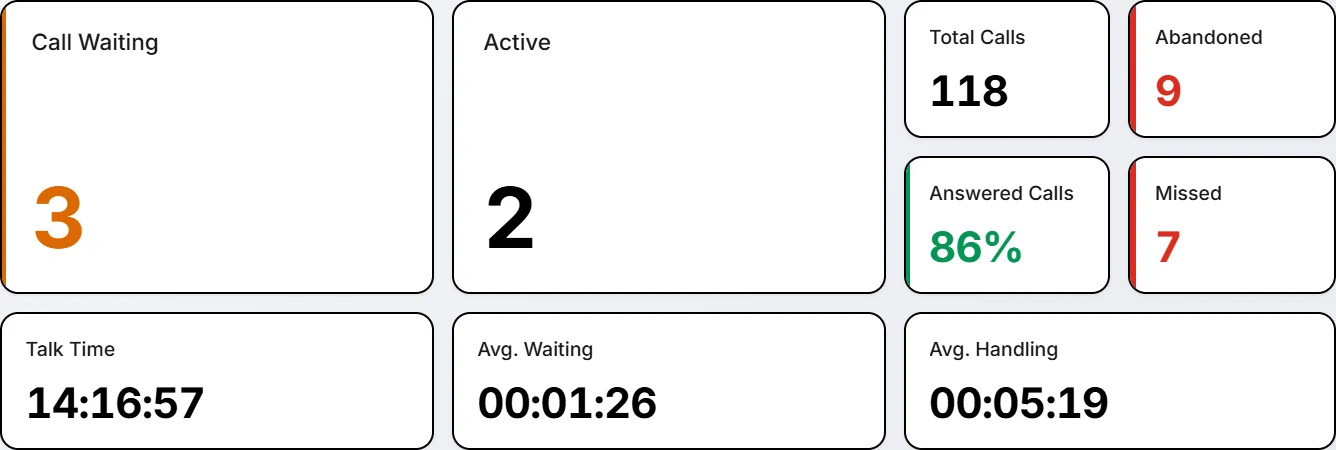
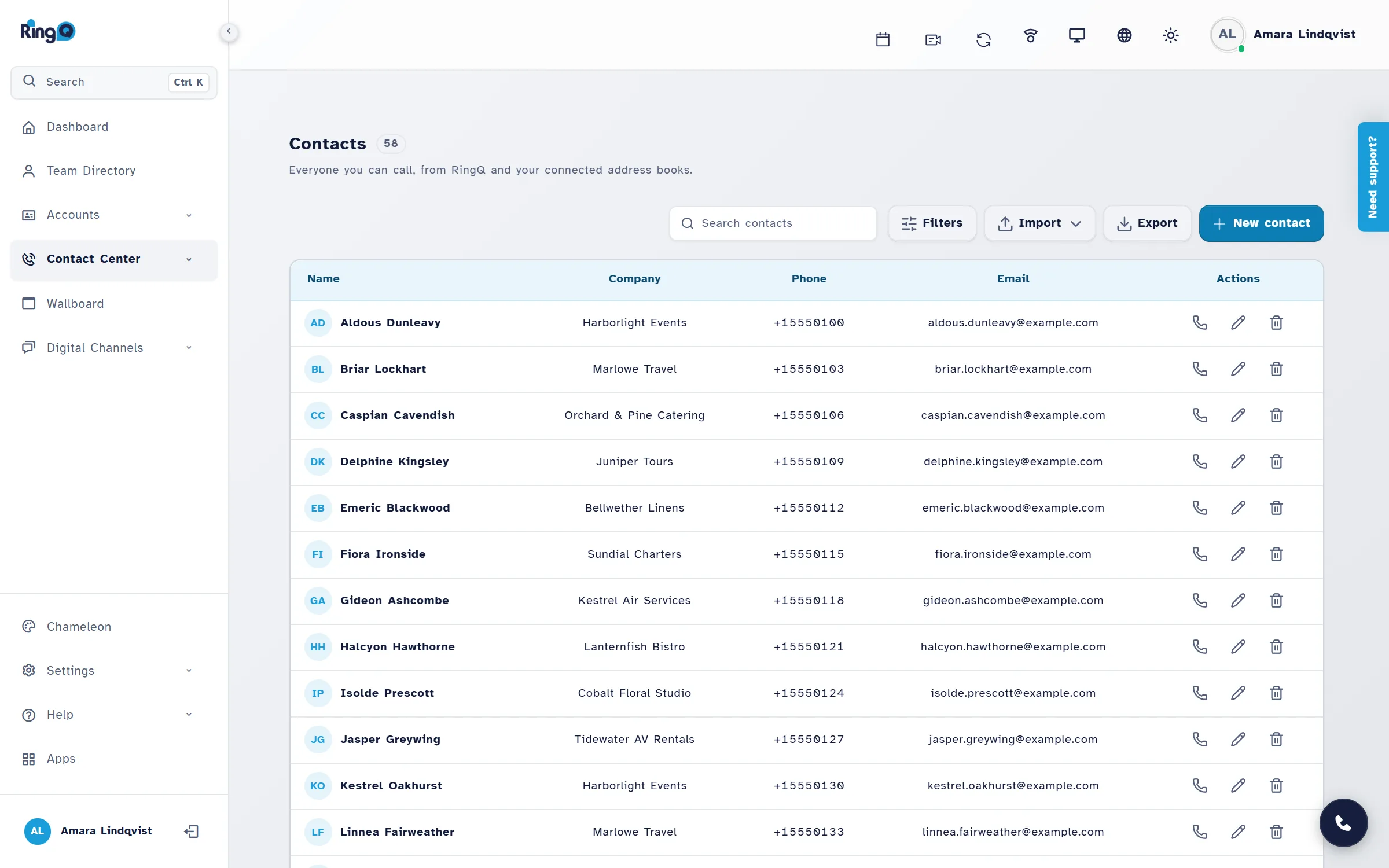
An easy-to-read font and more space between lines
Switch to Atkinson Hyperlegible, a typeface designed for readers with low vision, and add extra spacing between lines, words and letters. Long lists and tables become easier to follow.
- Atkinson Hyperlegible, loaded only if you choose it
- Wider line, word and letter spacing
- Icons and layout stay exactly as they were
Reduce motion
Turns off animations and transitions for people who find movement distracting or uncomfortable.
Stronger focus outline
A thick, high-visibility outline follows the keyboard around the page, so you never lose your place.
Works from the keyboard
Everything within reach, without a mouse
Keyboard users can reach every control, skip past the menus, and set the shortcuts to whatever suits them.
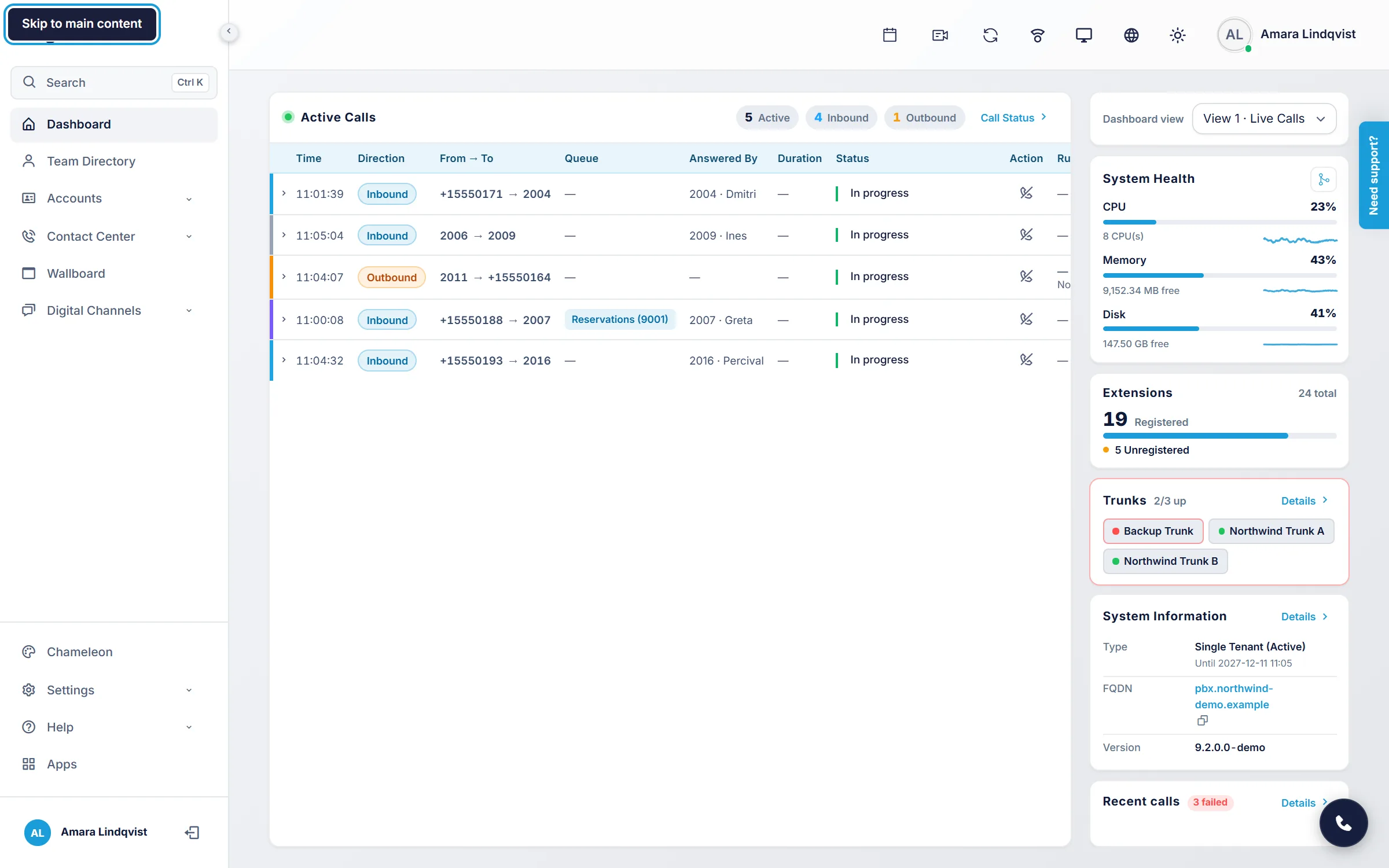
Skip straight to the work
The first Tab stop on every page is a Skip to main content link. One key press jumps past the sidebar and top bar, so keyboard and screen reader users are not tabbing through the menu on every page.
- Appears the moment you press Tab
- Moves you straight into the page content
- A strong focus outline shows where you are
Shortcuts you can change
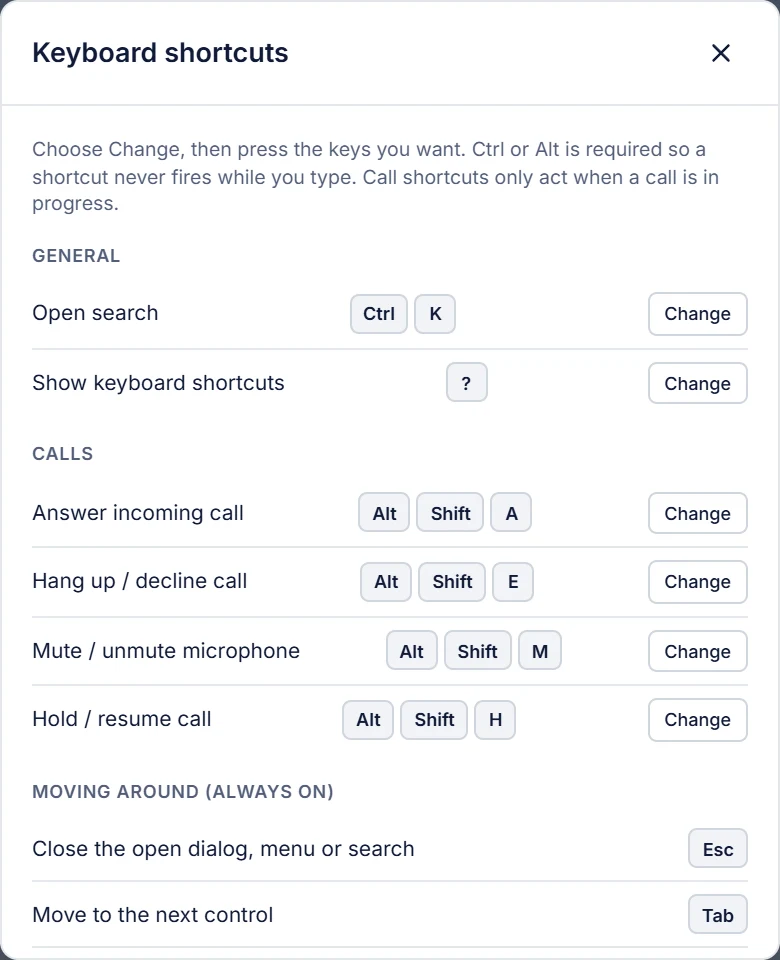
Press the question mark key to see every shortcut. Open search, answer a call, hang up, mute or hold, then choose Change and press the keys you would rather use. RingQ warns you if a combination is already taken.
- Search, answer, hang up or decline, mute and hold
- Press ? at any time to see the full list
- Reset one shortcut, or all of them, in a click

Built for calls
Screen reader support where it matters most: on the phone
A phone system changes quickly. RingQ sends the important changes to screen readers as they happen, so a call is never missed because it was only shown on screen.

Incoming calls are announced
When a call rings, RingQ tells screen reader users who is calling, without moving focus away from what they are doing.
Call state is spoken
Connected, on hold, ended and failed calls are each announced, so nobody has to look for a status light.
Mute is confirmed
Muting and unmuting the microphone is announced, so you always know whether the other person can hear you.
Answer and hang up from the keyboard
Answer, hang up or decline, mute and hold all have shortcuts, so a call never needs a mouse.
Alerts that are read out
Success and error messages appear as alerts that screen readers read aloud when they show up.
The page language follows you
When you change the RingQ language, the page language changes with it, so screen readers pick the right voice.
Easy to find
One click away, even before you sign in
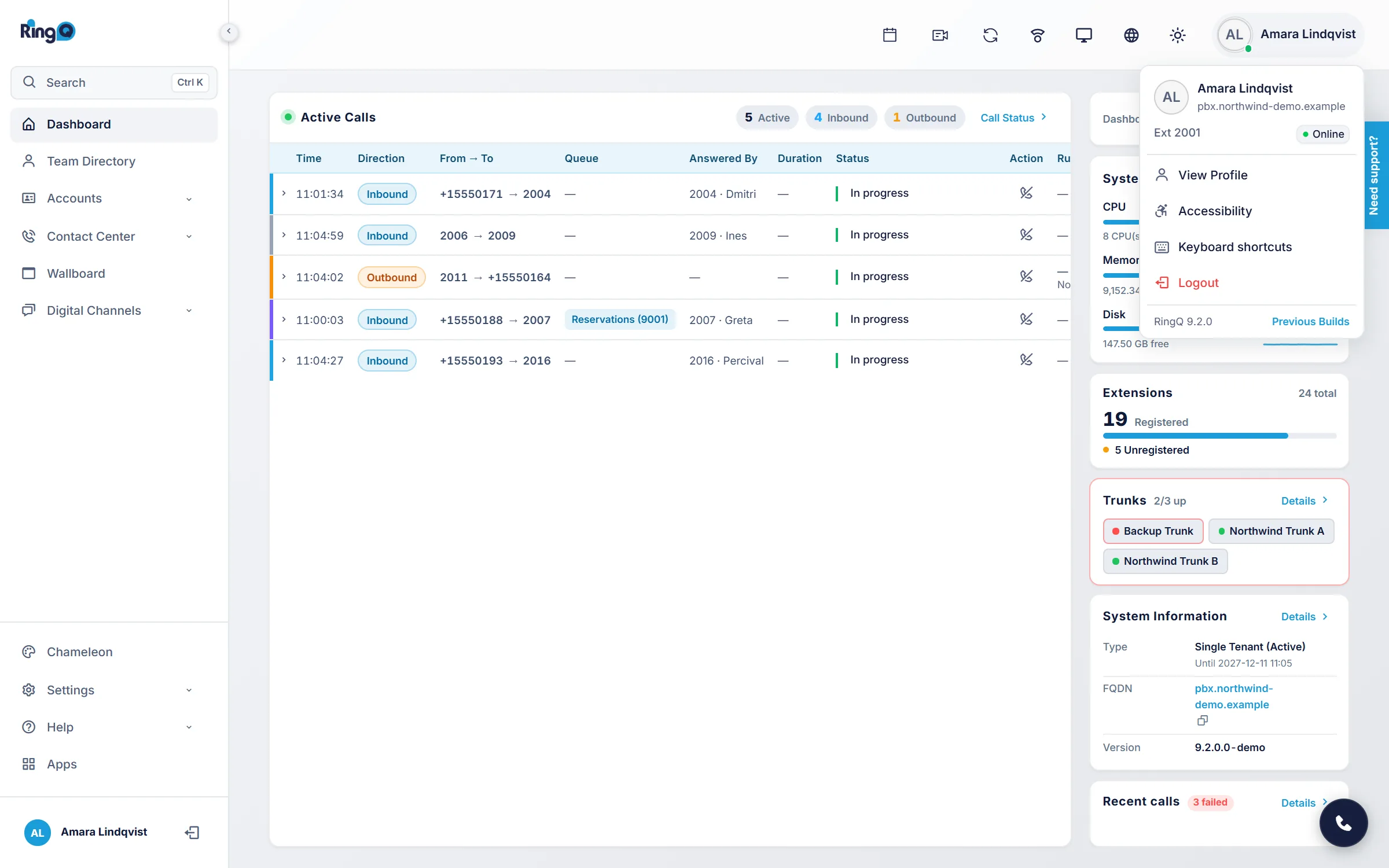
Accessibility settings are in the profile menu once you are signed in, and on the sign-in screen itself, so people can set things up before they start.
In the profile menu
Open the profile menu at the top right and choose Accessibility or Keyboard shortcuts.
On the sign-in screen
An Accessibility settings link sits below the sign-in form. Make the text larger or turn on high contrast first, then sign in.
Respects your system
Set it once on your computer, and RingQ follows
RingQ reads the accessibility settings people already use on Windows, macOS and their browser, so they do not have to set things up twice.
Needs more contrast?
If your computer is set to increase contrast, RingQ switches on its high contrast mode automatically.
Prefers less motion?
If your computer asks for reduced motion, RingQ turns animations and transitions off for you.
Light or dark?
Switch on one setting and RingQ follows your computer between Daylight and your last dark theme.
Missing something your team needs?
We build to WCAG 2.1 AA, but we have not had an independent audit yet and have no VPAT today. Tell us what you need and we will plan for it.