GUIDE TO
RingQ Portal — Checking Port Status, Internal & External Scanning
The Server Ports panel in RingQ allows administrators to view the full list of ports used by the system and check their live status — both from inside the server (Internal scan) and from the public internet (External scan). This is useful for verifying firewall rules, diagnosing connectivity issues, and confirming that critical services such as SIP, RTP media, and WebRTC are reachable.
From the RingQ portal, go to General Setting. Scroll down to the Advanced section and click the Ports tile (highlighted below).
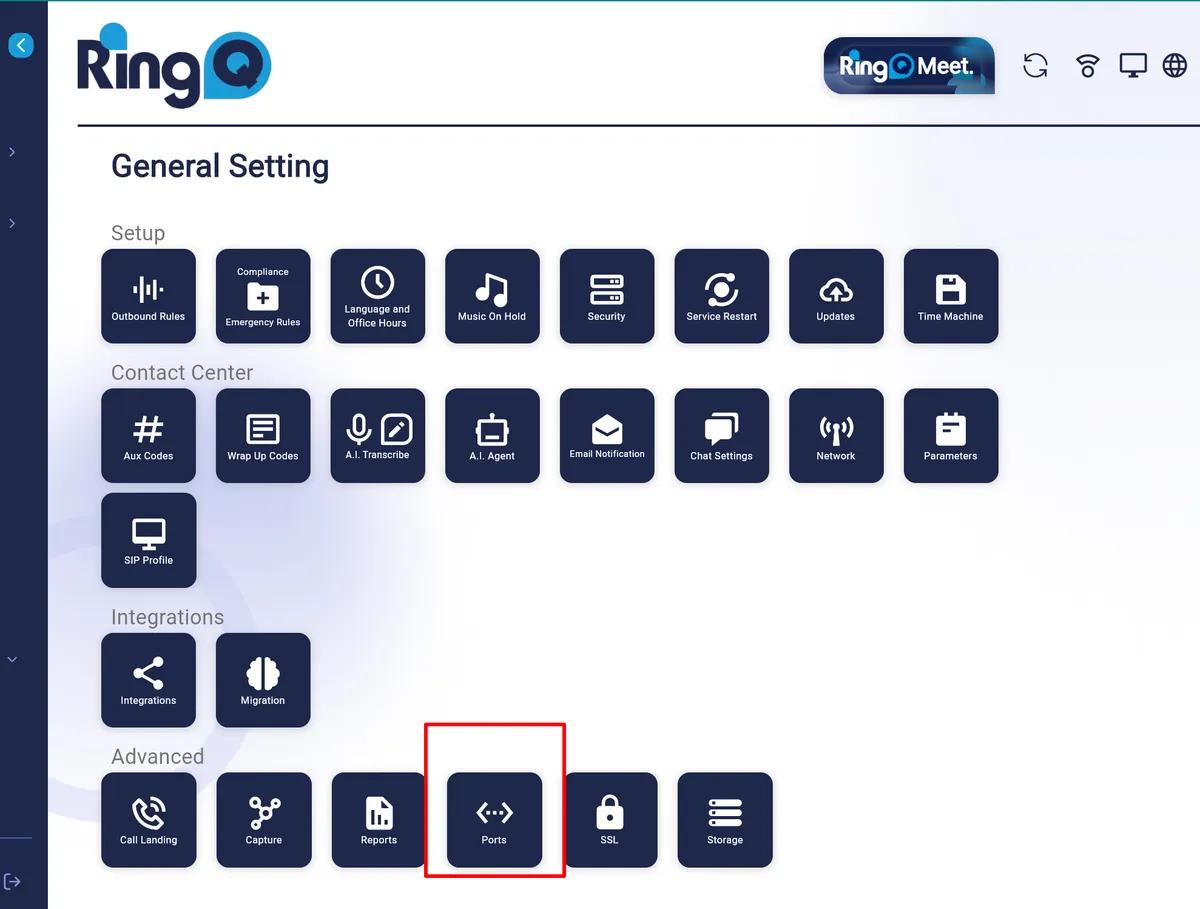
Fig. 1 — General Setting page. Click the Ports tile under the Advanced section (highlighted in red).
The Server Ports panel lists every port used by RingQ, grouped into categories accessible via the filter tabs at the top. Each row shows the port number, protocol, direction, service name, current status, and a Scan button to test that port individually.
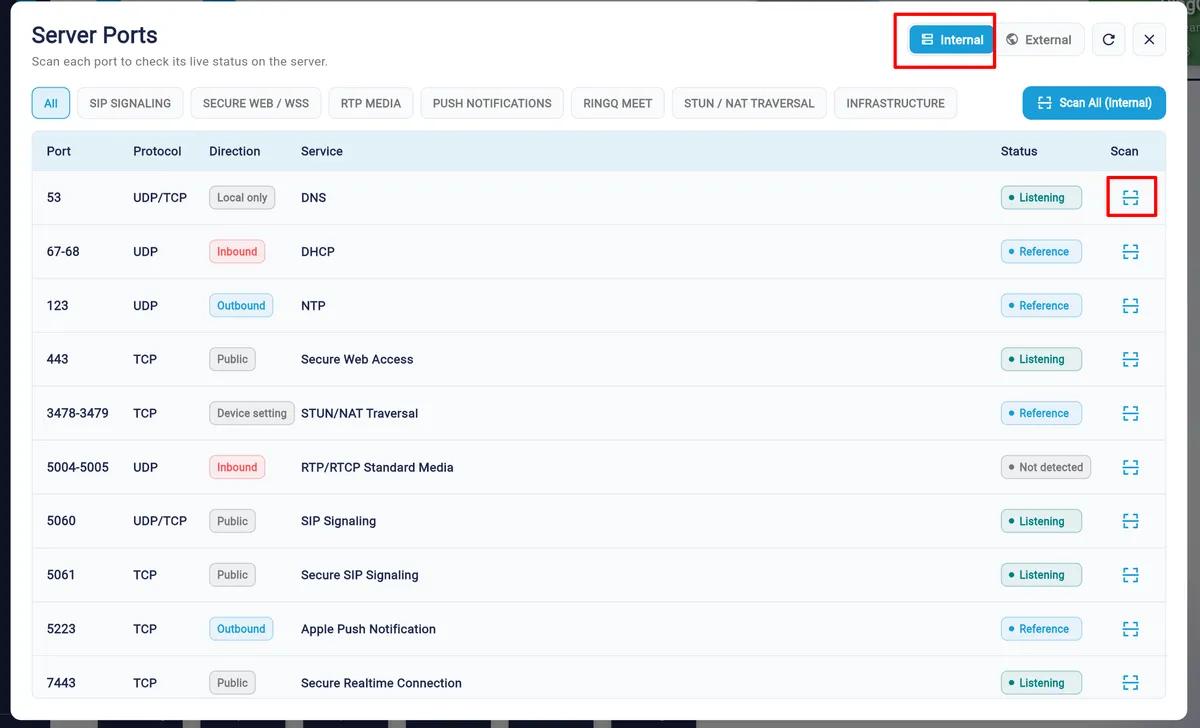
Fig. 2 — Server Ports panel (Internal view). Filter tabs across the top allow filtering by service category. The Scan icon (red box) tests an individual port.
The filter tabs available are:
| Category | Ports Covered |
|---|---|
| SIP Signaling | Ports 5060 (UDP/TCP) and 5061 (TCP) for SIP call setup and signaling. |
| Secure Web / WSS | Ports 80, 443, 7443, 8089 for HTTPS and WebSocket connections. |
| RTP Media | Ports 5004–5005, 32768–60999, 48000–65535 for audio/video media streams. |
| Push Notifications | Port 5223 for Apple Push Notification Service (APNS). |
| RingQ Meet | Ports 10000–20000 for RingQ Meet video conferencing media. |
| STUN / NAT Traversal | Ports 3478–3479 and Google STUN ports for NAT traversal. |
| Infrastructure | Ports 53 (DNS), 67–68 (DHCP), 123 (NTP) for core network services. |
The Status column uses the following indicators:
| Status | Meaning |
|---|---|
| Listening | The port is open and actively listening on this server. |
| Egress OK | Outbound traffic on this port is confirmed reachable from the server. |
| Reference | Port is listed for reference only; not directly scannable (e.g. DHCP, NTP). |
| Not detected | The port is not currently open or reachable. May indicate a firewall or config issue. |
Click the Internal button (top-right of the panel) to switch to the internal scan view. Then click Scan All (Internal) to test all ports from within the server itself. A live console output will display progress as each port is checked.
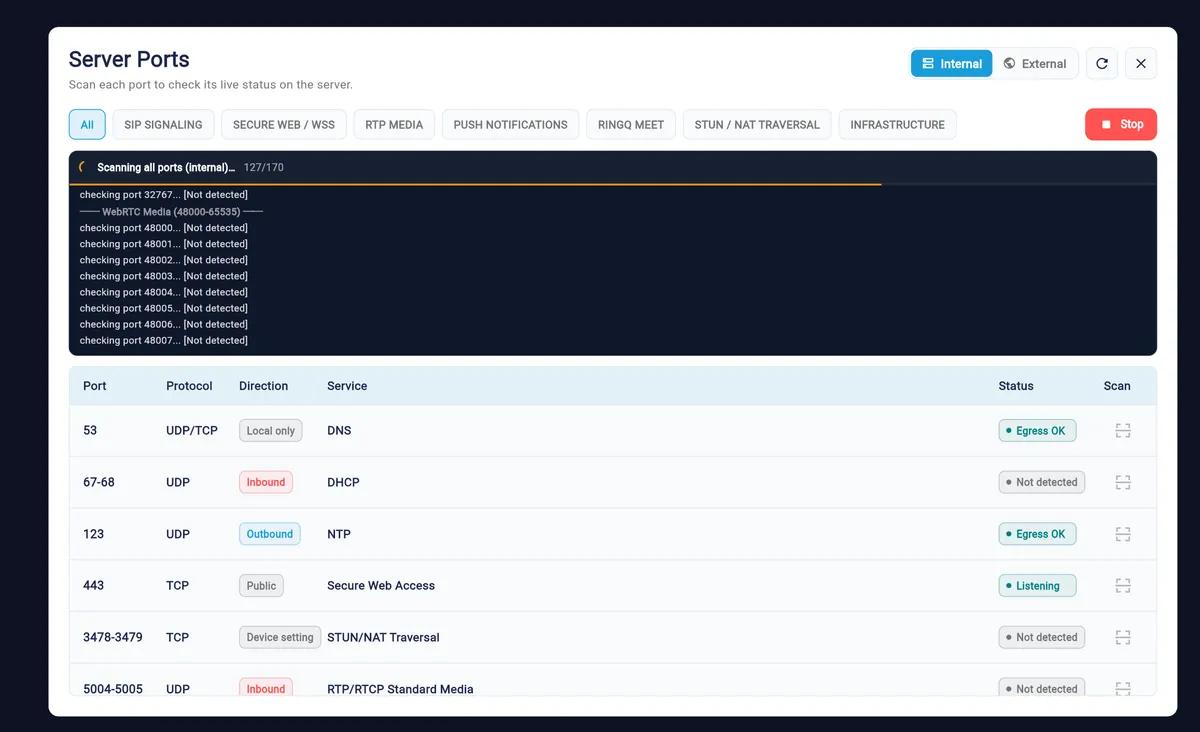
Fig. 3 — Internal scan in progress. The dark console shows real-time port checking (127/170 complete). Results update in the table below as each port is tested.
Once complete, each port row in the table will show its updated status. You can also scan a single port at any time by clicking the Scan icon on that row.
⚠ NOTE
The Internal scan tests ports from within the server — it does not confirm whether those ports are reachable from the internet. A port showing "Listening" internally may still be blocked by an upstream firewall. Use the External scan to verify public reachability.
Click the External button (top-right of the panel) to switch to the external scan view. Then click Scan All (External) to probe all ports from RingQ's own external checker. This confirms which ports are reachable from the public internet.
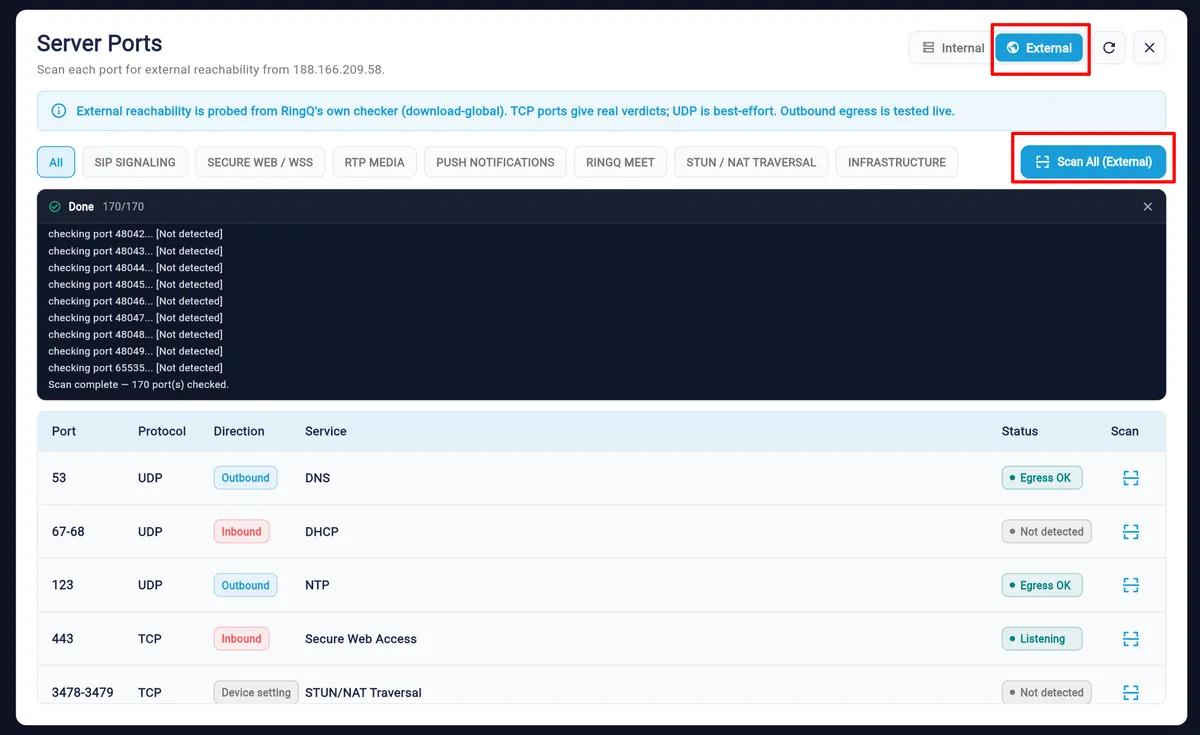
Fig. 4 — External scan complete (170/170 ports checked). The External button and Scan All (External) are highlighted in red. Results show Egress OK, Listening, or Not detected.
The external scan note at the top of the panel reads: "External reachability is probed from RingQ's own checker (download-global). TCP ports give real verdicts; UDP is best-effort. Outbound egress is tested live."
⚠ NOTE
UDP port results in the External scan are best-effort only and may show "Not detected" even when the port is open, depending on firewall and NAT configuration. TCP port results are definitive.
The following table lists all ports used by RingQ with their protocol, direction, and service category.
| Port | Protocol | Direction | Service | Category |
|---|---|---|---|---|
| 53 | UDP/TCP | Local only | DNS | Infrastructure |
| 67–68 | UDP | Inbound | DHCP | Infrastructure |
| 80 | TCP | Inbound | HTTP / Let's Encrypt | Secure Web / WSS |
| 123 | UDP | Outbound | NTP | Infrastructure |
| 443 | TCP | Public | Secure Web Access (HTTPS) | Secure Web / WSS |
| 3478–3479 | TCP | Device setting | STUN / NAT Traversal | STUN / NAT Traversal |
| 5004–5005 | UDP | Inbound | RTP/RTCP Standard Media | RTP Media |
| 5060 | UDP/TCP | Public | SIP Signaling | SIP Signaling |
| 5061 | TCP | Public | Secure SIP Signaling | SIP Signaling |
| 5223 | TCP | Outbound | Apple Push Notification | Push Notifications |
| 7443 | TCP | Public | Secure Realtime Connection | Secure Web / WSS |
| 8089 | TCP | Public | WebSocket (WSS) | Secure Web / WSS |
| 10000–20000 | UDP | Inbound | RTP Media (RingQ Meet) | RingQ Meet |
| 32768–60999 | UDP | Inbound | RTP/RTCP Extended Media | RTP Media |
| 48000–65535 | UDP | Inbound | WebRTC Media | RTP Media |
| 3479 | UDP | Outbound | STUN (Google) | STUN / NAT Traversal |
| 19302–19305 | UDP | Outbound | STUN (Google) | STUN / NAT Traversal |
| # | Action | What Happens |
|---|---|---|
| 1 | Navigate to Ports | General Setting → Advanced section → click the Ports tile. |
| 2 | Review the Panel | Filter by category tab; check port status, protocol, direction, and service. |
| 3 | Internal Scan | Click Internal → Scan All (Internal) to test ports from within the server. |
| 4 | External Scan | Click External → Scan All (External) to verify public internet reachability. |
For support, contact support@ringq.com | ringq.com
