
Your whole office, now in your pocket: everything the RingQ mobile app can do
Calls that ring even when the app is closed, one-tap transfers, video calls, meetings, team and customer chat, and up to five extensions on one phone. Free on iPhone and Android.

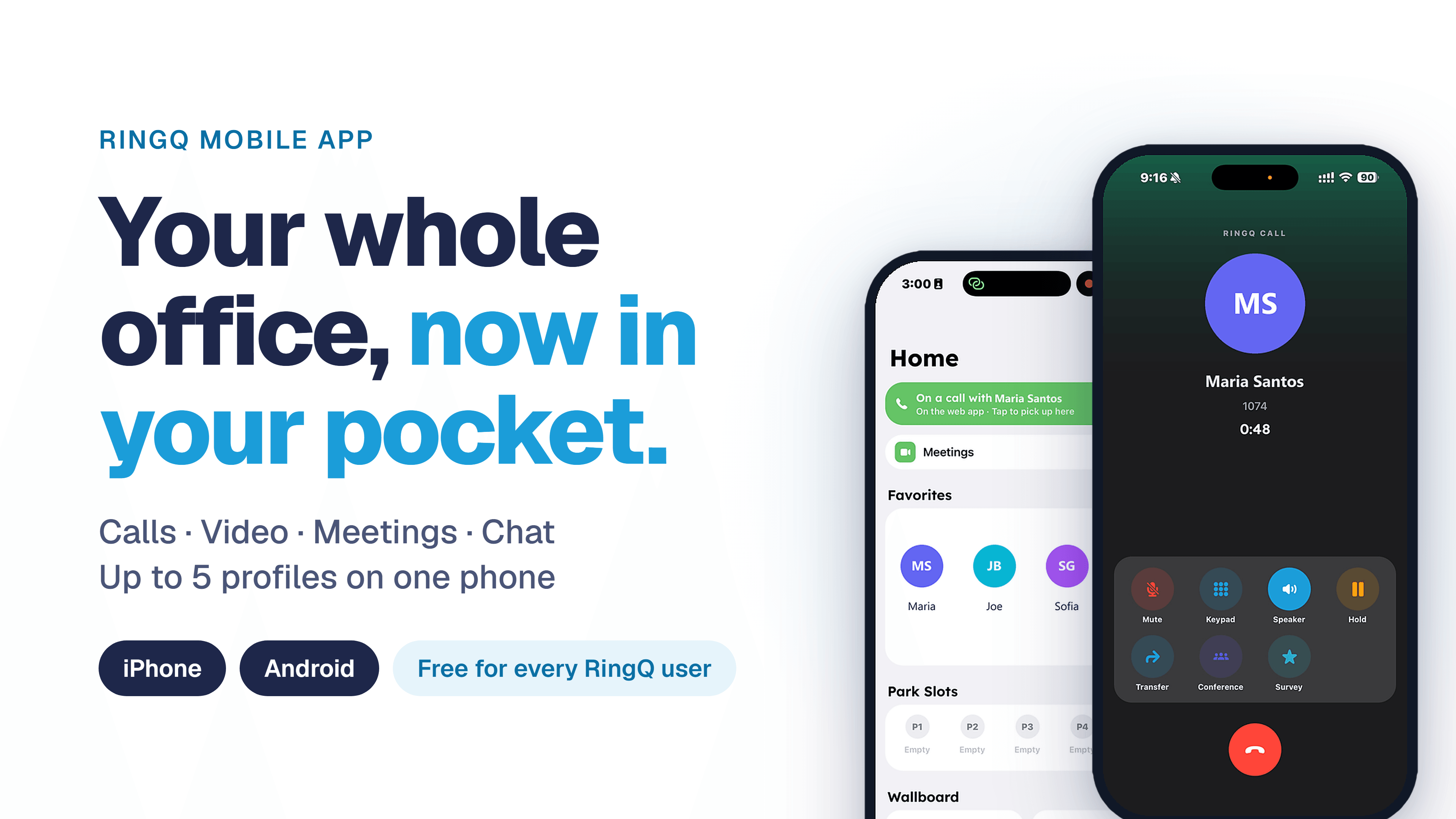
Work doesn’t stay at the desk any more, and neither should your phone system. Over the past weeks we have rebuilt the RingQ mobile app from the ground up, and today we can say it plainly: the RingQ app is now a complete office phone, video and chat system that fits in your pocket.
Your office extension rings on your phone wherever you are. Every call you make goes out on your business number, never your personal mobile number. And everything your team uses at the desk, from transfers and conference calls to meetings and customer WhatsApp chats, now works from the same app on iPhone and Android.
Here is the full tour.
Calls that ring like a real phone call
The first job of a business phone app is simple: when a customer calls, your phone must ring. RingQ calls now arrive the same way an ordinary phone call does, even when the app is closed and the screen is locked. On iPhone you get the standard iPhone call screen; on Android, a full-screen call with the caller’s name and photo.
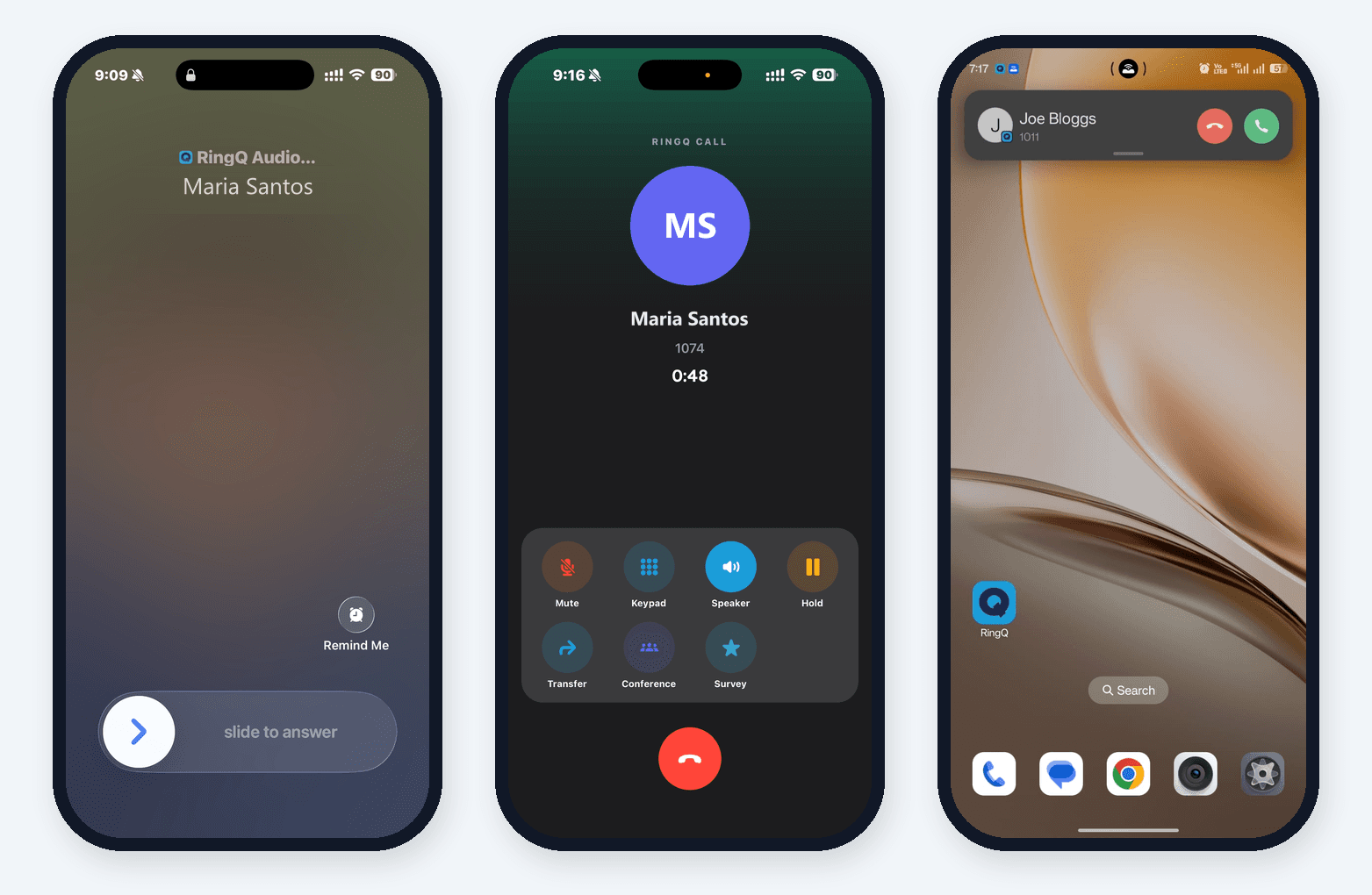
- Your business number, everywhere. Call from the keypad, your contacts or Recents, and the person you call sees your company number.
- Full call controls. Mute, hold with music, speaker, keypad tones for phone menus, and call recording where your company allows it.
- Choose where you hear the call. The new Audio button switches between the phone, the loudspeaker, a Bluetooth headset or a wired headset. On Android, a connected headset takes the call from the very first second.
- Missed calls and voicemail sit in Recents with a badge, and the Voicemail button shows how many messages you haven’t heard yet.
- Rate a call in one tap. After a call, tap Survey to rate its quality, so your administrator sees how calls really sound.
- Steadier calls on mobile data. The app picks the most reliable connection before a call connects, so calls go through on Wi-Fi, 4G and 5G alike.
Step-by-step guide: Making and Receiving Calls
Transfer, park and conference, from your phone
Being away from the desk no longer means “I’ll call you back from the office”. Every call-handling feature your receptionist uses is in the app.
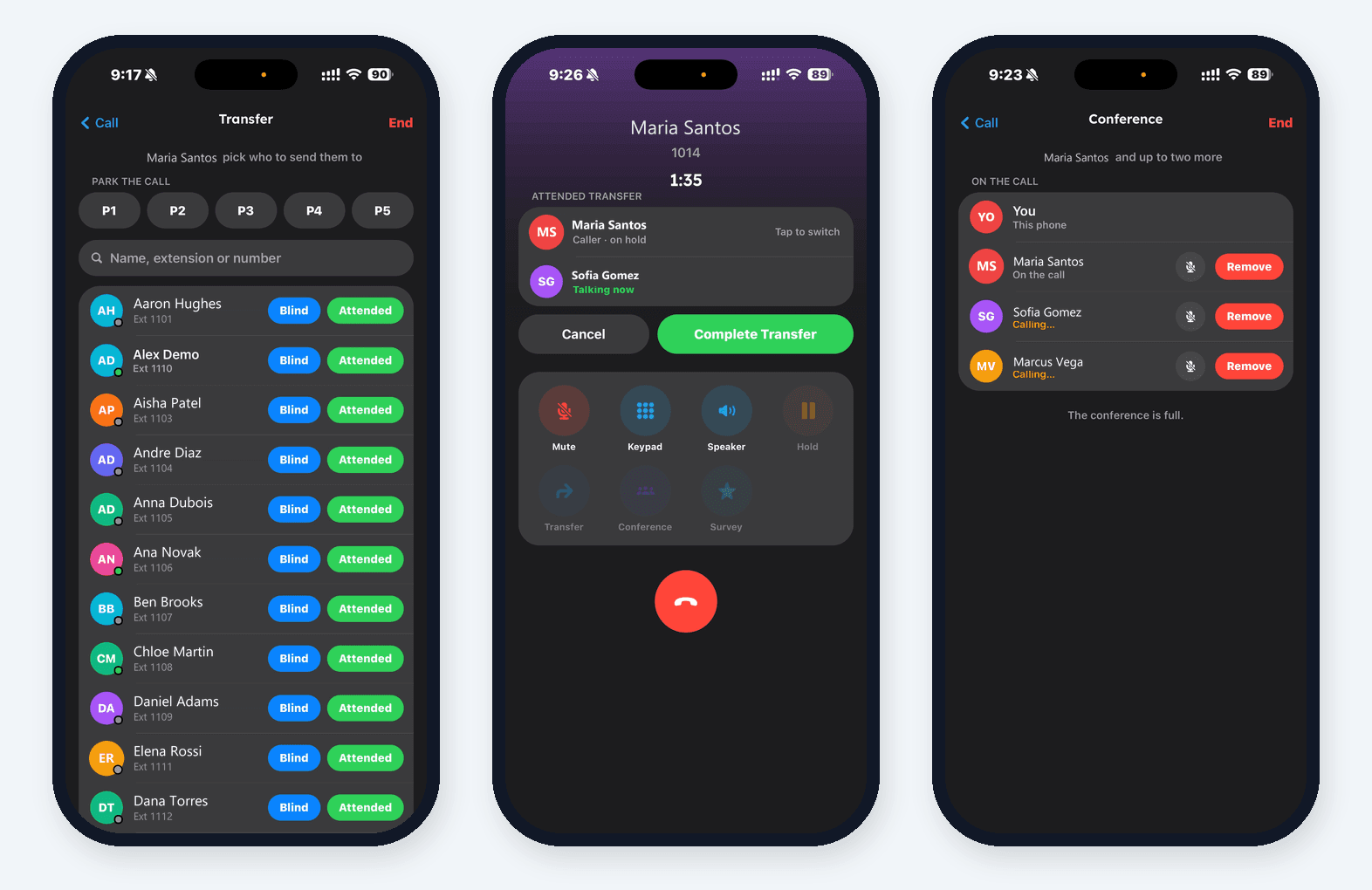
- Blind transfer: send the caller straight to a colleague in one tap.
- Attended transfer: speak to your colleague first, switch between the two calls, then tap Complete Transfer.
- Park the call in a park slot (P1, P2 and so on) and anyone on the team can pick it up from Home.
- Conference: add more people to the call, mute or remove each one, and the call carries on if one person hangs up.
Step-by-step guide: Transferring Calls and Conference Calls
Pick up here: move a live call to your phone
This is the one our early users talk about most. You are on a call at your desk phone, in the web app or in the desktop app, and you need to leave. Open RingQ on your phone and a green bar says who you are talking to: “On the web app · Tap to pick up here”. Tap it, and within seconds the call continues on your phone. The other person never notices, and nobody has to call back.
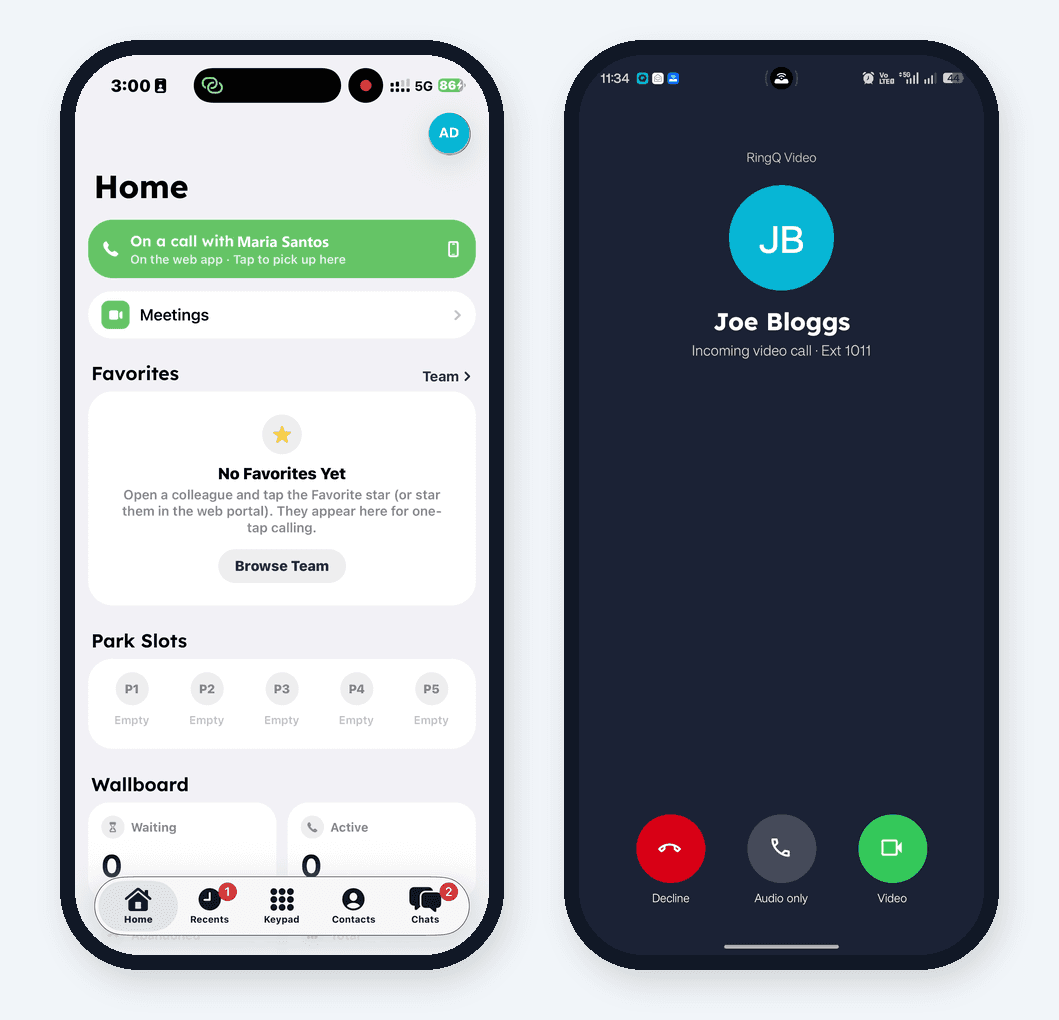
Step-by-step guide: Moving a Call to Your Phone
Video calls and meetings
Video is built in, with no separate meeting app to install.
- Video call a colleague in one tap, or several at once. They can answer with video, or with audio only and turn the camera on later. Flip between the front and back camera, and invite more people while you talk.
- RingQ Meet on your phone. Start a meeting now, schedule one with email invitations, or join with a link, even from another company’s RingQ.
- Guests are welcome. Anyone can tap Join a meeting in the RingQ app and take part, no extension needed.
- Move a meeting from your computer to your phone. Just like Pick up here, tap the green banner and keep talking on the way out of the office.
Step-by-step guide: Video Calling Colleagues
Step-by-step guide: Meetings on the RingQ App
Team chat and customer chats in one inbox
Stop mixing work into personal messaging apps. The Chats tab has two sides: Team for colleagues, and Customers for the people you serve.
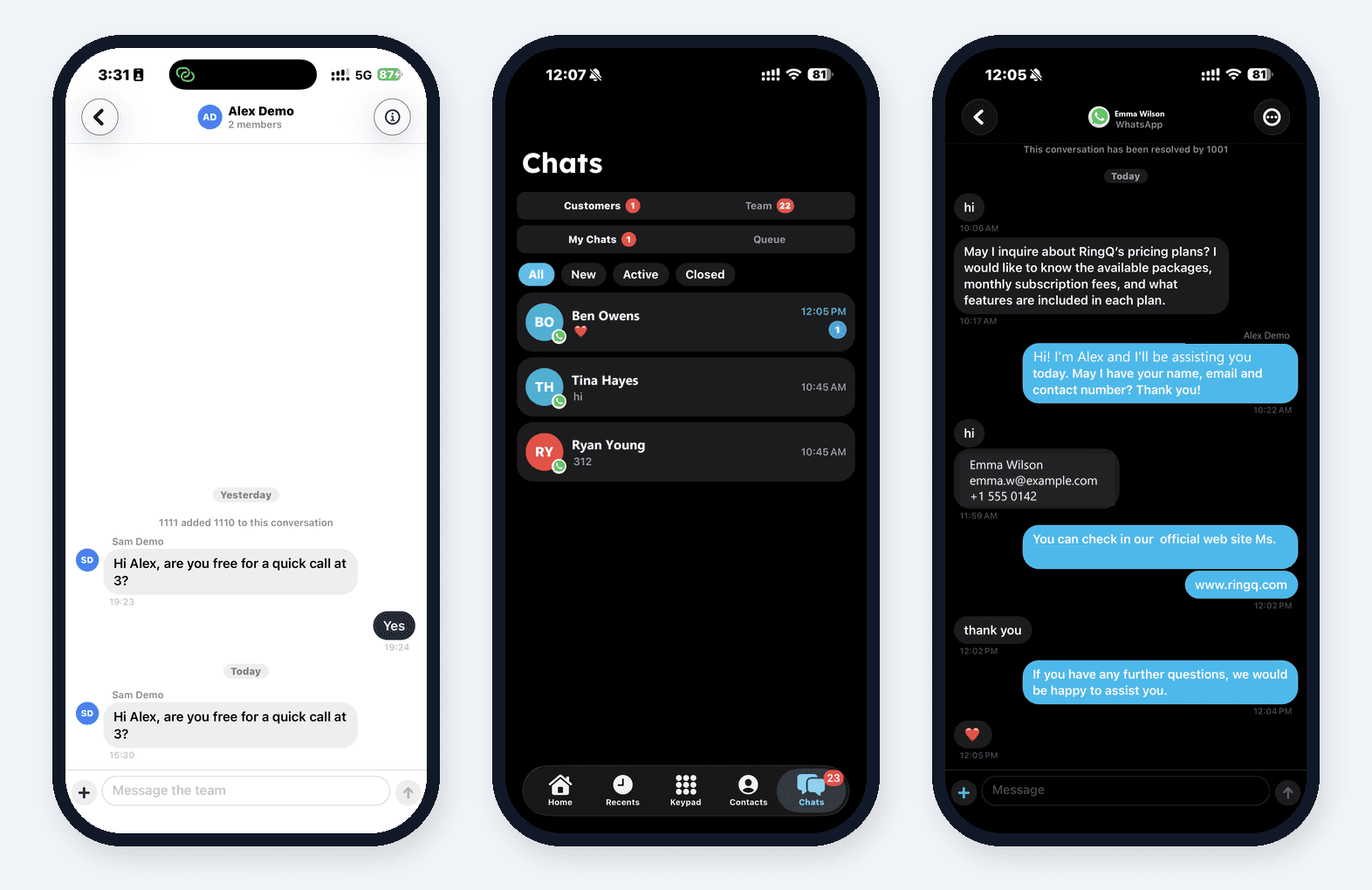
- Team chat: one-to-one and group conversations, photos and documents, search, and each person’s photo next to their messages.
- Customer chats: messages from WhatsApp, SMS, Facebook, Telegram, LINE and your website chat arrive in the app. Reply, attach files, transfer the chat to another agent, and resolve it when you’re done.
- Notifications that take you to the right place. Each one shows the sender’s photo and is marked Internal or External (with the channel, such as WhatsApp). Tap it and the right conversation opens.
Step-by-step guide: Chatting with Your Team
Step-by-step guide: Answering Customer Chats
Up to five extensions on one phone
Run two businesses? Work across offices? Look after several clients? Add up to five RingQ extensions to one app, even from different companies. Every profile you switch on rings your phone, the incoming call shows which profile it is for, and answering switches you to that profile automatically. Each profile has its own photo, its own on/off switch and its own ringtone.
Getting started takes seconds: scan the QR code from your welcome email or the web portal, and you are signed in. You can even scan a code on screen to sign in to the RingQ web portal from your phone.
Step-by-step guide: Using Multiple Profiles
Built for contact centers and managers too
- Queue agents log in and out of queues, take breaks with break codes, add wrap-up codes and notes, and see the caller’s contact record.
- Supervisors see the wallboard on the Home screen, watch live queue calls and can Take Over, Coach or Observe from their phone.
- Managers can switch IVRs and queues between in-office and out-of-office hours with one switch.
- Busy lamp view shows who is free or on a call, so you can tap to call the right person first time.
Make it yours
- Favorites on the Home screen keep the people you call most one tap away. Touch and hold to call. They match your favorites in the web app.
- Contacts in one place: your team, your company’s shared contacts and the contacts on your phone, with Call, Video, Chat, Voicemail, Favorite and Email on every person.
- Sounds: choose the call ringtone and the chat message sound for every profile.
- Light and dark mode, and your status (Available, Busy and more) and caller ID right from My Profile.
Step-by-step guide: Favorites and Contacts
Never miss a call on Android
Some Android phones put apps to sleep to save battery, which can stop calls ringing. RingQ now checks this for you. Keep Calls Ringing walks you through four quick settings, ticks each one off as you go, and even covers the extra steps on Oppo and Realme phones.
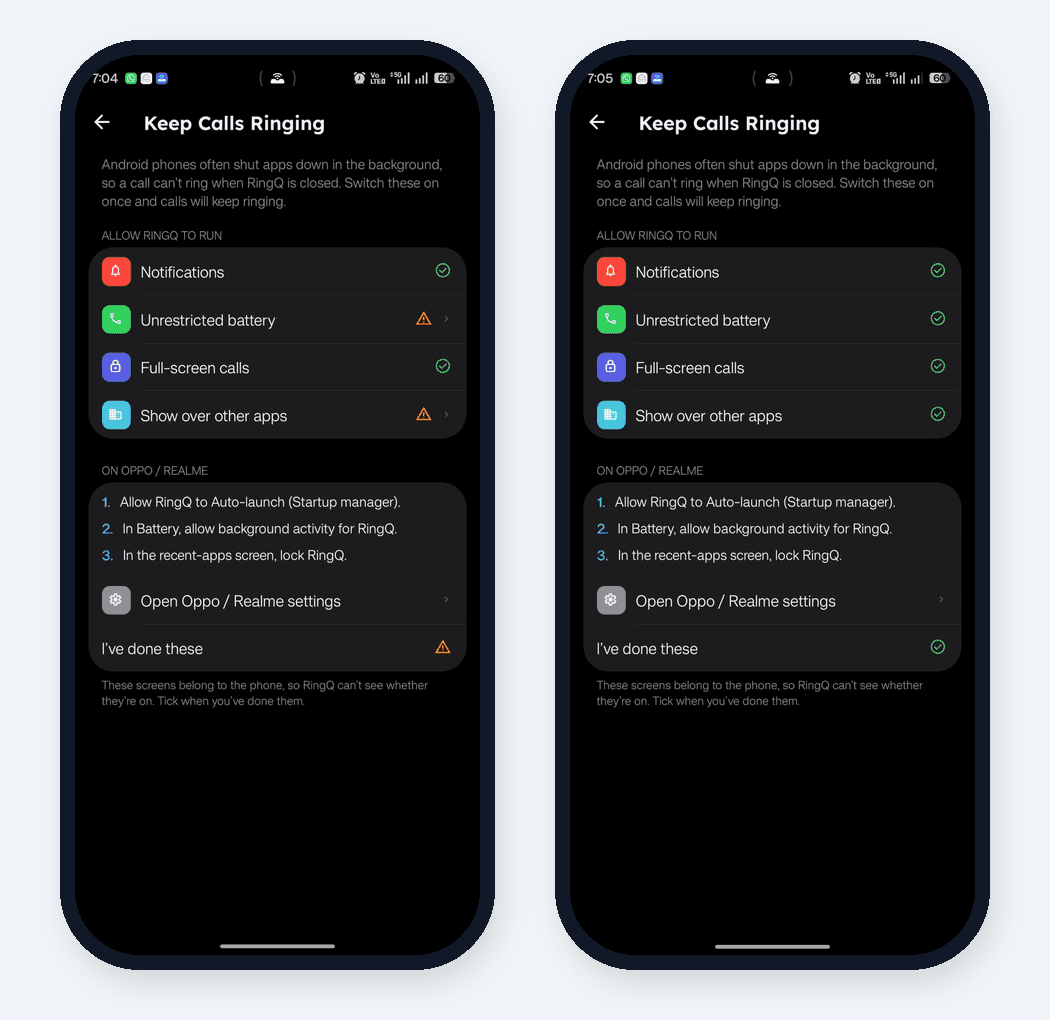
Step-by-step guide: Keep Calls Ringing on Android
Get the RingQ app today
The RingQ app is free for every RingQ user.
- iPhone: download RingQ from the App Store
- Android: get RingQ on Google Play
- New to the app? Start with Getting Started with the RingQ Mobile App, then browse all the mobile app guides.
Already using RingQ? Update the app from the App Store or Google Play to get every feature in this post. If you need a hand setting up your team, our support team is happy to help.
Ready to see it? Book a demo or talk to us.