Security update: RingQ is patched against the critical PHP vulnerabilities. Update your servers today.

Read now
RingQ Customer Centric Communications

Using Several Extensions (Profiles) on One Phone with RingQ


If you have more than one extension, for example on different RingQ servers, you can keep up to five of them signed in on the same phone as profiles. One profile is shown on screen at a time, and you choose which of the others can ring you.
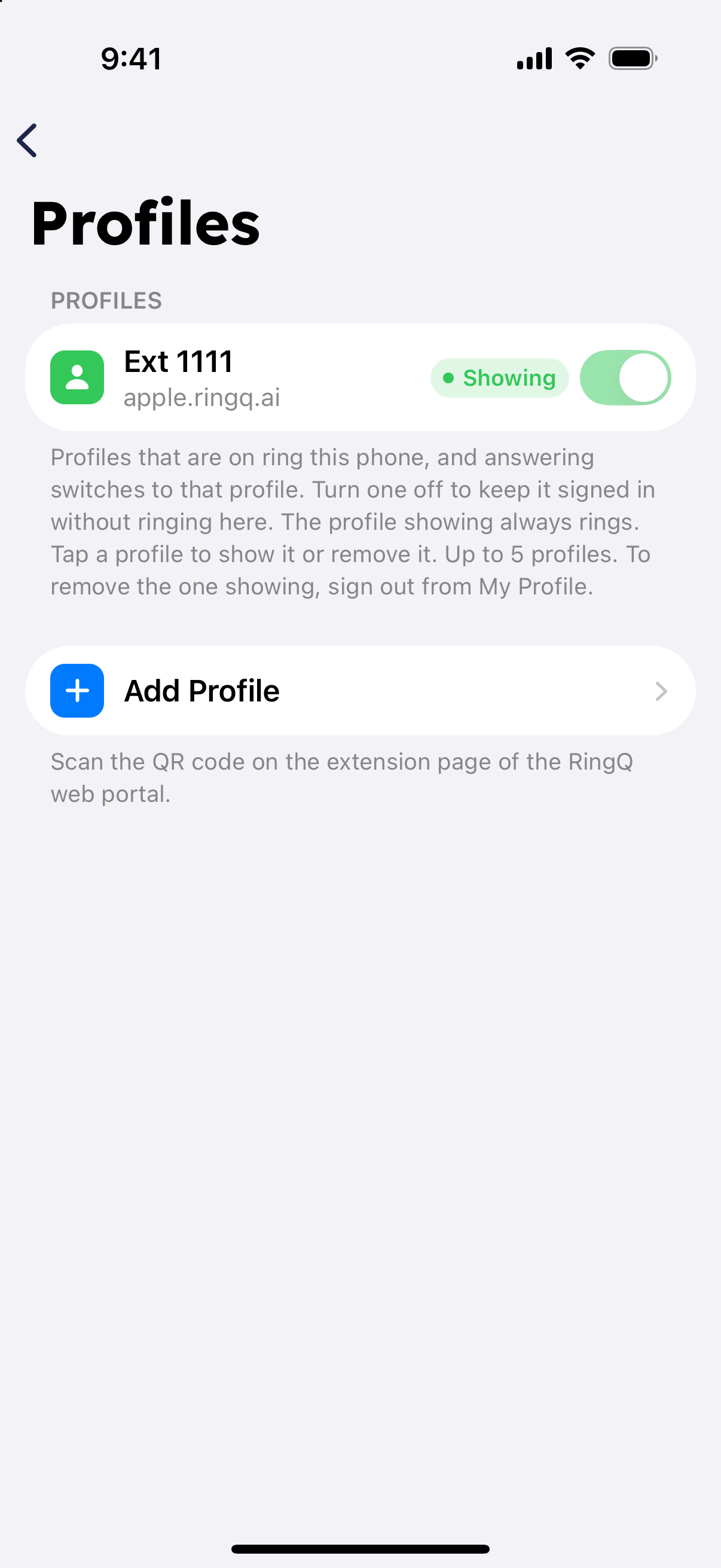
Add a profile

  1. Tap your photo or initials at the top of the screen to open My Profile, then tap Profiles.
Profiles screen in the RingQ app with one extension signed in
  1. Tap "Add Profile".
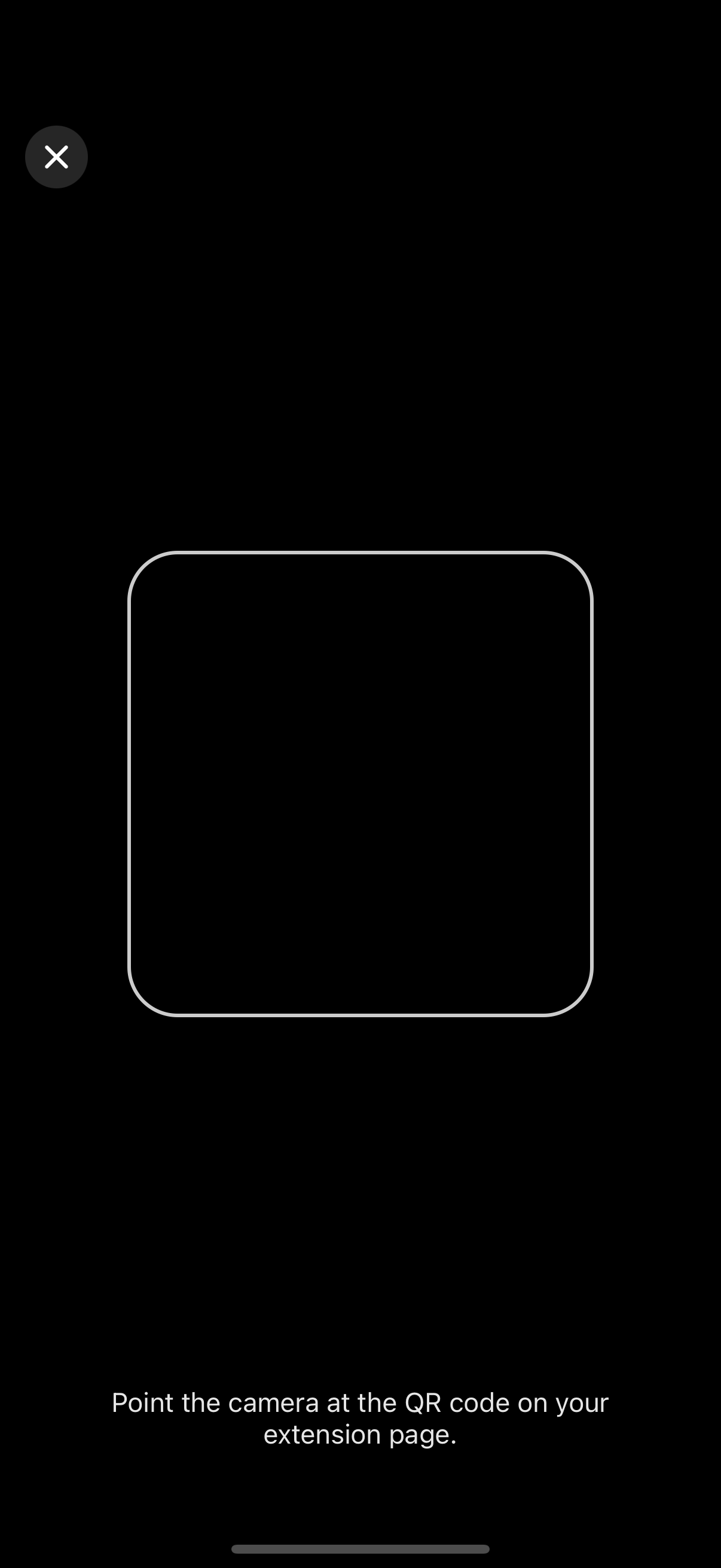
  2. Scan the QR code on the extension page of the RingQ web portal for the other extension.
Adding a second RingQ profile by scanning a QR code

Choose which profiles ring

Each profile in the list has a switch. When it is on, calls for that extension ring this phone. The profile marked "Showing" is the one on screen, and it always rings. When a call comes in for another profile that is switched on, the app switches to that profile so you can answer it.
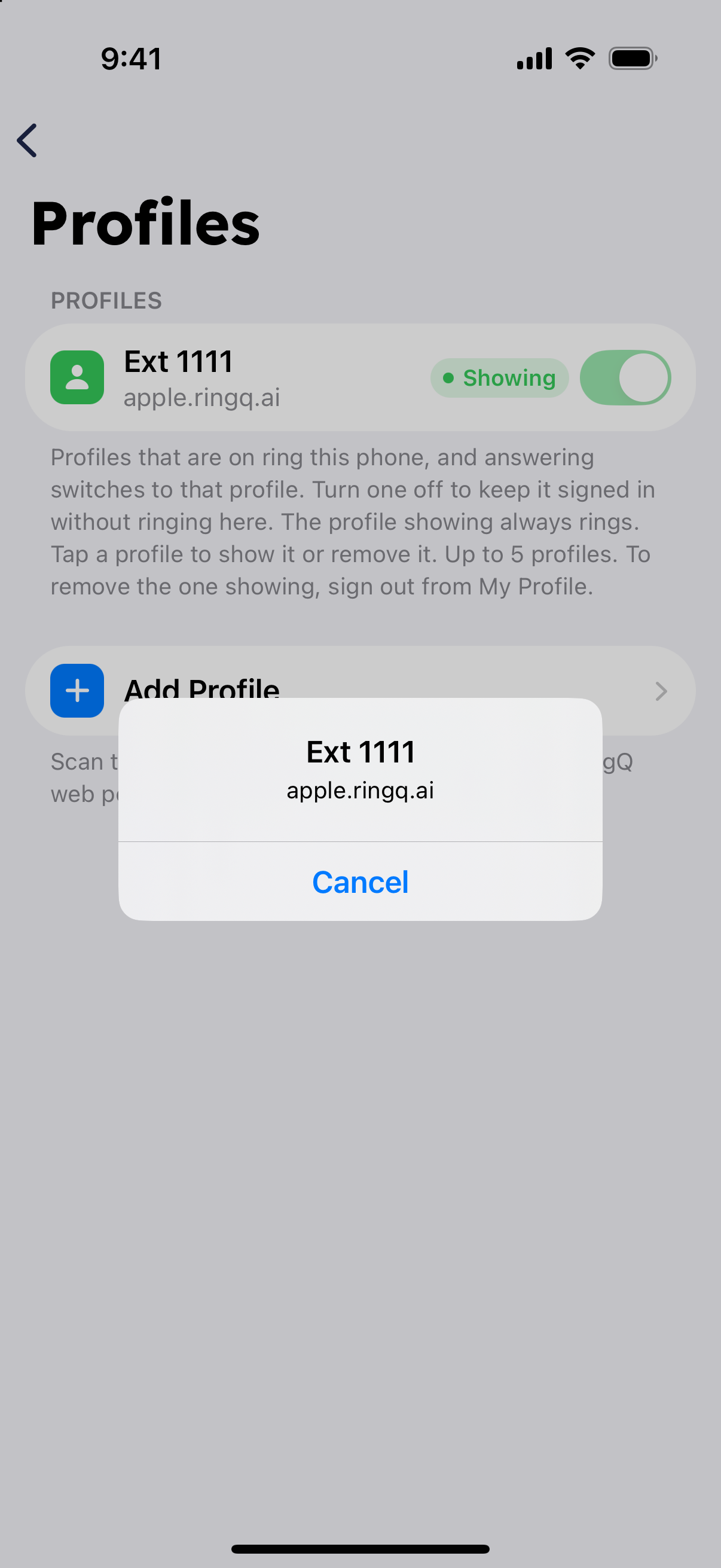
Switch or remove a profile

  • To see another profile, tap it and choose "Show This Profile".
Profile menu with Show This Profile and Remove Profile
  • To sign a profile out of this phone, tap it and choose "Remove Profile". To remove the profile that's showing, sign out from My Profile; the app then moves to another profile that is switched on.