Security update: RingQ is patched against the critical PHP vulnerabilities. Update your servers today.

Read now
RingQ Customer Centric Communications

Chatting with Colleagues on the RingQ Mobile App


Team chat in the RingQ app is the same chat you use in the RingQ web app. Messages appear on both.
Chat with one colleague

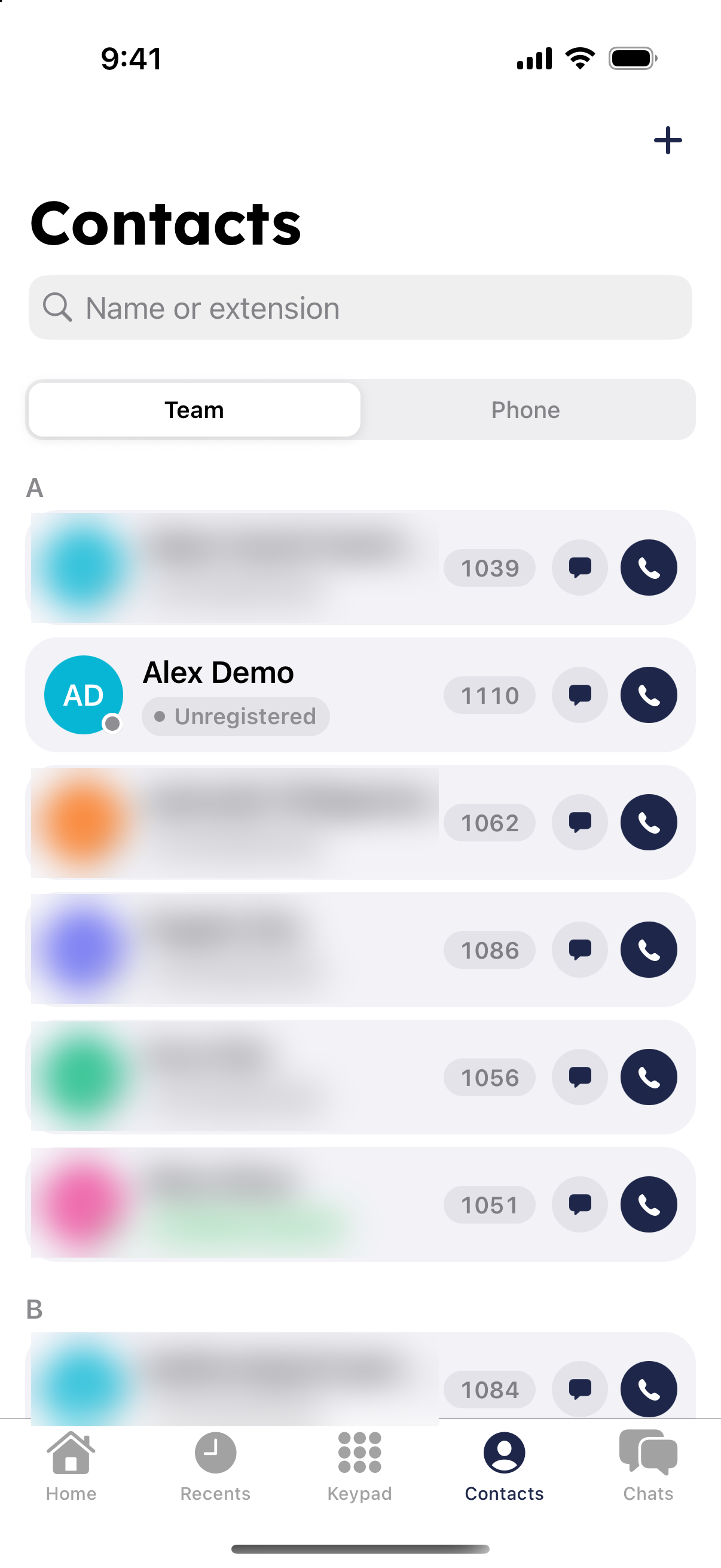
  • From Contacts: in the Team tab, tap the chat bubble next to the person.
Contacts Team tab with chat buttons in the RingQ app
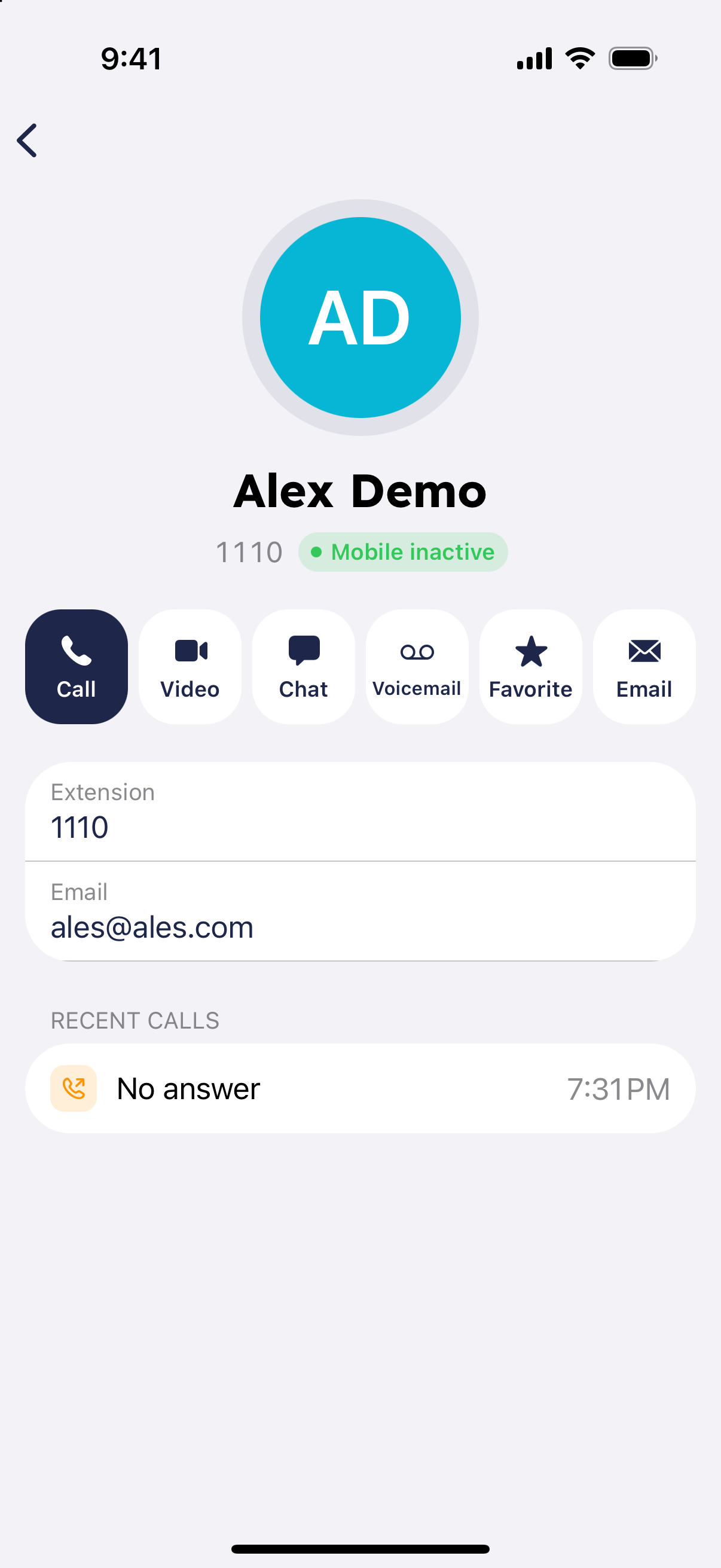
  • From their person screen: tap "Chat".
RingQ contact screen with the Chat button

The first time, this starts a new chat with them. After that, the same chat opens with your earlier messages.
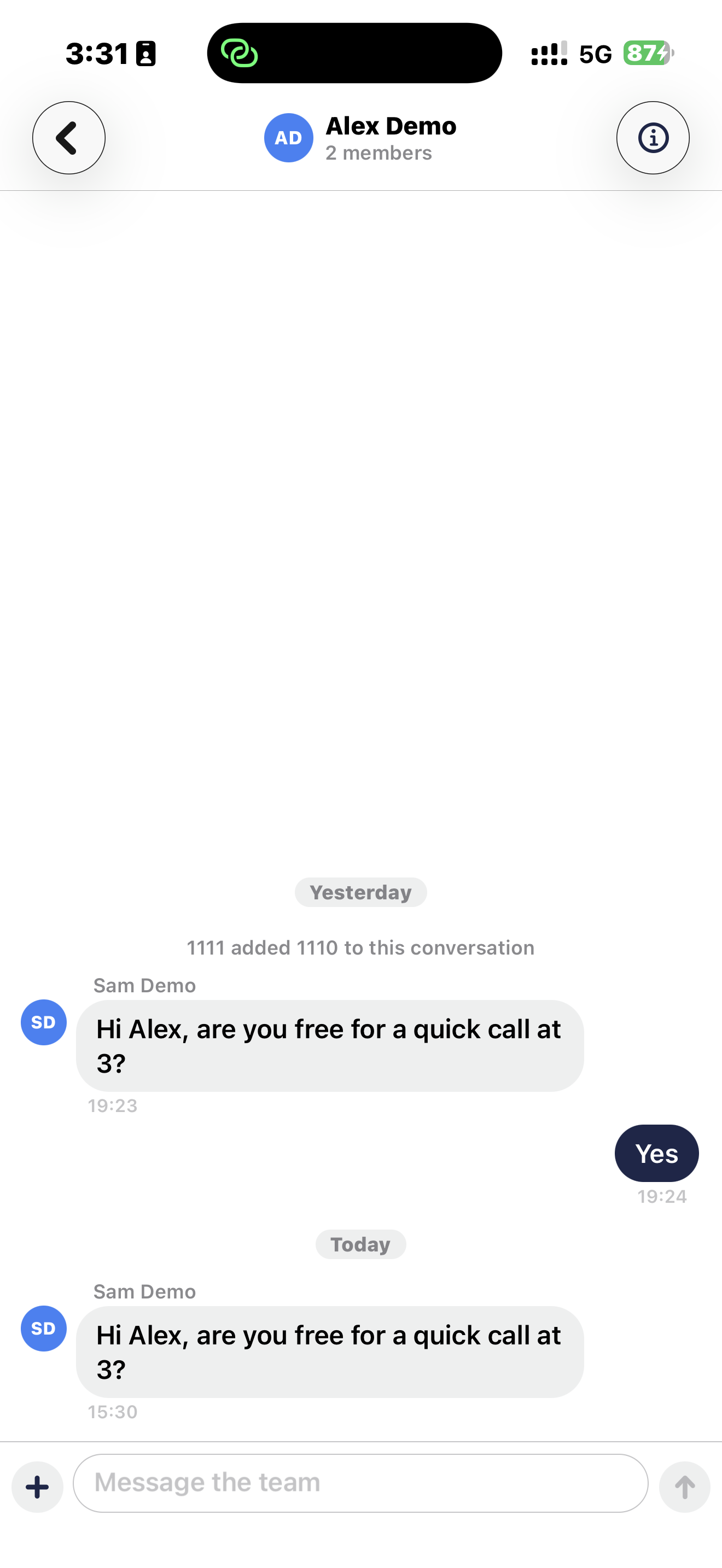
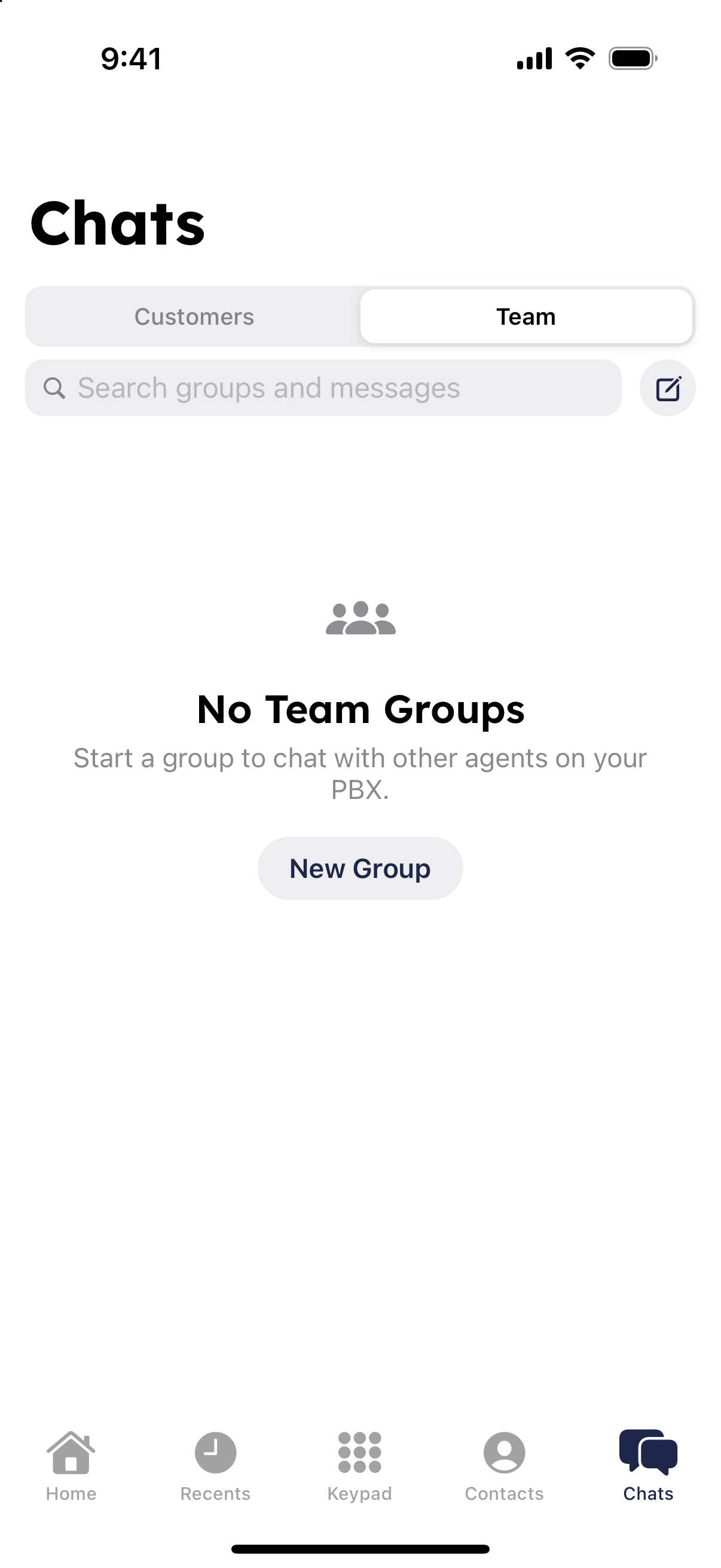
One-to-one team chat with a reply in the RingQ iPhone app

Create a group chat

  1. Open Chats and start a new group.
Team chats list in the RingQ app
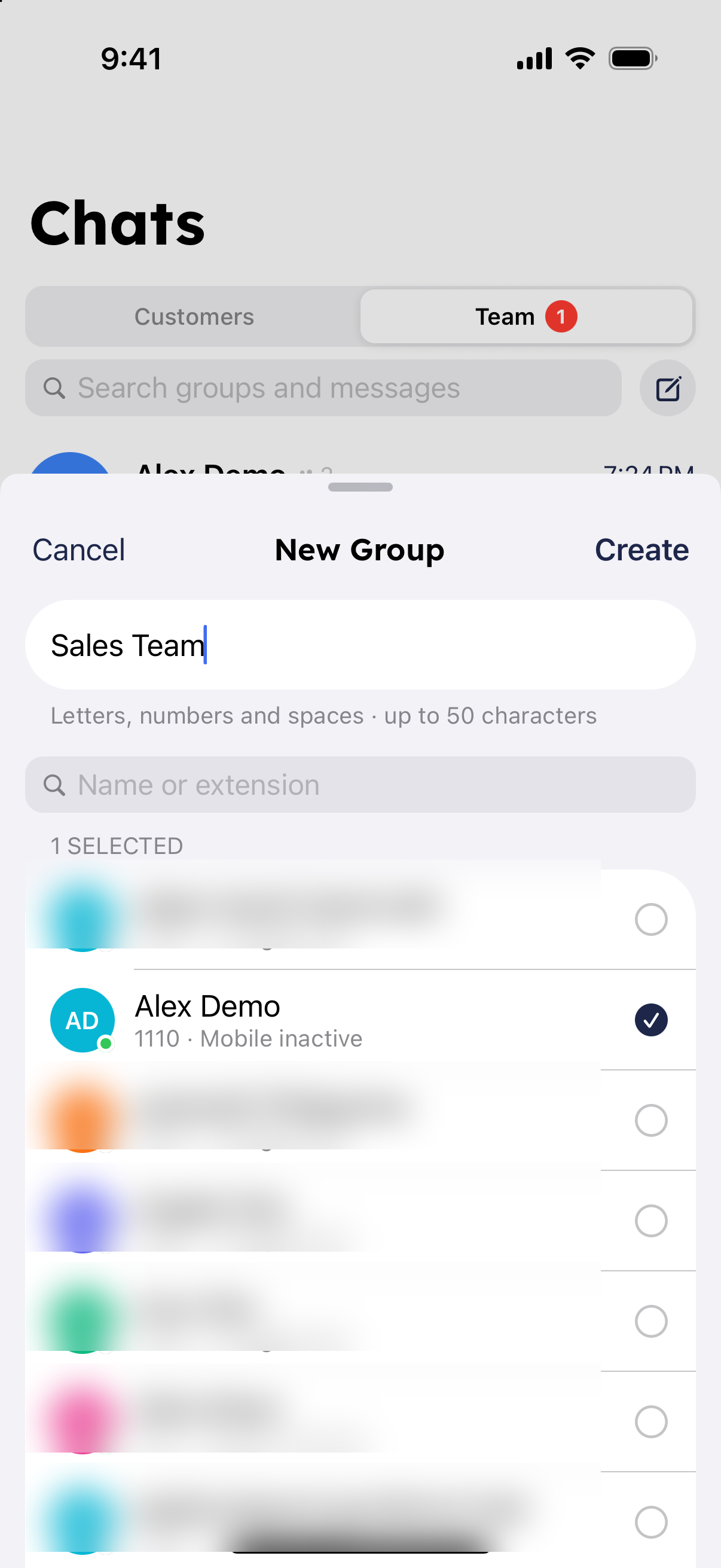
  1. Enter a group name, choose people, and tap "Create".
Creating a new group chat in the RingQ app

Notifications and photos

New messages reach your phone even when the app is closed. The notification shows the sender's name and profile photo. Inside chats, profile photos appear in the chat list, the chat header and next to messages; people without a photo show their initials.
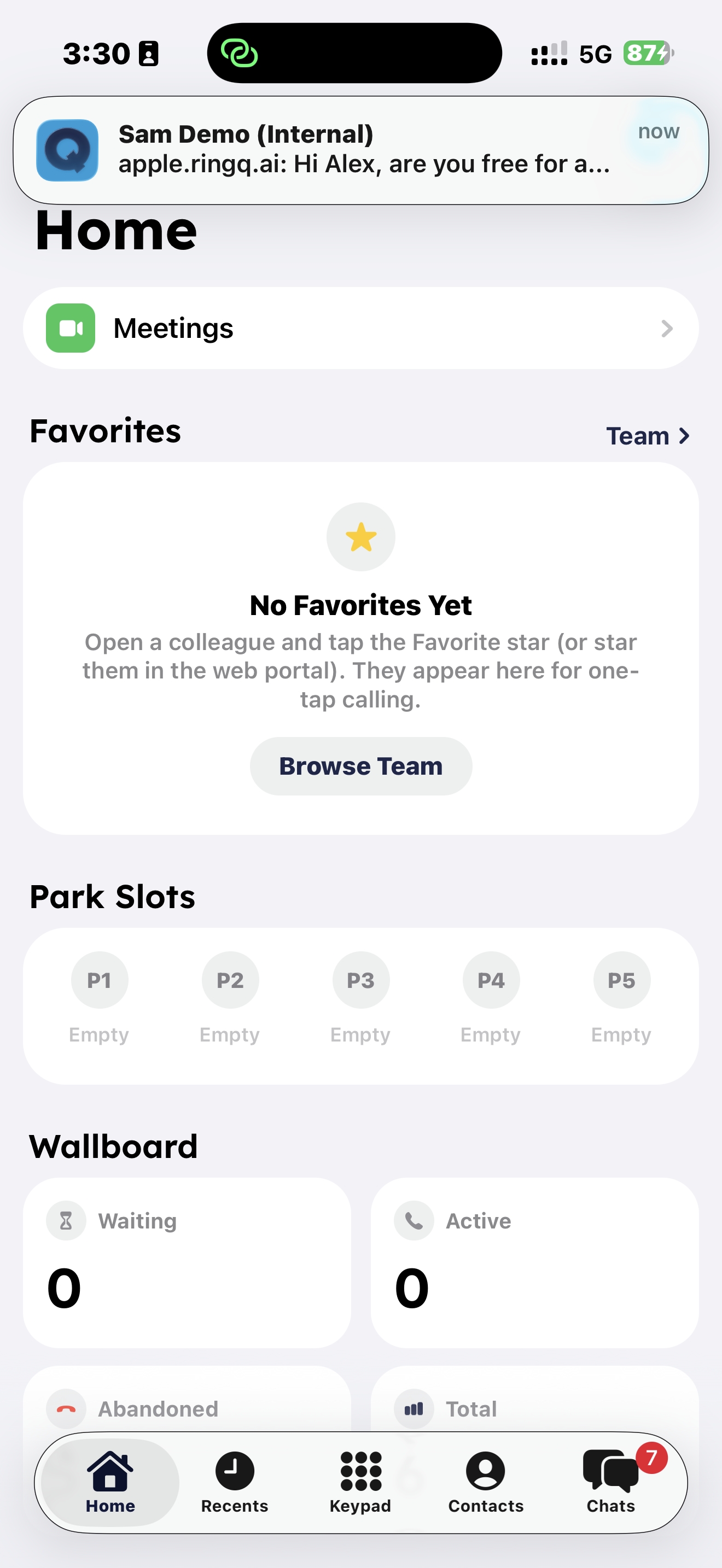
RingQ team chat notification with the sender's photo on iPhone

When you sign out of the app, chat notifications stop reaching that phone.