Security update: RingQ is patched against the critical PHP vulnerabilities. Update your servers today.
Read nowIf you're an agent in a chat queue, customer messages from your company's channels (such as WhatsApp, SMS, Facebook, Telegram, LINE and website chat) arrive in the RingQ app.
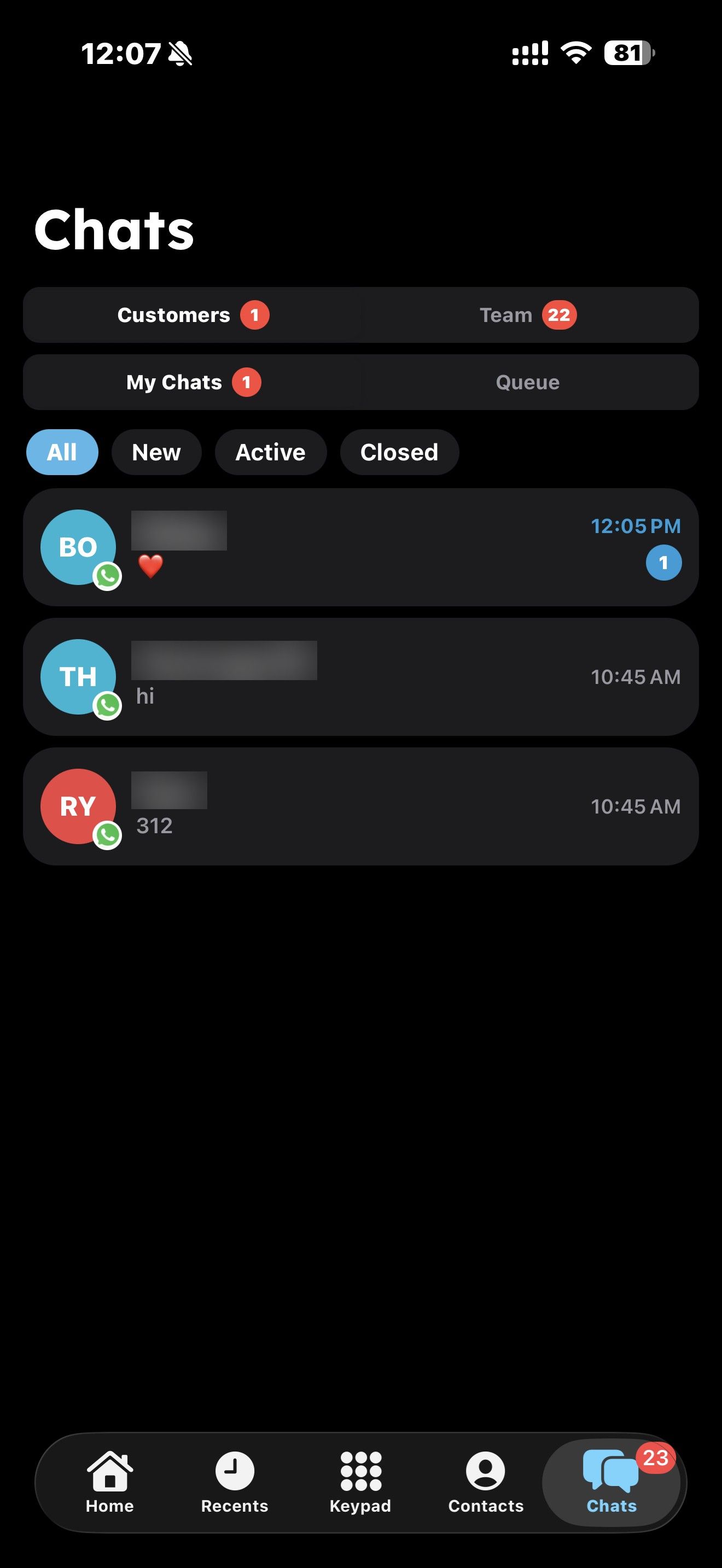
Each chat shows the channel it came from.
Tap a chat to open it, type your reply and tap Send. You can attach photos and documents too.
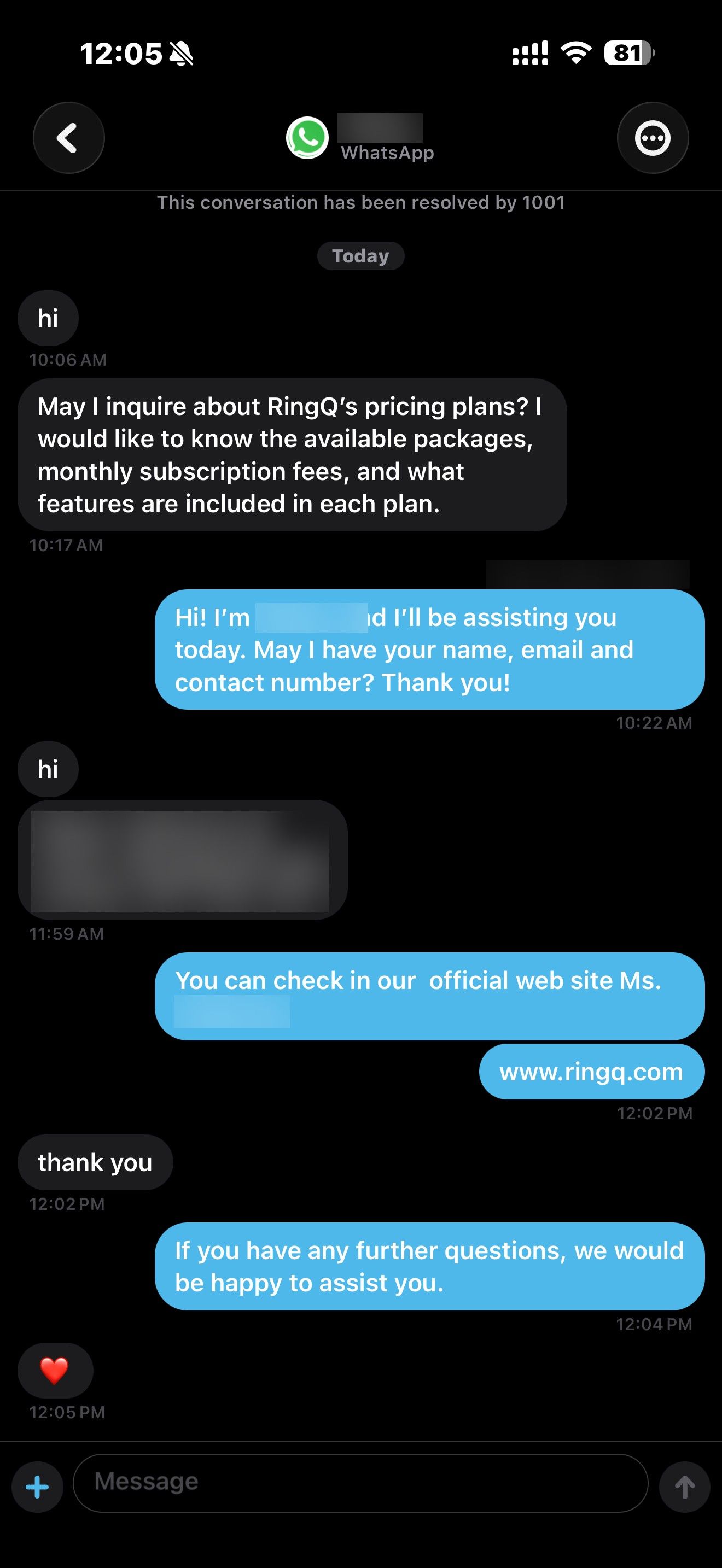
When you've finished helping the customer, open Chat actions and choose Resolve. The chat is marked CLOSED.
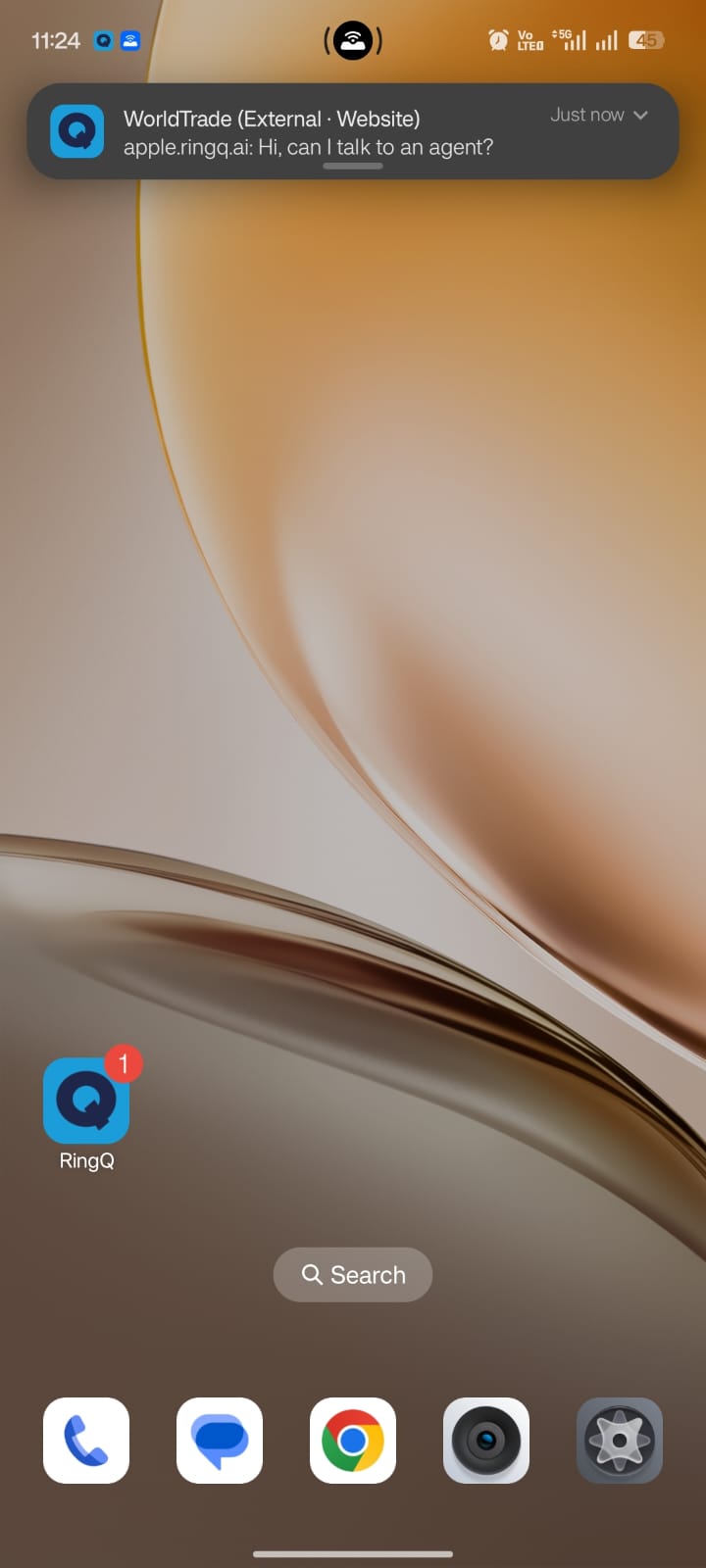
When a customer messages you and the app is closed, you get a notification marked (External · WhatsApp) (or the channel the message came from). Tap it to open that conversation.