Security update: RingQ is patched against the critical PHP vulnerabilities. Update your servers today.

Read now
RingQ Customer Centric Communications

RingQ Meet on Your Phone: Start and Join Meetings


RingQ Meet works in the RingQ app on iPhone and Android, the same meetings you use on the web. Open it from the Home screen: tap "Meetings".
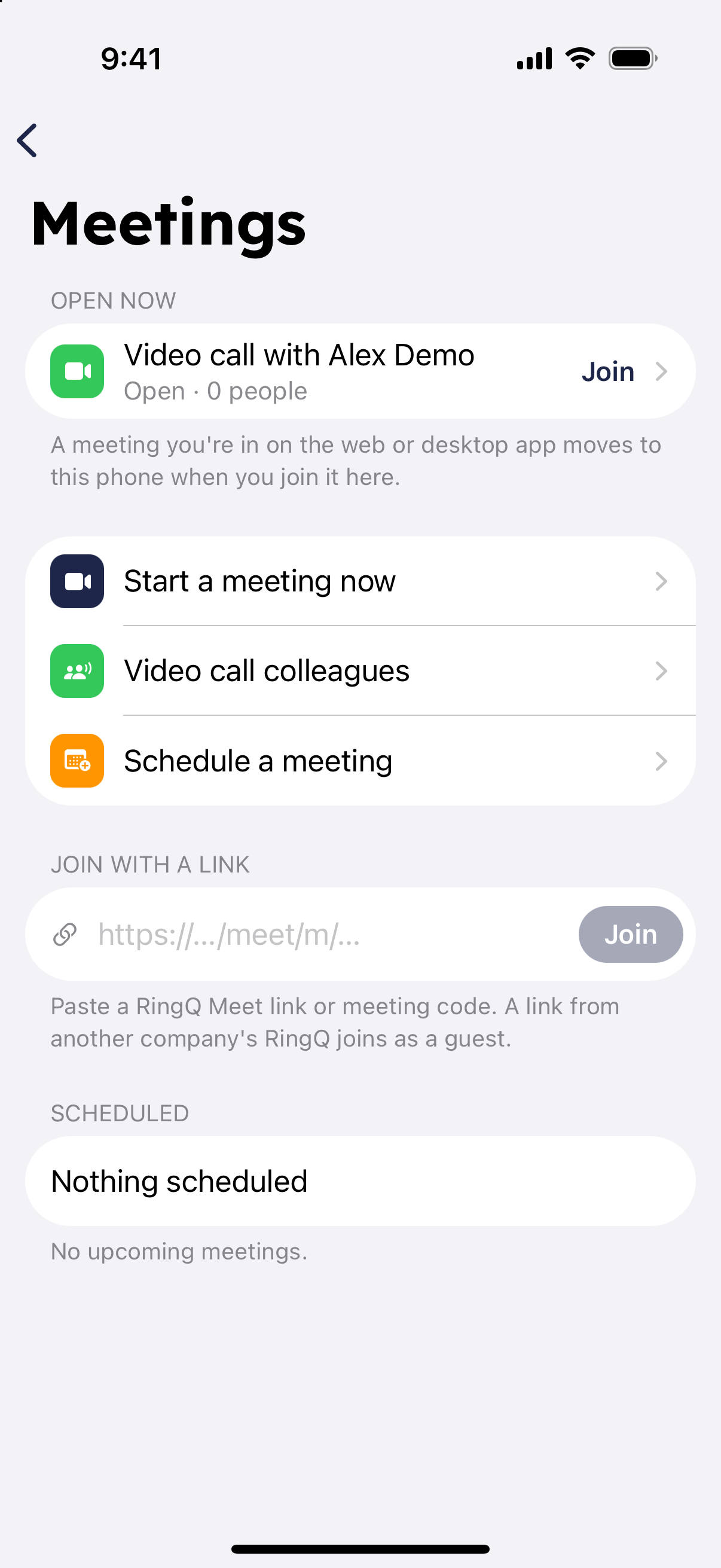
RingQ Meet Meetings screen in the mobile app

Start a meeting now

  1. In Meetings tap "Start a meeting now".
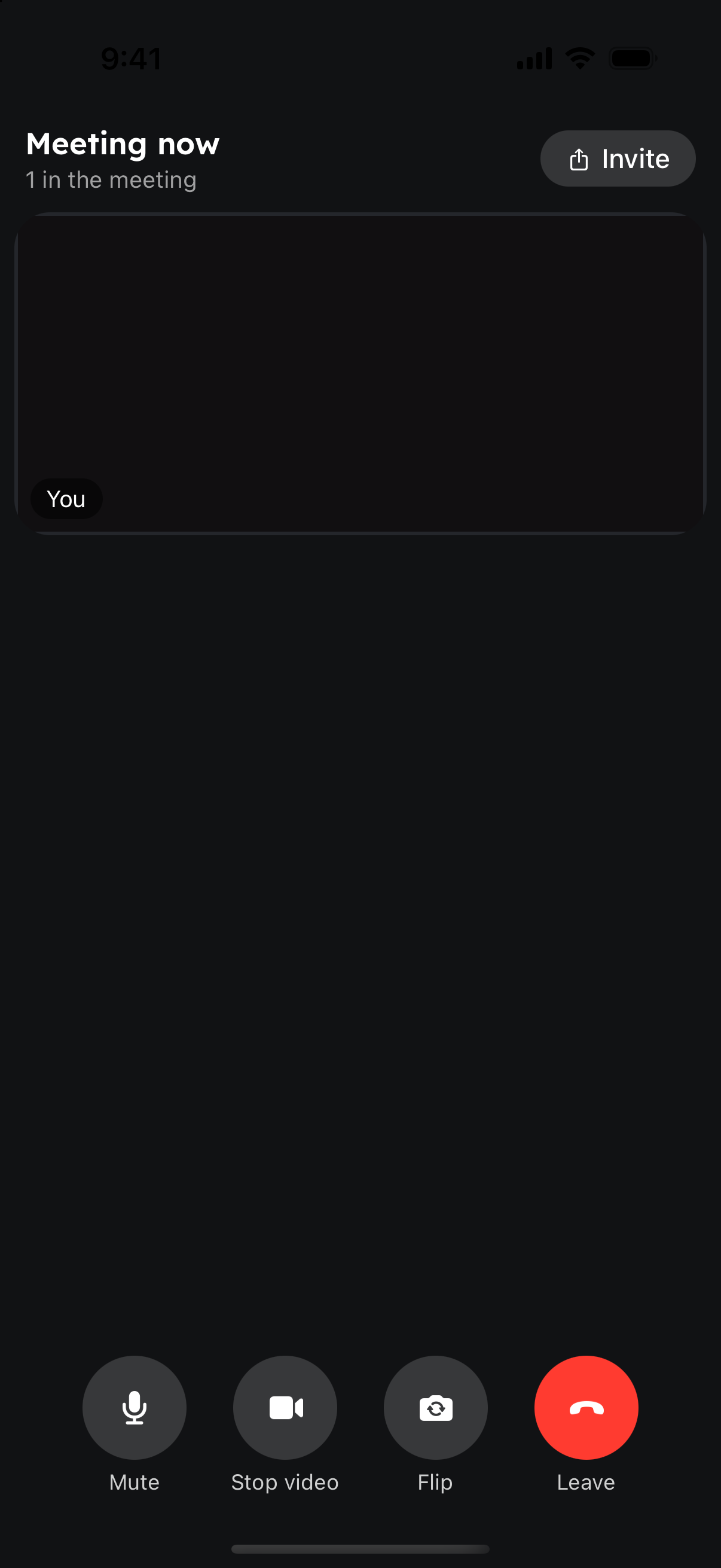
RingQ Meet meeting controls on a phone
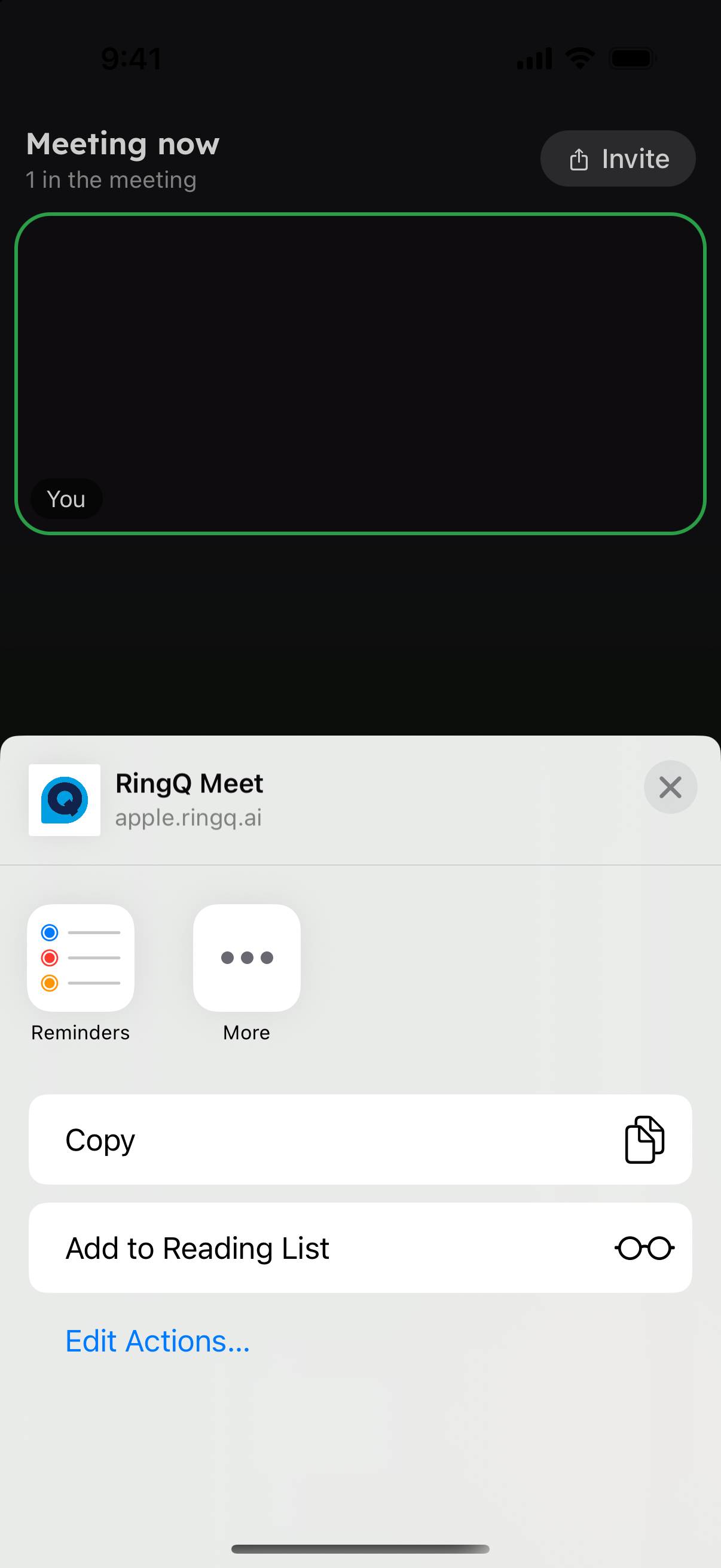
  1. Tap "Invite" to share the meeting link by message, email or any app.
Sharing a RingQ Meet invite link from the phone

Join a meeting

  • From a link: tap the meeting link on your phone. It opens in the RingQ app.
  • With a link or code: in Meetings, paste the RingQ Meet link or code under "Join with a link" and tap "Join".
  • Open meetings: meetings that are running are listed at the top. Tap "Join".

For a meeting someone else hosts, you may see "Waiting for the host to let you in" until the host admits you.
In the meeting

  • Mute and unmute your microphone.
  • "Start video" and "Stop video" turn your camera on and off; you can also switch between front and back camera.
  • "Invite" shares the link or rings colleagues in.
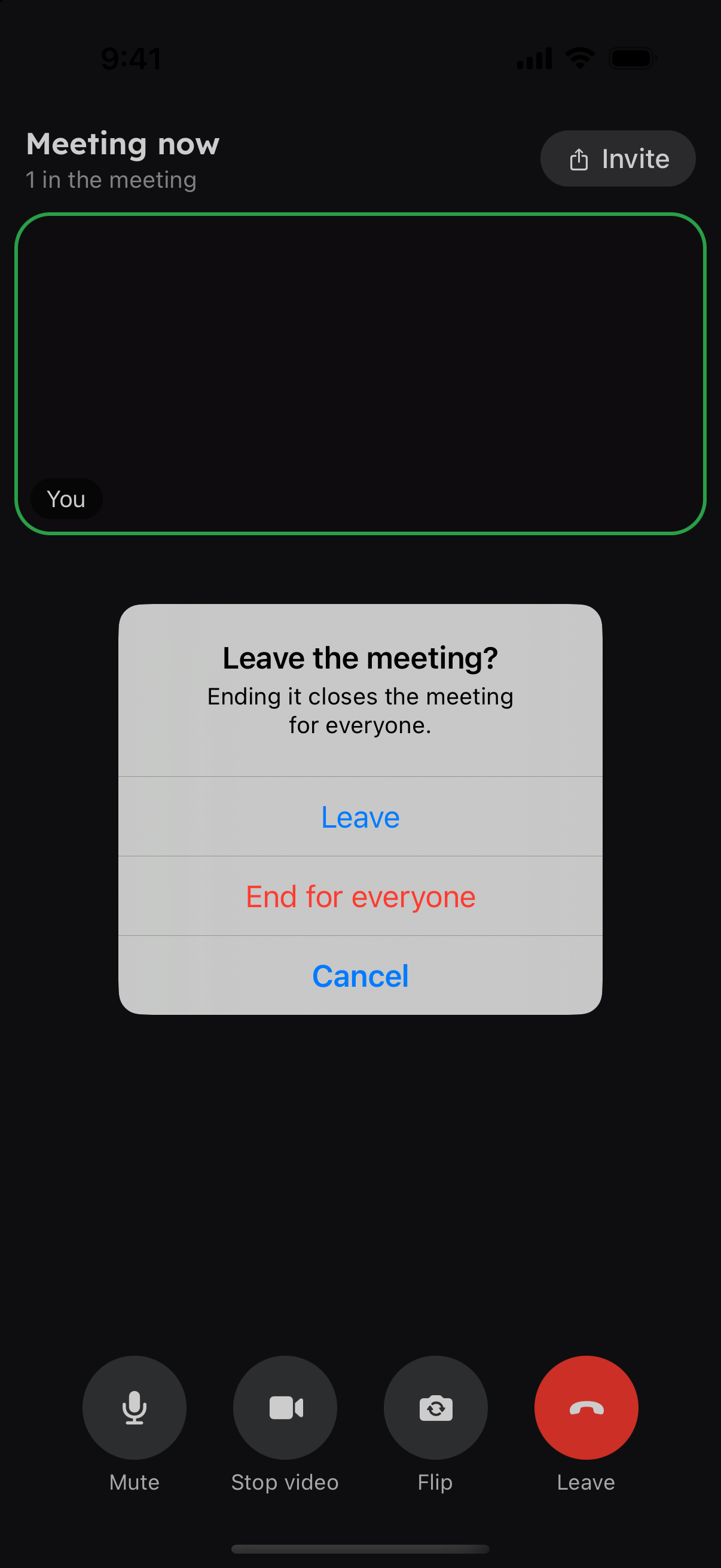
  • Leave the meeting, or as the host choose "End for everyone" to close it for all.
Leave or End for everyone options in RingQ Meet

If a phone call comes in and you answer it, you leave the meeting. If you are on a call, finish it first, then join the meeting.