Security update: RingQ is patched against the critical PHP vulnerabilities. Update your servers today.

Read now
RingQ Customer Centric Communications

Getting Started with the RingQ Mobile App


The RingQ app puts your RingQ extension on your iPhone or Android phone. You can make and receive calls, chat with colleagues, join RingQ Meet meetings and make video calls, wherever you are.

Install the app

  • iPhone: download RingQ from the App Store.
  • Android: download RingQ from Google Play.

Sign in with a QR code

  1. On a computer, sign in to the RingQ web portal and open your extension page. It shows a sign-in QR code.
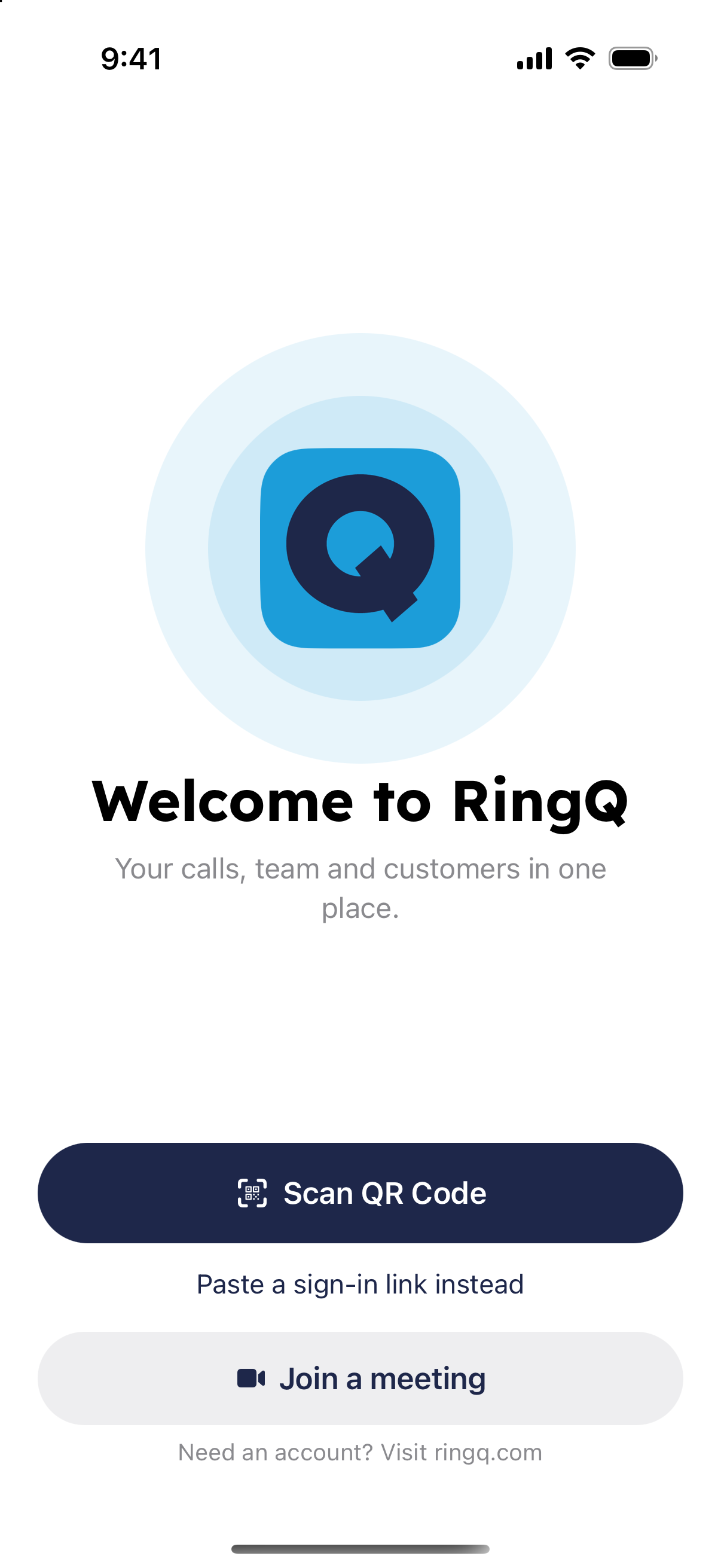
  2. Open the RingQ app and tap "Scan QR Code".
RingQ mobile app welcome screen with the Scan QR Code button
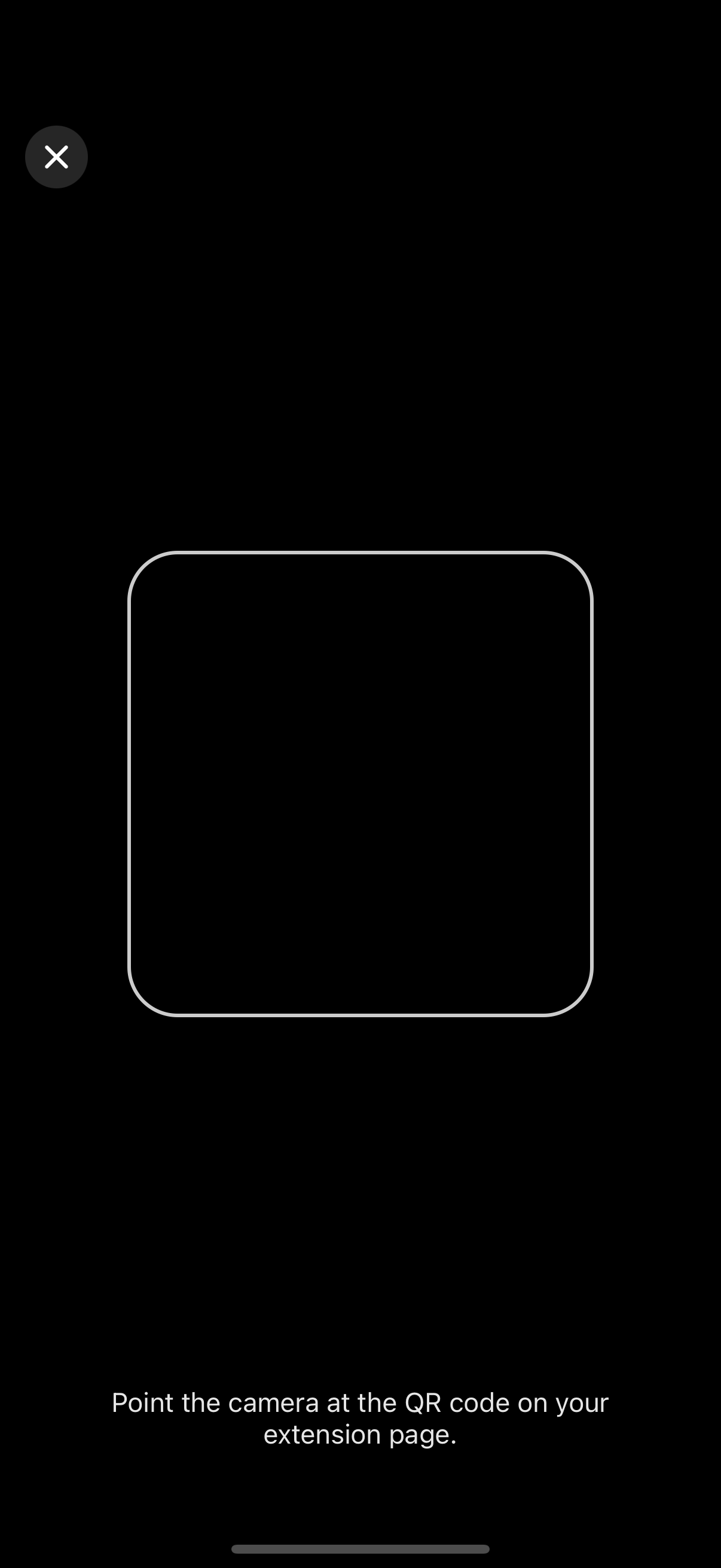
  1. Allow the camera when asked, then point it at the QR code. The app signs you in to your extension.
RingQ app asking for camera access to scan the sign-in QR code
Scanning a RingQ sign-in QR code with the phone camera

If you received a sign-in link instead, tap "Paste a sign-in link instead" and paste it.
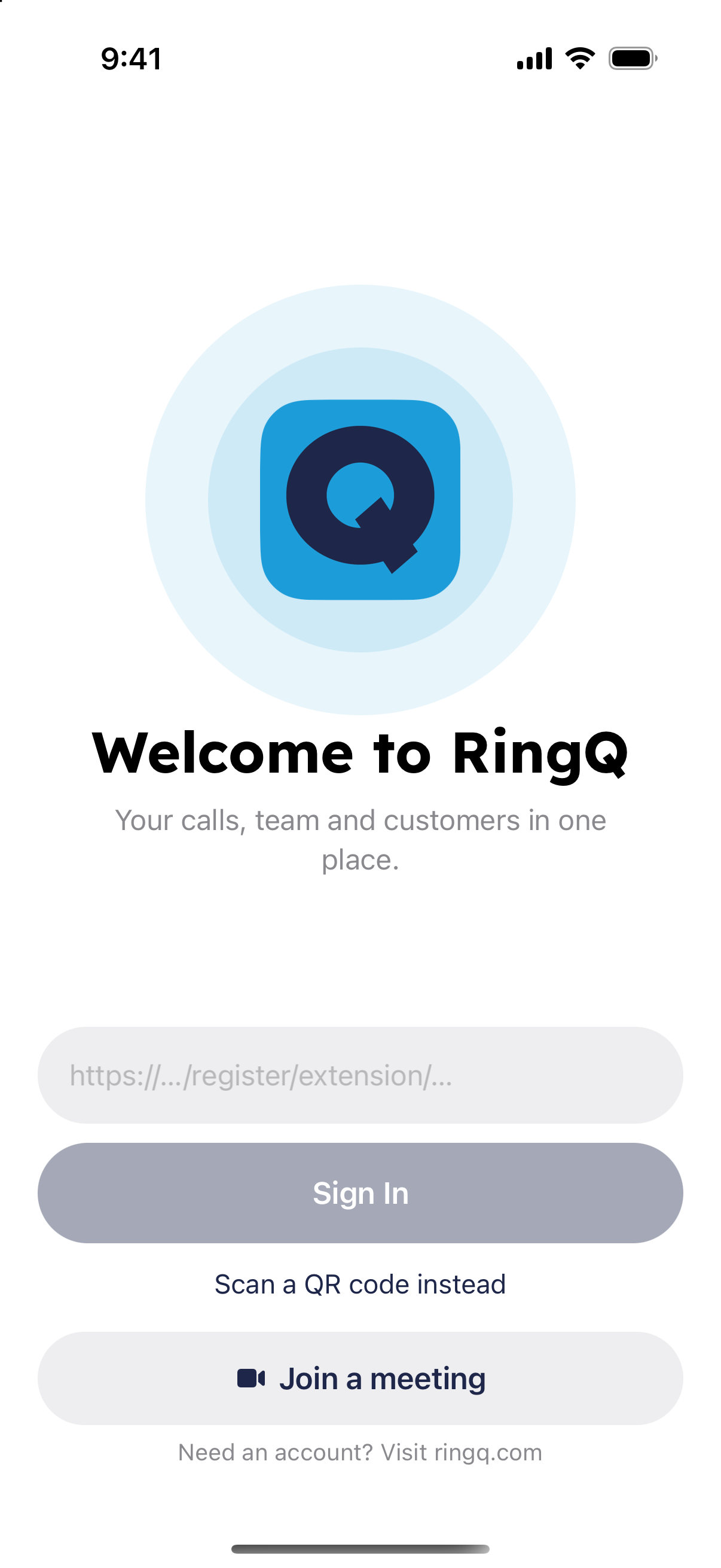
Paste a sign-in link screen in the RingQ mobile app

Allow permissions

Allow these when the app asks, so calls and messages reach you:

  • Microphone: so the people you call or meet can hear you.
  • Notifications: so calls, video calls and chat messages reach you when the app is closed.
  • Camera: to scan sign-in QR codes and for your video in meetings and video calls.

Find your way around

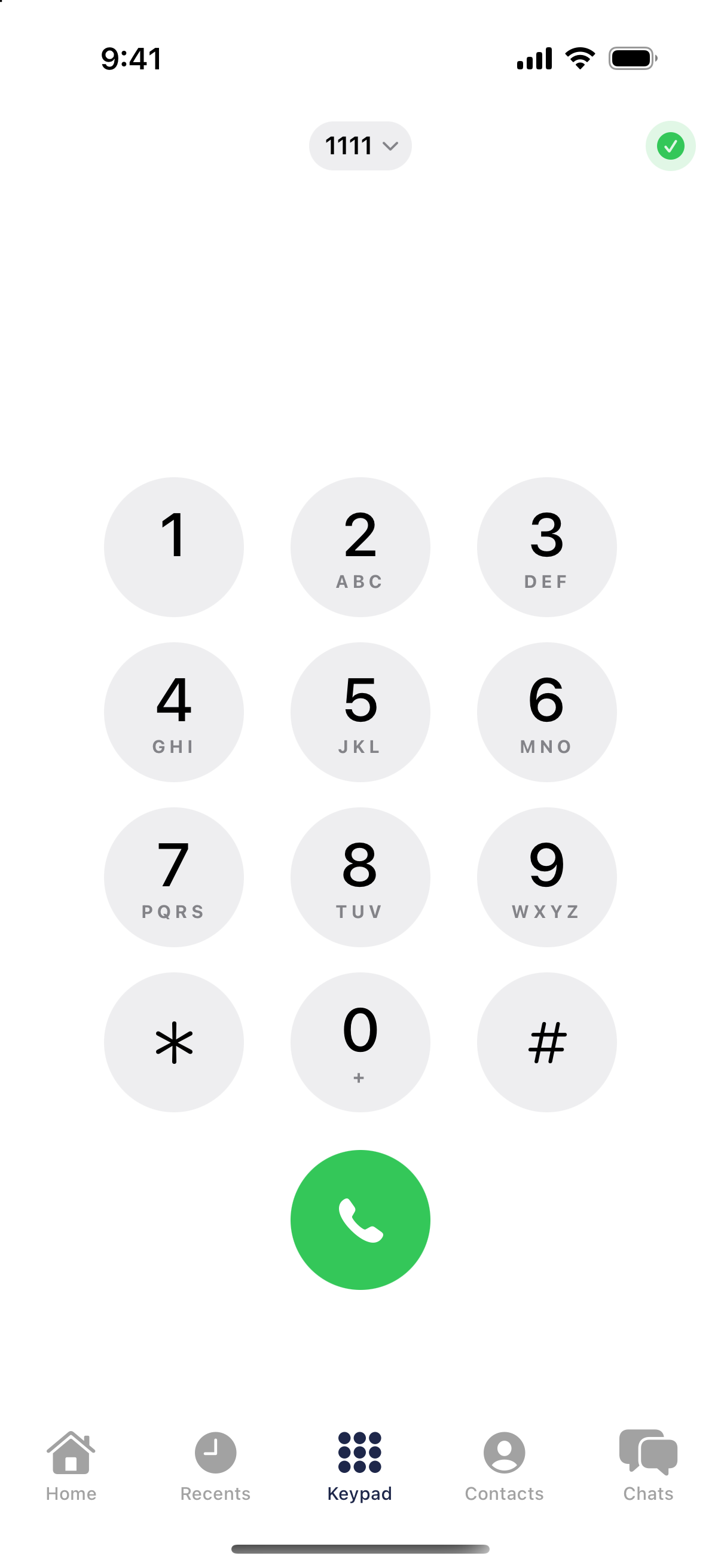
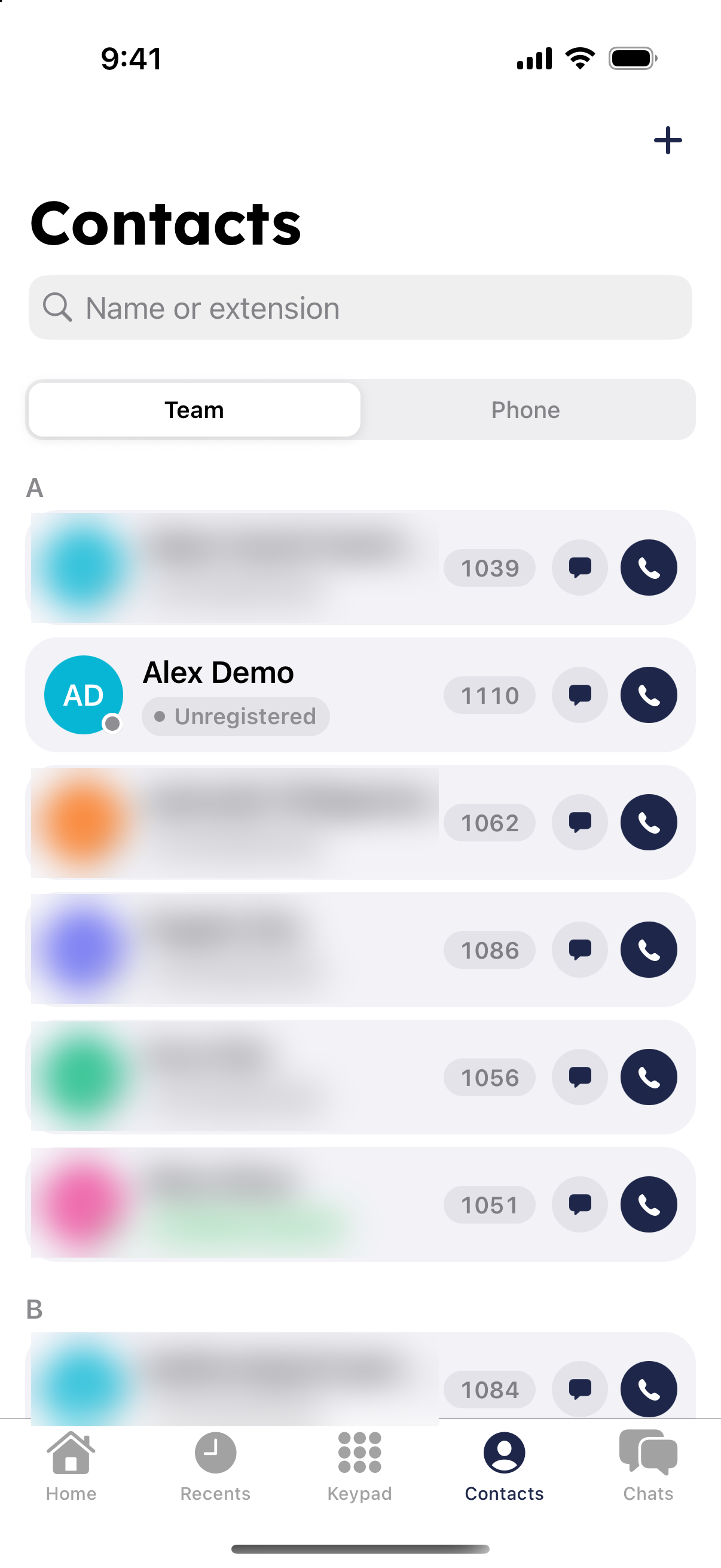
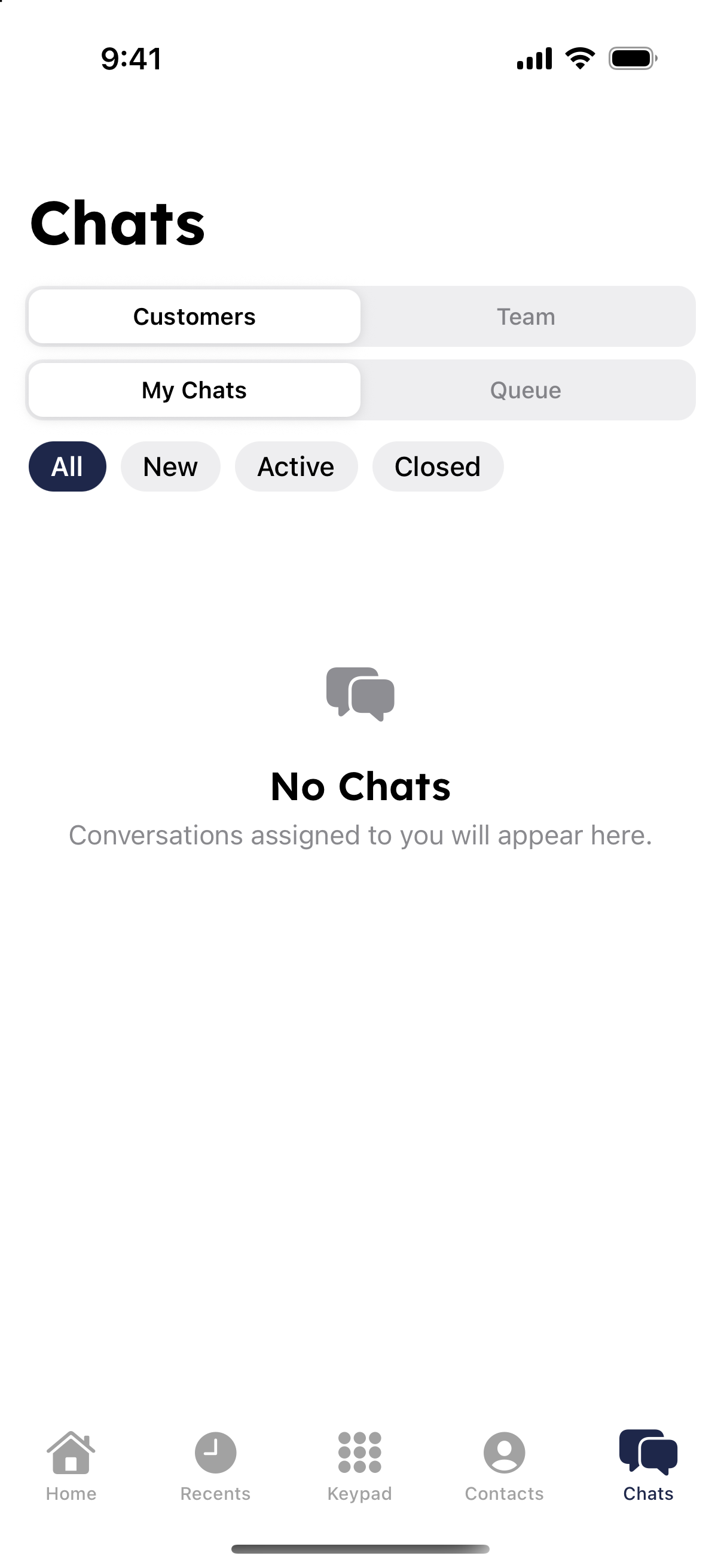
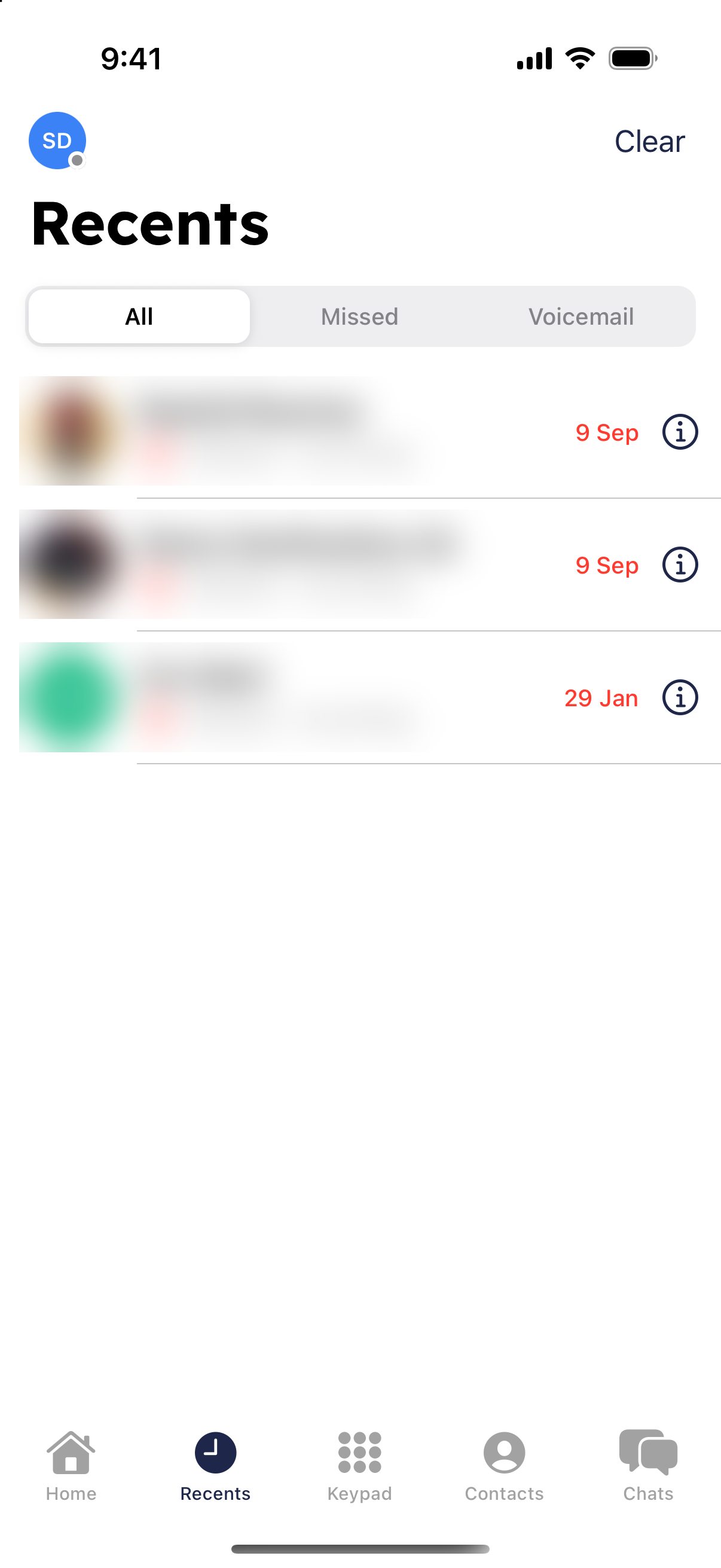
Home shows your favorites, park slots and anything that needs you. Recents lists your calls, Keypad dials any number, Contacts has your team and company directory, and Chats holds team and customer chats. Tap your photo or initials at the top to open My Profile.
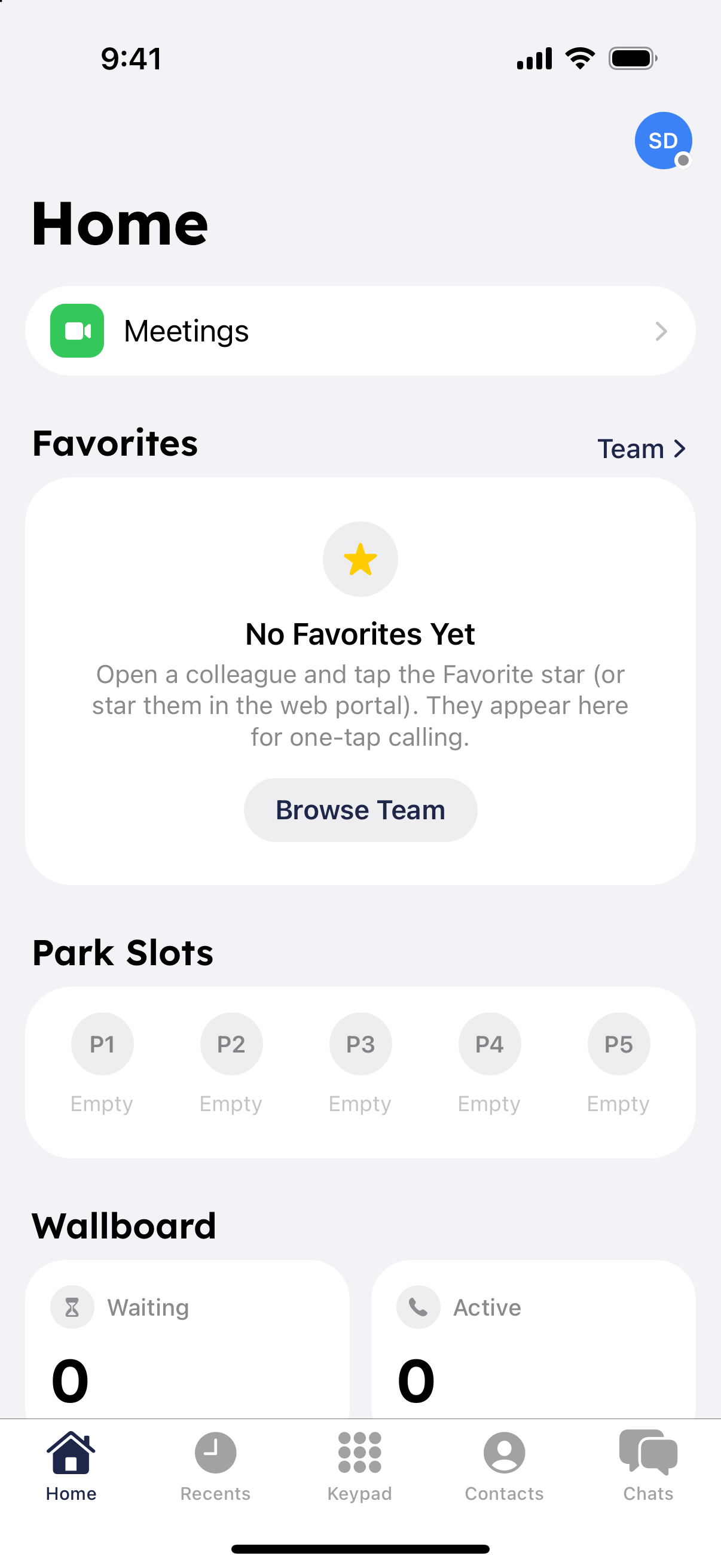
RingQ app Home screen with favorites and park slots
Recents tab in the RingQ app listing recent calls
RingQ app keypad for dialling a number or extension
Contacts Team tab in the RingQ app
Chats tab in the RingQ app with team and customer chats
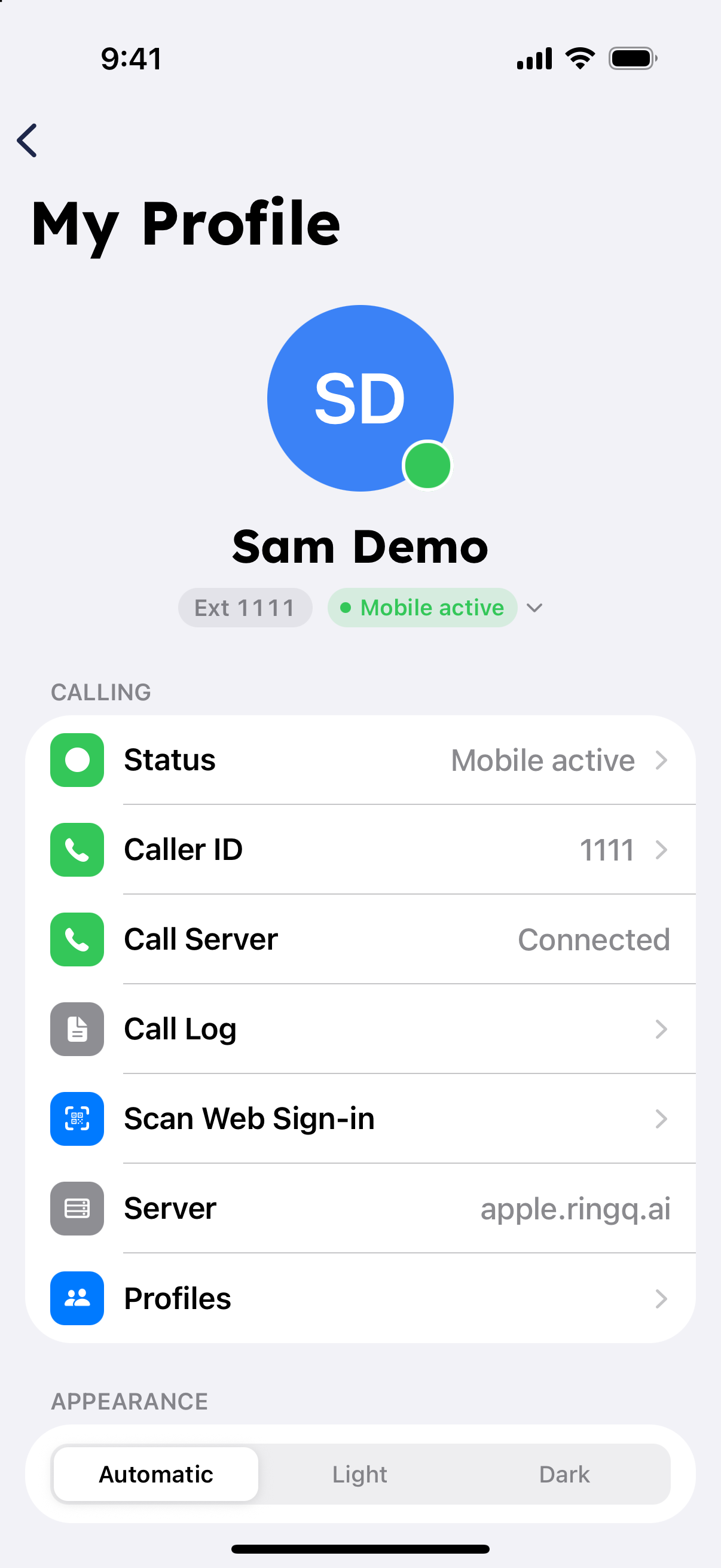
My Profile screen in the RingQ mobile app

Don't have an account? You can still join a meeting you were invited to. See "Join a Meeting Without a RingQ Account".