Security update: RingQ is patched against the critical PHP vulnerabilities. Update your servers today.

Read now
RingQ Customer Centric Communications

Video Calling Colleagues from the RingQ Mobile App


A video call rings your colleagues straight into a RingQ Meet meeting. Their phone or computer rings like a phone call, and they can answer with video or with audio only.
Video call one person

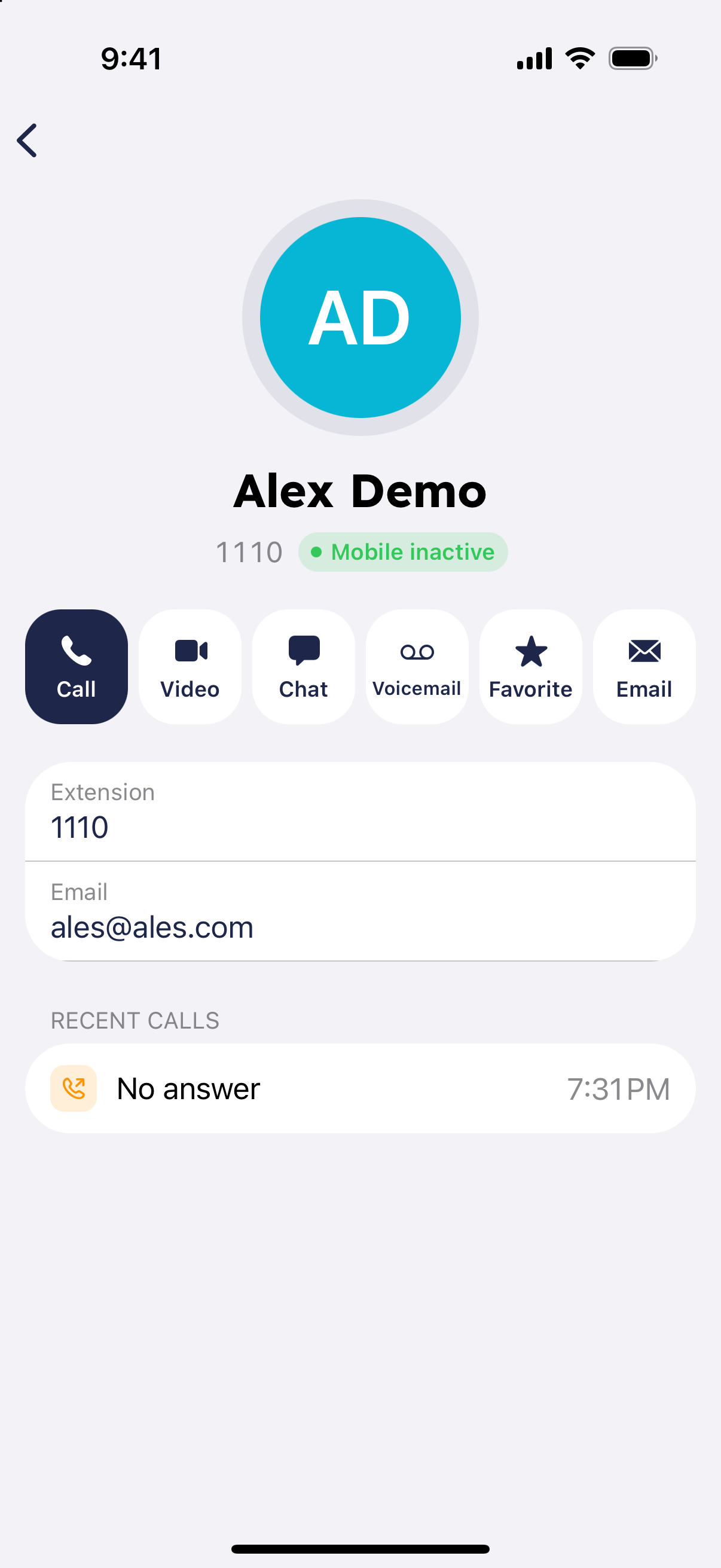
  1. Open Contacts and tap the colleague to open their person screen.
RingQ contact screen with the Video call button
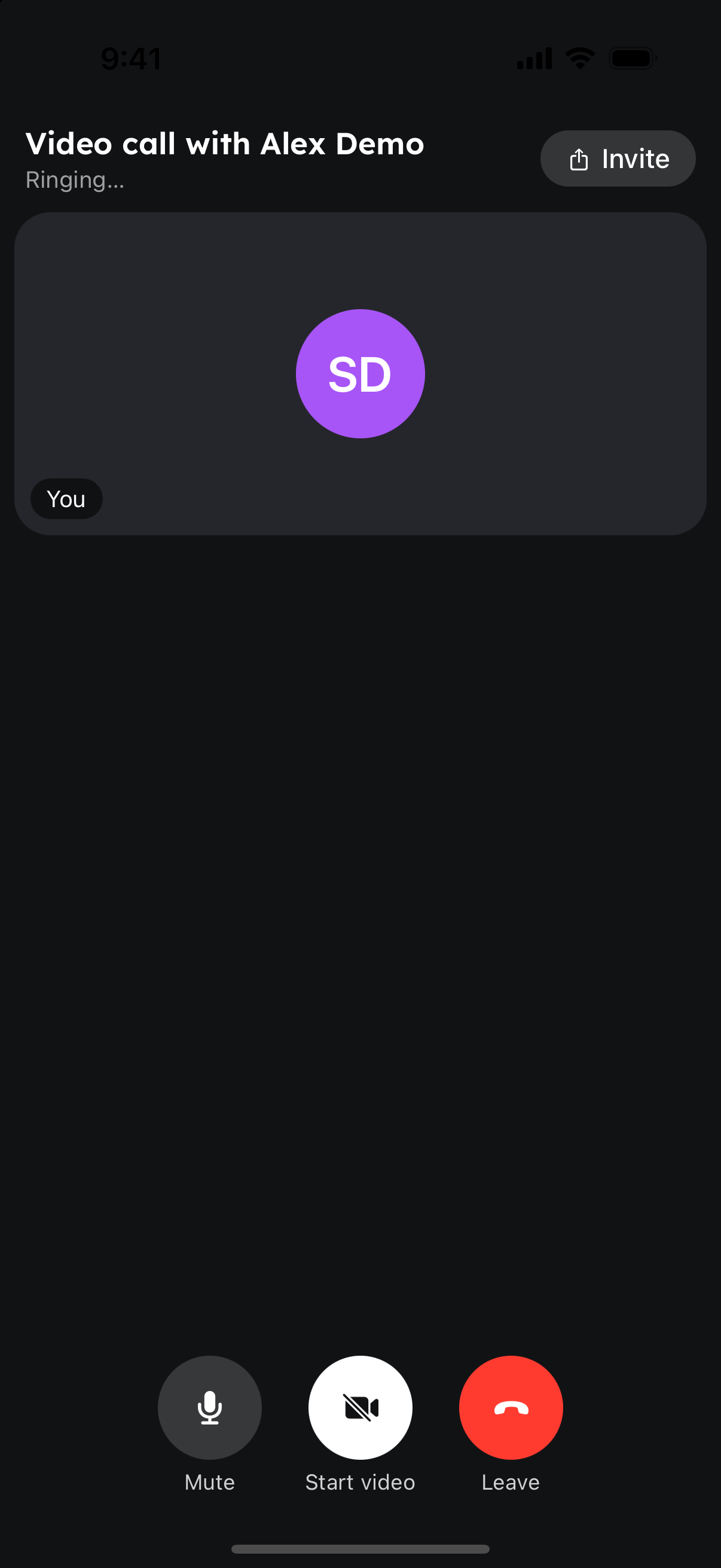
  1. Tap "Video". Their devices ring, and you see "Ringing…" until they answer.
Outgoing RingQ video call ringing a colleague

Video call several people

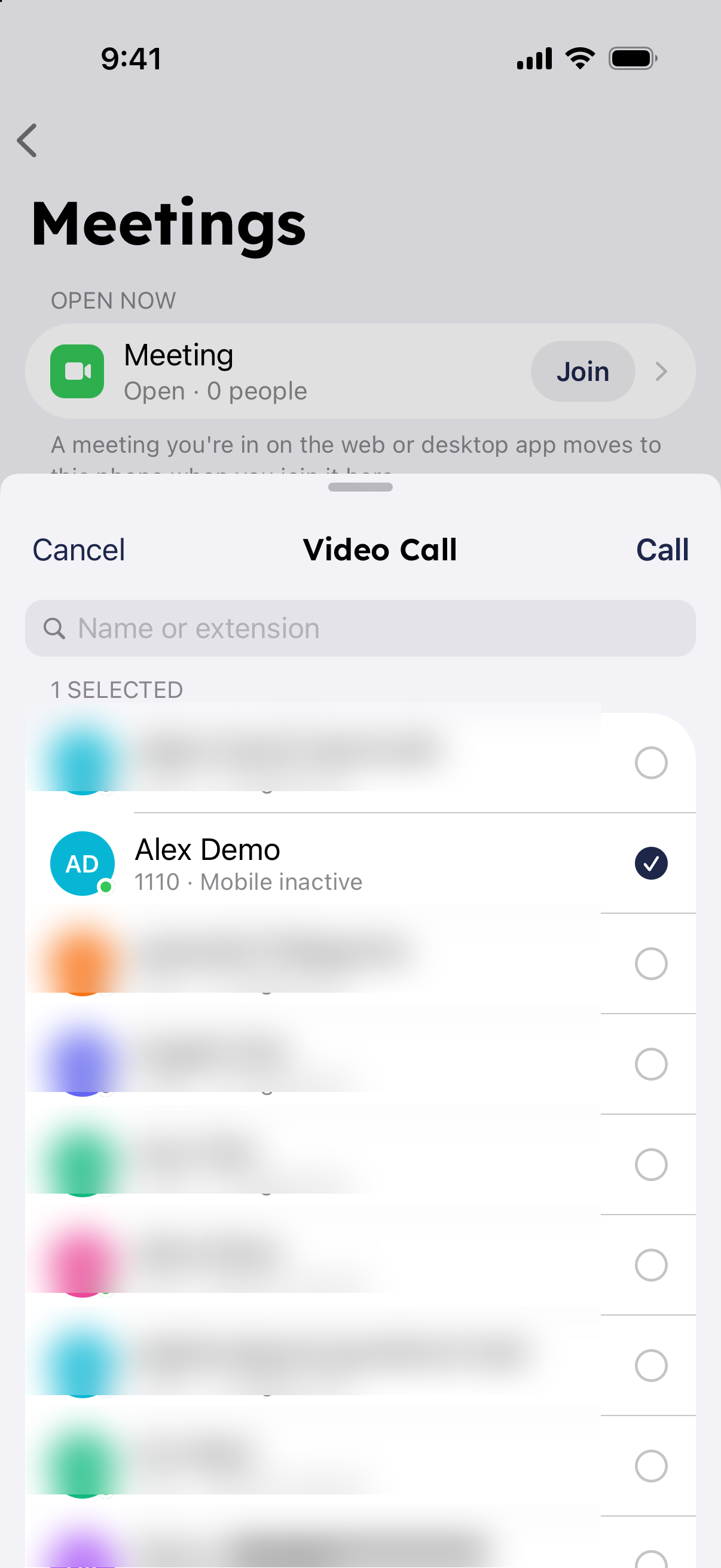
  1. On the Home screen tap "Meetings", then "Video call colleagues".
  2. Choose one or more people (search by name or extension) and tap "Call".
Video call colleagues picker in the RingQ app
  1. Everyone who answers joins the same call. People who decline or don't answer are shown to you.

During the call, tap "Invite" to ring more people in.

Answer a video call

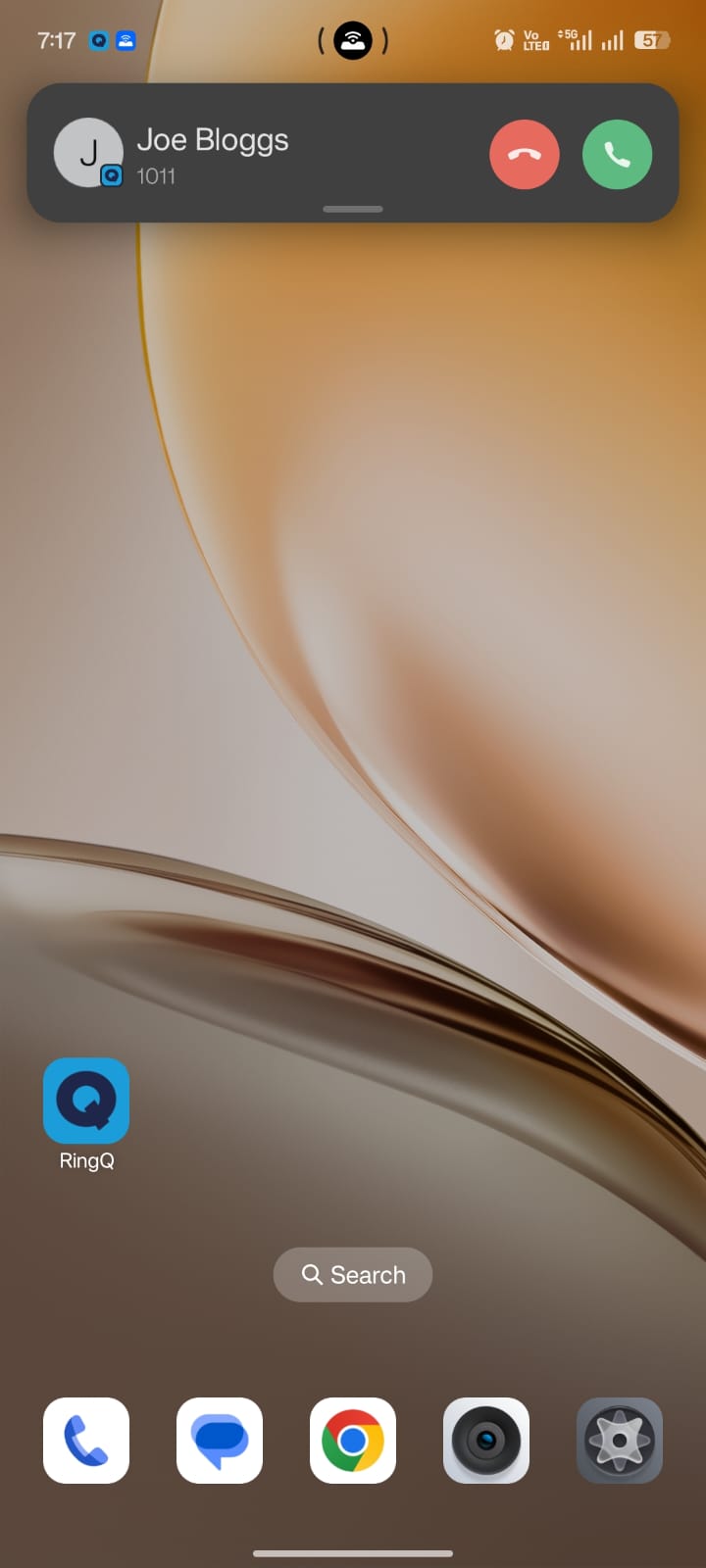
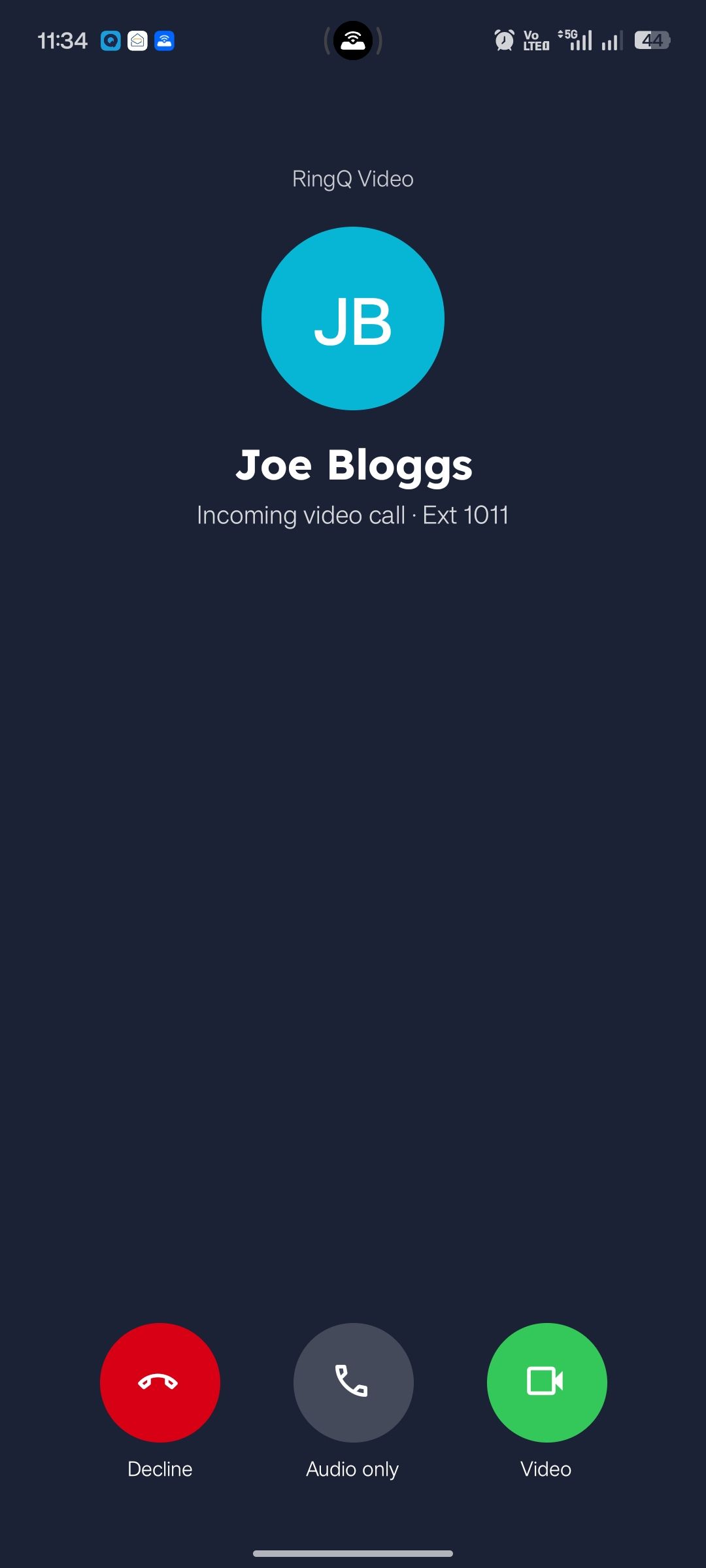
A video call rings even when the app is closed. Then choose:

Incoming RingQ video call with Video, Audio only and Decline
Incoming RingQ video call notification on Android
Full-screen incoming RingQ video call on Android
  • Video: join with your camera on.
  • Audio only: join with your camera off. You can tap "Start video" later.
  • Decline: the caller is told you declined.

If you are signed in on your computer and your phone, both ring. Answer on either one.

During the call

Use the buttons to mute, turn your video on or off, switch between front and back camera, invite people, or leave. Answering a normal phone call takes you out of the video call.
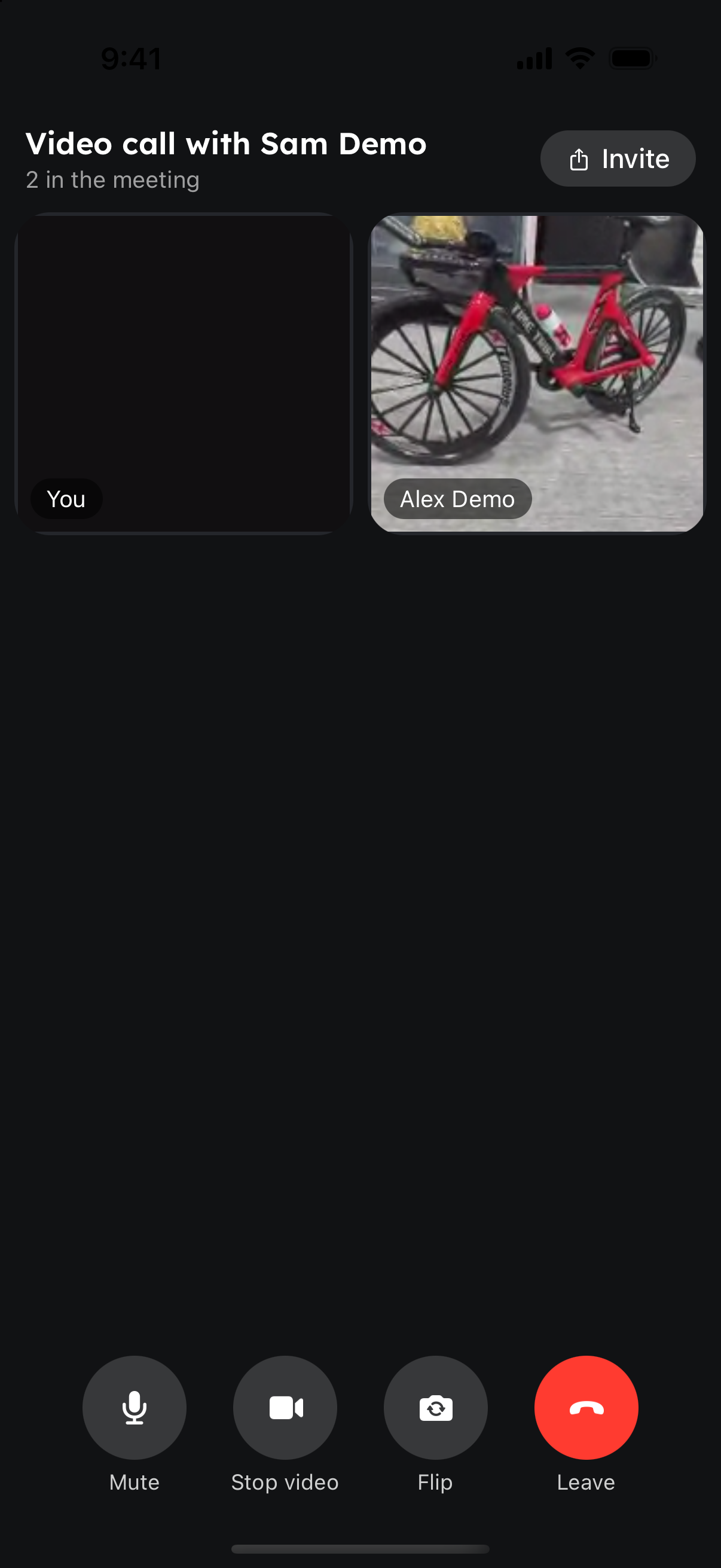
Two-person RingQ video call with camera and mute controls