Security update: RingQ is patched against the critical PHP vulnerabilities. Update your servers today.

Read now
RingQ Customer Centric Communications

Transferring Calls and Conference Calls in the RingQ App


Introduction

During a call you can pass the caller to someone else, or bring more people into the call.

Blind transfer

A blind transfer sends the caller straight to someone else without you speaking to them first.
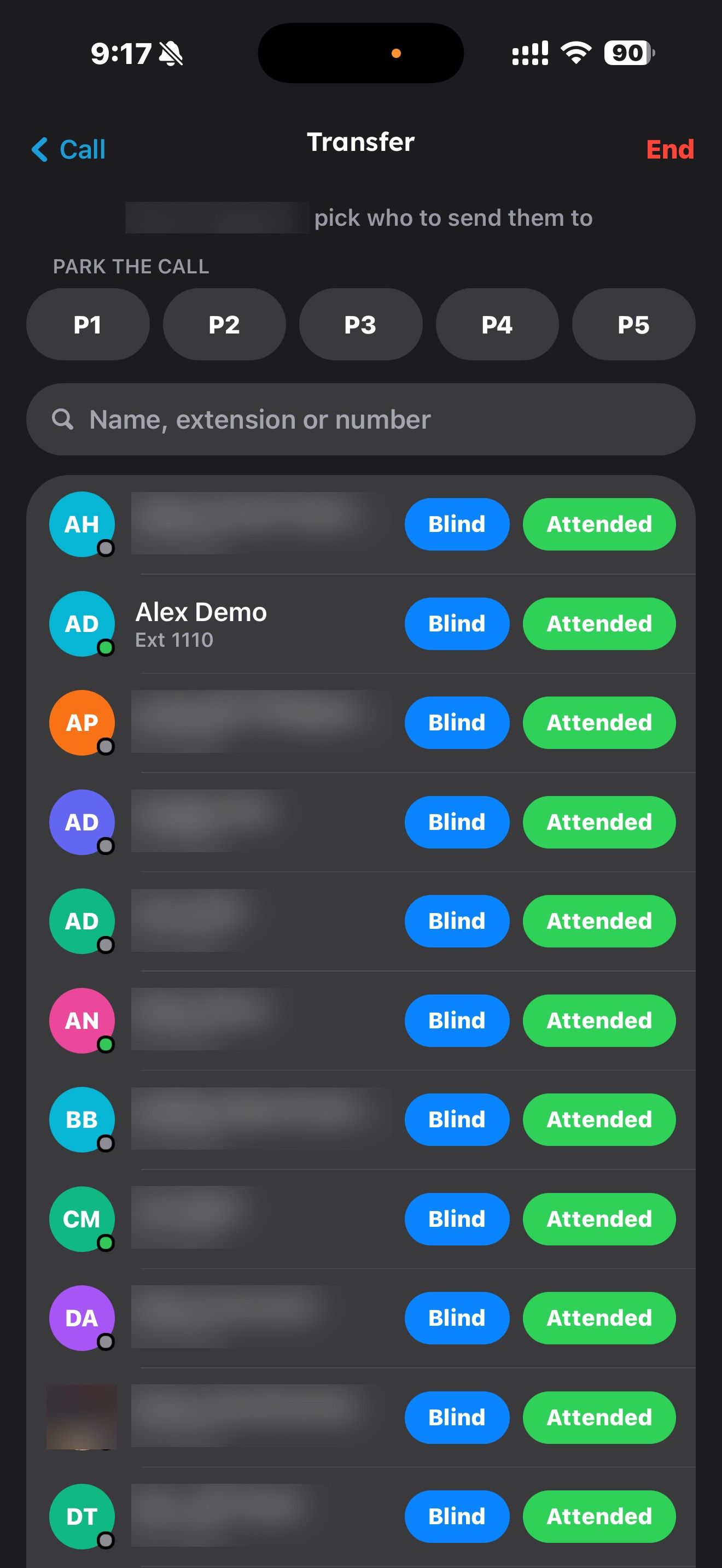
  1. During the call, tap Transfer.
  2. Search for a name or extension, or type a phone number.
Transfer screen in the RingQ iPhone app with Blind and Attended options
  1. Tap Blind next to the person. The caller is transferred and your call ends.

Attended transfer

An attended transfer lets you speak to the other person before you hand the caller over.
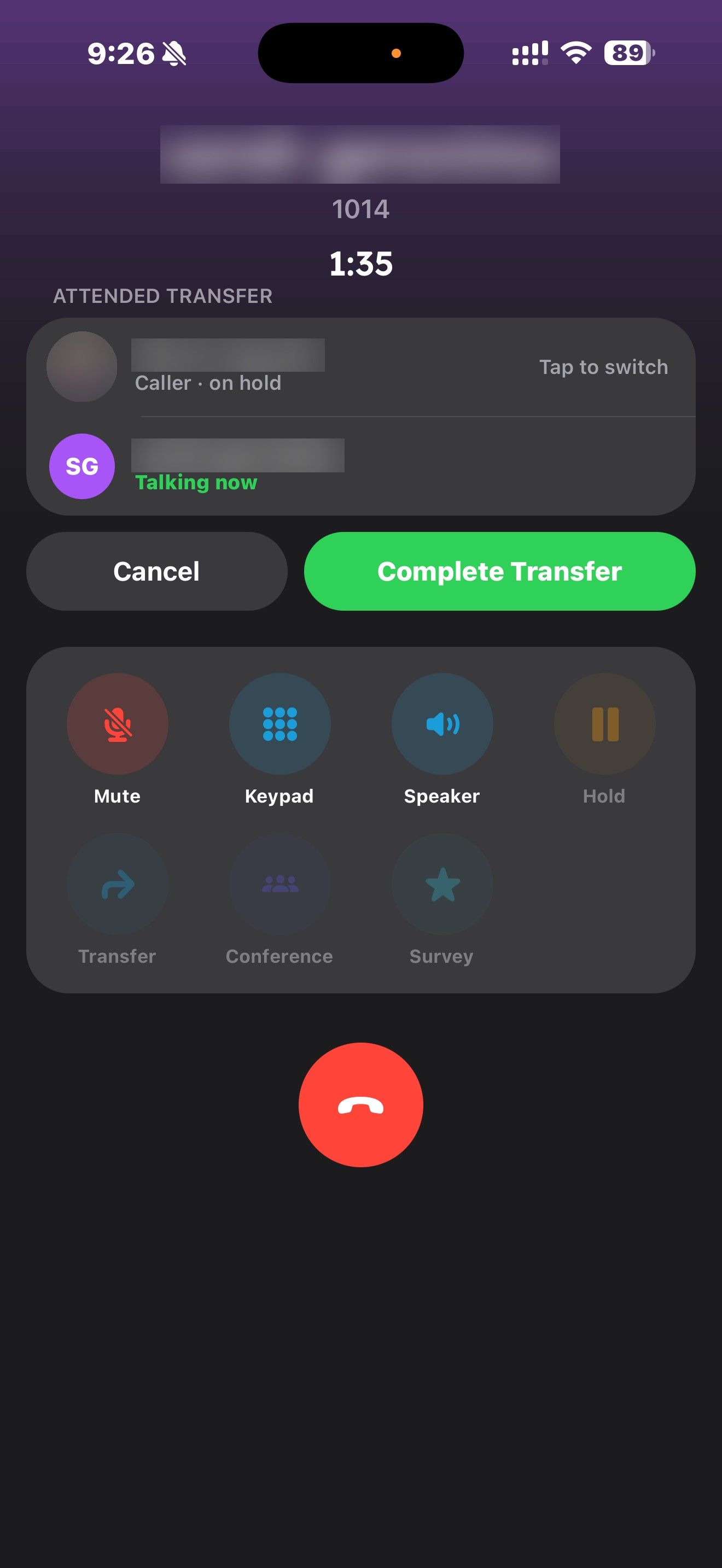
  1. During the call, tap Transfer, find the person and tap Attended.
  2. The caller is put on hold and the app calls the other person. The screen shows the caller (on hold) and the person you are calling (Talking now once they answer).
Attended transfer in the RingQ app with the caller on hold
  1. When they answer, tell them about the call. Tap either row to switch between the two people.
  2. Tap Complete Transfer to connect them. The button becomes available once the other person answers.
  3. To keep the caller yourself, tap Cancel.

Park a call

On the Transfer screen you can also park the call in a park slot (P1, P2 and so on). Anyone on your team can then pick it up from Home > Park Slots.

Conference call

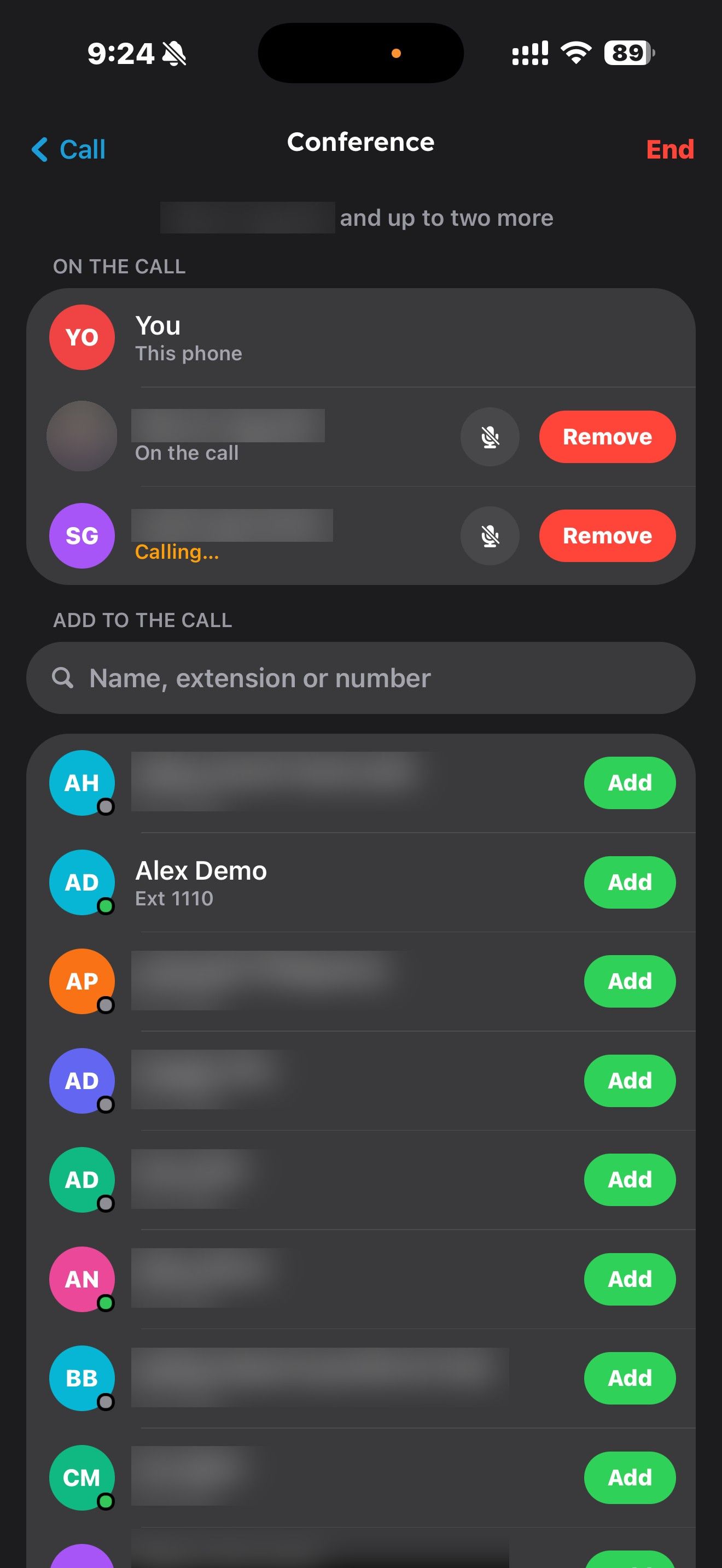
  1. During the call, tap Conference.
  2. Under Add to the call, find a person and tap Add.
Adding a person to a conference call in the RingQ app
  1. Everyone on the call now hears each other. You can mute or remove each person from the list.
Three-way conference call in progress in the RingQ iPhone app

If one person hangs up, the others stay connected.