RingQ Customer Centric Communications

Managing Extension Schedules


Introduction

Setting accurate schedules for extensions ensures calls are handled appropriately during working hours, holidays, and out-of-office periods. In this guide, we’ll show you how to manage extension schedules in RingQ—including setting working hours, configuring holiday rules, and automating call handling based on availability.
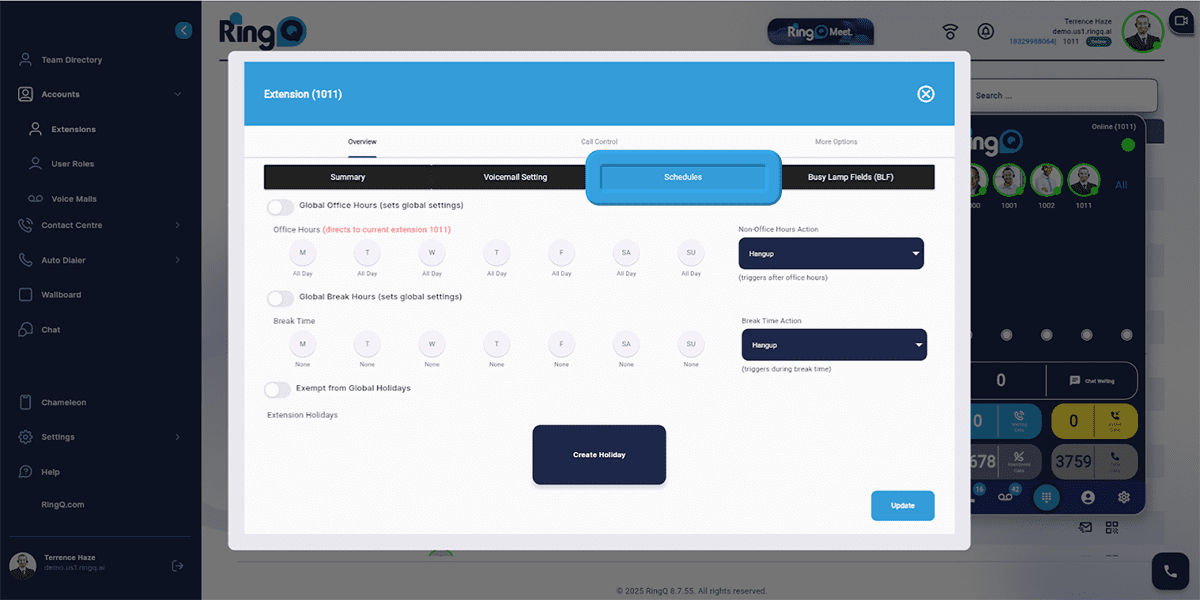
Global Office Hours

  • When enabled, office hours cannot be modified, and actions during non-office hours are restricted.
  • When disabled, office hours can be modified, and non-office hour actions are not restricted.

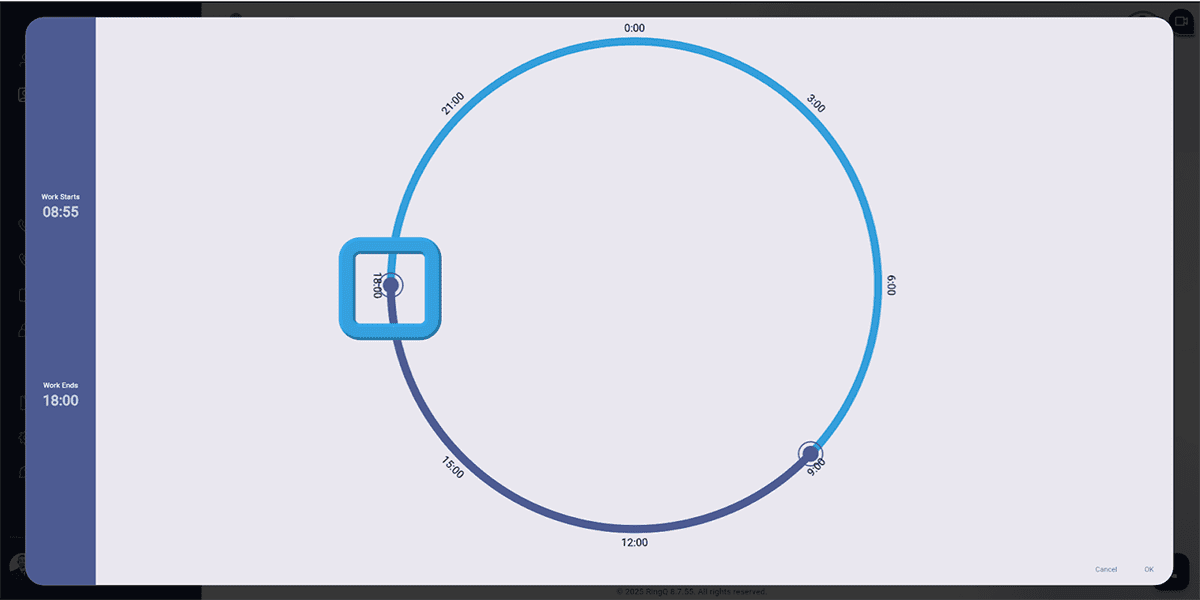
Time

  • Customize office hours for the extension.
  • Adjust times by dragging a dot on the interface to the desired hours.

Time Start

Time End

  • Click OK to save settings.

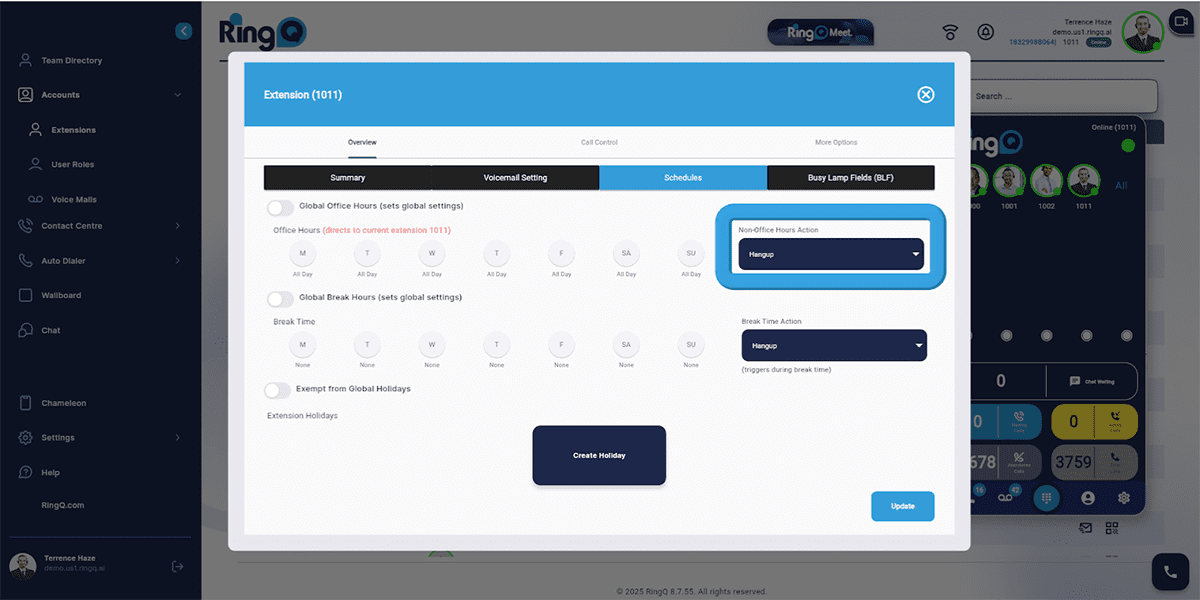
Non-Office Hours Actions

  • Define actions to be triggered outside of office hours.
  • Select an action or assignment for Non-Office Hours Action.

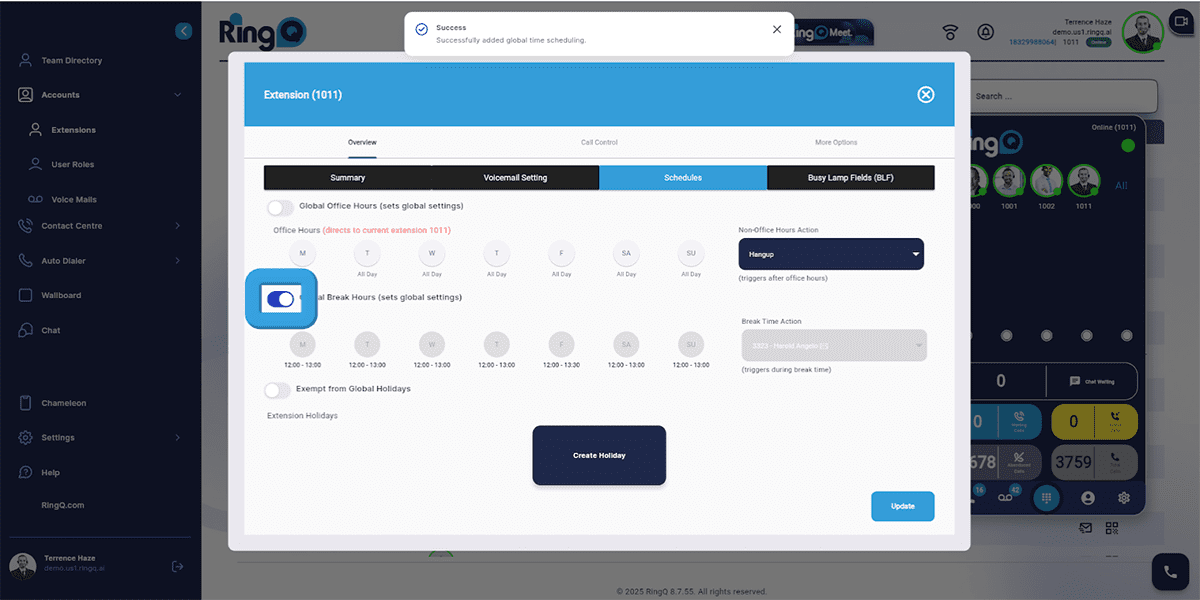
Global Break Hours

  • Set global break time settings.
  • When enabled, break times are fixed; otherwise, customize break times.
  • When disabled, break times can be modified.

Time

  • Specify break periods and actions during breaks.
  • Adjust times by dragging a dot on the interface to the desired hours.
  • Click OK to save settings.

Extension Holidays

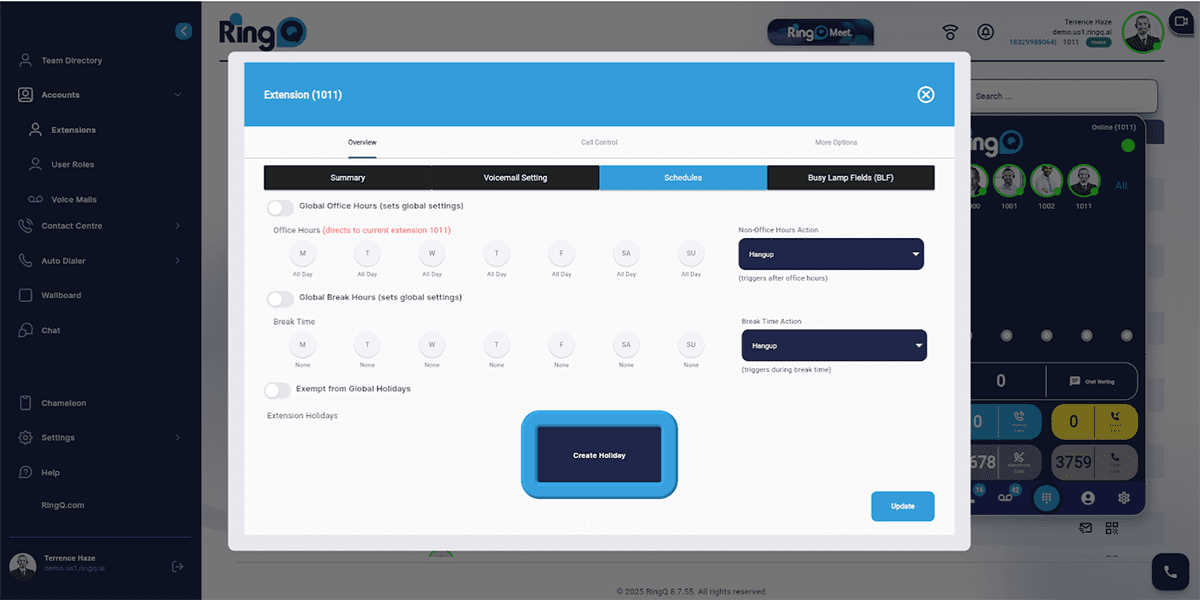
1

Click the Create Holiday button.

2

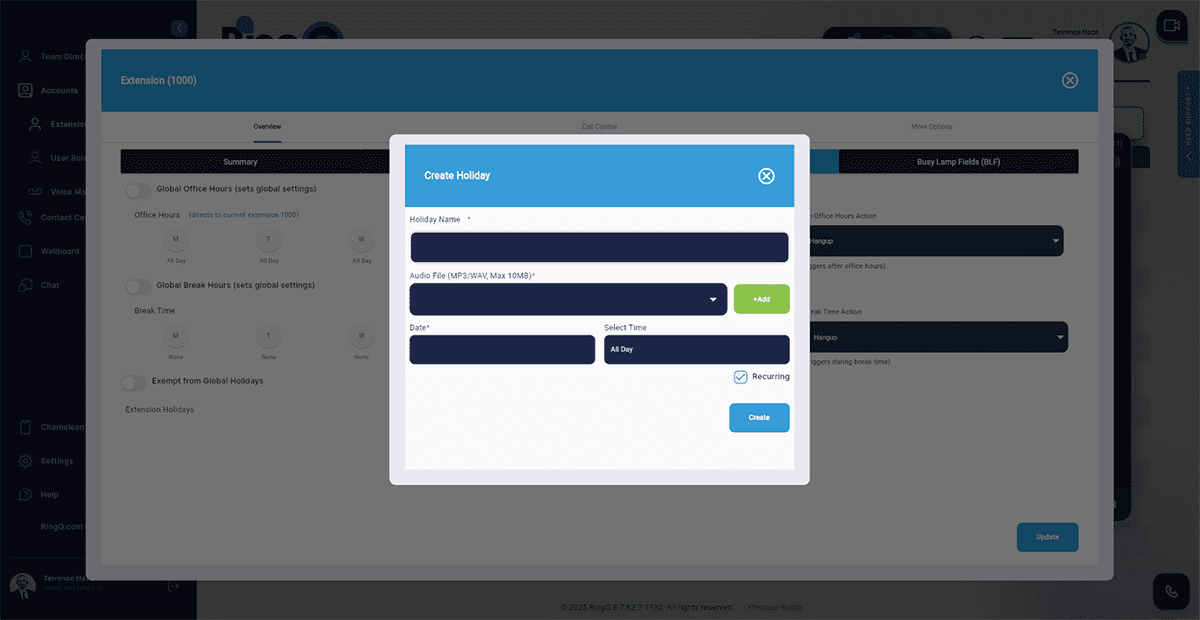
Enter the holiday name.

3

Select an audio file — click the dropdown to choose from the available options.

4

Click the Add button to upload a custom audio file.

5

Click the date panel to set the date.

6

Select Time and set your time range.

7

Click OK to save the settings.

8

Recurring: Check to repeat the holiday annually; uncheck for one-time holidays.

9

Click Save.