Busy Lamp Field (BLF) in RingQ allows users to monitor the real-time status of other extensions—such as whether they are idle, ringing, or on a call—using indicator lights on compatible desk phones. This feature is especially useful for receptionists and team leads who need to manage call flow efficiently. This guide provides step-by-step instructions to configure BLF in RingQ for improved visibility and communication within your team.
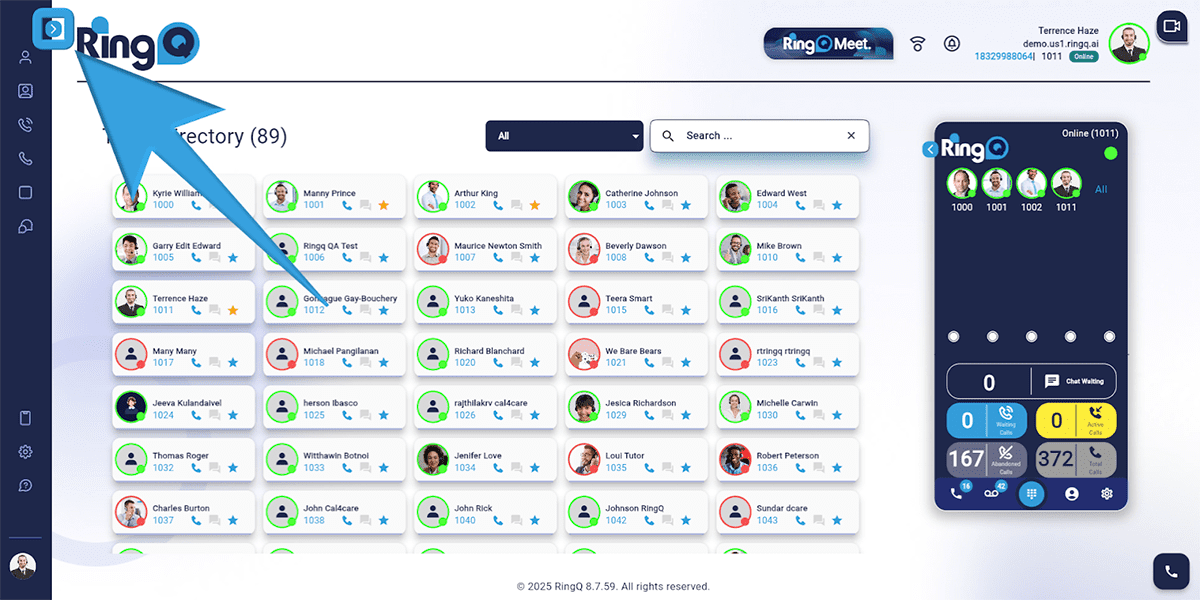
Click the Show Side Menu button to reveal the side menu bar.
Navigate to the Accounts menu and click the Dropdown button to reveal the Accounts options.
Select Extensions.
Choose the specific extension for which you want to configure the BLF.
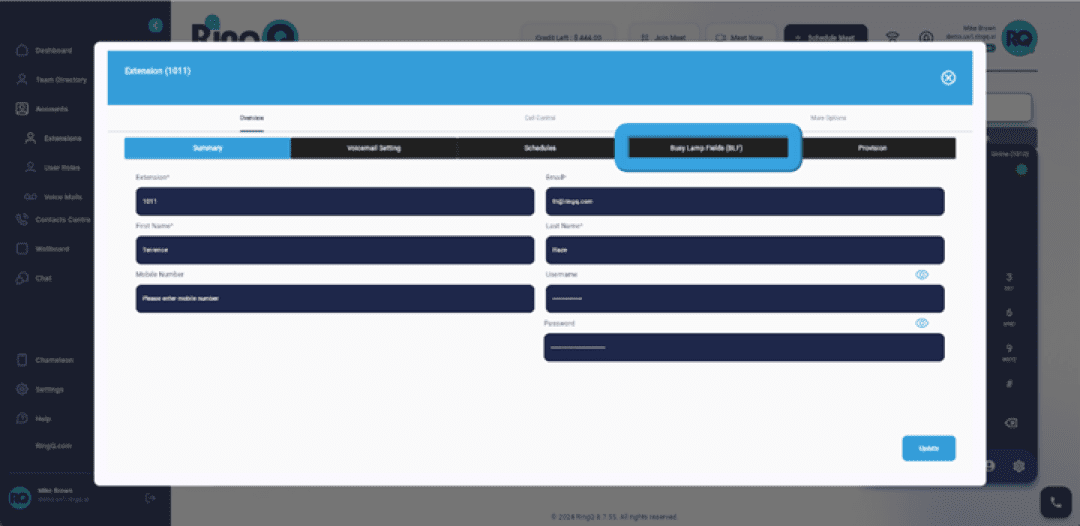
Within the extension settings, find and click Busy Lamp Field (BLF).
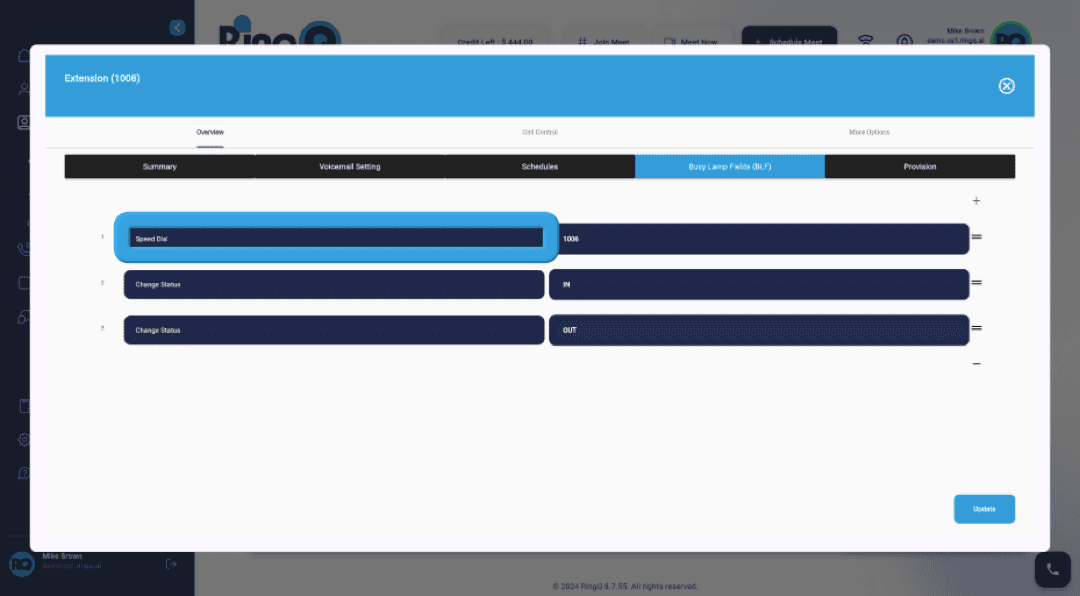
Click the field where you want to set up the BLF extension.
Next, click the Dropdown button next to the selection field. This opens a menu with various options.
From the dropdown menu, choose BLF to assign an extension for monitoring via Busy Lamp Field.
Finally, choose the extension number you want to monitor by clicking it in the list of available extensions.
