Your personal RingQ Talk link enables anyone to contact you directly—by clicking on your unique link. Callers are instantly connected through their browser using WebRTC for secure, high-quality voice communication. This guide explains how to locate, share, and manage your RingQ Talk link.
Log in to your RingQ web app and click your avatar to open your profile page—located in the top-right corner.
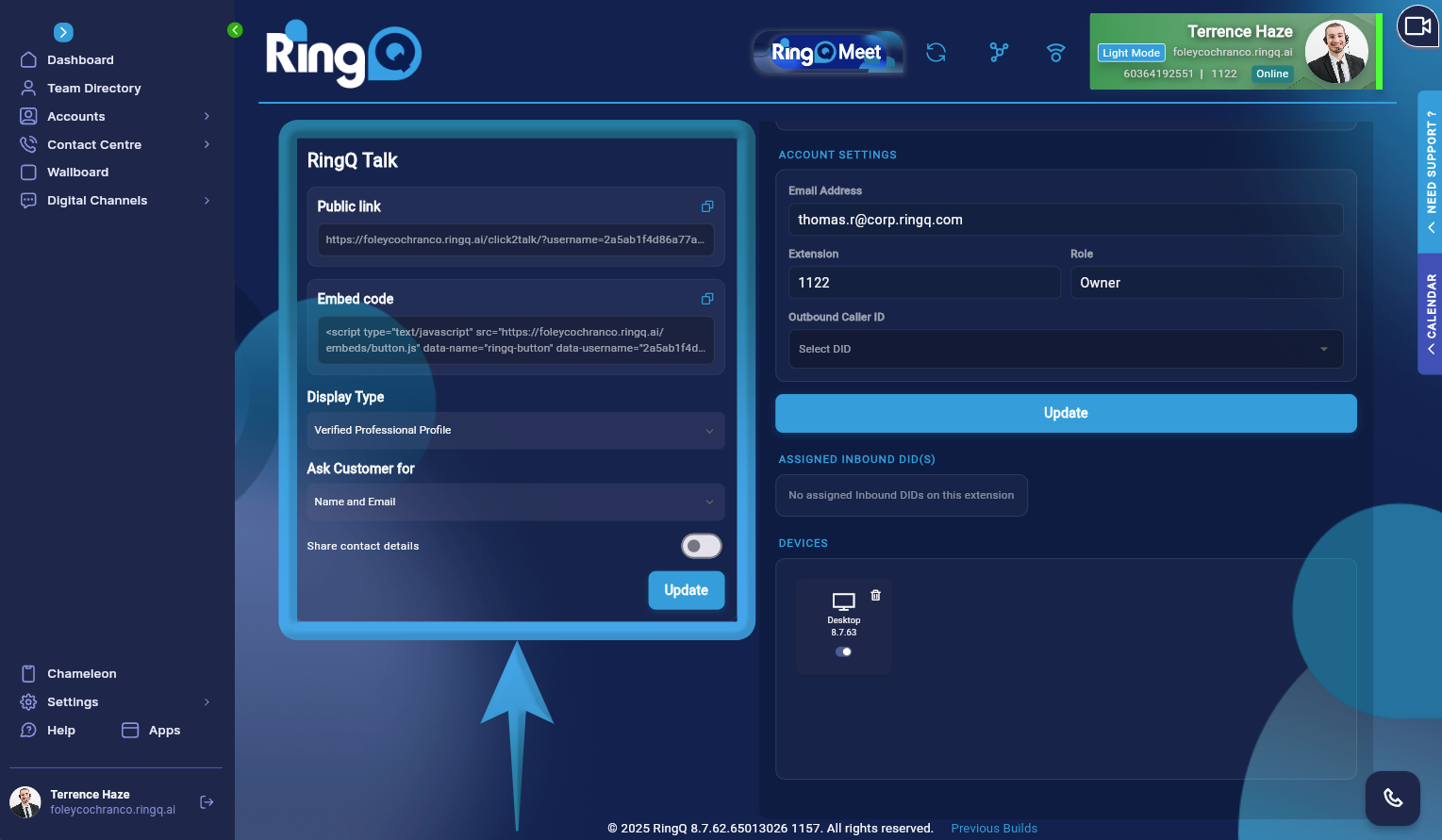
Scroll to the lower-left corner of the page to find the RingQ Talk section.
Next to the Public Link, click the Copy icon to copy the link to your clipboard. You can add the link to your email signature or share it with customers so they can call you by simply clicking it.
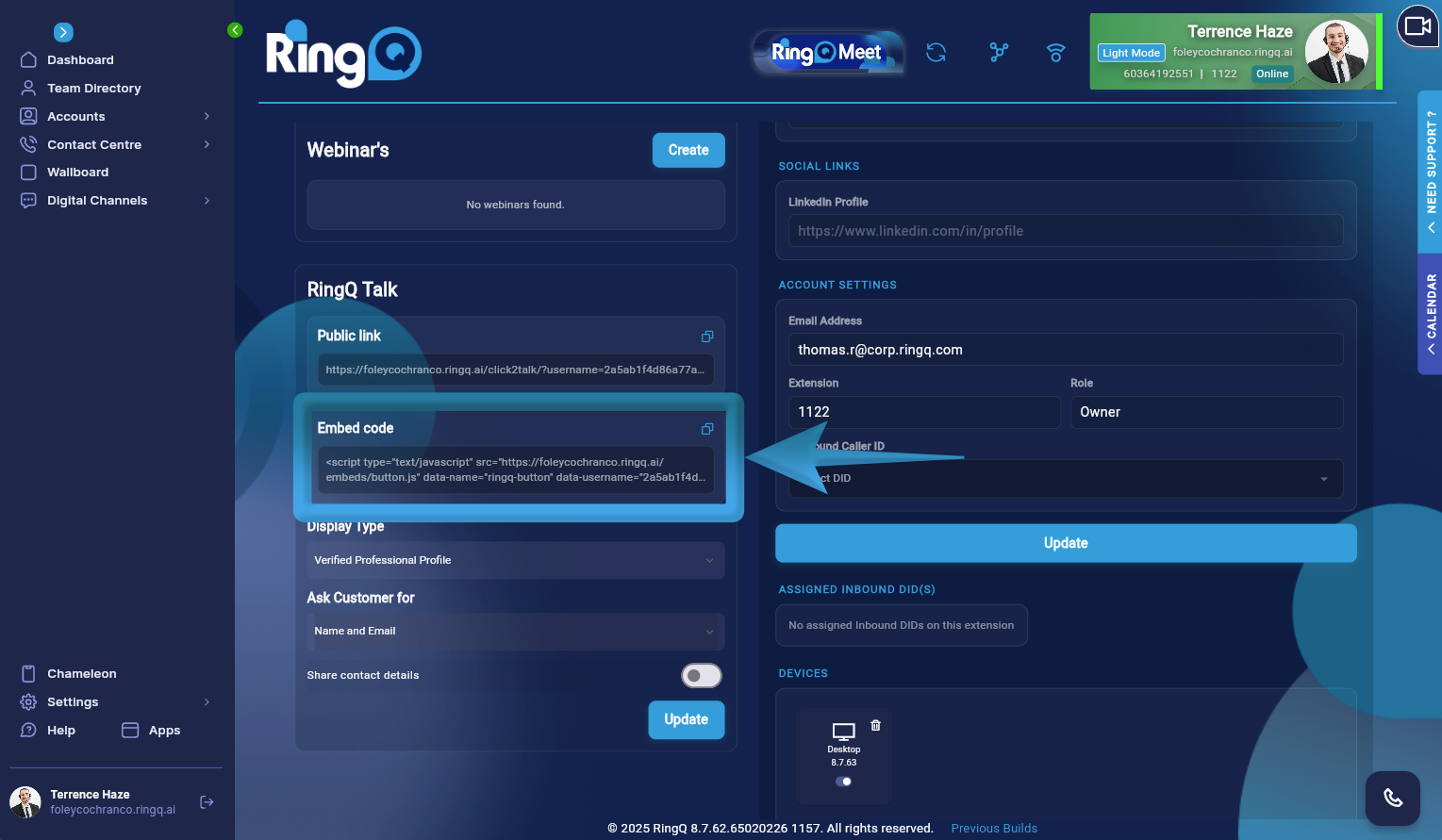
Embedded Code. Copy the embed code and add it to your website or web app. Visitors can initiate a call without leaving the page, using your RingQ configuration (such as color, logo, and access token).
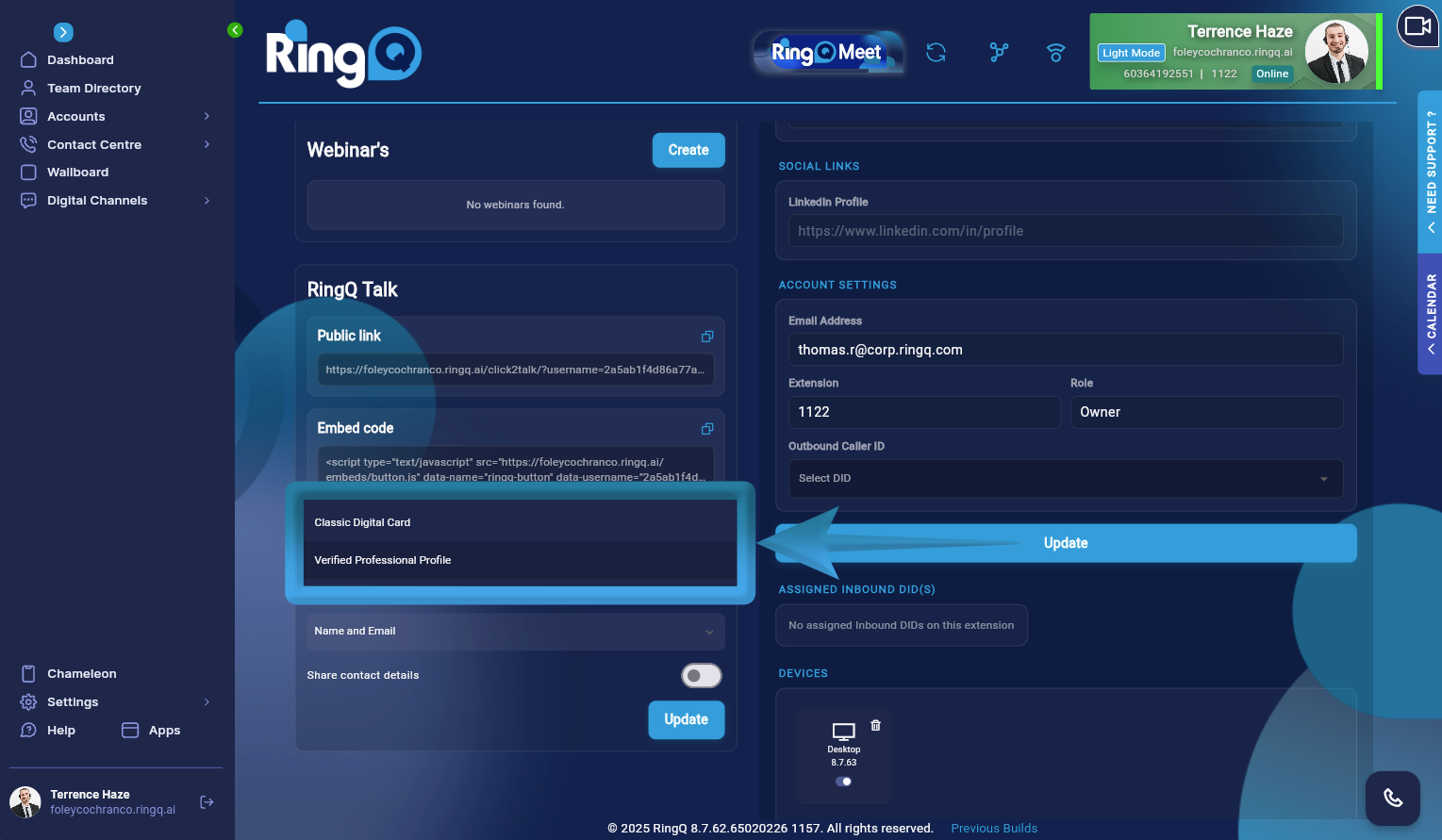
Display Type: Classic Digital Card or Verified Professional Profile.
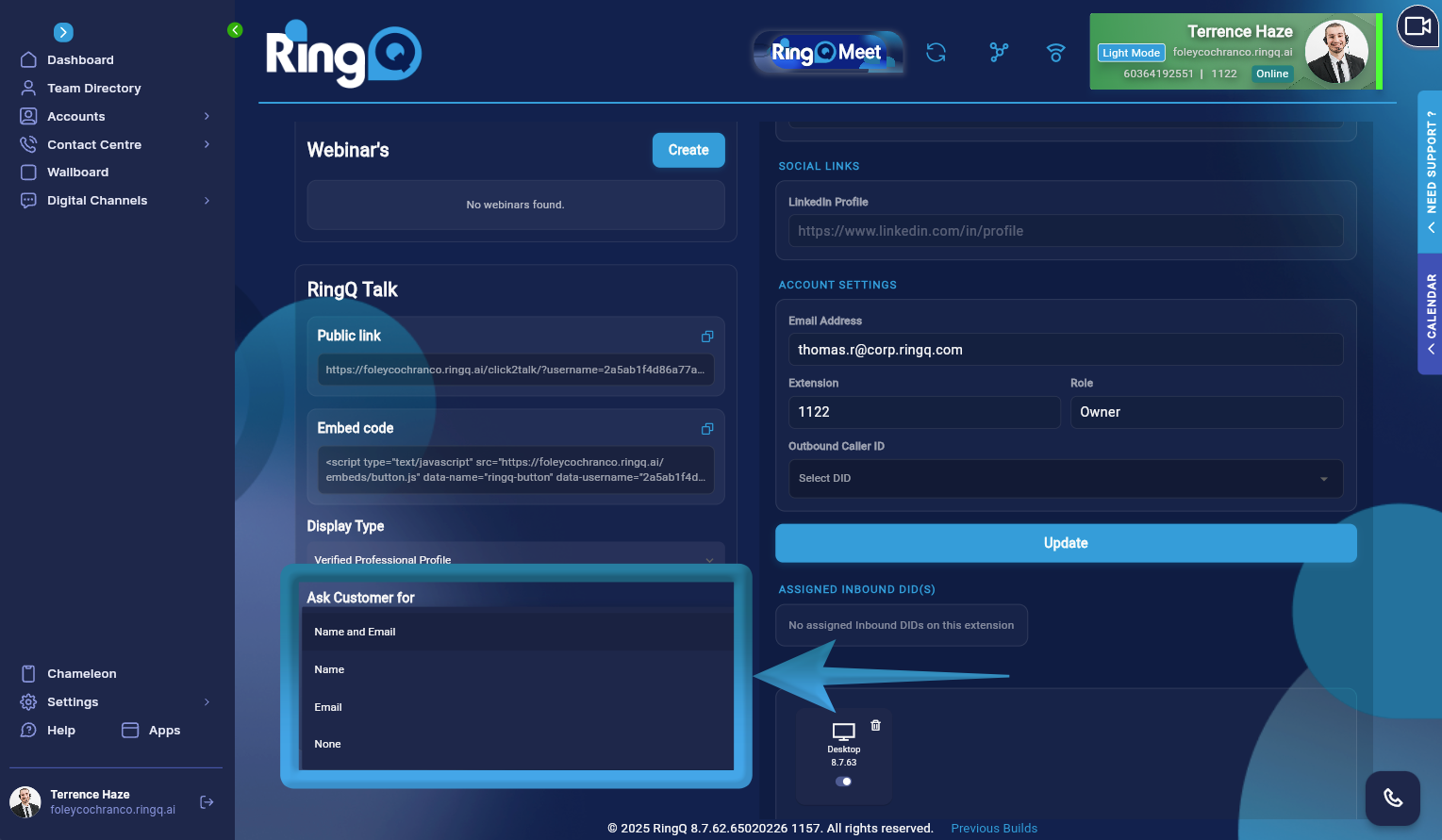
Choose the type of information you want to request from callers before they initiate a call by clicking the dropdown menu under Ask customer for:.
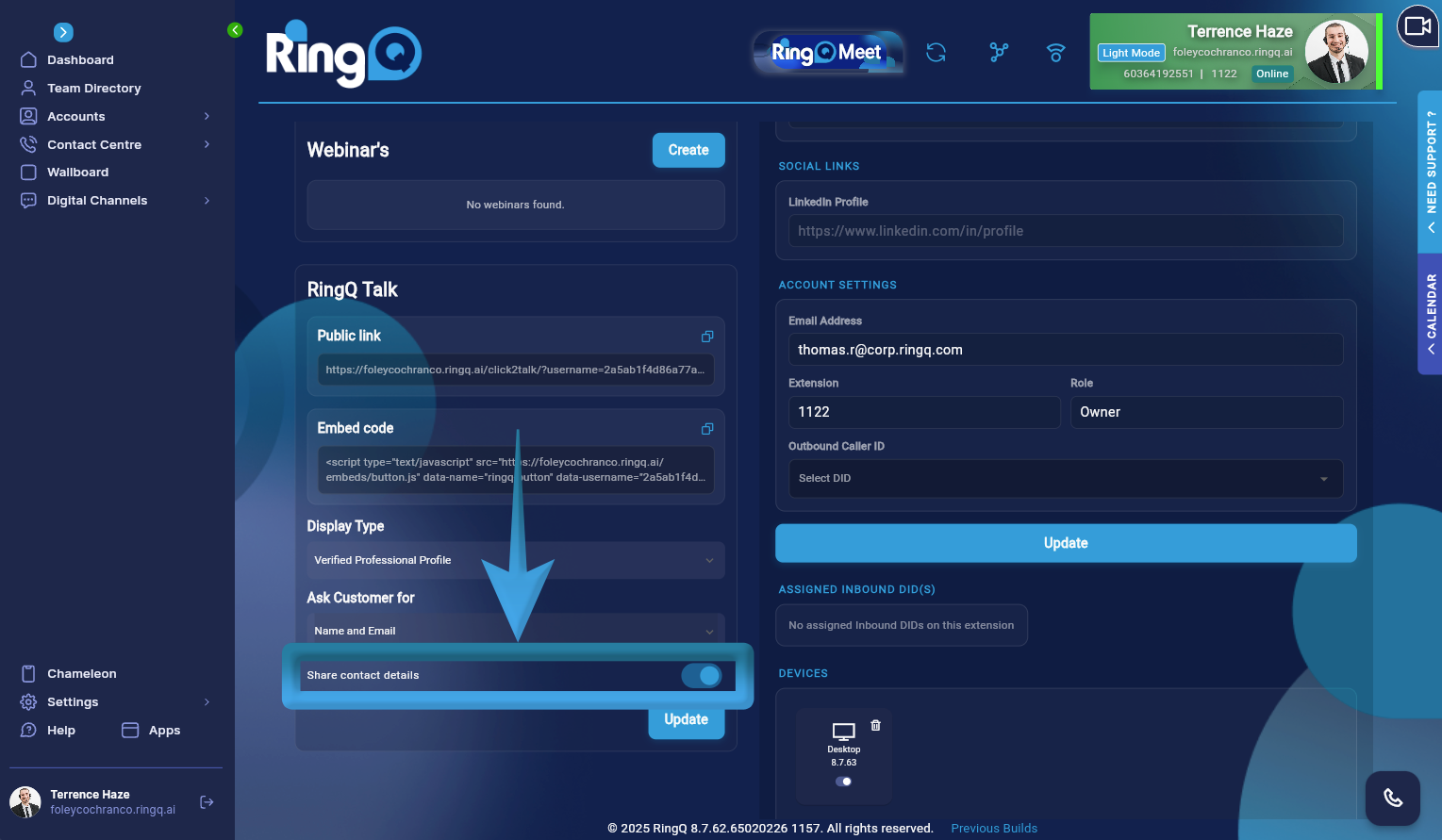
Enable or disable Share contact details.
Click the Update button to save the configuration.
Share your RingQ Talk link with your customers by adding it to your website, email signature, or social media. Here is an example RingQ Talk link: https://<your-subdomain>.ringq.ai/click2talk/?username=<token>&type=1. When a customer clicks the link, they will initiate a call.
