RingQ Customer Centric Communications

Using the “Whiteboard” Feature


Introduction

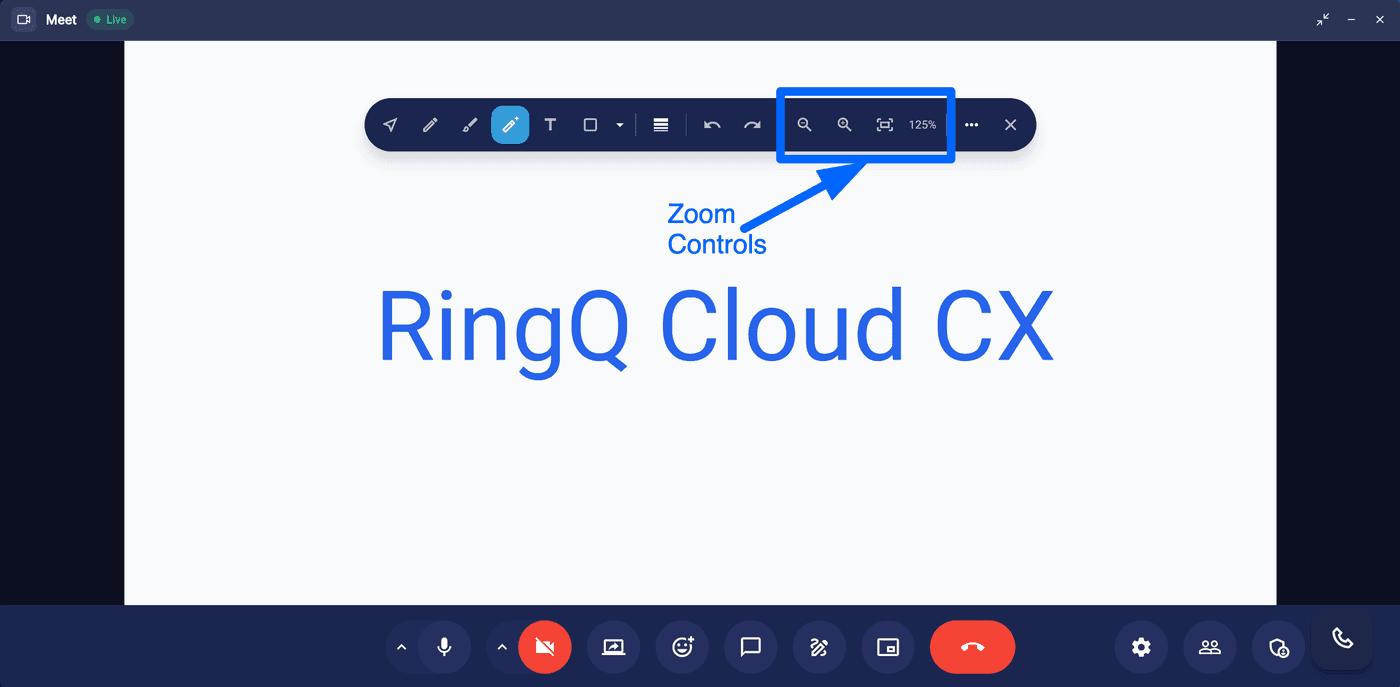
This guide explains how to use the Whiteboard feature in RingQ Meet. The Whiteboard provides a shared workspace where meeting participants can draw, write, and collaborate visually in real time. You’ll learn how to access the Whiteboard during a meeting and use its tools to support collaboration and idea sharing.

Using Whiteboard

Select the Whiteboard feature in RingQ Meet
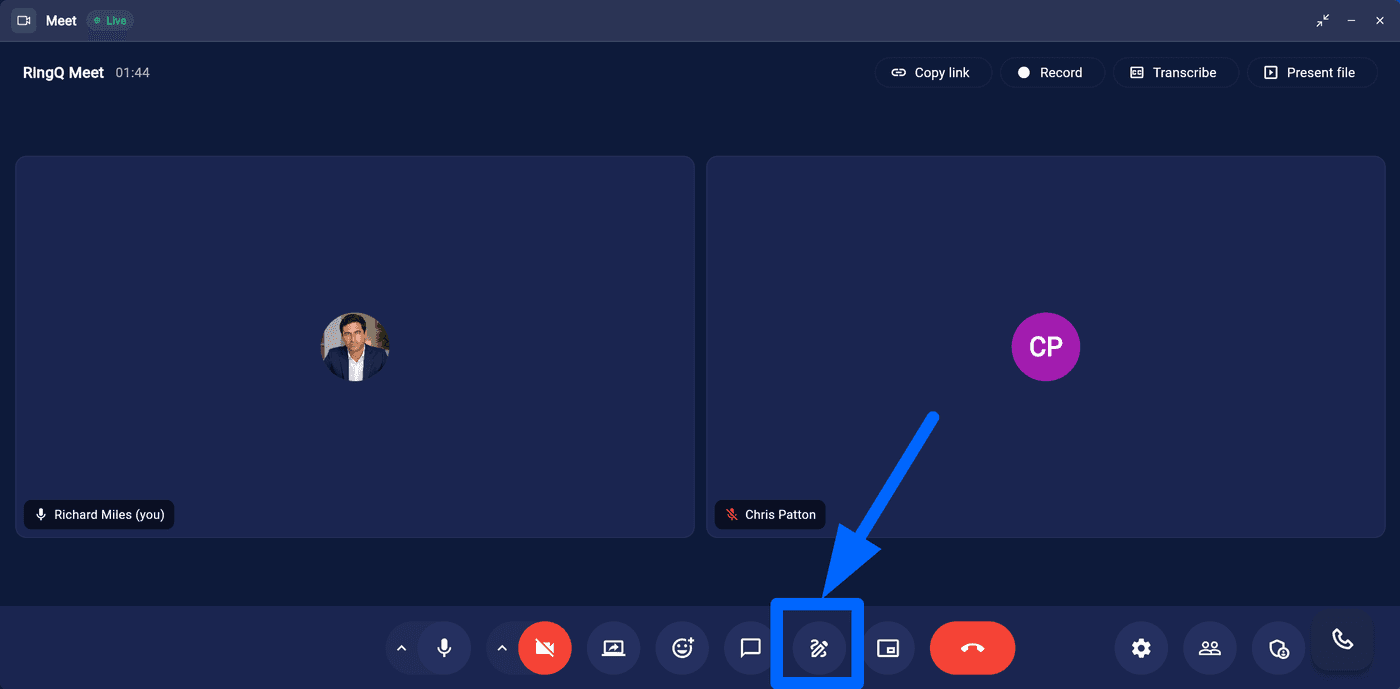
Select the Whiteboard feature in RingQ Meet

1. During an active meeting, click on the Whiteboard option as shown above. The Whiteboard provides a set of tools that allow users to draw, annotate, and manage content during meetings and collaboration sessions.
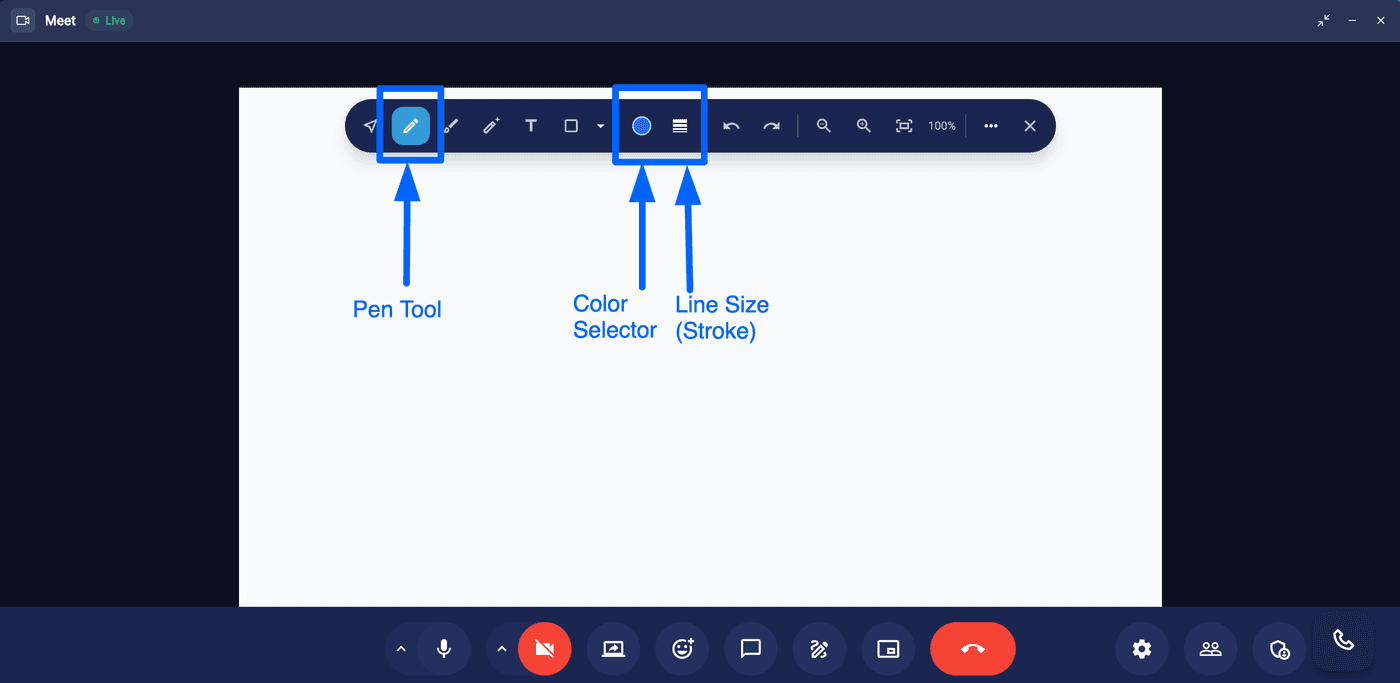
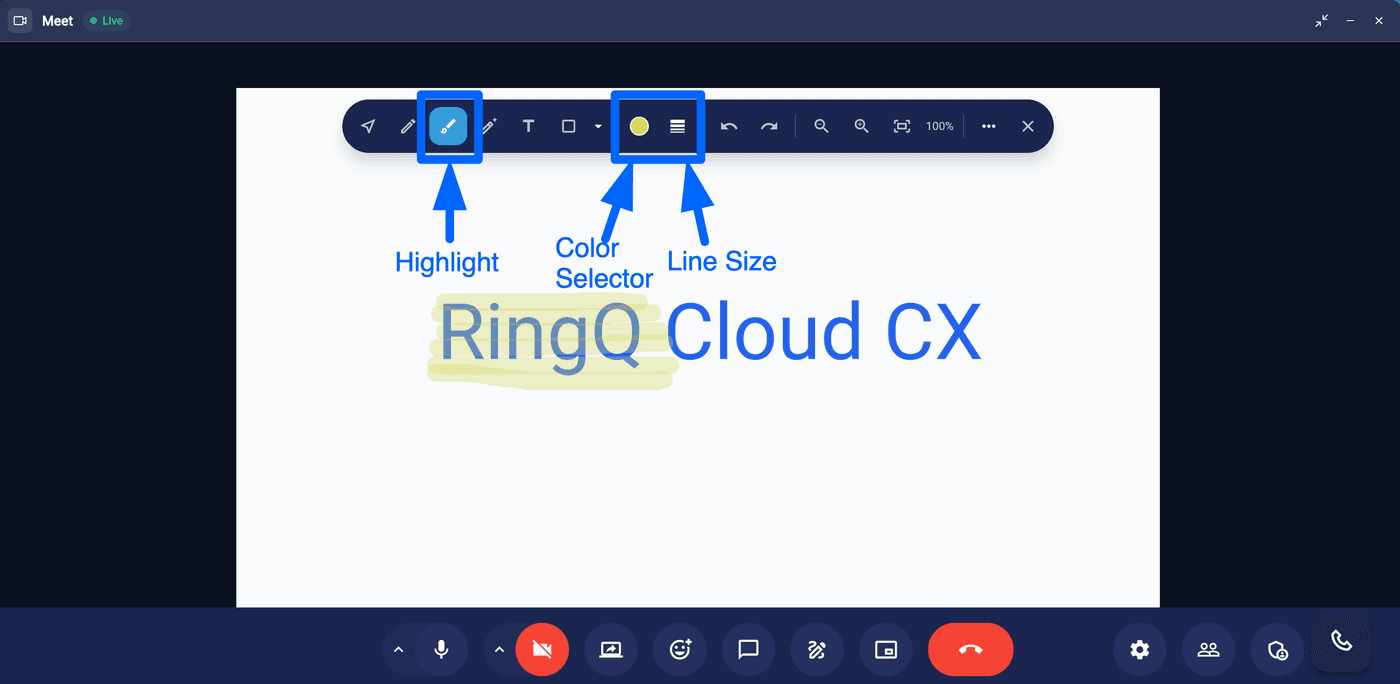
Board Control

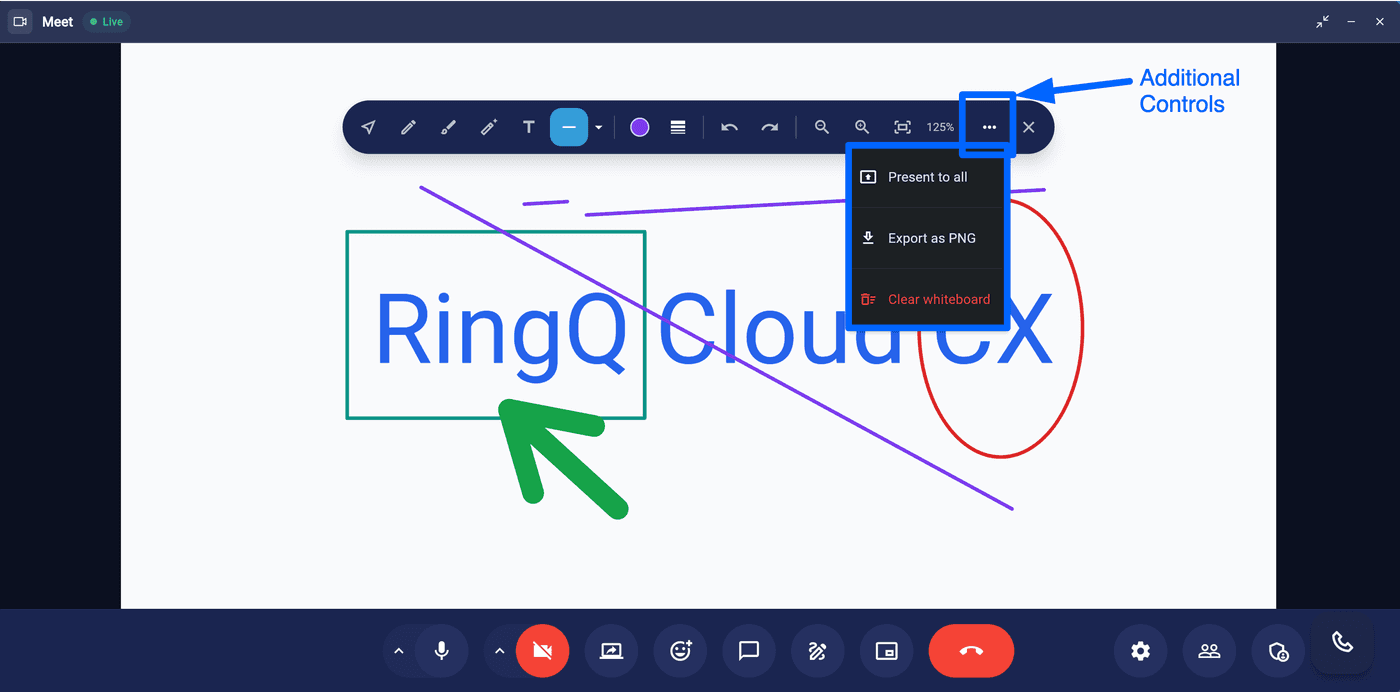
Clear Whiteboard

Clear Whiteboard

  • Clear Whiteboard – Removes all drawings, text, and annotations from the whiteboard, giving users a clean workspace for new content.
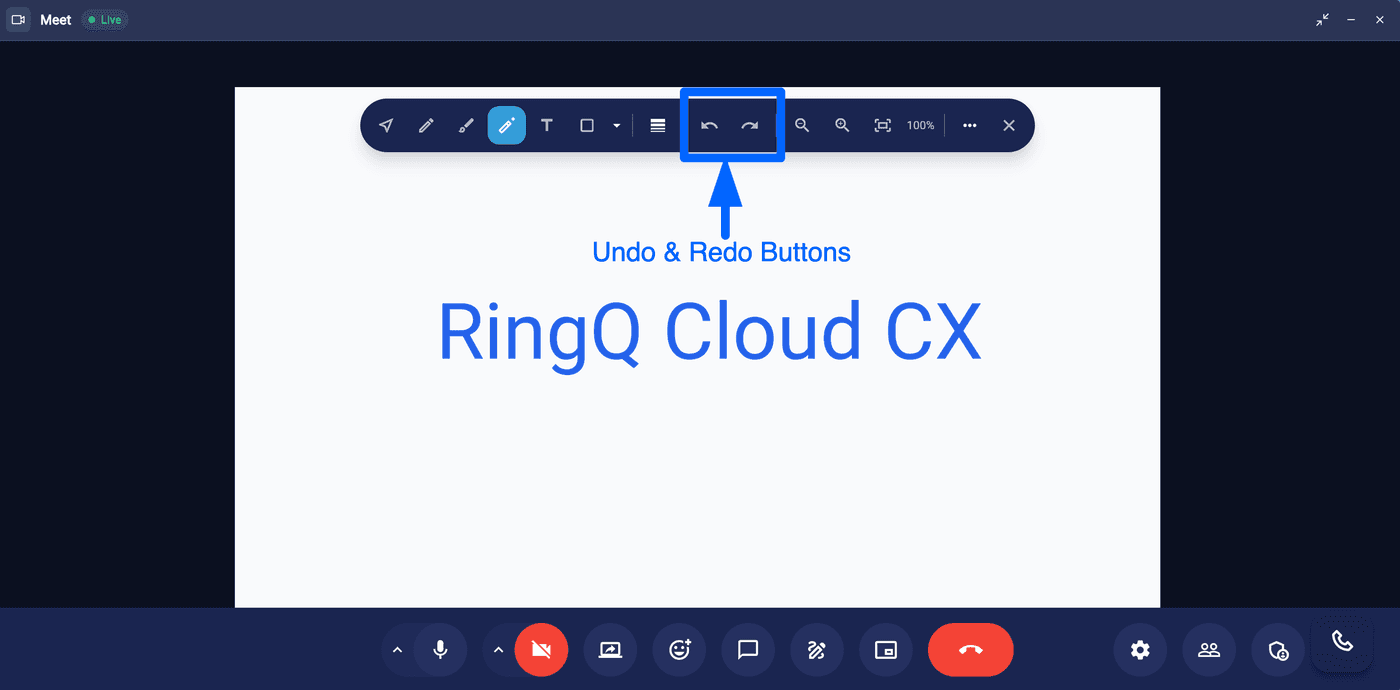
Undo last action

Undo last action

  • Undo Last Action – reverts the most recent change made on the whiteboard.
Redo action

Redo action

  • Redo Last Action – Restores the most recently undone action.

Drawing Tools

The mouse tool

The mouse tool

  • Mouse Tool – Activates the mouse cursor, allowing users to navigate, select, and interact with objects on the whiteboard without drawing.
The pen tool

The pen tool

  • Pen Tool – Enables freehand drawing on the whiteboard.
Adjust thickness

Adjust thickness

  • Users can adjust the line thickness to create either fine or bold strokes as needed.
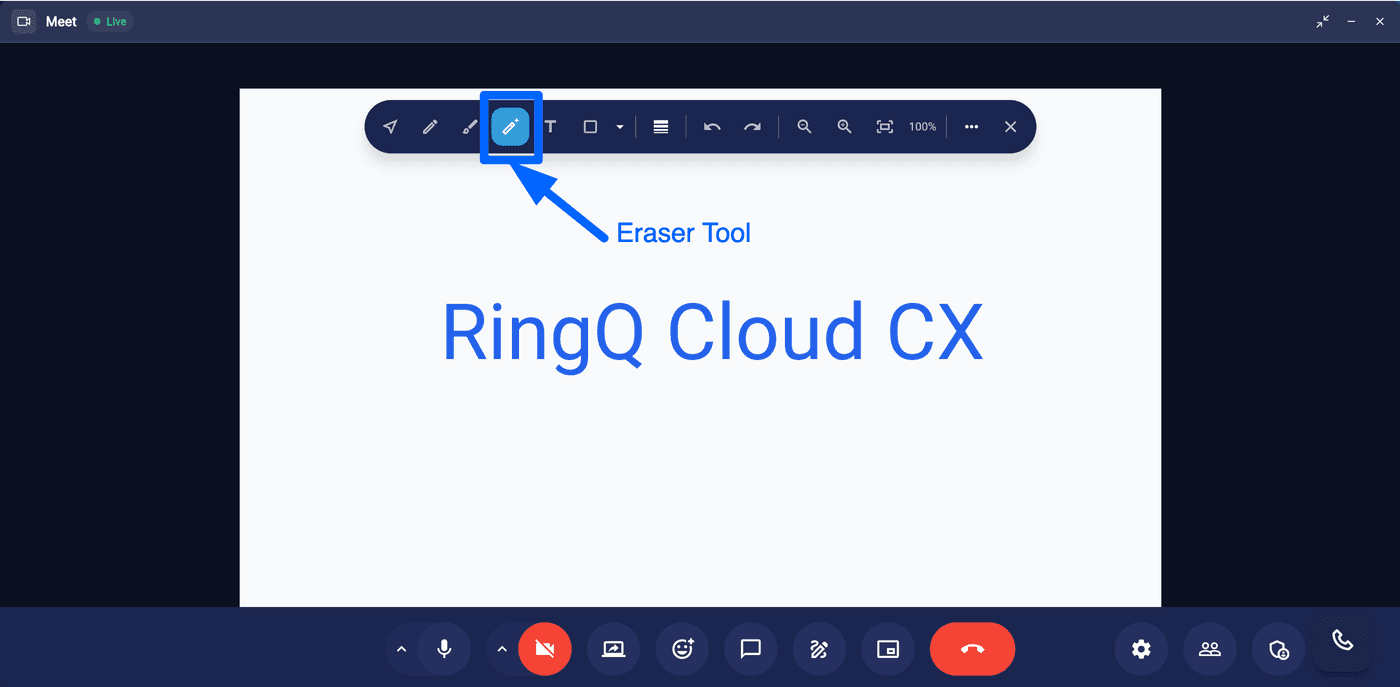
Eraser tool

Eraser tool

  • Eraser Tool – Allows users to erase specific parts of drawings or annotations without clearing the entire whiteboard.