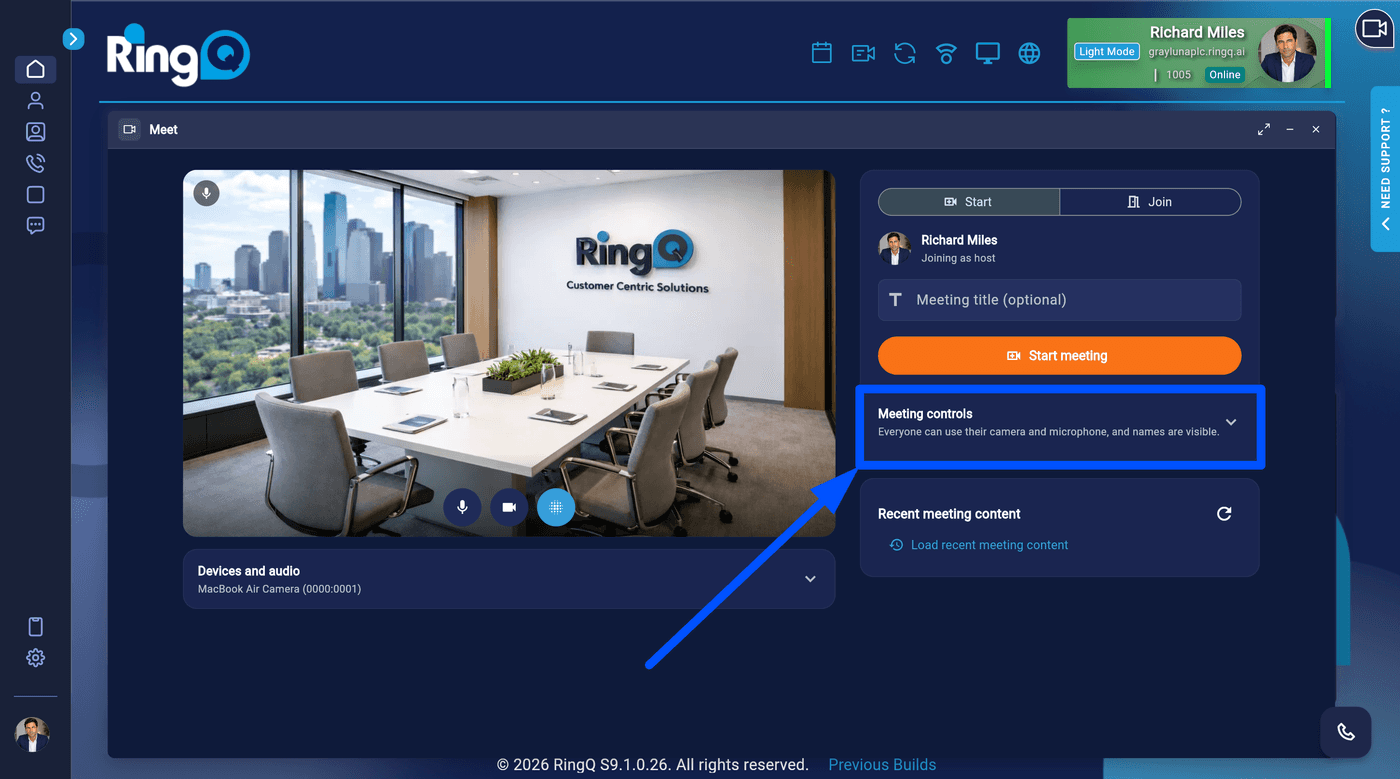
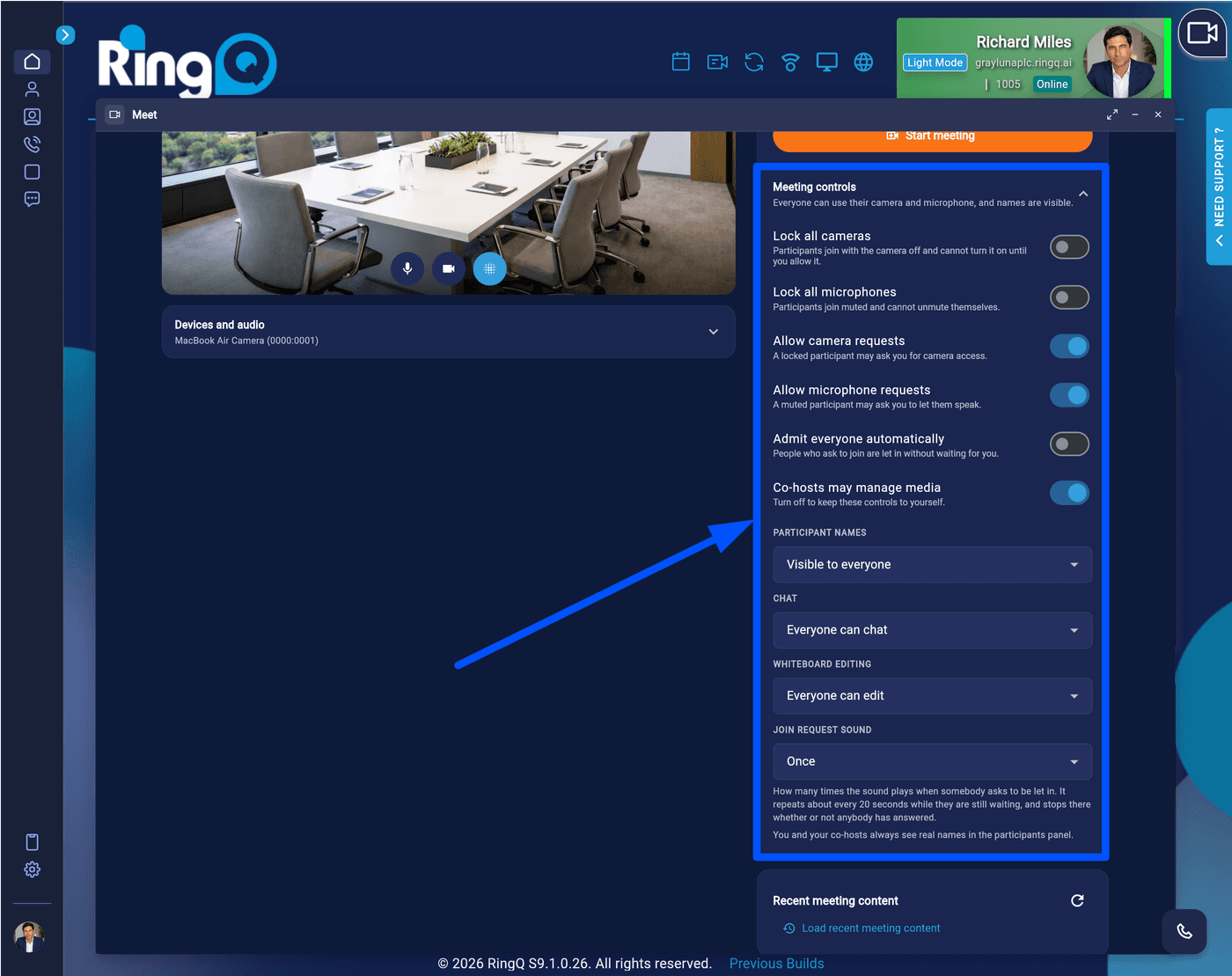
This guide explains the available meeting settings in RingQ Meet. Meeting settings allow you to adjust audio and video preferences, manage permissions, and control how a meeting operates.
Settings
1. Login to your RingQ Web App and start a RingQ Meet meeting.
Access meeting settings
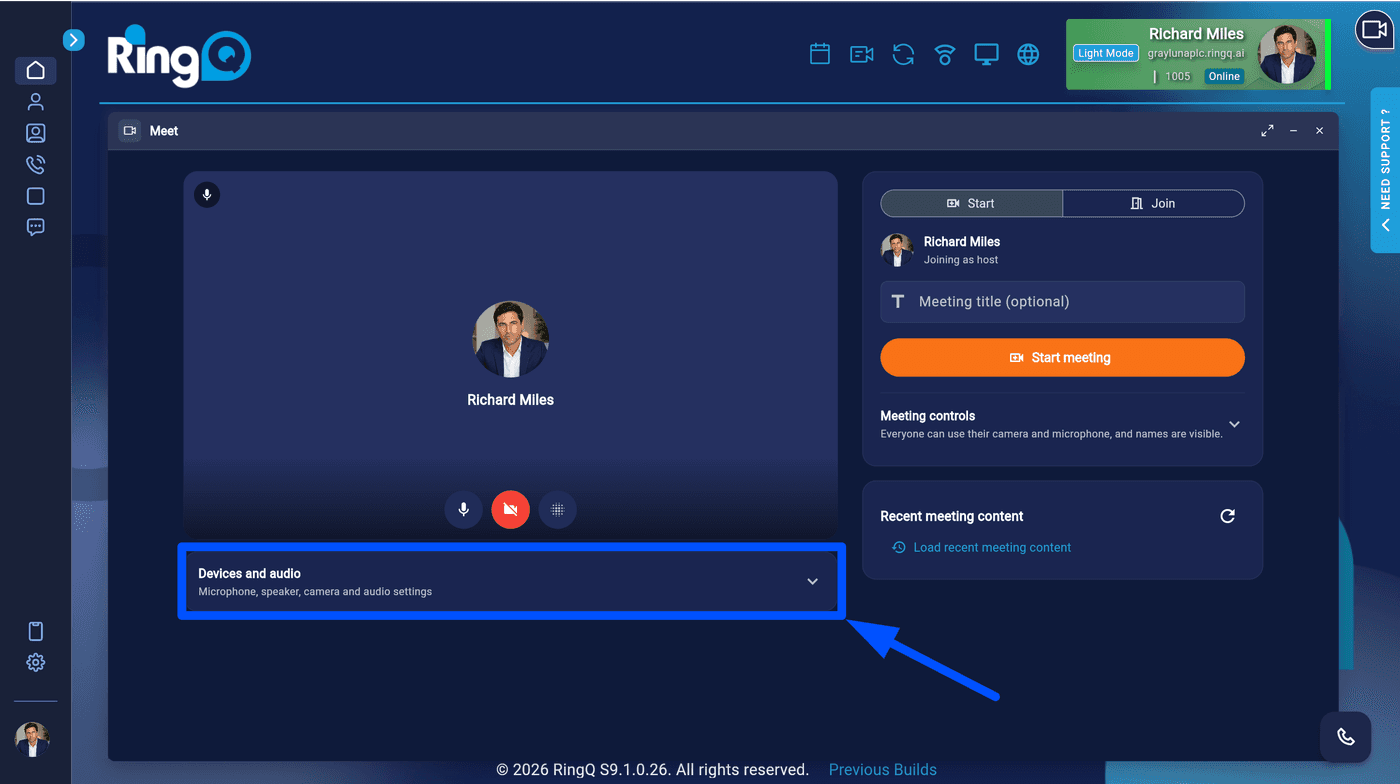
2. Click the Settings button before the meeting starts. The available settings are:
Audio Settings
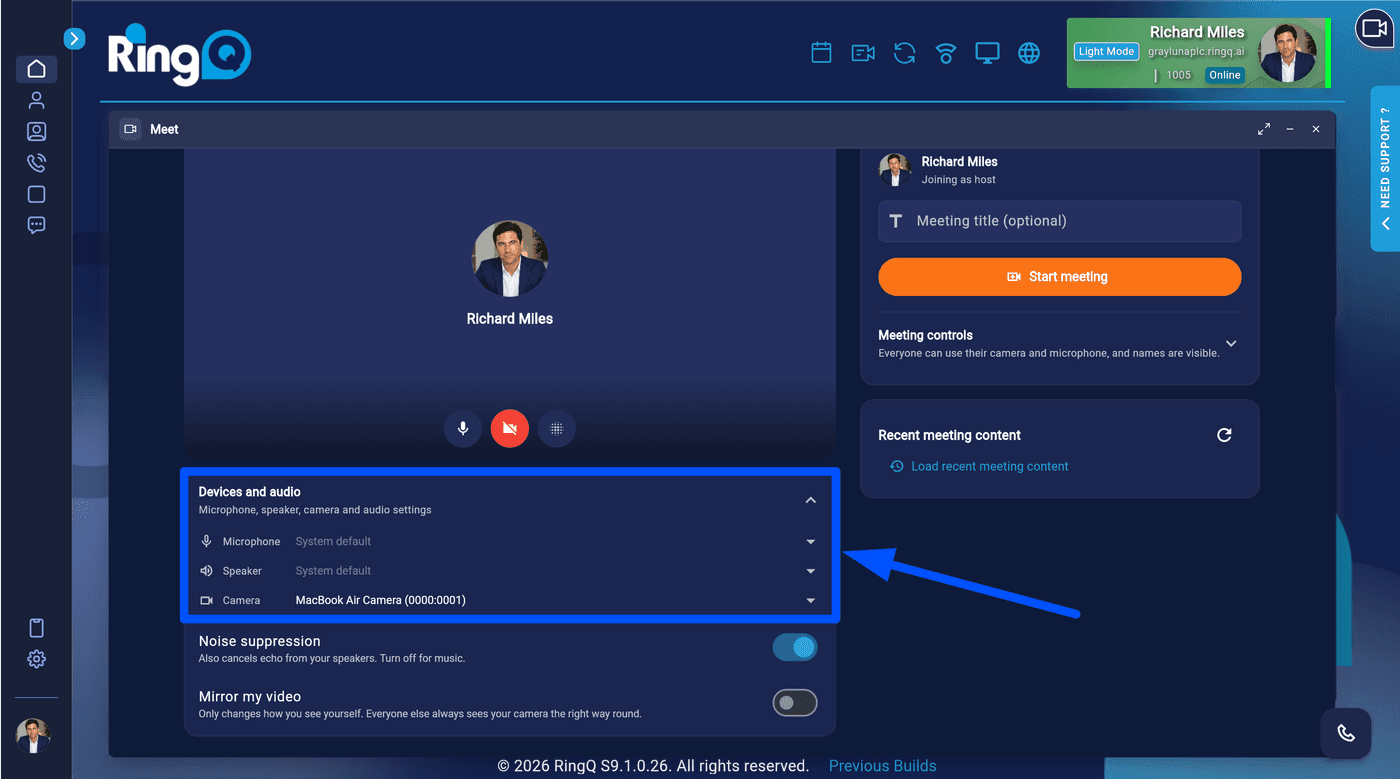
Audio – select your desired audio input and output devices and test audio settings to ensure clear communication during the meeting.
Microphone Settings
Microphone – choose the microphone you want to use during the meeting and adjust microphone sensitivity to optimize audio quality.
Speaker Settings
Speaker – Choose whether to use the internal speaker or an external speaker.
Suppress Noise
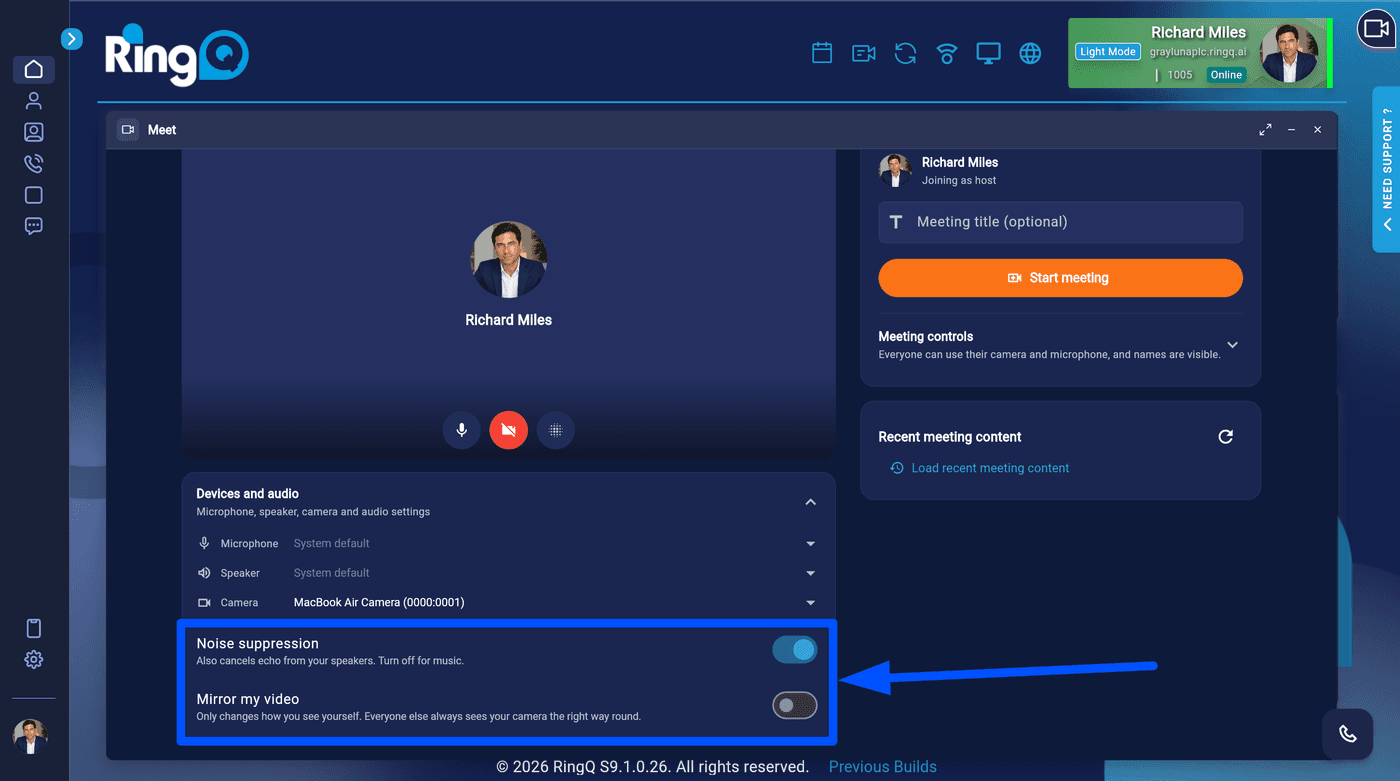
Suppress Noise – This feature reduces background noise to enhance audio clarity.
Video Settings
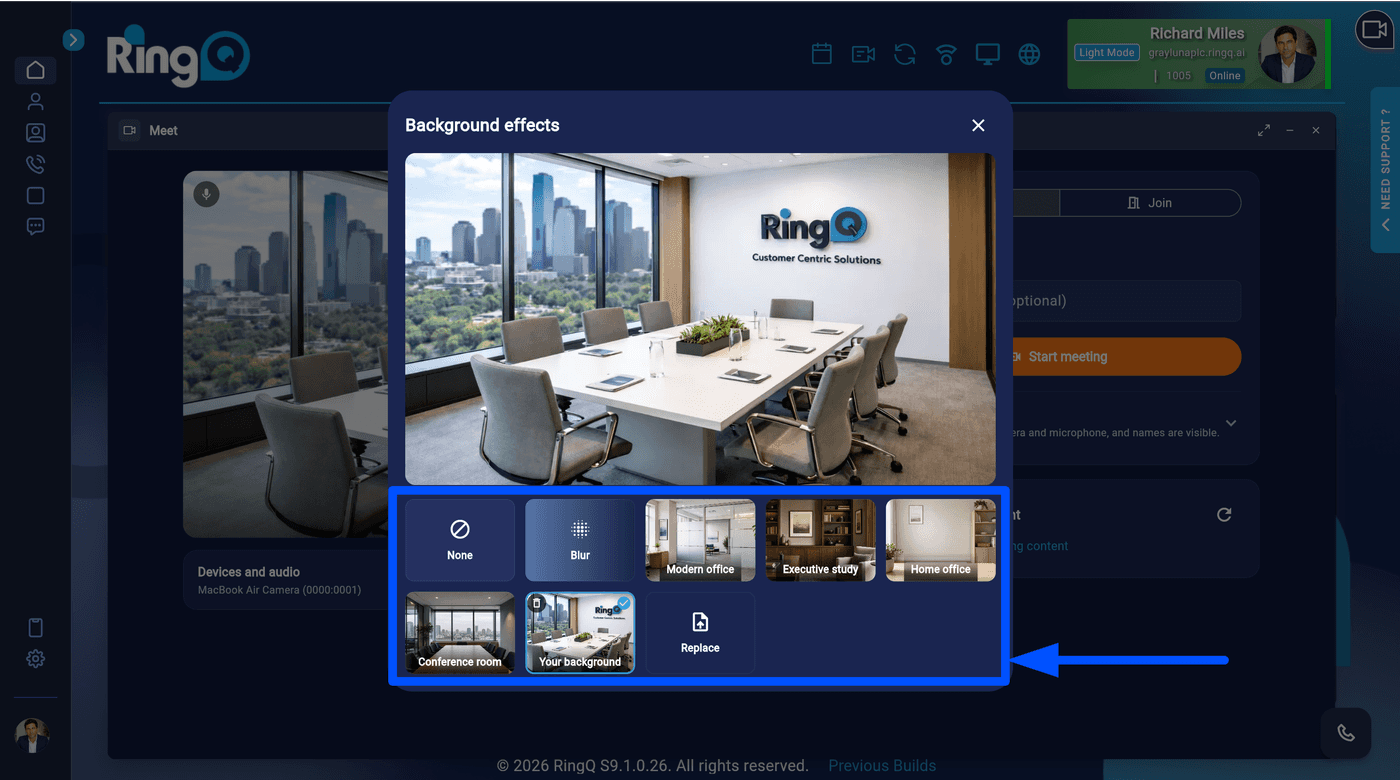
Video – Select optimization for camera, blur background, and mirror camera.
Camera – This setting allows the user to select and use the available cameras on the device, whether a built-in camera or an external camera.
Blur background
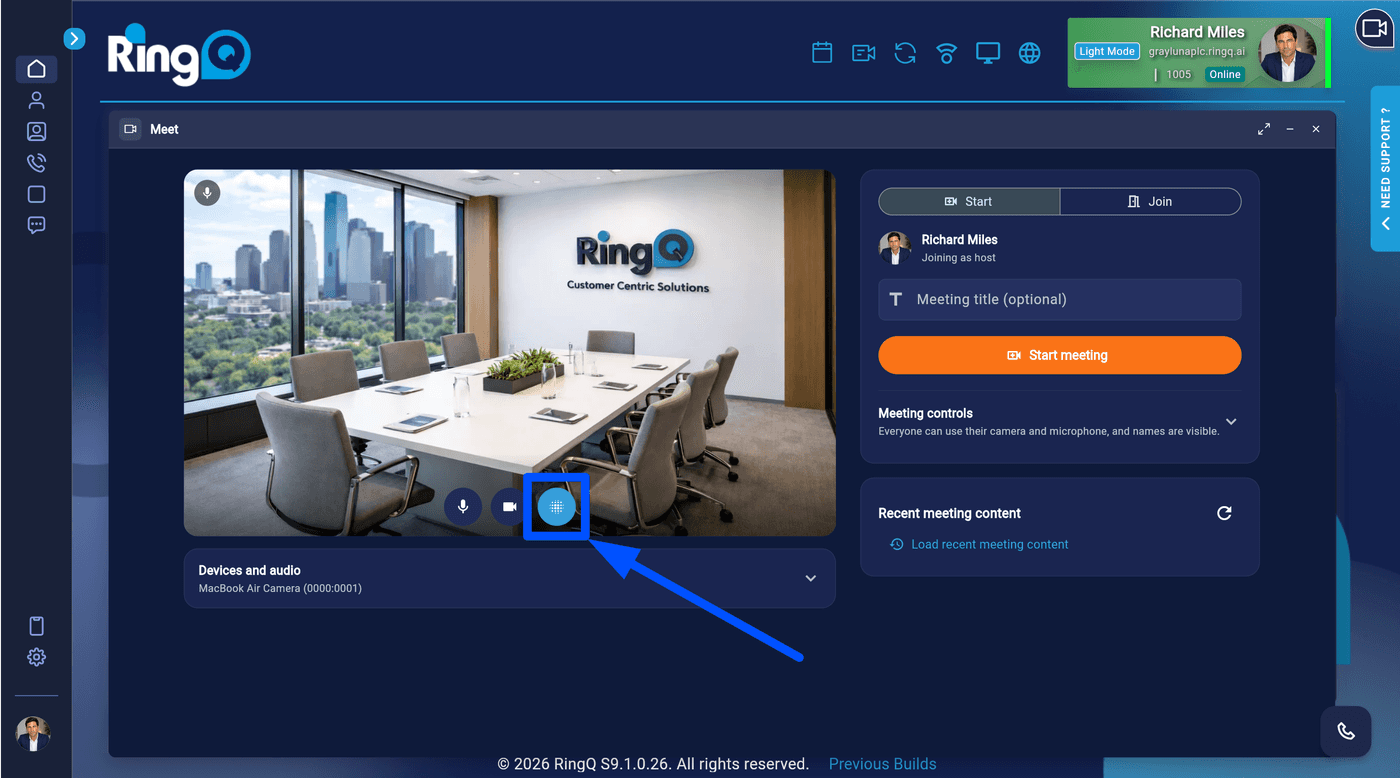
Blur Background – Applies a soft blur to the background, enhancing visual clarity by keeping the focus on foreground elements.
Mirror Camera
Mirror Camera – Horizontally flips the camera view to provide a mirror-like perspective, similar to how you see yourself in a mirror.
Notifications
Notification – This allows users to select notifications for chat messages, join requests, participant joining, and participant leaving.
Meeting chat settings
Chat – Receive a notification sound when a new chat message arrives.
RingQ Meet Join request settings
Join Request – Receive an alert when someone requests to join the meeting.
[Screenshot: Meet AI]
Participant joining
Participant Joining – Receive a notification sound when a participant joins the room.
Participant leaving
Participant Leaving – Receive a notification sound when a participant leaves the room.
Meet AI
Meet AI – This allows the user to start the meeting with an AI listener that summarizes the conversation and automatically sends the meeting summary to all participants who joined using a registered email address.
Start AI Listener – Allows the user to begin the meeting with an AI listener that summarizes the conversation.
Auto Send All – Allows the user to automatically send the meeting summary to all participants who joined the meeting using a provided email address.