This guide explains how to view and respond to chat messages during an active RingQ Meet call.
Accessing in-call chat messages allows you to follow shared links, share files, and communicate with participants without leaving the meeting.
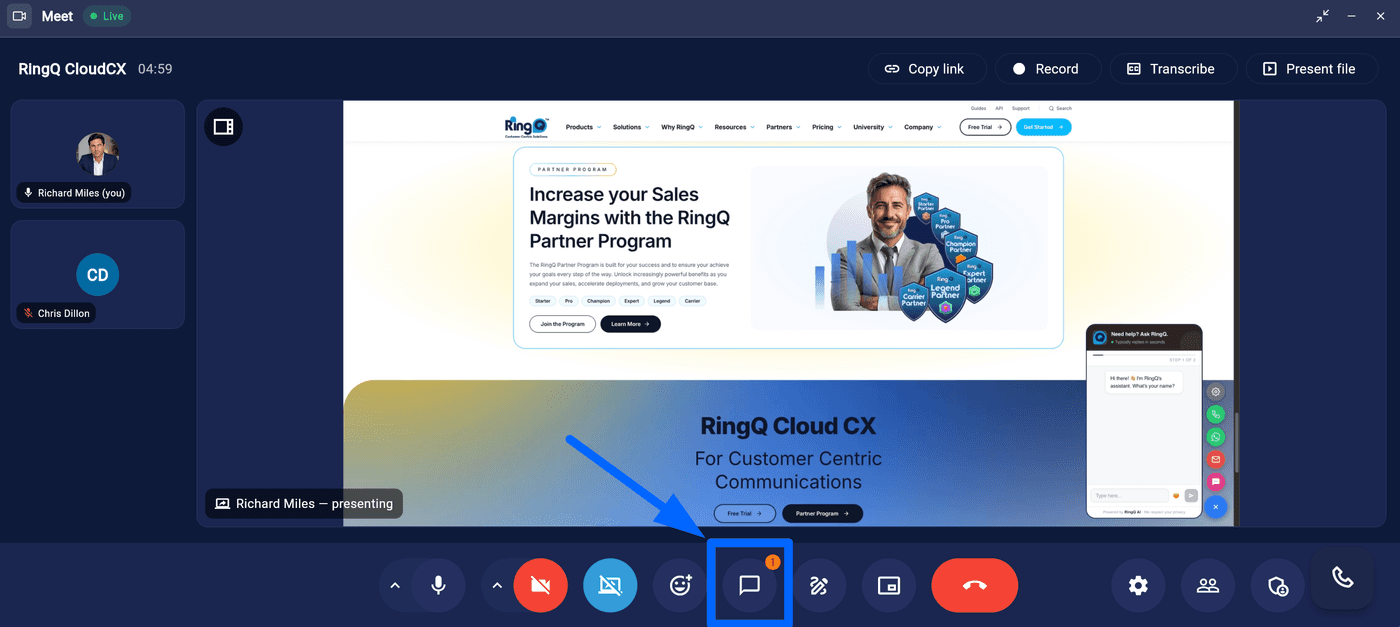
Accessing in-call messages in RingQ Meet
1. During a meeting, locate the chat feature found in the meeting controls menu.
2. Click on the “Chat” button to access the chat window.
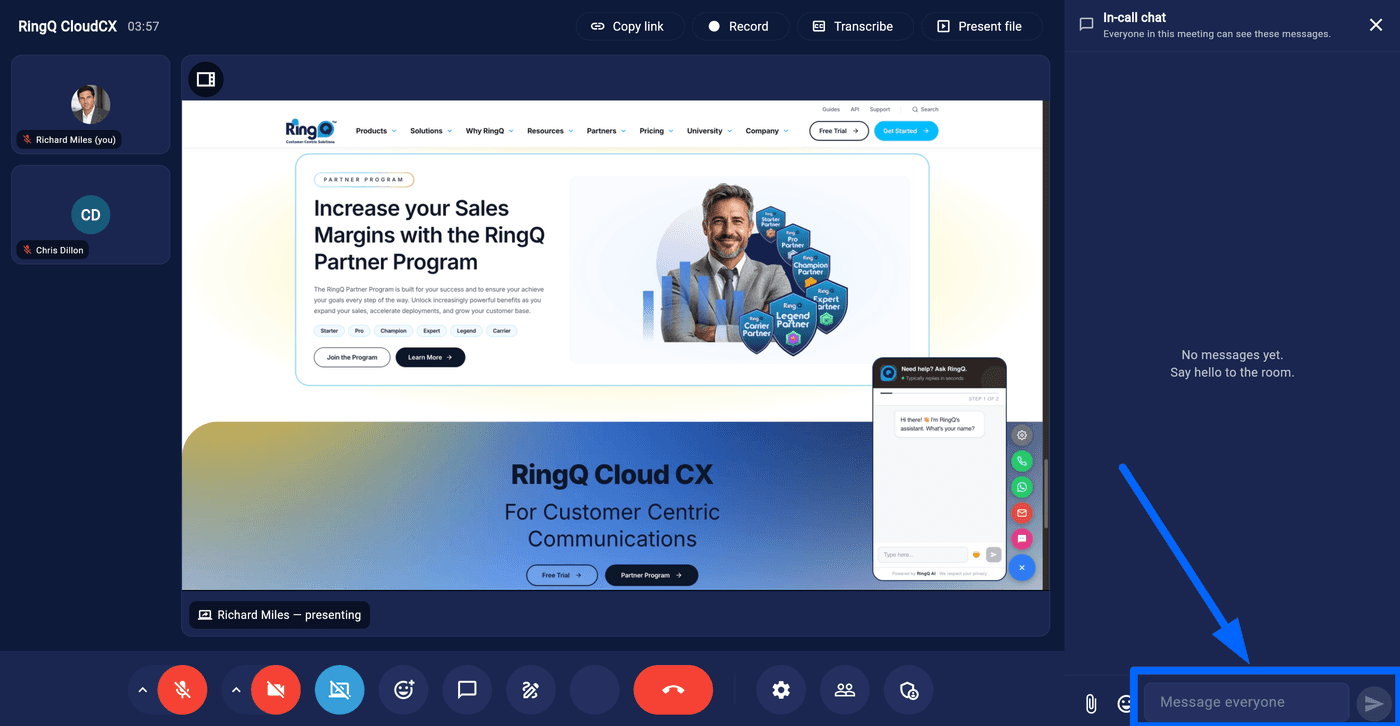
While in the chat window
1. Click on the text field at the bottom of the chat interface and type in your message.
Access chats while on an RingQ meet online meeting
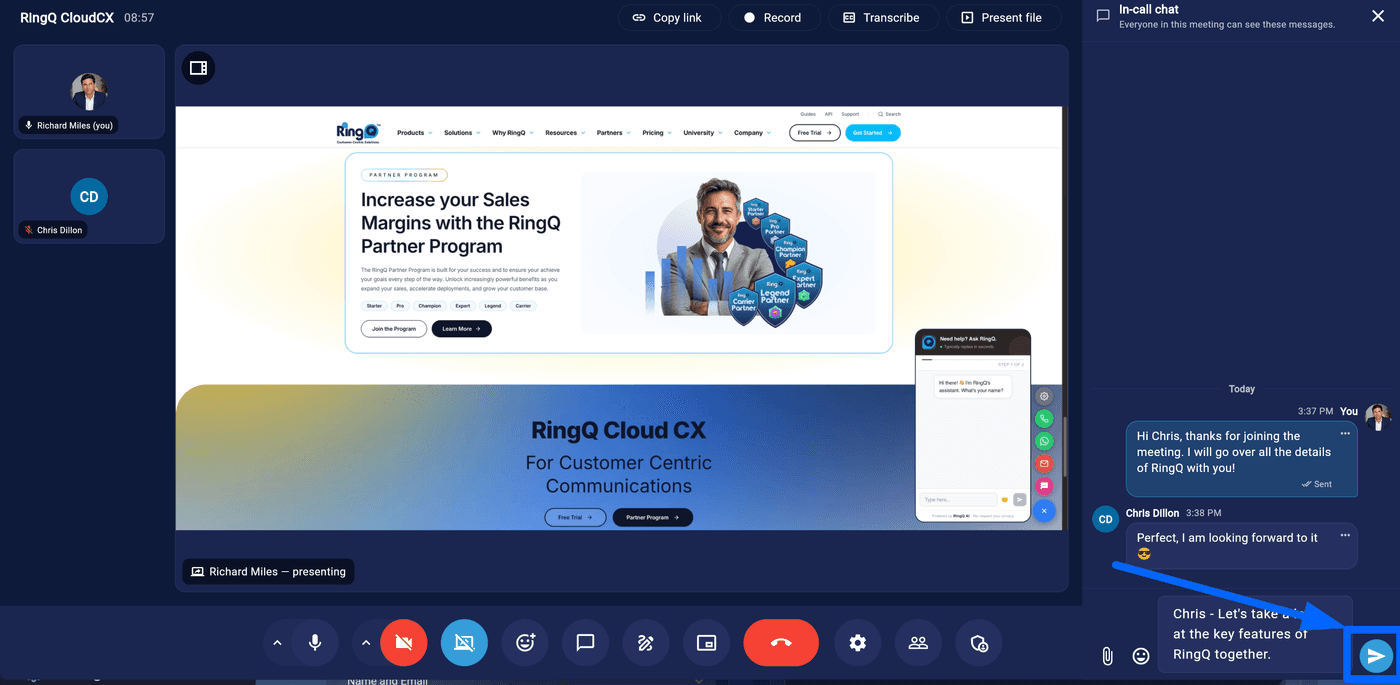
2. Press the Send button.
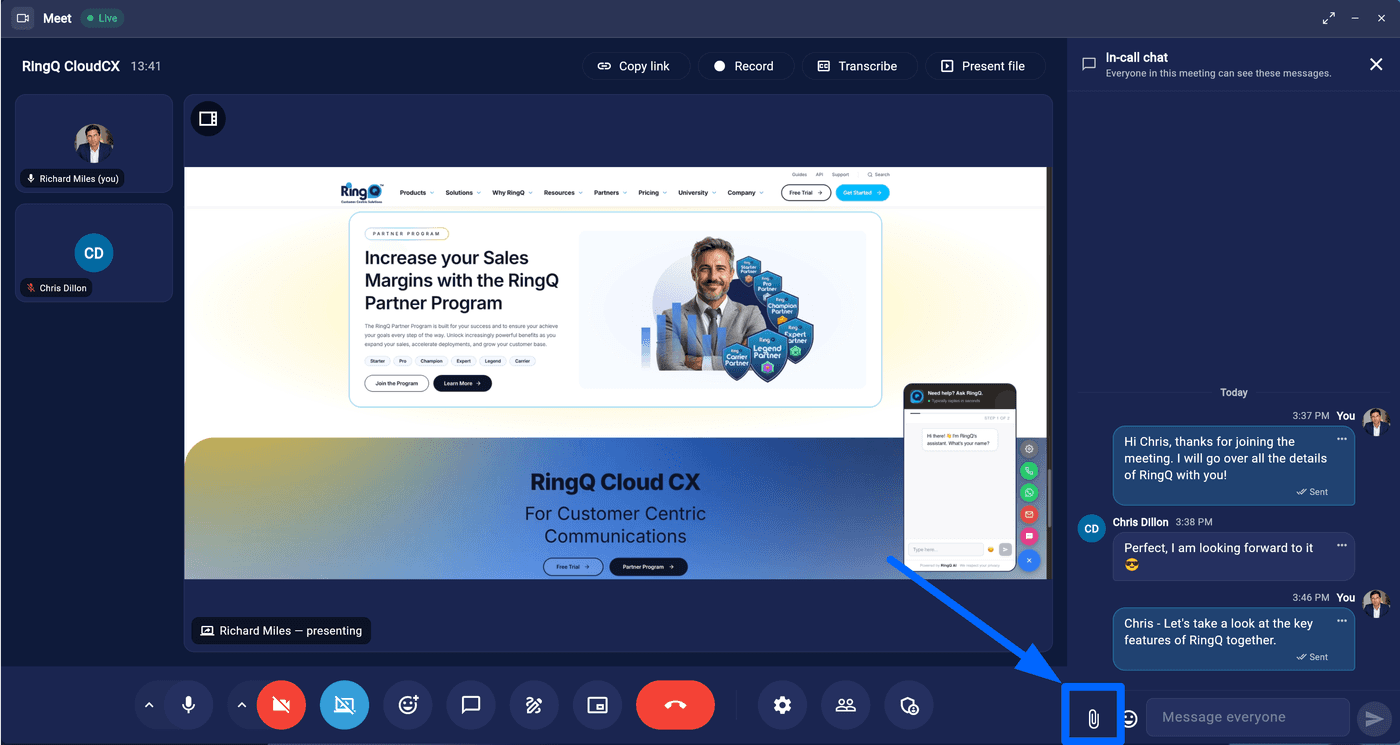
1.Look for the “Attach a File” button, represented by a paperclip icon.
2. Click on it to open a file selection dialog.
Choose the file you want to attach
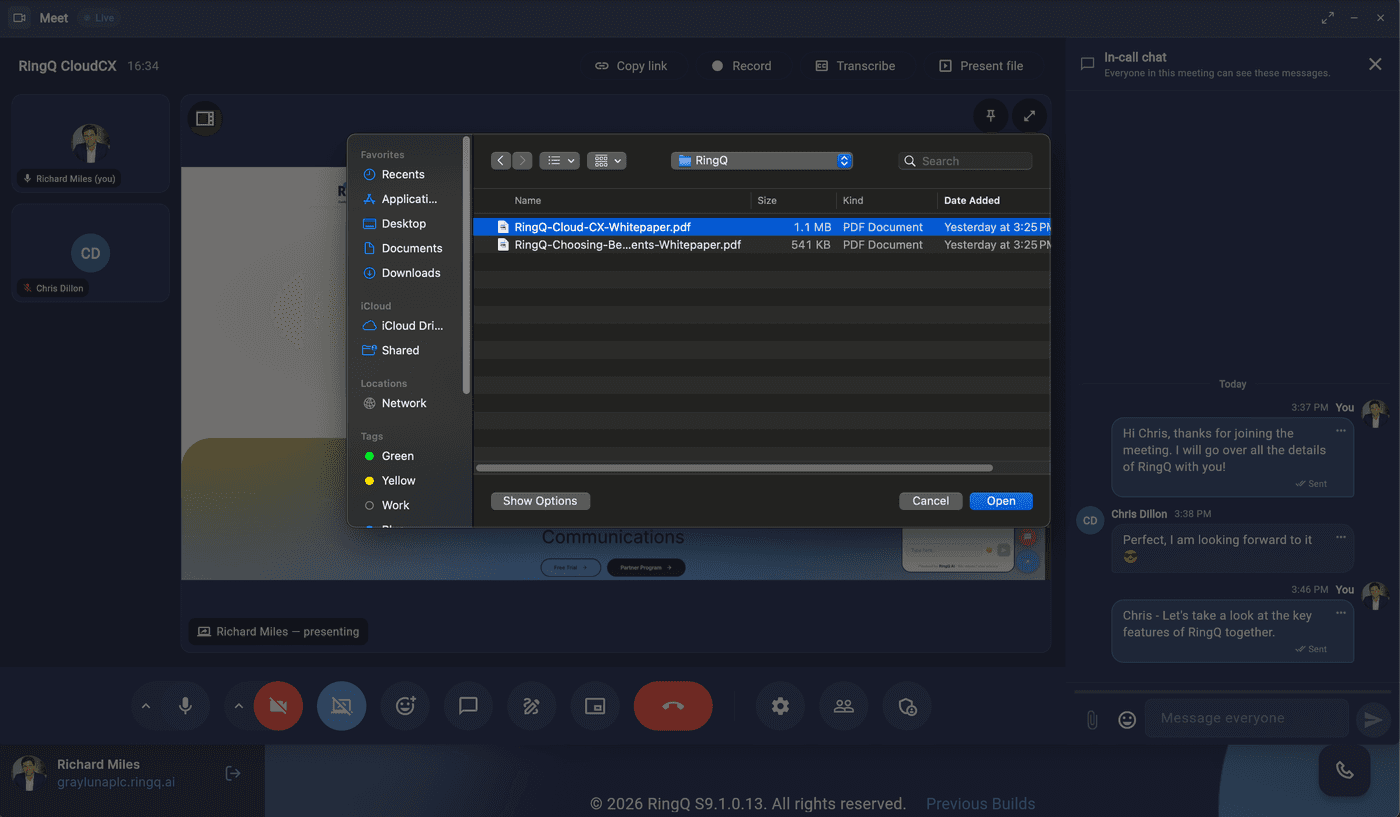
3. Choose the file you want to send from your device.
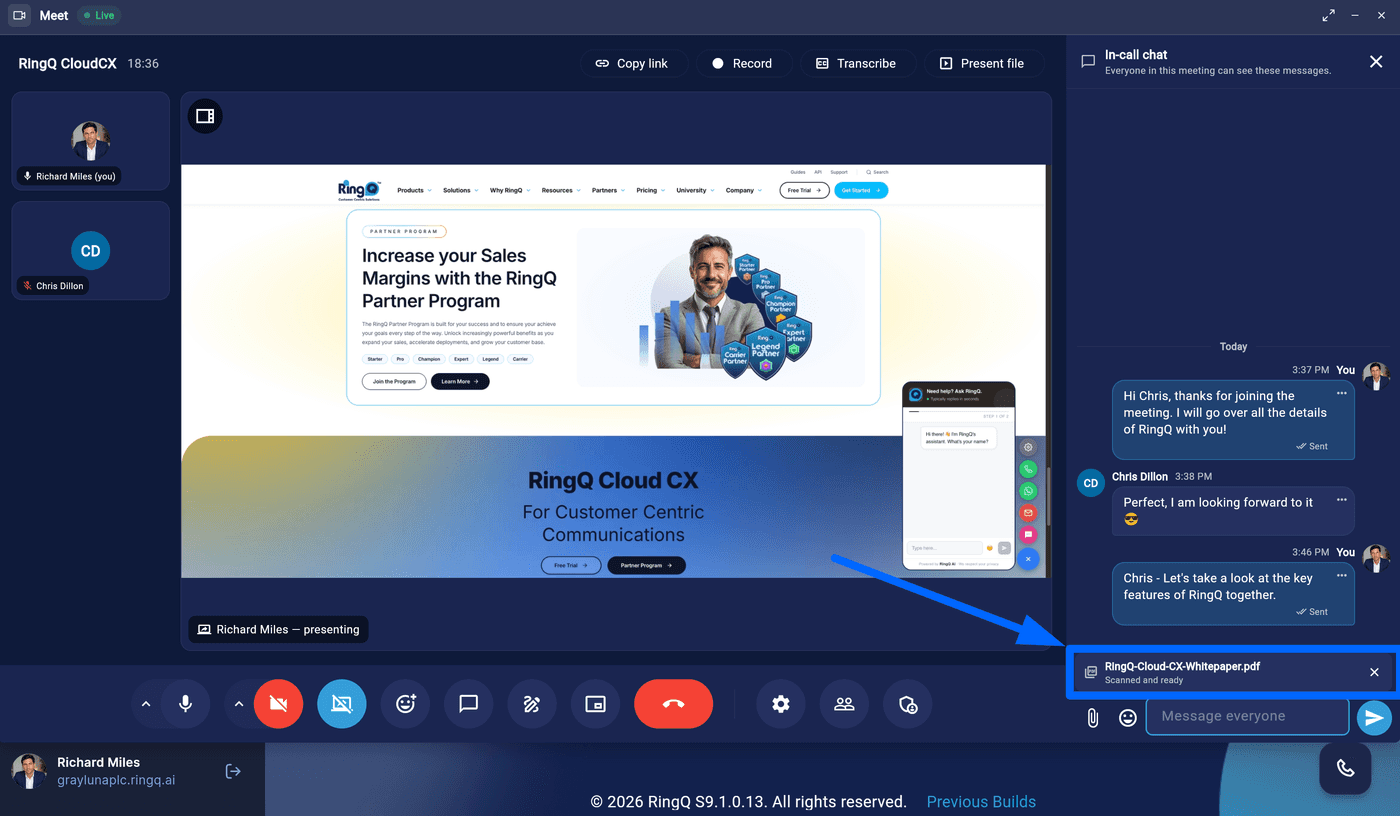
4. Confirm your selection and send the attachment.
