RingQ Desktop App – User Guide
The RingQ Desktop App allows users to manage calls, monitor contacts, access voicemails, and customize application settings from a single interface.
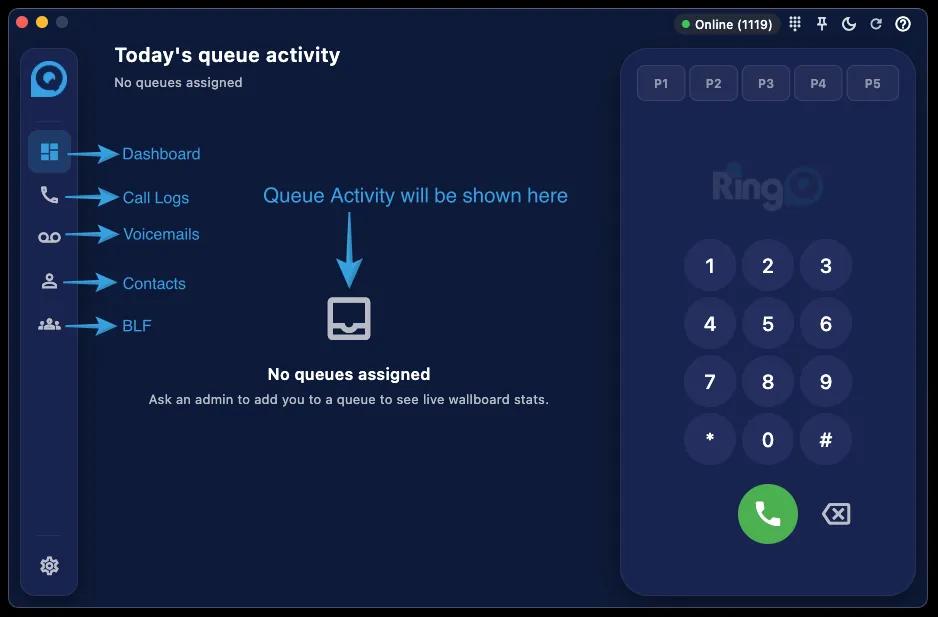
The left-side navigation menu provides quick access to the main features of the app. Each icon represents a module, such as Queue Activity, Dashboard, Call Logs, Voicemails, Contacts, BLF, and Settings. This helps users move between features without searching through multiple pages.
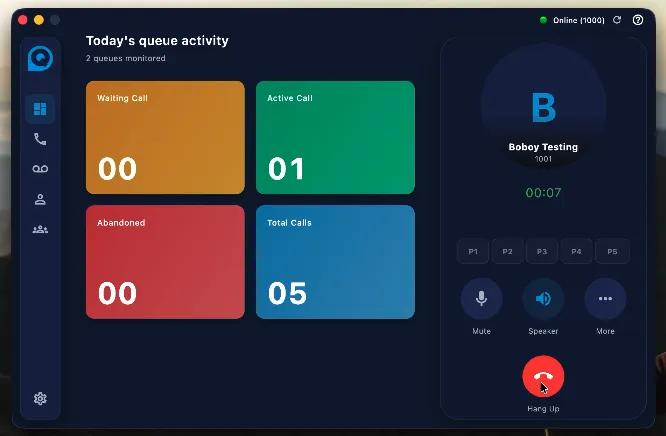
The Queue Activity page shows the user’s assigned queues and live wallboard information. Users can monitor queue activity, check call statistics, and track real-time queue performance. If no queue is assigned, the app displays “No queues assigned,” which means the user must contact an administrator to be added to a queue.
If no queue is assigned, the application displays: “No queues assigned”
Contact your administrator to be added to a queue.
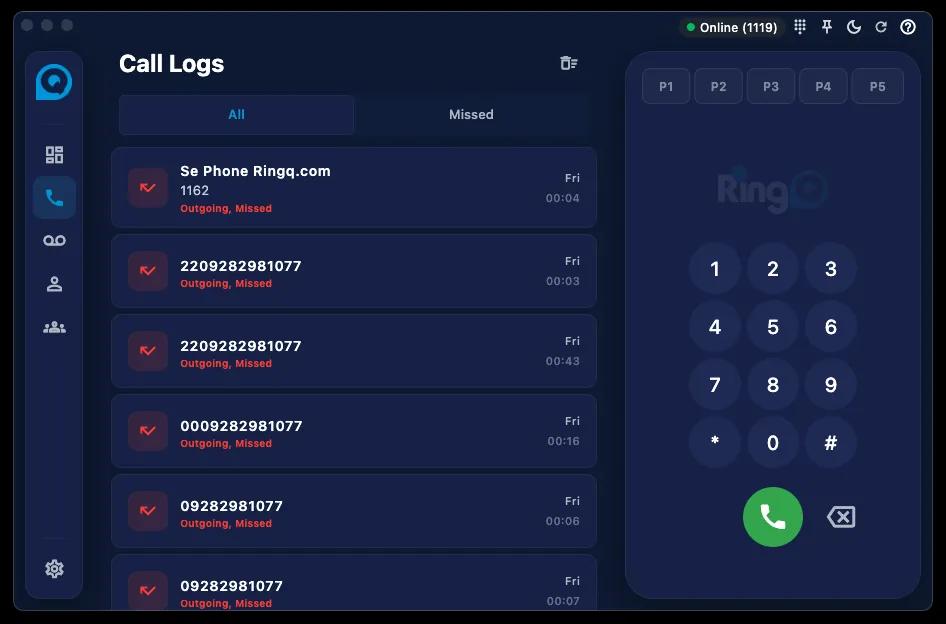
The Call Logs module displays recent call history, including incoming, outgoing, and missed calls. Each call entry shows important details such as caller name, extension number, call direction, duration, and timestamp. This helps users review past calls and quickly redial missed or previous contacts.
Each call entry displays:
The Voicemails section allows users to listen to and manage voicemail messages. It displays caller information, voicemail dates, and unread voicemail counts. This helps users track missed voice messages and respond to them when needed.
Each entry contains:
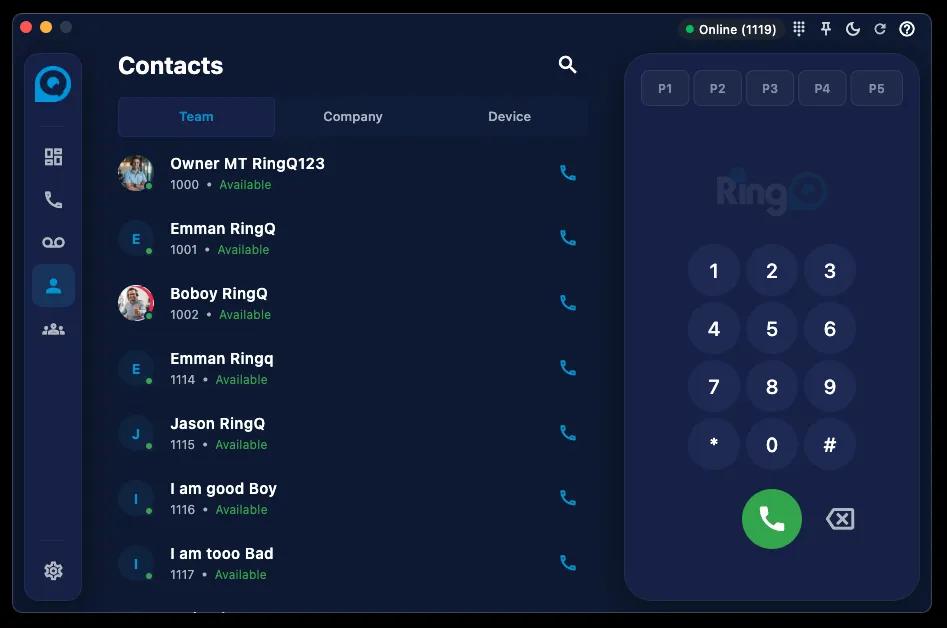
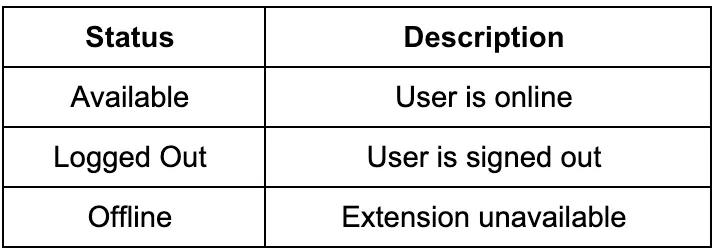
The Contacts page provides access to internal directories such as Team, Company, and Device contacts. Users can search for contacts, view extensions, check user availability, and directly call contacts from the list. Status indicators like Available, Logged Out, and Offline help users know whether a contact can be reached.
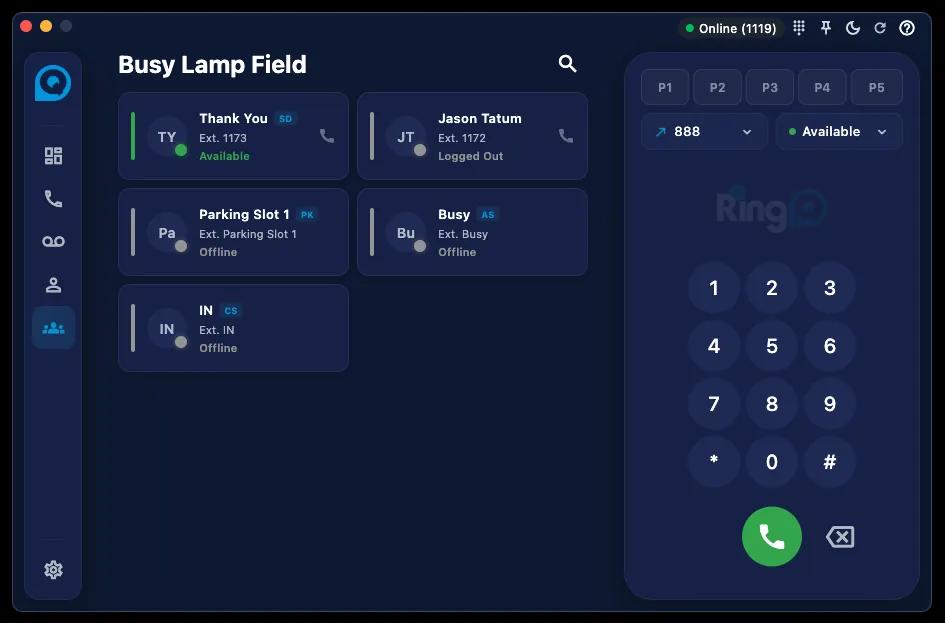
The BLF module allows users to monitor extension availability in real time. It shows whether other users are online, logged out, or offline. This is useful for checking if a colleague is available before transferring or making a call.
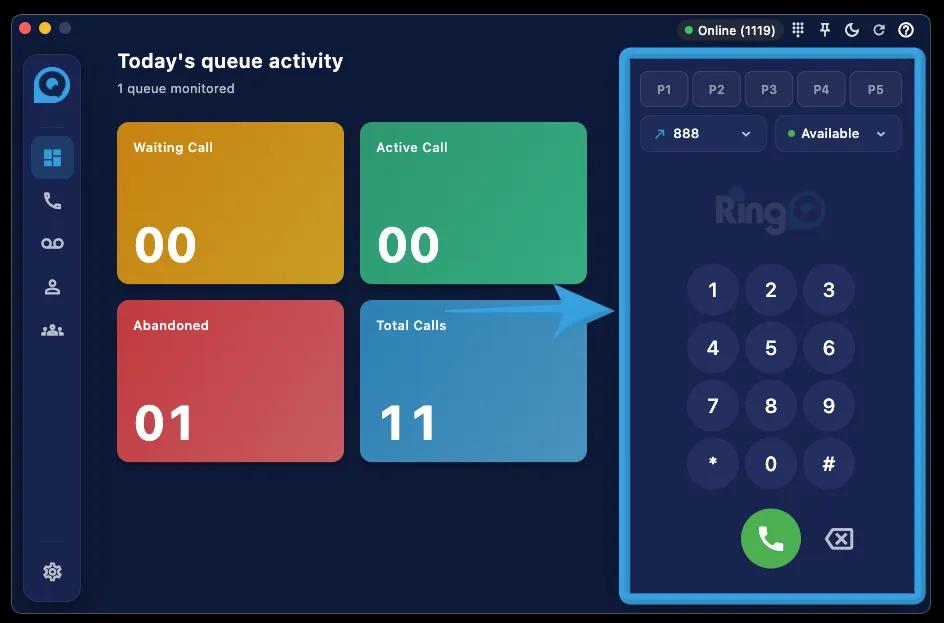
The Dial Pad is located on the right side of the app and is used to dial extensions or outbound numbers. Users can also change profiles from P1 to P5 and manage their presence status. Presence options such as Available, Busy, and Offline help indicate the user’s current availability.
Examples:
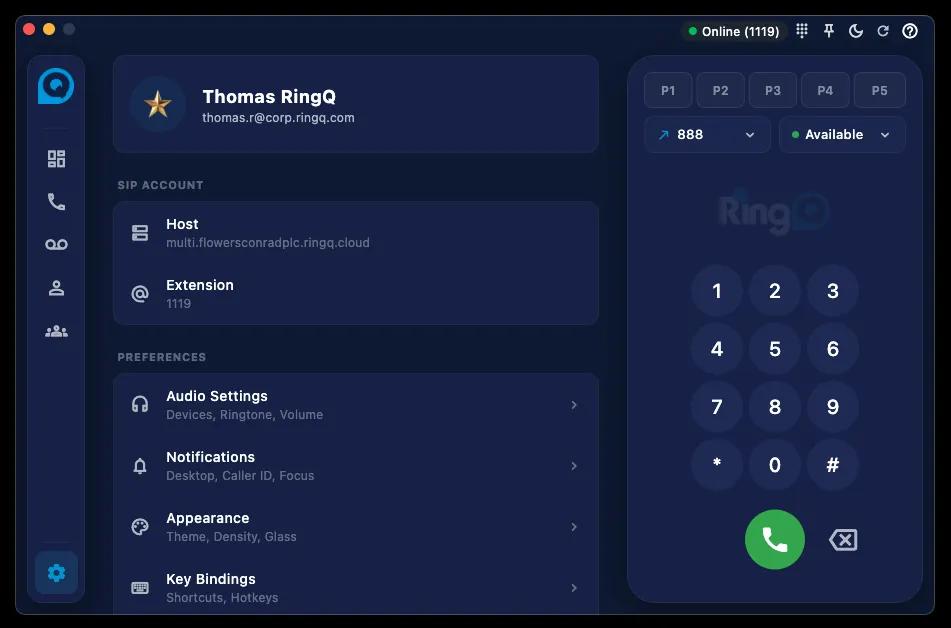
The Settings section allows users to configure account, audio, notification, appearance, shortcut, language, and dialing preferences. This helps users personalize the app based on their workflow and device setup.
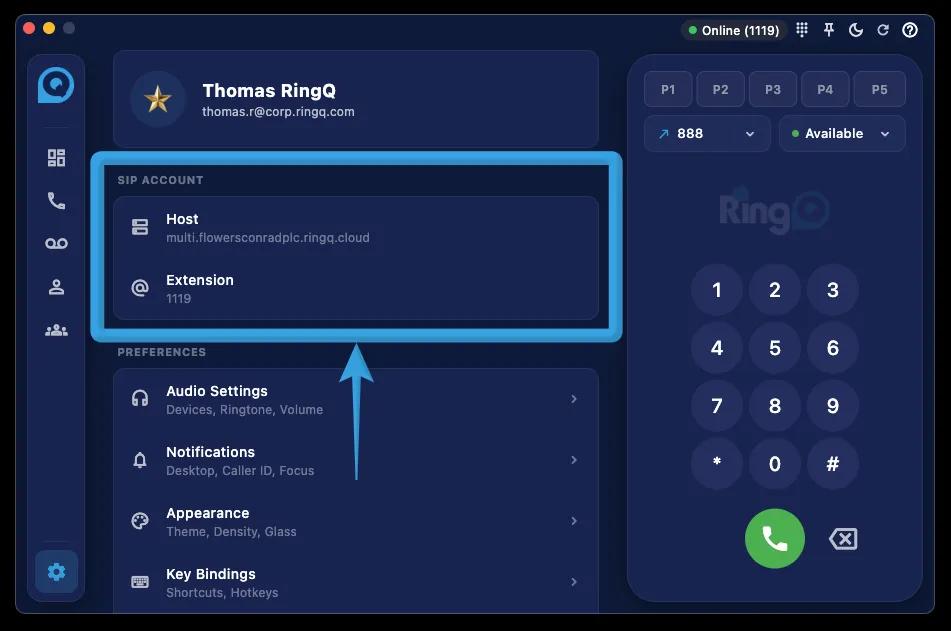
The SIP Account section displays registration details such as the Host/FQDN and Extension Number. This information helps confirm that the account is connected to the correct RingQ server and extension.
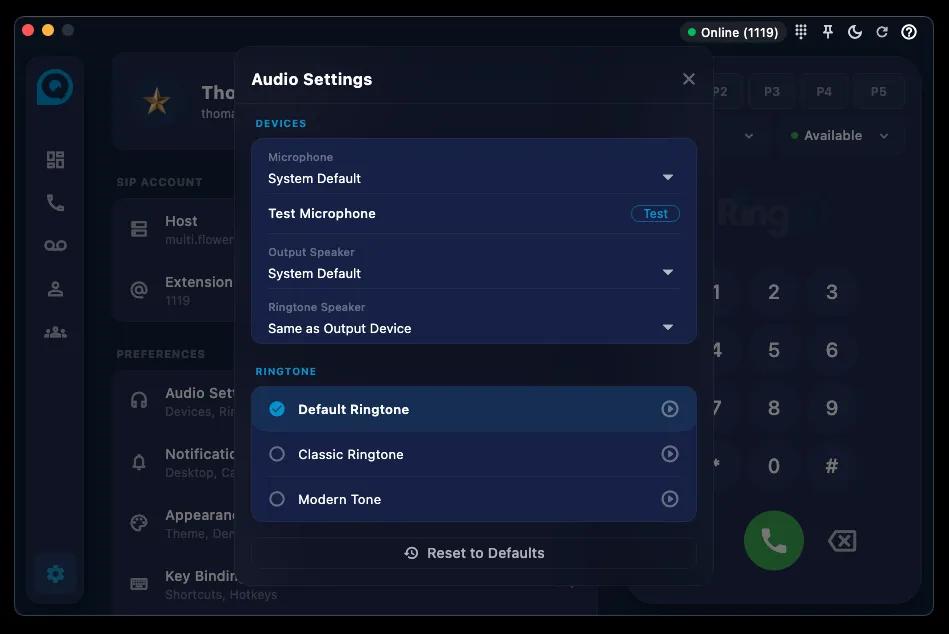
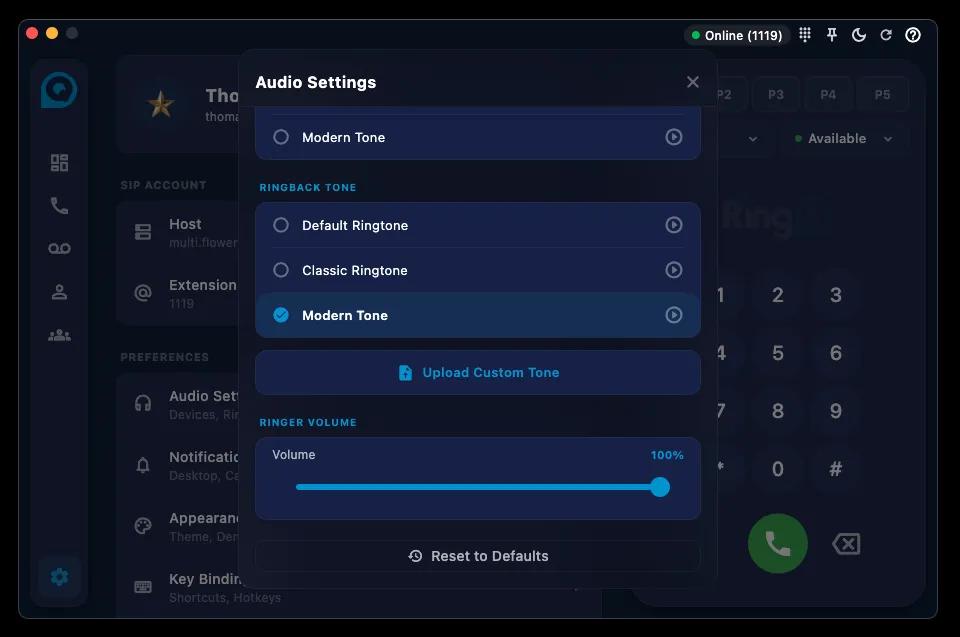
The Audio Settings section lets users configure microphone, speaker, and ringtone devices. Users can select the system default device or choose a custom device. This is important to ensure that calls have clear audio input and output.
Select the microphone device used during calls.
Select the speaker device for call audio playback.
Choose the device used for ringtone playback.
The Ringtones section allows users to choose their preferred incoming call tone. Available options include Default, Classic, and Modern tones. Users can preview tones and reset them to default if needed.
Click Reset to Defaults to restore original audio settings.
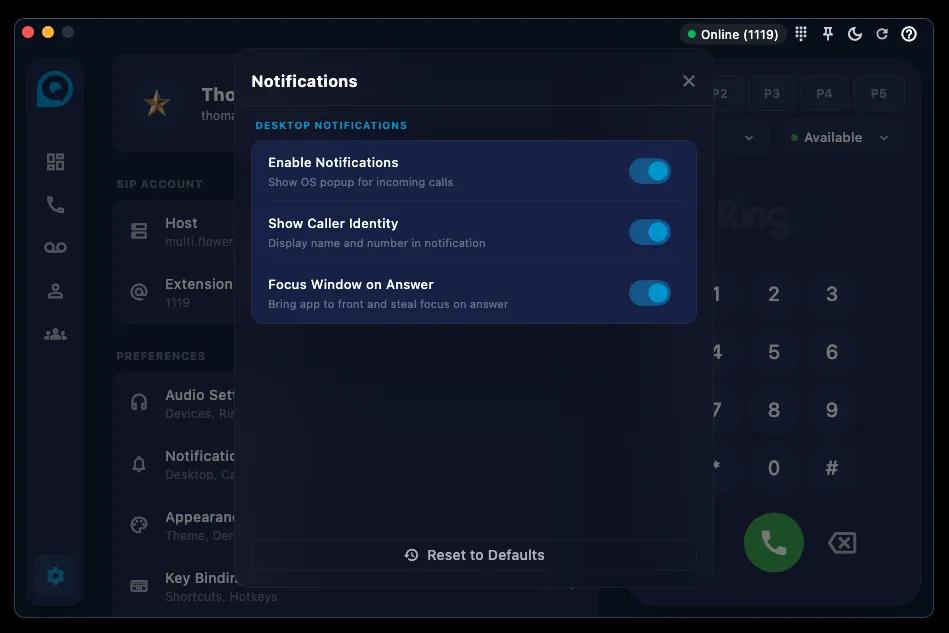
The Notifications section controls desktop alerts for incoming calls. Users can enable notifications, show caller identity, and focus the RingQ window when answering a call. This helps users avoid missing calls while working on other applications.
Displays operating system notifications for incoming calls.
Displays caller name and number in notifications.
Automatically brings the RingQ application to the front after answering calls.
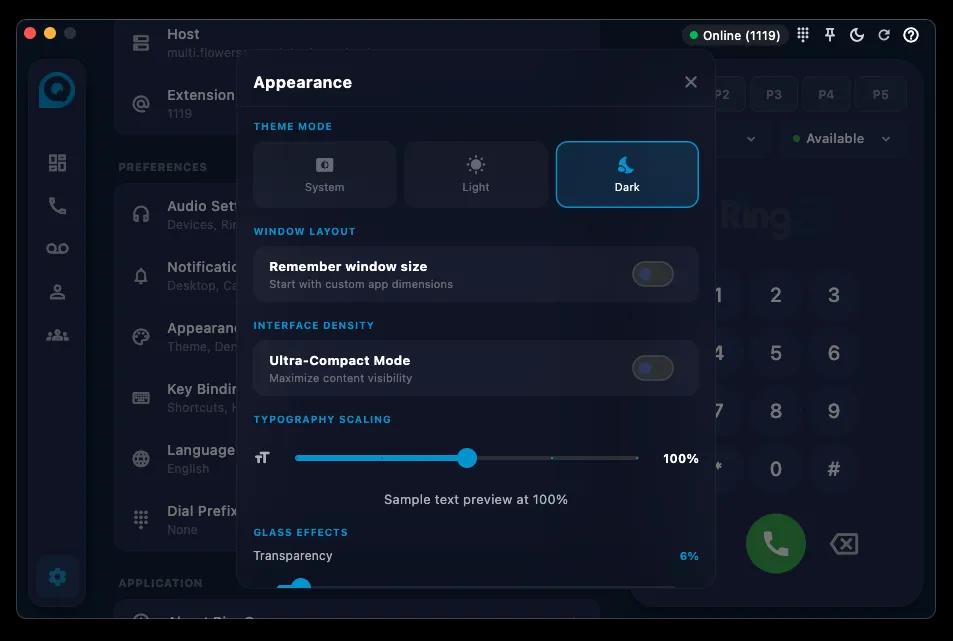
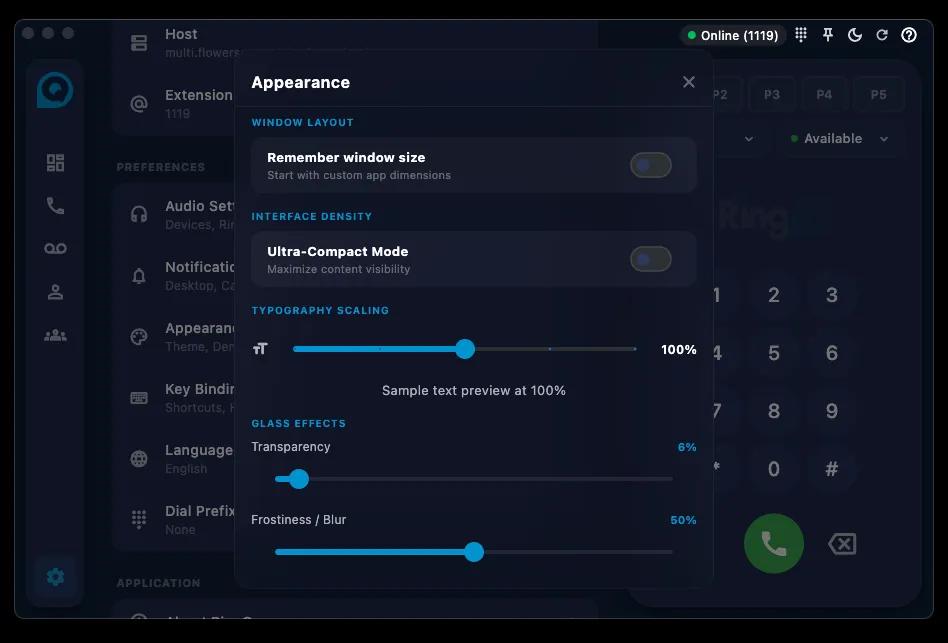
The Appearance section allows users to customize the app interface. Users can choose System, Light, or Dark themes, adjust window size behavior, enable ultra-compact mode, and change typography scaling. These options help improve readability and comfort.
Saves the current application window size for future sessions.
Reduces spacing between interface elements to maximize content visibility.
Adjust text size using the scaling slider.
Glass Effects allow users to adjust transparency and blur levels in the app interface. This helps customize the visual style of the application based on user preference.
Controls interface transparency level.
Adjusts interface blur intensity.
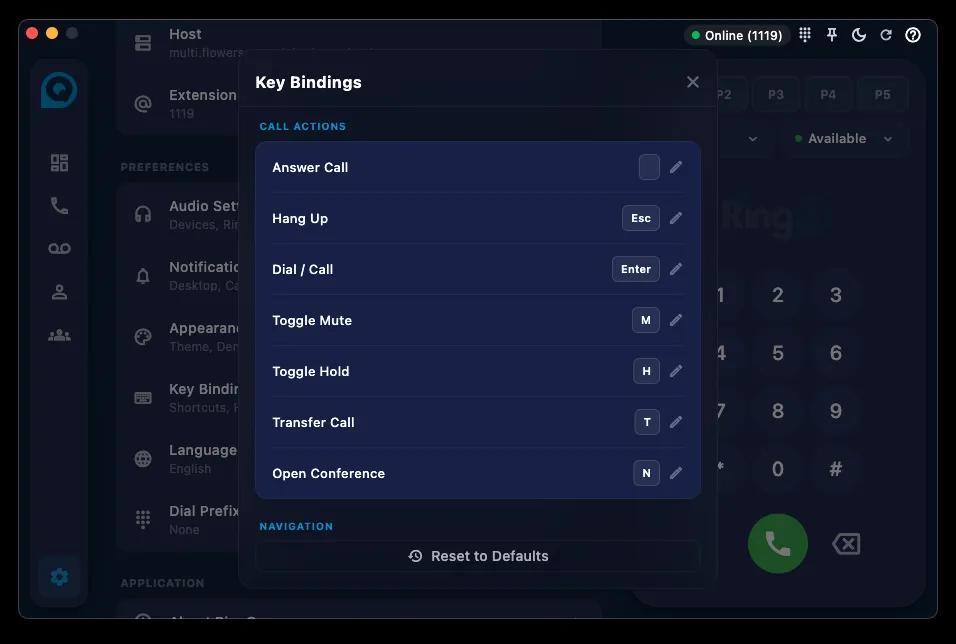
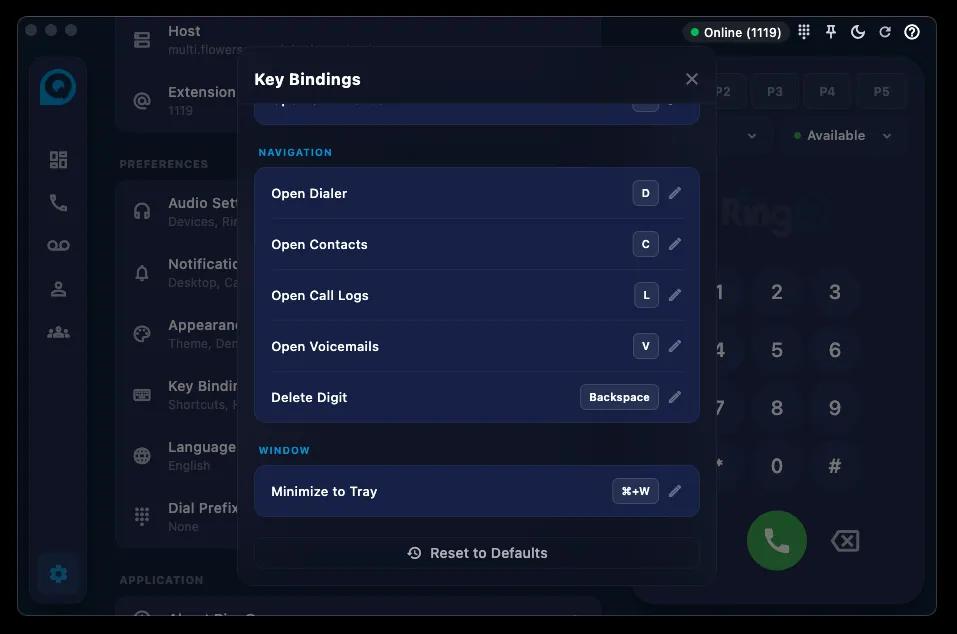
The Key Bindings section allows users to configure keyboard shortcuts for call actions and navigation. Common shortcuts include Esc for hang up, Enter for dial or call, M for mute, and H for hold. These shortcuts help users perform actions faster without relying only on the mouse.
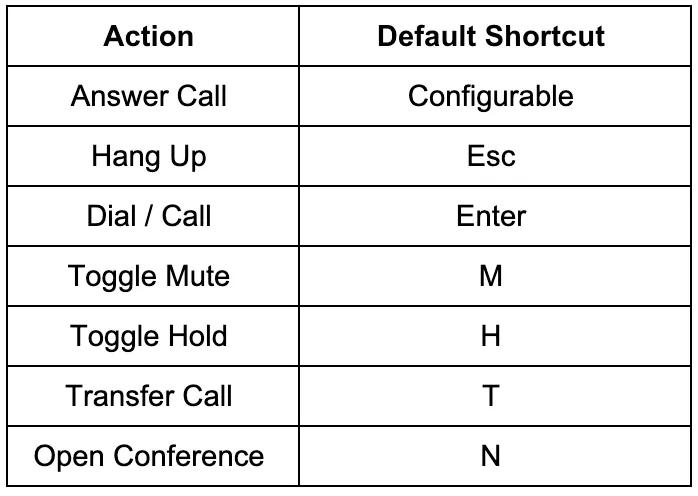
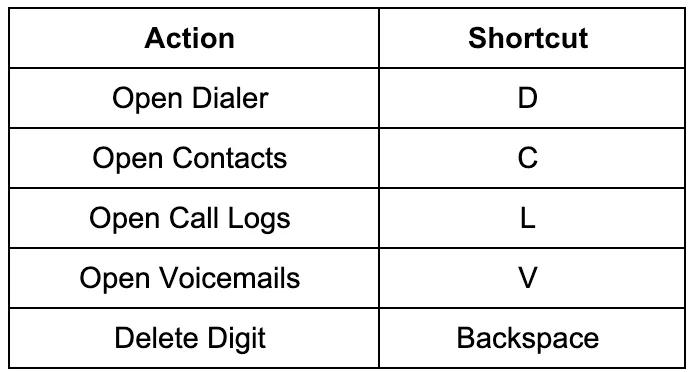
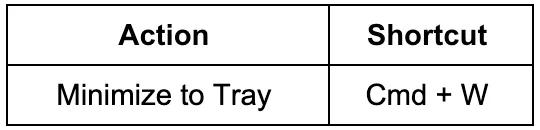
Click Reset to Defaults to restore original keyboard shortcuts.
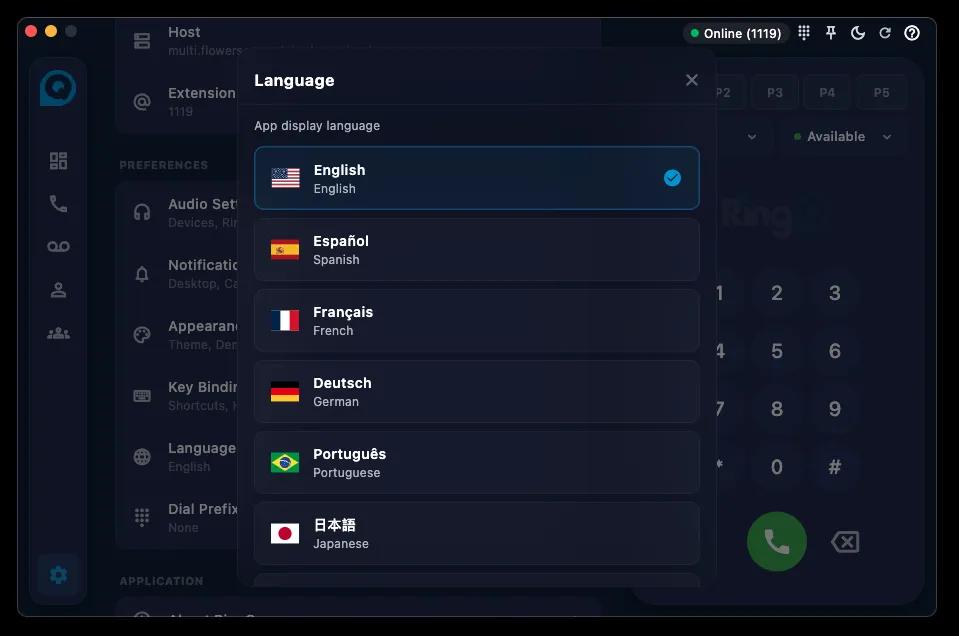
The Language section allows users to change the app display language. Supported languages include English, Spanish, French, German, Portuguese, and Japanese. This makes the app easier to use for users who prefer a different language.
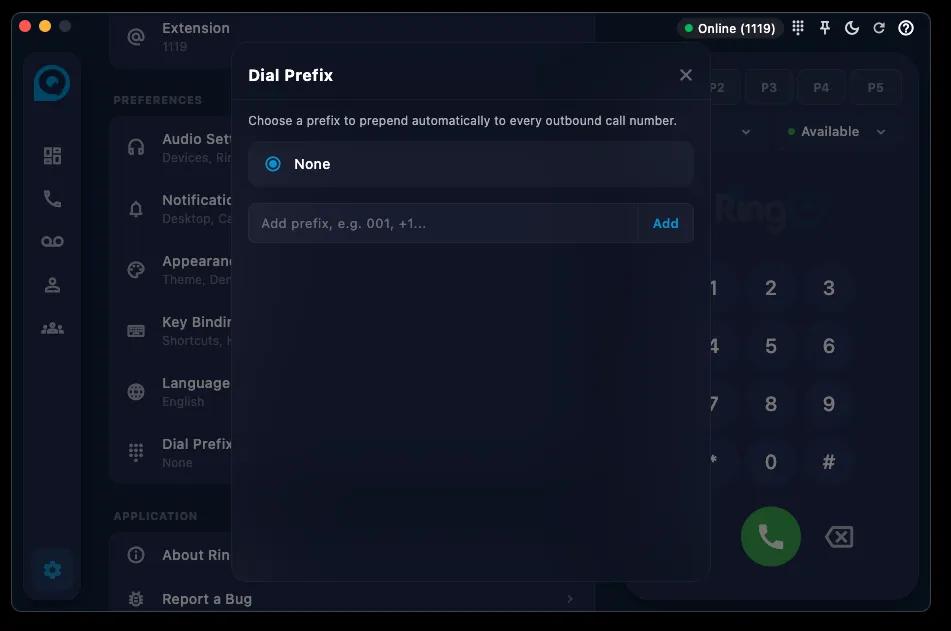
The Dial Prefix section automatically adds a prefix to outbound numbers. Examples include 001, +1, or country codes. This is useful when users need to follow specific dialing rules for local or international calls.
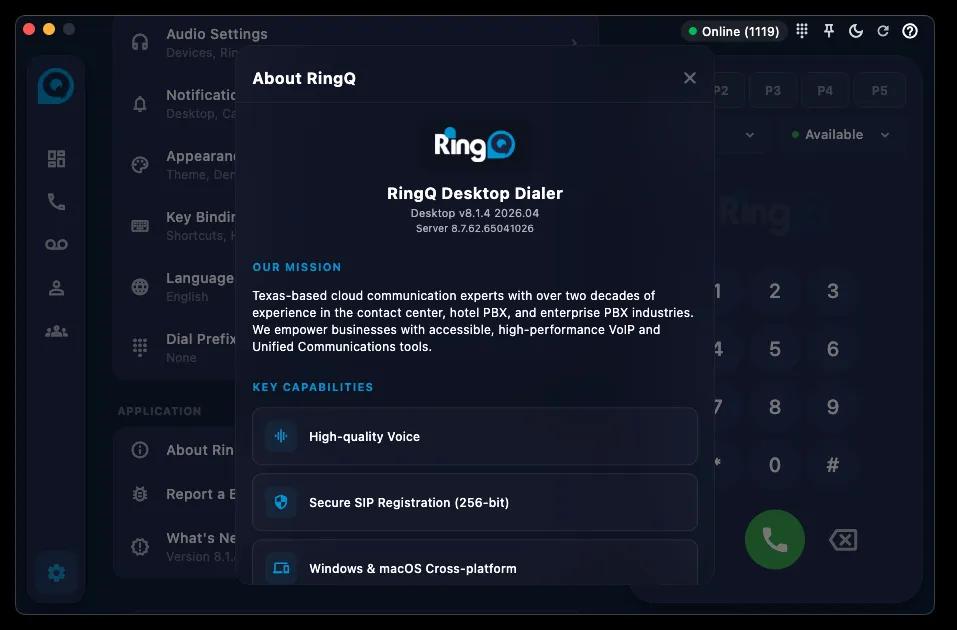
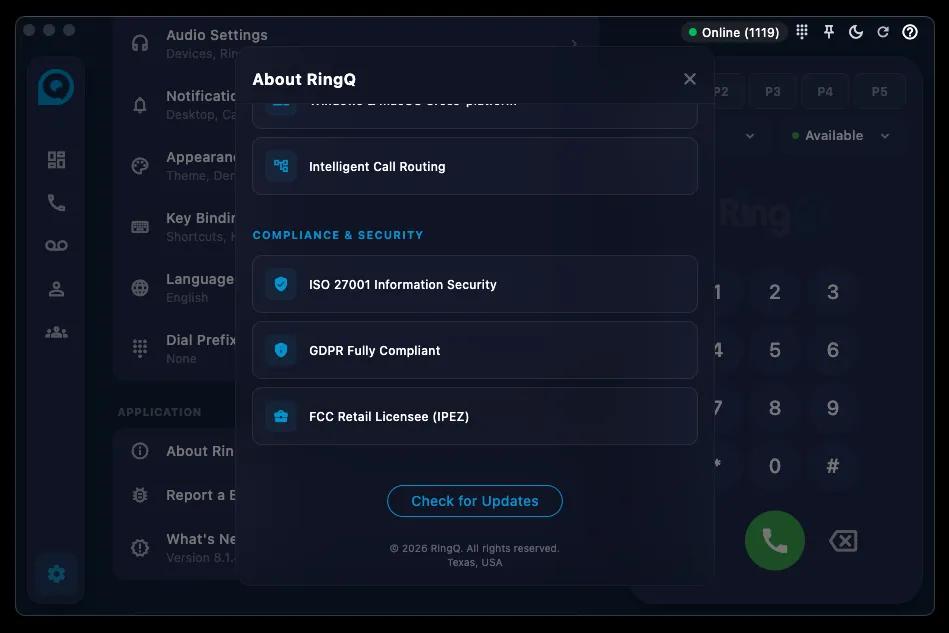
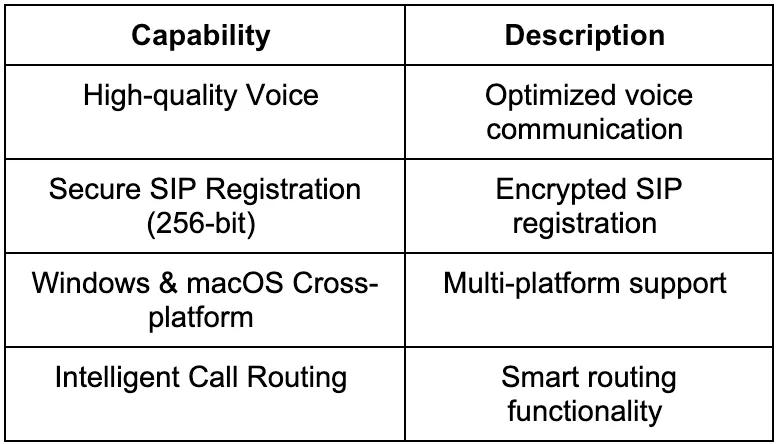
The About RingQ section displays application and company information, including the Desktop App Version and Server Version. It also shows key capabilities such as high-quality voice, secure SIP registration, cross-platform support, and intelligent call routing.
Displays:
The Compliance & Security section highlights certifications and compliance standards such as ISO 27001, GDPR compliance, and FCC Retail License. This shows that the platform follows security, privacy, and telecommunications requirements.
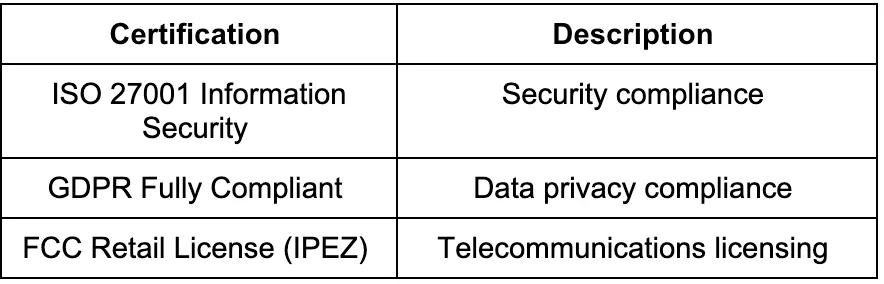
The Check for Updates option allows users to verify whether a newer version of the desktop app is available. Keeping the app updated helps users receive the latest fixes, improvements, and features.
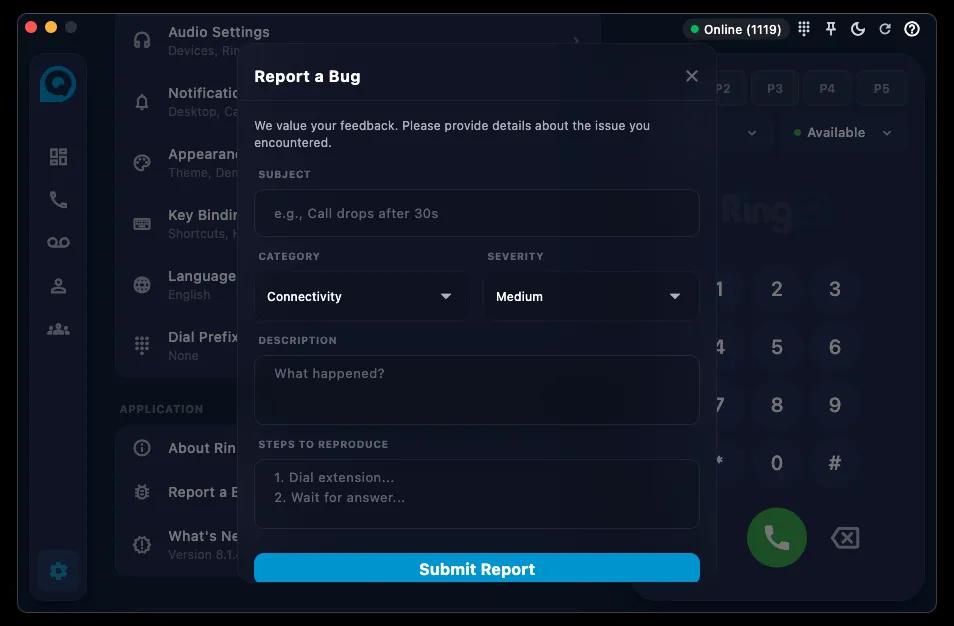
The Report a Bug section allows users to submit technical issues or feedback. Users need to provide a subject, category, severity level, description, and steps to reproduce the issue. This helps the support team investigate and resolve problems more efficiently.
Enter a short summary of the issue.
Example:
“Call drops after 30s”
Select the issue category.
Example:
Select issue severity level.
Example:
Provide detailed information about the issue encountered.
List the steps required to reproduce the issue.
Example:
After completing all required fields, click:
Submit Report
to send the report to the support team.
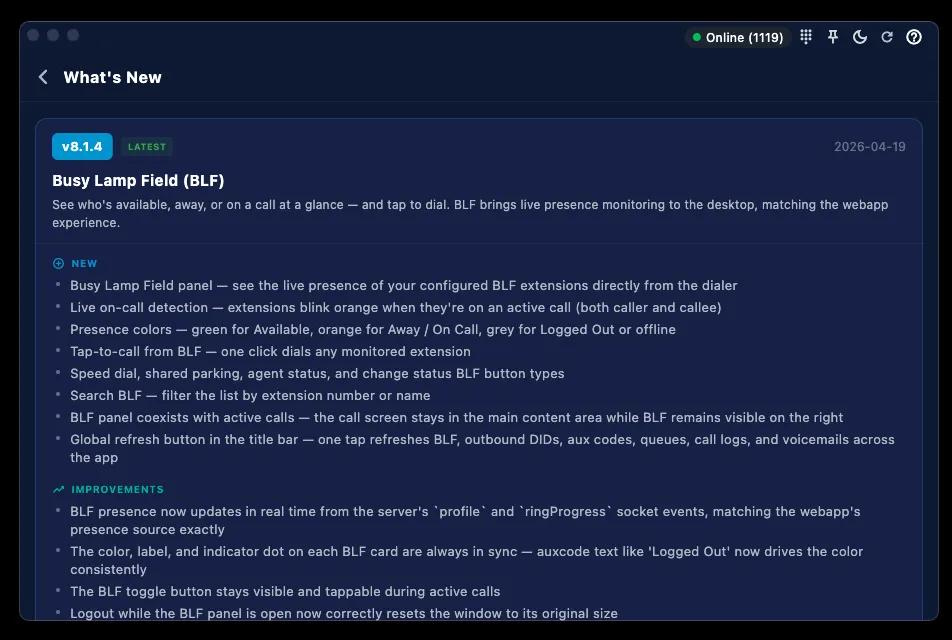
The What’s New section highlights the latest updates included in the current version of the RingQ Desktop App. This section helps users quickly understand what has been added, fixed, improved, or changed after updating the application.
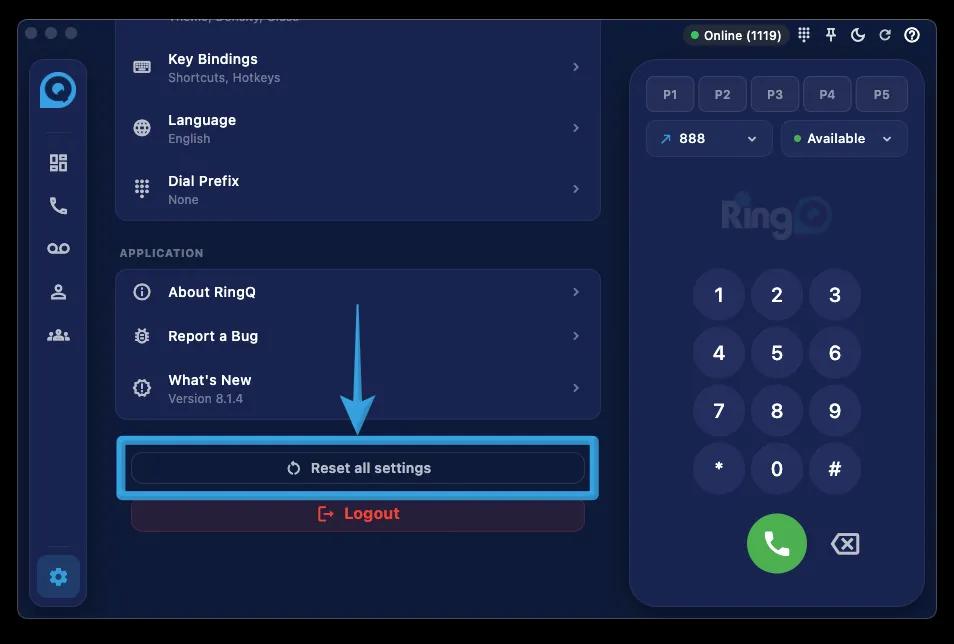
The Reset All Settings option allows users to restore the RingQ Desktop App settings back to their default configuration. This is useful when users want to remove customized settings or fix issues caused by incorrect preferences.
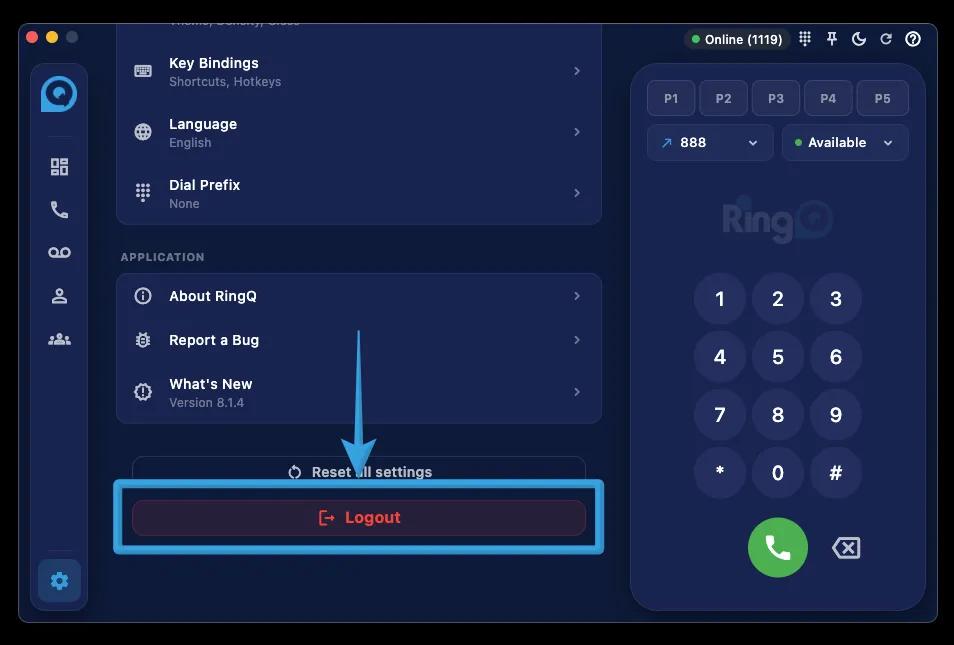
The Logout option allows users to safely sign out of the application. Users can access it from the bottom of the Settings page. They may also reset all application settings if they want to restore the app to its default configuration.
Users may also restore all application settings by clicking Reset all settings.
