RingQ to Microsoft Teams Integration User Manual
This document provides instructions for integrating RingQ with Microsoft Teams. The integration enables users to receive call notifications, manage calls, and access RingQ features directly within Microsoft Teams.
Prerequisites
Before proceeding with the integration, ensure that:
- A valid RingQ account is available.
- A Microsoft Teams account is available.
- Administrator access is granted for both platforms.
- Internet connectivity is stable.
Integration Setup
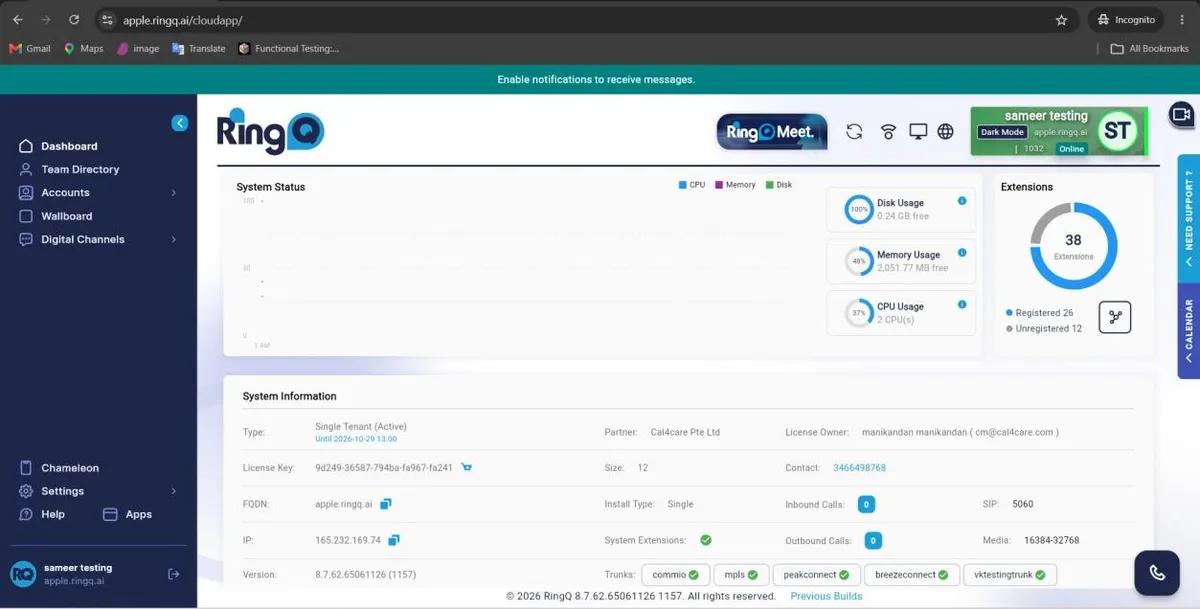
Step 1: Login to RingQ Portal 1. Open the RingQ Portal.
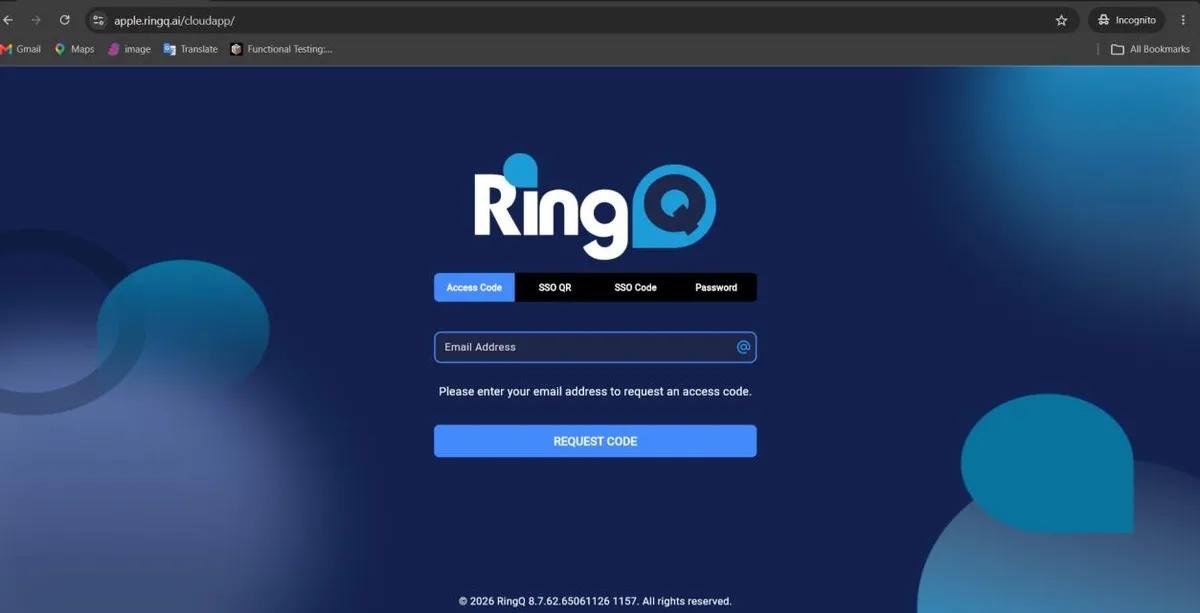
- Enter your email address and click the Request Code button.
- Check your email inbox and copy the access code you received.
- Paste the access code into the designated field and click Submit button to access the page.
Step 2: Navigate to Integrations
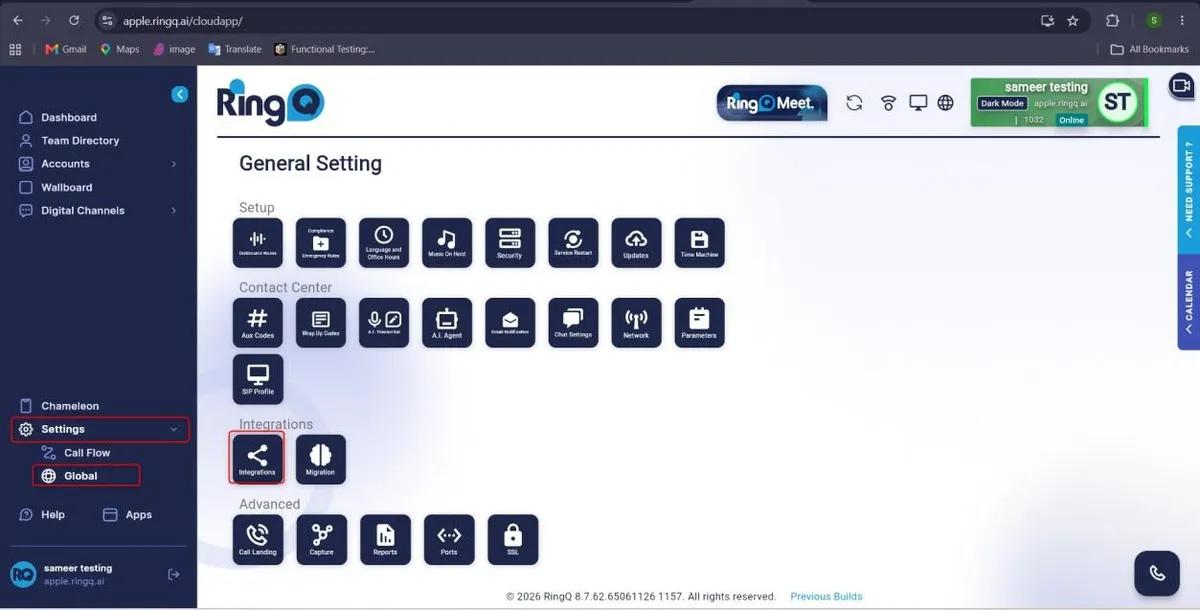
- Go to Settings Click Global Select Integrations
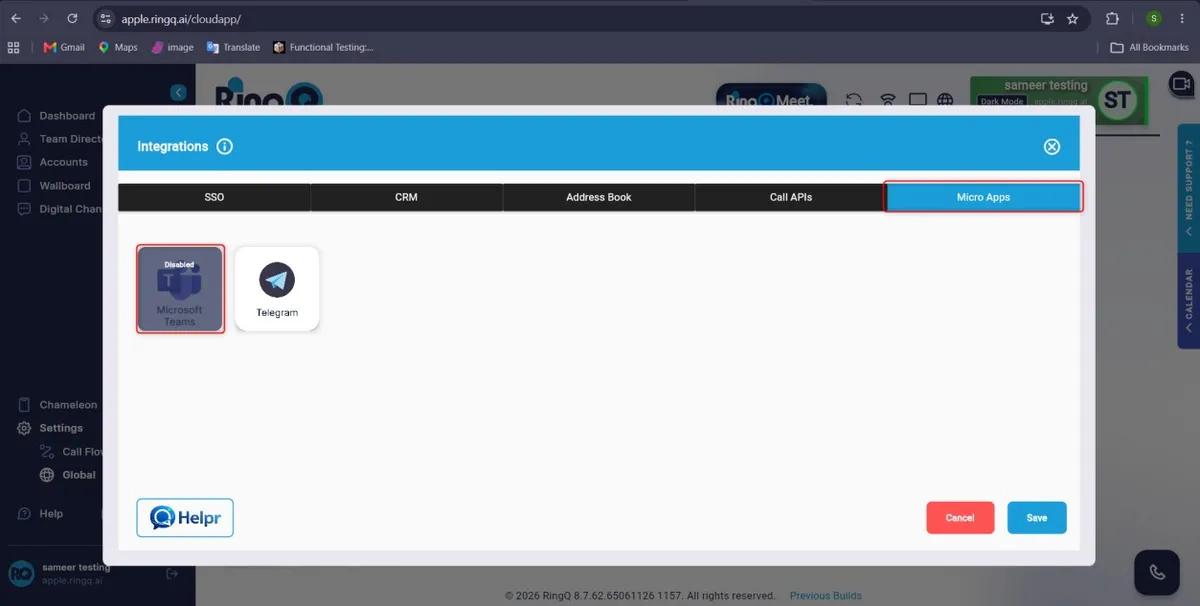
- Choose Micro apps Click Microsoft Teams
- 1. Click the "Disable Microsoft Teams" button.
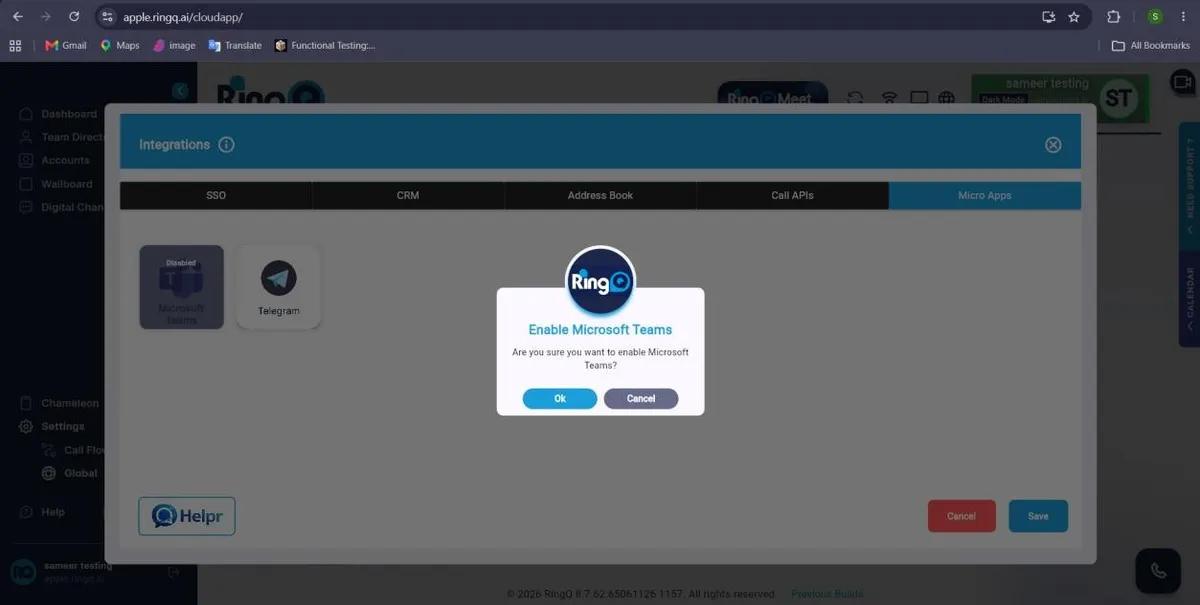
- A confirmation pop-up window will appear.
- Show "Enable Microsoft Teams" and then click "OK".
- Microsoft Teams integration will be enabled successfully.
Step 3: Connect Microsoft Teams
- Open Connect Teams.
- Sign in using your Microsoft Teams account.
- Click the RingQ application from the displayed results.
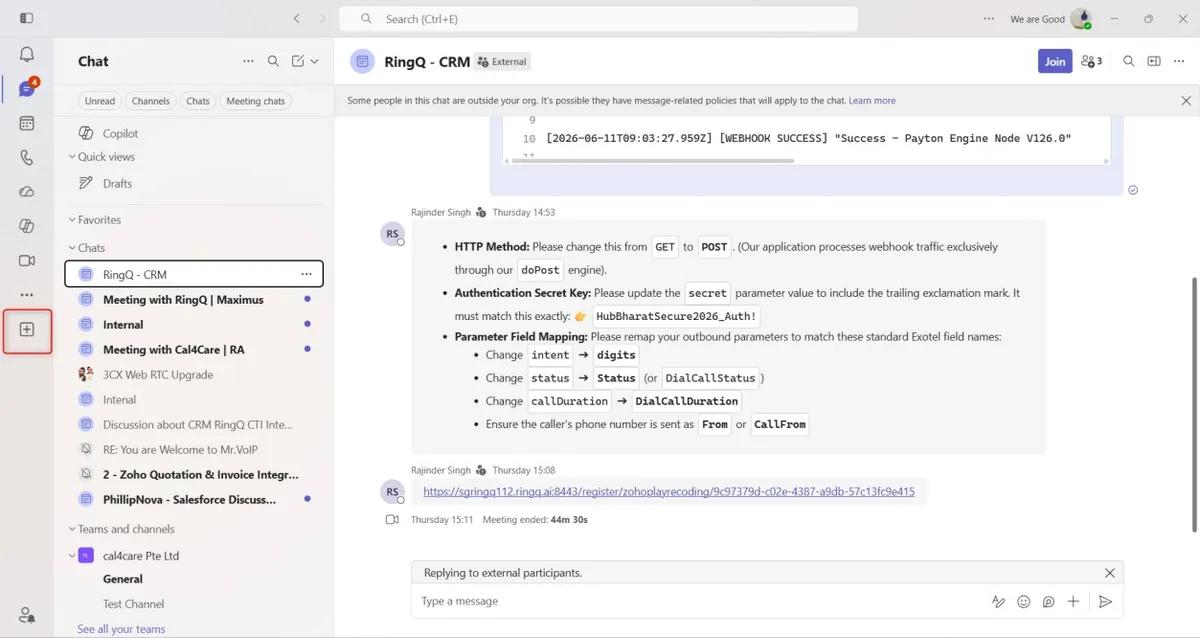
- Click the + (Apps button) to navigate to the Apps page in Microsoft Teams.
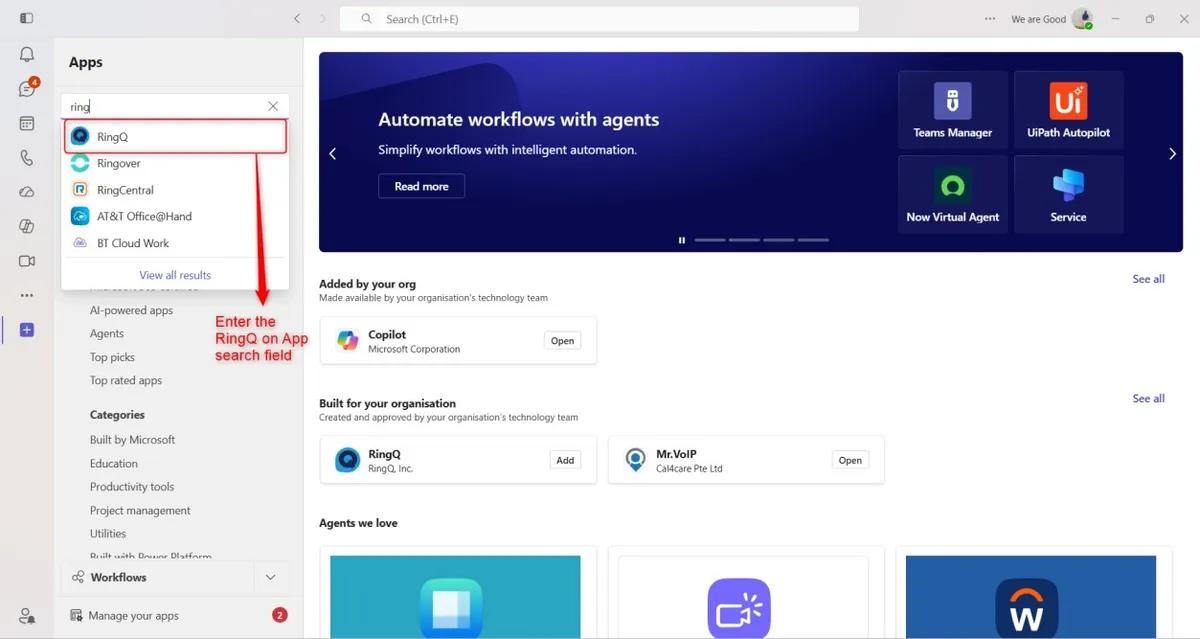
- Enter RingQ in the App search field. Click the RingQ app.
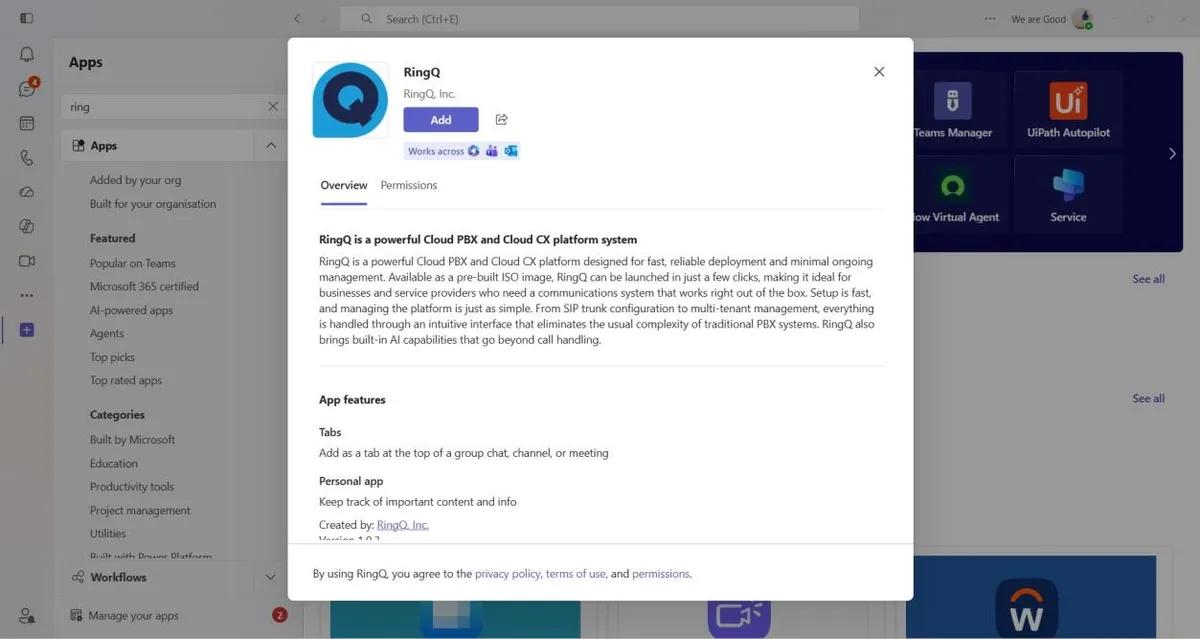
- The RingQ app details pop-up will appear. Click the Add button to continue.
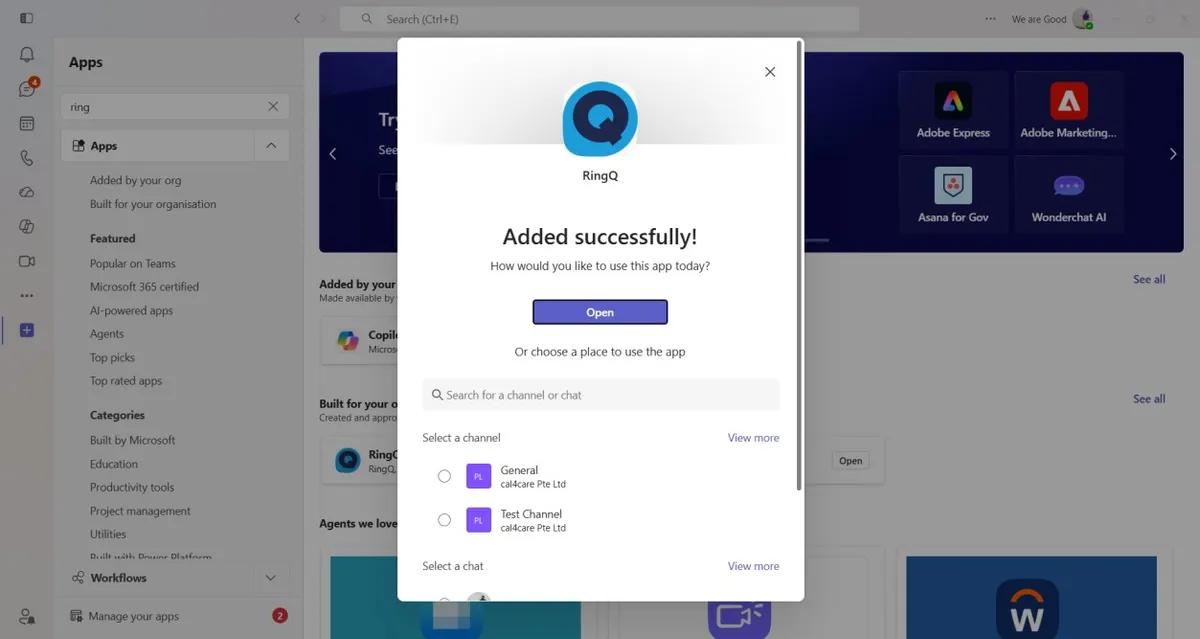
- “Added Successfully” message will be displayed.
- Click the Open button to launch RingQ.
- The RingQ application will open.
- The RingQ logo will be displayed in the side modules panel.
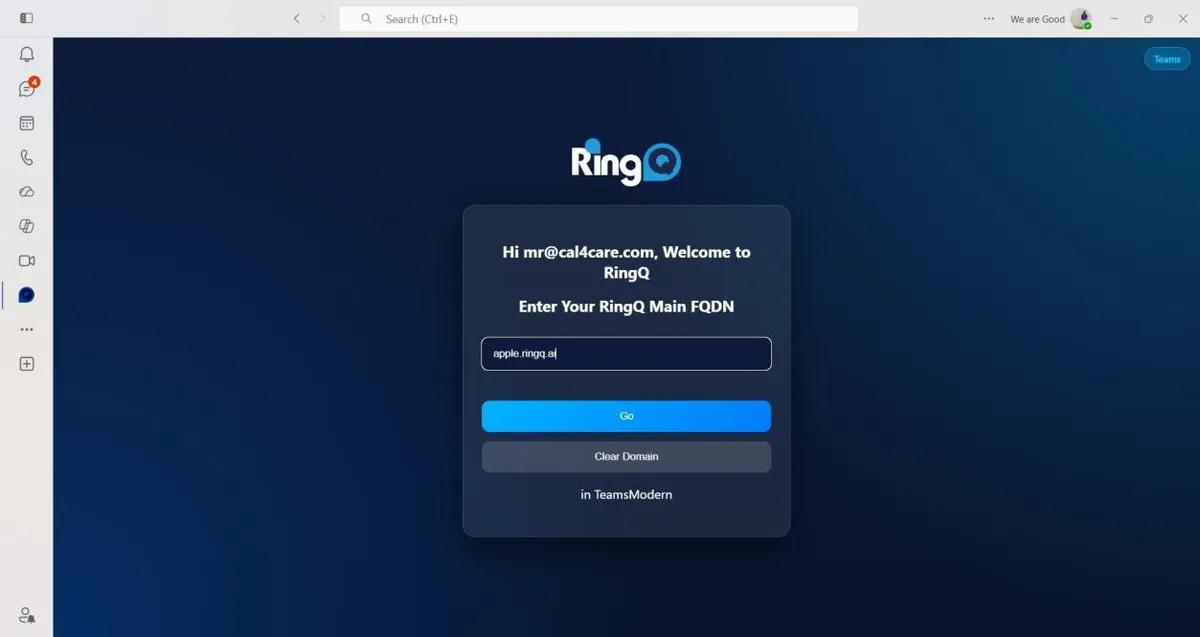
- A pop-up window will appear. Enter your RingQ domain in the provided field.
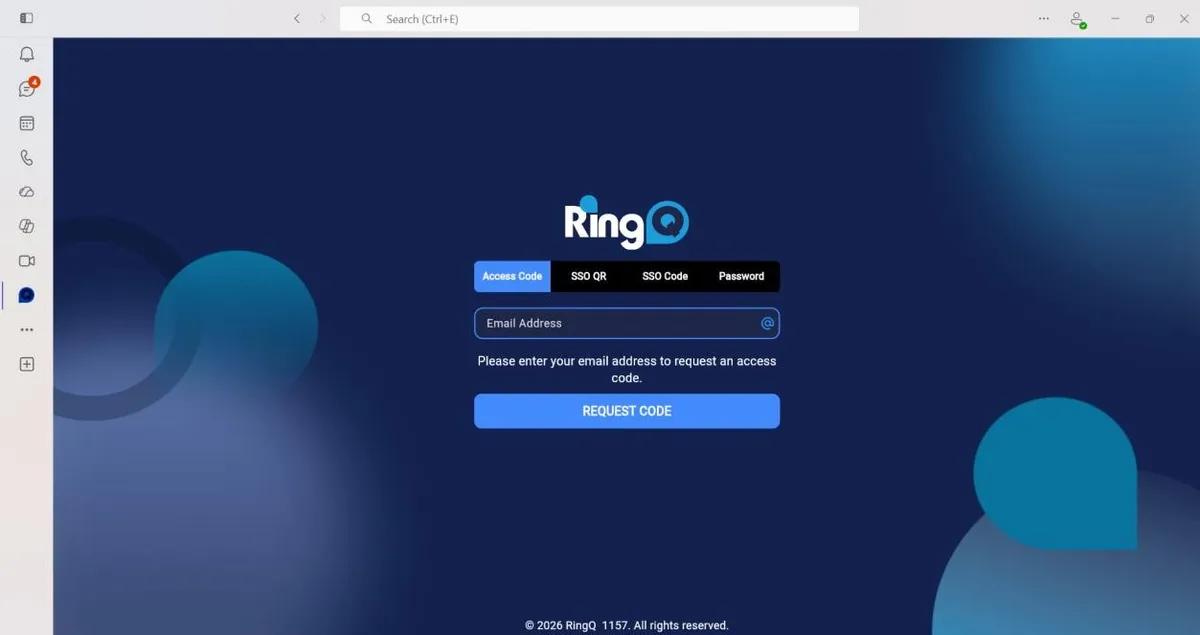
- Click the "Go" button to open the RingQ login page.
- Enter your registered email address and click the Request Code button.
- Open the email sent by RingQ and copy the access code.
- Paste the access code into the login page and click Submit to access the application.
Features
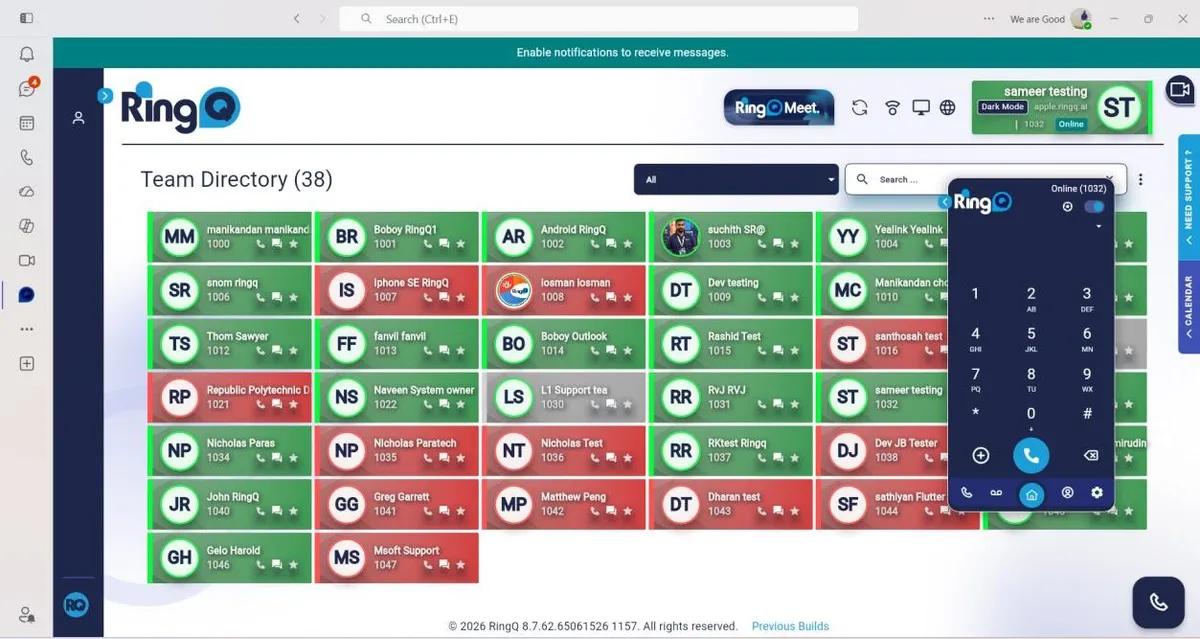
Incoming Call Notifications
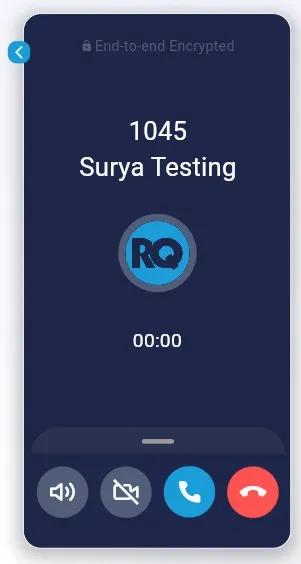
Incoming calls are displayed within Microsoft Teams. Caller information is shown in the notification popup.
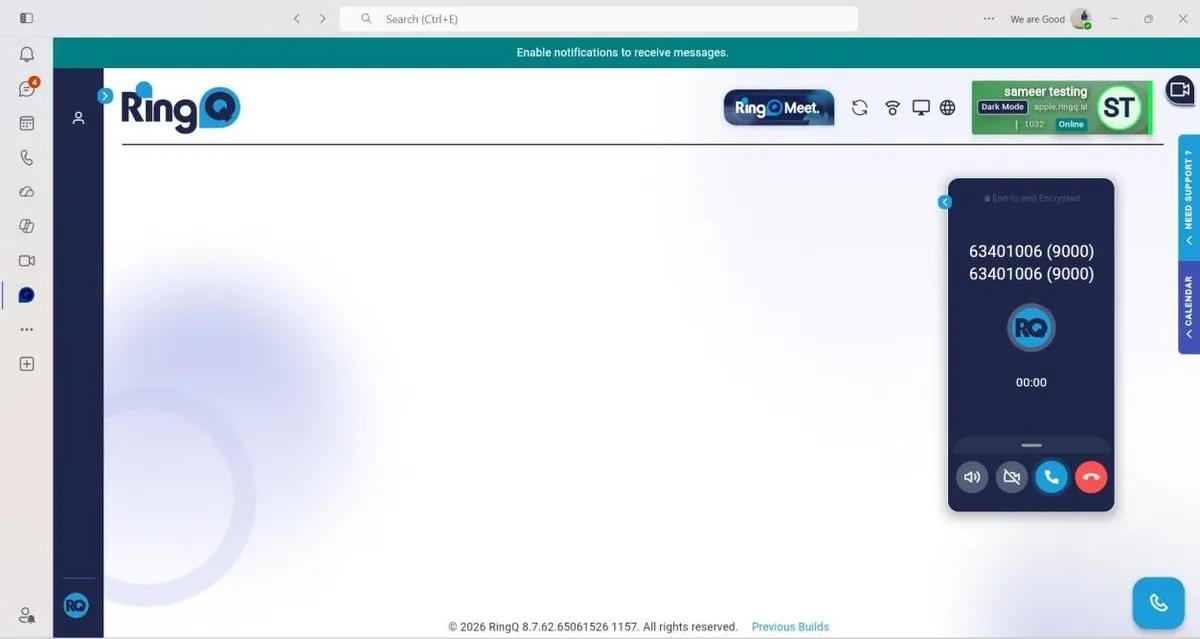
Click-to-Call
Users can initiate calls directly from Microsoft Teams.
Call Activity
Call logs are synchronized between RingQ and Microsoft Teams.
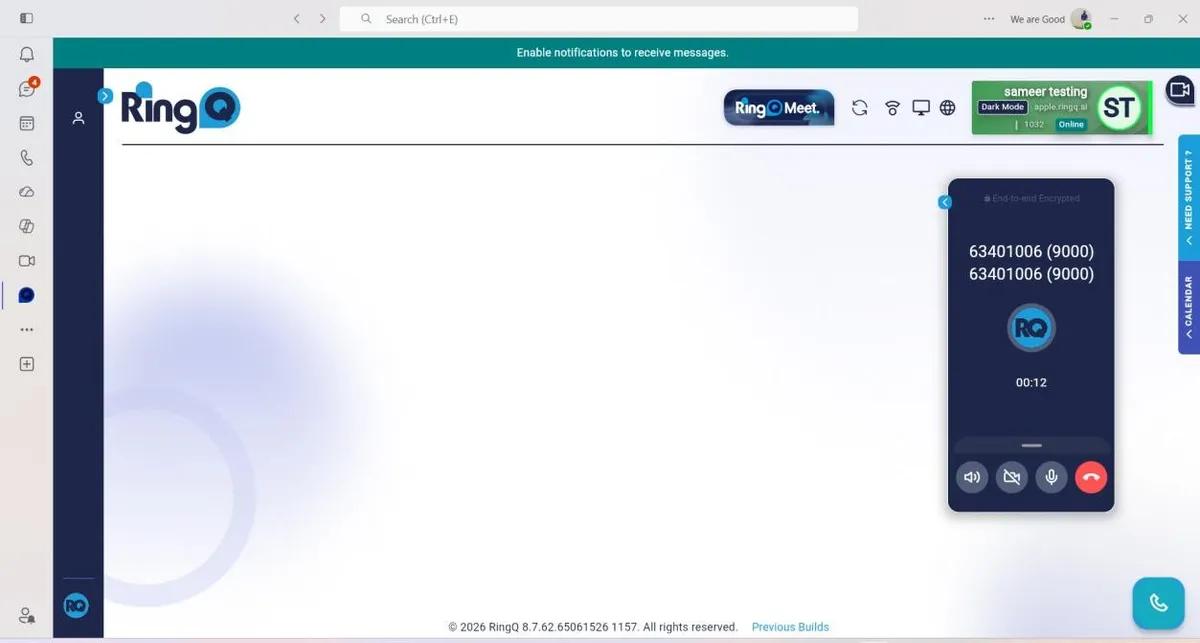
Microsoft Teams Integration – Call Support
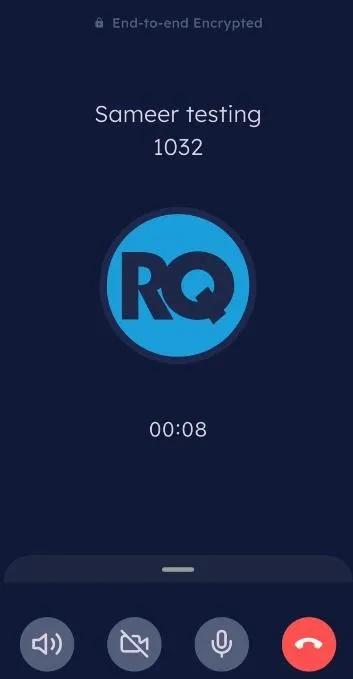
- RingQ Mobile App and RingQ Web Application support web-to-mobile and mobileto-web calls.
- Users can make and receive calls between both platforms.
- Microsoft Teams integration enables seamless communication across devices.


User Workflow
- User receives an incoming call notification.
- User accepts or rejects the call.
- Call details are recorded automatically.
Troubleshooting
Microsoft Teams Not Connecting
Possible Causes:
- Incorrect login credentials.
- Permission not granted.
Solution:
- Re-authenticate Microsoft Teams.
- Verify administrator permissions.
Notifications Not Appearing
Possible Causes:
- Teams notifications disabled.
- Integration disconnected.
Solution:
- Enable Teams notifications.
- Reconnect the integration.
Frequently Asked Questions
Q1: Can multiple users connect the same RingQ account?
Answer: Depends on organization policy and account configuration.
Q2: Is administrator access required?
Answer: Yes, for initial integration setup.
Support
For technical assistance, contact the RingQ Support Team.
Email: support@ringq.com