This guide shows you how to enable or disable notifications from your RingQ app on your Mac. You can choose to receive alerts for specific actions—or turn them off entirely—and also learn how to adjust your Mac’s Do Not Disturb settings for better focus and control.
To access notification settings on your Mac:
1. Click the Apple menu in the top-left corner of your screen
2. Select “System Settings” (or “System Preferences” on older macOS versions)
3. Click on “Notifications”
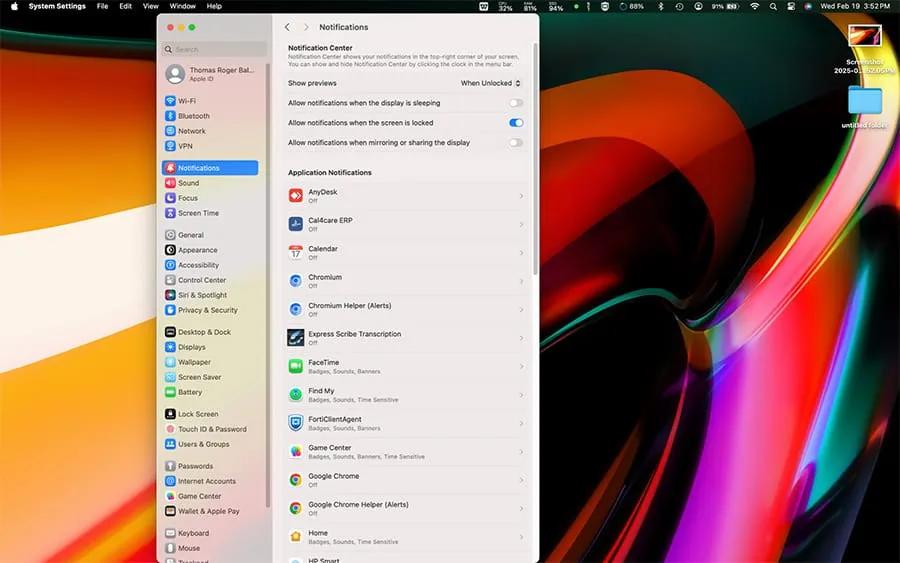
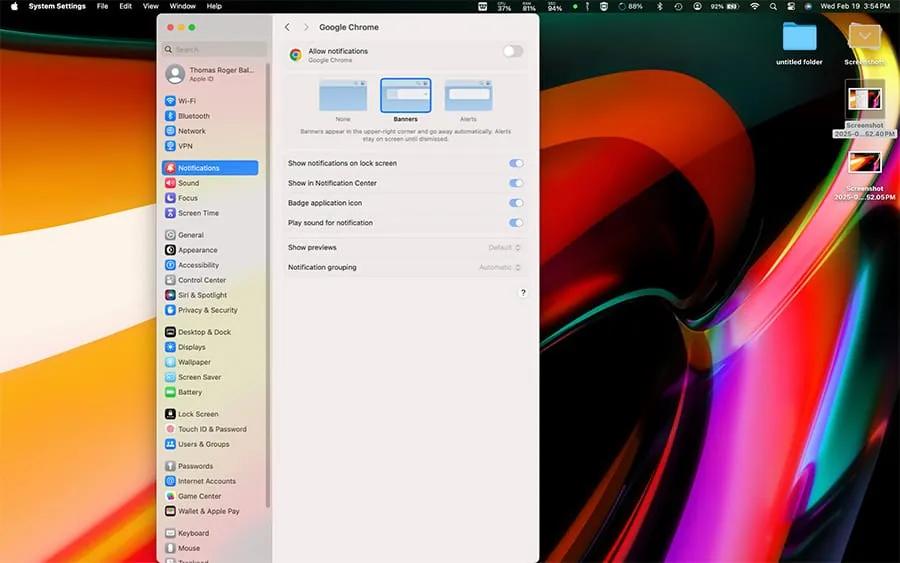
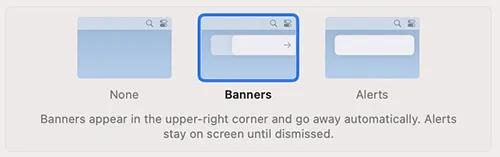
For each app, you can customize how notifications appear:
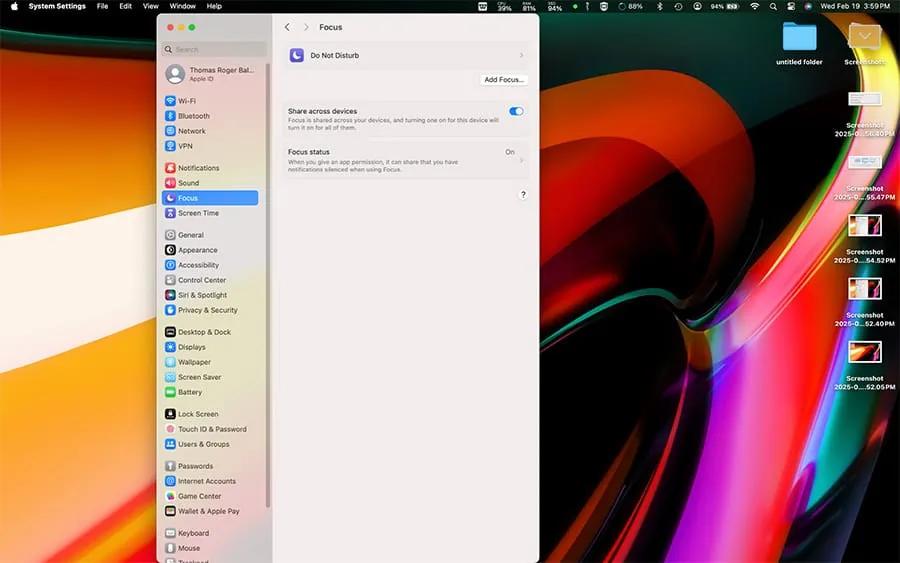
Focus modes help you control when and which notifications you receive:
1. Go to System Settings > Focus
2. Choose from preset modes (Do Not Disturb, Personal, Work, Sleep) or create a custom mode
3. For each Focus mode, set:
1. Click the date/time in the menu bar to open Notification Center
2. Make sure you don’t have Focus mode enabled (look for moon icon in menu bar)
1. Confirm the app is allowed to send notifications
2. Check if the app has its own notification settings in its Preferences
1. Restart your Mac
2. Ensure you’re running the latest macOS version
3. Check if “Do Not Disturb” is scheduled or manually enabled
