This guide shows you how to enable/disable notifications from your RingQ app on your Android device. You can choose to only be notified for certain actions or not at all as well as configure your phone’s DND (Do Not Disturb) option.
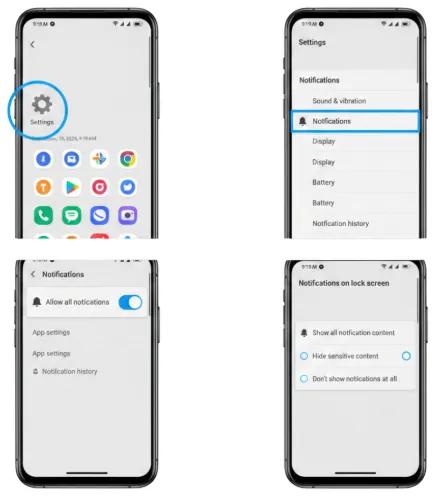
1. Open the Settings app (gear icon)
2. Scroll down and tap on Notifications
3. Toggle Show notifications to enable/disable all notifications
4. Adjust how notifications appear when your device is locked:
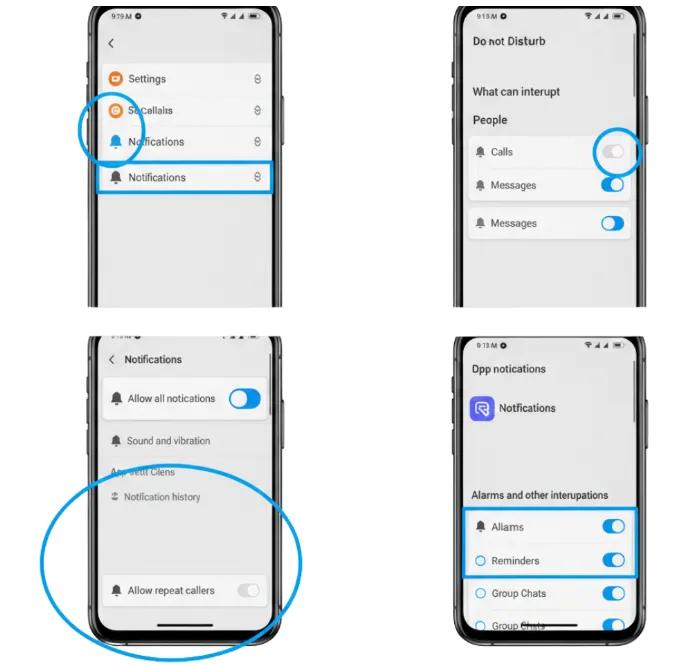
1. Open your app’s notification settings
2. You’ll see different notification categories (channels)
3. Tap on any channel to customize how those specific notifications behave For example, messaging apps might have channels for:
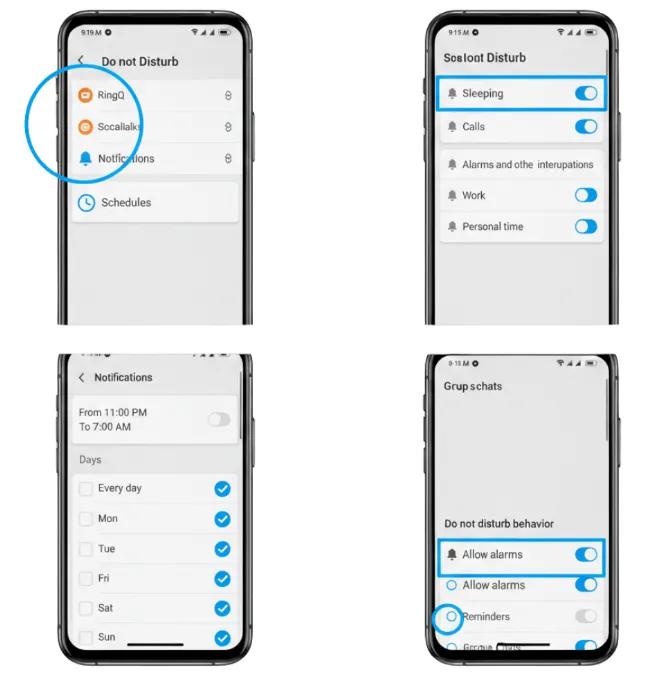
1. Go to Settings > Sound or Settings > Notifications > Do Not Disturb
2. Configure which notifications can break through DND mode
1. Go to Settings > Notifications >
2. Toggle Use notification history to ON
3. View recently dismissed notifications here
If you’re not receiving notifications as expected:
1. Go to Settings > Battery > Battery optimization
2. Find the app you’re not receiving notifications for
3. Set it to Don’t optimize to prevent the system from restricting background activity
1. Ensure the app is updated to the latest version
2. Open the app and look for in-app notification settings
3. Clear the app’s cache:
Different Android manufacturers (Samsung, Xiaomi, etc.) may have additional notification settings:
