Configuring Twilio in a Queue & Assigning Agents
Configuring Twilio in a Queue and Assigning Agents
This guide explains how to set up Twilio SMS in a queue and assign agents so they can receive and respond to chats from within their RingQ dashboard.
Assign Twilio to a Queue
- Sign in to your RingQ Admin Dashboard.
- From the main menu, go to Settings > Call Flow.
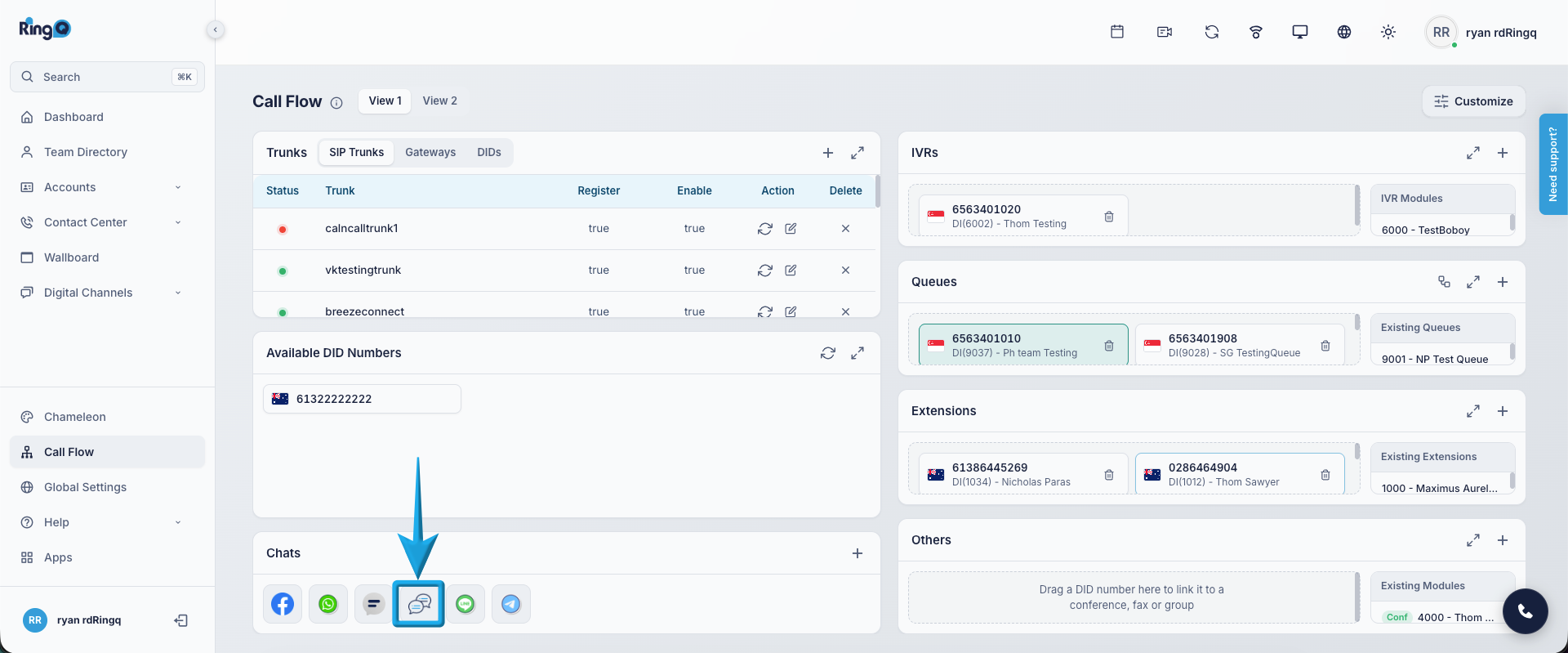
- Navigate to the Chats section and select Twilio.
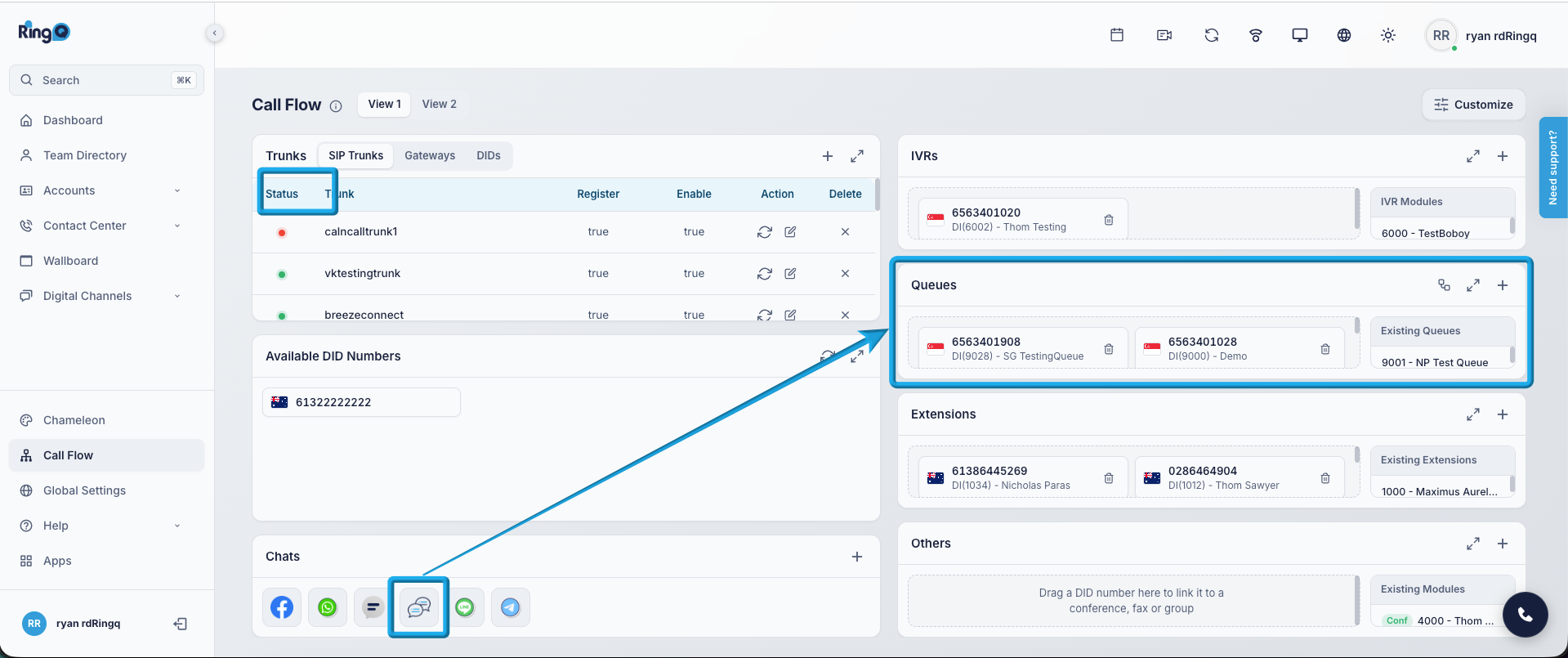
- Click and hold the Twilio icon and drag and drop it into your desired queue in the Queue section.
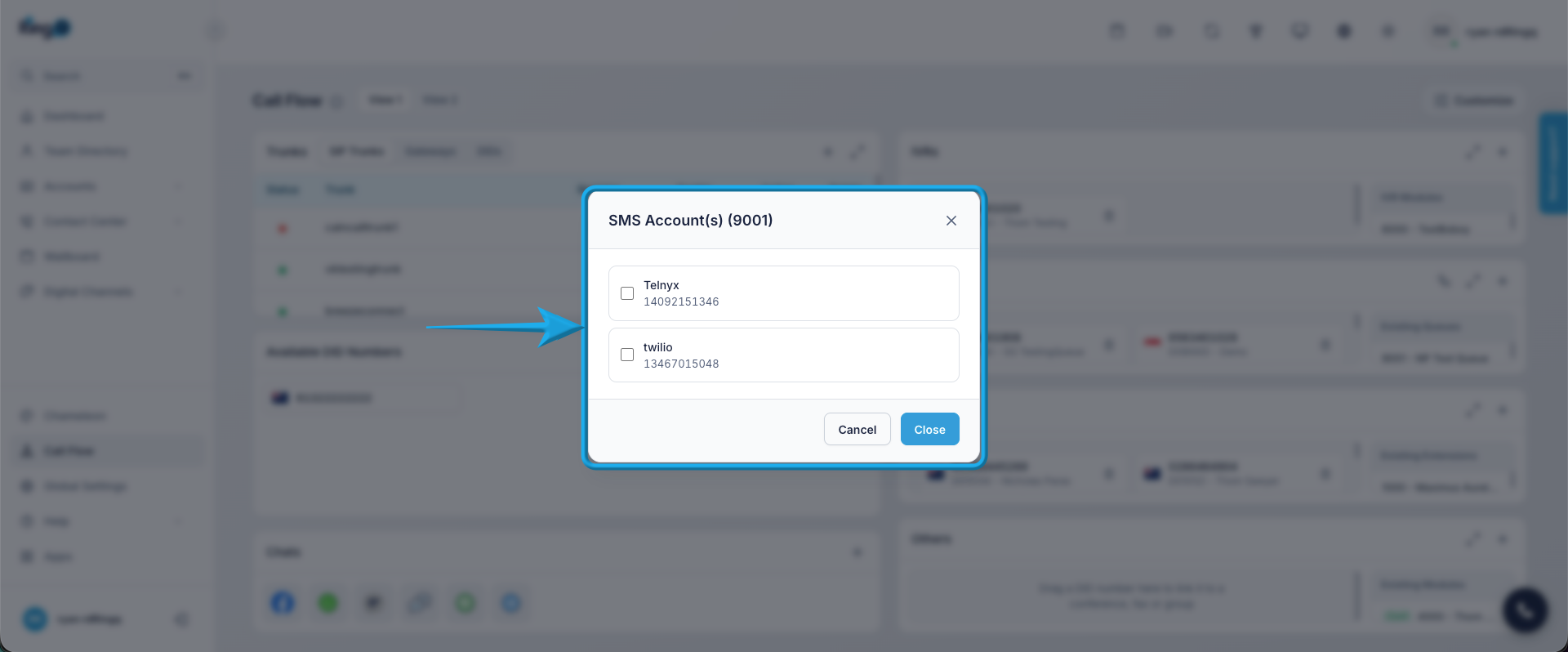
- A pop-up window will display all Twilio accounts configured in Chat Settings. Select your desired Twilio account by ticking the check box.
- Click Open.
Assign Agents to the Queue
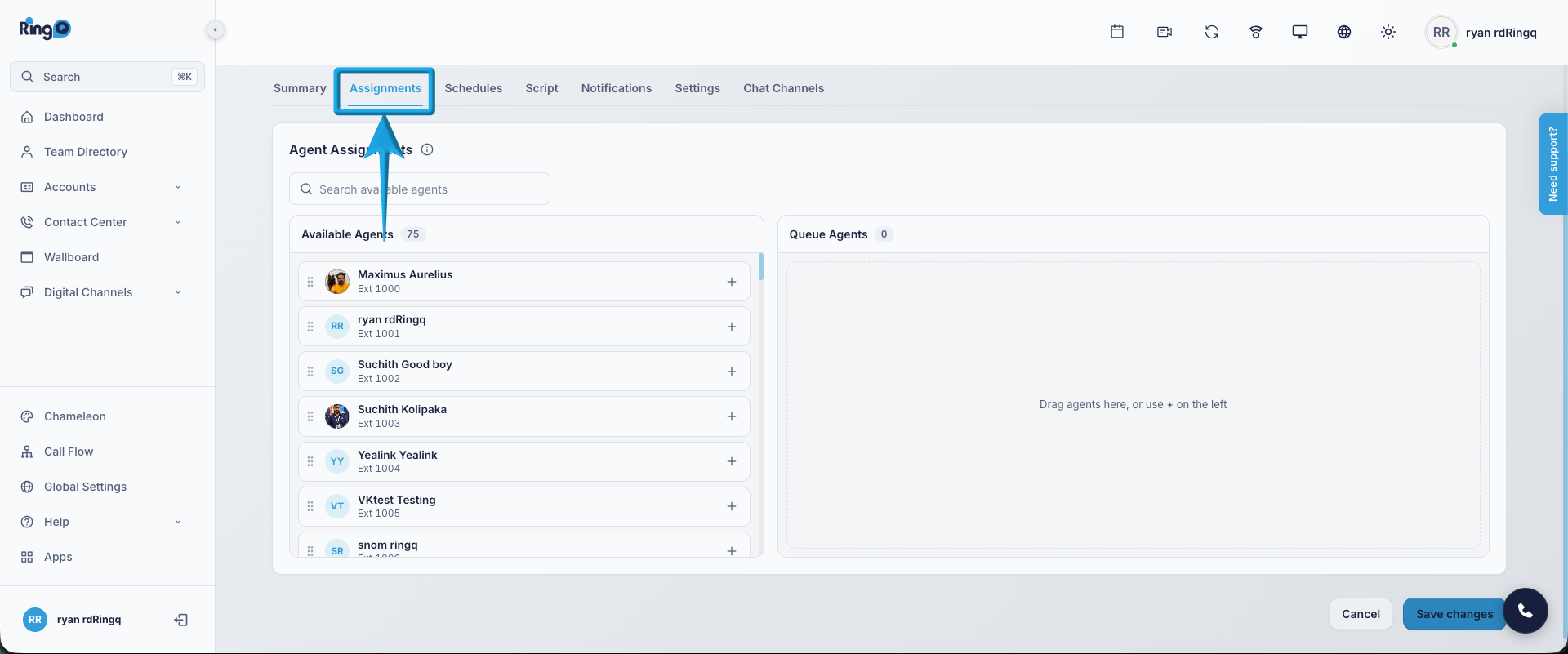
- Go to the Assignments tab.
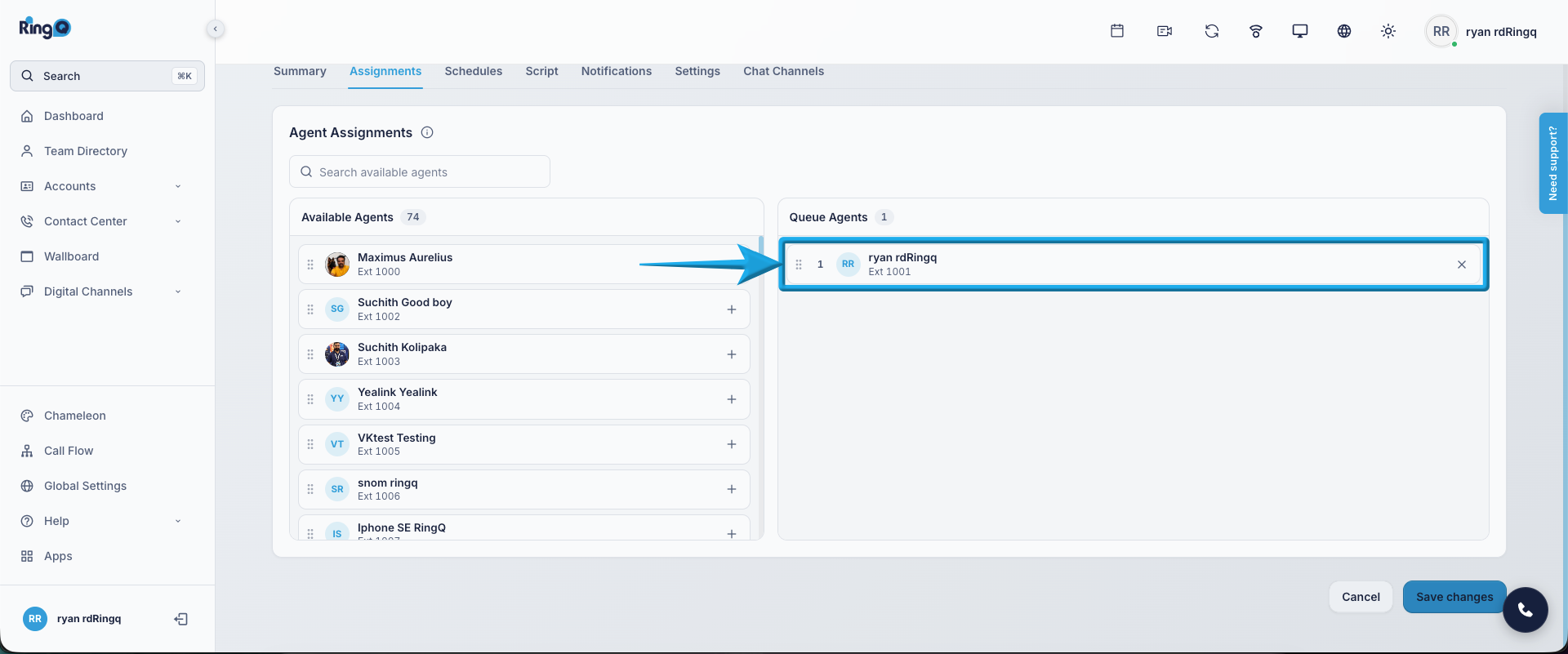
- Assign agents to handle Twilio chats.
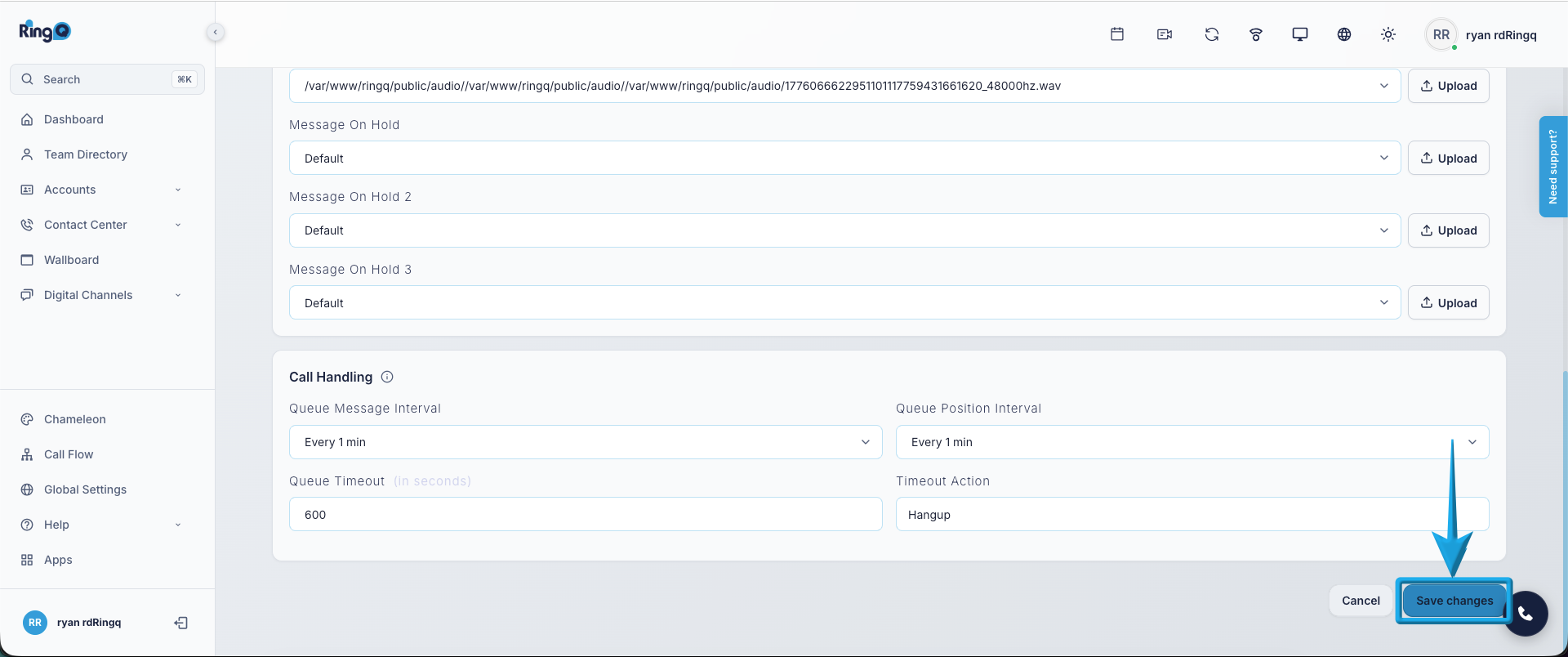
- Go to the Summary page and click the Save Changes button.