
Setting Up Shared Parking
Setting up Shared Parking
Introduction
Shared Parking in RingQ allows users to place calls on hold in a shared slot, so other team members can pick them up from any device within the system. This is especially useful in busy environments like reception desks or sales floors, where calls need to be transferred or retrieved quickly by multiple users. This guide explains how to configure Shared Parking in RingQ, helping you streamline call handling and improve team collaboration.
Getting Started
Navigate to the Accounts menu and click the Dropdown button to reveal the Accounts options.
Select Extensions.
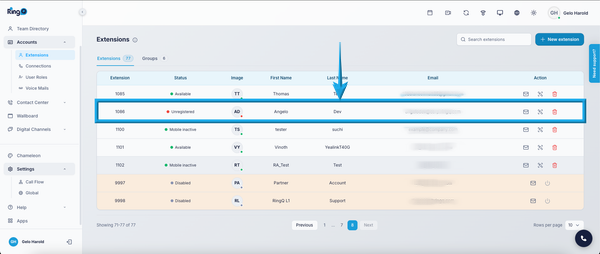
Choose the specific extension for which you want to configure the BLF.
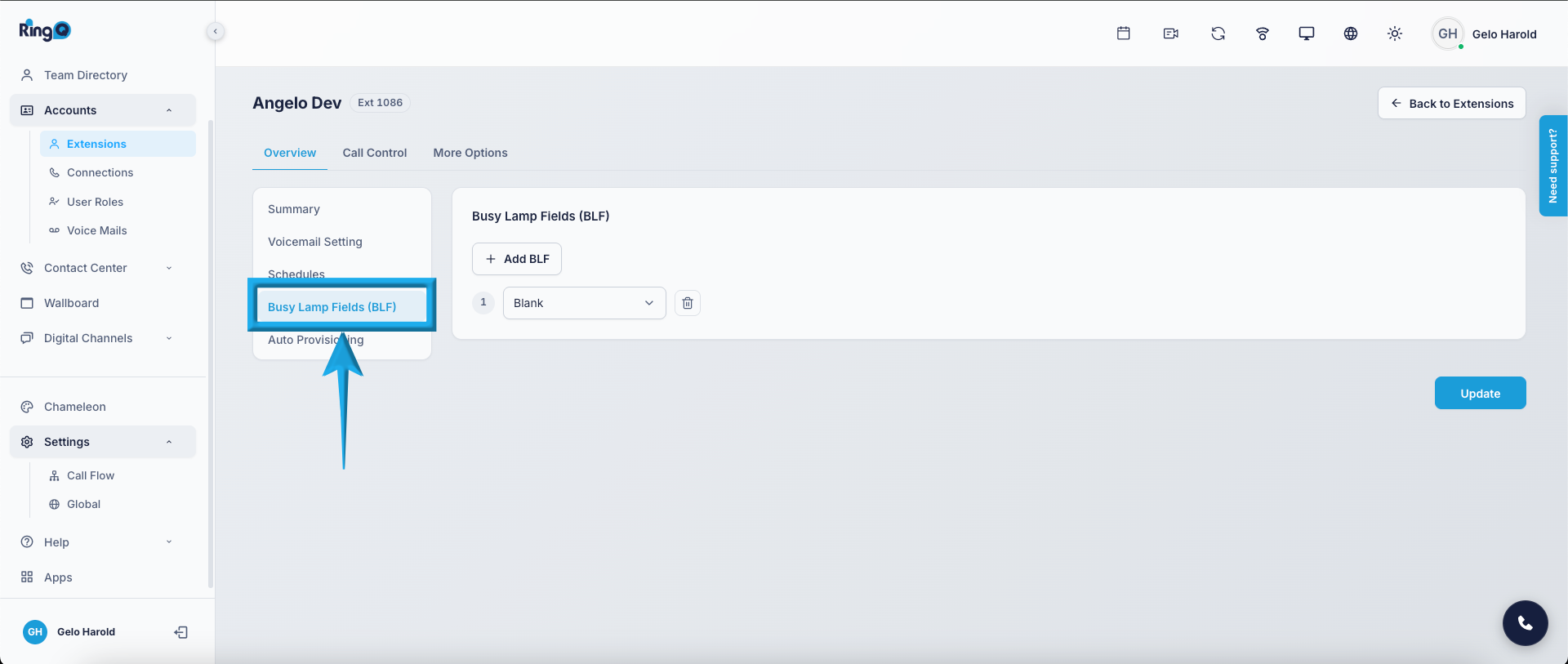
Within the extension settings, find and click Busy Lamp Field (BLF).
Setting Up Shared Parking
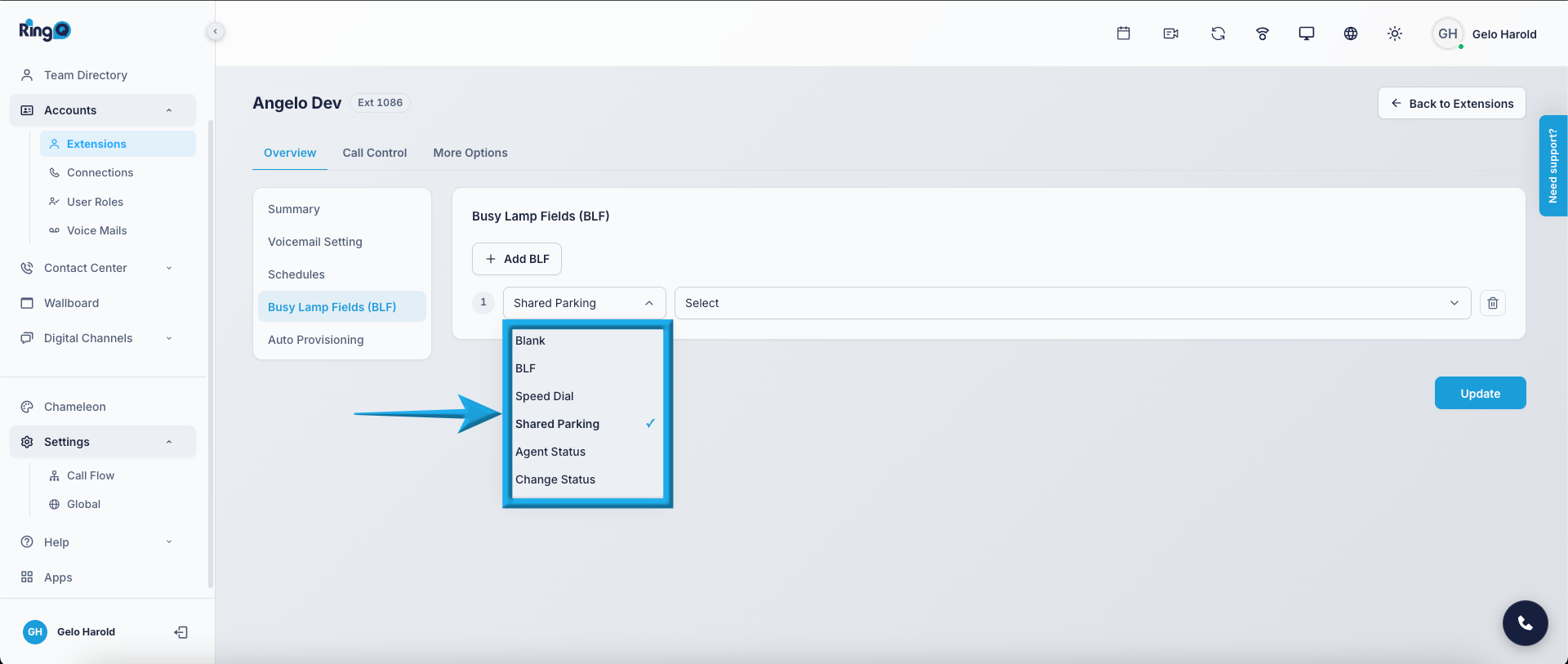
Click the Dropdown button to access the options.
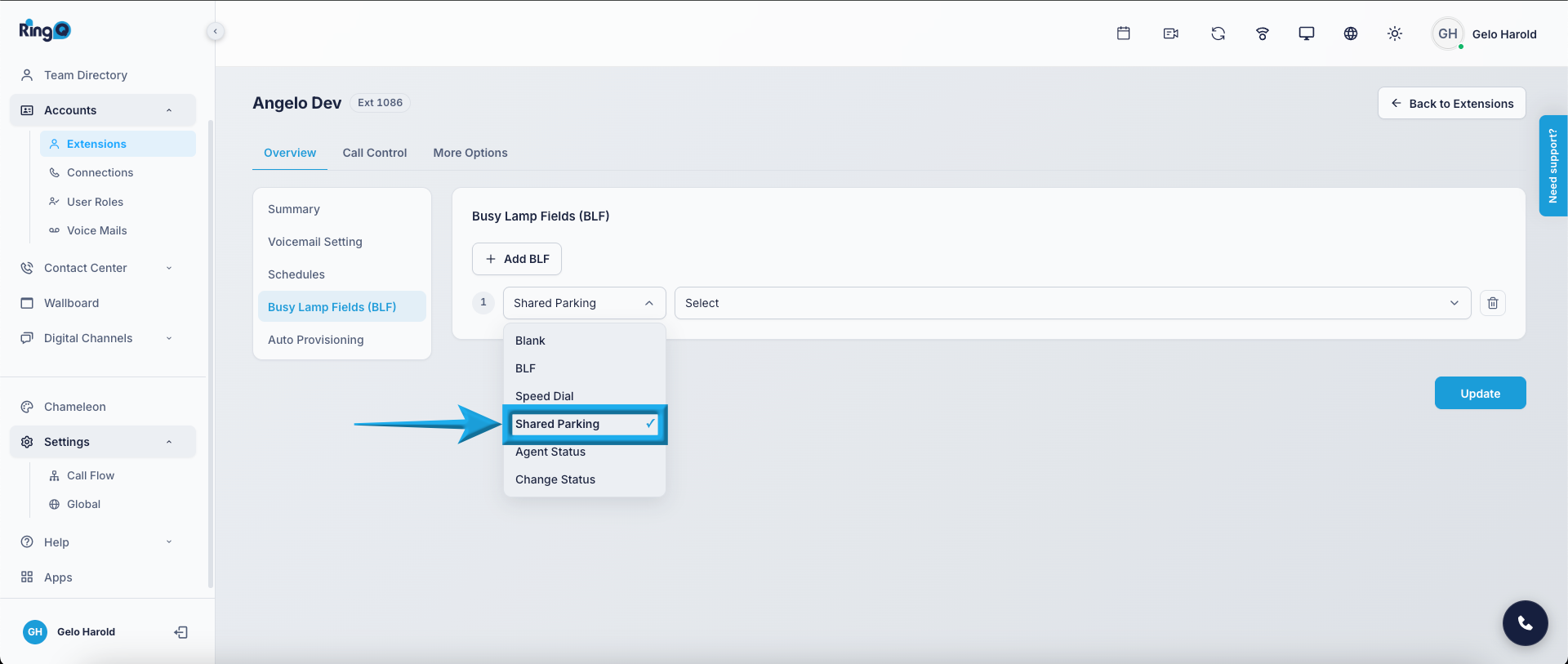
Select Shared Parking from the available options.
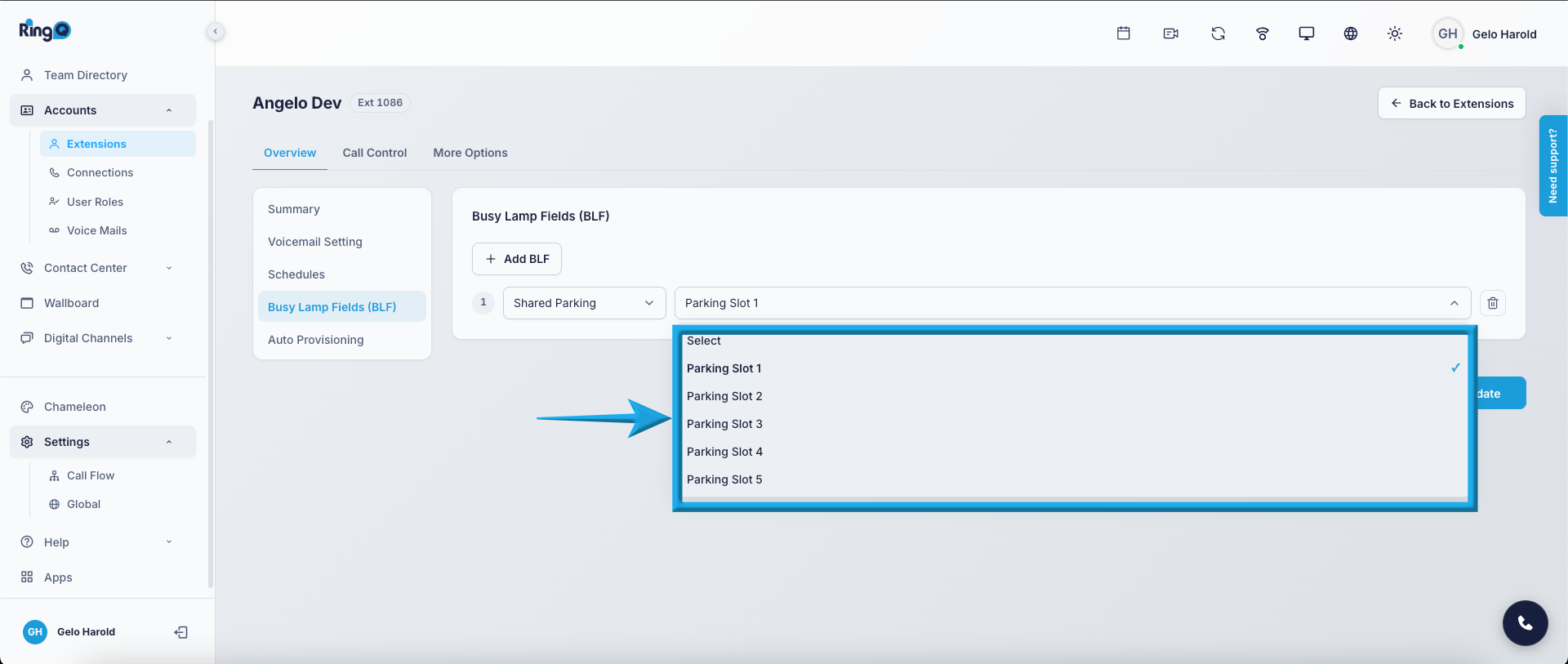
Click the Dropdown button again to reveal the options for Shared Parking slots (e.g., SP1, SP2, SP3, SP4, SP5).
Choose the desired Shared Parking slot (e.g., SP1, SP2, etc.) to assign the action.