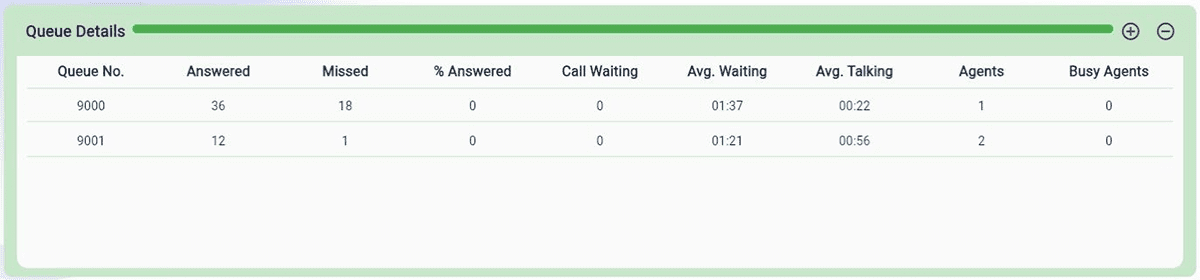
The Wallboard
Real-time visibility into call activity is key to delivering efficient and responsive customer service. The RingQ Advanced Wallboard provides a dynamic, real-time dashboard that displays essential metrics from your call queue(s)—including incoming call volume, average wait times, answered vs. missed calls, and agent status or availability. Designed for supervisors and operations teams, this graphical interface helps you monitor performance at a glance, make informed decisions on the fly, and proactively manage call traffic. Whether you’re running a call center or handling high-volume support queues, the Wallboard empowers your team to stay in control and keep service levels high. This guide will walk you through setting up and using the Advanced Wallboard so you can optimize your call handling and deliver a smoother, faster customer experience.
The Advanced Wallboard is in the Contact Center section and can only be accessed by the Owner, Manager, and Supervisor.
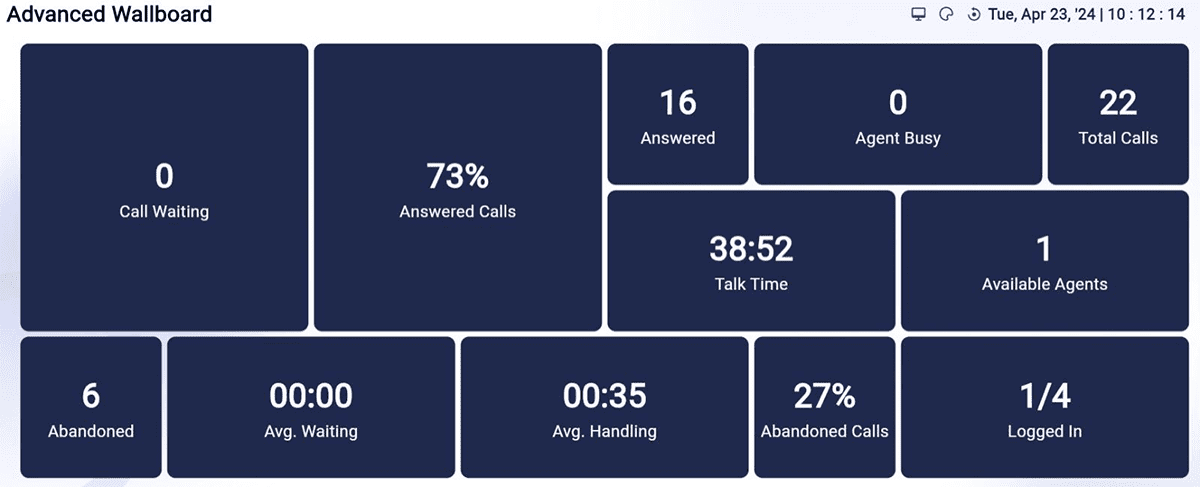
1. Call Waiting – Shows the number of incoming calls waiting in the queue.
2. Answered Calls – Shows the number of calls that have been answered.
3. Abandoned Calls – Shows the number of calls where the caller hung up before the call was answered.
4. Total Calls – Shows the total number of answered and abandoned calls.
5. Percentage of Answered Calls – Shows the percentage of answered calls.
6. Percentage of Abandoned Calls – Shows the percentage of abandoned calls.
7. Average Waiting Time – The average amount of time a caller spends waiting in the queue.
8. Average Handling Time – The average amount of time it takes for a call to be processed from the moment it enters the queue until it is answered by an available agent.
9. Talk Time – The amount of time an agent spends speaking with a customer.
10. Available Agents – The number of agents ready for calls.
11. Logged In – The number of agents who are logged in to the queue.
12. Agent Busy – The number of agents who are currently on a call.
To improve visibility and focus, admins and supervisors can apply filters to the Wallboard and control which queues and agents are displayed.
Click the Filter icon located at the top-right corner of the Wallboard.
Use the toggle buttons to:
Click Apply Filters to update the Wallboard view instantly.