
System Updates
Introduction
This guide explains how to manage system updates in RingQ using the Update Settings panel. From controlling how and when updates are applied to viewing historical versions and comparing them with the latest release, this feature gives system administrators full visibility and control over the update process—ensuring stability, security, and up-to-date performance across the platform.
Configuring Updates
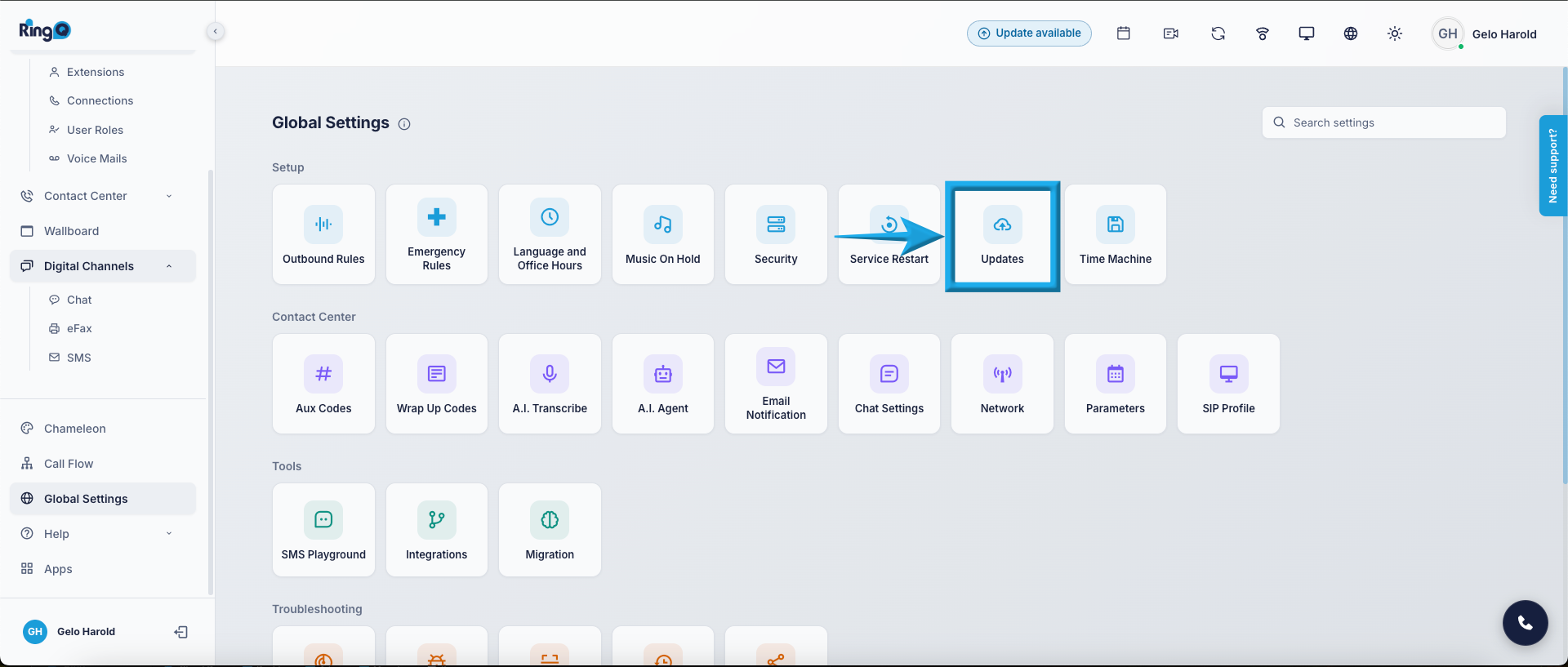
Log in to your RingQ web app and from the left-hand menu go to Settings > Global > Updates.
Enable Auto Update – when enabled, RingQ automatically checks for and installs the latest updates.
Previous Build Versions – this section provides a history of all past builds that were installed on your system.
Latest Build Version – shows the latest available update and whether your system is up to date.