Direct Inward Dialing (DID) numbers let callers reach specific extensions or departments without going through a main menu, while gateways connect your RingQ system to external phone networks for inbound and outbound calls. This guide shows you how to create and assign DIDs to users or call flows, and how to add a gateway so your system is ready for live traffic.
Log in to your RingQ web app and click Settings in the left-hand menu.
Click Call Flow.
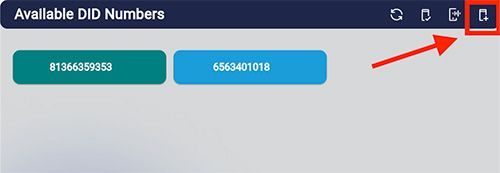
This screen shows the DID numbers available in your system. Click the Add DID button.
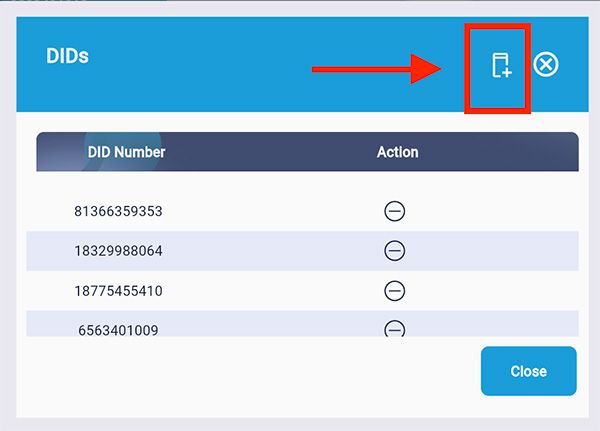
Click the Add DID button again, as shown above.
Enter your preferred DID number.
Click Create.
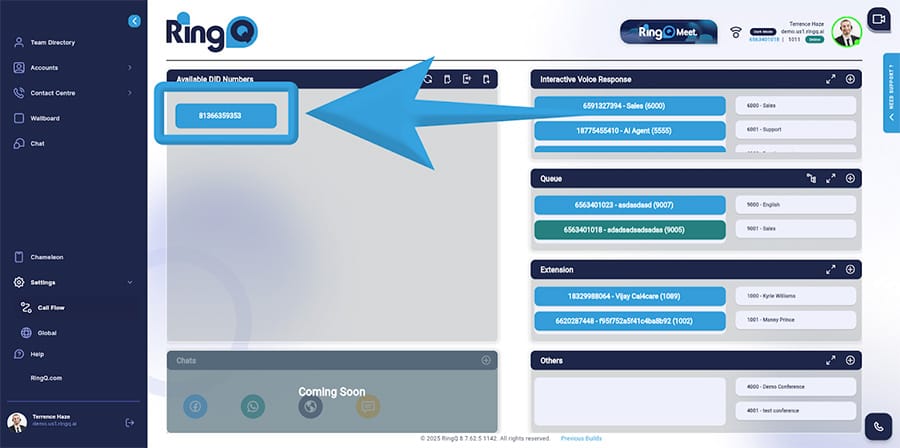
Select a DID.
Click and hold it.
A pop-up will appear asking you to confirm the DID as the primary outgoing ID.
Click Approve.
On the Available DIDs screen, drag and drop the DID you want to assign into the IVR, Extension, Queue, or Other (Conference) container.
You can also clear the cache from here when needed. Clearing the cache removes the temporary files stored by the system.
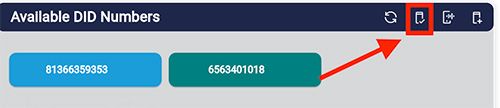
Click the Gateway button.
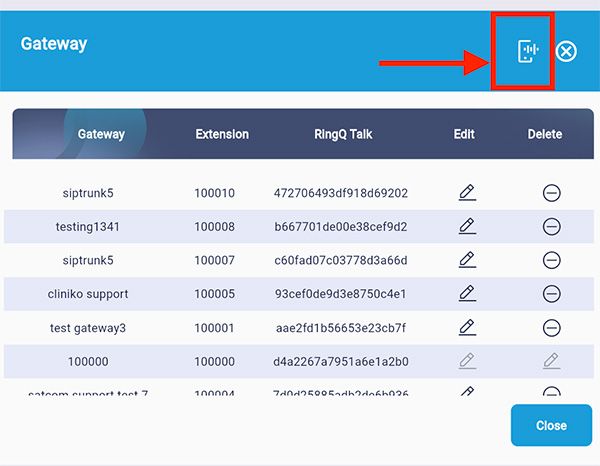
Click the Create Gateway button.
Fill in the required fields.
Click Create.
