Security update: RingQ is patched against the critical PHP vulnerabilities. Update your servers today.
Read nowThese RingQ reports show every chat, every change made in settings, and where each of your phone numbers is routed.
In the RingQ web app, click Reports, then Logs & System, then the report you want. Pick a date range and filters, and the report shows straight away.
| Report | What it shows | Filters |
|---|---|---|
| Chat Log | Every chat with its channel, customer, agent and transcript. | Date range, Search |
| Audit Log | Who changed what in settings, and when, with the IP address. | Date range, Search |
| Inbound Rules | Which phone numbers route to which queue, IVR or user, and whether each rule is enabled. | None |
Every chat with its channel, customer, agent and transcript.
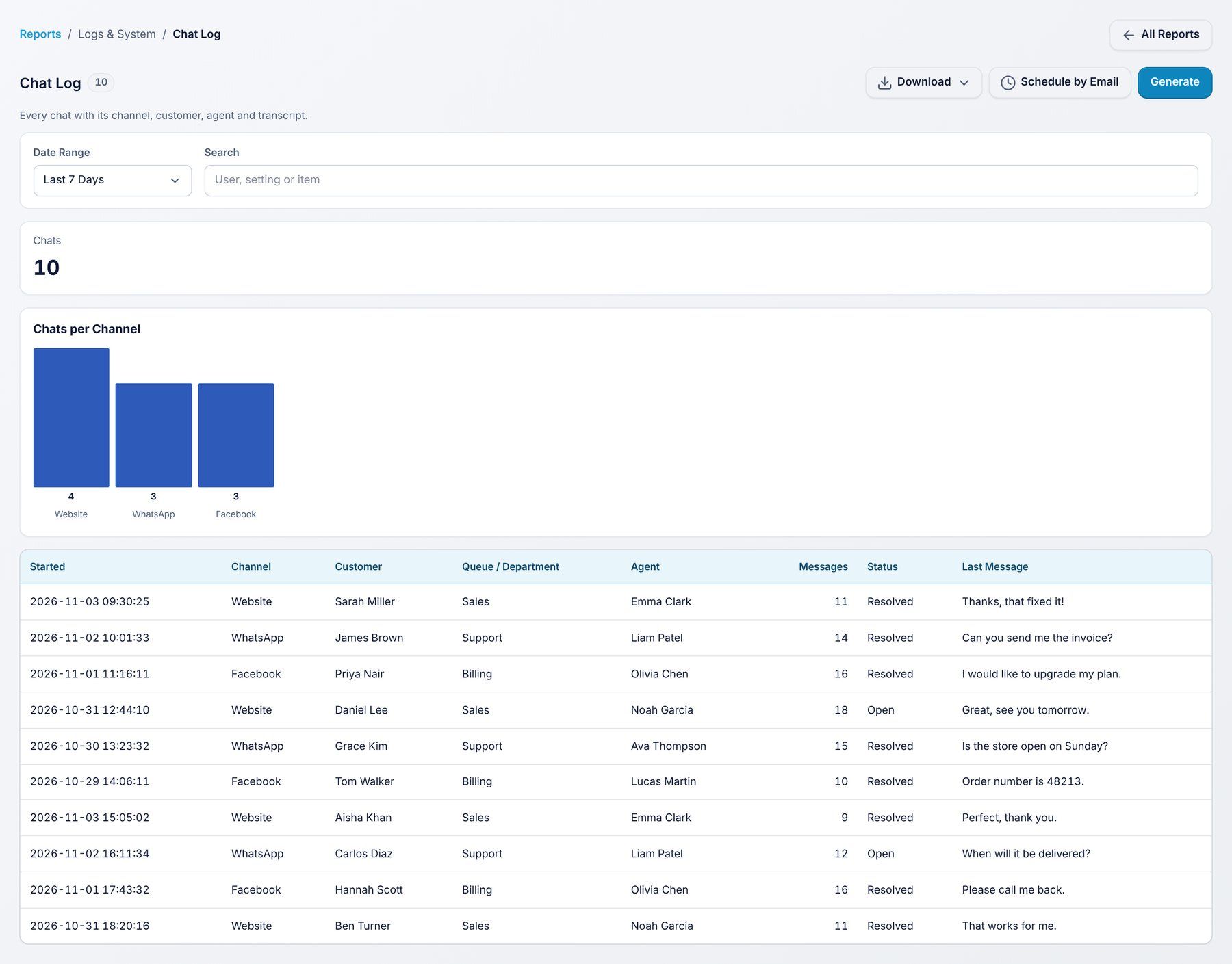
Use it to: find and read any chat.
Filters: Date range, Search.
Who changed what in settings, and when, with the IP address.
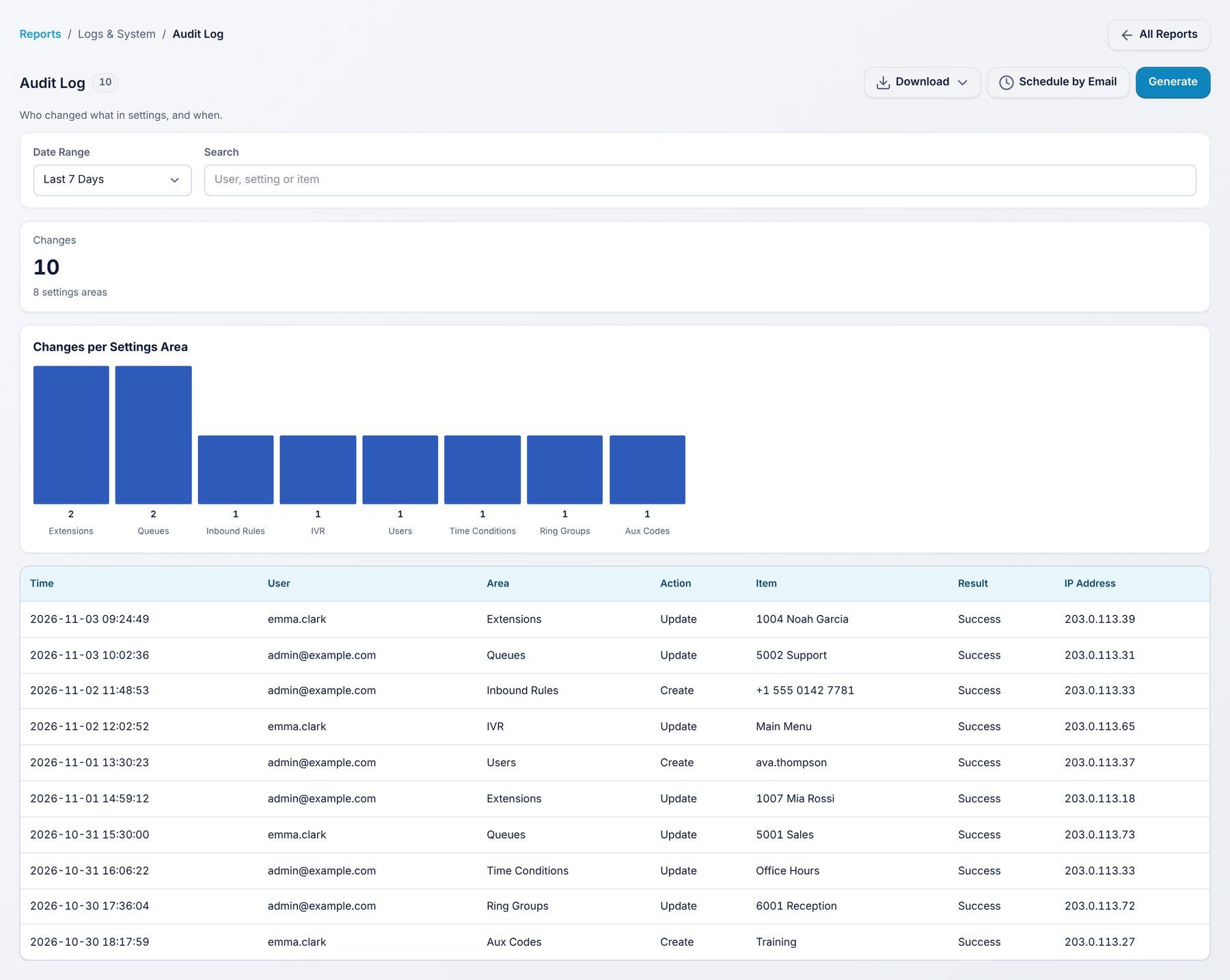
Use it to: check who made a change.
Filters: Date range, Search.
Which phone numbers route to which queue, IVR or user, and whether each rule is enabled.
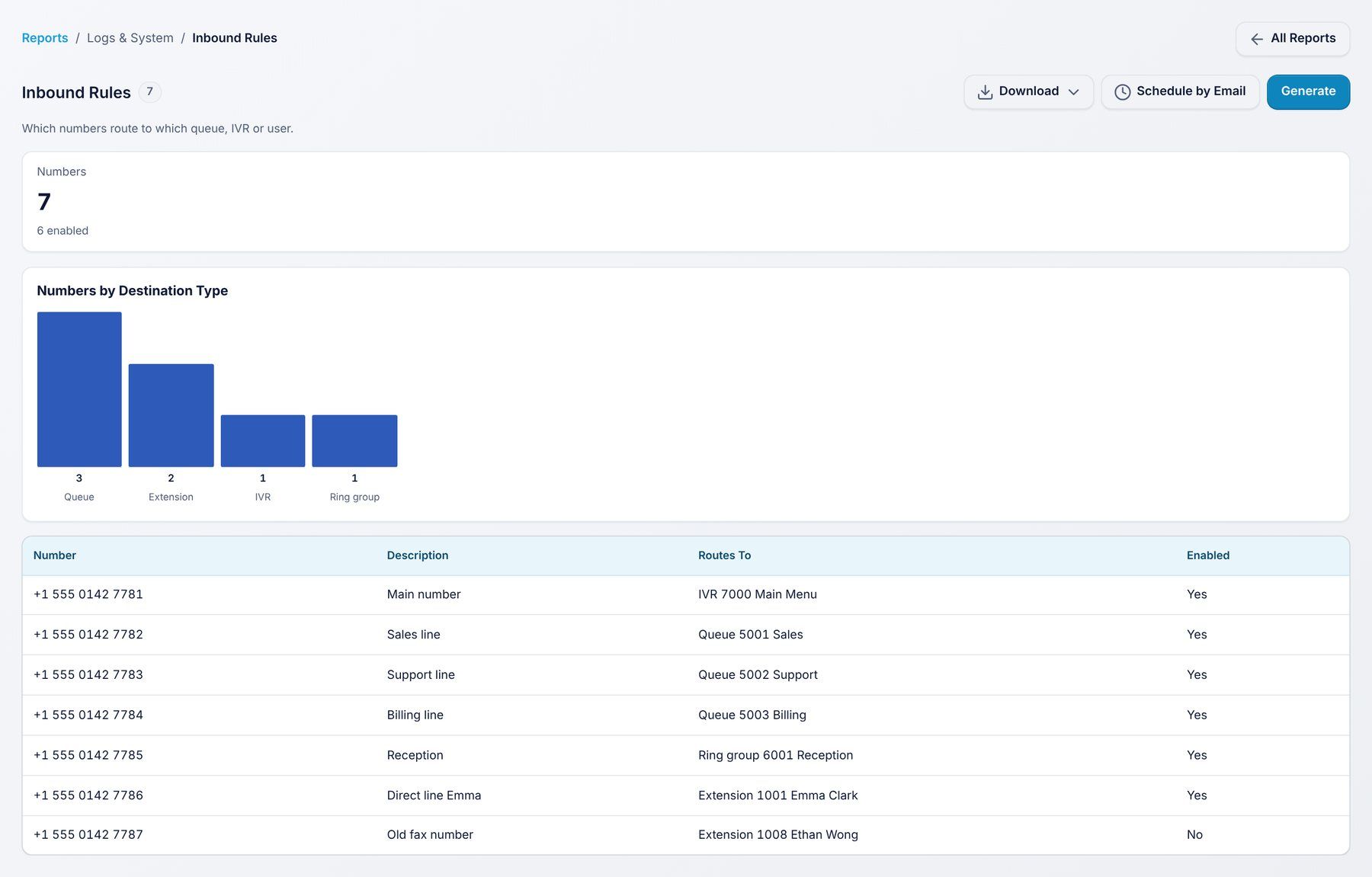
Use it to: check where each of your numbers goes.
Filters: None.
Every report has the same buttons:
