Security update: RingQ is patched against the critical PHP vulnerabilities. Update your servers today.
Read nowRingQ chat statistics reports cover your website, WhatsApp and Facebook chats: how each chat queue performs, how each agent handles chats, and which chats got no reply.
In the RingQ web app, click Reports, then Chat Statistics, then the report you want. Pick a date range and filters, and the report shows straight away.
| Report | What it shows | Filters |
|---|---|---|
| Queue Chat Performance | Chats per queue: answered, lost, resolved and first response time. | Date range |
| Agent Chat Statistics | Chats each agent handled, messages sent and first response time. | Date range |
| Abandoned Chats | Chats where no agent replied, per channel. | Date range |
Chats per queue: answered, lost, resolved and first response time.
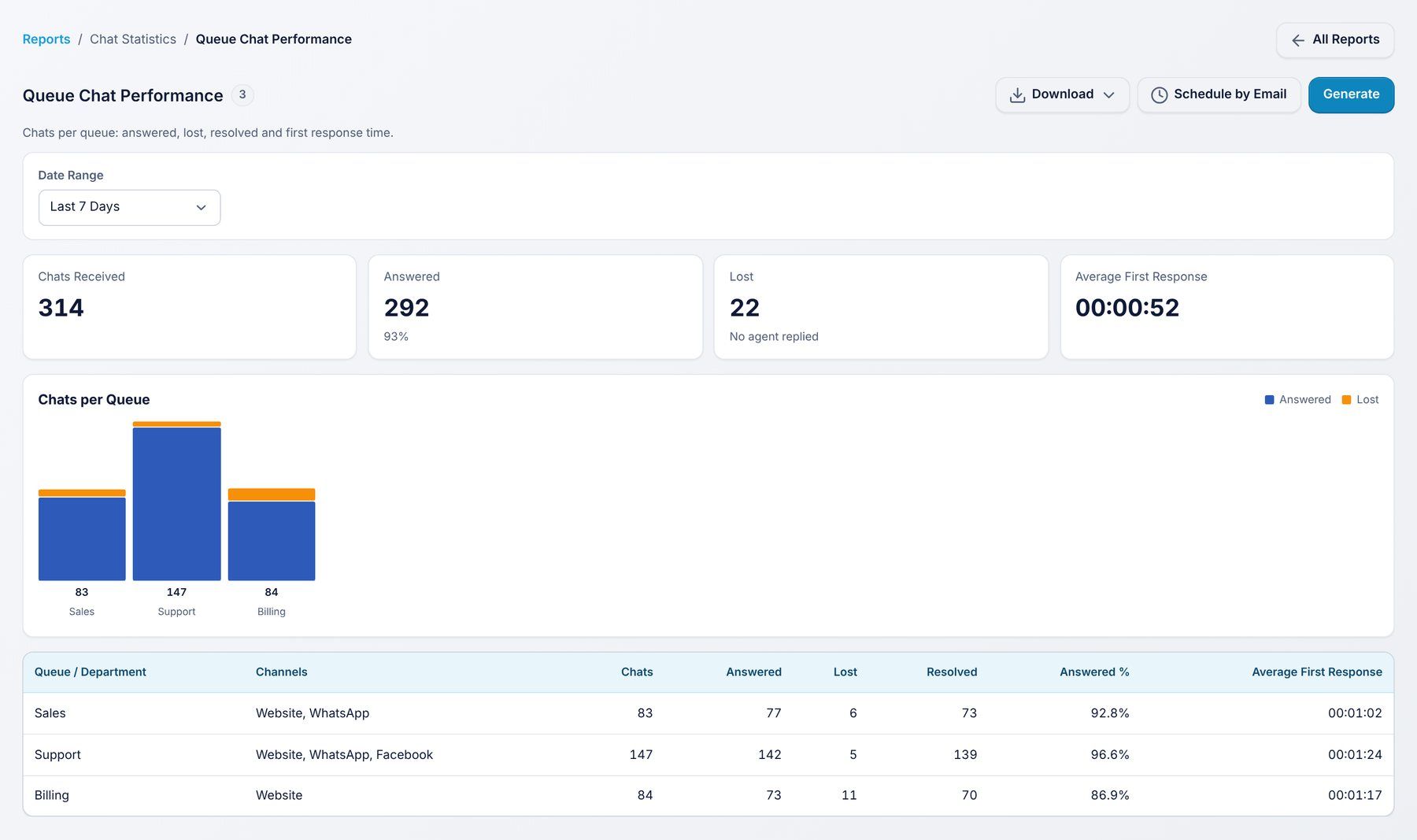
Use it to: see how fast each chat queue replies.
Filters: Date range.
Chats each agent handled, messages sent and first response time.
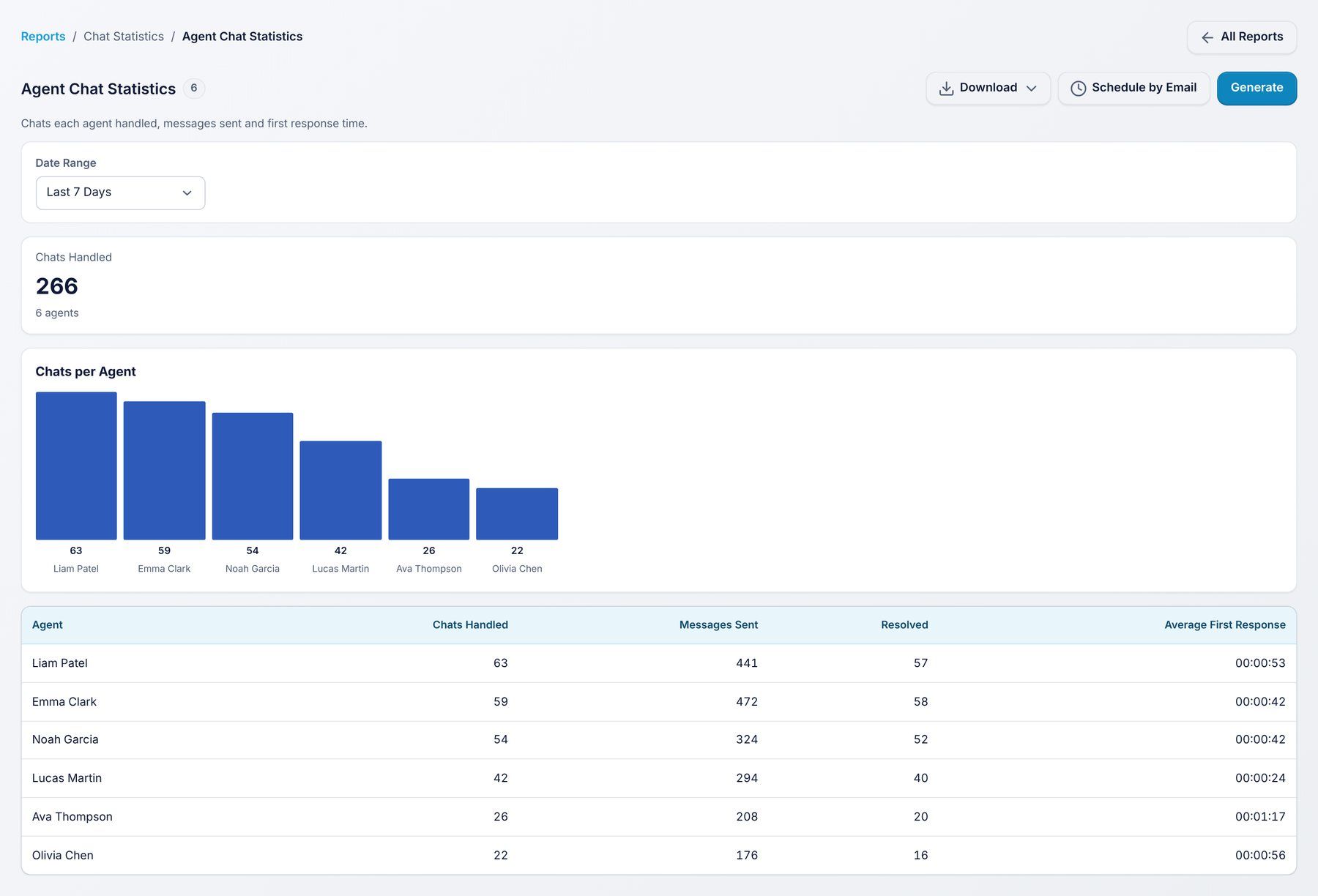
Use it to: compare agents on chat.
Filters: Date range.
Chats where no agent replied, per channel.
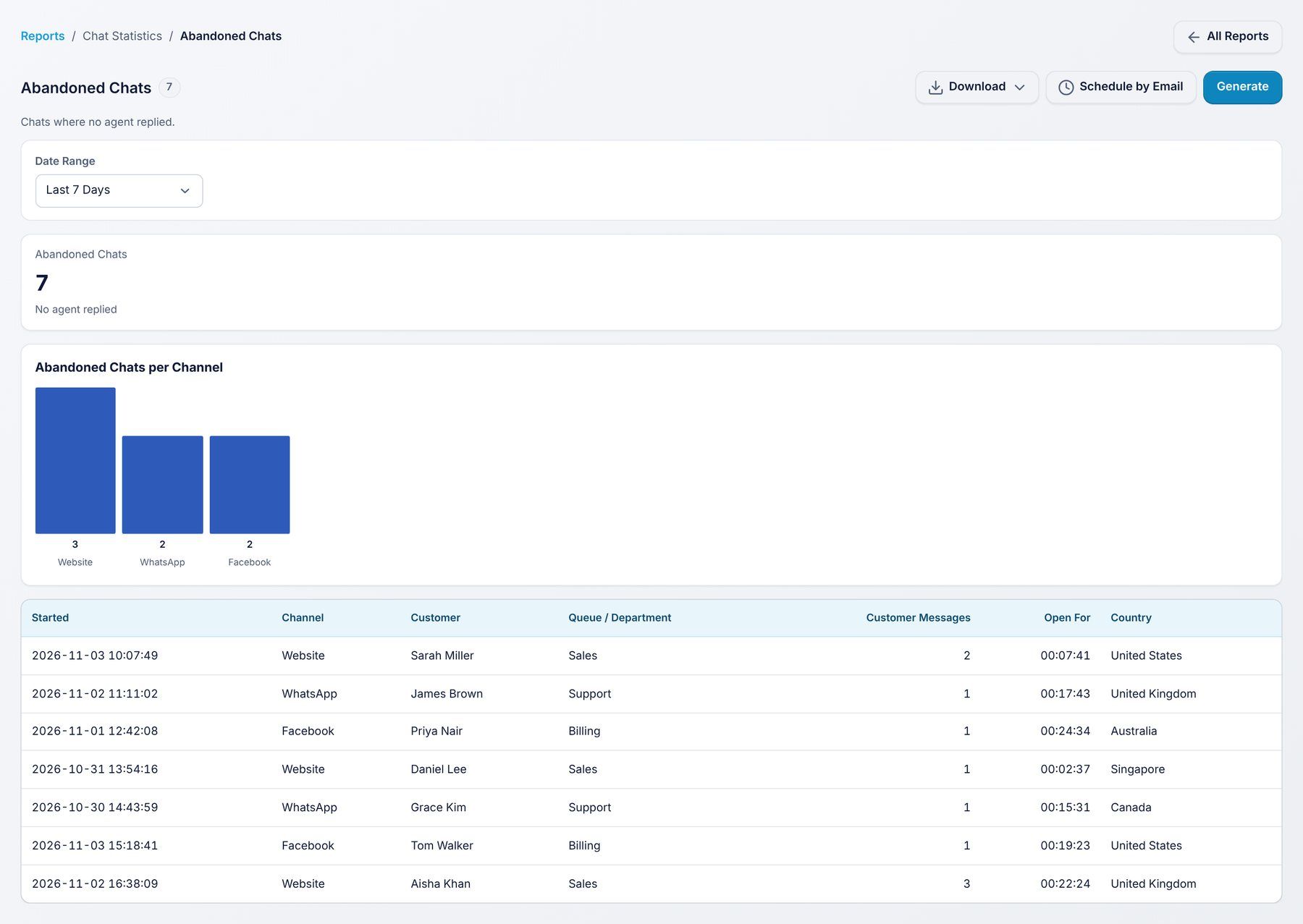
Use it to: follow up customers who got no reply.
Filters: Date range.
Every report has the same buttons:
