
Set the Account Language and Add a Second Language
The account language is the language your callers hear by default: IVR menus, queue messages, voicemail, conferences, and the messages RingQ plays when a number is busy or wrong.
Set the account language
- Go to Global Settings > Language & Hours > Voice prompts.
- At the top right, open the Account language list and pick an installed language.
- RingQ saves it straight away. The next call uses the new language.

Only installed languages are listed. To add one, download its language pack first.
Add a second language with +
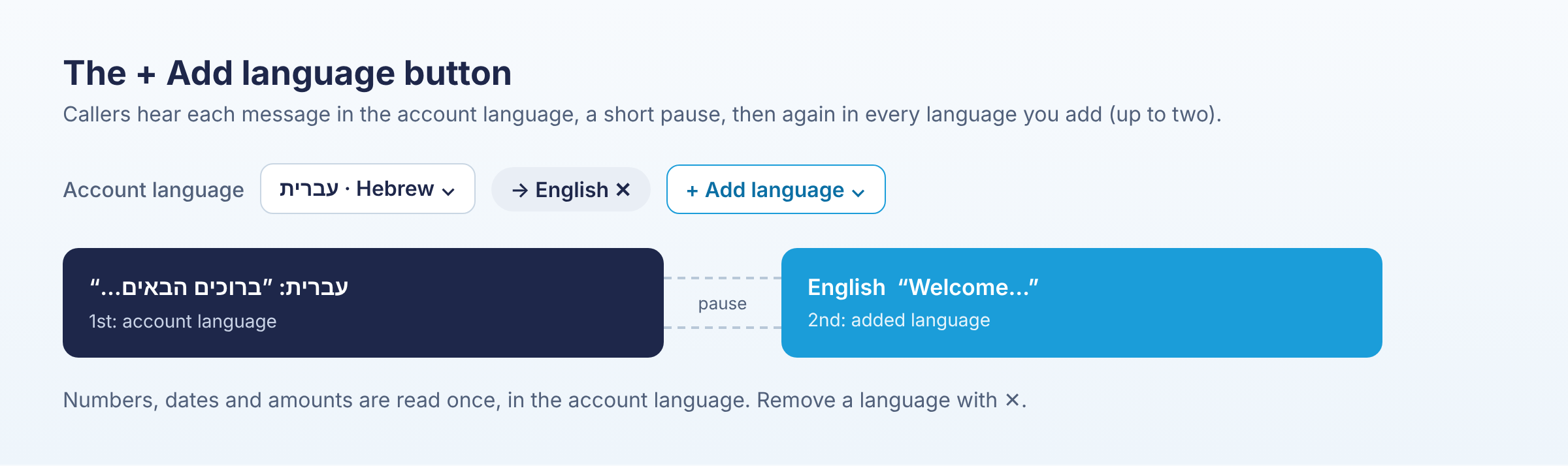
Many businesses serve callers in more than one language. With + Add language, every message plays in the account language first, then, after a short pause, again in the language you add. For example: Hebrew first, then English.
- Click + Add language next to the account language.
- Pick a language, for example English.
- It appears as a chip with an arrow, → English. RingQ prepares the combined prompts in the background; a small progress label shows while it works.

Good to know
- You can add up to two extra languages.
- Numbers, dates, times and amounts are read once, in the account language, so callers don't hear them twice.
- Your own recordings play as recorded, once.
- To stop the second language, click × on its chip.
Next step
Need one IVR or queue in a different language? See Give an IVR or Queue Its Own Language.