
Recording Encryption
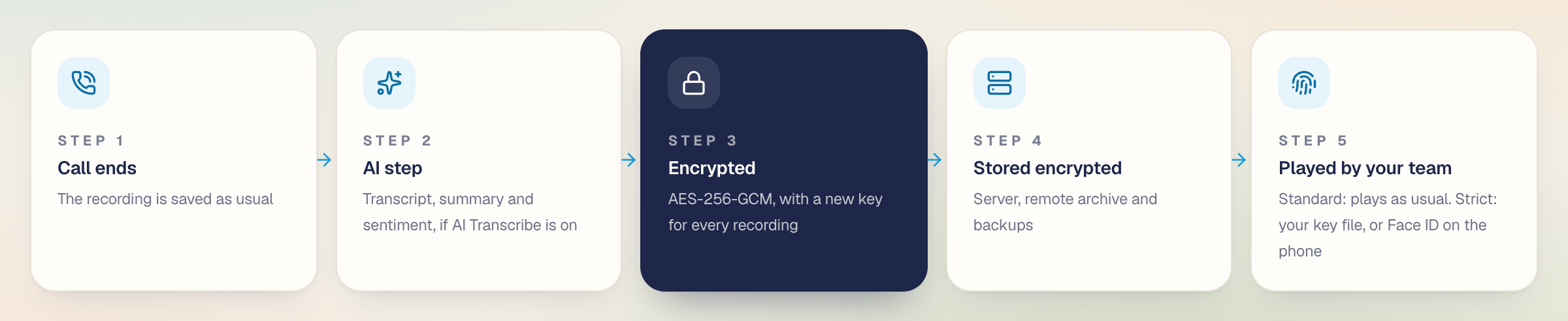
RingQ encrypts every call recording, and its transcript, AI summary and sentiment, straight after the call. There are three levels. Standard is on by default on dedicated RingQ servers: recordings are stored encrypted with the server's own key and your team plays them as usual. Strict locks recordings with your company's own key file, so only people with that key can listen, in the web app or in the RingQ app on their phone. Off saves new recordings without encryption.
This guide covers the levels, turning on Strict, playing recordings in Call Logs and on the phone, checking that it works, where encrypted recordings are stored, backups, the access log and how it supports PDPA, GDPR, PCI DSS and ISO 27001. For an overview, see the Call Recording Encryption page on ringq.com/compliance/recording-encryption.
Encryption levels
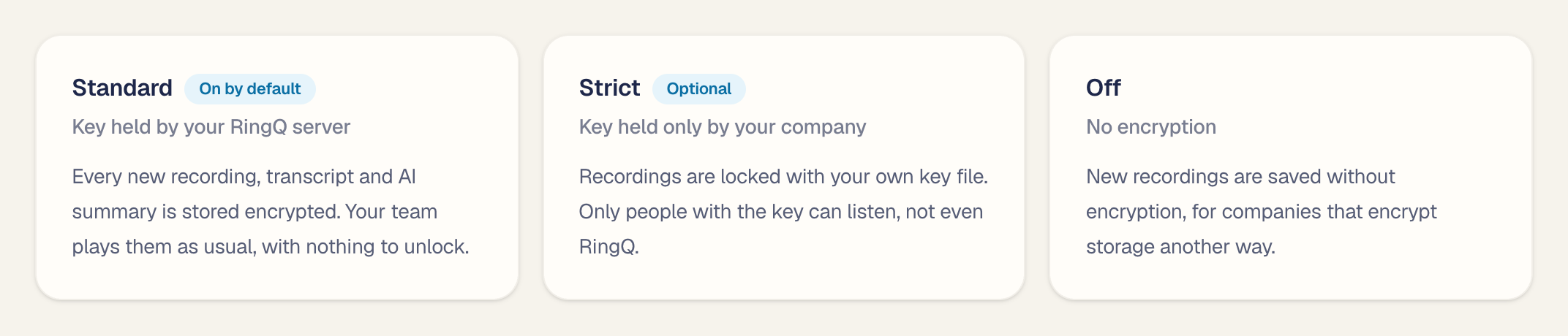
| Standard | Strict | Off | |
|---|---|---|---|
| Key held by | Your RingQ server | Your company only (key file + passphrase) | None |
| Who can listen | Everyone allowed, as usual | People with the key file | Everyone allowed |
| What to do | Nothing: on by default | Owner sets up the key | Owner chooses Off |
| Needs | A dedicated (single-tenant) server | Dedicated server, 24+ concurrent calls | - |
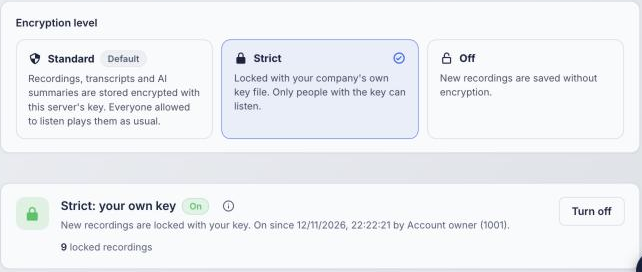
The account owner chooses the level under Global Settings > Security settings > Recording encryption.
Recording encryption is not available on multi-tenant (shared) servers.
Before you start with Strict
| You need | Details |
|---|---|
| A dedicated (single-tenant) RingQ server | Recording encryption is not available on multi-tenant servers. |
| A licence of 24 or more concurrent calls | With a smaller licence, Strict shows that a higher licence is required. Standard needs no licence. |
| The account owner's login | Only the owner can choose the level, change the key or turn Strict off. |
| A current browser | Chrome, Edge, Firefox or Safari. The key is made in the browser. |
| For the phone | RingQ app 9.3.2 or later on iPhone or Android, signed in as an admin, with Face ID, Touch ID or a fingerprint set up. |
Strict is optional. Until the owner turns it on, recordings stay on Standard and your team plays them as usual.
How the Strict key works
When you turn Strict on, your browser makes a key pair. The private half is saved to your computer as a key file (.rqkey), protected by a passphrase you choose. Only the public half is sent to RingQ.
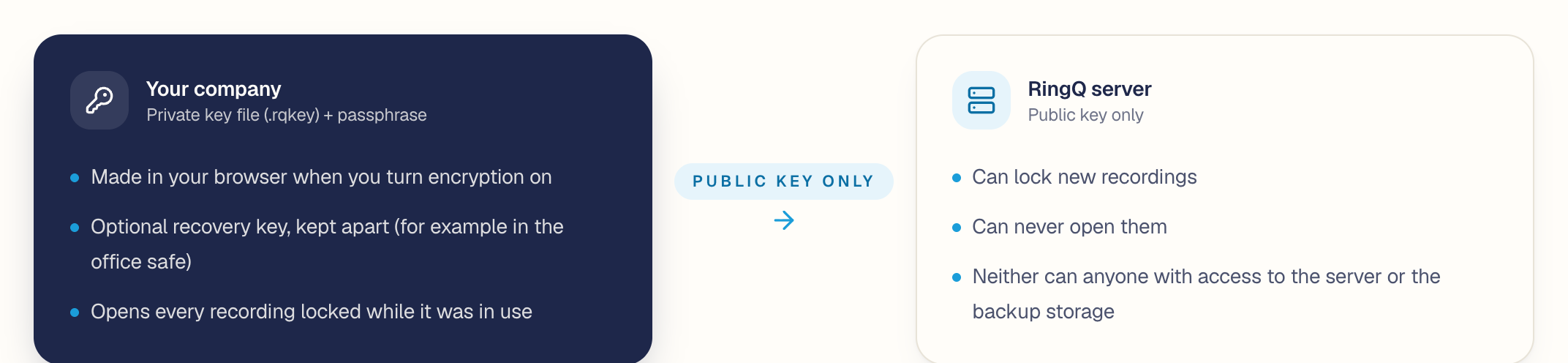
- Each recording gets its own random AES-256-GCM key. That key is locked with your company's public key (RSA 3072-bit).
- Your key file is protected by your passphrase (PBKDF2-SHA-256, 310,000 rounds). Choose a long passphrase.
- A recovery key is a second key file with its own passphrase. Every recording can be opened with either key. Keep it apart from the main key, for example in the office safe.
- Neither RingQ nor anyone with access to the server or the backup storage can open a locked recording.
Important: without the key file and its passphrase, locked recordings can never be opened, not even by RingQ. Keep the key file, the recovery key and both passphrases somewhere safe before you turn Strict on.
Turn on Strict
Sign in to the web app as the account owner.
- Go to Global Settings > Security settings and open the Recording encryption tab.
- Under Encryption level, choose Strict. The Set up encryption steps open.
- Type a passphrase for the main key, and type it again.
- Leave Also make a recovery key (recommended) ticked, type a different passphrase for it and, if you like, where it will be kept.
- Click Make the key. Then click Download both key files and save them somewhere safe.
- Click Check my key file, choose the main key file you just saved and type its passphrase. This proves the file works before anything is locked.
- Tick I understand that without the key file and its passphrase, locked recordings can never be opened, not even by RingQ.
- Click Check and turn on.
The tab now shows Strict: your own key, On, with the key codes of the main and recovery keys (for example RQ-7F3A-91C2), who turned it on and when. From now on, every new recording is locked about a minute after the call ends.
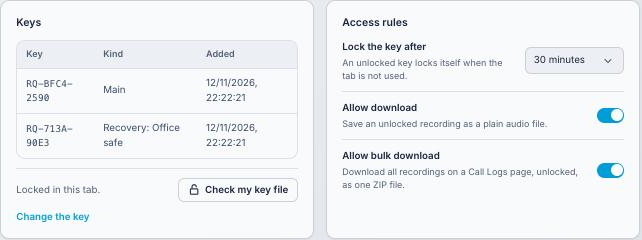
Access rules
| Setting | What it does |
|---|---|
| Lock the key after | 15, 30 or 60 minutes. An unlocked key locks itself after this time without use, in the browser and on the phone. |
| Allow download | Lets people save an unlocked recording as a plain audio file. |
| Allow bulk download | Lets people download every recording on a Call Logs page, unlocked, as one ZIP file. |
Listen to recordings in Call Logs
With Standard, nothing changes: click play in Reports > Call Logs and the recording plays, with its transcript, summary and sentiment. With Strict:
- Go to Reports > Call Logs. Locked calls show a lock on the play button.
- Click play on a locked call. The Unlock recordings window opens.
- Choose your key file (.rqkey) and type its passphrase, or paste the key. Click Unlock.
- The recording plays. The transcript, AI summary and sentiment open from the same call as usual.
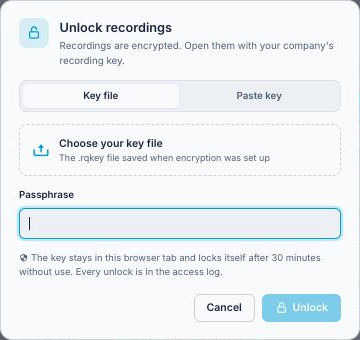
- Once unlocked, other locked calls play straight away until the key locks itself or you click Lock.
- Reports > Call Ratings plays locked recordings the same way.
- Download recording saves a normal mp3. Download recordings (ZIP) saves every recording on the page. Both only work when allowed in Access rules.
- Admins can listen if they have the key file. Normal users cannot open locked recordings.
- Recordings made before Strict was turned on are not locked with your key and play as before.
Play recordings on the phone
In the RingQ app (iPhone and Android), recordings open from the person's page. With Standard they play at once. With Strict, add your key file once; after that Face ID, Touch ID or your fingerprint unlocks it. Only admins see recordings in the app.
Play a recording
- Open Recents or Contacts and tap the person you spoke with.
- Under Recent Calls, calls with a recording say Recording, or Encrypted recording with Strict.
- Tap the call to open its recording page, then tap Play recording.
- Tap Show transcript to read the transcript, AI summary and sentiment.
Strict: add your key to the phone
First, put the key file on the phone:
- iPhone: AirDrop the .rqkey file to the phone, or email it to yourself, and save it to Files.
- Android: copy the .rqkey file to the phone's Downloads folder or Google Drive.
- Delete any copy left in email or chat afterwards.
Then add it:
- Open the RingQ app and go to Settings > Recording key.
- Tap Add recording key and choose the .rqkey file.
- Type the key file's passphrase.
- Confirm with Face ID, Touch ID or your fingerprint.
- The app shows the key code, for example Key RQ-7F3A-91C2 added. It must match the code on the web.
After that, Play recording on an Encrypted recording asks for Face ID or your fingerprint once, then plays.
- The key locks itself after the time set in Access rules, and when you sign out or switch profile.
- To take the key off the phone, go to Settings > Recording key > Remove key.
- Downloading a recording, the bulk ZIP and Listen in RingQ links are in the web app only.
Queue recording: opt in and opt out
Each queue chooses whether its calls are recorded, and whether agents may pause the recording during a call, for example while a customer reads out a card number. Whatever is recorded is then encrypted at the level chosen above.
| Call Recording | What is recorded | Record button in the apps |
|---|---|---|
| Use extension setting | Follows the answering agent's own extension recording setting | Agents can pause and resume |
| Always record | Every call from this queue, whatever the agent's extension setting | Blocked: agents can't pause (opt-in for every call) |
| Never record | No call from this queue | Blocked (opt-out for every call) |
| Record, agents can pause | Every call from this queue | Agents pause and resume as needed |
Set it for a queue
- Go to Call Flow and open the queue.
- Open the Settings tab and find Call Recording.
- Choose Use extension setting, Always record, Never record, or Record, agents can pause. The text under the field explains the choice.
- Click Save changes.


Pause and resume during a call
- In the web, desktop or phone app, press the record button during a queue call to pause the recording, and press it again to resume.
- The call stays one recording. The paused part is left silent, so the transcript, AI summary, sentiment and CRM webhook still work for the rest of the call.
- On Always record and Never record queues the button is blocked and the app says so.
- For card payments, pausing is how you keep card security codes out of recordings: encryption alone does not make storing them allowed under PCI DSS.
- Transcripts and AI summaries only exist for recorded calls. Integrations lists any queues set to Never record, so you can see which calls send no recording to your CRM.
Check that it works
Use this short check after turning Strict on, and after adding the key to a phone. With Standard, a test call simply plays as usual in Call Logs and on the phone.
- Make a test call with recording on and talk for a few seconds.
- After about a minute, the call shows a lock in Call Logs.
- Play it with the key file: it plays and the transcript shows.
- Try a wrong passphrase: it is refused.
- On the phone, the same call shows Encrypted recording and plays after Face ID or your fingerprint.
- Open the Access log on the Recording encryption tab: your unlock and play, and the phone's, are listed with the device name.
How recordings are stored
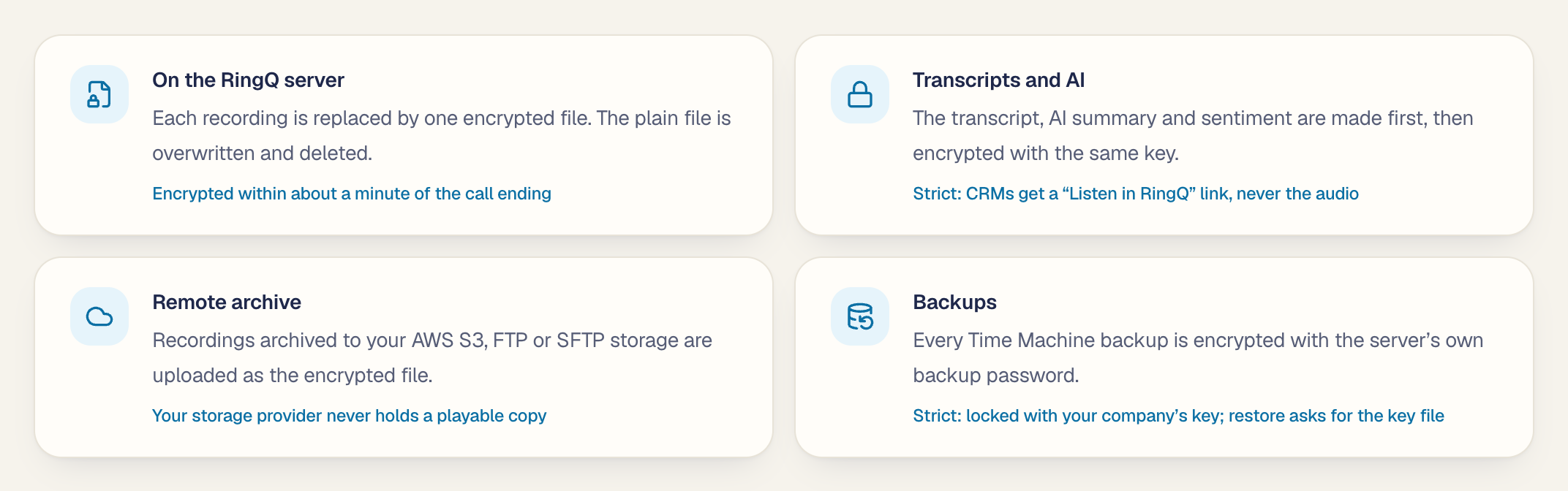
Once a recording is encrypted, the same encrypted file goes everywhere it is kept. The plain file exists only for the minute or so before it is encrypted.
| Where | What is kept | Encrypted with |
|---|---|---|
| Recording folder on the RingQ server | One encrypted file per call. Standard keeps the .mp3 name; Strict ends in .mp3.rqe. The plain mp3 is overwritten with zeros and deleted. | Standard: server key. Strict: your key |
| Call log | Call details as before. | Call details are not encrypted |
| Transcript, AI summary and sentiment | Made first, then stored encrypted with the same key. | Same key as the recording |
| Remote archive (AWS S3, FTP, SFTP) | Storage clean-up with archive uploads the encrypted file as it is, then removes the local copy. | Same key as the recording |
| Time Machine backups | The whole backup file is locked with the server's backup password. With Strict it is locked with your company's key; restore asks for the key file. | Server password, or your key with Strict |
| CRM webhooks and integrations | Standard: unchanged. Strict: Freshdesk, HubSpot, Qontak and webhooks get a Listen in RingQ link instead of the audio, transcript or summary. | Strict: no audio leaves RingQ |
Inside an encrypted file
- Each recording gets its own random AES-256-GCM key.
- Standard: the file starts with RQS1; the recording's key is wrapped with a key derived from the server's own secret (the one behind the RQBK- backup password). The server opens it for whoever is allowed to play it.
- Strict: the file starts with RQE1; the recording's key is sealed with your company's public key (main and recovery). Opening happens only in your browser or the RingQ app, with your key.
- The header is protected too: an edited or swapped file is refused.
Backup and restore
- Every Time Machine backup is locked with the server's own backup password. With Strict on, it is locked with your company's key instead, so it can be opened only with your key file.
- The server's backup password is needed to restore on another server. The owner can view it (it starts with RQBK-) under Time Machine. Viewing it is logged.
- To restore, choose the backup in Time Machine. A company-locked backup asks for your key file and passphrase; a backup from another server asks for that server's backup password.
- Older backups made before this change restore as before.
- A restore replaces the server's settings and call data and signs everyone out. Plan it.
Access log
The Access log on the Recording encryption tab lists every unlock, play, transcript view, download, bulk download, wrong-key try and settings change, with who, which call, IP address, device and time. Entries from the phone show the device, for example iPhone app (iOS 18.2). The log is never trimmed by the audit retention.
Change the key or the level
| Action | What happens |
|---|---|
| Change the key (Strict) | New recordings are locked with the new key. Recordings locked before the change still need the old key file, so keep it. |
| Turn off Strict | Goes back to Standard. Recordings already locked with your key stay locked and still need it. |
| Choose Off | New recordings are saved without encryption. Recordings already encrypted stay encrypted. |
| Back to Strict | New recordings are locked again with the same keys. |
If you lose the key
If both the main and recovery key files, or their passphrases, are lost, recordings locked with them cannot be opened by anyone, including RingQ. Make a new key with Change the key so that new recordings can be opened again.
Compliance
Standard and Strict help you meet the security requirements below; Strict also keeps the key away from RingQ. Your own obligations depend on how you use recordings; this is not legal advice. RingQ itself is certified to ISO/IEC 27001:2022.
| Framework | Requirement | How recording encryption helps |
|---|---|---|
| PDPA (Singapore) | Protection Obligation: reasonable security arrangements | Recordings and transcripts encrypted at rest by default; with Strict only your company holds the key. Access limited and logged. |
| PDPA (Malaysia) | Security Principle: protect against loss, misuse and unauthorised access | Encrypted on the server, in remote archives and in backups; only the owner chooses the level and manages keys. |
| GDPR | Art. 32 encryption; Art. 34(3)(a) data rendered unintelligible | Stolen files or backups cannot be played without the key; with Strict nobody outside your company has it. |
| PCI DSS v4.0 | Req. 3.5 stored data unreadable; Req. 10 log access | Unreadable without the key; access logged. Card security codes must still never be recorded: pause recording while a card is read. |
| ISO/IEC 27001:2022 | A.8.24 cryptography; A.8.15 logging; A.8.13 backup | Per-recording encryption, a full access log and encrypted backups. |
Not encrypted: recordings made before encryption was turned on, and voicemails.
Troubleshooting
| What you see | Why | What to do |
|---|---|---|
| Strict says a higher licence is required | The server is licensed for fewer than 24 concurrent calls. | Standard still protects recordings. Ask RingQ to upgrade the licence for Strict. |
| No Recording encryption tab | Multi-tenant server, or you are not an admin. | It is for dedicated servers only. Sign in as the owner. |
| Only the account owner can turn on recording encryption | You are an admin, not the owner. | Ask the owner. |
| A new call has no lock | The level is Standard or Off, the call is older, or it was less than a minute ago. | Only Strict shows a lock. Check the level and wait a minute. |
| Wrong passphrase for this key file | The passphrase does not match. | Type it again; check Caps Lock. |
| This is not your company's current key | It is an older key. | It opens only recordings locked while it was in use. Use the current key for newer ones. |
| Phone: Set up Face ID, Touch ID or a fingerprint | The phone has no biometric set up. | Set one up in the phone's settings, then add the key. |
| Phone: Add your recording key in Settings | No key on this phone yet. | Add the key file under Settings > Recording key. |
| Transcribe says the recording is encrypted | Locked recordings can't be transcribed later. | Transcripts are made when the call ends, only when AI Transcribe is on. |
| No AI summary on a locked call | AI Transcribe was off or uses an engine without summaries. | Check AI Transcribe settings for new calls. |