A complete walkthrough of every security layer — from IP restrictions and SIP Guard to PIN-based dialing and country whitelisting.
ISO 27001 Aligned
HIPAA Ready
Anti-Hacking
Fail2Ban Protection
RingQ is built with security at its core — not as a checkbox, but as a foundational design principle. Every call, every login, and every configuration change passes through multiple layers of protection designed to defend your communications infrastructure.
RingQ operates on the principle of defence in depth — multiple independent security controls, each designed to catch what the previous layer may miss. A compromise at one layer does not mean a breach of the whole system. The platform's security architecture covers three domains: access control (who can reach the system), protocol protection (securing SIP signalling and media), and usage governance (controlling how the system is used, by whom, and to where).
RingQ's security controls are aligned with ISO/IEC 27001, the international standard for information security management systems (ISMS). Key controls covered include:
For healthcare customers, RingQ provides controls that support HIPAA compliance requirements under the Security Rule (45 CFR Part 164). Relevant safeguards include:
⚠️ HIPAA Shared Responsibility:
HIPAA compliance is a shared responsibility. RingQ provides the technical controls; your organisation is responsible for policies, training, and Business Associate Agreements (BAAs).
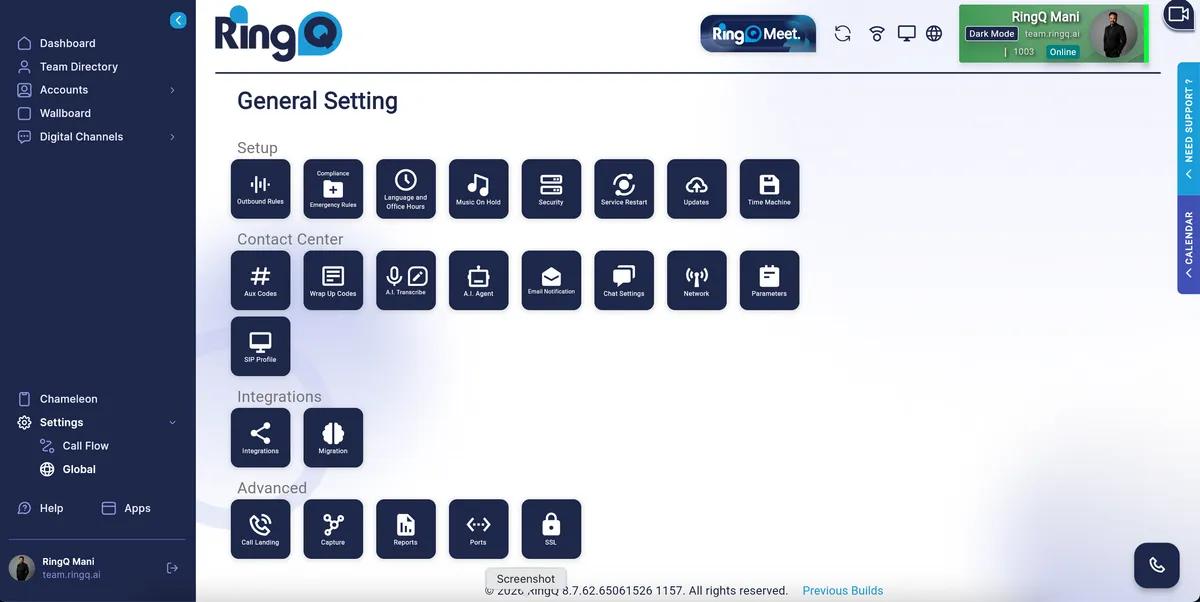
RingQ Administration Portal — navigate to Settings → Security to access all security features
Web and Mobile Restrictions let you lock down which IP addresses or ranges are permitted to access the RingQ web portal and mobile app. Users connecting from an unlisted IP will be denied access — regardless of valid credentials.
When enabled, the RingQ portal checks every incoming request against your configured IP allowlist. The restriction table shows columns for IP Address, Subnet, IP Range, Status (Allow/Deny), Description, and Action (delete). Use the Create IP Restriction button to add new entries. Both IPv4 single addresses and CIDR range notation (e.g., 192.168.1.0/24) are supported.
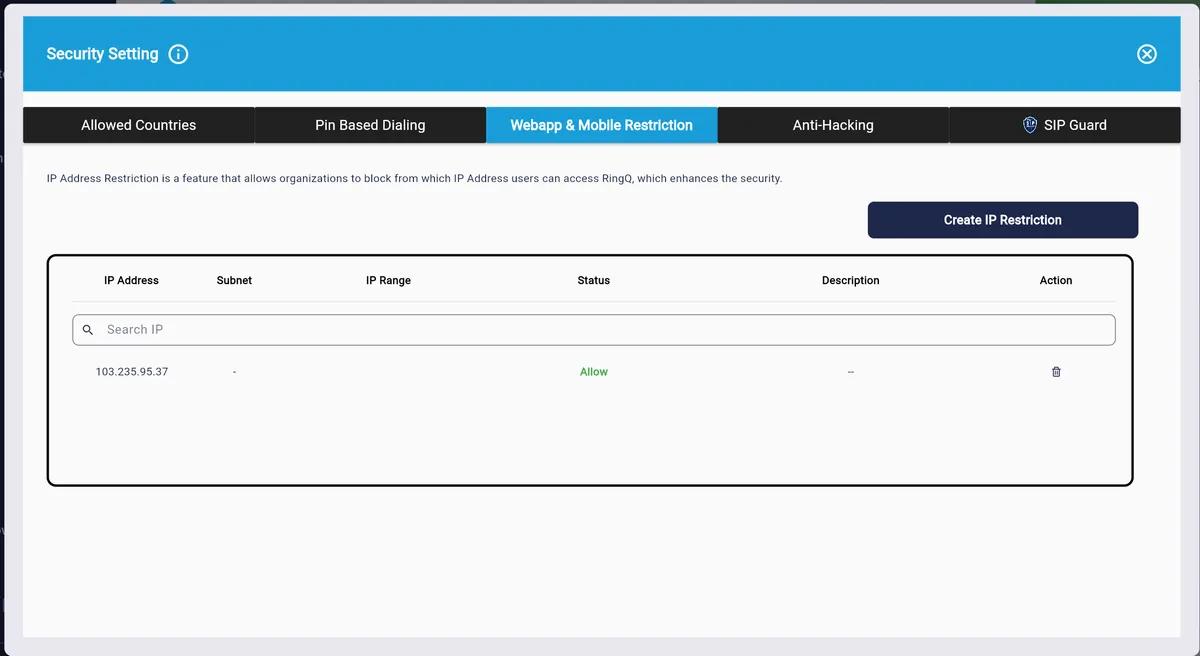
Security Setting → Webapp & Mobile Restriction tab — lists allowed IP addresses with Status and Action columns
1
Navigate to Security Settings
From the RingQ Admin Portal, go to Settings → Security → Web & Mobile Restrictions.
2
Click "Add IP Range"
Select the + Add IP Range button to open the entry form.
3
Enter the IP Address or CIDR Range
Type a single IP (e.g., 203.0.113.50) or a subnet range (e.g., 10.0.0.0/8).
4
Add a Description
Enter a human-readable label such as "Singapore Office" or "Corporate VPN". This helps your team identify entries when managing the list later.
5
Save and Verify
Click Save. The new entry appears in the allowlist table. Test by attempting access from both an allowed and a non-allowed IP to confirm the rule is active.

Webapp & Mobile Restriction — Create IP Restriction form showing Action (Deny), IP or CIDR field, and Description entry
ℹ️ Tip:
Always add your current IP before enabling restrictions. Locking yourself out requires a support request to restore access.
RingQ's Anti-Hacking engine monitors login attempts and SIP registration requests in real time. When suspicious patterns are detected, offending IPs are automatically blocked — globally, across the entire RingQ infrastructure.
RingQ maintains an automatically updated global IP blacklist that blocks known malicious IP addresses, protecting your system from hacking and malicious SIP traffic. This centralised list is frequently updated and uses community data to defend against brute-force attacks.
The Enable Global IP Restriction toggle activates this shared blacklist. When enabled, any IP flagged across the RingQ community is automatically denied access to your system. You can also manually add your own IP deny entries using the Create IP Restriction button.
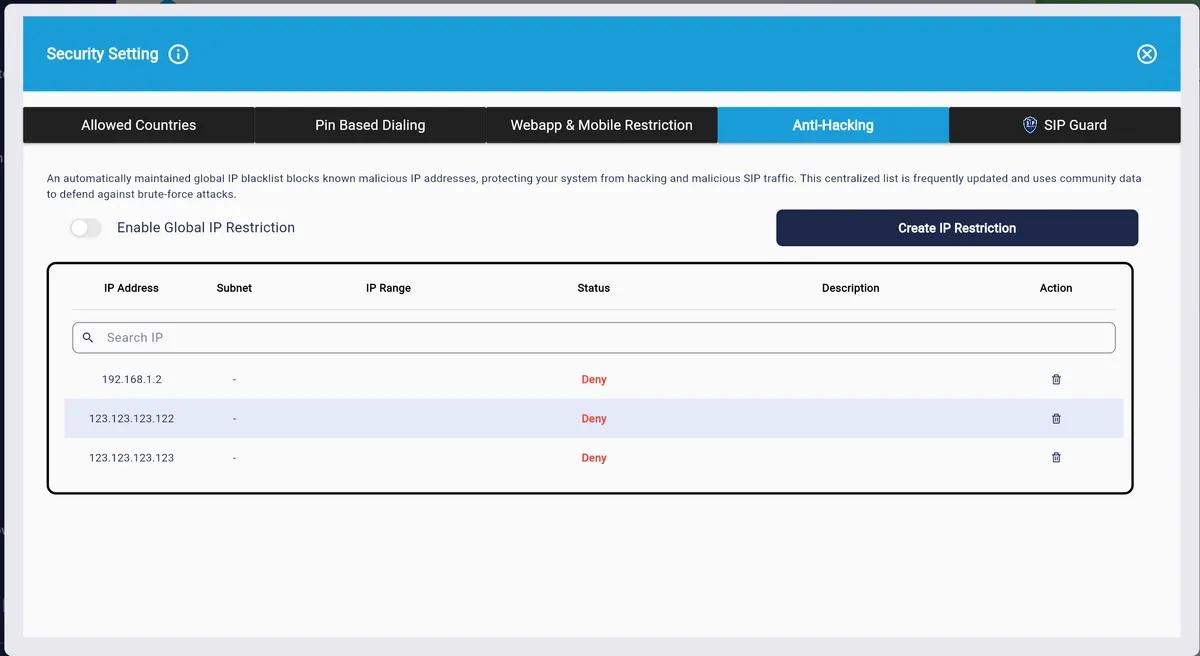
Security Setting → Anti-Hacking tab — Enable Global IP Restriction toggle and blocked IP list with Deny status entries
⚠️ Note:
If you have remote workers using dynamic IPs, consider pairing Anti-Hacking with a VPN to avoid legitimate users triggering blocks on shared exit nodes.
Real-time intrusion prevention that monitors system logs for suspicious activity and automatically bans offending IP addresses. Each protection area watches a different attack surface — SIP registration, request flooding, web scanning, SSH brute-force — and applies temporary bans based on configurable thresholds. RingQ shows 8 jails loaded with a live count of currently banned IPs per protection area.
1
Log in to the RingQ Administration Portal
2
Navigate to Security → SIP Guard
3
Ensure SIP Guard Protection is enabled
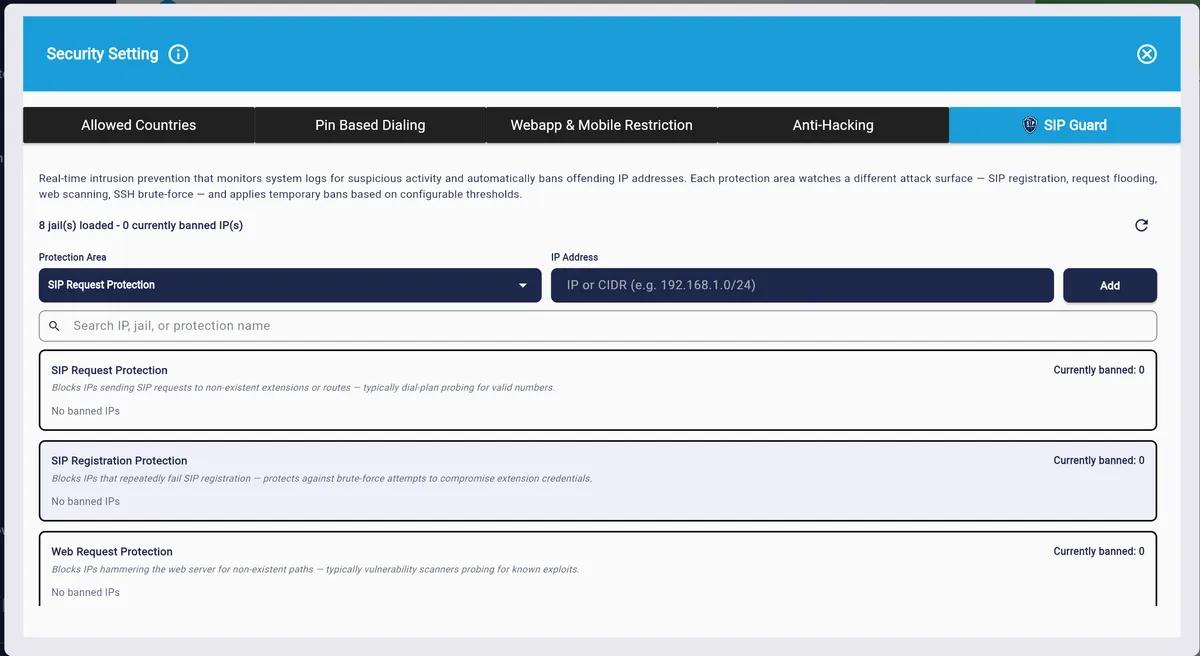
Security Setting → SIP Guard tab — shows 8 jails loaded, Protection Area selector, and per-module banned IP counts
1 — SIP Request Protection
How It Works: Inspects every incoming SIP request for compliance with RFC standards. Malformed packets, unexpected method types, and requests with suspicious headers are rejected before they reach the PBX core.
Benefits: Stops protocol-level exploits and fuzzing attacks early in the stack, reducing load on downstream protections and preventing crashes caused by malformed SIP input.
✅ Blocks malformed SIP packets · ✅ Prevents protocol-level exploits · ✅ Reduces load on downstream protections
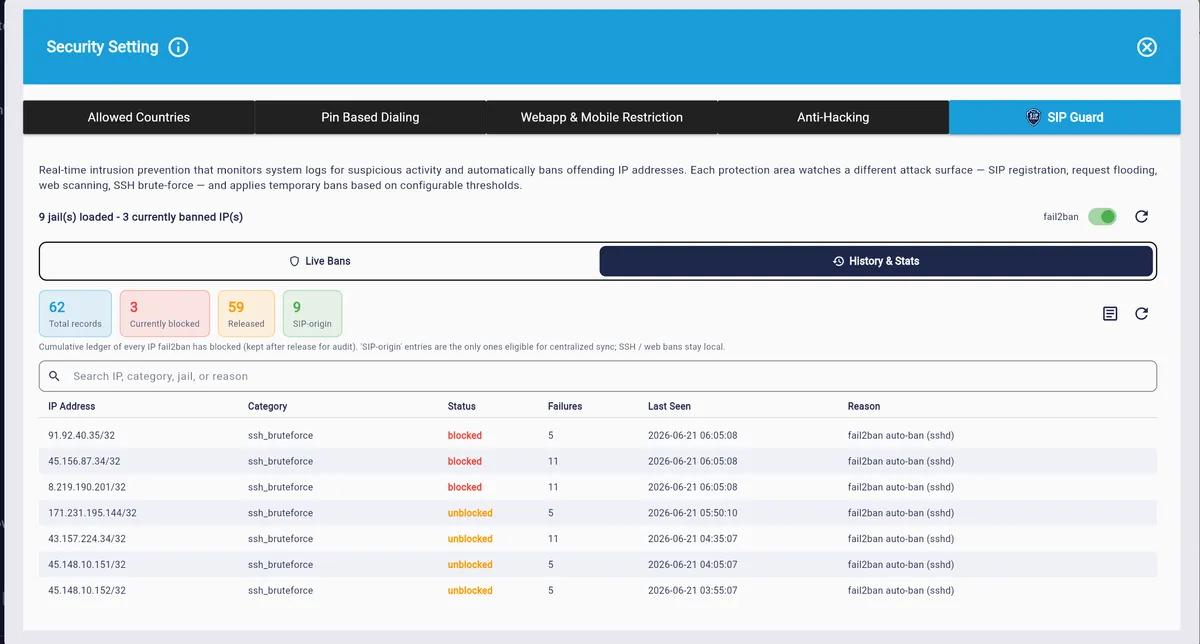
SIP Guard → History & Stats — shows 9 jails loaded, 3 currently banned IPs, with columns for IP Address, Category, Status, Failures, Last Seen, and Reason
2 — SIP Registration Protection
How It Works: Monitors all SIP REGISTER requests, tracks repeated authentication failures per source IP, and automatically blocks addresses exhibiting brute-force behaviour before a credential is compromised.
Benefits: Prevents unauthorised phone registrations, protects extension credentials, and stops brute-force attacks.
✅ Prevents unauthorised phone registrations · ✅ Protects extension credentials · ✅ Stops brute-force attacks
3 — Web Request Protection
How It Works: Analyses incoming web requests for signs of scanning, injection attempts, path traversal, and other common web attack patterns. Offending sources are blocked at the perimeter.
Benefits: Prevents web-layer attacks on the admin portal, reduces noise from automated scanners, and protects the application from common OWASP-class vulnerabilities.
✅ Blocks web scanning & injection attempts · ✅ Protects the admin portal · ✅ Reduces attack surface
4 — Web Traffic Protection
How It Works: Tracks request rates per IP and per session. When an IP exceeds the configured threshold within a rolling time window, it is throttled or blocked until normal traffic patterns resume.
Benefits: Keeps the admin portal responsive during high-volume attack conditions, prevents resource exhaustion, and ensures legitimate administrators can always access the system.
✅ Prevents portal flooding · ✅ Ensures admin availability · ✅ Stops resource exhaustion attacks
5 — Invalid Request Protection
How It Works: Tracks requests targeting non-existent extensions, invalid endpoints, or unknown resource paths. A high volume of invalid requests from a single source is a strong signal of scanning activity, triggering an automatic block.
Benefits: Eliminates reconnaissance traffic from automated scanners, hides system topology from attackers, and reduces log noise so genuine threats are easier to identify.
✅ Blocks scanner & probe traffic · ✅ Hides system topology · ✅ Reduces false-positive log noise
6 — SIP Invite Protection
How It Works: Monitors incoming SIP INVITE requests per source, detects excessive call setup attempts within a rolling window, and automatically blocks abusive IP addresses before call processing resources are saturated.
Benefits: Prevents call-based denial-of-service attacks, protects call processing capacity for legitimate users, and stops toll fraud attempts that rely on rapid call injection.
✅ Prevents call-based DoS attacks · ✅ Protects call processing capacity · ✅ Stops toll fraud injection
7 — Admin Protection
How It Works: Monitors admin login attempts, enforces lockout after repeated failures, flags logins from new or unrecognised IP addresses, and can require multi-factor confirmation for sensitive configuration changes.
Benefits: Prevents admin account takeover, detects credential stuffing against the admin portal, and ensures that even if a password is compromised, access from an unknown IP is blocked or challenged.
✅ Prevents admin account takeover · ✅ Flags logins from unrecognised IPs · ✅ Protects system configuration
8 — Remote Server Access Protection
How It Works: Restricts remote server access (SSH, API, management interfaces) to approved IP ranges, monitors for unauthorised connection attempts, and automatically blocks sources that repeatedly fail authentication.
Benefits: Prevents server-level intrusion attempts, ensures backend infrastructure is not exposed to the open internet, and provides an audit trail of all remote access activity for compliance purposes.
✅ Prevents server-level intrusion · ✅ Restricts backend access to approved IPs · ✅ Full audit trail for compliance
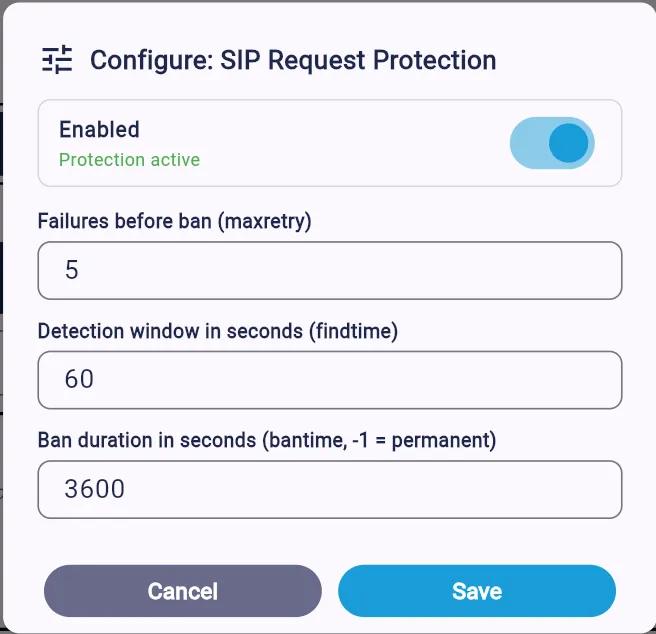
SIP Guard banned IP context menu — Add to Webapp & Mobile Restriction and Add to Anti-Hacking options
Fail-to-Ban (F2B) is RingQ's automated IP banning system. It watches for repeated authentication failures and escalates the response — from temporary blocks through to permanent bans — based on the parameters you configure.
| Field (RingQ UI) | Parameter | Default | What It Does |
|---|---|---|---|
| Failures before ban | maxretry | 5 | Number of failed SIP authentication attempts allowed before the IP is automatically banned. Set lower (e.g., 3) for stricter environments. |
| Detection window in seconds | findtime | 60 sec | The rolling time window in which failures are counted. If maxretry failures occur within this window, the ban triggers. |
| Ban duration in seconds | bantime | 3600 sec | How long the IP remains blocked after a ban is triggered. Set to -1 to make the ban permanent. |
⛔ Permanent Ban:
Setting bantime = -1 makes any triggered ban permanent. Use this for high-security deployments where repeat offenders should never be automatically released.
Permanent bans are the final escalation. Once an IP reaches the permanent ban threshold, it is added to the global blocklist and no further access is possible from that IP without administrator intervention.
To review or remove permanent bans, navigate to Security → Blocked IPs → Permanent List. Each entry shows the ban timestamp, the number of violations, and the last offending request type.
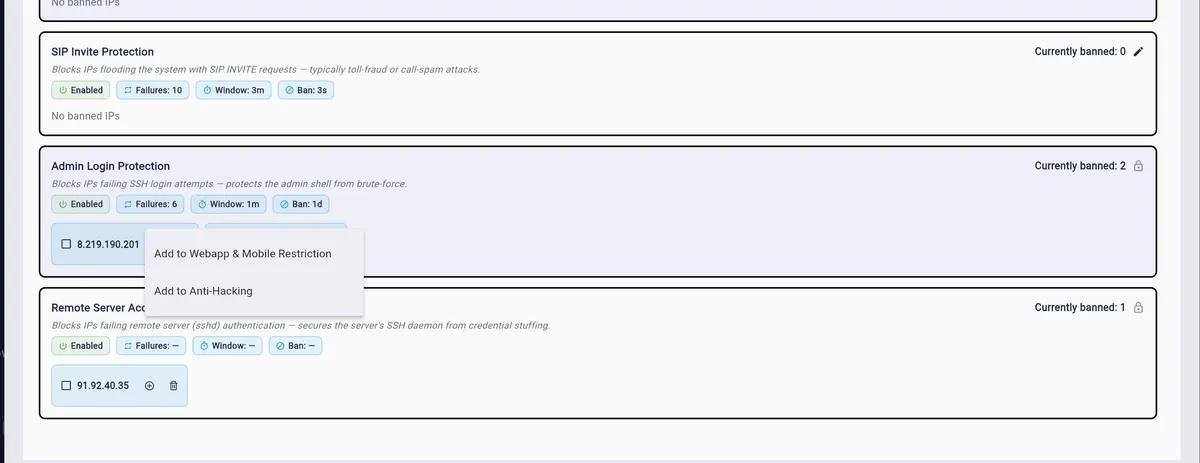
SIP Guard — SIP Invite Protection, Admin Login Protection, and Remote Server Access Protection with banned IPs and context menu for permanent block actions
⚠️ Caution:
Whitelist your SIP trunk provider IPs before enabling Fail-to-Ban. Some carriers retry on failure rapidly, which can trigger the ban threshold and drop all inbound calls.
PIN-based Dialing adds a second authentication factor for outbound international direct dialling (IDD) calls. Before a call is placed, the user must enter a valid PIN — preventing unauthorised or accidental use of expensive international routes.
1
Go to Outbound Call Settings
Navigate to Settings → Security → PIN Dialing in the admin portal.
2
Enable PIN Dialing
Toggle PIN-based Dialing to On. You will be prompted to select which call types require a PIN.
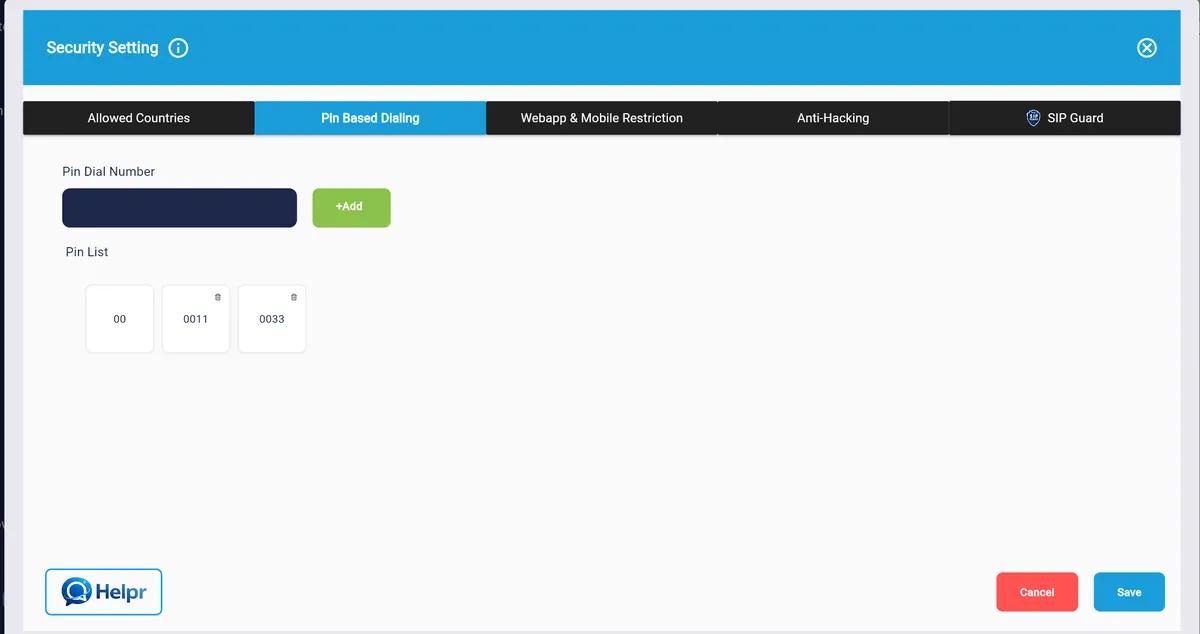
Security Setting → Pin Based Dialing tab — showing Pin Dial Number field, +Add button, and Pin List with entries 00, 0011, 0033
ℹ️ Tip:
PIN dialing logs each authenticated IDD call against the PIN used. This gives you a full audit trail of who authorised each international call — invaluable for billing disputes or misuse investigations.
The Allowed Country List is a whitelist of destinations your users are permitted to call internationally. Any country not on the list is blocked at the dial plan level — calls simply do not connect. This is one of the most effective fraud-prevention controls available.
International toll fraud is one of the most costly threats facing VoIP deployments. Compromised credentials are routinely used to place high-volume calls to premium-rate destinations — often running up thousands of dollars in charges within hours. Restricting which countries can be called eliminates the financial impact of this attack vector, even if credentials are compromised.
1
Open the Country List Settings
Go to Settings → Security → Allowed Country List.
2
Review the Default State
By default, all countries may be enabled. Review this list and disable all countries you have no business reason to call. A good starting point is to only allow countries where you have customers, suppliers, or employees.
3
Test and Document
Place a test call to a number in both an allowed and a blocked country to confirm the rules are working. Document the approved country list for your audit records.
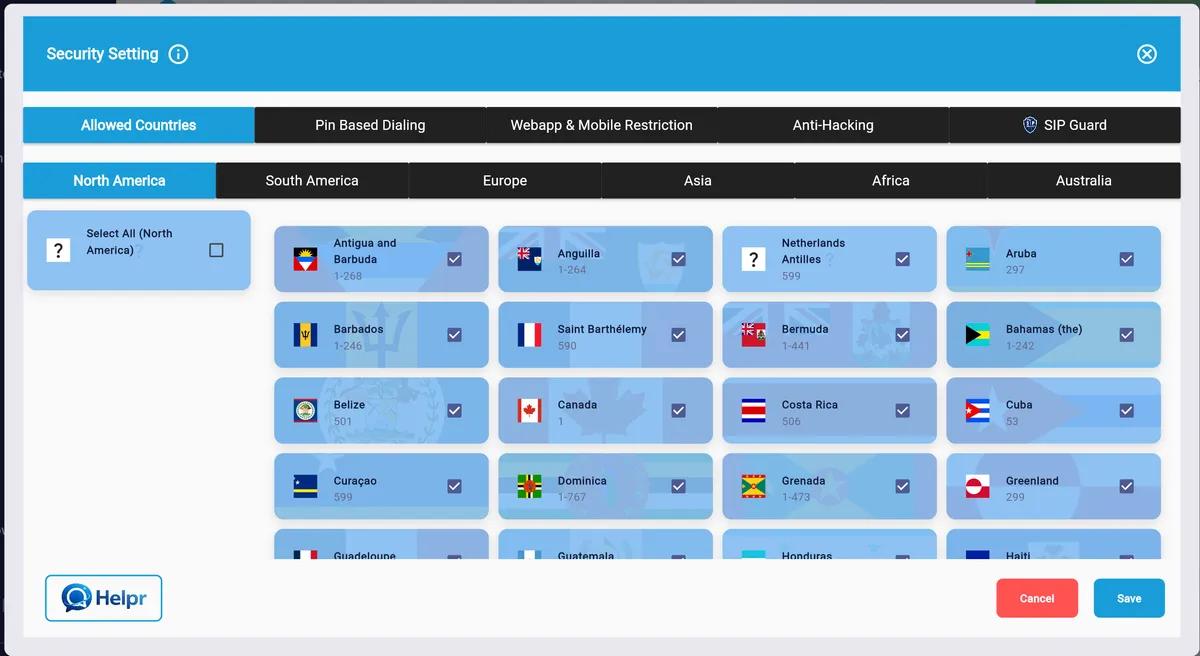
Security Setting → Allowed Countries tab — enable countries by region with individual toggles per destination
⛔ High-risk destinations to block by default:
Cuba, North Korea, premium-rate island nations (e.g., Vanuatu, São Tomé), and any geography your business has no legitimate calling need for. These are the most common targets for toll fraud.
No single security control is sufficient on its own. RingQ's security features are designed to interlock — each layer compensating for gaps in the others. Here's how they combine to form a comprehensive defence.
| 🔒 Access Layer | Web & Mobile Restrictions ensure only approved networks can reach the admin portal. |
|---|---|
| 🛡️ Detection Layer | Anti-Hacking and SIP Guard monitor all traffic for attack patterns in real time. |
| ⛔ Response Layer | Fail-to-Ban automatically escalates responses from temporary blocks to permanent bans. |
| 🔢 Authentication Layer | PIN Dialing adds a second factor specifically for high-value international calls. |
| 🌍 Destination Layer | Allowed Country List eliminates financial fraud risk by blocking unreachable destinations at the dial plan. |
| 📋 Compliance Layer | Together, these controls satisfy key requirements for ISO 27001 and HIPAA Security Rule audits. |
✅ Enable Web & Mobile Restrictions and add your office/VPN IP ranges
✅ Confirm Anti-Hacking is active with default settings (or tighten thresholds)
✅ Review SIP Guard and leave all default-on protections enabled
✅ Whitelist your SIP trunk provider IPs in Fail-to-Ban before enabling
✅ Enable Fail-to-Ban with maxretry ≤ 5, findtime = 60, and bantime = -1 for permanent bans on repeat offenders
✅ Enable PIN Dialing for all IDD calls and distribute PINs securely
✅ Audit the Allowed Country List and disable all non-business destinations
✅ Schedule a quarterly review of blocked IP lists and country allowances
