Security update: RingQ is patched against the critical PHP vulnerabilities. Update your servers today.
Read nowThe Queue Call Landing feature in RingQ allows administrators to configure how contact information or external CRM pages are automatically displayed when agents handle calls through a queue extension.
This feature helps agents quickly access caller details and customer records, improving call handling and customer service efficiency.
This guide explains how to configure Call Landing for individual queue extensions.
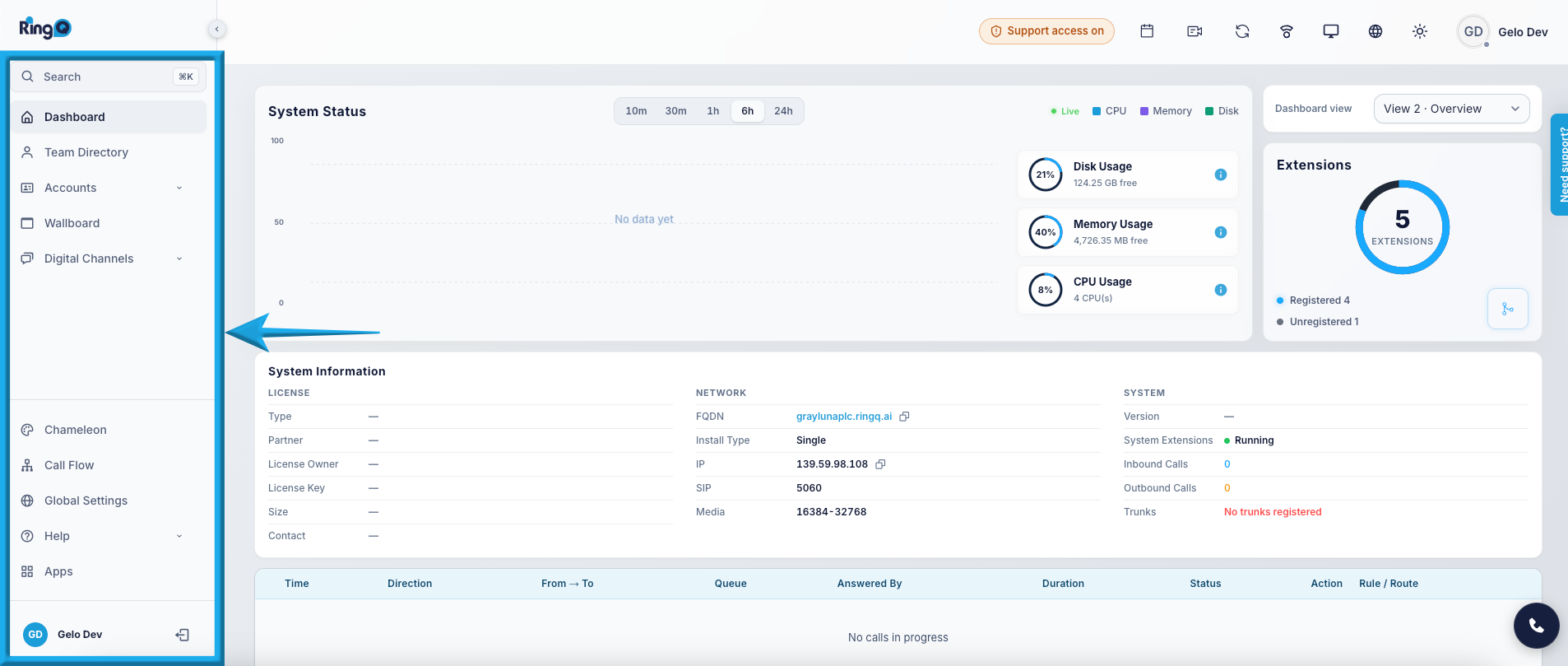
2. Navigate to Settings.
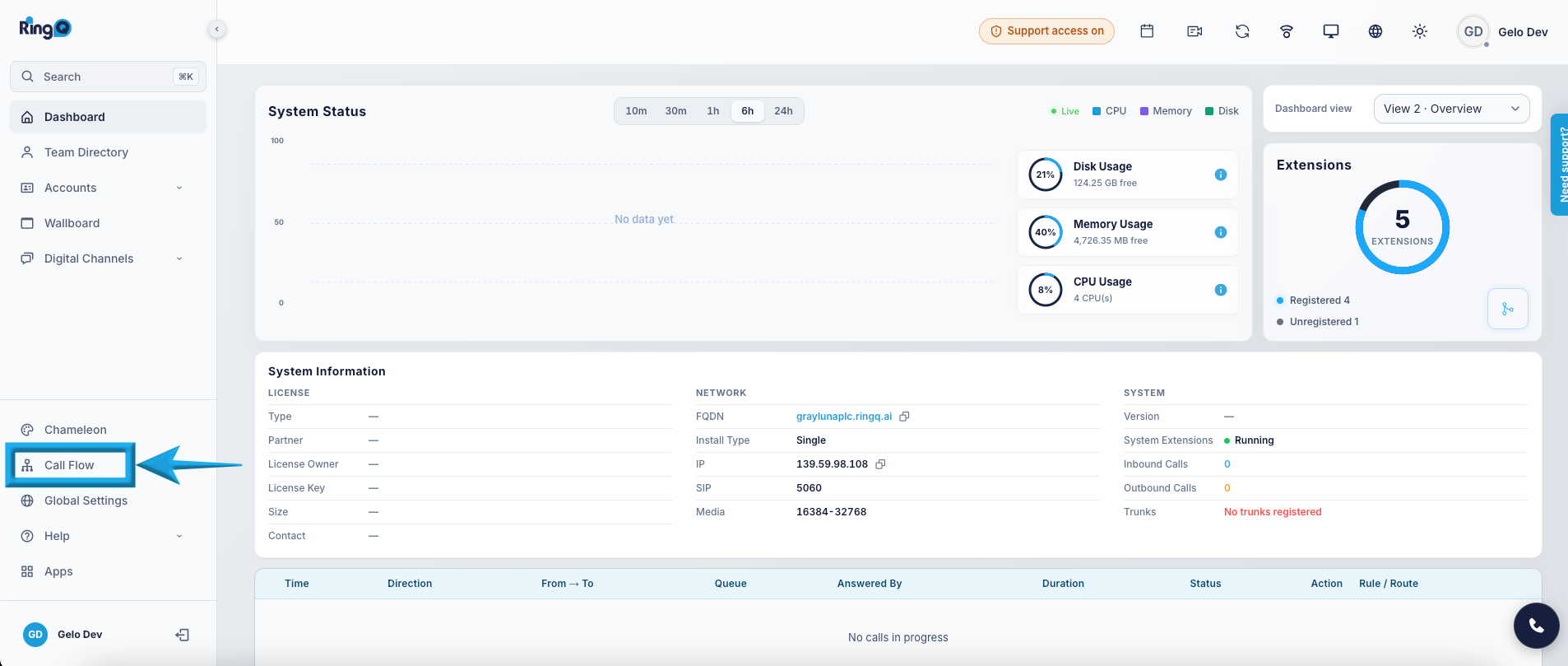
3. Select Call Flow.
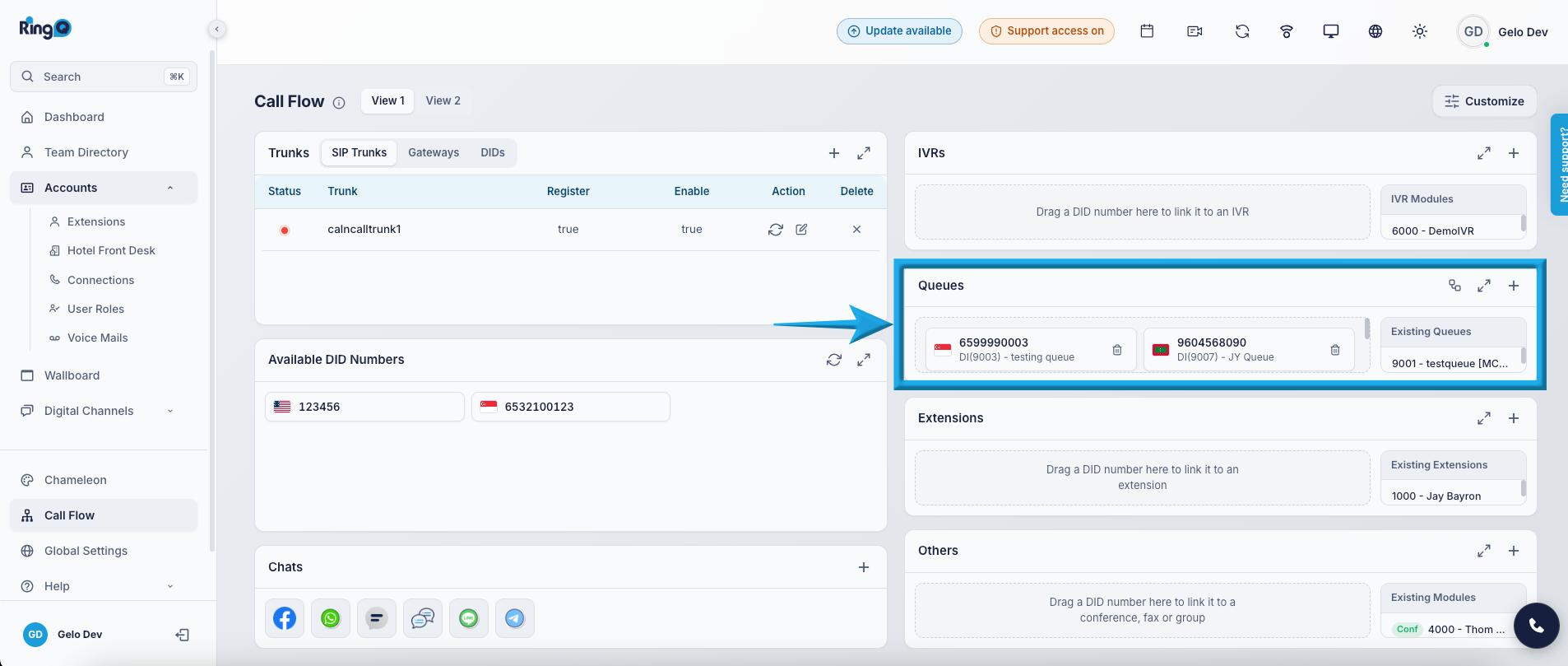
4. Locate the Queue section.
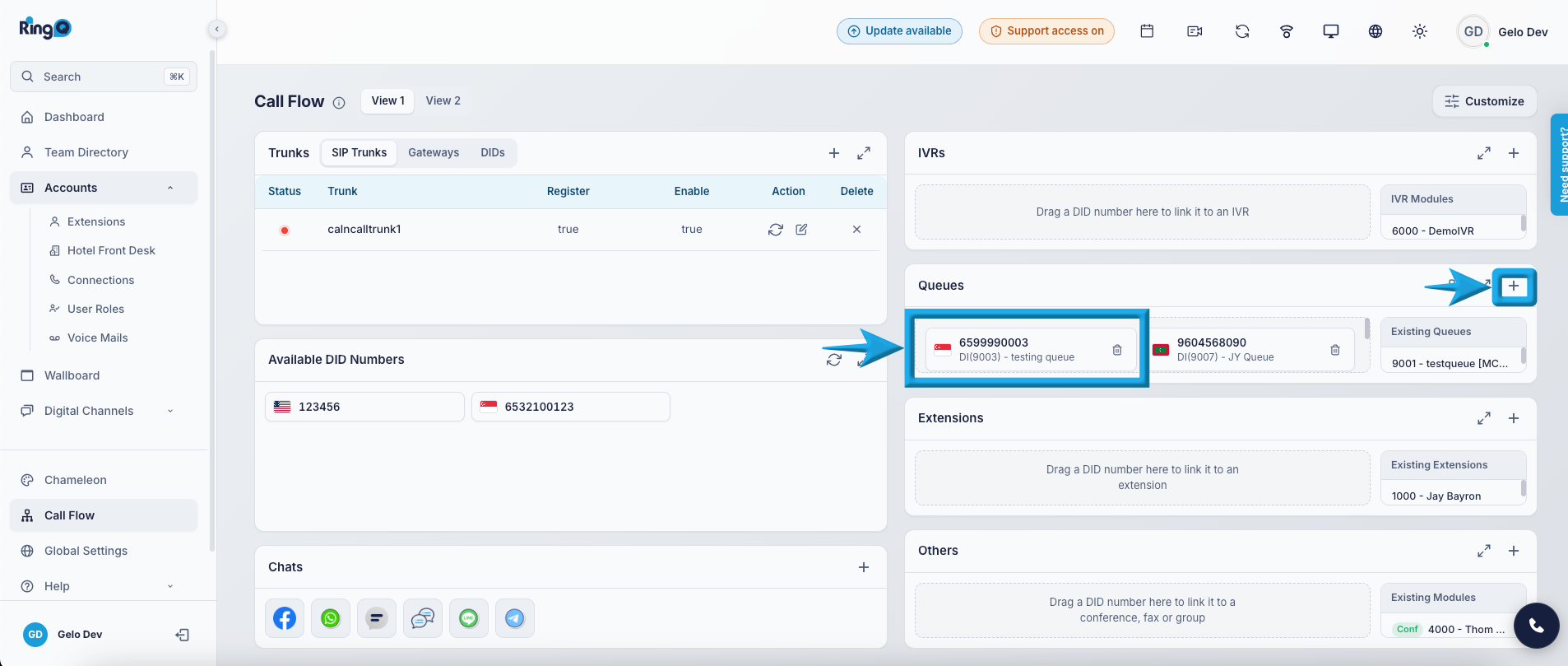
5. Create a new queue extension or select an existing queue extension.
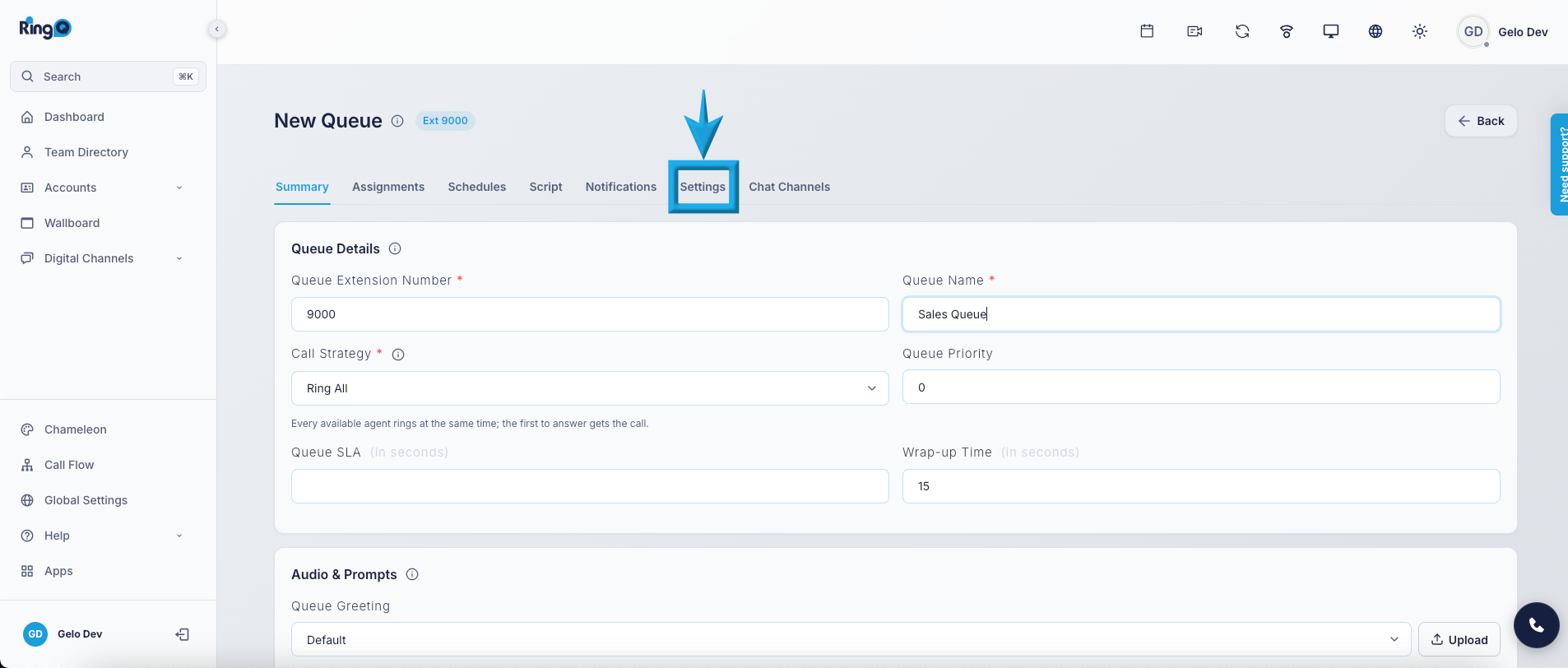
6. Click Settings.
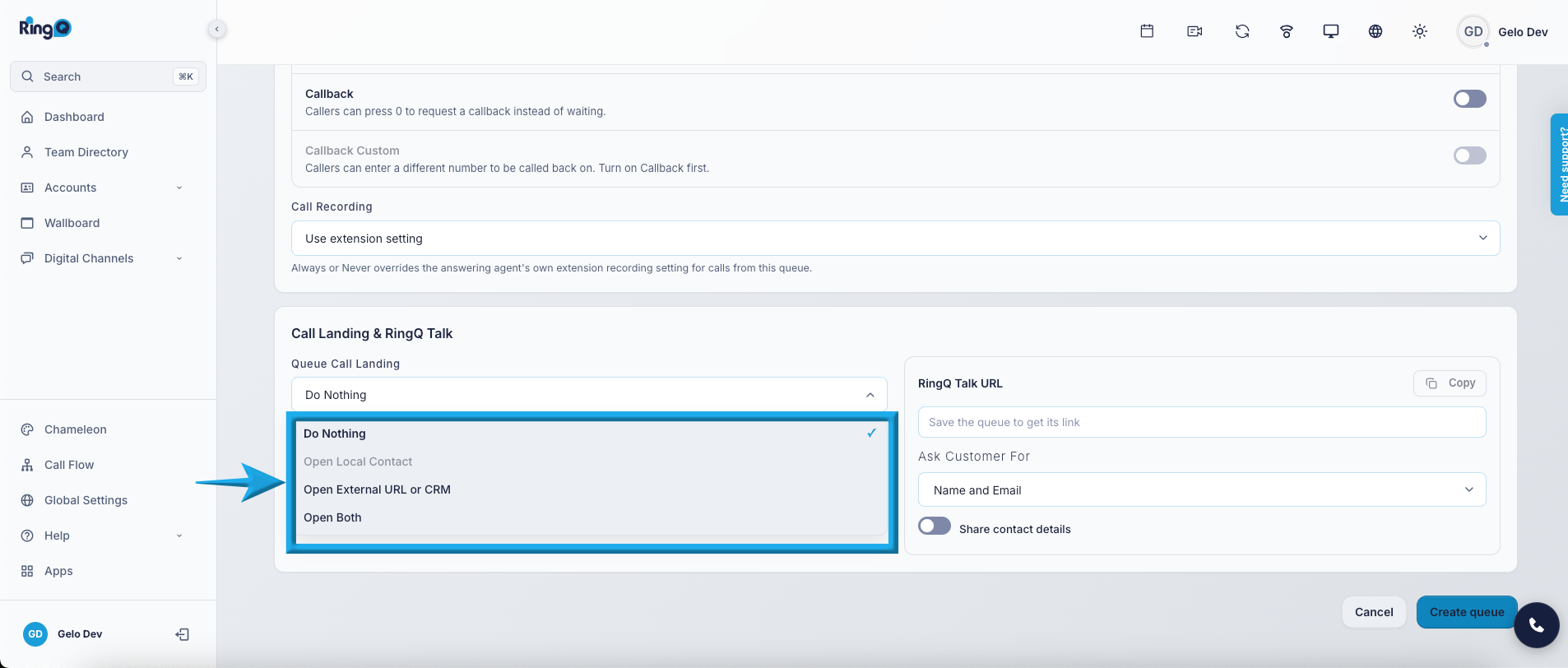
7. Scroll down to the Call Landing & RingQ Talk section, then select Queue Call Landing.
The Queue Call Landing section allows administrators to select which contact information or CRM page will automatically open when an agent handles a call through the selected queue extension.
The following options are available:
