Security update: RingQ is patched against the critical PHP vulnerabilities. Update your servers today.

Read now
RingQ Customer Centric Communications

Router Phone by Snom


Oct 18, 2026

What RPS is

RingQ Remote Provisioning (RPS) lets a Snom desk phone set itself up with no typing on the phone. When you tick RPS for a phone, RingQ registers that phone’s MAC address with Snom’s redirection service. The next time the phone starts new or after a factory reset, it asks Snom where its settings live, Snom points it to your RingQ server, and the phone downloads its extension and registers by itself.

RPS is off by default and is set per phone. It is for Snom phones only; other brands show a dash in the RPS column and keep using their normal provisioning link.
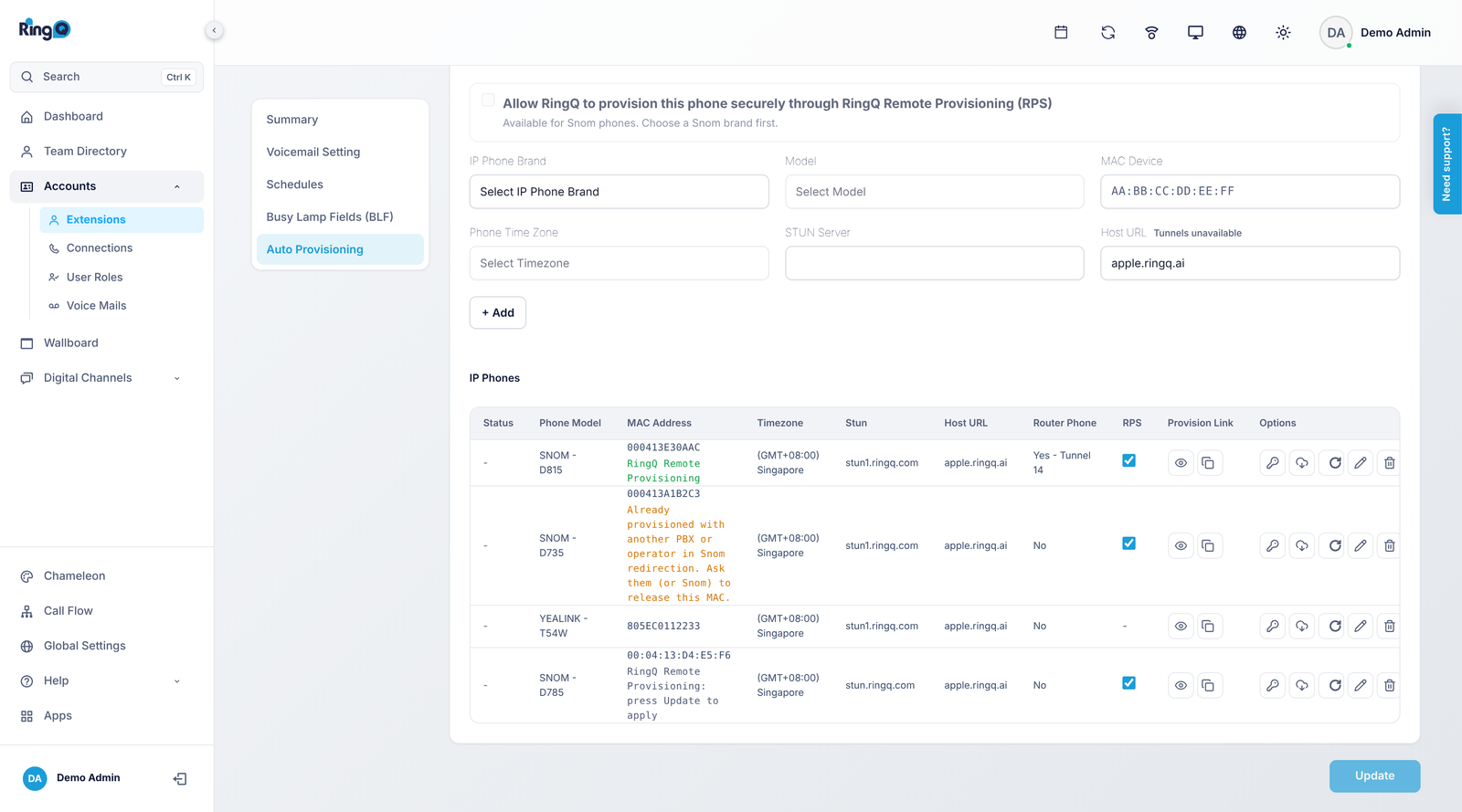
Where RPS lives: Accounts > Extensions > open an extension > Overview > Auto Provisioning. The phones shown are sample data.
Where RPS lives: Accounts > Extensions > open an extension > Overview > Auto Provisioning. The phones shown are sample data.

Before you start

  • You are signed in as an administrator of the RingQ instance.
  • The extension the phone belongs to already exists.
  • You have the phone’s MAC address (it is on the label under the phone, and on the box).
  • The phone is not claimed by another PBX or operator in Snom redirection. If it is, RPS shows an orange warning and that provider (or Snom) must release the MAC first.
  • For a router phone only: a secure tunnel with Device Type “Router Phone” and the phone’s static IP. See Router phones below.

Turn RPS on for a phone

A new phone

  1. Go to Accounts > Extensions and open the extension.
  2. Choose Overview > Auto Provisioning.
  3. Pick IP Phone Brand Snom, then the Model, MAC Device, Phone Time Zone and STUN Server. Leave Host URL on your server unless the phone reaches RingQ through a tunnel.
  4. Tick Allow RingQ to provision this phone securely through RingQ Remote Provisioning (RPS). The box only becomes active once a Snom brand is chosen.
  5. Press + Add. The phone appears in the IP Phones list with a grey note “press Update to apply”.
  6. Press Update at the bottom right to save. RingQ now registers the phone with Snom redirection.
  7. Plug the phone in (or factory-reset it). It finds RingQ by itself and registers.
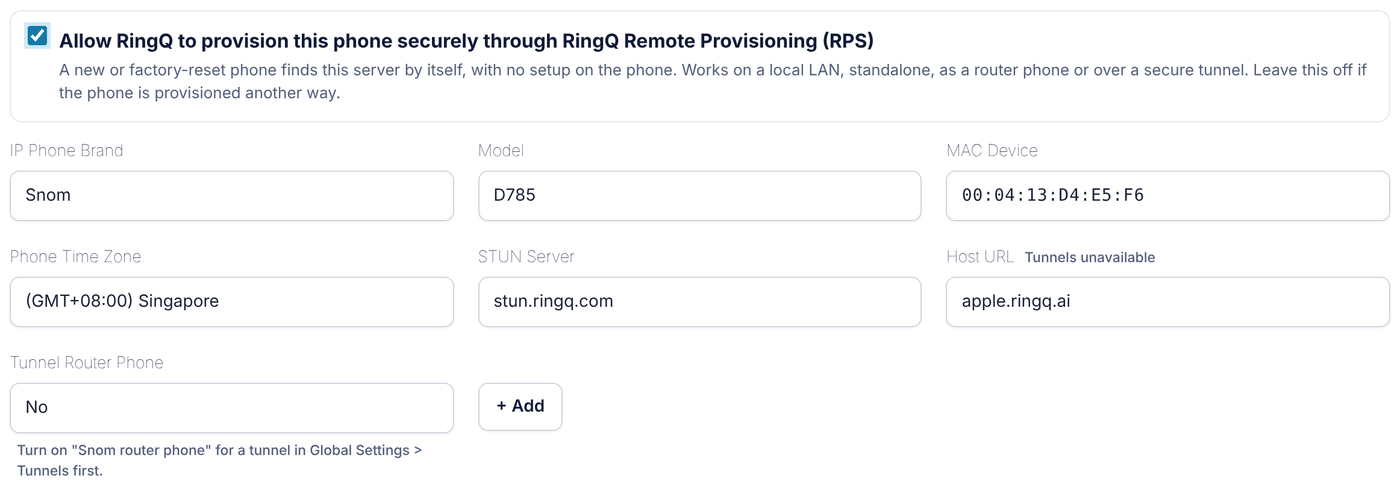
The Auto Provisioning form with RPS ticked for a Snom D785

The Auto Provisioning form with RPS ticked for a Snom D785

A phone that is already in the list

Tick the checkbox in the phone’s RPS column. For a phone that is already saved, this takes effect straight away; you don’t need to press Update. Then factory-reset the phone, or power it on if it is new.

Reading the RPS status

Under each MAC address with RPS ticked, a short note says where the phone stands with Snom redirection.
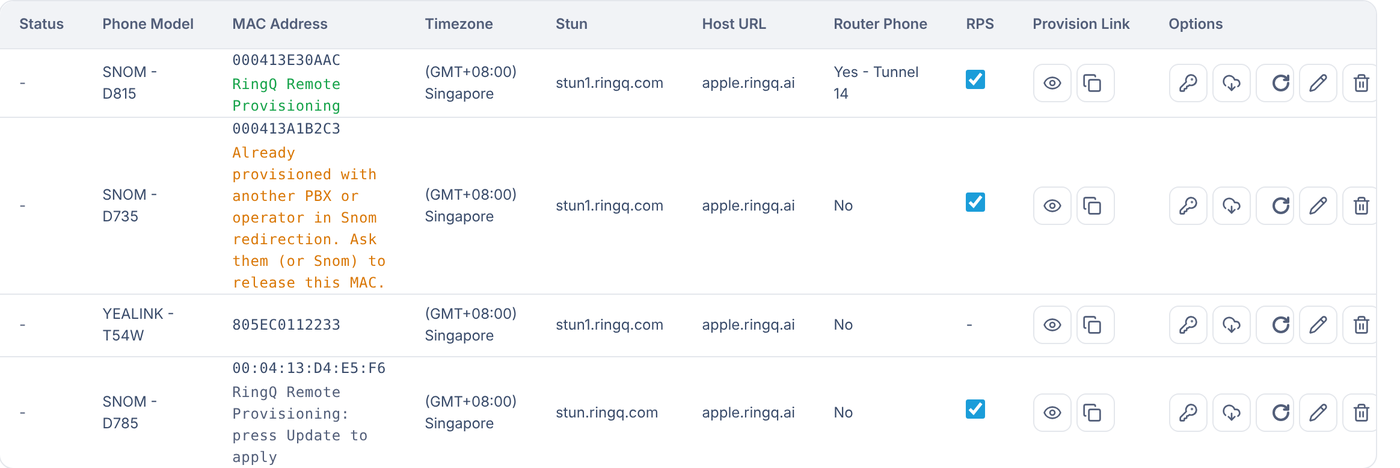
IP Phones list showing the three RPS states

IP Phones list showing the three RPS states

Note under the MACColourWhat it meansWhat to do
RingQ Remote ProvisioningGreenSnom redirection now points this phone to your RingQ server.Nothing. Factory-reset or power on the phone.
Already provisioned with another PBX or operator in Snom redirection. Ask them (or Snom) to release this MAC.OrangeSnom refused because another provider owns this MAC.Ask the previous provider or Snom to release the MAC, then untick and tick RPS again.
RingQ Remote Provisioning: press Update to applyGreyRPS is ticked but the phone isn’t saved yet.Press Update.

The Status column on the left shows Online or Offline from the phone’s live registration. It shows a dash in these screenshots because they use sample phones.

Turning RPS off, removing a phone, deleting an extension

  • Untick RPS on the row: RingQ removes the phone from Snom redirection at once. The phone keeps working with its current settings; it just won’t be sent to RingQ after a factory reset.
  • Delete the phone from the list, then press Update: RingQ removes it from Snom redirection too.
  • Delete the extension: every Snom phone with RPS on that extension is removed from Snom redirection automatically, so the MAC is free to use elsewhere.

Router phones

A Snom router phone is a desk phone that carries a RingQ secure tunnel for its site and passes calls through the RingQ proxy that runs on the phone. Other phones on the same network connect through it, so each one doesn’t need its own tunnel.

Setting it up has two parts: first the router phone itself, then the other phones behind it.
Part A: set up the router phone

1. Give the phone a static IP address

  1. Plug the phone into the network with a network cable and check the IP address it was given.
  2. Open that IP address in a browser on the same network and sign in with the phone’s web login.
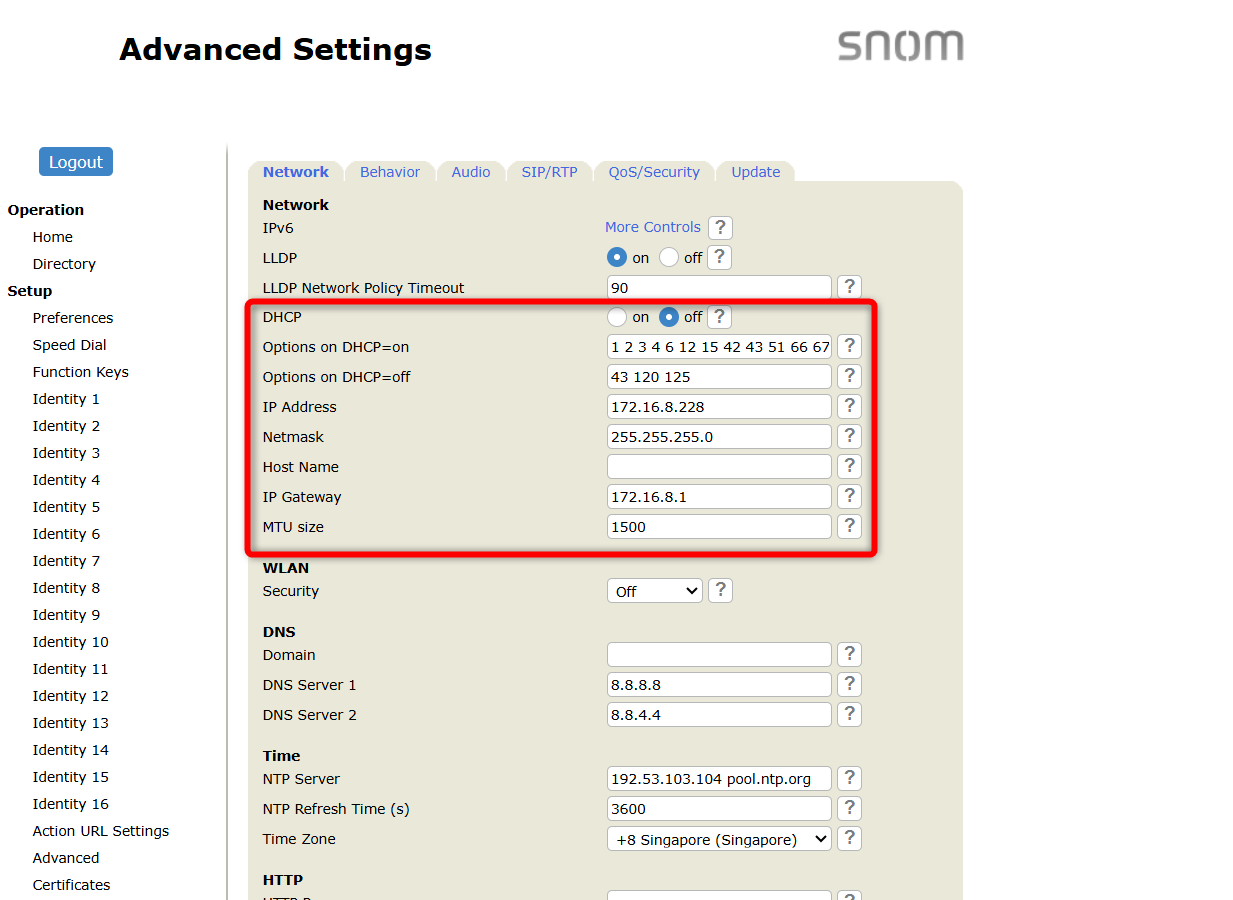
  3. Go to Advanced > Network, turn off DHCP, enter the static IP details (a free address on the same subnet, outside the DHCP range, plus subnet mask, gateway and DNS) and save.
Network settings on the phone: DHCP off, static IP entered
Network settings on the phone: DHCP off, static IP entered

2. Create the secure tunnel in RingQ

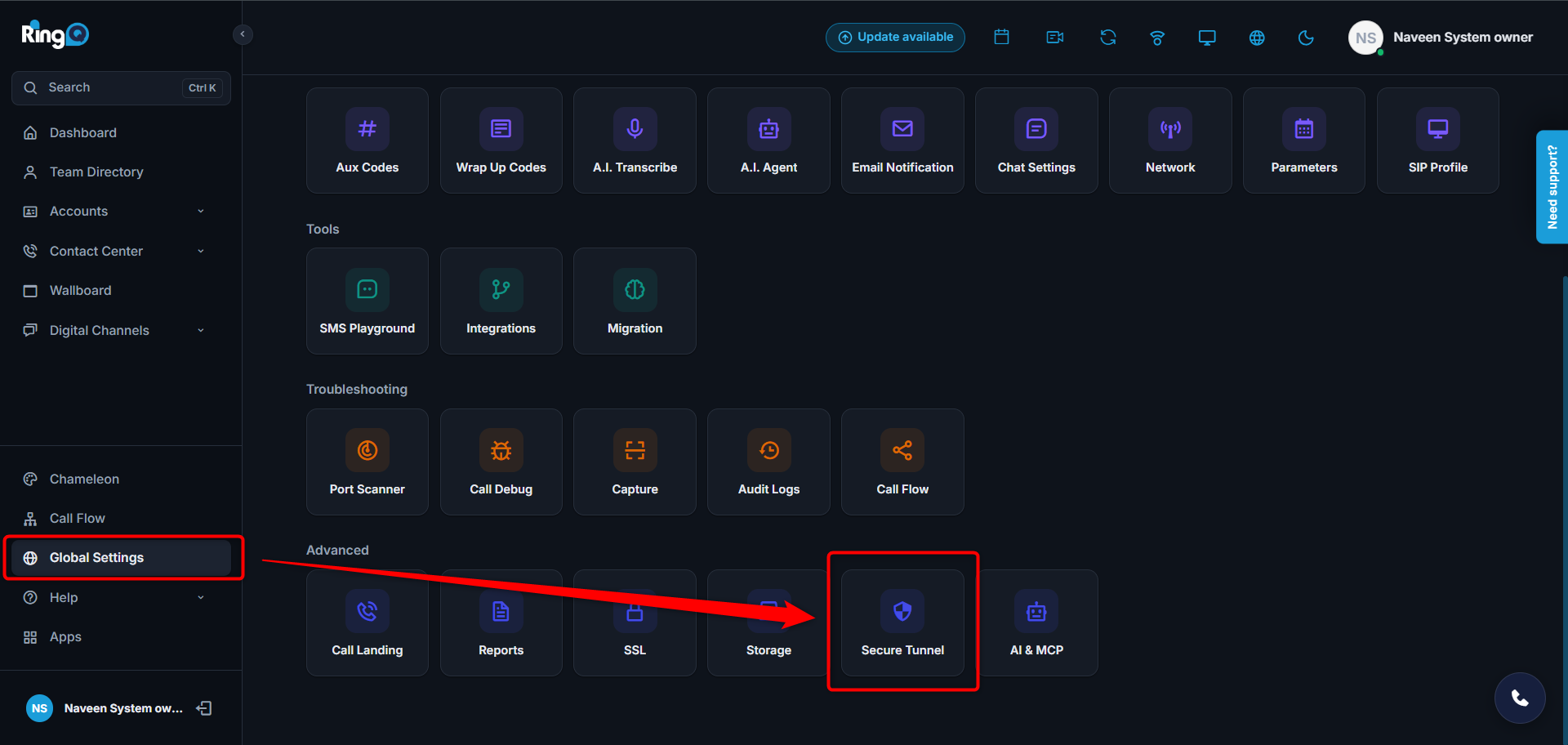
  1. In RingQ go to Global Settings > Advanced > Secure Tunnel.
Global Settings > Advanced > Secure Tunnel
Global Settings > Advanced > Secure Tunnel

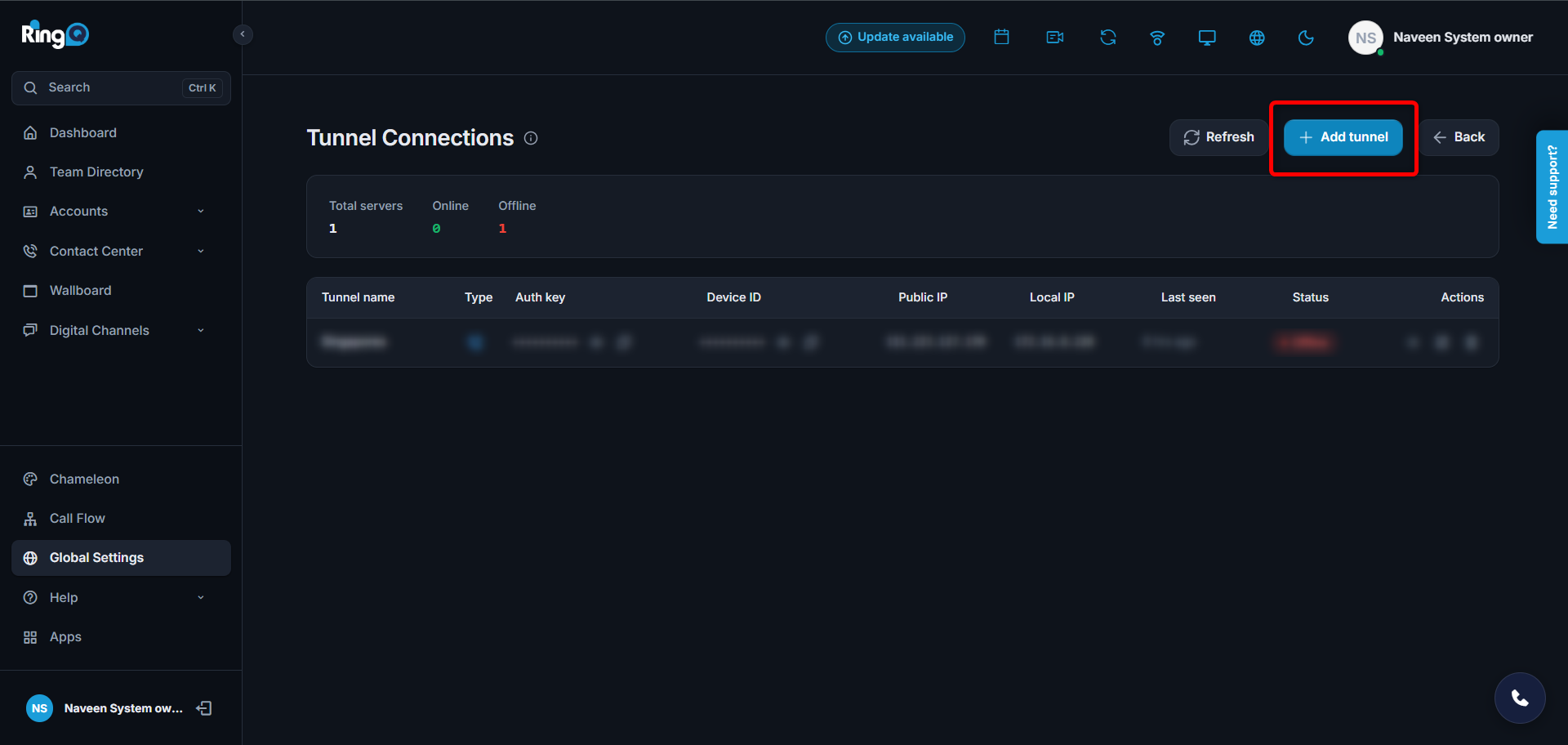
  1. Click + Tunnel to add a tunnel.
Adding a tunnel with the + Tunnel button
Adding a tunnel with the + Tunnel button

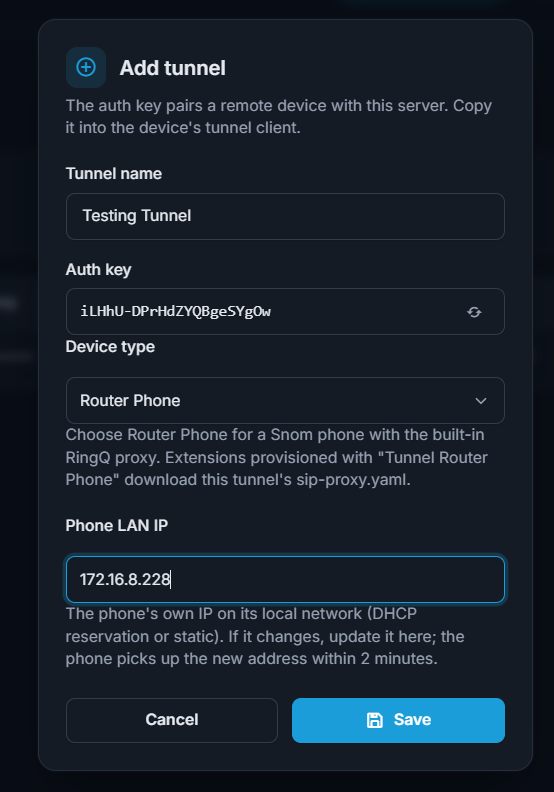
  1. Give the tunnel a name, set Device Type to Router Phone, enter the phone’s static IP address and click Save.
Tunnel form: name, device type Router Phone, static IP
Tunnel form: name, device type Router Phone, static IP

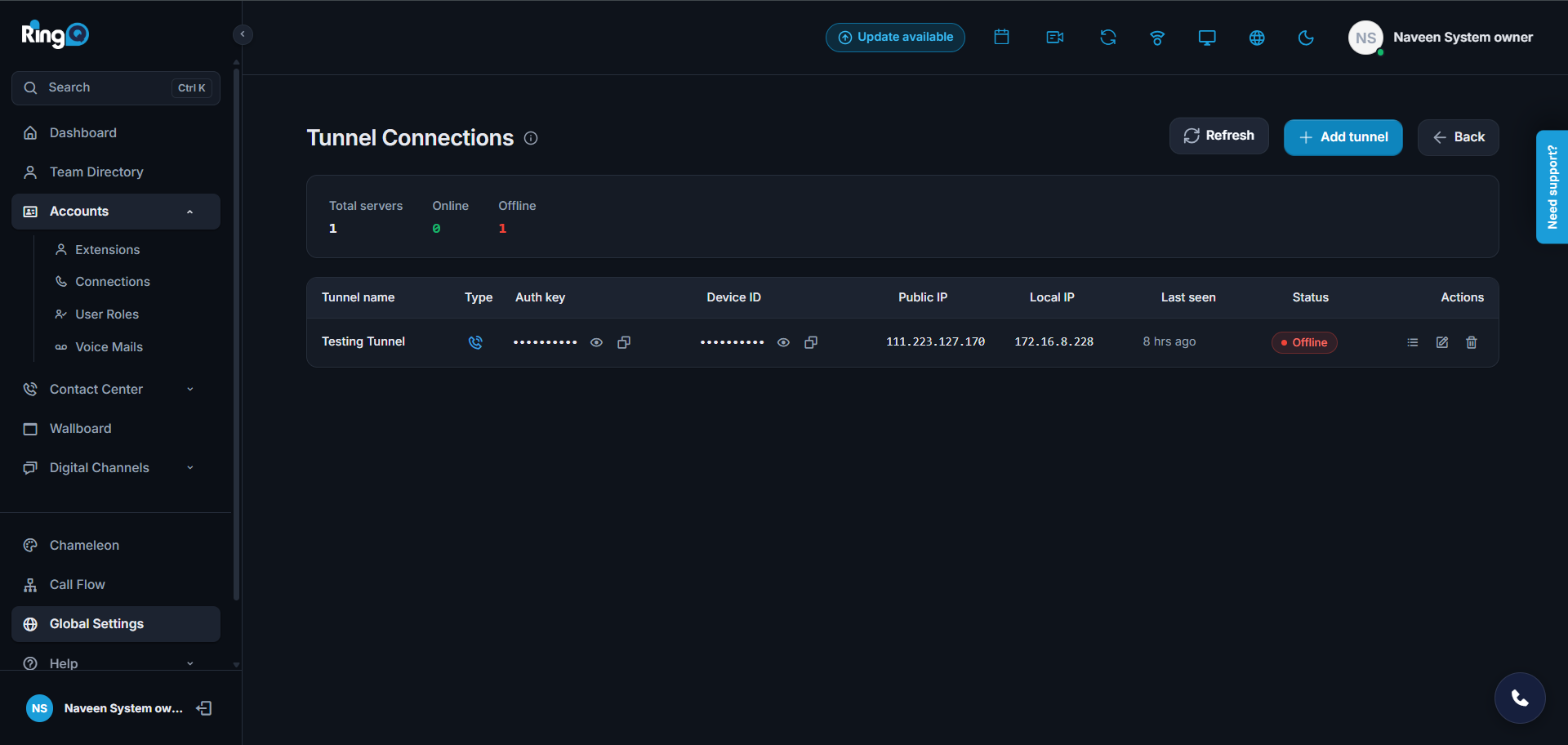
  1. The tunnel appears in the Secure Tunnel list. It shows Offline at first and turns Online once the phone is provisioned on an extension (step 10).
The new tunnel in the list, still Offline
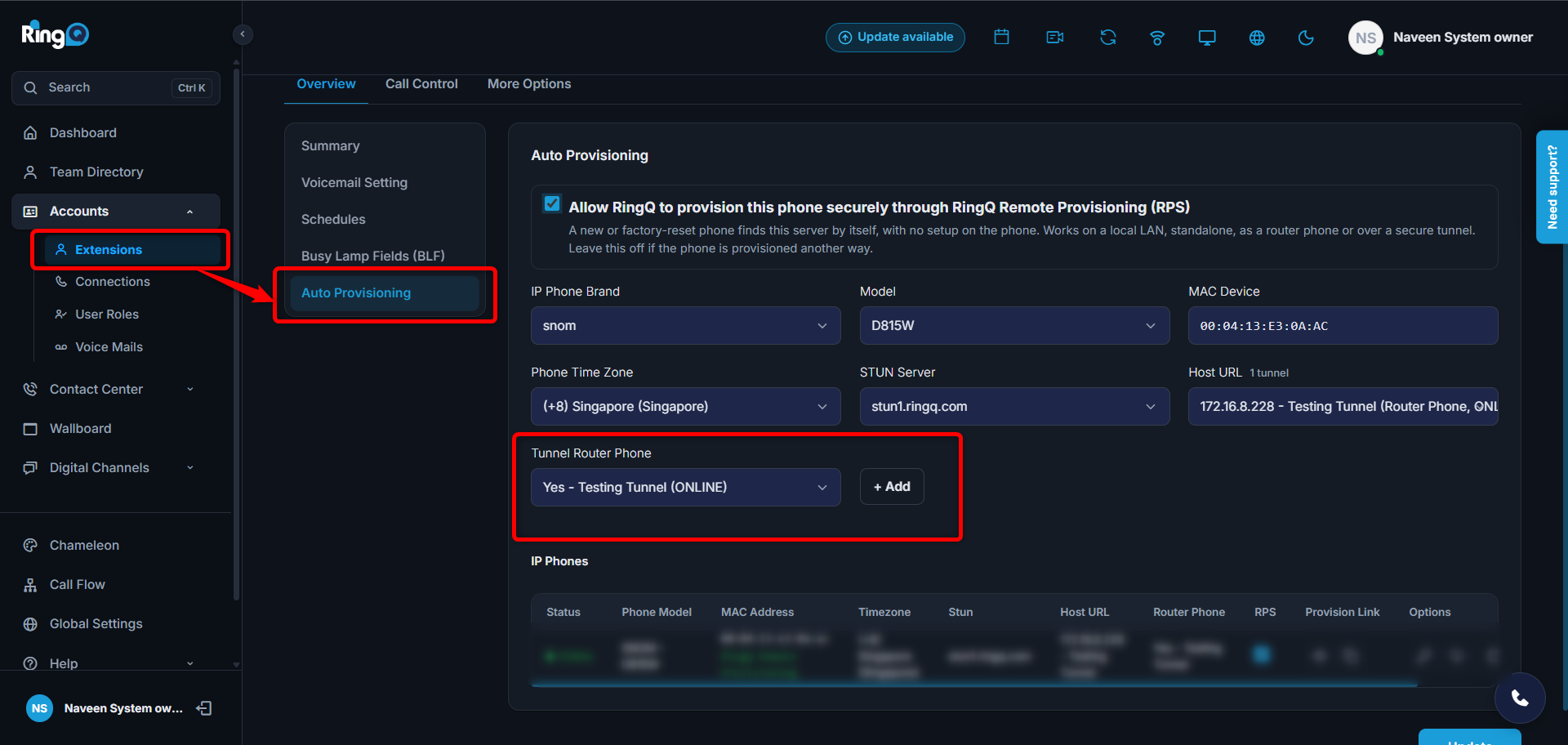
The new tunnel in the list, still Offline

3. Provision the router phone on an extension

  1. Go to Accounts > Extensions, open the extension of the user who will use this phone, and choose Overview > Auto Provisioning.
  2. Fill in the phone details (brand Snom, model, MAC address, time zone, STUN server). Set Tunnel Router Phone to Yes and make sure Host URL is the tunnel you just created. Tick Allow RingQ to provision this phone securely through RingQ Remote Provisioning (RPS), click + Add, then press Update.
Auto Provisioning on the extension for the router phone
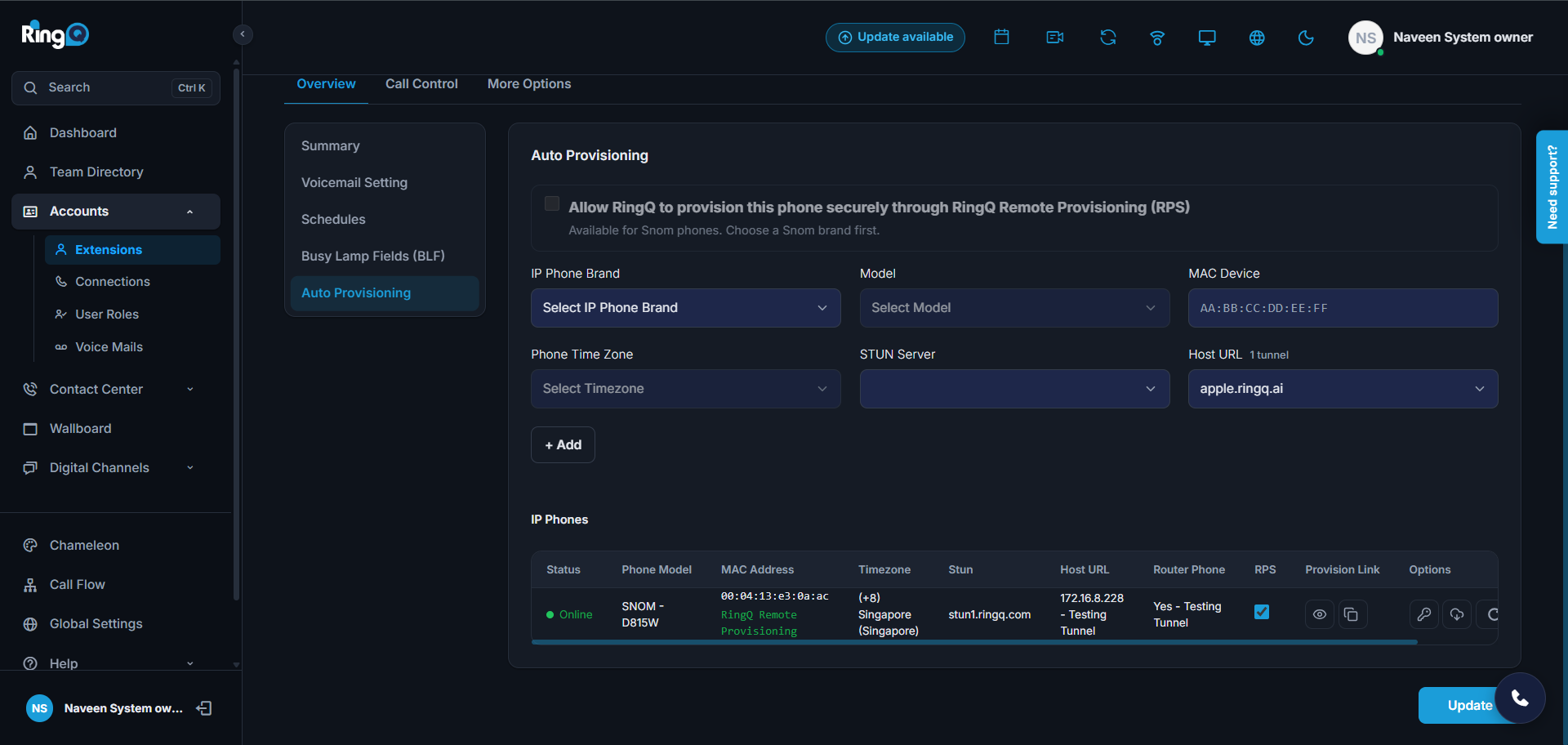
Auto Provisioning on the extension for the router phone

  1. Reboot the phone. It registers under the extension by itself and shows Online in the IP Phones list, with “Yes” and the tunnel name in the Router Phone column.
Router phone Online in the IP Phones list

Router phone Online in the IP Phones list

Once the phone has registered, the tunnel shows Online too.
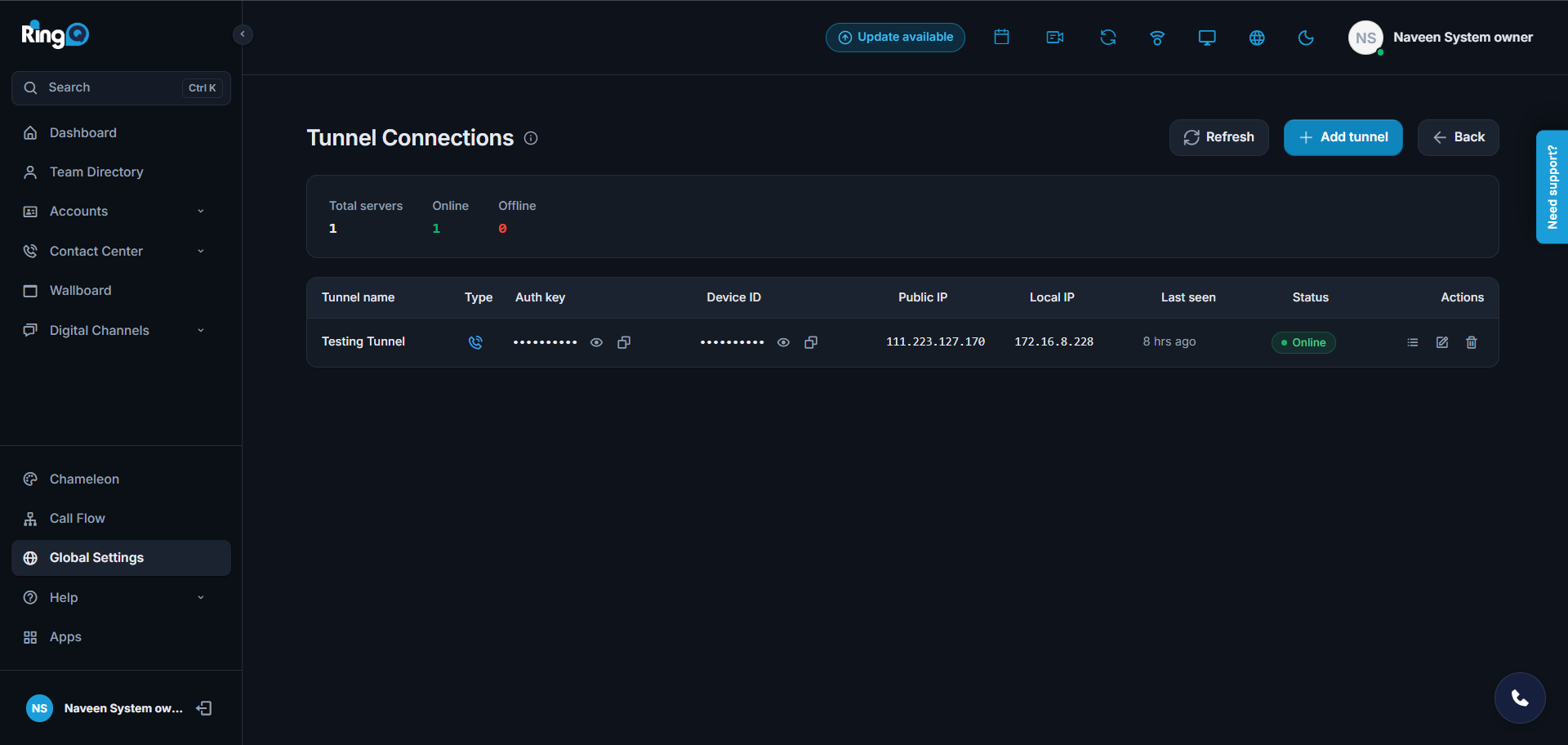
Tunnel Online after the router phone registered

Tunnel Online after the router phone registered

When both the phone and the tunnel are up, you can add the other phones (Part B).
Part B: add other phones behind the router phone

  1. Connect the phone to the network, open its IP address in a browser and copy its MAC address.
  2. Go to Accounts > Extensions, open the extension the phone is for, and choose Overview > Auto Provisioning.
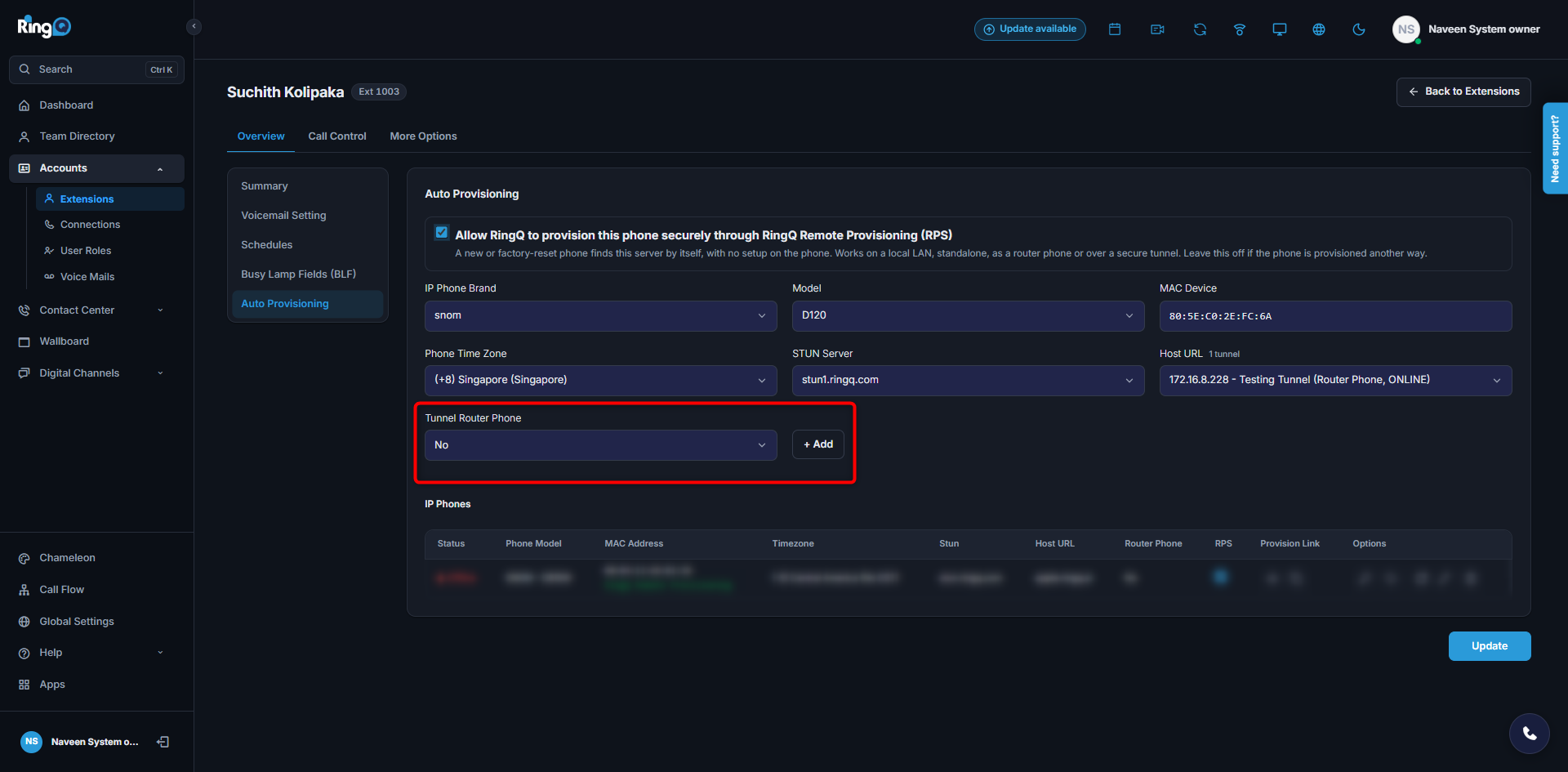
  3. Enter the phone details including the MAC address. Set Tunnel Router Phone to No. Make sure the RPS box is ticked, click + Add, then press Update.
Phone behind the router: Tunnel Router Phone set to No

Phone behind the router: Tunnel Router Phone set to No

  1. Reboot the phone so it picks up its settings. Once registered, it appears under IP Phones on the extension and in Connections.

Good to know

  • RingQ gives a router phone its registrar as LAN IP:5060 by itself. You don’t need to add user_host1=<LAN IP>:5060 by hand on the phone.
  • The phone checks for new settings about every 2 minutes. When nothing has changed, it doesn’t ask to reboot. If you change the IP on the tunnel, the phone picks it up on its next check.
  • If a phone doesn’t register after the first reboot, reboot it once more.

Troubleshooting

What you seeLikely causeFix
No RPS box or RPS columnRemote provisioning isn’t set up on this instance, or you aren’t an administrator.Ask RingQ support to enable it.
The RPS box is greyed outThe brand isn’t Snom.Choose IP Phone Brand Snom first.
Orange “Already provisioned with another PBX or operator”Another provider owns the MAC in Snom redirection.Have them (or Snom) release it, then tick RPS again.
Grey “press Update to apply” staysThe extension wasn’t saved.Press Update and wait for the save message.
Green note, but the phone doesn’t find RingQThe phone still has its old settings.Factory-reset the phone so it asks Snom again.
Phone shows registered but Auto Provisioning shows OfflineThe router phone’s proxy isn’t reaching RingQ through the tunnel.Check the tunnel is Online and its IP on Secure Tunnel is right. The phone usually recovers on its next check.
Router phone provisions but won’t connectIt still has an old settings file without the :5060 registrar.Press Reprovision on the row (cloud icon) or wait 2 minutes for the next check.
Router phone or a phone behind it doesn’t registerThe first boot didn’t pick up the new settings.Reboot the phone again.