Security update: RingQ is patched against the critical PHP vulnerabilities. Update your servers today.
Read nowThis guide covers how to enable and configure AI-powered call transcription in RingQ. With transcription activated, RingQ automatically converts your voice calls into accurate, searchable text—making it easier to review conversations, maintain compliance, and gain insights from every interaction. Whether for training, quality control, or recordkeeping, AI transcription helps you get more value from your calls.
Log in to your RingQ web app and go to Settings > Global.
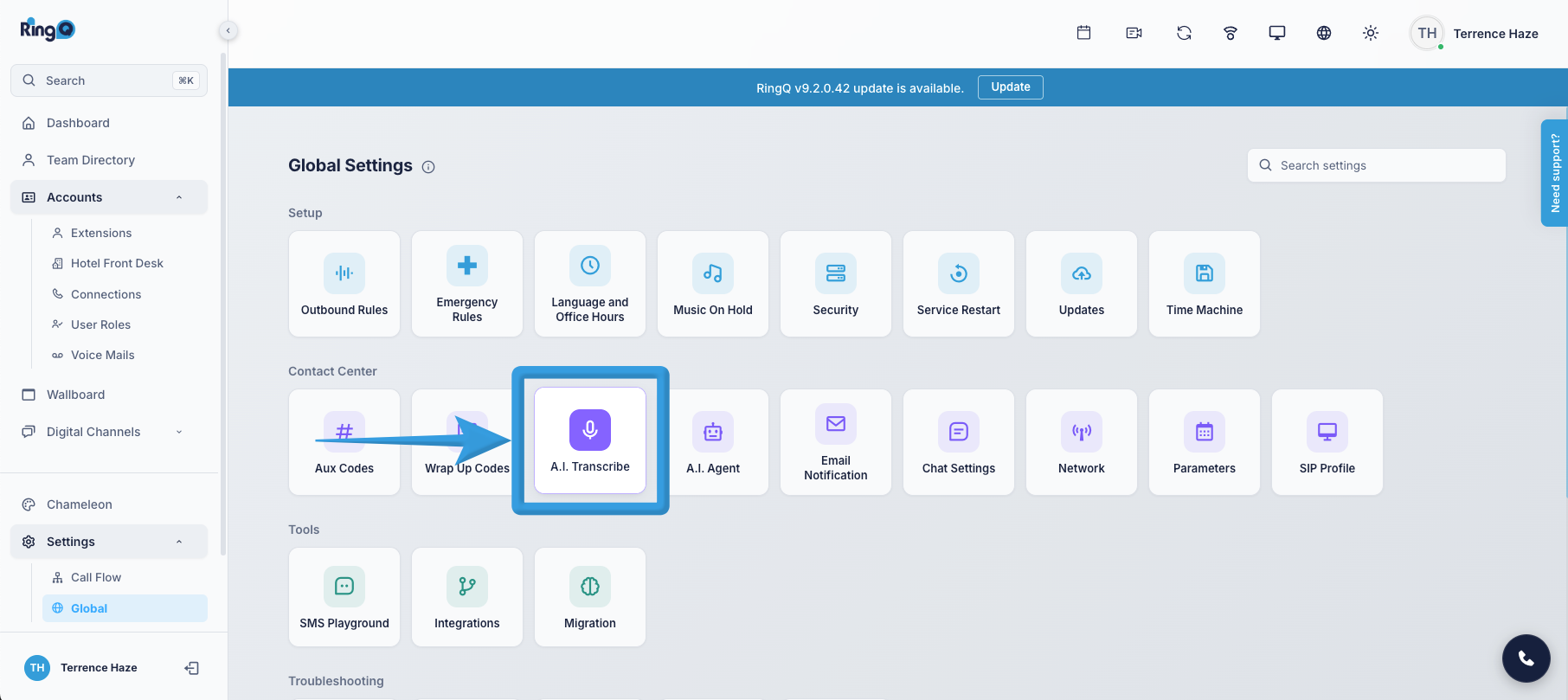
Click the AI Transcribe icon. Toggle Enable Transcription to turn it on.
Click Save.
Make a call
Complete the call
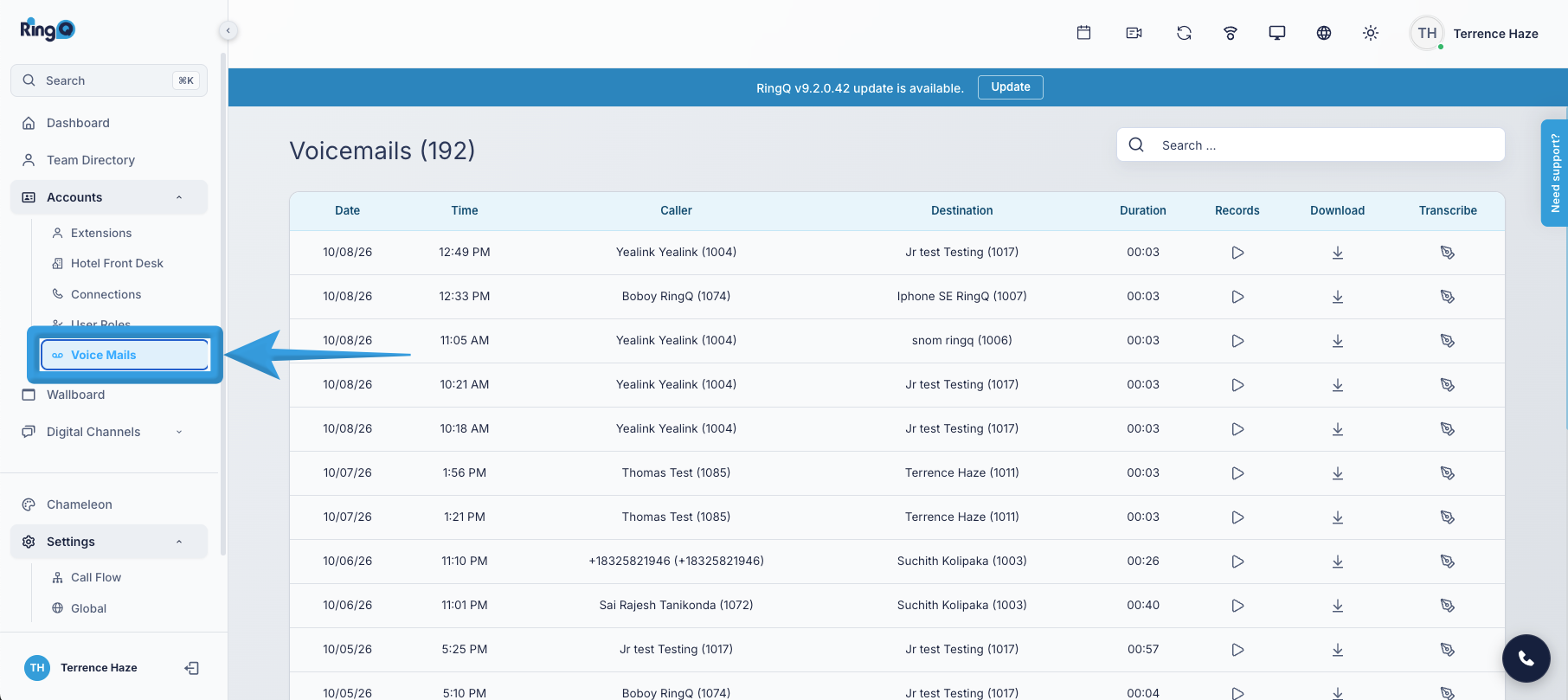
To access the reports, go to Accounts > Voicemails or Settings > Global.
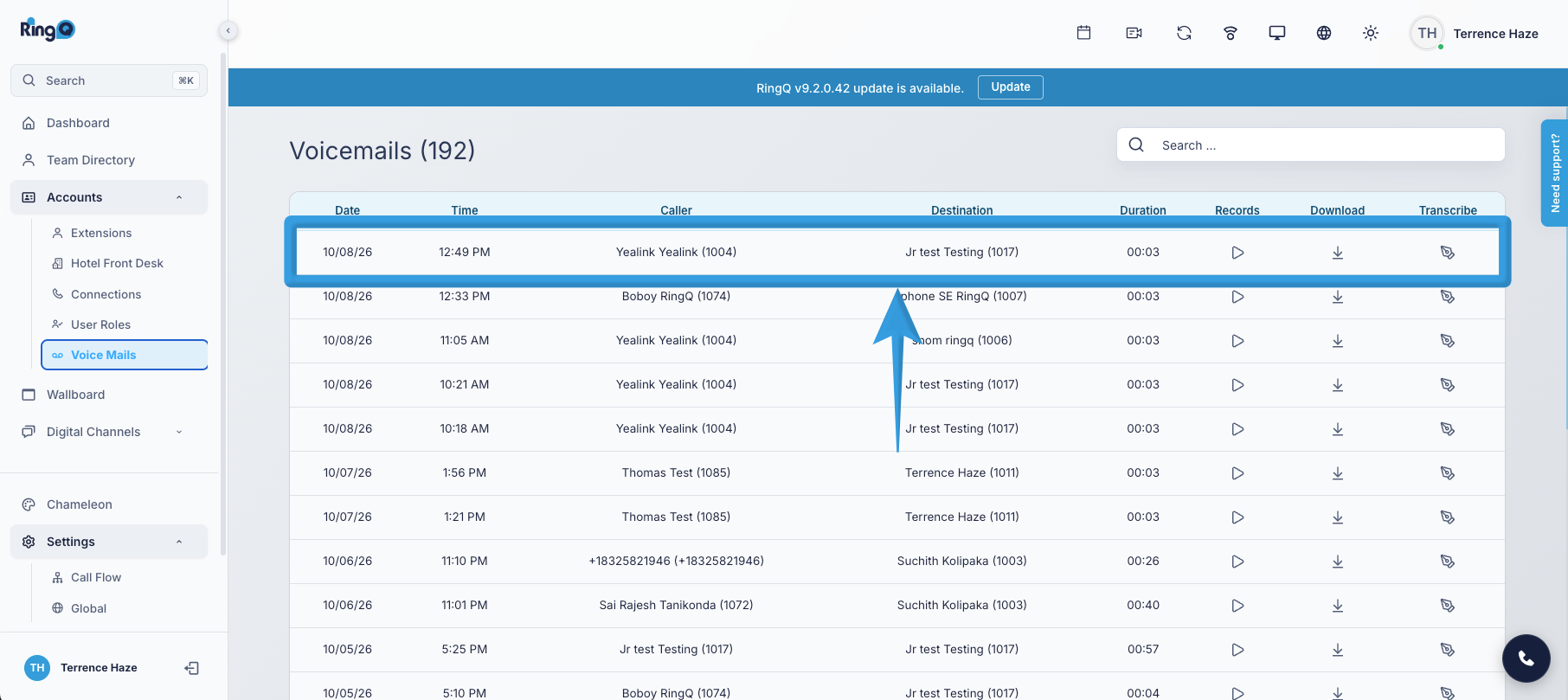
Select a Voicemail log.
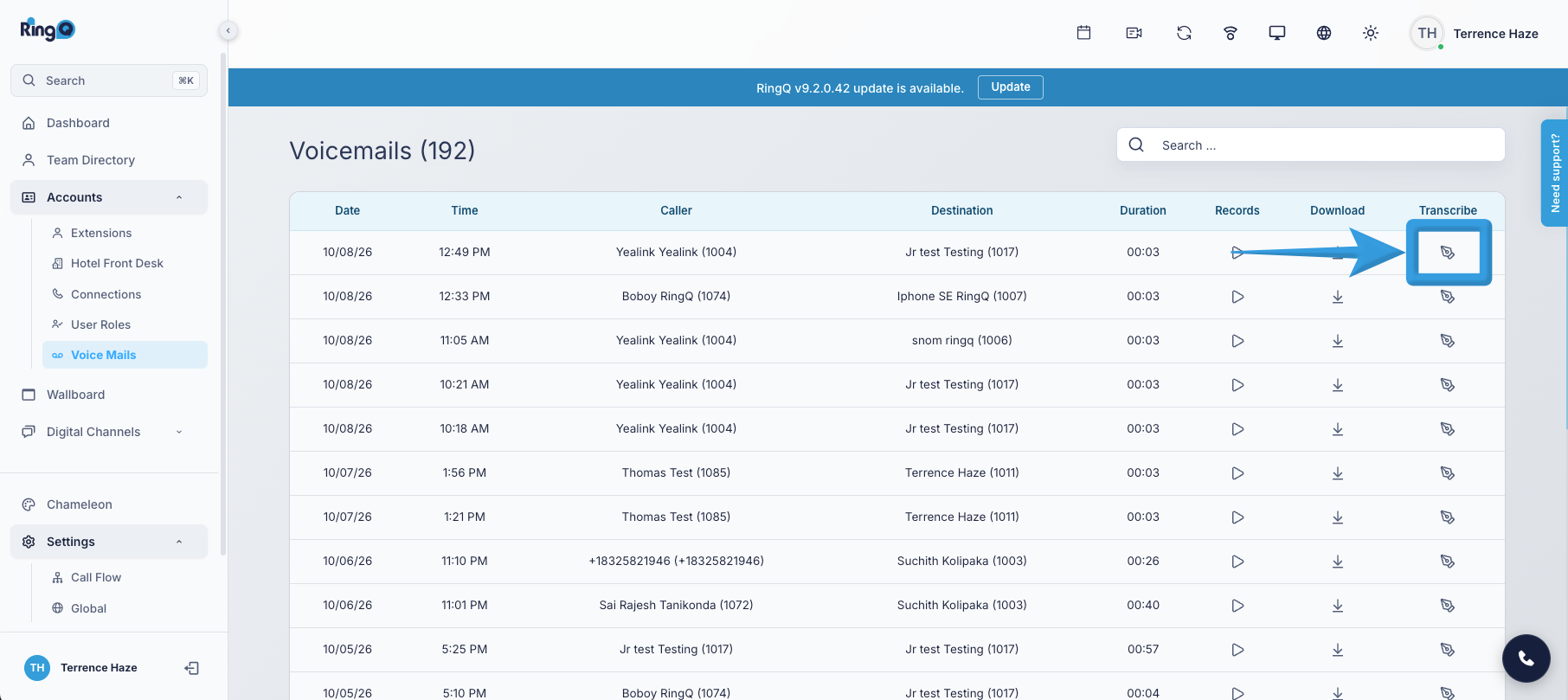
View the transcription. Click the Transcribe action button next to the selected call.
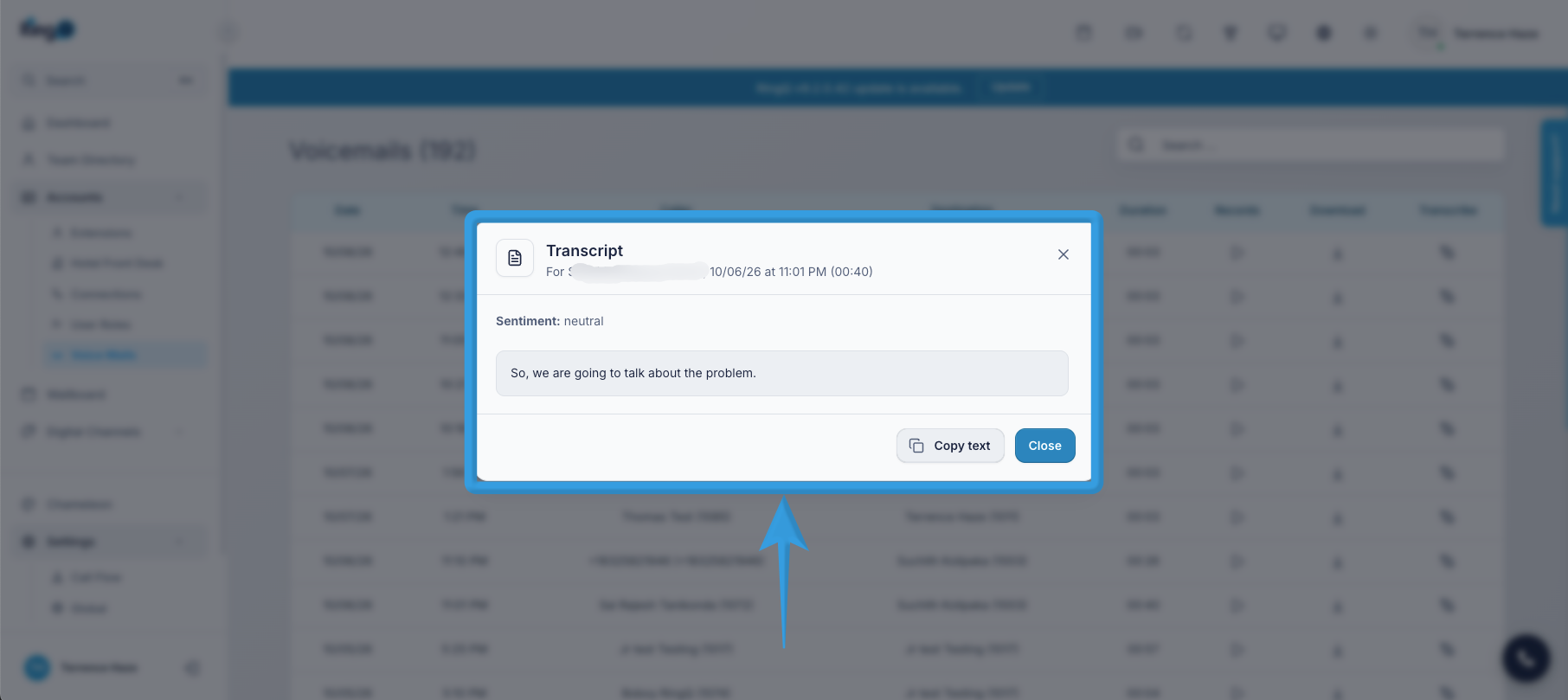
Review the AI-generated transcription and summary of the call.
