Security update: RingQ is patched against the critical PHP vulnerabilities. Update your servers today.
Read nowThis guide shows an administrator how to set up a Smart Intelligence (SI) Receptionist: an AI receptionist that answers your calls by voice, answers questions from your own business information, and passes callers to a person when needed. In the RingQ web app the feature is called AI Receptionists.
Have these ready:
You create a receptionist from Settings, then AI Receptionists. Each receptionist is one "agent" with its own extension.
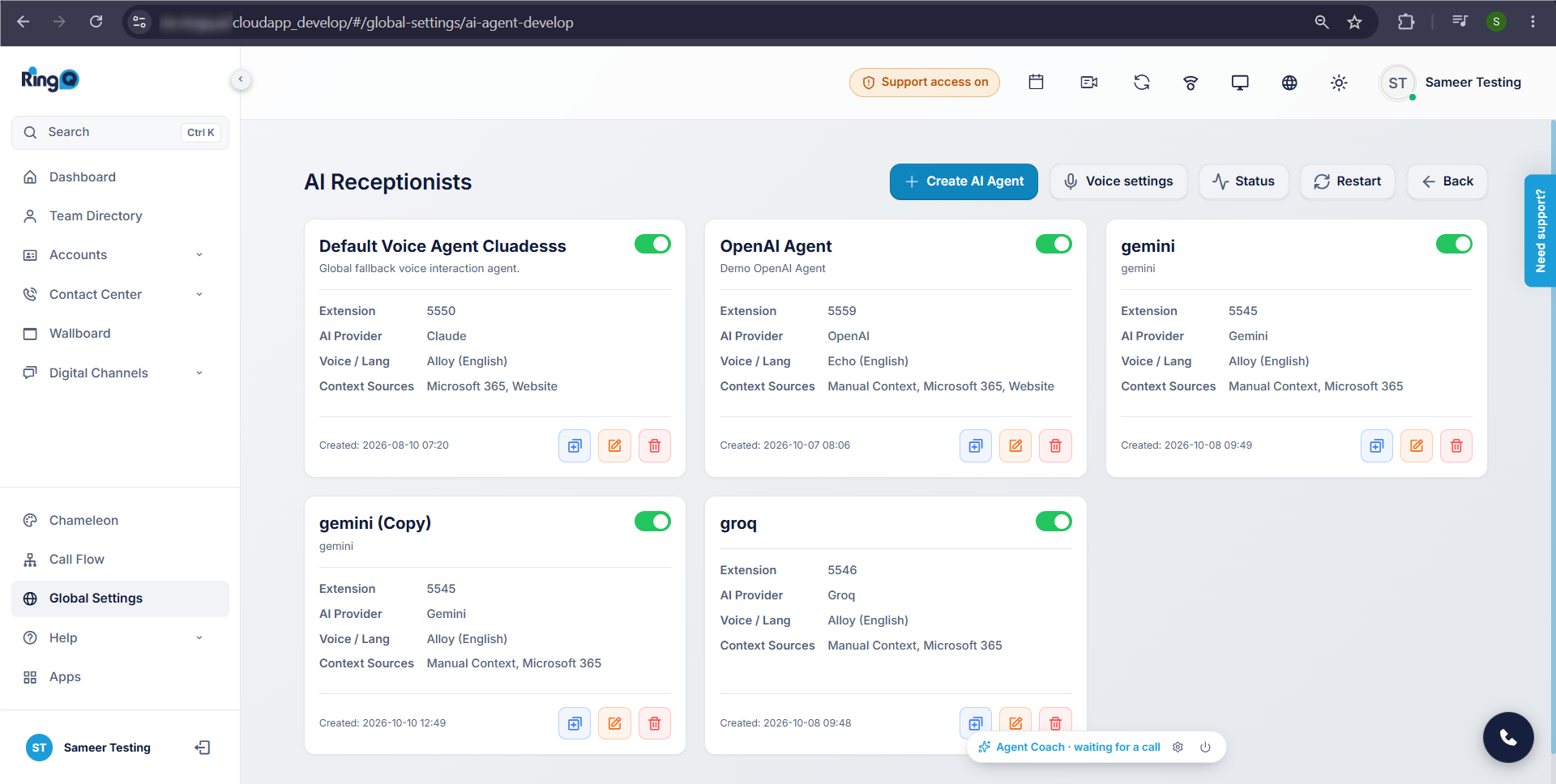
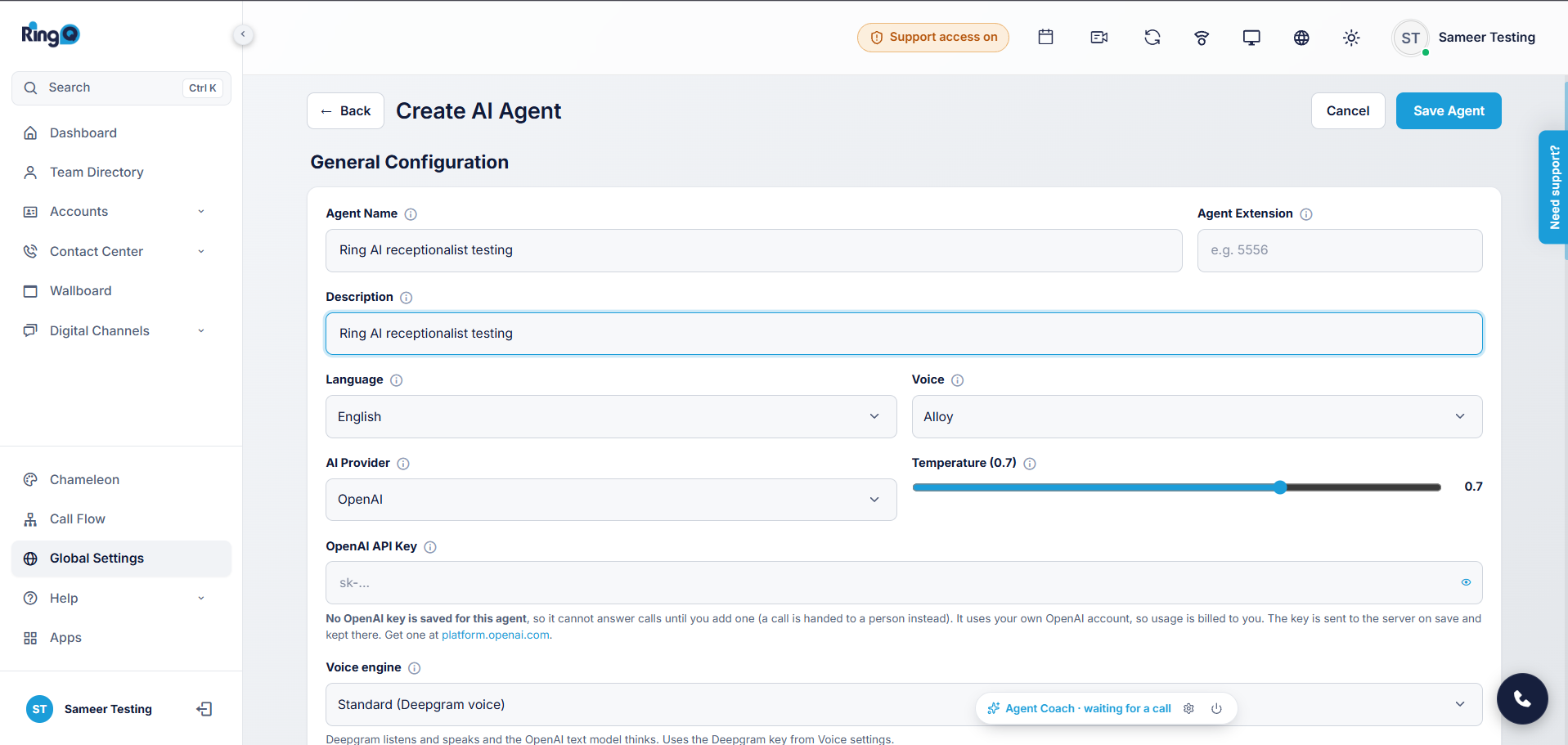
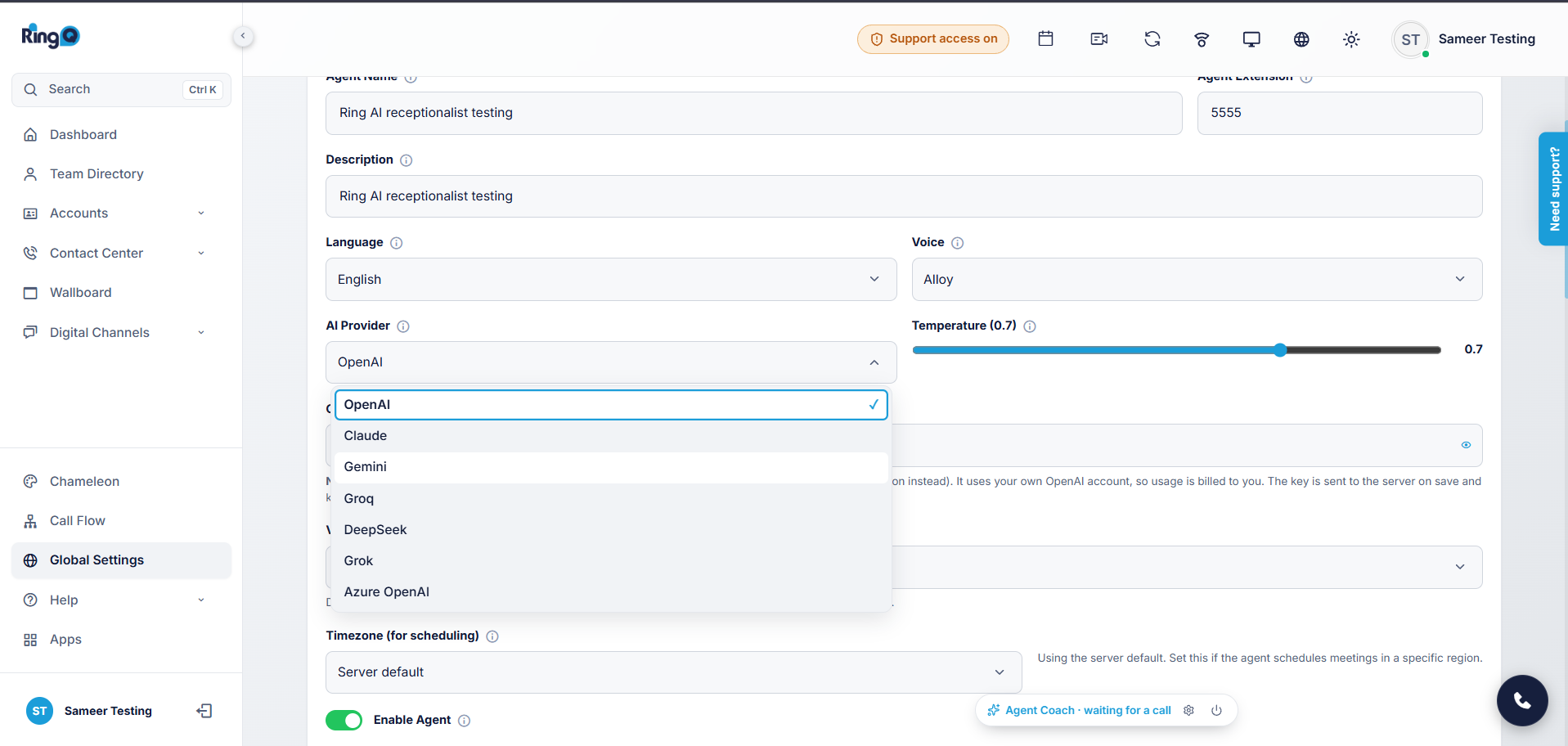
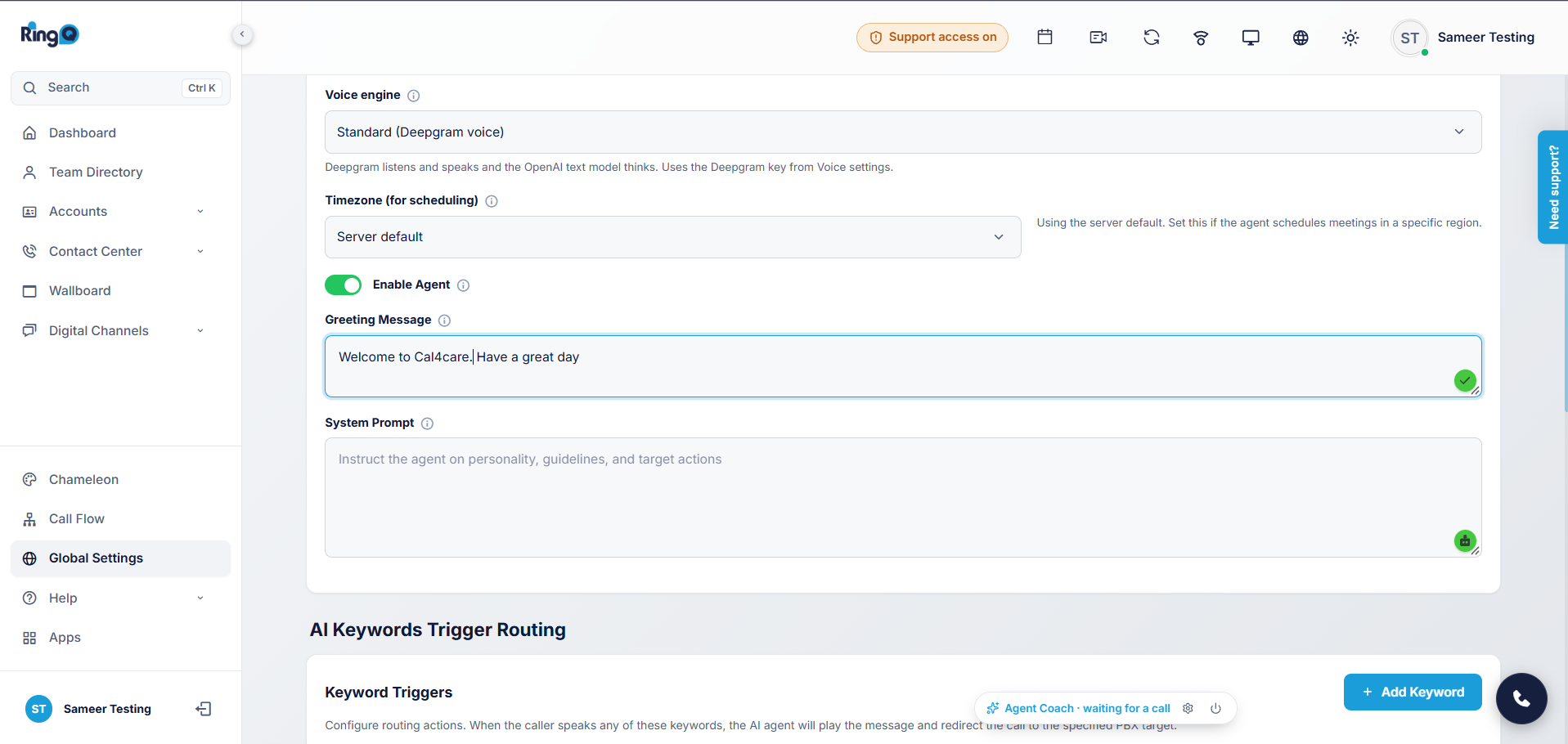
After saving, a green message says the agent was saved and synced. A red message that says "Extension N is already used by another program" means the number is taken by another rule. The agent was saved, but it will not answer calls until you pick a free extension or the old rule is removed.
To test, dial the extension from another phone, listen to the greeting, then ask a question the knowledge base can answer.
Each receptionist uses its own AI provider and key, so you can try several side by side.
AI Provider and API Key. Choose one of OpenAI, Claude, Gemini, Groq, DeepSeek, Grok or Azure OpenAI and paste the key for that provider. When you save, RingQ asks the provider whether the key works and refuses a key that is clearly rejected. The key is stored encrypted and is never shown in the list. Switching provider means entering a new key. Azure OpenAI also needs its Azure Endpoint and Deployment Name.
Voice engine. There are two ways a receptionist can talk:
| Voice engine | Who it suits | What it needs |
|---|---|---|
| Standard (Deepgram voice) | Every provider | A Deepgram key saved under Voice settings |
| Native (OpenAI Realtime, Gemini Live, Azure realtime) | OpenAI, Gemini and Azure OpenAI only | The agent's own key. Replies start sooner and sound more natural. |
Claude, Groq, DeepSeek and Grok always use the standard engine. If Deepgram is missing or fails before the caller hears anything, OpenAI, Gemini and Azure switch to their native voice. The other providers send the call to a person instead.
Voice settings. On the AI Receptionists page, open Voice settings and save your company's Deepgram key once. It applies to every receptionist.
Voice, Language and Temperature. Voice picks how the receptionist sounds. Language is the language it speaks and understands; it will not switch languages even if the caller asks. Temperature controls how varied the answers are; lower is steadier.
The receptionist answers only from what you give it, so this is the most important part to fill in well.
If the AI is not given the answer, it says it will check or hand over, and does not guess. Review what it says in test calls and add missing facts to the context.
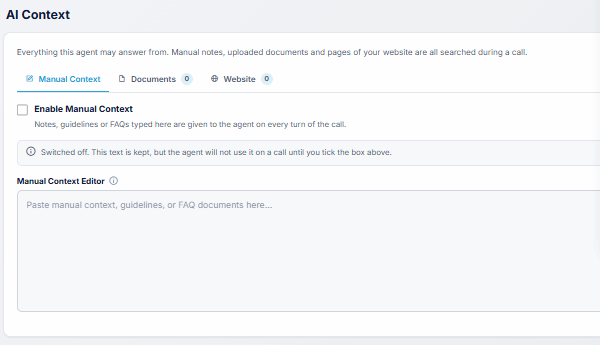
On the agent page, the AI Context box holds everything this agent may answer from. Manual notes, uploaded documents and pages of your website are all searched during a call. It has three tabs: Manual Context, Documents and Website. The small number beside Documents and Website shows how many items you have added.
Below the AI Context box, Connectors lists the outside systems this agent may use for information or actions. Each row shows the system name, a status badge, a short description and a switch on the right.
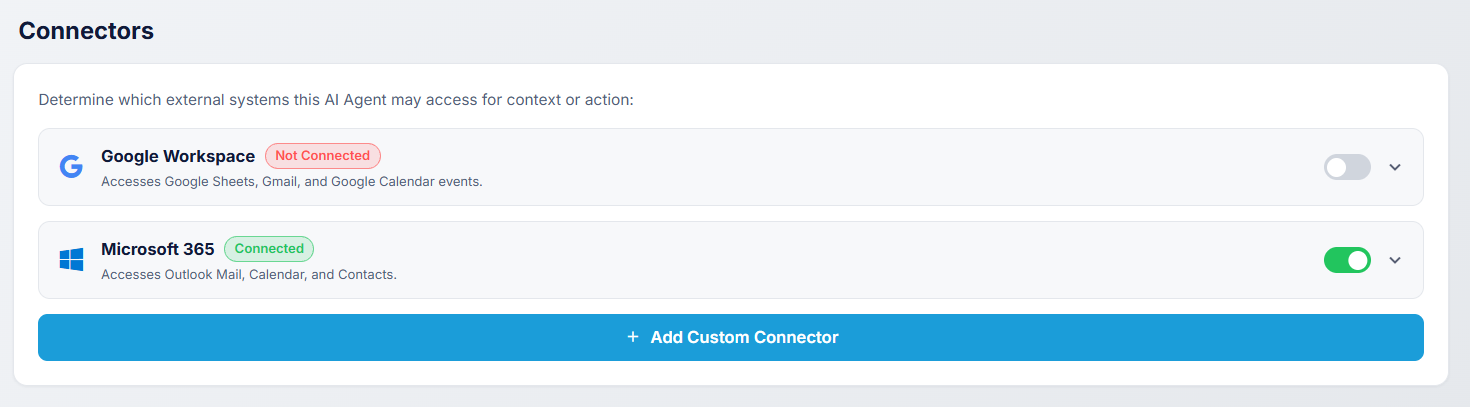
| Connector | What the agent can reach | Notes |
|---|---|---|
| Google Workspace | Google Sheets, Gmail and Google Calendar events | Shows a Not Connected badge until the account is linked |
| Microsoft 365 | Outlook Mail, Calendar and Contacts | Shows a Not Connected badge until the account is linked |
| Add Custom Connector | Another external system you add yourself | Use the wide button at the bottom of the box |
Connect the system first, then turn on its switch for this agent. Leave the switch off for any system the agent does not need, so it can only reach what you intend.
A receptionist can pass a call to a person in two ways, and the person who takes it sees what the caller already said.
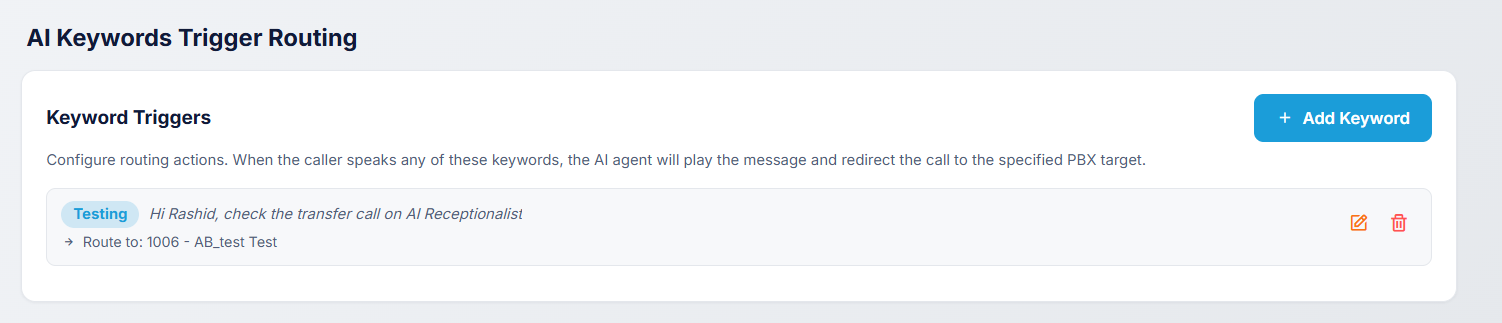
Below the System Prompt, the agent page shows two boxes: AI Keywords Trigger Routing (the Keyword Triggers list with an Add Keyword button) and Escalation to a Person (one on/off switch). On a new agent the list says "No keyword triggers configured for this agent" and the escalation switch is off.
When the caller says a keyword, the AI says your message and transfers the call to the extension or voicemail box you chose. A transfer to voicemail works, but the caller hears that the person is unavailable, so the editor warns you.
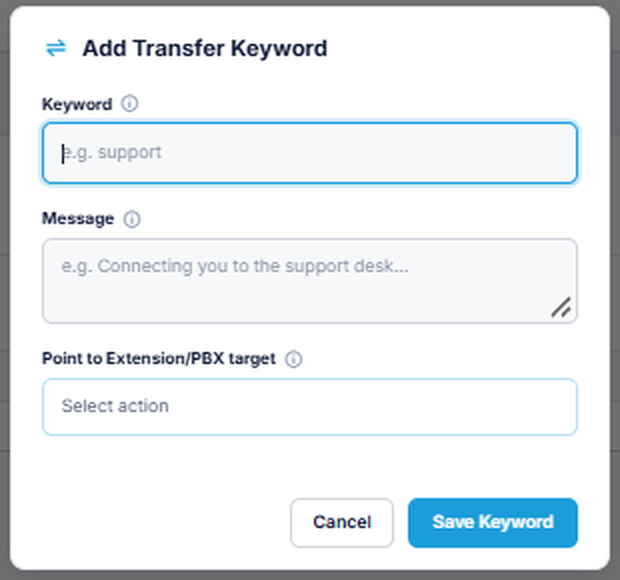
| Field | What to enter | Example |
|---|---|---|
| Keyword | The word or short phrase the caller says to trigger the transfer | support |
| Message | The sentence the AI speaks just before the call is transferred | Connecting you to the support desk. |
| Point to Extension/PBX target | The destination of the call: an extension or a voicemail box | Pick from the Select action list |
Each field has an information icon beside its label that shows a short hint. Choose keywords that callers really say, and keep one purpose for each keyword so two keywords do not compete for the same call.
Saved keywords. After you click Save Keyword, the trigger appears as a row in the Keyword Triggers list. The row shows the keyword, the message the AI will say, and the destination as "Route to". Use the orange pencil icon to edit a keyword and the red bin icon to delete it.

Sample keywords. Use these as a starting point and replace the extension numbers with your own.
| Keyword | Message the AI says | Point to Extension/PBX target |
|---|---|---|
| sales | Connecting you to our sales team. Please hold. | Sales extension (for example 1001) |
| support | Connecting you to the support desk. Please hold. | Support extension (for example 1002) |
| billing | Let me transfer you to our billing team. | Accounts extension (for example 1003) |
| appointment | Connecting you to our appointment desk. | Reception extension (for example 1004) |
Tips for keywords:
Turn on Escalate to a person to hand the call over automatically when the AI should not carry on. The agent says your message, then transfers, and the person who picks up sees a summary of the call so far. The switch is off by default; when you turn it on, these options appear:
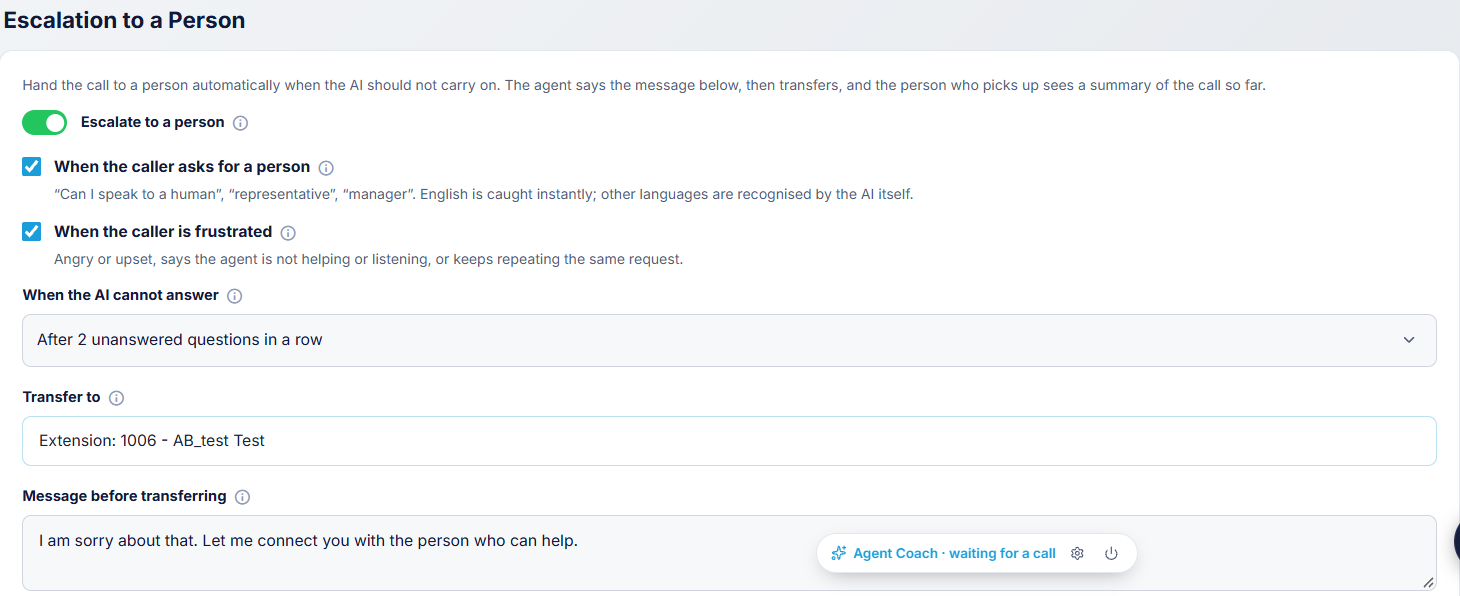
Sample escalation settings.
| Option | Sample setting |
|---|---|
| Escalate to a person | On |
| When the caller asks for a person | Ticked |
| When the caller is frustrated | Ticked |
| When the AI cannot answer | After 2 unanswered questions in a row |
| Transfer to | Your human agent or reception extension |
| Message before transferring | I am sorry about that. Let me connect you with the person who can help. |
If the AI cannot answer the call at all, for example when the key is rejected, the call is sent to a person rather than left in silence.
When a transferred call rings at an agent, a card appears at the top right of the RingQ web app. It shows who is calling, what they asked, the AI's summary, the caller's mood and the transcript, so the caller does not have to repeat themselves. It goes away when the call ends.
Do this before announcing the number:
Status and Restart. On the AI Receptionists page, Status shows whether the voice service is running and what is missing, and Restart starts it again. If the service does not come back, contact RingQ support.
Call records. After each call the receptionist saves a summary, the caller's mood, their intent and the next step, together with the transcript. For a transferred call the record is available to the agent who took it. If the summary service is busy, the record is saved without a summary and the transcript is kept.
Good habits:
Most problems come from a missing key, a taken extension or a service that was not restarted.
| What you see | Likely cause | What to do |
|---|---|---|
| Red message "Extension N is already used by another program" | Another rule already uses that number | Choose a free extension, or remove the old rule that uses that number, then save again |
| Receptionist never answers | The agent is disabled, or its extension was never set up | Turn on Enable Agent, save, and check there is no red message |
| A Claude, Groq, DeepSeek or Grok agent sends calls straight to a person | No Deepgram key saved | Open Voice settings on the AI Receptionists page and save the key |
| "... rejected this API key (HTTP 401)" on save | The key is wrong, cut off, revoked, or not an API key | Copy a fresh API key from the provider's console and save again |
| Greeting plays but the AI never replies | Nothing was said, or speech was not recognised | Wait for the whole greeting, then speak clearly for a few seconds; check Status |
| Status says the service is not running | The voice service stopped | Click Restart. If it does not come back, contact RingQ support |
