Security update: RingQ is patched against the critical PHP vulnerabilities. Update your servers today.

Read now
RingQ Customer Centric Communications

Set Up AI Agent Coach


AI Agent Coach coaches your human agents during a call: it shows who is calling, a live transcript, suggested replies and the caller's mood, then writes an after-call note. This guide shows an administrator how to switch it on and set it up, and shows agents how to use it. Agents only need the last part, "Using it during a call".

Where to find it. You switch it on under Settings > Agent Assist. In the RingQ web app, the settings dialog, the panel agents see and the small pill near the dialer are labelled Agent Coach ("Coaching for your agents during a call: suggested replies and after-call notes").

Before you start

Have these ready:

  • An administrator login. Only administrators can switch AI Agent Coach on and change its settings.
  • An OpenAI key for live transcript. AI Agent Coach needs it to turn call audio into text.
  • An API key for the AI you choose. OpenAI or Claude, for the suggested replies and call notes.
  • Business context (optional). A short description of the company and its rules, and an SI Receptionist whose knowledge base can ground the suggestions.

Administrator setup

AI Agent Coach is off for everyone until an administrator turns it on. Open Settings, then Agent Assist (next to AI Receptionists). The dialog opens with the title Agent Coach. Work down it from the top.
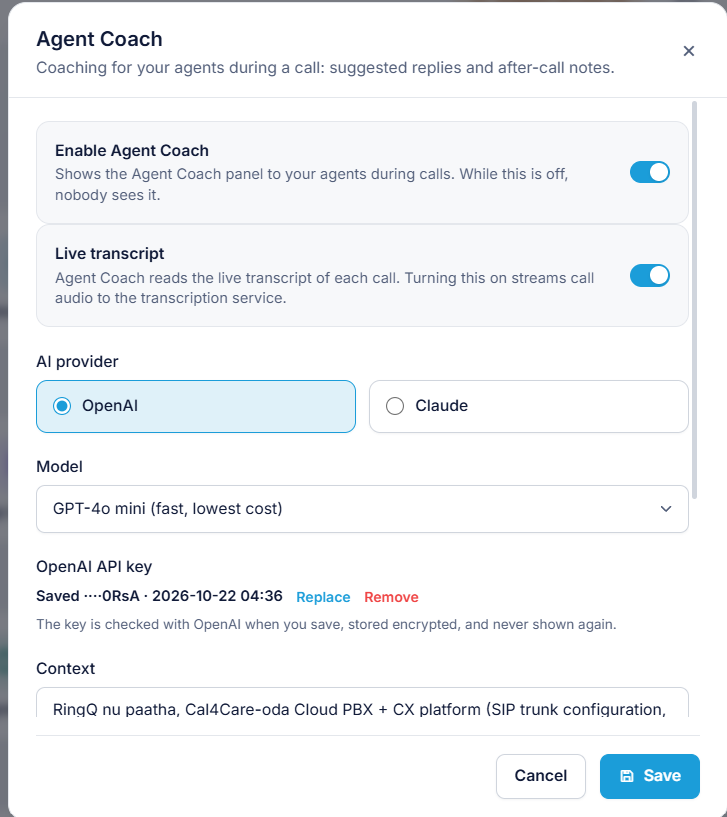
Agent Coach settings dialog
  1. Enable Agent Coach. Turn it on to show the Agent Coach panel to your agents during calls. While it is off, nobody sees it.
  2. Live transcript. Turn it on so Agent Coach can read the live transcript of each call. Turning it on streams call audio to the transcription service, which needs an OpenAI key. If you already saved an OpenAI key below, click Use my saved OpenAI key and turn it on. Otherwise open A.I. Transcribe from the link and add the key there. If the dialog says the older audio script is in use, click Switch to the OpenAI audio stream.
  3. AI provider. Choose OpenAI or Claude. The chosen button is highlighted.
  4. Model. Pick a model from the dropdown. The default is the faster and cheaper one (for OpenAI, "GPT-4o mini (fast, lowest cost)"; for Claude, Claude Haiku). A larger model (GPT-4o, GPT-4.1, Claude Sonnet) gives fuller answers at higher cost.
  5. API key. Paste the key for the provider you chose. It is checked with the provider when you save, stored encrypted and never shown again. Once saved, the dialog shows "Saved", the last four characters and the date and time it was saved, with Replace and Remove links. OpenAI can reuse the live-transcription key if you add none here.
  6. Context. Up to 4,000 characters about the company and how agents should sound, for example plans, opening hours and house rules.
  7. Knowledge source. Choose the SI Receptionist whose knowledge base should ground the suggestions, or none.
  8. Click Save. Click Cancel to close the dialog without saving.

Administrators also see a gear icon on the panel itself, which opens the same dialog.

Using it during a call

Once an administrator has switched AI Agent Coach on, a small pill appears near the dialer that says Agent Coach · waiting for a call. You do nothing to start it.

Agent Coach pill near the dialer

When a call rings, the panel opens and shows:

  • Who is calling. Name, company, email and notes if the caller is in your contacts, with an "In contacts" tag. If not, you see the last wrap-up note, anything the SI Receptionist learned, or just the number, tagged "New caller". Internal extensions are tagged "Internal".
  • The live transcript. Your words are marked "You" and the caller's "Customer". It starts once the call is answered, so the first words can take a few seconds.
  • A suggested reply. It appears after the customer finishes a sentence. Use Copy to paste it, or say it in your own words. Short reminders and source links to the knowledge base may sit under it.
  • The caller's mood. Positive, neutral, unhappy or angry, shown at the top.

After the call, the panel shows an after-call note with a summary, the next step and the outcome. Click Copy note to paste it into your CRM, or Write it again for a fresh version. During a long call, Summarise now writes a note early.

Turning it off. Use the power icon on the pill to switch AI Agent Coach off for yourself. Click the pill again to bring it back. This does not affect other agents.

Good to know. Suggestions are for you only and are never spoken to the customer. They are a help, not an instruction: check anything important before you promise it. The transcript appears for calls that you place or that are dialled to your extension; calls handled by the SI Receptionist are not transcribed in your panel.

Troubleshooting

What you seeLikely causeWhat to do
The Agent Coach pill is missingAI Agent Coach is off for the company, or you turned it off for yourselfAsk an administrator to turn it on, or click the pill to bring it back
"Connecting the live transcript..." never endsLive transcript is off or has no OpenAI keyTurn on Live transcript in Settings > Agent Assist and check the OpenAI key. If it still does not connect, contact RingQ support
Transcript shows but no suggestionsNo provider key for AI Agent CoachAdd the key in Settings > Agent Assist, then Save
Caller shows "Unknown caller - Caller ID not available"The phone sent a device id, not a phone numberNothing to fix; the transcript and suggestions still work
Suggestions feel slowA large model is selectedChoose the smaller, faster model