Security update: RingQ is patched against the critical PHP vulnerabilities. Update your servers today.

Read now
RingQ Customer Centric Communications

RingQ SSO


You can sign in to the RingQ web app without typing a password or waiting for an email code. Your phone, already signed in to the RingQ app, approves the sign-in for you. There are two ways to do it:

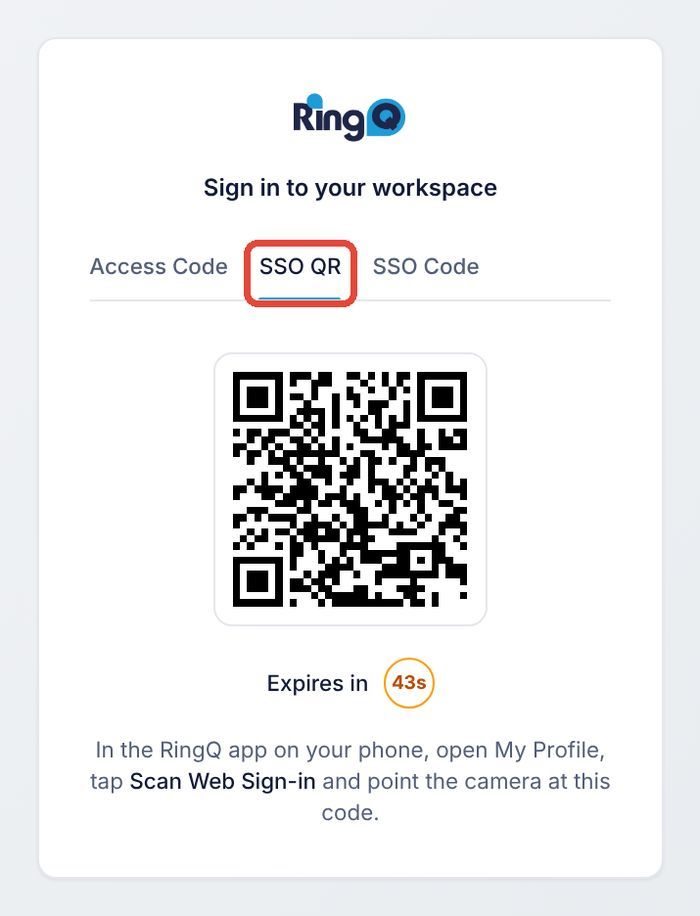
  • SSO QR: the web login page shows a QR code. You scan it with the RingQ app and the browser signs in.
  • SSO Code: you enter your email on the web login page. A two-digit number appears. You tap the same number in the RingQ app and the browser signs in.

Both ways take a few seconds, and each request is valid for 45 seconds.
Before you start

  • Install the RingQ app on your iPhone or Android phone and sign in to it with your account.
  • The app must be signed in to the same RingQ server as the web page you are signing in to. The server name is shown in the app under My Profile > Server.
  • Your administrator must turn on SSO QR and SSO Code for the company and for your extension (steps 1 and 2 below).
  • The server must accept connections on TCP port 8886. This is the sign-in service the login page uses. See the Port Forwarding guide.

Step 1 (administrator): turn on SSO QR and SSO Code for the company

  1. Sign in to the RingQ web app as an administrator.
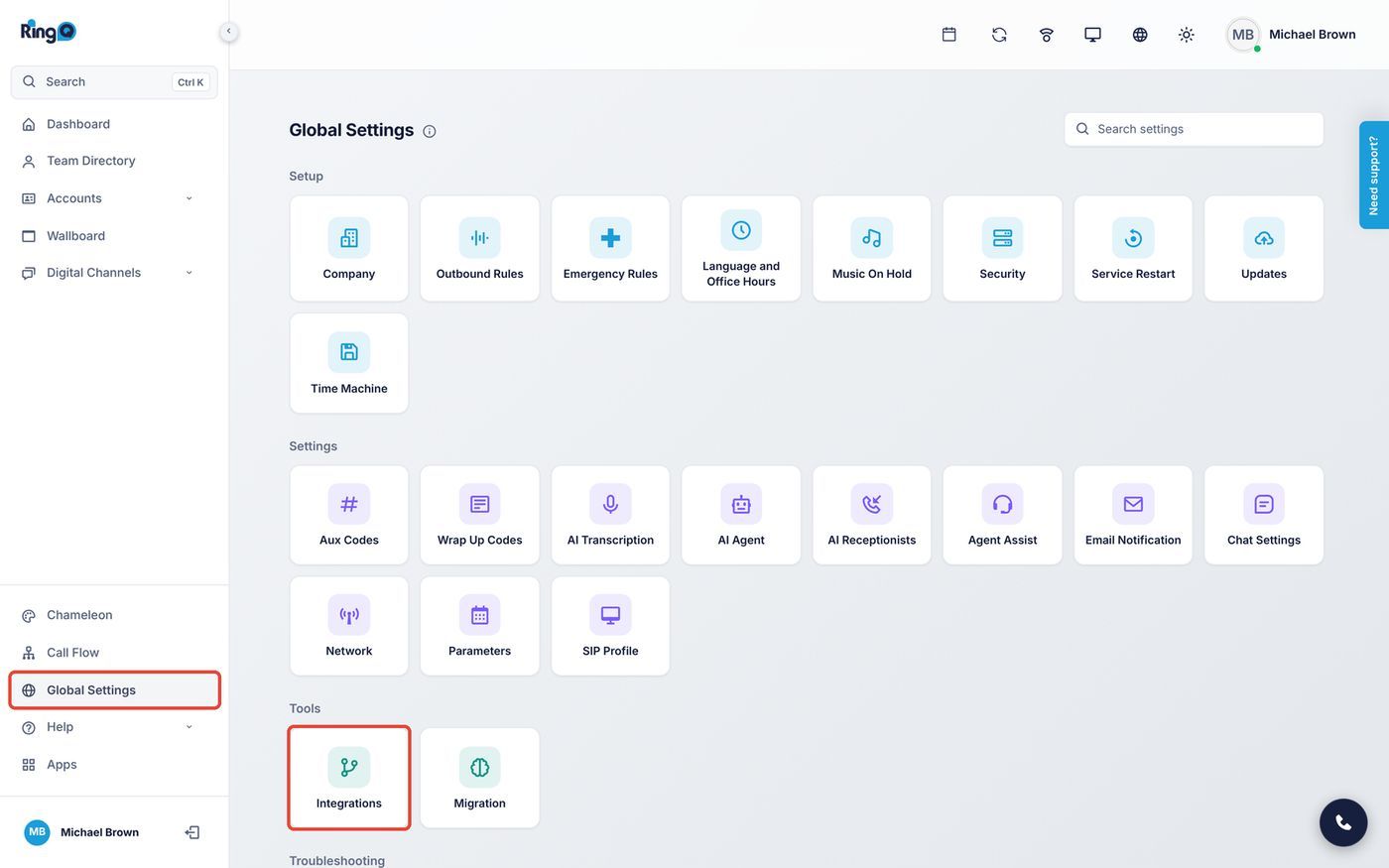
  2. In the left menu, click Global Settings.
  3. Under Tools, click Integrations.
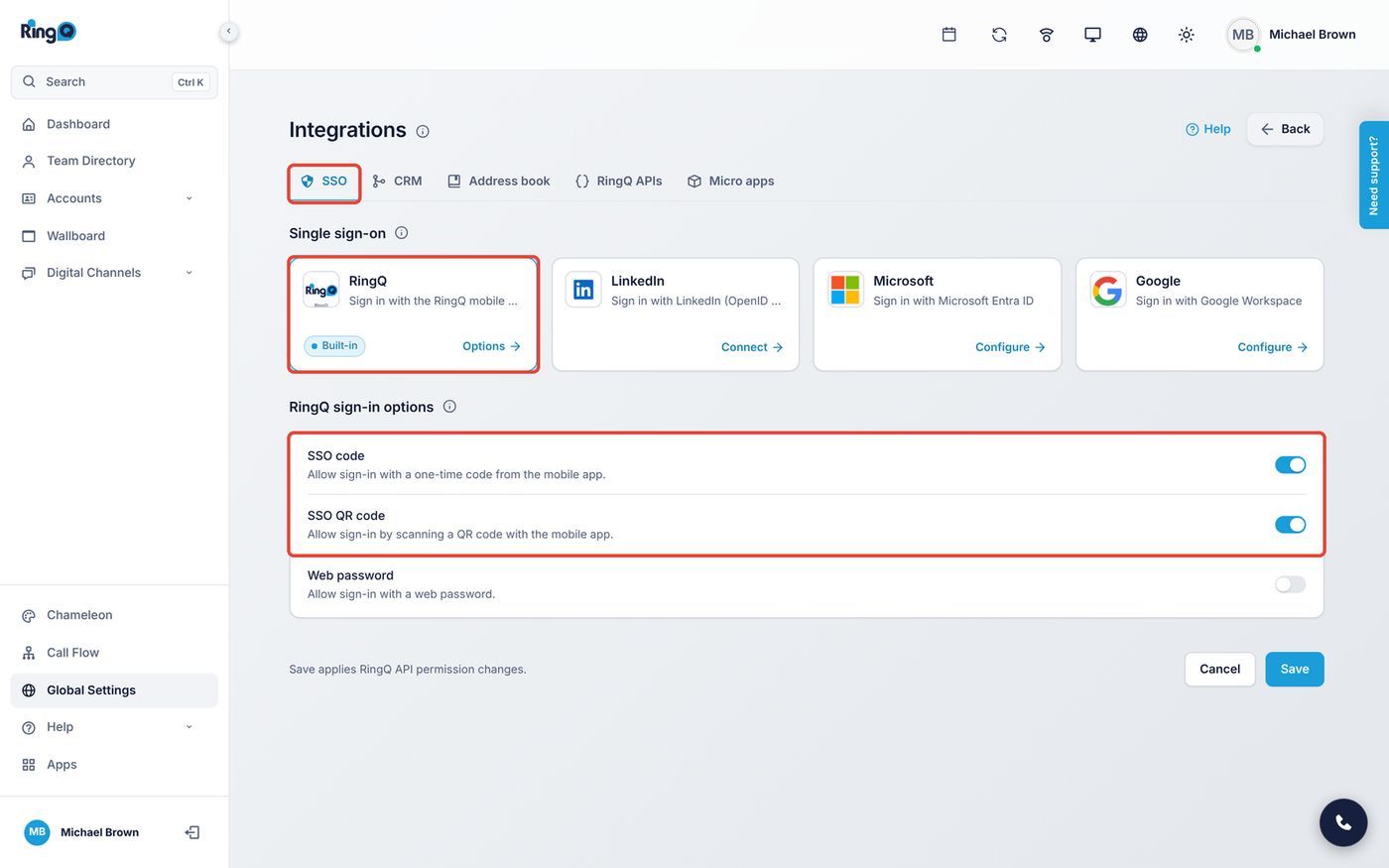
  4. Stay on the SSO tab. In Single sign-on, click Options on the RingQ card ("Sign in with the RingQ mobile app").
  5. In RingQ sign-in options, switch on:
    • SSO code: allow sign-in with a one-time code from the mobile app.
    • SSO QR code: allow sign-in by scanning a QR code with the mobile app.
  6. Changes are saved as soon as you switch them. You will see "SSO Config Saved successfully."
Global Settings > Integrations
Integrations > SSO > RingQ sign-in options

Web password on the same list controls the Password tab on the login page. Leave it off if you want your team to sign in only with Access Code, SSO QR or SSO Code.

Step 2 (administrator): turn it on for each extension

Each extension has its own switches, so you can allow app sign-in for some users and not others.
  1. In the left menu, click Accounts > Extensions.
  2. Click the extension you want to change.
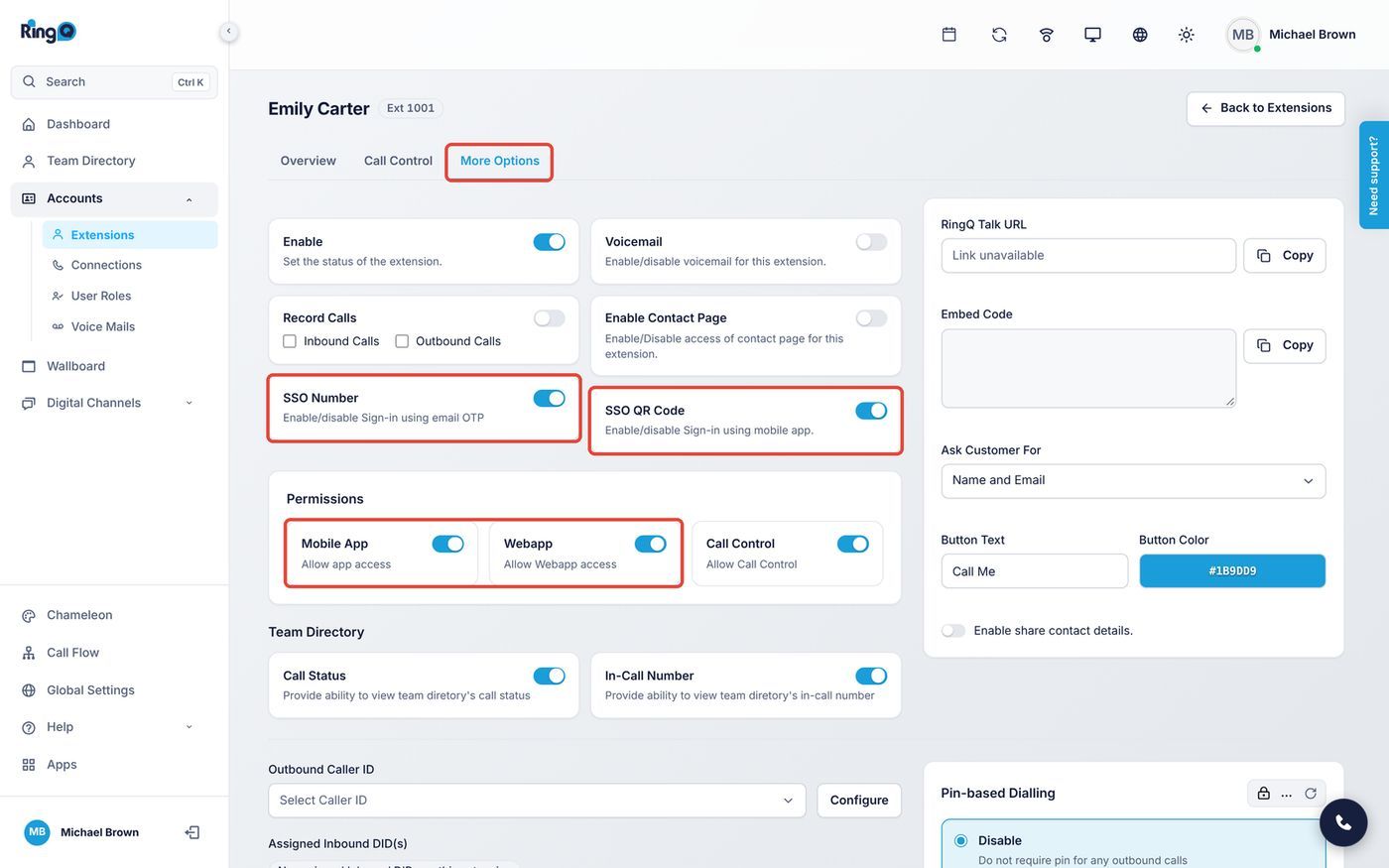
  3. Open the More Options tab.
  4. Switch on:
    • SSO Number: the extension's switch for SSO Code sign-in.
    • SSO QR Code: the extension's switch for SSO QR sign-in.
  5. Under Permissions, make sure Mobile App and Webapp are on. The user needs both: the app to approve, the web app to sign in to.
  6. Click Update at the bottom of the page.
Extension > More Options > SSO switches

To change many extensions at once, select them on the Extensions page and use bulk edit. It has the same SSO Number and SSO QR Code switches.
Where to find web sign-in in the RingQ app

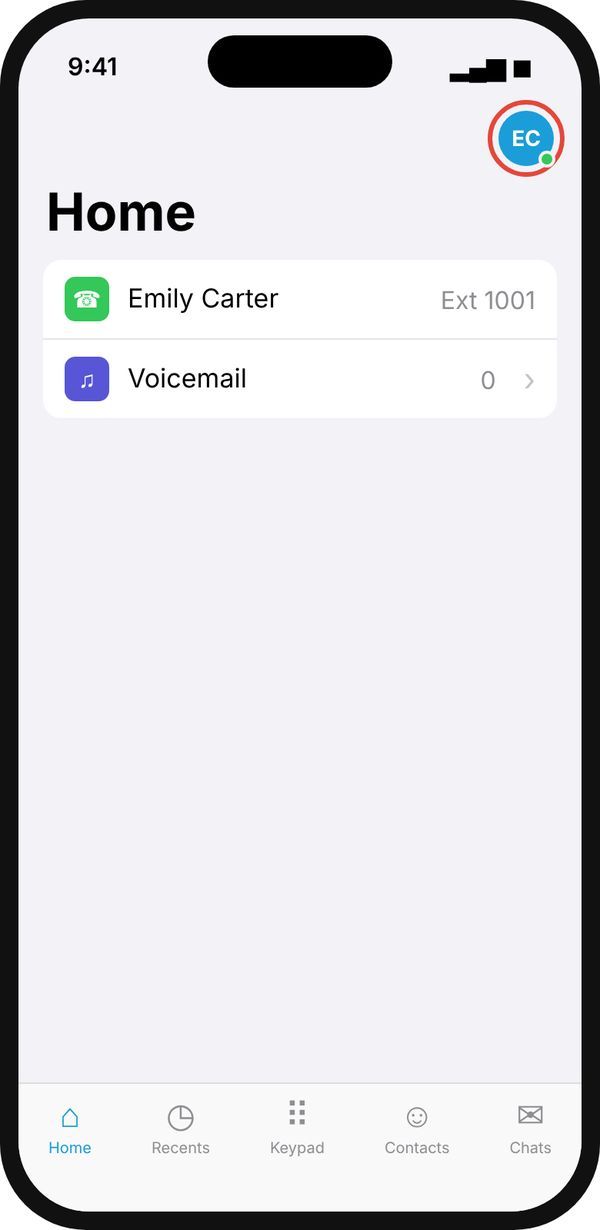
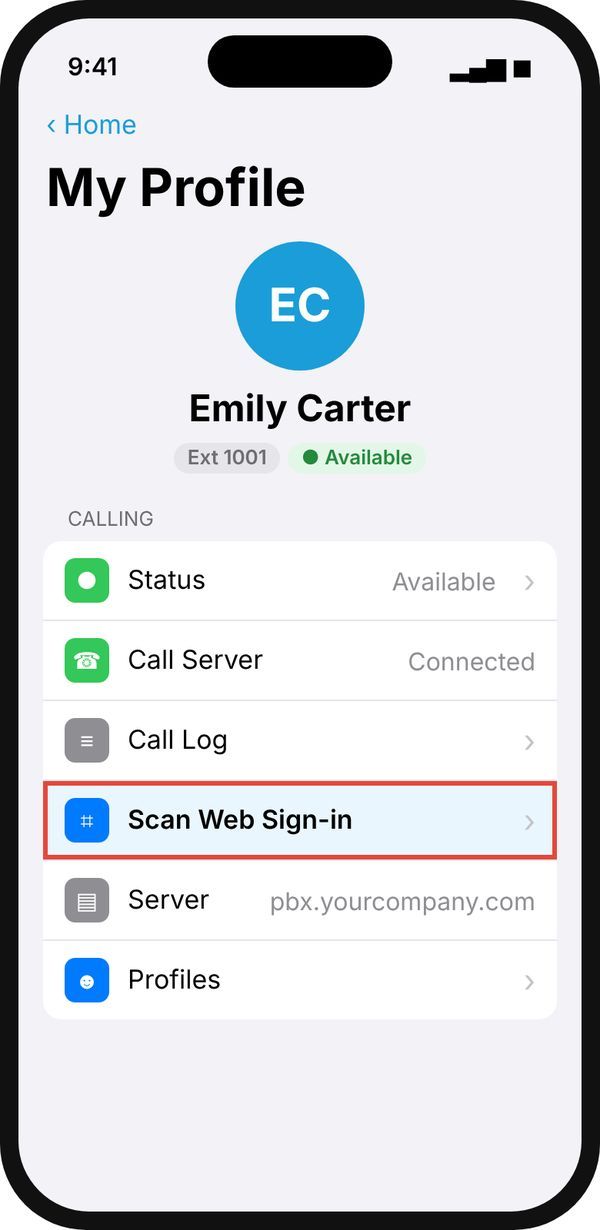
  • Scan Web Sign-in (for SSO QR): tap your photo or initials at the top of the Home screen (top left on Recents) to open My Profile. In the Calling section, tap Scan Web Sign-in.
  • Sign in to RingQ web? (for SSO Code): you don't need to open any menu. When you send a code from the web page, the app shows the request by itself.
Open My Profile from Home
My Profile > Calling > Scan Web Sign-in

Sign in with SSO QR

  1. Open the RingQ web login page in your browser.
  2. Click the SSO QR tab. A QR code appears with an Expires in timer.
  3. On your phone, open the RingQ app and go to My Profile > Scan Web Sign-in.
  4. The first time, the app asks for camera access. Tap Allow Camera. RingQ uses the camera only to read the sign-in code.
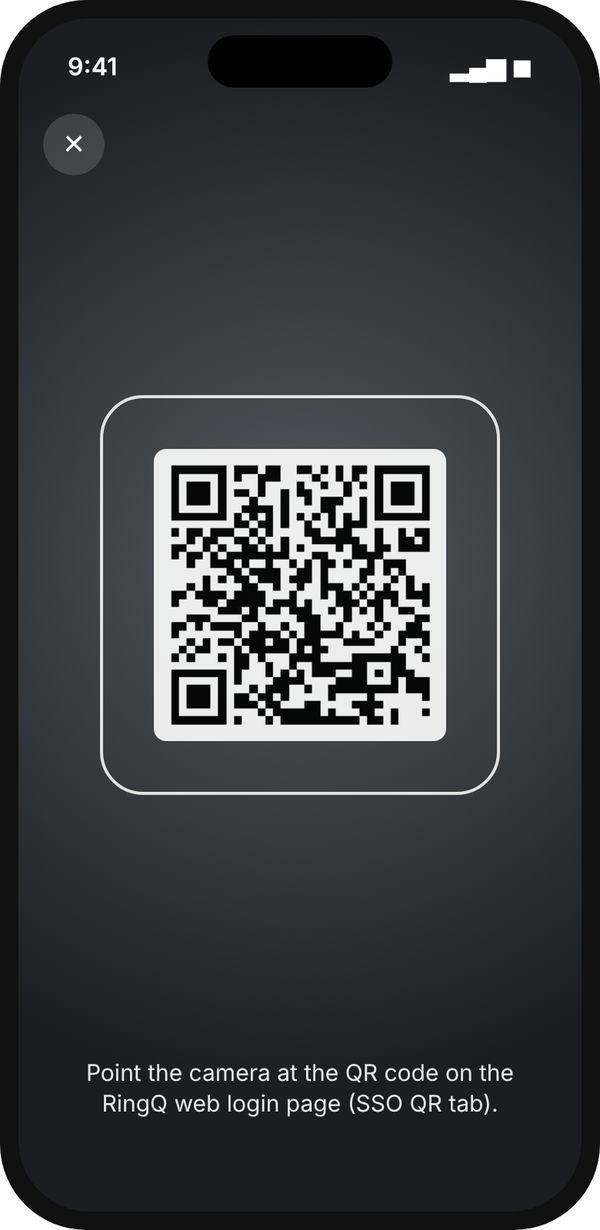
  5. Point the camera at the QR code on the web page.
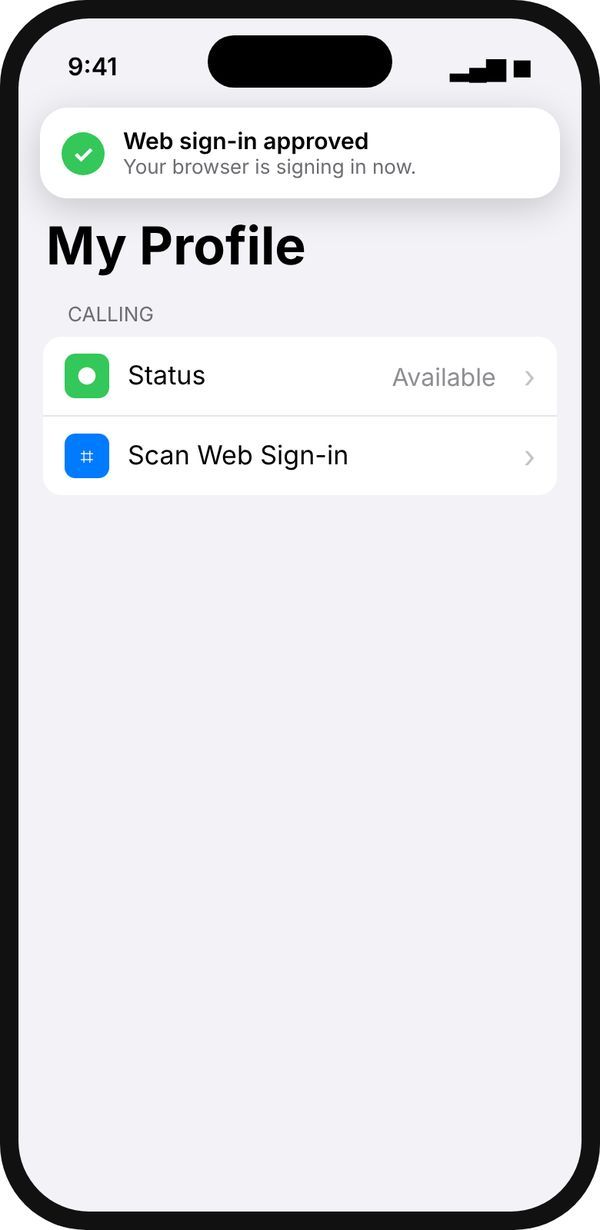
  6. The app shows "Web sign-in approved. Your browser is signing in now." The web page opens your RingQ dashboard.
Web login page, SSO QR tab
Scan Web Sign-in camera screen
Web sign-in approved

The browser signs in as the account that is signed in on the phone. If the timer runs out, click Refresh QR on the web page and scan the new code.
Sign in with SSO Code

  1. Open the RingQ web login page in your browser.
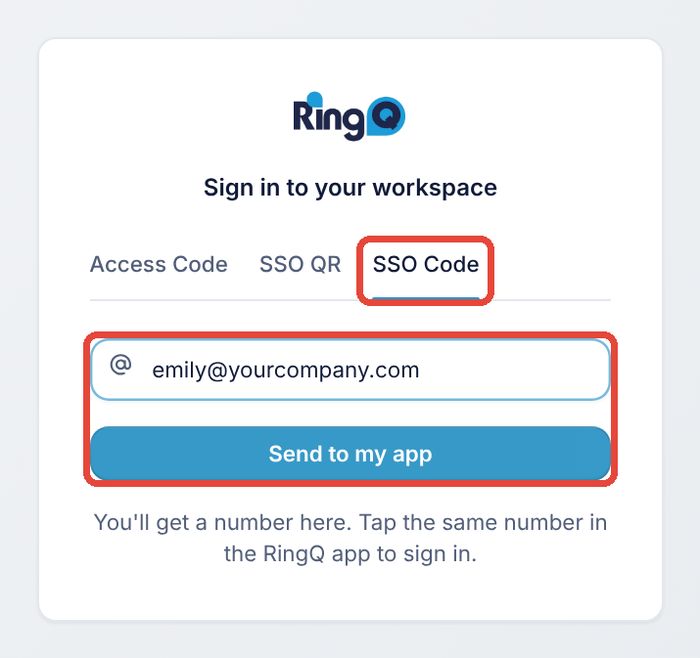
  2. Click the SSO Code tab.
  3. Enter your email address and click Send to my app.
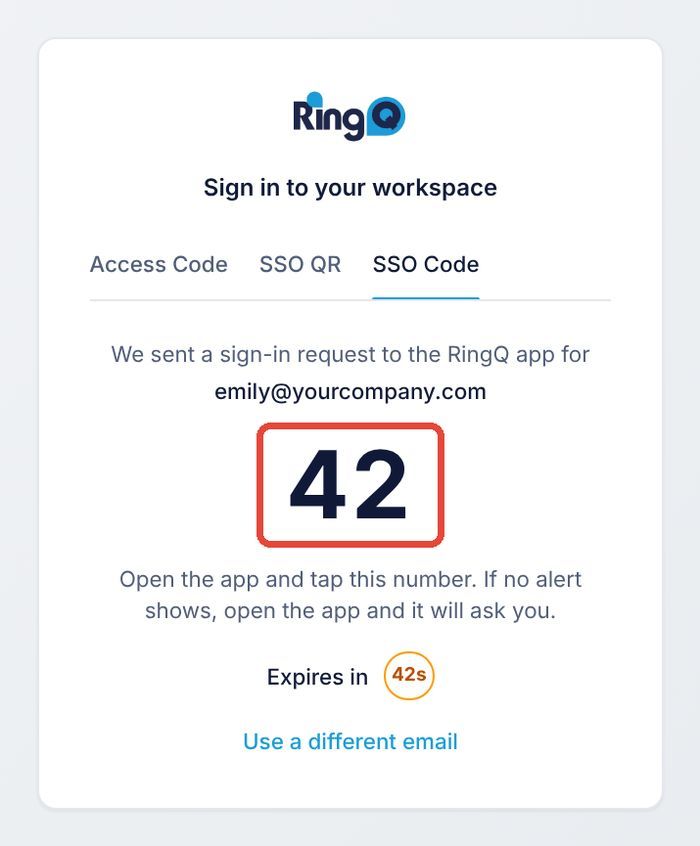
  4. The page shows a two-digit number and an Expires in timer.
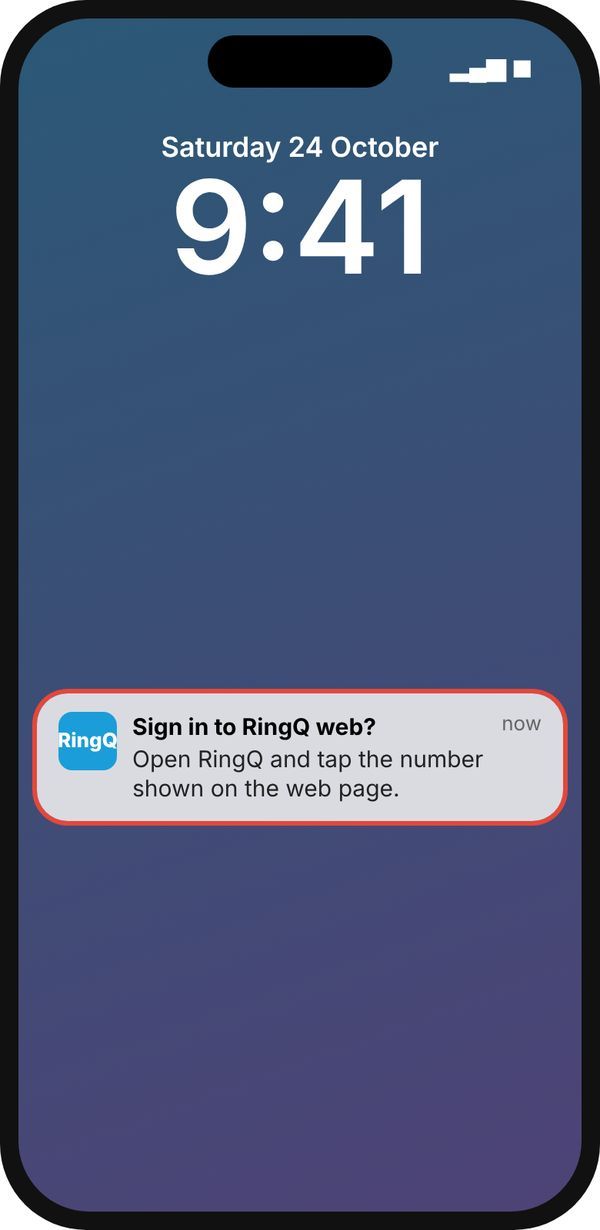
  5. Your phone gets a notification: Sign in to RingQ web? Tap it to open the app. If the app is already open, the request appears on screen straight away. If no notification arrives, just open the RingQ app and it will ask you.
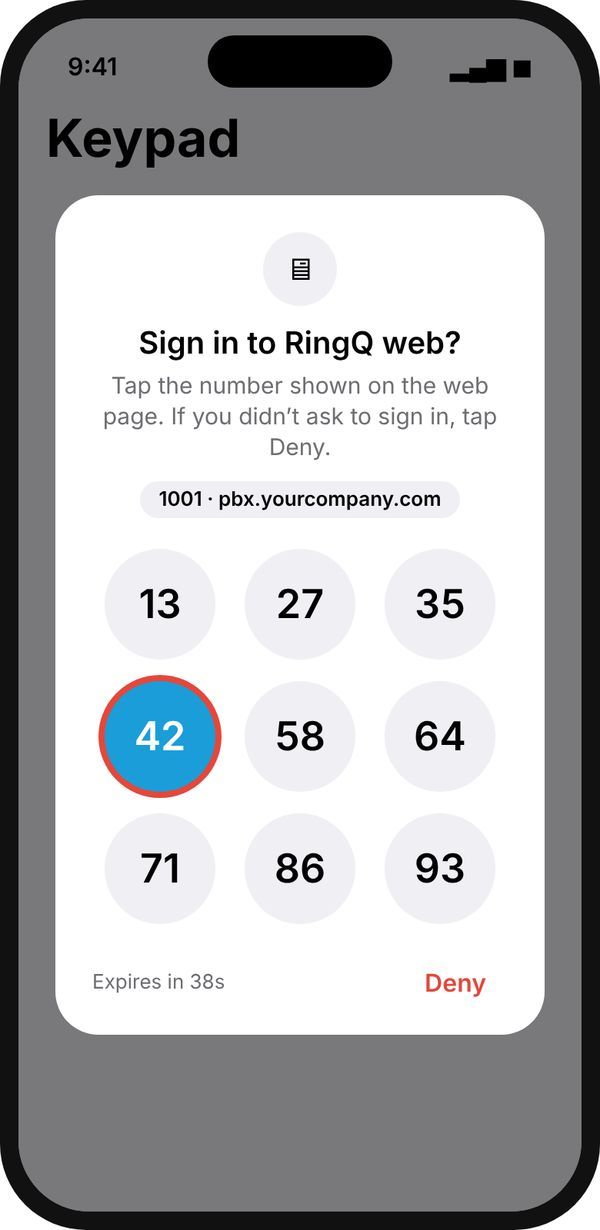
  6. The app shows Sign in to RingQ web? with nine numbers and the extension and server the request is for. Tap the number that matches the web page.
  7. The app shows "Web sign-in approved" and the web page opens your RingQ dashboard.
Web login page, SSO Code tab
The number to match in the app
Sign-in notification
Tap the matching number

If you didn't ask to sign in, tap Deny. If you tap the wrong number, the app says "Not approved" and you can try again before the timer runs out. If the request expires, the web page says "The request expired. Send it again." Click Send to my app again. To use another account, click Use a different email.

Using more than one profile in the app

If the RingQ app has more than one profile (for example two companies or two servers), the request reaches every profile. The request card shows the extension and server it is for, such as "1001 · pbx.yourcompany.com", so you can check it before you tap.

Troubleshooting

What you seeWhat to do
Web page: "Couldn't reach the sign-in service. Check your connection and try again."The browser can't reach the server's sign-in service. Check your internet connection. Your administrator should check that TCP port 8886 is open to the server.
The QR code keeps spinning, or Send to my app stays greyed outSame as above: the page is waiting for the sign-in service on port 8886.
App: "Not a web sign-in code"You scanned a different QR code. Open the SSO QR tab on the RingQ web login page and scan that code.
App: "Different server"The app is signed in to another RingQ server. Sign in to the app on the same server as the web page, or add that server as a profile in My Profile > Profiles.
App: "Couldn't sign in"The QR code expired or was already used. Click Refresh QR on the web page and scan again.
No request appears in the app for SSO CodeOpen the RingQ app while the timer is still running. Check that the email you entered belongs to the account signed in on the phone, and that SSO Number is on for your extension. Check that notifications are on for RingQ (My Profile > Notifications).
App: "Camera access needed"Tap Allow Camera, or Open Settings and turn on the camera for RingQ.
The SSO QR and SSO Code tabs work for some users but not othersCheck SSO Number and SSO QR Code on each extension (Step 2), and that Mobile App and Webapp are on under Permissions.

Security notes

  • Every request expires after 45 seconds and can be used once.
  • SSO Code needs you to tap the matching number among nine, so a stray tap can't approve a sign-in.
  • Tap Deny for any request you didn't start, and tell your administrator.
  • To stop app sign-in for one person, switch off SSO Number and SSO QR Code on their extension. To stop it for everyone, switch off SSO code and SSO QR code in Global Settings > Integrations > SSO.