Security update: RingQ is patched against the critical PHP vulnerabilities. Update your servers today.
Read nowWith Microsoft single sign-on (SSO), your team signs in to the RingQ web app with the Microsoft work account they already use for Outlook and Teams. There is no separate RingQ password to remember, and your Microsoft security rules, such as multi-factor authentication and Conditional Access, apply to RingQ too.
Setting it up takes about 15 minutes and has three parts:
Write down the client secret's expiry date. When it expires, Microsoft sign-in stops working until you create a new secret and enter it in RingQ (Part 2).
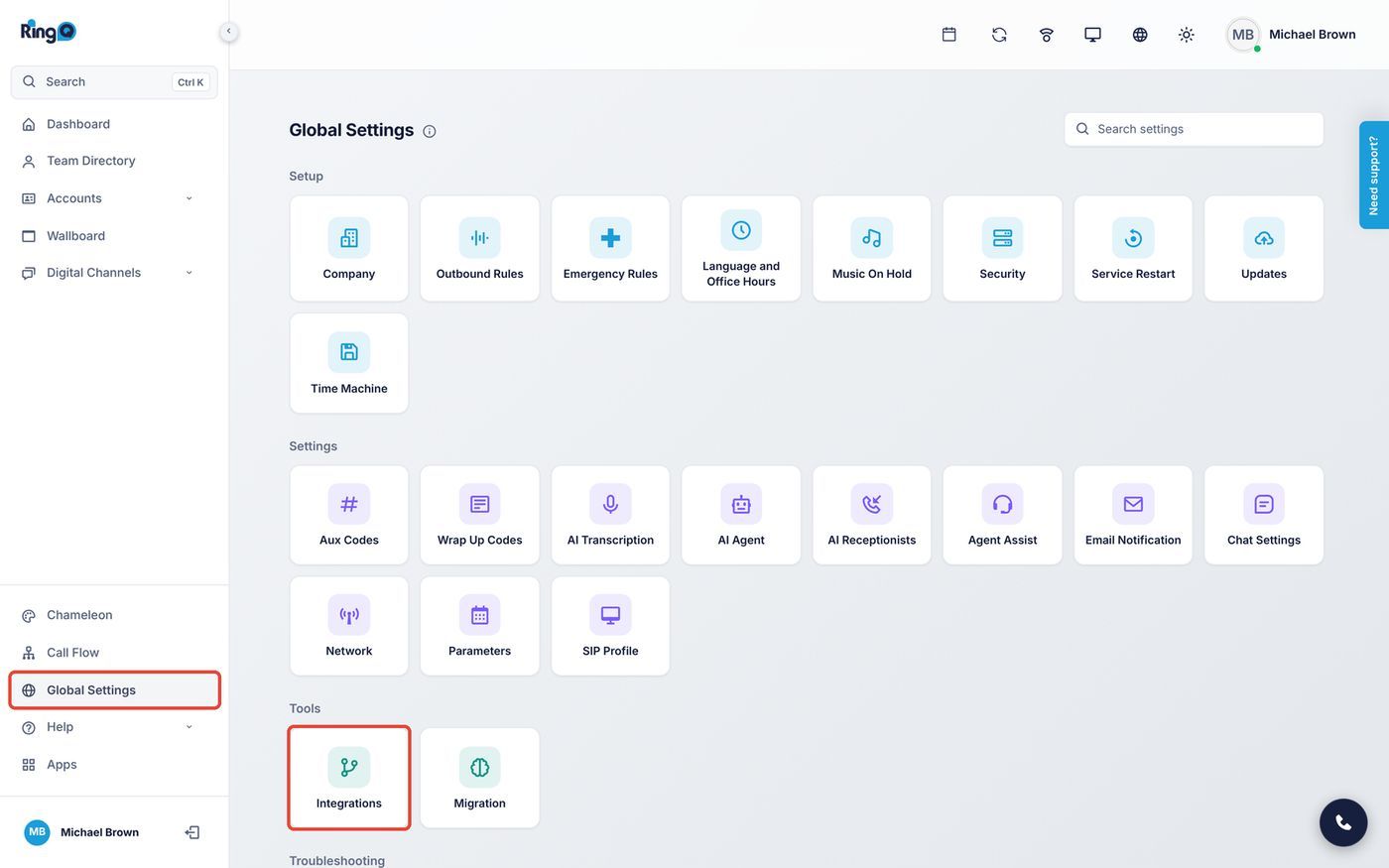
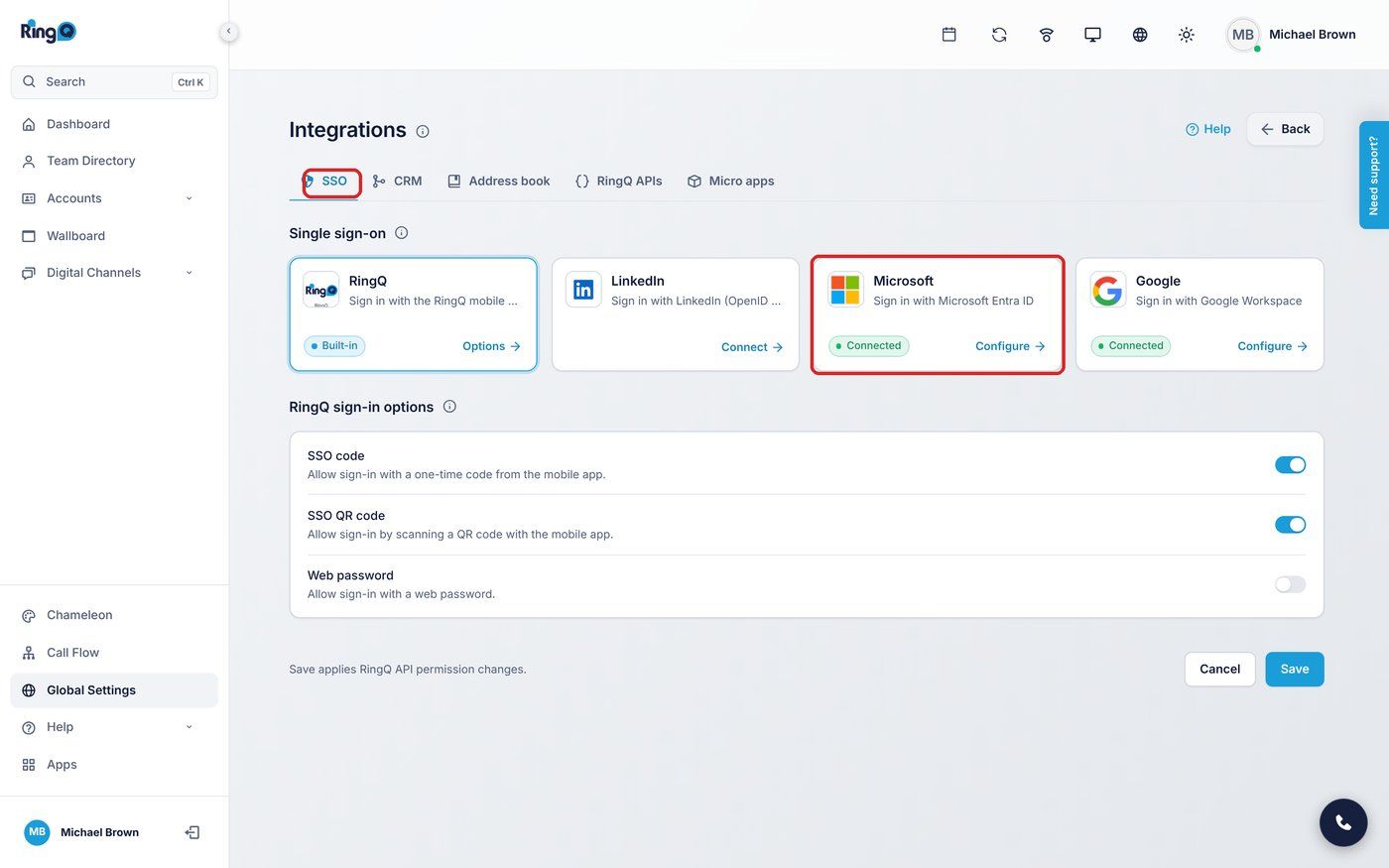
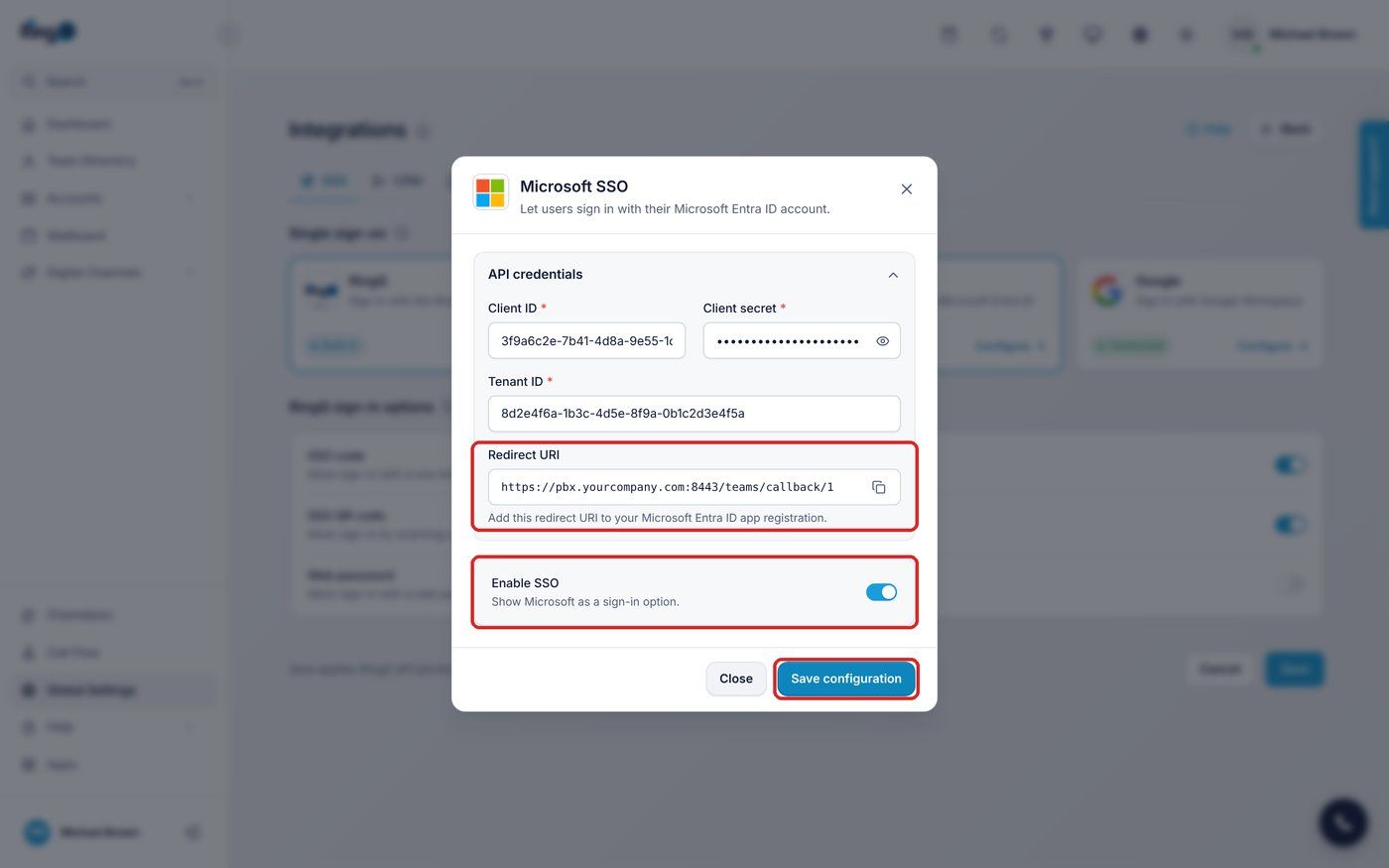
All three credential fields are required. If one is empty, the window shows "Please fill in all credentials."
If you also use Address book > Microsoft 365: the address book and Microsoft SSO share the same Microsoft settings. After you save the address book settings, open SSO > Microsoft > Configure again and check that Enable SSO is still on.
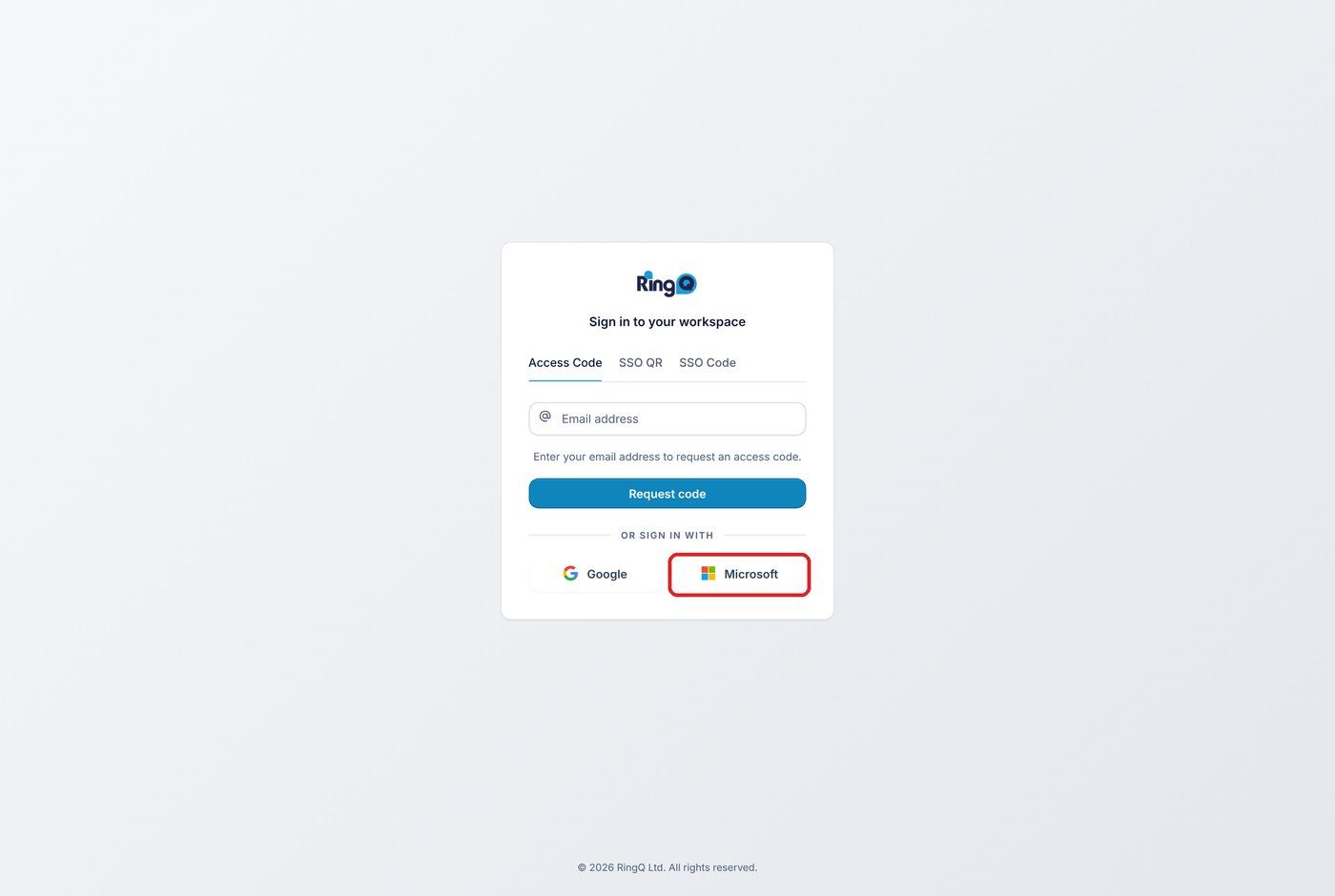
Next time, if you are still signed in to Microsoft in that browser, step 3 is usually a single click on your account.
The Microsoft button appears only when Enable SSO is on. The other sign-in tabs (Access Code, SSO QR and SSO Code) keep working alongside it.
| What you see | What to do |
|---|---|
| No Microsoft button on the login page | Check that Enable SSO is on and saved (Part 2). Settings belong to the RingQ address you were signed in on when you saved them, so save them while using the same address your team uses. |
| "Microsoft is not configured. Redirecting to Login..." | Microsoft SSO hasn't been saved for this RingQ address. Do Part 2 while signed in on this address. |
| "Microsoft SSO is disabled. Redirecting to Login..." | Enable SSO is off. Switch it on and click Save configuration. |
| Microsoft error AADSTS50011 (redirect URI mismatch) | The redirect URI in Entra doesn't match RingQ. In Entra, under Authentication, add exactly the address shown in the RingQ Microsoft SSO window, including :8443/teams/callback/1. |
| Microsoft error AADSTS7000215 (invalid client secret) | The secret is wrong or has expired, or the Secret ID was copied instead of the Value. Create a new client secret in Entra and paste its Value in RingQ. |
| Microsoft error AADSTS700016 (application not found) | The Client ID or Tenant ID is wrong. Copy both again from the app's Overview page. |
| Microsoft error AADSTS65001 (consent required) | Accept the permission prompt, or ask your Microsoft administrator to click Grant admin consent (Part 1, step 9). |
| A page showing "An error has occurred. (Code LF1001)" | No RingQ user has this email. Make sure the email on the RingQ user is the same as the Microsoft sign-in email. |
| A page showing "(Code LF1003)" or "(Code LF1004)" | The RingQ user exists but isn't linked to an extension. Ask your RingQ administrator to check the user's extension. |
| Login page says "Invalid token." | The sign-in link expired before the browser used it (it lasts 5 minutes), or it was already used. Click Microsoft and sign in again. |
| The browser can't open the page after Microsoft sign-in | TCP port 8443 is blocked between the browser and the RingQ server. Ask your administrator to open it. |
