Security update: RingQ is patched against the critical PHP vulnerabilities. Update your servers today.

Read now
RingQ Customer Centric Communications

Google SSO


With Google single sign-on (SSO), your team signs in to the RingQ web app with the Google Workspace account they already use for Gmail and Google Calendar. There is no separate RingQ password to remember, and your Google security rules, such as 2-Step Verification, apply to RingQ too.

Setting it up takes about 15 minutes and has three parts:

  • Part 1 (Google administrator): create an OAuth client for RingQ in Google Cloud Console.
  • Part 2 (RingQ administrator): enter the client details in RingQ and switch Google SSO on.
  • Part 3 (every user): sign in with the Google button on the RingQ login page.

Before you start

  • You need a Google account that can create projects and OAuth clients in Google Cloud Console for your Google Workspace organization.
  • You need a RingQ administrator account.
  • Know your RingQ web address, the address your team types in the browser, such as pbx.yourcompany.com. This guide calls it your RingQ address.
  • Each person who will sign in must already have a RingQ extension, and the email address on that RingQ user must be the same as their Google account email (for example emily@yourcompany.com in both places). RingQ uses the email to find the right user.
  • The server must accept connections on TCP port 8443. The Google sign-in returns to RingQ on this port. See the Port Forwarding guide.

Part 1 (Google administrator): create an OAuth client in Google Cloud Console

  1. Sign in to console.cloud.google.com with your Google Workspace administrator account.
  2. At the top of the page, pick an existing project or click New project, name it (for example "RingQ Sign-in") and click Create.
  3. Open the menu and go to APIs & Services > OAuth consent screen. If Google asks you to configure it, click Get started and enter:
    • App name: RingQ (the name users see on the Google sign-in page).
    • User support email: your support or admin email.
    • Audience: Internal. Only accounts in your Google Workspace organization can then sign in.
    • Contact information: your email address.
  4. Agree to the Google API Services User Data Policy and click Create.
  5. RingQ asks Google only for the scopes openid, email and profile. These are basic scopes, so no Google verification is needed and you don't have to add other scopes.
  6. Go to APIs & Services > Credentials, click Create credentials and choose OAuth client ID.
  7. Fill in the form:
    • Application type: Web application.
    • Name: RingQ web sign-in.
    • Authorized redirect URIs: click Add URI and enter https://your RingQ address:8443/teams/googlecallback/1, for example https://pbx.yourcompany.com:8443/teams/googlecallback/1. You can also copy it from the RingQ Google SSO window in Part 2.
  8. Click Create.
  9. Google shows Your Client ID and Your Client Secret. Copy both, or click Download JSON, and keep them for Part 2.

Google can take a few minutes to apply a new or changed redirect URI. If the first sign-in test fails with redirect_uri_mismatch straight after setup, wait five minutes and try again.
Part 2 (RingQ administrator): switch on Google SSO in RingQ

  1. Sign in to the RingQ web app as an administrator, using your RingQ address (the same address your users will use).
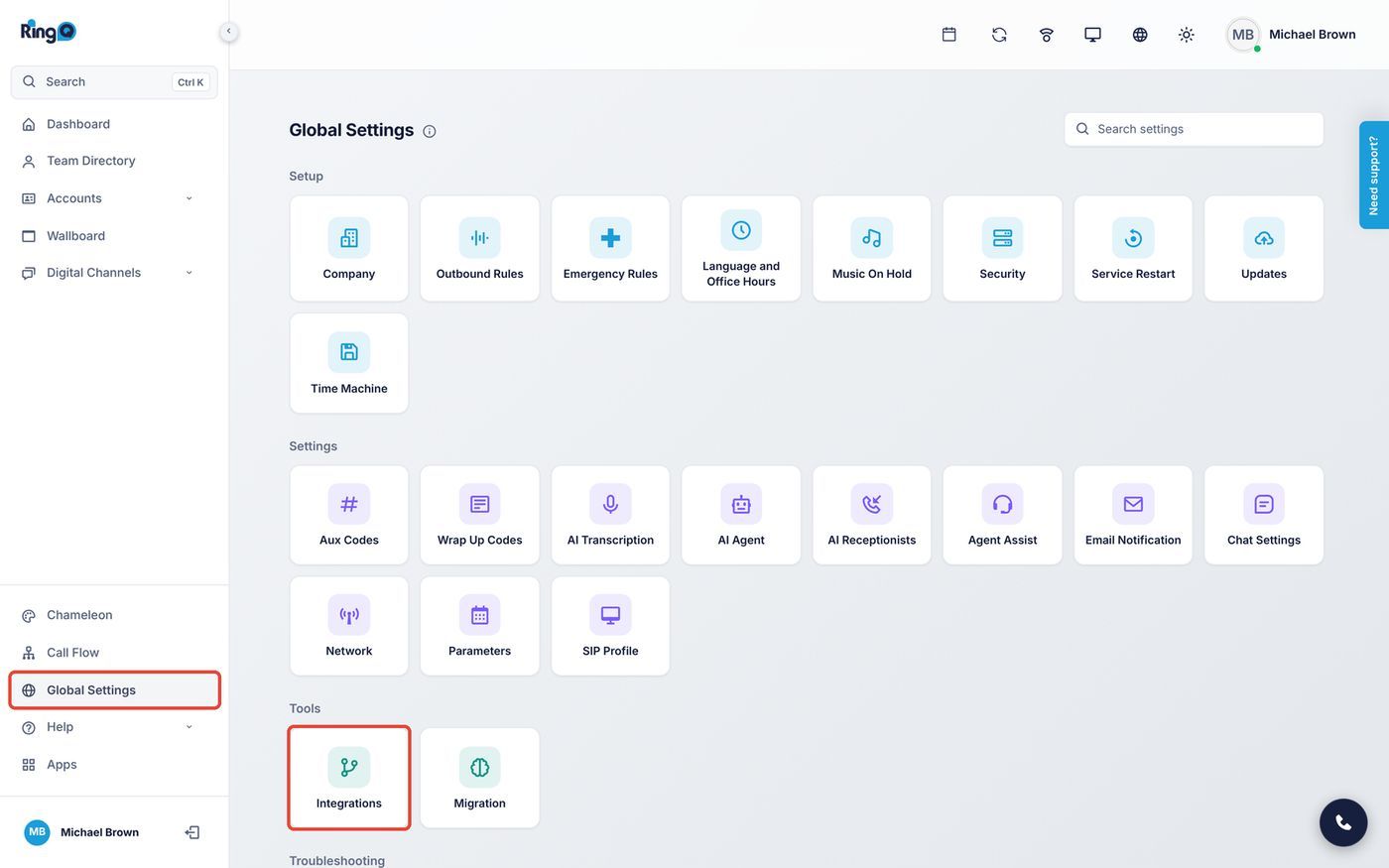
  2. In the left menu, click Global Settings.
  3. Under Tools, click Integrations.
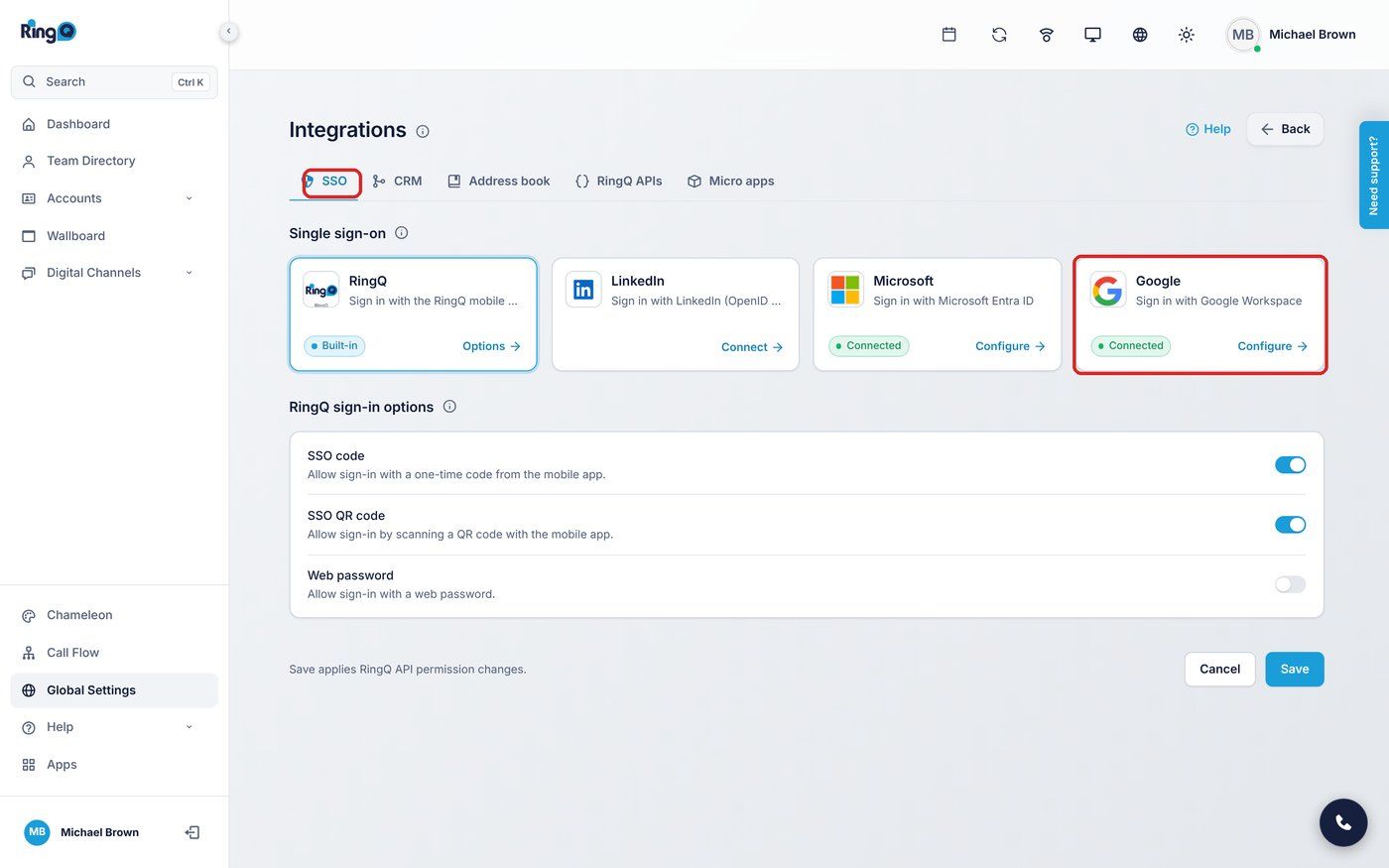
  4. Stay on the SSO tab. In Single sign-on, find the Google card ("Sign in with Google Workspace") and click Configure.
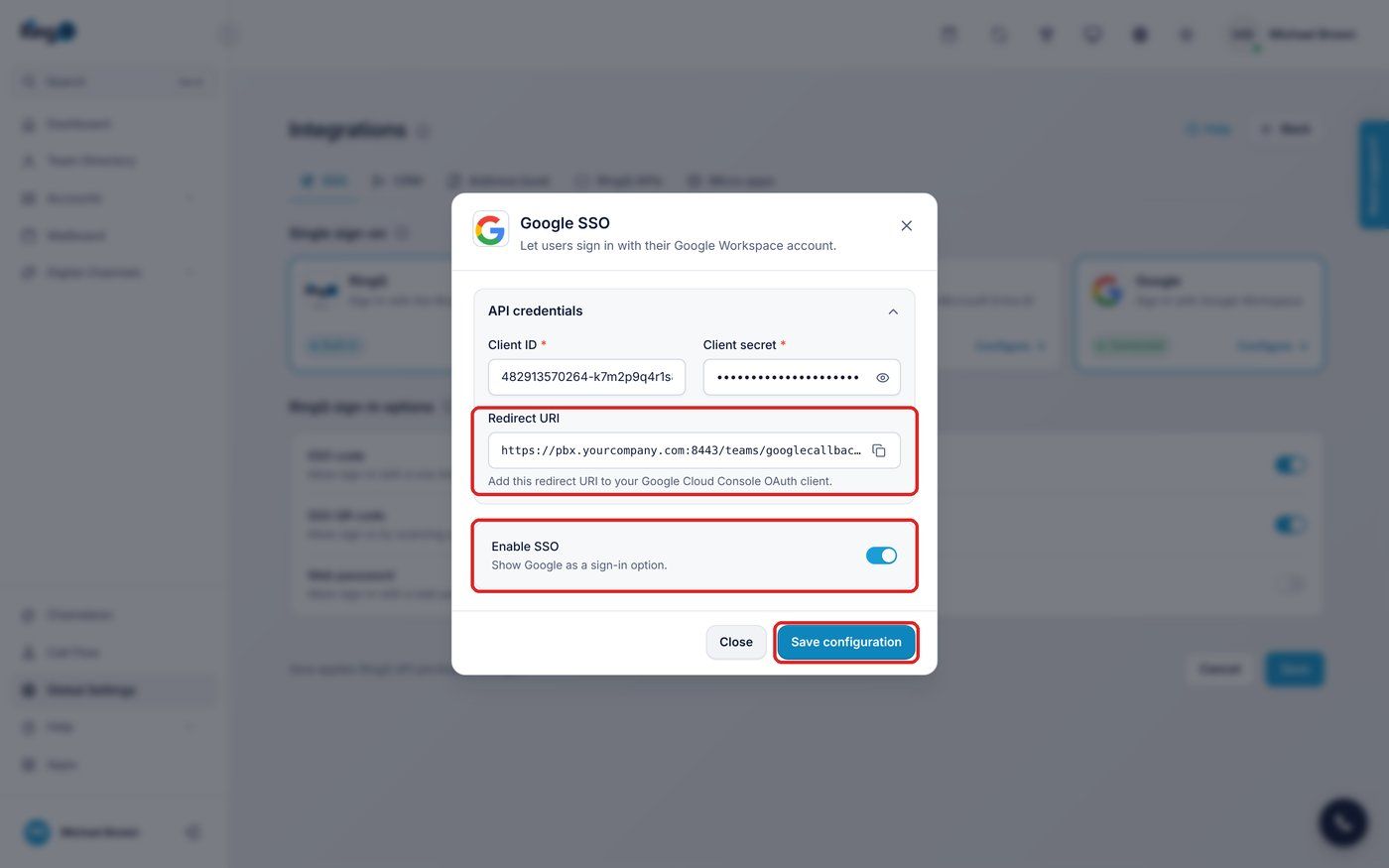
  5. The Google SSO window opens. Under API credentials, enter:
    • Client ID: the Client ID from Part 1. It ends in .apps.googleusercontent.com.
    • Client secret: the Client Secret from Part 1. Click the eye icon to check what you pasted.
  6. Check Redirect URI. It must match the authorized redirect URI in your Google OAuth client exactly. Click the copy icon if you still need to add it in Google Cloud Console.
  7. Switch on Enable SSO ("Show Google as a sign-in option.").
  8. Click Save configuration. You will see "Google SSO settings saved successfully." and the Google card shows Connected.
Global Settings > Integrations
Integrations > SSO > Google card
Google SSO window

Both fields are required. If one is empty, RingQ shows "Client ID and Client Secret are required."

If you also use Address book > Google Suite: the address book and Google SSO share the same Google settings. After you save the address book settings, open SSO > Google > Configure again and check that Enable SSO is still on.
Part 3 (users): sign in with Google

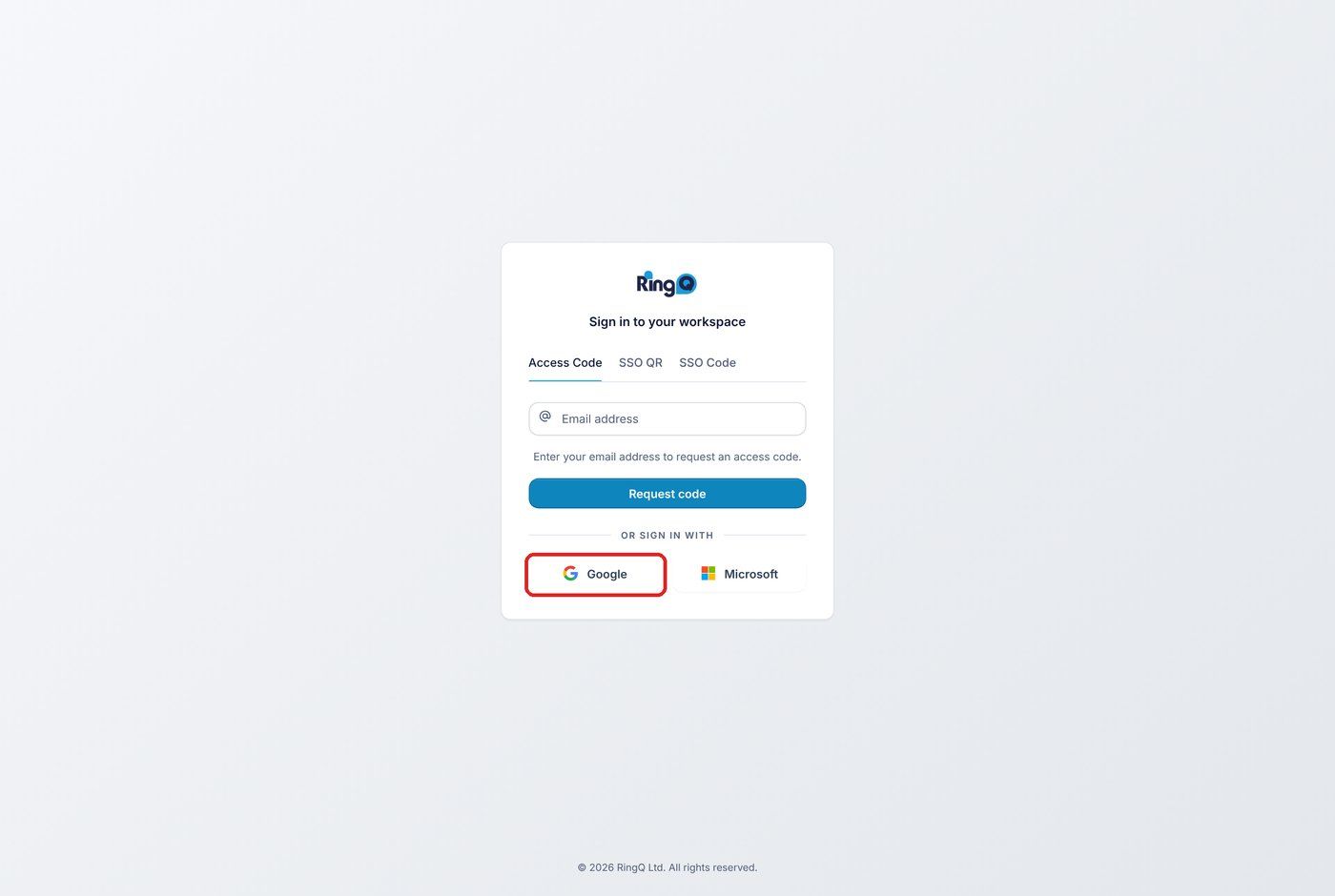
  1. Open your RingQ address in the browser, for example https://pbx.yourcompany.com/cloudapp.
  2. Under Or sign in with, click Google.
  3. Google asks you to choose an account. Pick your work account, or click Use another account and enter your work email and password, plus any 2-Step Verification step.
  4. Google may show what RingQ will receive (your name, email address and profile picture). Click Continue.
  5. Google returns you to RingQ and your RingQ dashboard opens, signed in as your own extension.
RingQ login page, Google button

Google always shows the account chooser, so people who use more than one Google account in the same browser can pick the right one.

The Google button appears only when Enable SSO is on. The other sign-in tabs (Access Code, SSO QR and SSO Code) keep working alongside it.

Turning Google sign-in off

  • For everyone: in Global Settings > Integrations > SSO > Google > Configure, switch off Enable SSO and click Save configuration. The Google button disappears from the login page.
  • For one person: suspend their account in the Google Admin console, or disable their RingQ extension. A suspended Google account can no longer sign in to RingQ with Google.

Troubleshooting

What you seeWhat to do
No Google button on the login pageCheck that Enable SSO is on and saved (Part 2). Settings belong to the RingQ address you were signed in on when you saved them, so save them while using the same address your team uses.
"Google is not configured. Redirecting to Login..."Google SSO hasn't been saved for this RingQ address. Do Part 2 while signed in on this address.
"Google SSO is disabled. Redirecting to Login..."Enable SSO is off. Switch it on and click Save configuration.
Google "Error 400: redirect_uri_mismatch"The redirect URI in Google Cloud Console doesn't match RingQ. Edit the OAuth client and add exactly https://your RingQ address:8443/teams/googlecallback/1. Wait five minutes and try again.
Google "Error 401: invalid_client"The Client ID or Client secret is wrong, or the client was deleted. Copy both again from APIs & Services > Credentials.
Google "Error 403: org_internal"The account isn't in your Google Workspace organization and the consent screen audience is Internal. Sign in with your work account.
A page showing "An error has occurred. (Code LF1001)"No RingQ user has this email. Make sure the email on the RingQ user is the same as the Google account email.
A page showing "(Code LF1003)" or "(Code LF1004)"The RingQ user exists but isn't linked to an extension. Ask your RingQ administrator to check the user's extension.
Login page says "Invalid token."The sign-in link expired before the browser used it (it lasts 5 minutes), or it was already used. Click Google and sign in again.
The browser can't open the page after Google sign-inTCP port 8443 is blocked between the browser and the RingQ server. Ask your administrator to open it.

Security notes

  • RingQ never sees or stores your users' Google passwords. Google checks the password and 2-Step Verification, then tells RingQ who signed in.
  • RingQ asks Google only for the user's basic profile and email.
  • Keep the client secret private. If you think it has leaked, add a new secret to the OAuth client in Google Cloud Console, enter it in RingQ, then delete the old one.
  • Each sign-in link from Google to RingQ can be used once and expires after 5 minutes.