Security update: RingQ is patched against the critical PHP vulnerabilities. Update your servers today.
Read nowIf you are in a meeting on the RingQ web app or desktop app and need to leave your desk, move the meeting to your phone. You keep your place in the meeting; nobody needs to let you in again.
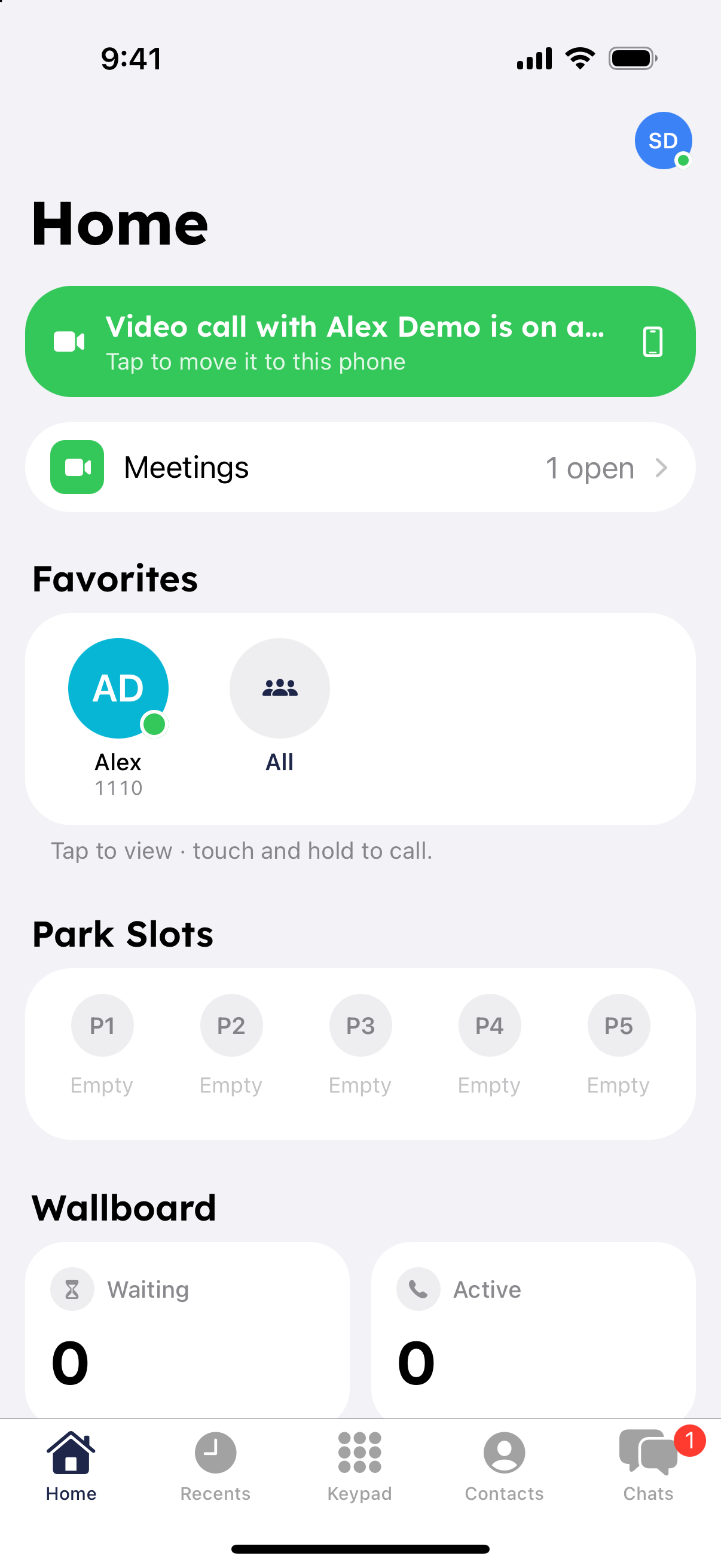
You can also do this from Meetings: a meeting you are in elsewhere shows "You're in it on another device" with a "Move here" button.
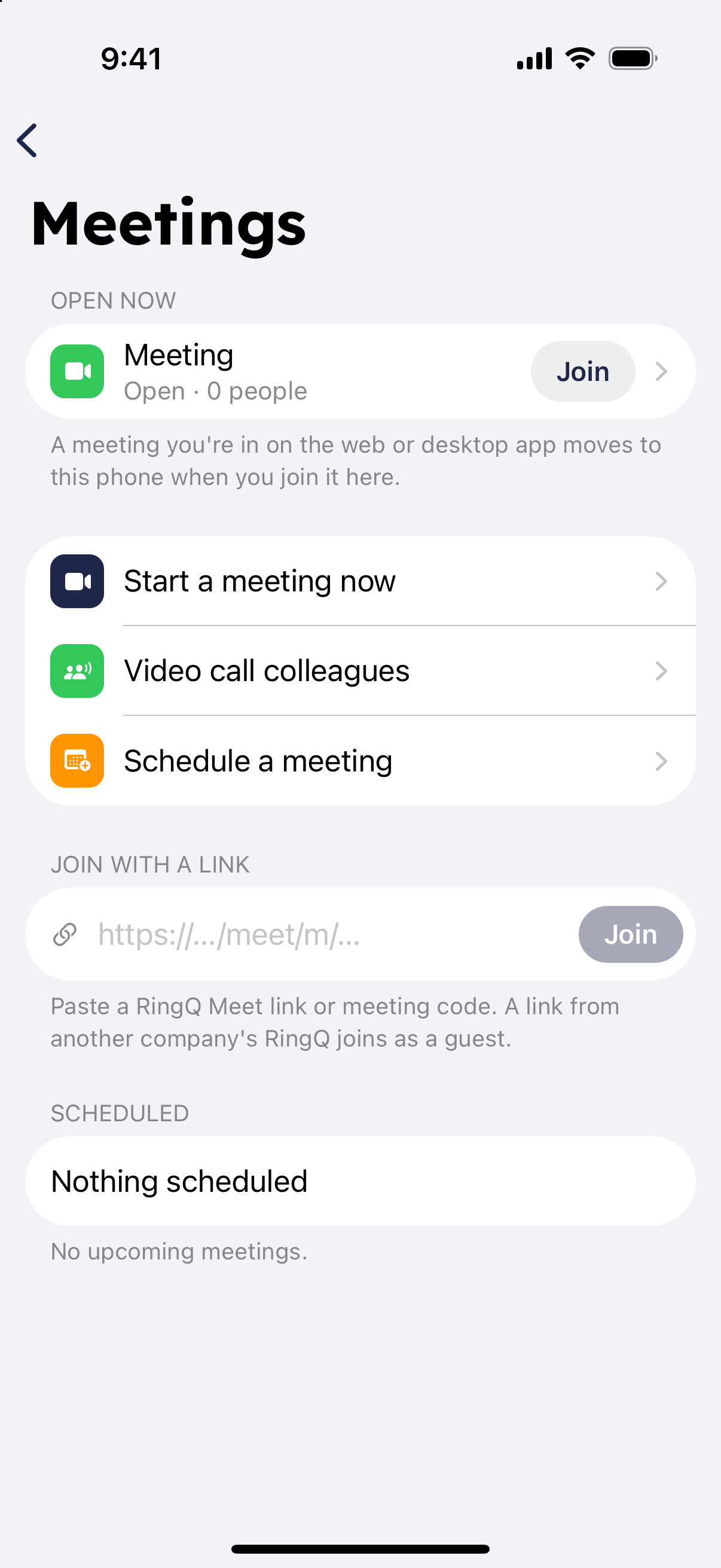
On your computer, choose to move the meeting back. The computer takes over and your phone leaves the meeting.
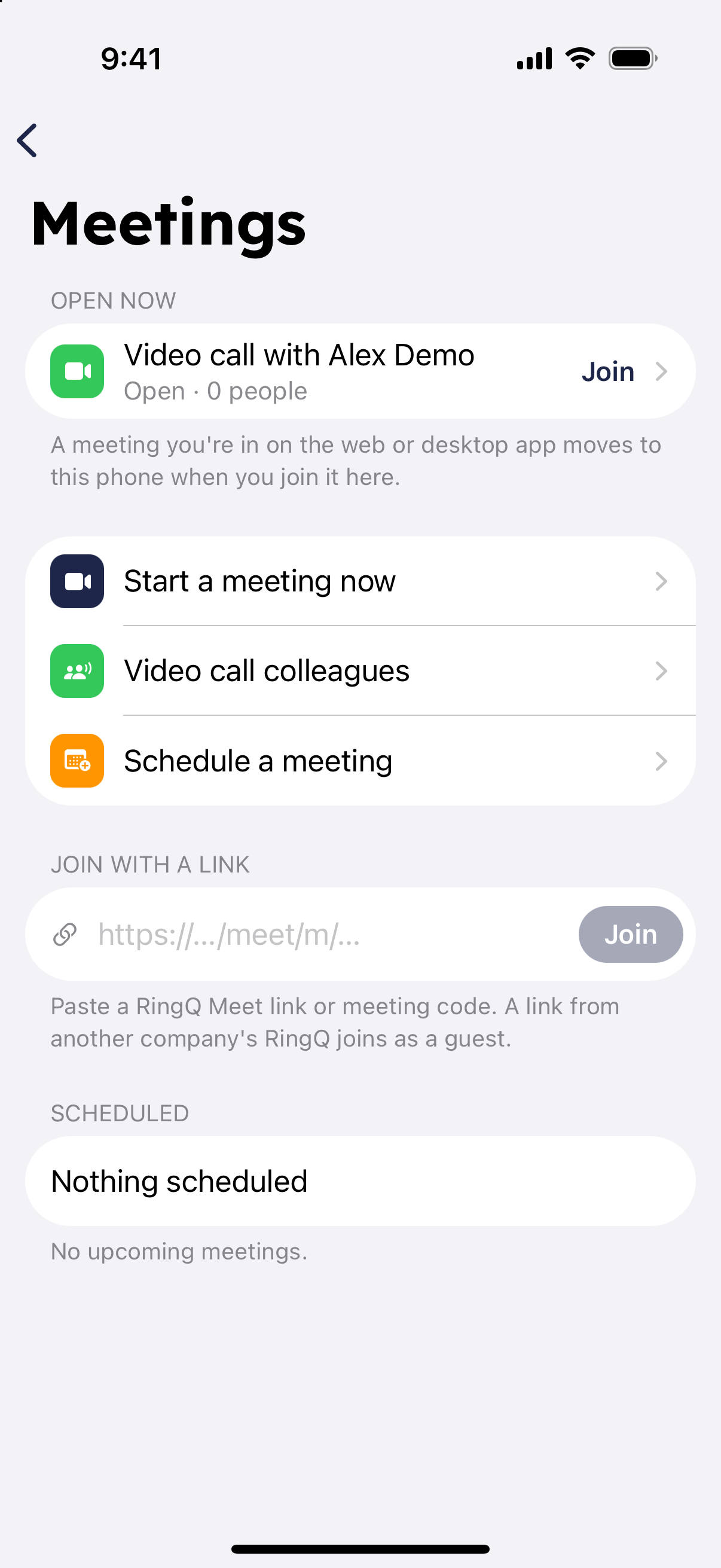
If you left the meeting on your computer, it stays listed in Meetings on your phone while it is open. Tap "Join". A meeting closes about 5 minutes after everyone has left.
On a phone call rather than a meeting? See "Pick Up Here: Move a Call to Your Phone".
