Security update: RingQ is patched against the critical PHP vulnerabilities. Update your servers today.

Read now
RingQ Customer Centric Communications

Boutique Hotel


RingQ Boutique Hotel

Setup and User Guide

Turn every guest’s own phone into their room phone with one QR code

October 2026

Boutique Hotel gives your hotel one QR code for the whole property. A guest scans it with their phone’s camera, enters their last name and room number, and their phone becomes their room phone — right in the browser, with nothing to install. They can call the front desk, room service and any other hotel service you configure, free of charge, and receive calls made to their room.

Only guests who are actually checked in can sign in, and only to rooms you have set up as hotel rooms, so the single public QR code stays safe to print and display anywhere — in rooms, at reception, or in the welcome folder.

2. How it works at a glance

  1. You print one QR code from the Boutique Hotel settings and place it in rooms or at reception.
  2. The front desk checks the guest in at Hotel Front Desk with their last name and room.
  3. The guest scans the code and enters their last name and room number.
  4. Their phone becomes the room phone: service buttons, a dial pad, and your hotel’s branding and banners.

At checkout, the guest’s sign-in ends with the check-in. You can also change (“rotate”) the QR code at any time; printed copies of the old code stop working immediately.

3. Setting it up

Everything lives in the dashboard under Chameleon. You need an extension group with the Hotel PBX skin — those extensions are your rooms.

Step 1 — Make your rooms Hotel PBX extensions

In Chameleon, place each room’s extension in the Hotel PBX group. Guests can only ever sign in to extensions in this group. The Boutique Hotel settings show you the current list of rooms, so you can check at a glance.

Step 2 — Configure buttons and banners

Open the Hotel PBX group’s settings (the gear icon). On the Buttons & Banners tab:

  • Slots 1–6 — service buttons. Each button gets a label (Front Desk, Room Service, Spa…) and the extension it dials. These appear as one-tap buttons on the guest’s phone.
  • Slot 7 — your logo. Shown on the guest page (520×85 px works best).
  • Slots 8–10 — banner images. Promotional images (breakfast hours, spa offers…) shown as a swipeable strip on the guest’s room screen. Only slots with an uploaded image appear.

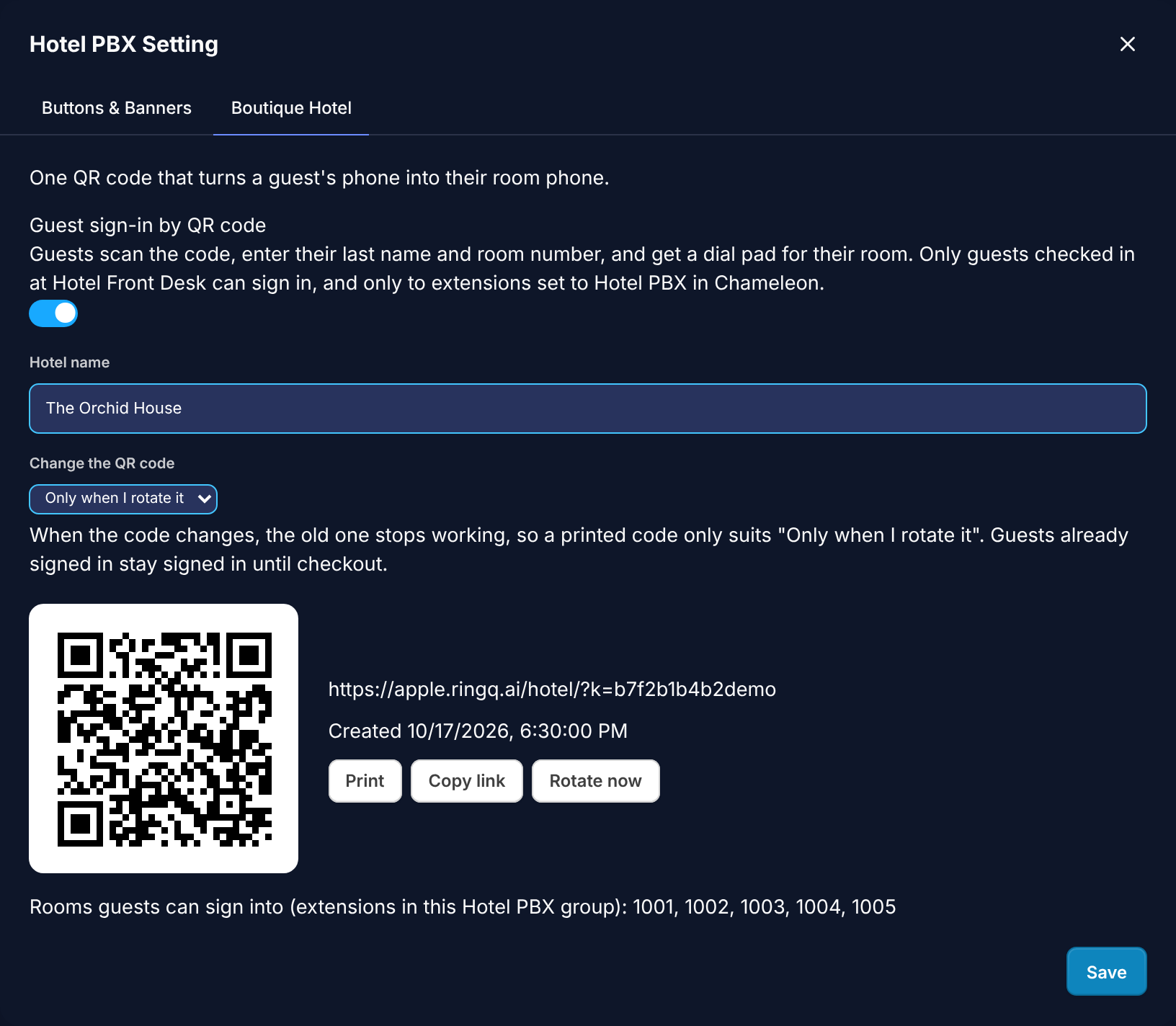
Step 3 — Turn on guest sign-in (the Boutique Hotel tab)

Still in the Hotel PBX settings, switch to the Boutique Hotel tab:

  • Guest sign-in by QR code — the main switch for the whole feature.
  • Hotel name — shown to guests when they sign in and on the printed QR page.
  • Change the QR code — how often the code rotates: only when you rotate it, every day, or every week. A printed code only suits “Only when I rotate it”; the daily and weekly options suit codes displayed on screens.
  • Print / Copy link / Rotate now — Print produces a ready-made welcome page with the code and guest instructions. Rotate now creates a new code on the spot; every printed copy of the old one stops working, while guests who are already signed in stay signed in.

Save when you are done.

The Boutique Hotel tab in Chameleon’s Hotel PBX settings.

Step 4 — Check guests in at the front desk

Use Hotel Front Desk to check a guest into their room with their last name. A guest can only sign in on the QR page when their typed last name matches the check-in (capitalisation doesn’t matter) and the room is a Hotel PBX extension. No check-in, no sign-in — that is what keeps the public QR code safe.
4. What the guest sees

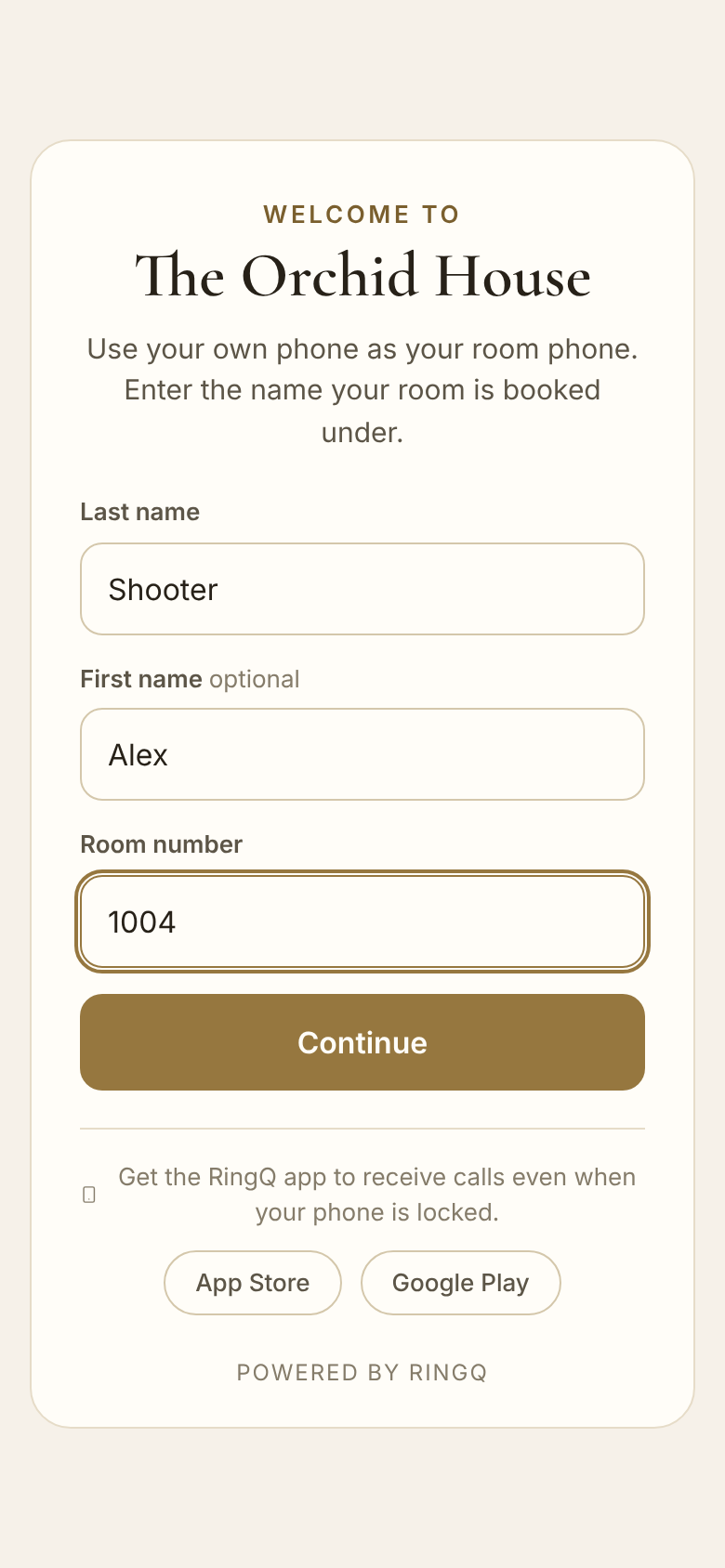
  • They scan the code and get a welcome page with your hotel name and logo, asking for their last name and room number.
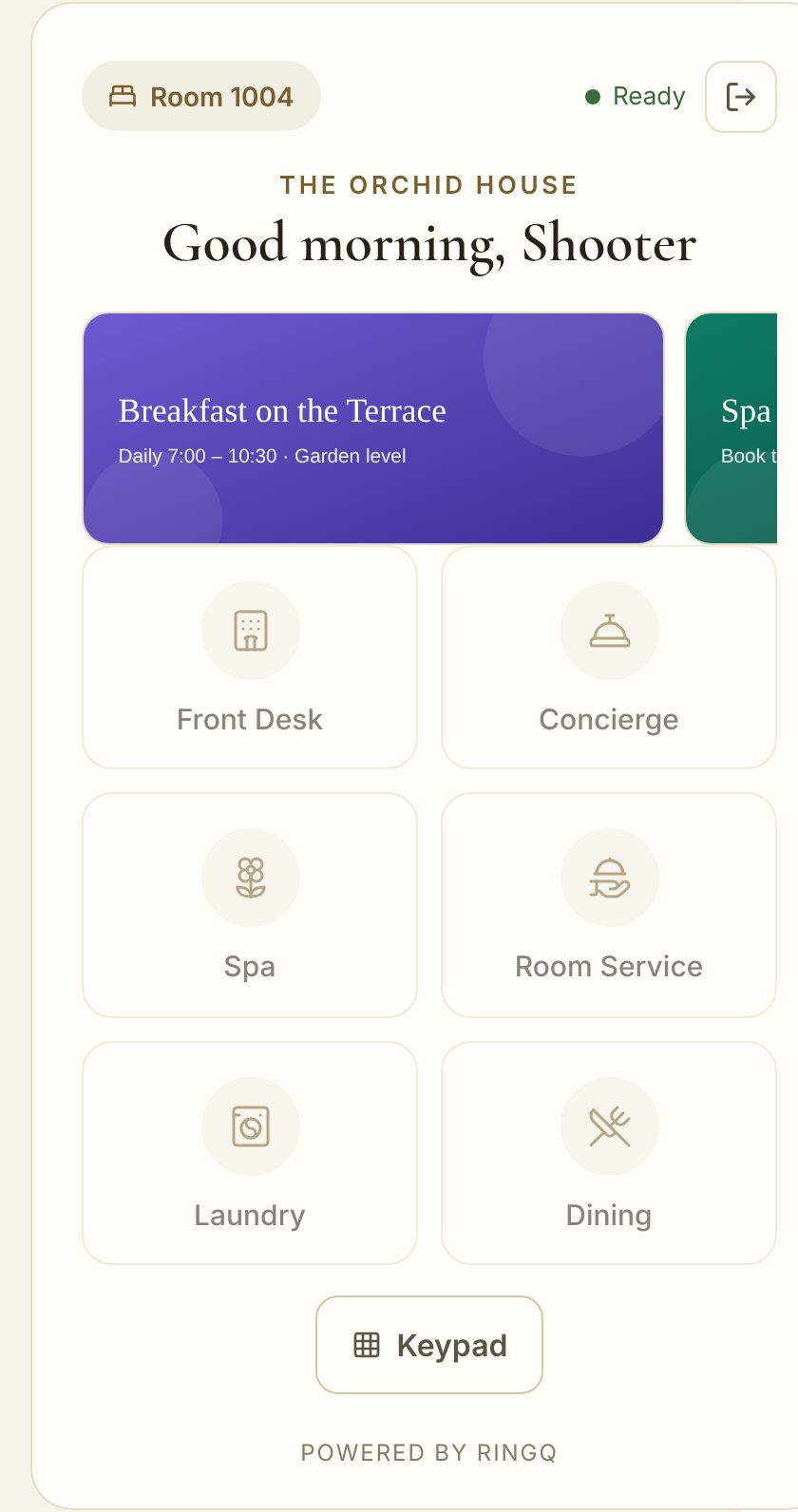
  • After signing in they see their room screen: your banners, the service buttons you configured, and a dial pad.
  • While a call rings they hear a normal ringback tone, and if a call can’t go through they see a clear message — the line is busy, no one is available, or the number can’t be reached.
  • If the page has been idle for a while (phone locked, browser in the background), it reconnects by itself when they come back. If the connection still isn’t ready, a “Not connected — tap to reconnect” bar appears; one tap brings it back.

Sign-in after scanning the QR code.

The room screen: banners and service buttons.
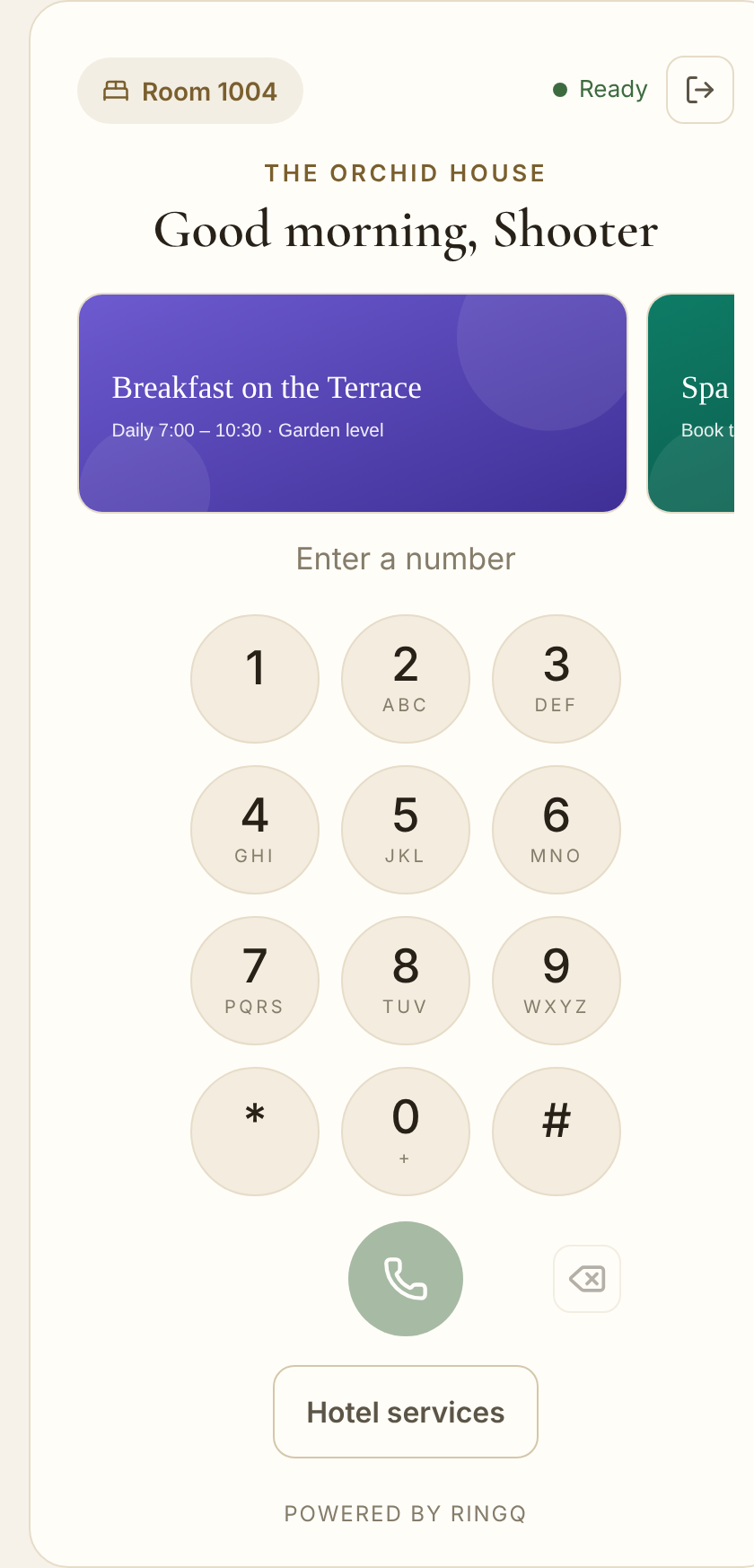
The keypad, for dialling any extension.

5. Good to know

  • Receiving calls with the screen locked (iPhone): a web page can’t ring an iPhone while Safari is in the background or the phone is locked. The browser page is ideal for making calls; guests who must be reachable at all times can scan the same QR code with the RingQ app instead.
  • Audio plays through the phone’s speaker in the browser — web pages can’t switch to the earpiece. Guests can lower the volume or use headphones.
  • Calls are free — they run over the hotel’s network through RingQ Call Services.
  • Rotating the QR code immediately invalidates printed copies of the old code, but never signs out guests who are already in.
  • Sign-in attempts are rate-limited, so the public code can’t be guessed against by someone who isn’t checked in.

6. Troubleshooting

SymptomWhat to check
Guest can’t sign inIs the guest checked in at Hotel Front Desk, with that exact last name, for that room? Is the room’s extension in the Hotel PBX group in Chameleon? Both must be true.
Page stays on “Connecting…”It retries by itself. If it doesn’t recover, have the guest sign out and sign in again — this usually follows a change to the room’s extension.
“Not connected” bar after idleNormal after the phone slept. One tap on the bar reconnects; if needed the page refreshes itself.
Call to a service goes to a voice messageThe service extension isn’t registered or didn’t answer and has no voicemail box. Check the device behind that extension, or give it a voicemail box.
Banners don’t appearOnly Chameleon slots 8–10 with an uploaded image are shown. Re-upload the image in Buttons & Banners.
Old printed QR doesn’t workThe code was rotated (manually or on a daily/weekly schedule). Print the current one, or set rotation to “Only when I rotate it” for printed codes.

RingQ — Boutique Hotel Setup and User Guide