Security update: RingQ is patched against the critical PHP vulnerabilities. Update your servers today.

Read now
RingQ Customer Centric Communications

Change Your Language in RingQ


RingQ runs in 20 languages on the web app and on the RingQ app for iPhone and Android. Your choice is saved to your profile, so your browser and your phone show the same language.
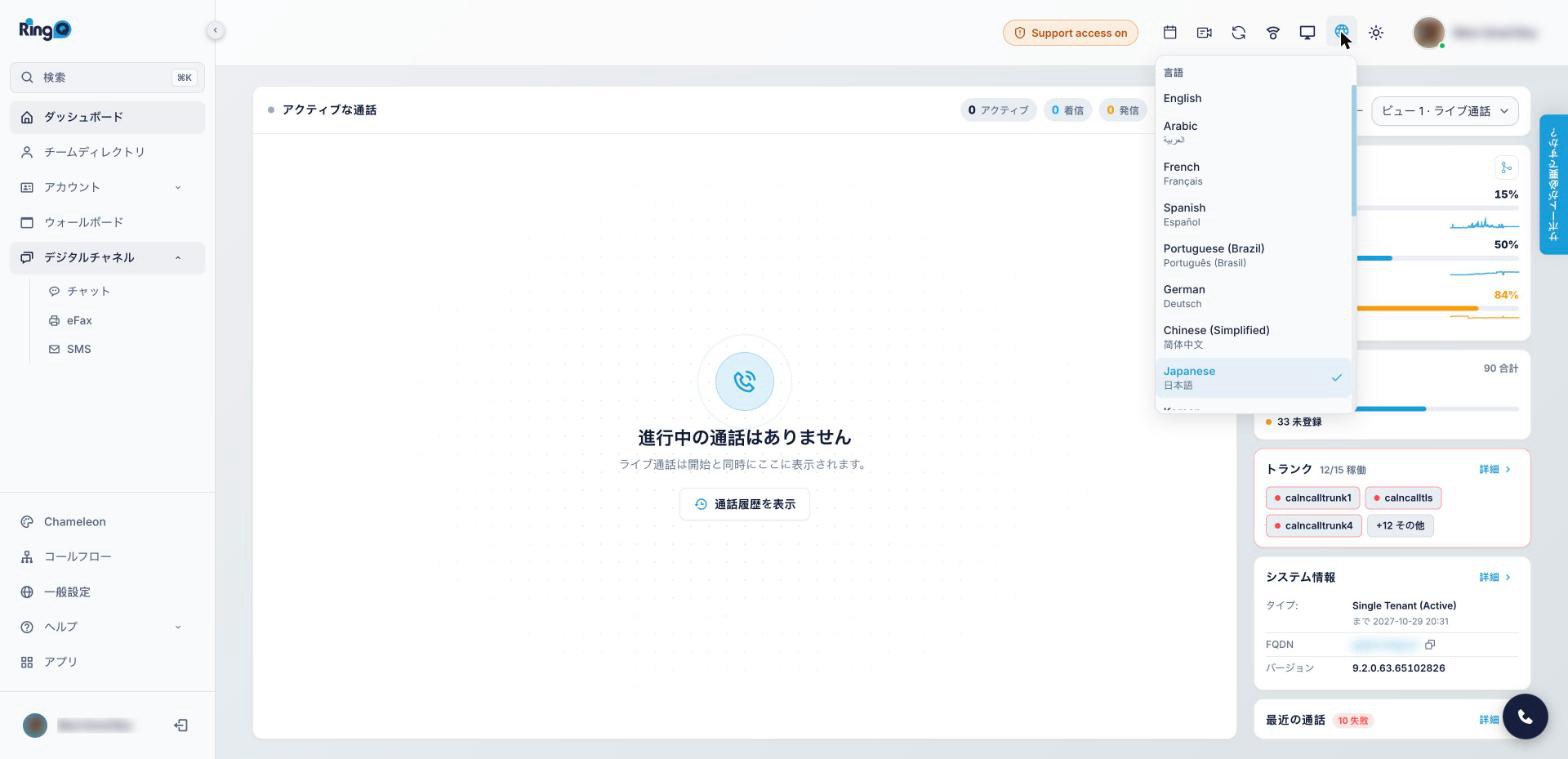
On the web app

  1. Sign in to RingQ.
  2. Click the Language menu in the top bar.
  3. Pick your language. The screen changes straight away.
The Language menu in the RingQ web app, shown in Japanese

Before you sign in, the sign-in page uses your browser's language.
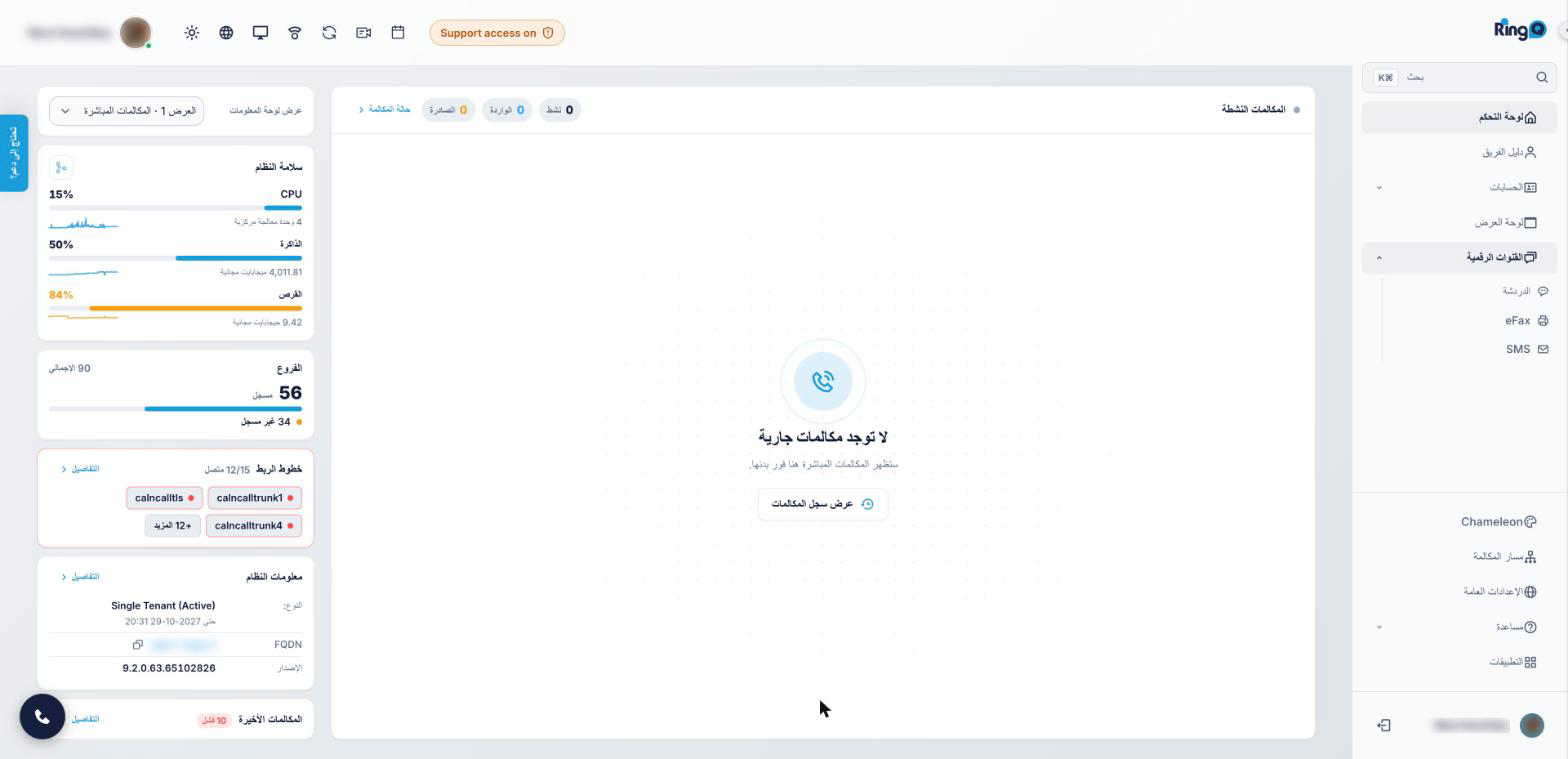
RingQ web dashboard in Arabic, shown right to left

On the mobile app (iPhone and Android)

  1. Update RingQ to version 9.2.1 or later.
  2. Open Settings > Language.
  3. Tap your language. Automatic uses the language set on the web.
  4. For Arabic, the app restarts once to switch to right to left.

On the desktop app

The RingQ Desktop app has its own setting, App display language, with 7 languages today: English, German, Spanish, French, Japanese, Portuguese and Chinese. It does not follow the web choice yet.

Set the company default (admins)

  1. Go to Global Settings > Language & Office Hours.
  2. Choose the default language and save.
  3. People who haven't picked their own language get this one, and so do emails to them.

Good to know

  • Each person has one setting: the latest change, on any device, wins.
  • Emails such as voicemail, reports and meeting invites use the recipient's language.
  • Product names such as RingQ Meet and Chameleon stay in English.

The 20 languages

English, العربية (Arabic), Français, Español, Português (Brazil), Deutsch, 中文 (Chinese, Simplified), 日本語, 한국어, Italiano, Nederlands, Русский, Türkçe, Bahasa Indonesia, हिन्दी, ไทย, Tiếng Việt, Polski, Svenska and Filipino.