A conference group lets internal users and external parties join the same call. This guide explains how to create a conference group in Settings > Call Flow, how internal and external participants join it, and how to assign an existing conference group so callers can dial straight into it.
Step 1. Go to Settings > Call Flow. In the Others panel on the right, click the + icon to create a new conference group.
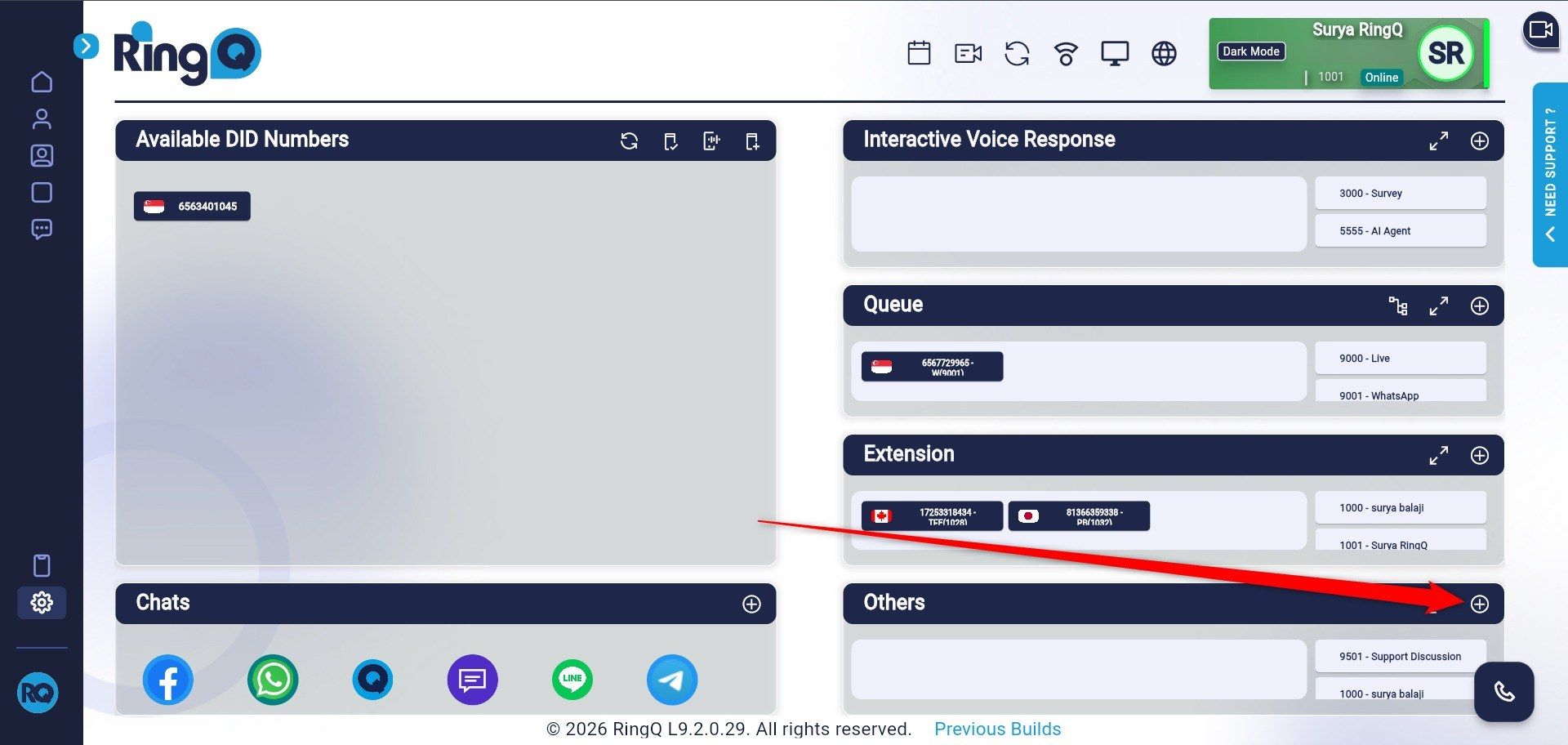
Figure 1: The + icon on the Others panel
Step 2. Enter a Conference Extension and Conference Name, then set a Moderator Pin and a Participant Pin. Both pins can be any numbers you choose. Click Save.
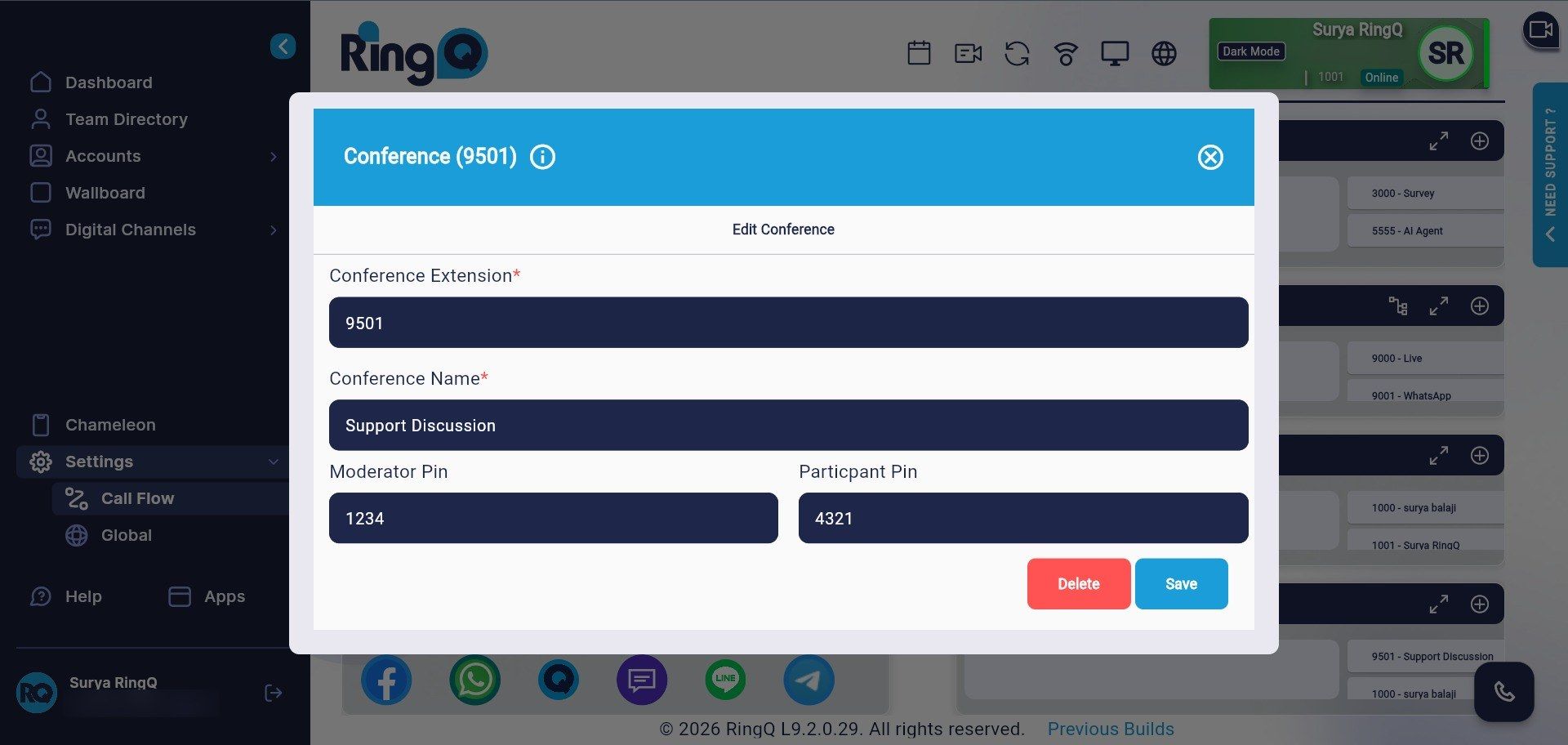
Figure 2: Conference details and pins
| Pin | Used by |
|---|---|
| Moderator Pin | The host who starts the conference meeting |
| Participant Pin | Internal users and external parties joining the meeting |
Step 1. Internal users join by dialing the conference extension (for example, 9501) and entering the Participant Pin when prompted.
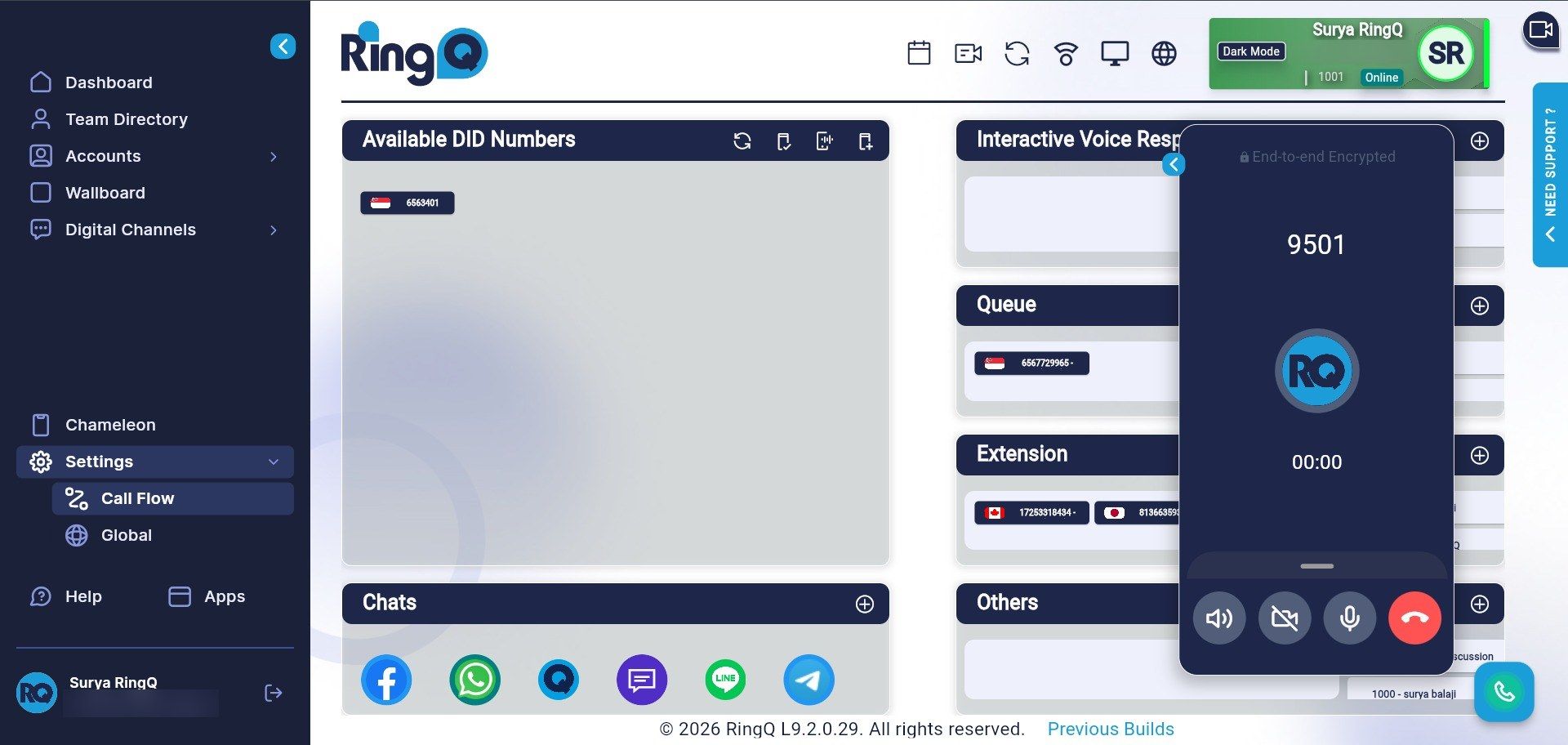
Figure 3: Internal user dialing conference 9501
Step 2. Optional: to let an external party join without dialing an internal extension, drag an available DID from Available DID Numbers and drop it onto the Others panel to assign it to this conference. Share that DID with the external party. They call it and enter the Participant Pin to join.
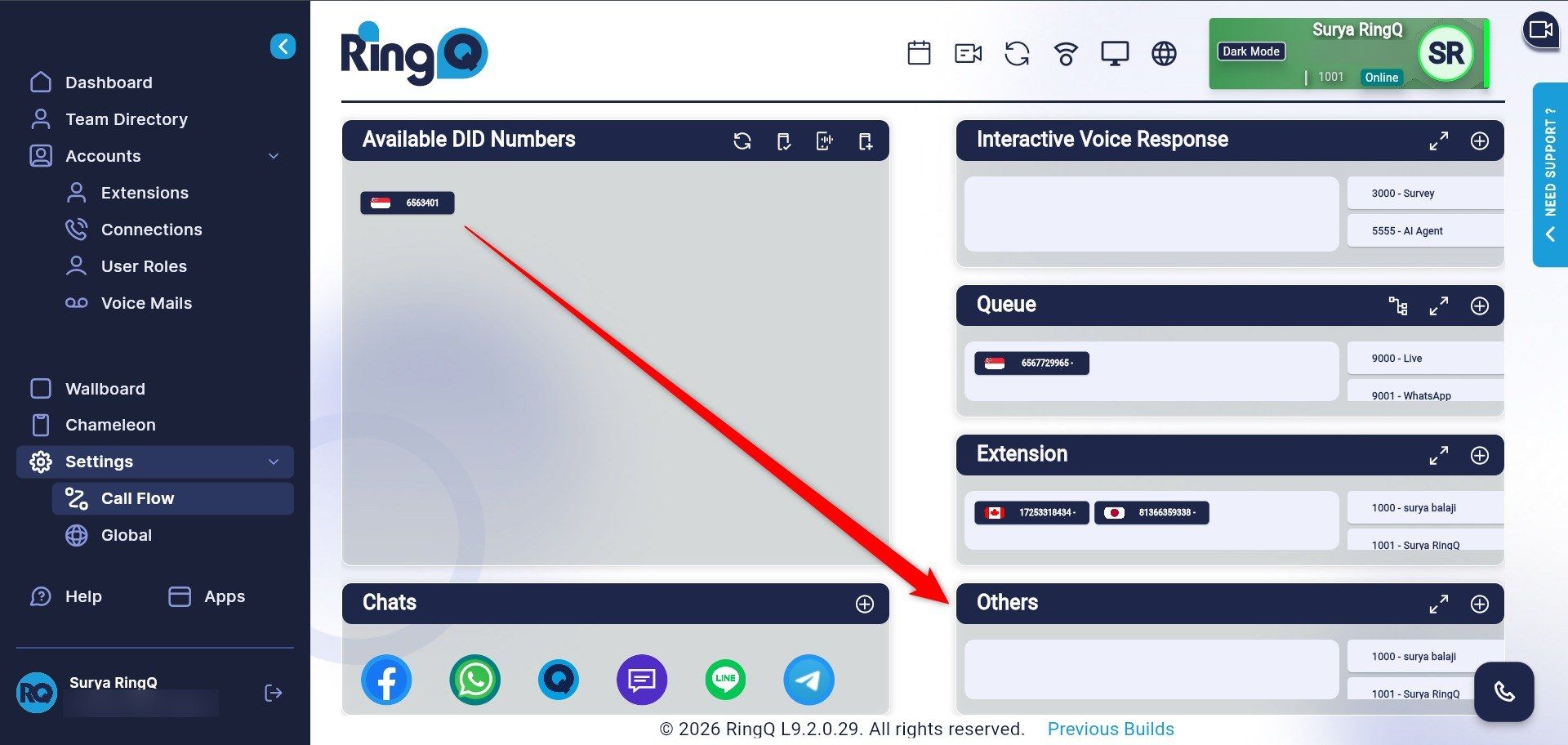
Figure 4: Assigning a DID for external participants
Step 1. In the Others panel, click + again and select the Existing Conferences tab.
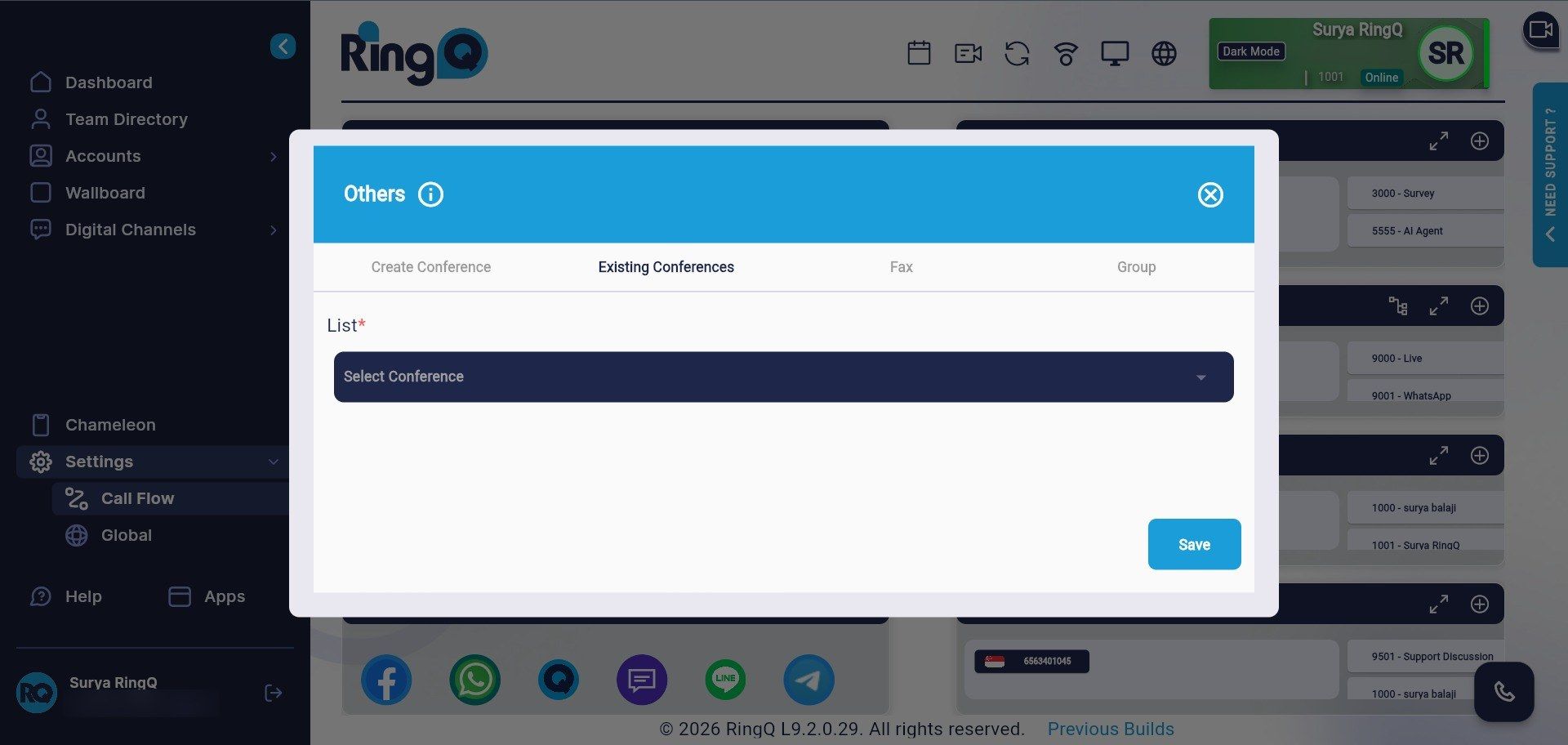
Figure 5: Existing Conferences tab
Step 2. Click the List drop-down, choose the conference group you want to assign, then click Save.
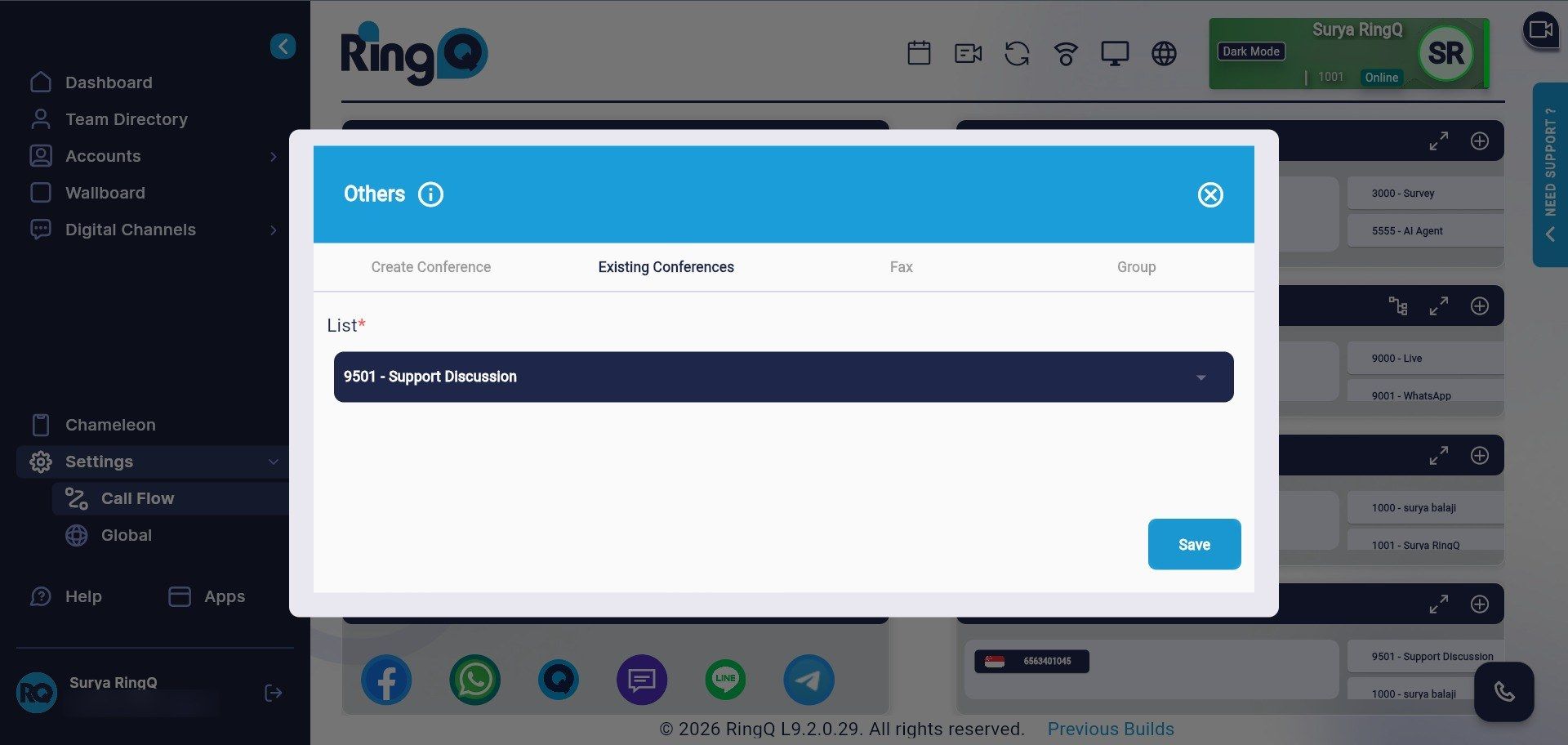
Figure 6: Selecting the conference and saving
Tip: Use Existing Conferences when you want to reuse a conference you already created, for example assigning it to a DID number or another entry point, without re-entering its details.
| Task | Where / How |
|---|---|
| Create conference | Settings > Call Flow > Others > + > Create Conference |
| Join internally | Dial the conference extension, enter the Participant Pin |
| Join externally | Call the DID assigned to the conference, enter the Participant Pin |
| Reuse a conference | Others > + > Existing Conferences > List > Save |
