RingQ Customer Centric Communications

Configuring a Watchguard with RingQ


Introduction

This document describes the configuration of WatchGuard firewall devices for use with RingQ. This guide is based on Fireware XTM firmware version 12.9.2 or later and should be compatible with devices running this firmware.
Configure Port Forwarding (NAT)

  1. First, Static NAT must be configured to forward incoming traffic from the static public IP address to the local IP address of the PBX. Navigate to Firebox® UIFirewallSNAT.
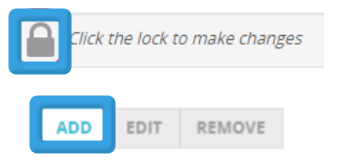
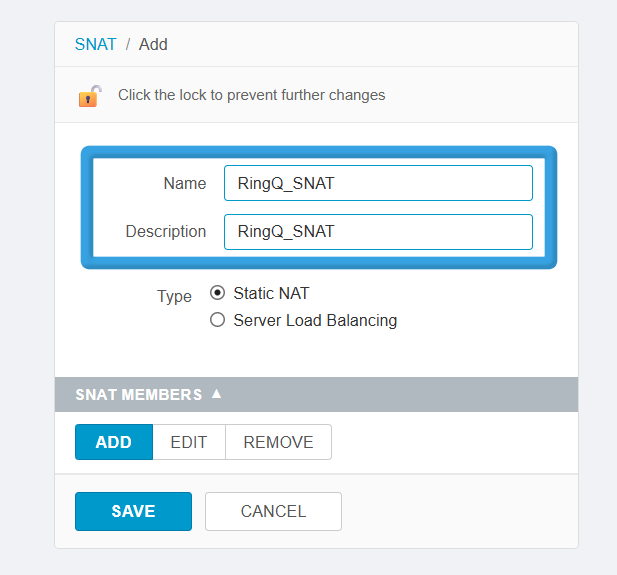
  2. Click the lock icon to allow changes, then click Add.
  1. Enter the name RingQ_SNAT into the SNAT Policy.
  2. Select Static NAT as the type.
  3. Under SNAT MEMBERS, click Add.
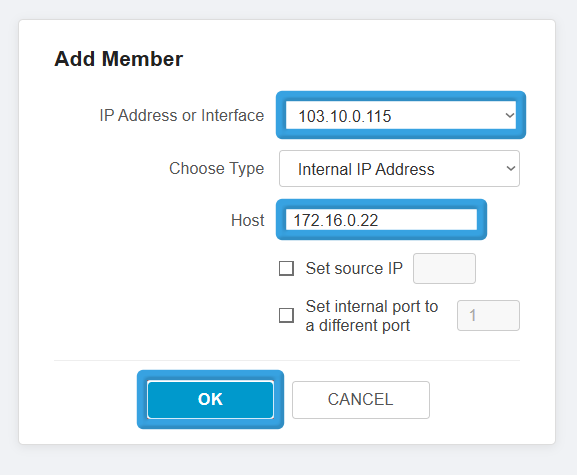
  1. Select the IP address/interface under the drop-down menu. The external IP of the device should be used to NAT inbound traffic to RingQ.
  2. Enter the internal/private IP address of RingQ and click OK.
  1. Click Save. The SNAT Policy is now active.

Create Firewall Policy

  1. Navigate to Firebox®FirewallFirewall Policies and click Add Policy.
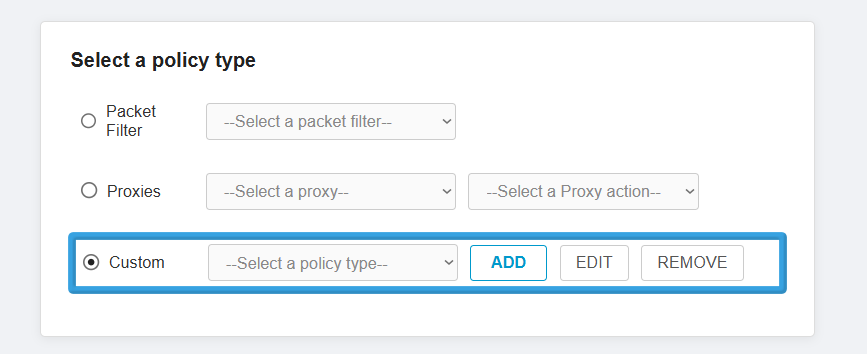
  2. As a Policy Type, select Custom and click Add.
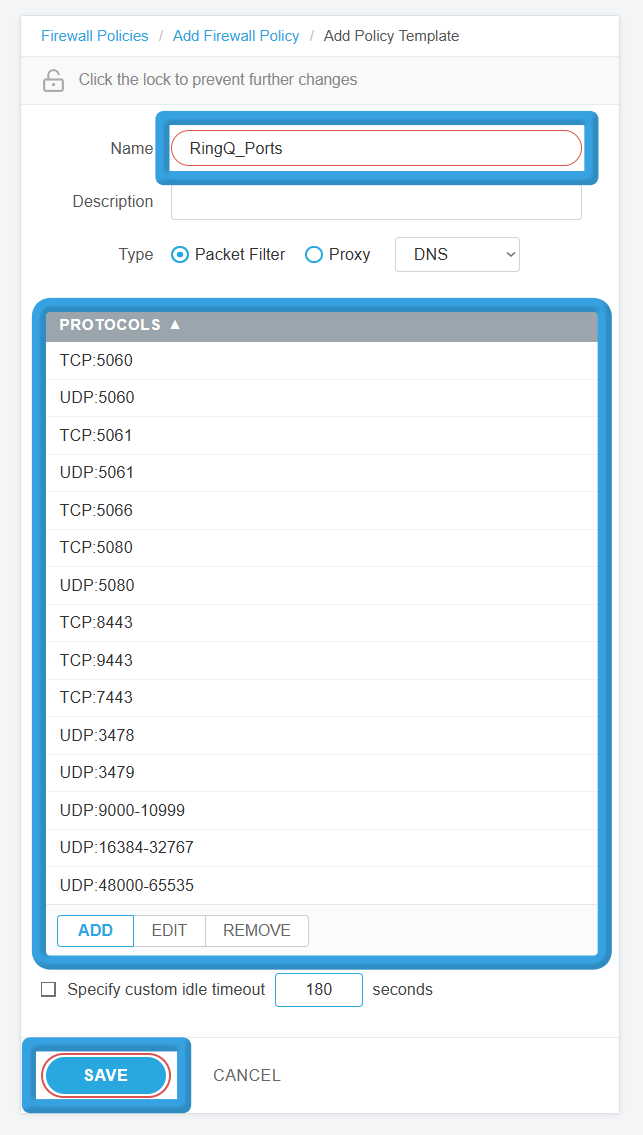
  1. Fill in RingQ_Ports as the name for the policy template.
  2. Use the Add button below PROTOCOLS to add a custom list of ports that shall be allowed to connect to RingQ. When all ports have been added, click Save.
  1. Click ADD POLICY.
  2. Fill in RingQ_Services as the policy name.
  3. Remove the From and To objects.
  4. Under the From section, click Add.
  5. Under the drop-down menu, select Any-External and OK.
  6. Under the From section, click Add.
  7. Under the drop-down menu, select Any-External and OK.
  8. Save the firewall policy. The policy is now active.

NAT Loopback (Hairpin)

If you do not have an internal DNS server for Split DNS, you can use NAT loopback to allow internal devices to access the FQDN that resolves to the public IP address from within the internal network.

  • In Step II.2, instead of adding a new custom policy, select the one already created, named RingQ_Ports.
  • In Step II.6, use RingQ_Services_Hairpin as a name.
  • In Step II.7, do not remove the From object. Keep Any-Trusted and/or add any other internal networks you want the NAT loopback (hairpin) to apply to.

To Validate

  1. Navigate to Firebox® UIFirewallSNAT to confirm you have an SNAT Policy so traffic can reach the RingQ server.
  2. Navigate to Firebox®FirewallFirewall Policies to see the overview of your configuration. Click on the RingQ policy name (e.g., RingQ_Ports) to confirm all of the specific configurations are in place.