RingQ Customer Centric Communications

Using the Test Drive Feature


Introduction

This guide explains how to use the Test Drive feature in RingQ Meet. Test Drive allows you to test your internet speed and reliability before joining a meeting.
Using “Test Drive”

Using the Test Drive feature in RingQ Meet

Using the Test Drive feature in RingQ Meet

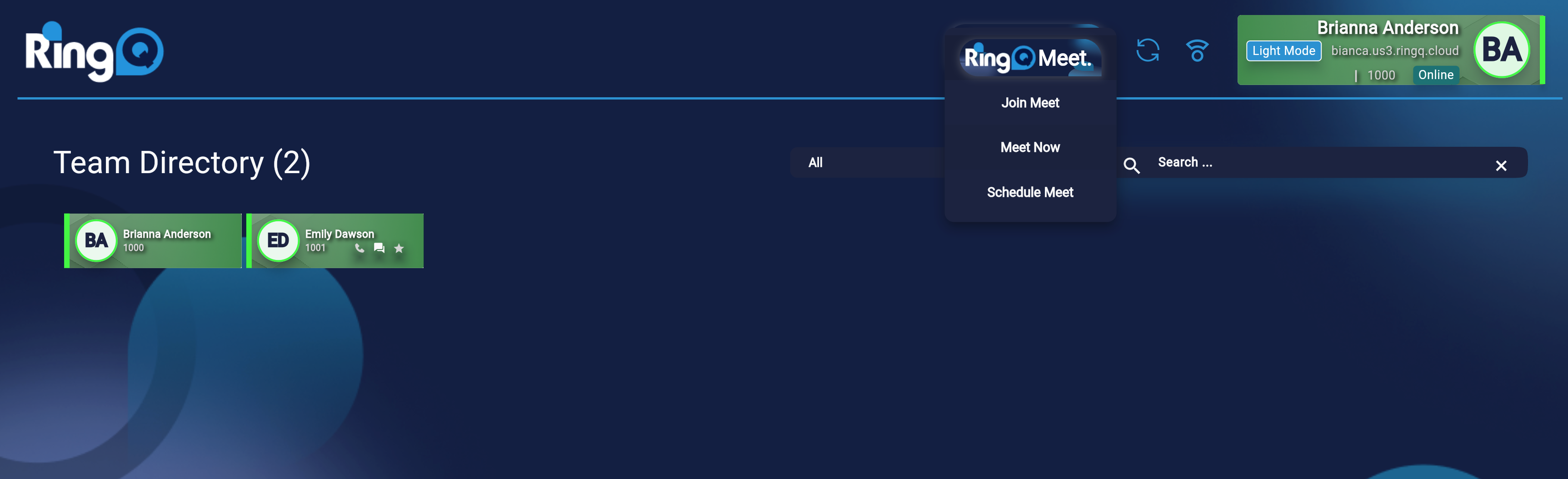
1. Login to your RingQ web app and click on the RingQ Meet button on the top panel. Click on “Meet Now”.

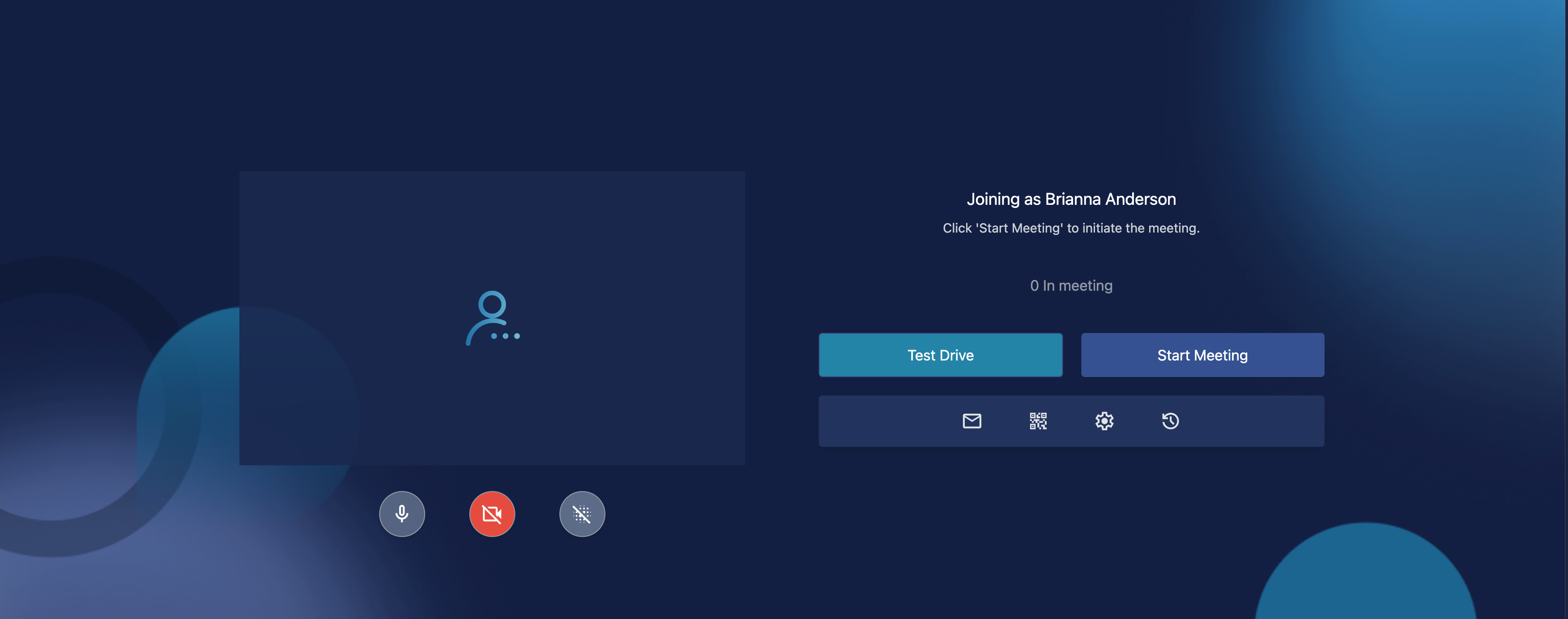
Click on Test Drive to test your connection before joining a RingQ online meeting

Click on Test Drive to test your connection before joining a RingQ online meeting

2. Click on “Test Drive”.

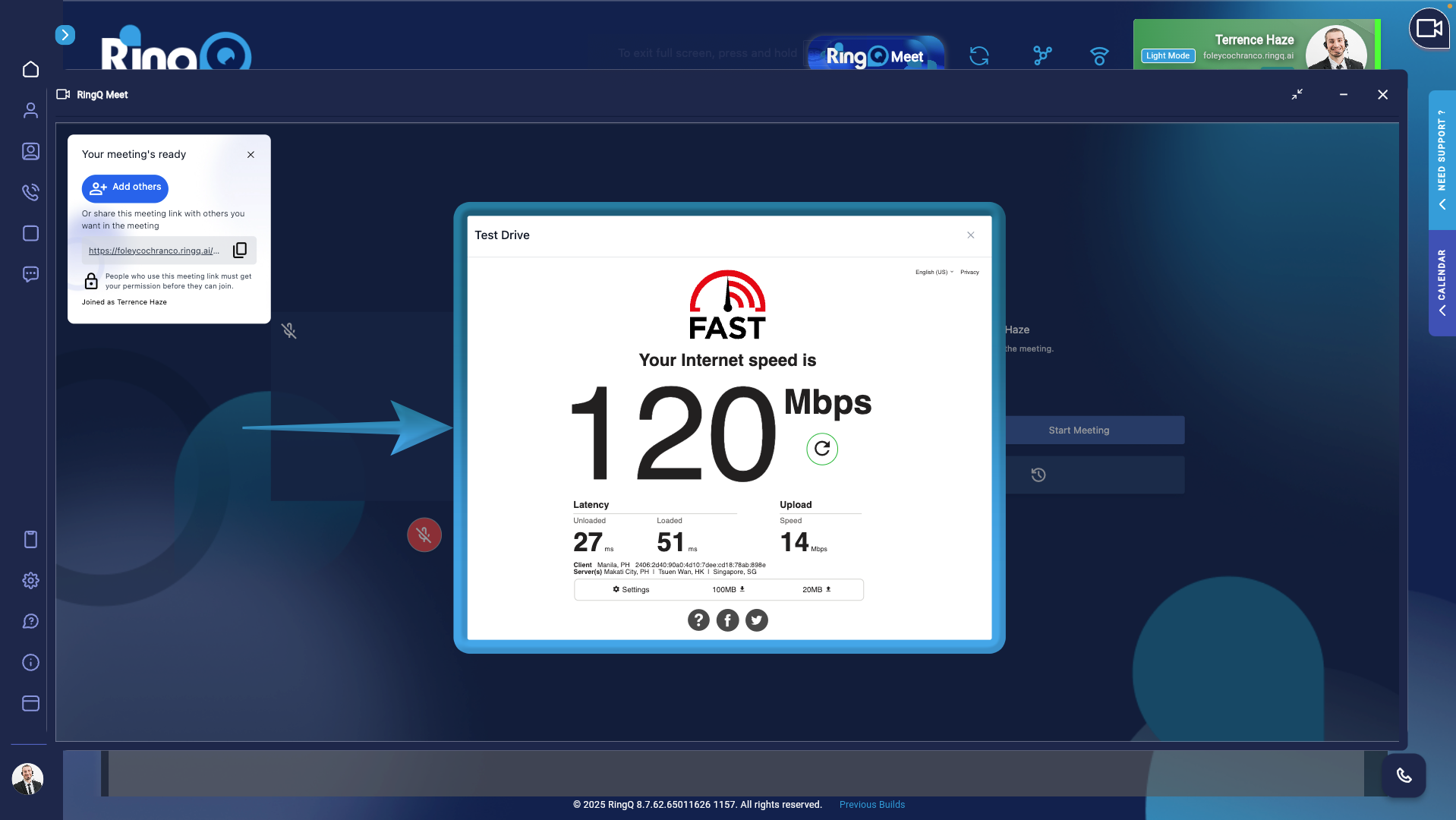
The RingQ Test Drive feature

The RingQ Test Drive feature

3. You will be redirected to the internet speed test page, which displays the network’s latency, download speed, and upload speed.