RingQ Customer Access Portal (CAP) — SSL Management
RingQ automatically provisions and renews SSL certificates for your FQDN using Let's Encrypt — a trusted, free Certificate Authority (CA) that issues 90-day certificates. In most cases, no action is required from the customer: RingQ will auto-renew the certificate 3 days before it expires.
If auto-renewal does not complete (for example, due to a DNS issue or server connectivity problem), administrators can manually trigger a renewal directly from the RingQ portal at any time.
ℹ INFO
Let's Encrypt certificates are valid for 90 days. RingQ monitors the expiry date and automatically initiates renewal 3 days before expiry. The SSL Certificate panel shows the current status, days remaining, and full certificate details.
Log in to the RingQ portal and navigate to your instance. From the main menu, click General Setting. Scroll down to the Advanced section and click the SSL tile (padlock icon).
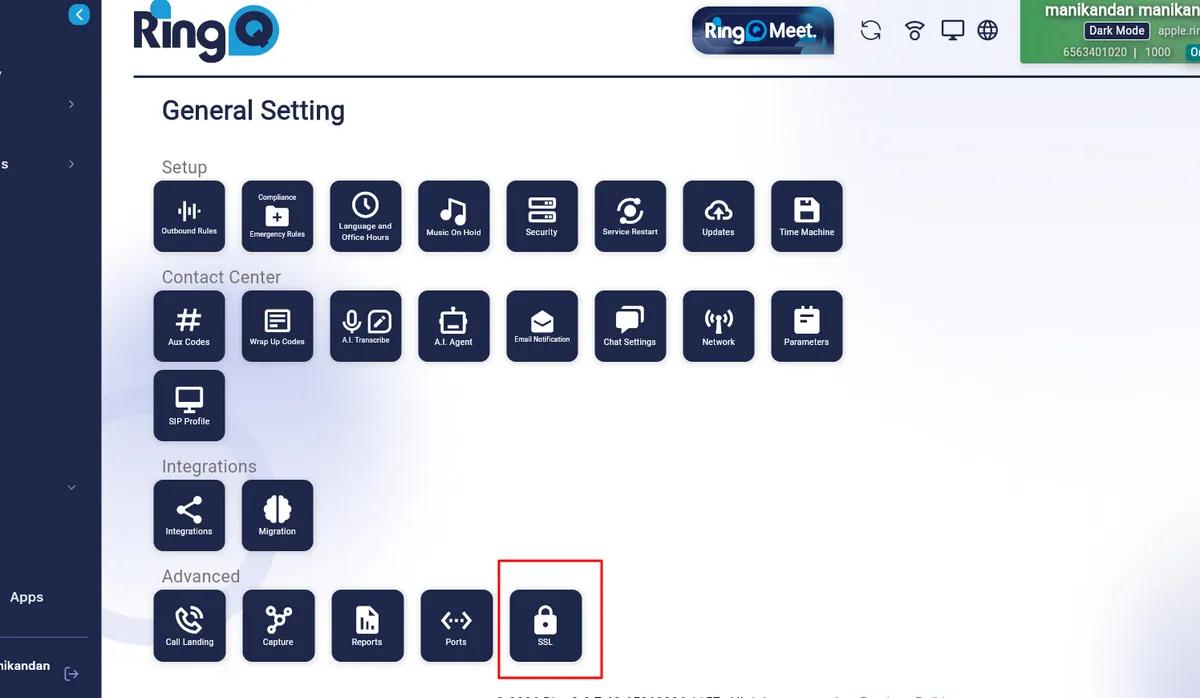
The SSL Certificate panel displays the current certificate status for your domain.
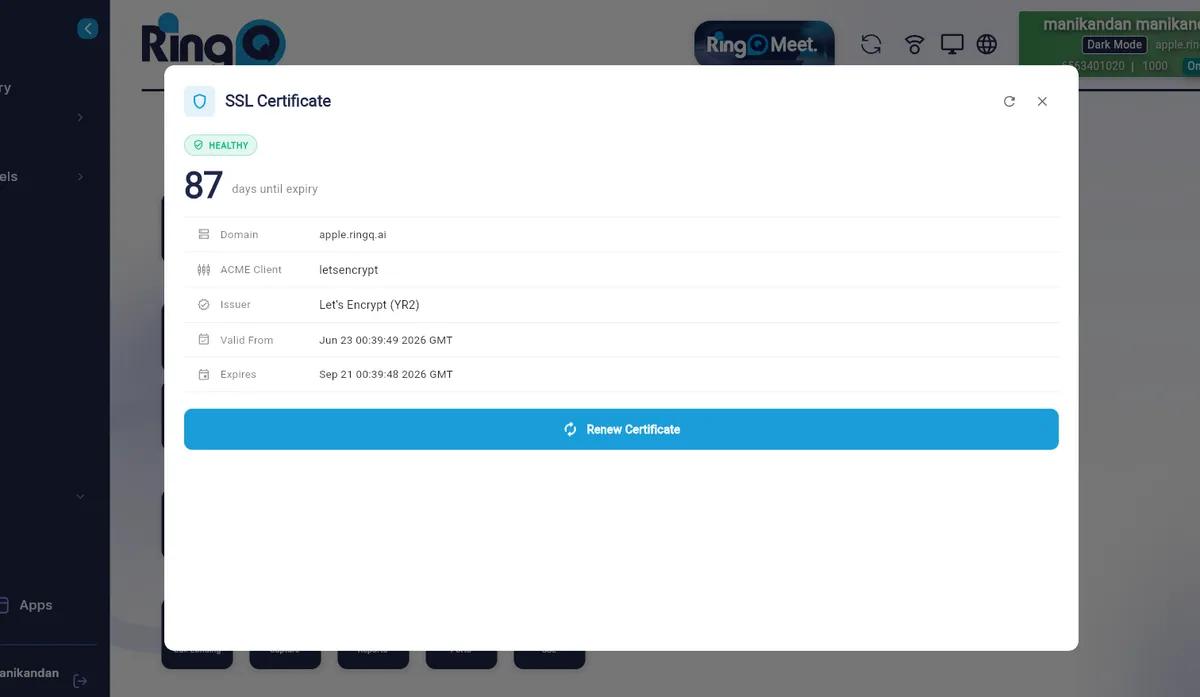
The panel displays the following details:
| Field | Description |
|---|---|
| Domain | The FQDN (e.g. apple.ringq.ai) your certificate is issued for. |
| ACME Client | The certificate authority client — RingQ uses Let's Encrypt (letsencrypt). |
| Issuer | The issuing authority — Let's Encrypt (YR2) for 90-day certificates. |
| Valid From | The date and time the certificate became active. |
| Expires | The date and time the certificate will expire. RingQ auto-renews 3 days before this date. |
The status badge at the top of the panel indicates the certificate health. A green "HEALTHY" badge means the certificate is valid and active. If the certificate is expired or could not be renewed, the badge will indicate an error state.
RingQ handles SSL certificate renewal automatically. Three days before the expiry date, the system initiates a renewal request with Let's Encrypt. Once the new certificate is issued, it is automatically applied to your FQDN — no restart or manual action is required.
⚠ NOTE
Auto-renewal requires that your server is reachable on port 80 (HTTP) from the internet. Let's Encrypt uses this to verify domain ownership. If port 80 is blocked by a firewall, auto-renewal will fail and manual renewal will be required.
If you need to renew the certificate before the automatic renewal window, or if auto-renewal has failed, follow these steps.
The SSL Certificate panel opens, showing the current status badge, days until expiry, and full certificate details. Confirm the domain, expiry date, and that the status badge reads "HEALTHY".
Click the blue Renew Certificate button at the bottom of the panel. RingQ will immediately contact Let's Encrypt and request a new certificate for your domain. This process typically completes within 1–2 minutes.
⚠ NOTE
Do not navigate away or close the panel while renewal is in progress. Once complete, the panel will refresh and display the updated expiry date with a "HEALTHY" status.
After renewal completes, the panel will show the updated Valid From and Expires dates, and the days-until-expiry counter will reset to approximately 90 days. The certificate is applied automatically — no server restart is needed.
If manual renewal fails, check the following:
| Possible Cause | Resolution |
|---|---|
| Port 80 blocked | Ensure port 80 (HTTP) is open on your firewall for inbound traffic. Let's Encrypt requires HTTP access to verify domain ownership. |
| DNS not propagated | Confirm your domain's DNS A record points to the correct server IP. Renewal will fail if the domain does not resolve to your server. |
| Rate limit reached | Let's Encrypt limits certificate issuance to 5 per domain per week. Wait 24 hours and try again if this limit has been reached. |
| Server not reachable | Verify the server is online and accessible. Check that the RingQ service is running normally. |
