This guide takes you through the steps of setting up Telegram in a queue and assigning agents to receive and respond to Telegram chats and calls within RingQ.
Log in to your RingQ Admin dashboard.
Navigate to Settings > Call Flow.
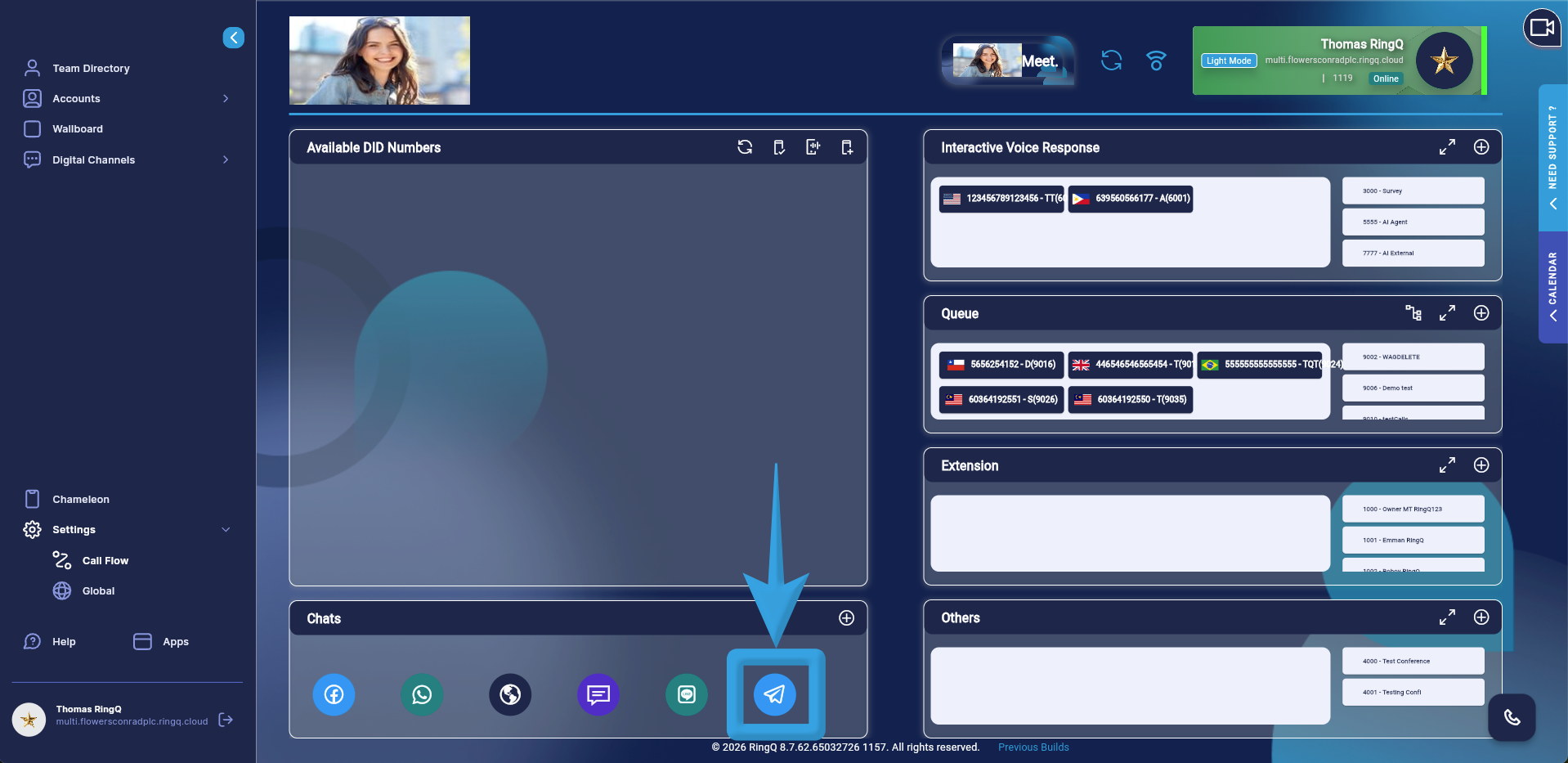
Navigate to the Chats section in the Call Flow and click and hold the Telegram icon.
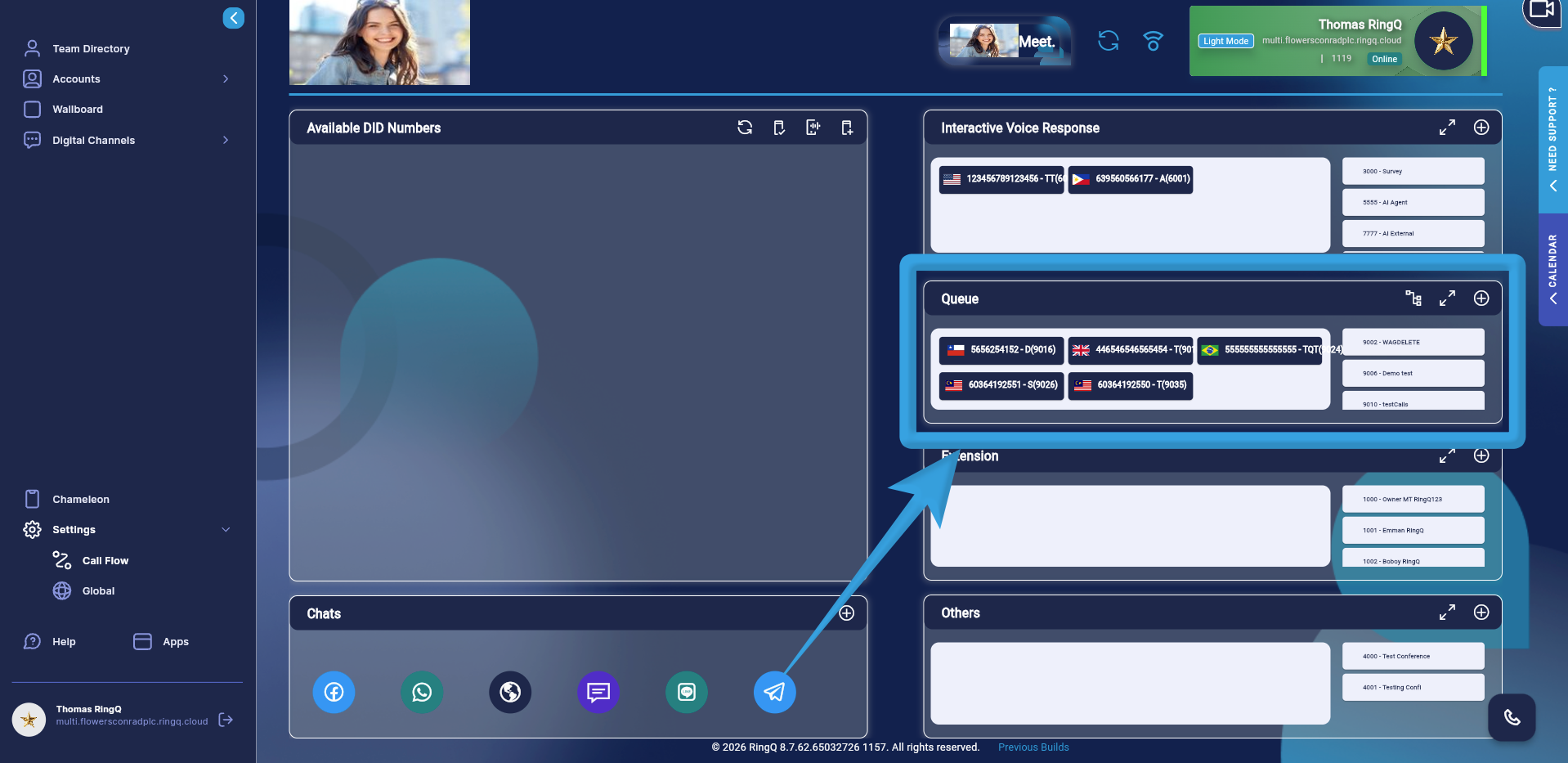
Drag and drop the icon into the Queue section.
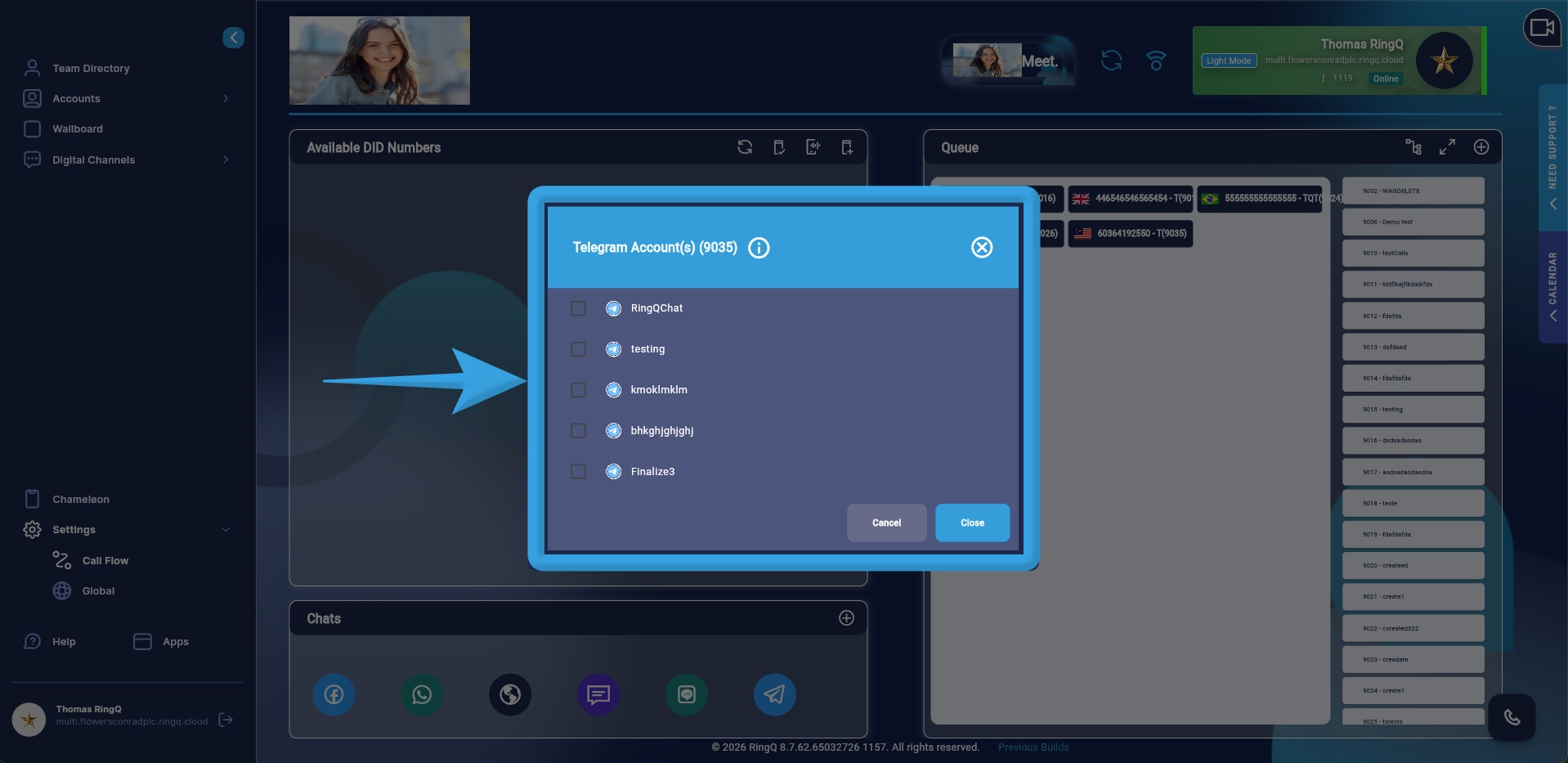
A pop-up window will display all Telegram accounts configured in your Chat Settings. Select your desired Telegram account by ticking the corresponding box.
Click Open.
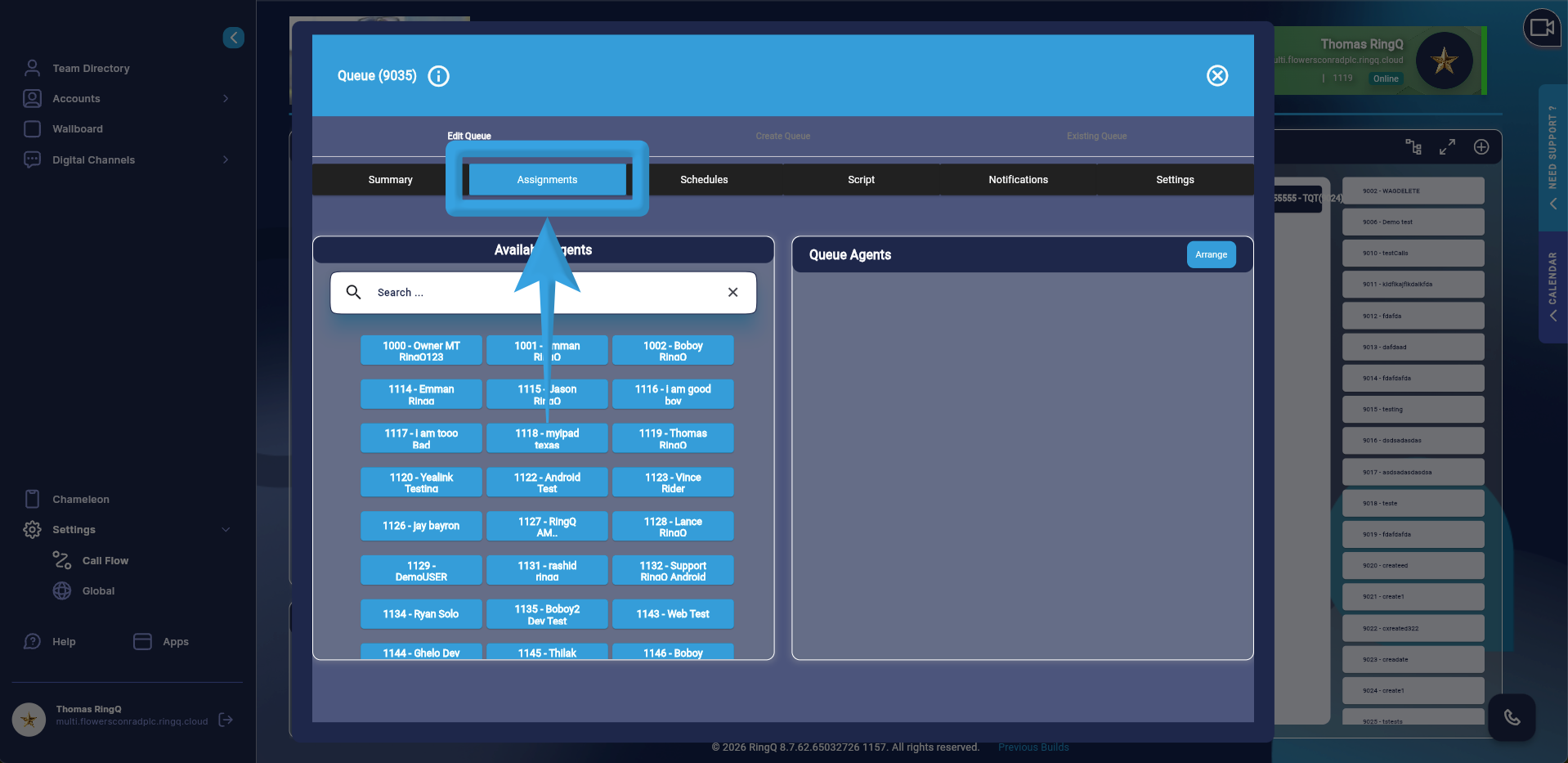
Go to the Assignments tab.
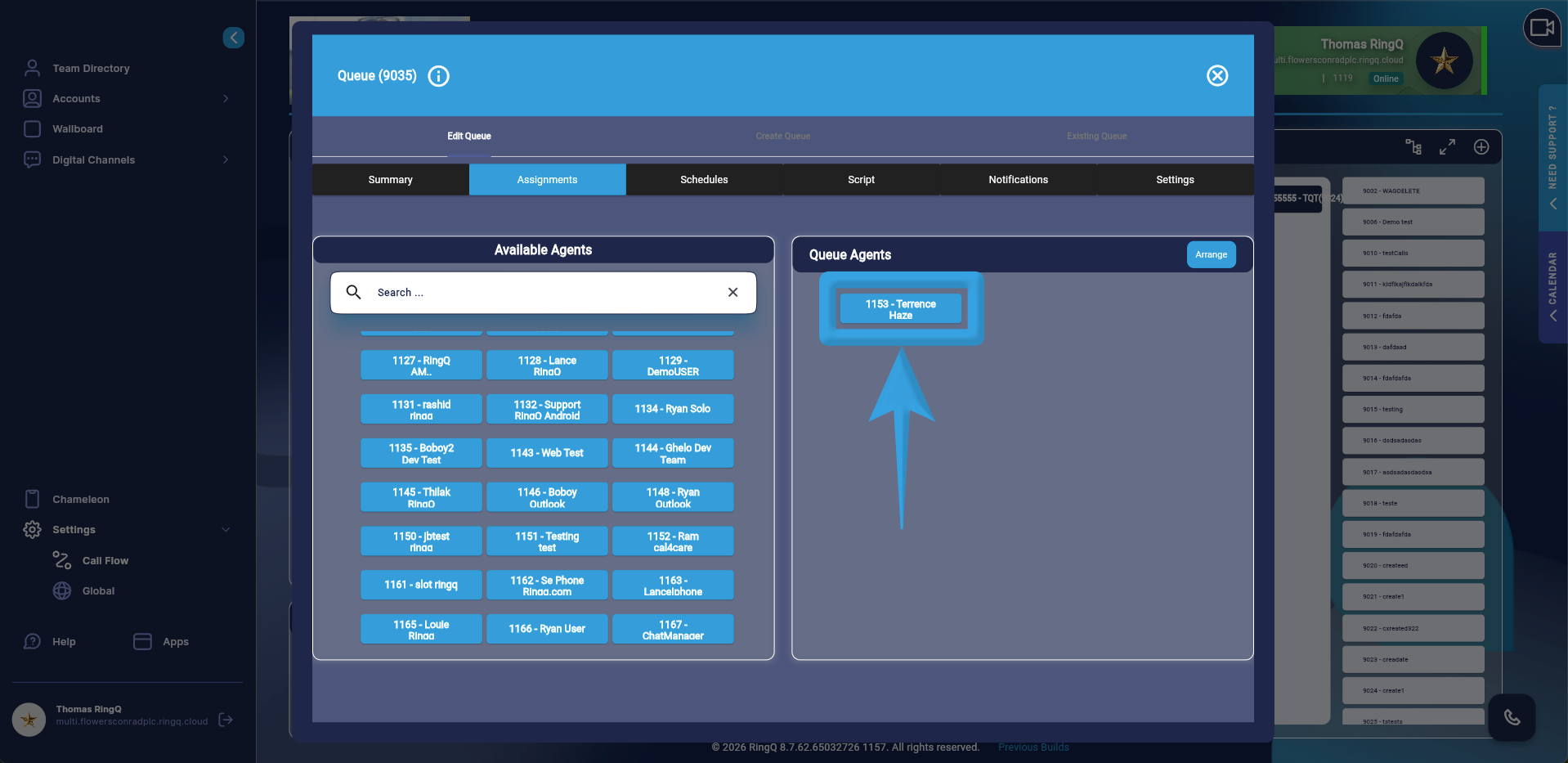
Assign agents to handle Telegram chats.
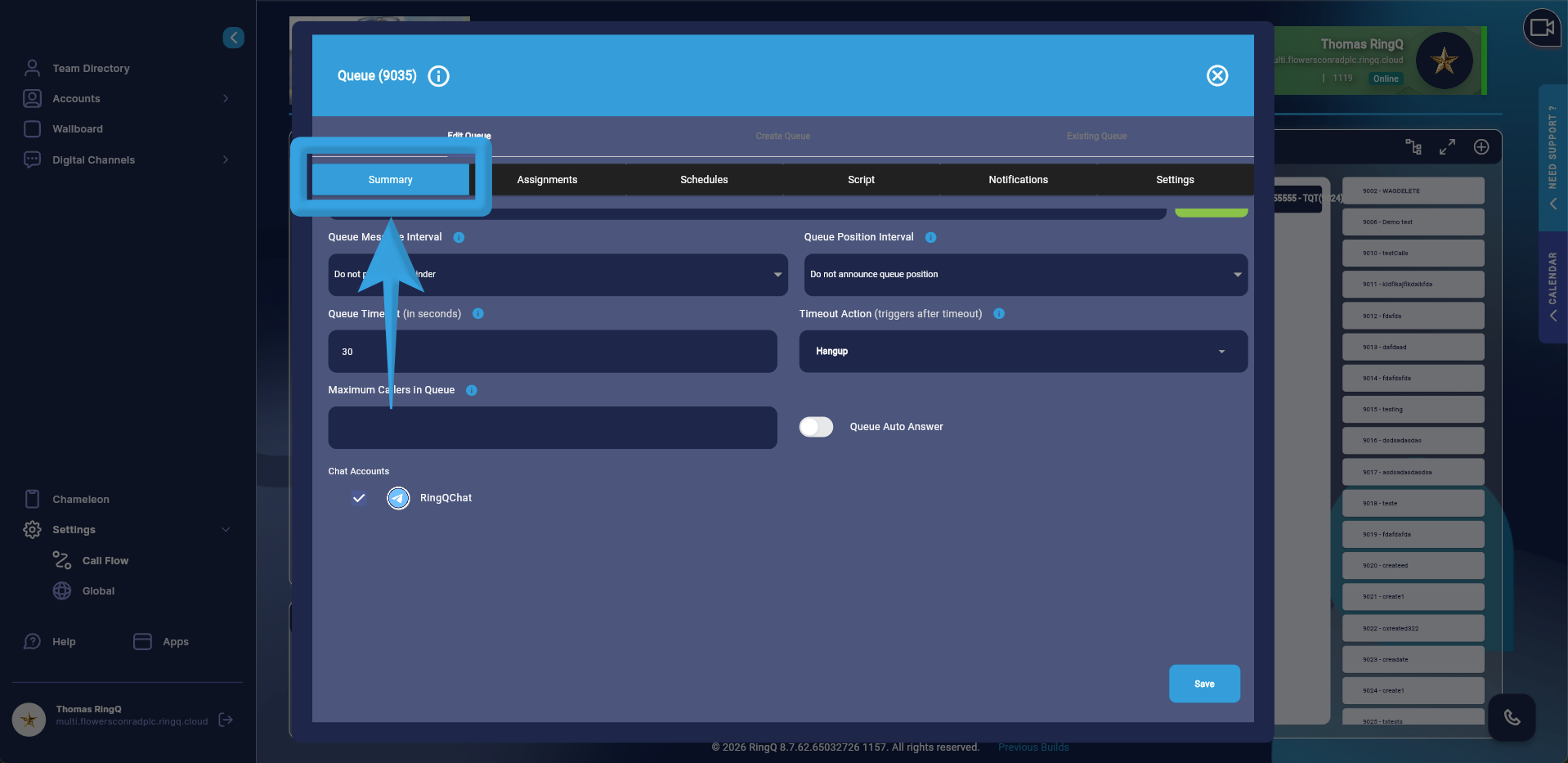
Go to the Summary page and click the Save button.
