
Install, understand, and use the RingQ Click2Call browser extension to turn any phone number on the web into a one-click call.
RingQ Click2Call is a browser extension designed to streamline the process of making phone calls directly from your computer with just a click. Here’s a breakdown of how it works, end to end.
Once you've installed the RingQ Click2Call extension, it integrates seamlessly into your browser (typically Chrome). It enables you to click on any phone number you come across on a webpage, instantly connecting you to that number through the RingQ system.
The extension automatically detects phone numbers on web pages, turning them into clickable links. As you browse websites, any phone number you see will be highlighted with a clickable icon, allowing you to make a call with ease.
When you click on a phone number, the RingQ Click2Call extension communicates with your RingQ account, which routes the call through your configured device — desk phone, mobile, or VoIP system.
Once the connection is established, RingQ will initiate the call for you. You don't have to dial the number manually — just one click, and RingQ handles the rest.
The process is fast and smooth. It reduces the need for manual dialing, making it easier and more efficient to place calls, especially when dealing with multiple phone numbers online.
Depending on your settings and RingQ's features, you may be able to track and record your calls for later reference — great for businesses that need to log conversations or follow up on details.
In short: Click2Call makes communication more efficient by integrating directly with your browser, enabling one-click dialing from any webpage — whether you’re calling leads, customers, or colleagues.
Follow these steps to add the RingQ Click2Call extension to Chrome and connect it to your RingQ Web Client. Each step below is shown with the exact screen you’ll see.
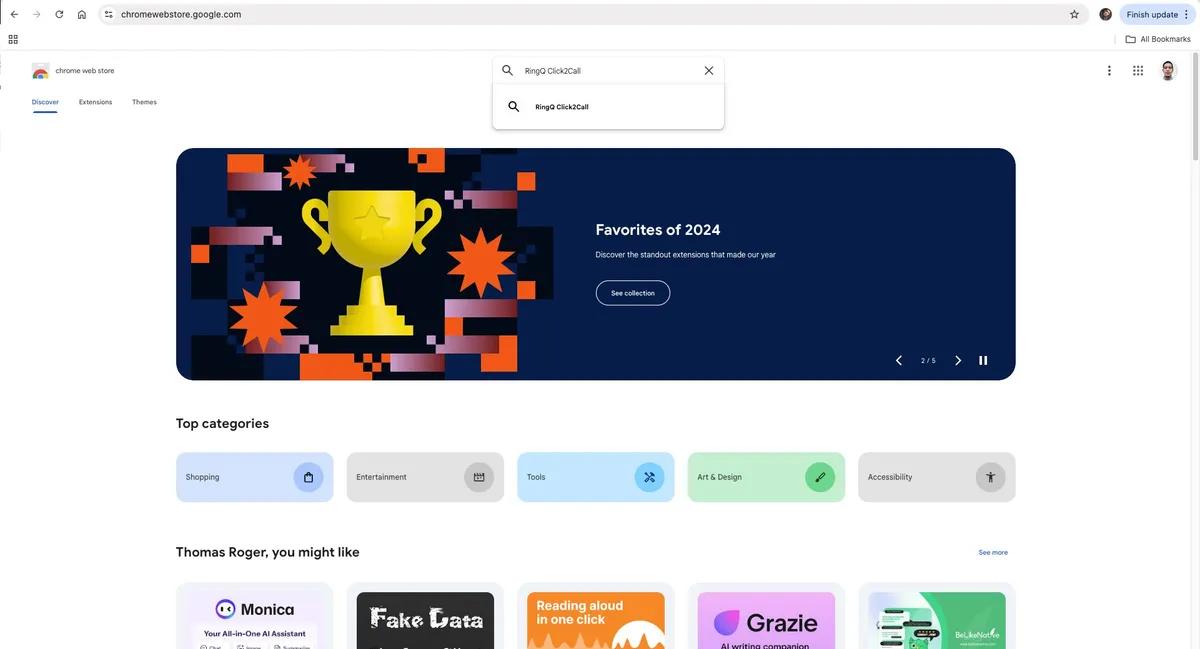
Launch Google Chrome and go to the Chrome Web Store by entering https://chromewebstore.google.com/ in the address bar, or search for it in your preferred search engine.

In the search bar at the top left of the Chrome Web Store, type RingQ Click2Call and press Enter. This shows the search results related to the extension.
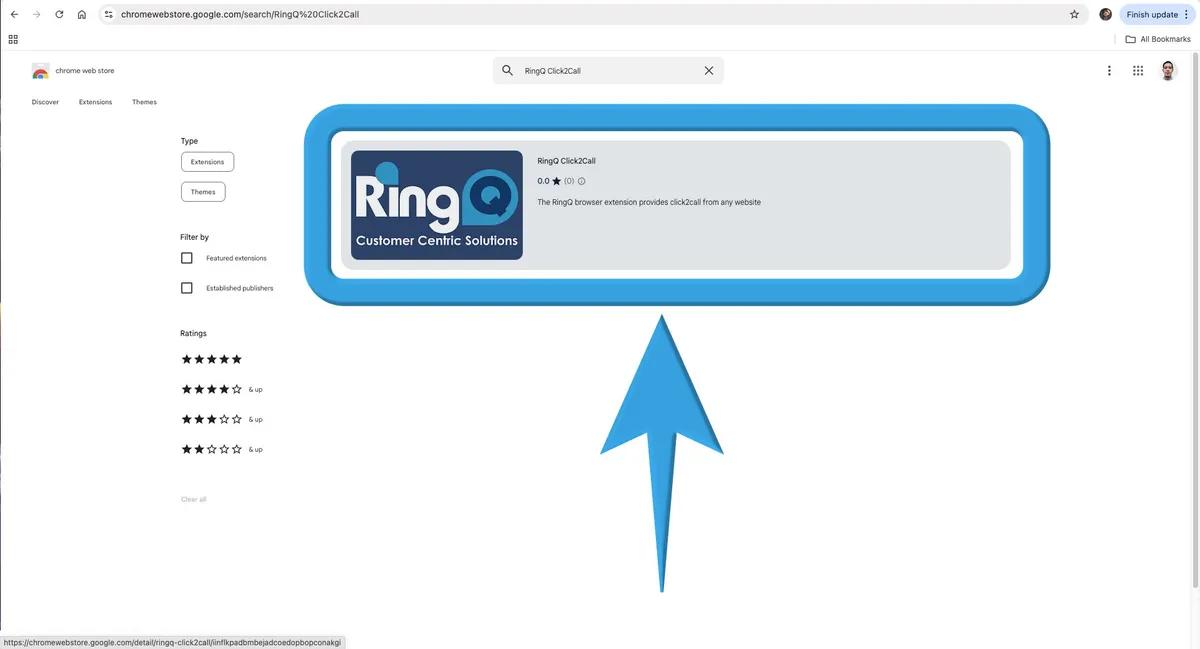
From the search results, click on the RingQ Click2Call extension. This takes you to the page where you can install it.
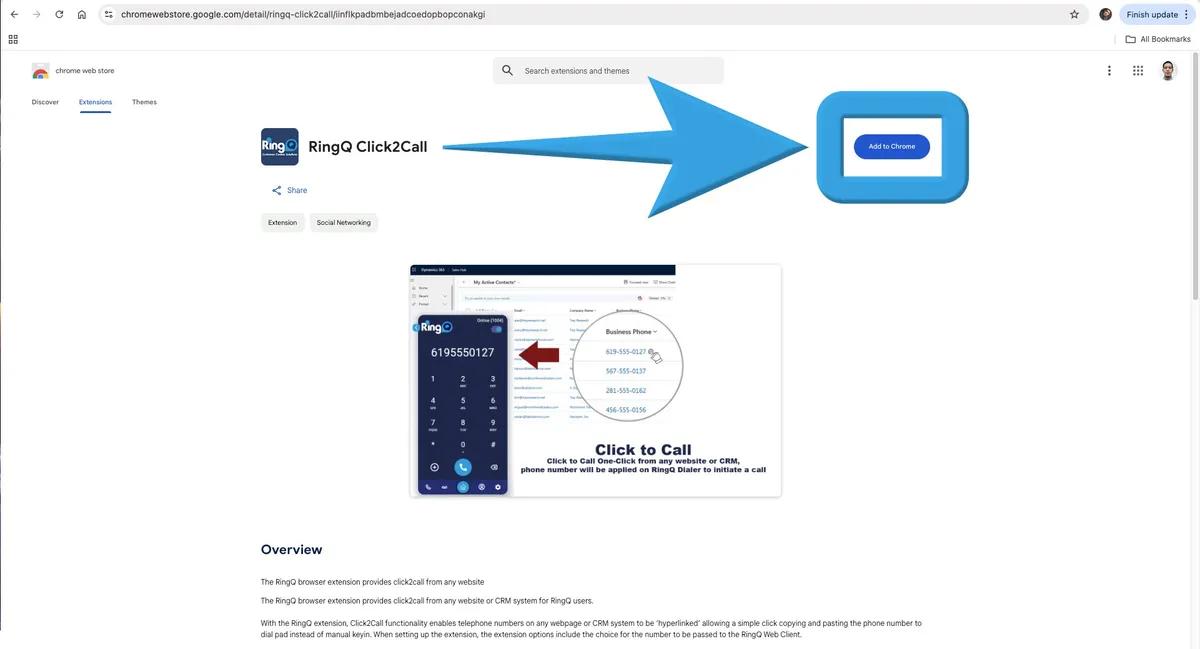
On the RingQ Click2Call extension page, click the blue Add to Chrome button. This prompts the browser to begin downloading and installing the extension.
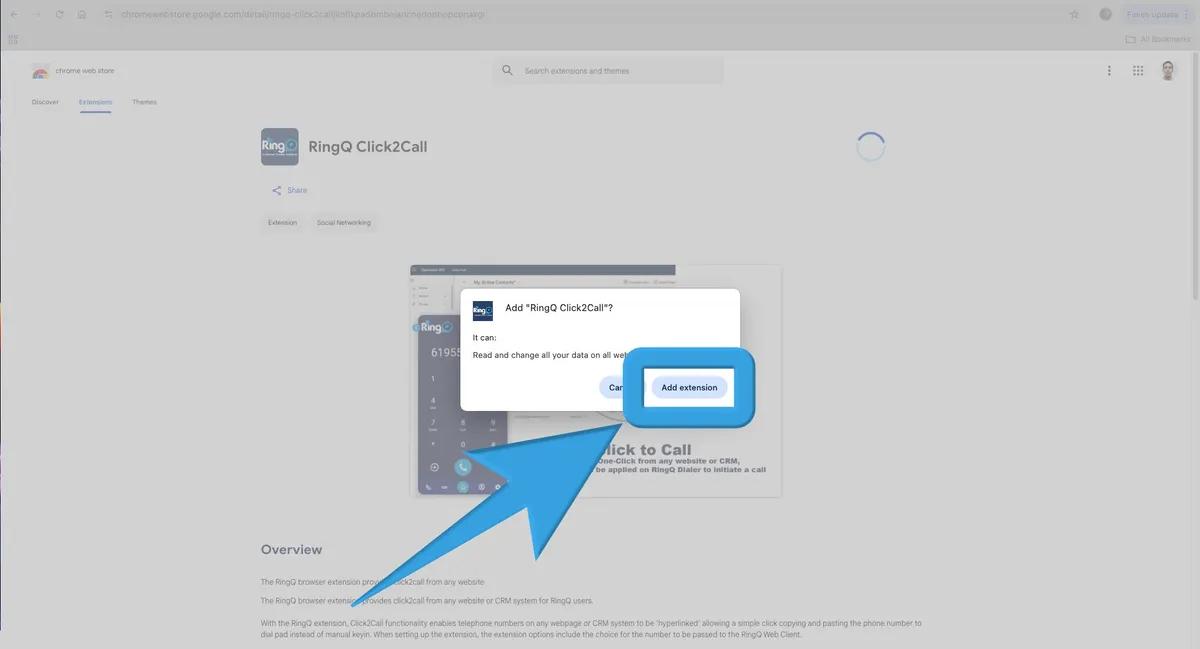
A pop-up will appear asking if you want to add the extension, showing the permissions it needs. Click Add Extension to proceed.
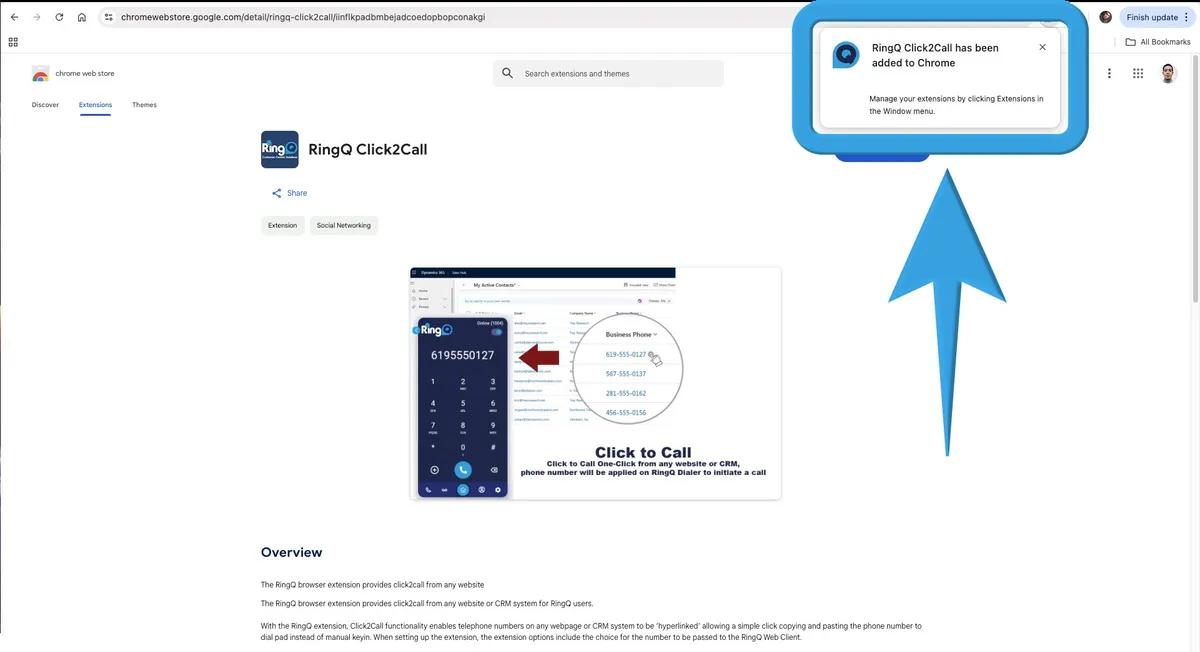
A notification appears in the upper-right corner of your browser confirming the RingQ Click2Call extension was added successfully. It's now ready to use.
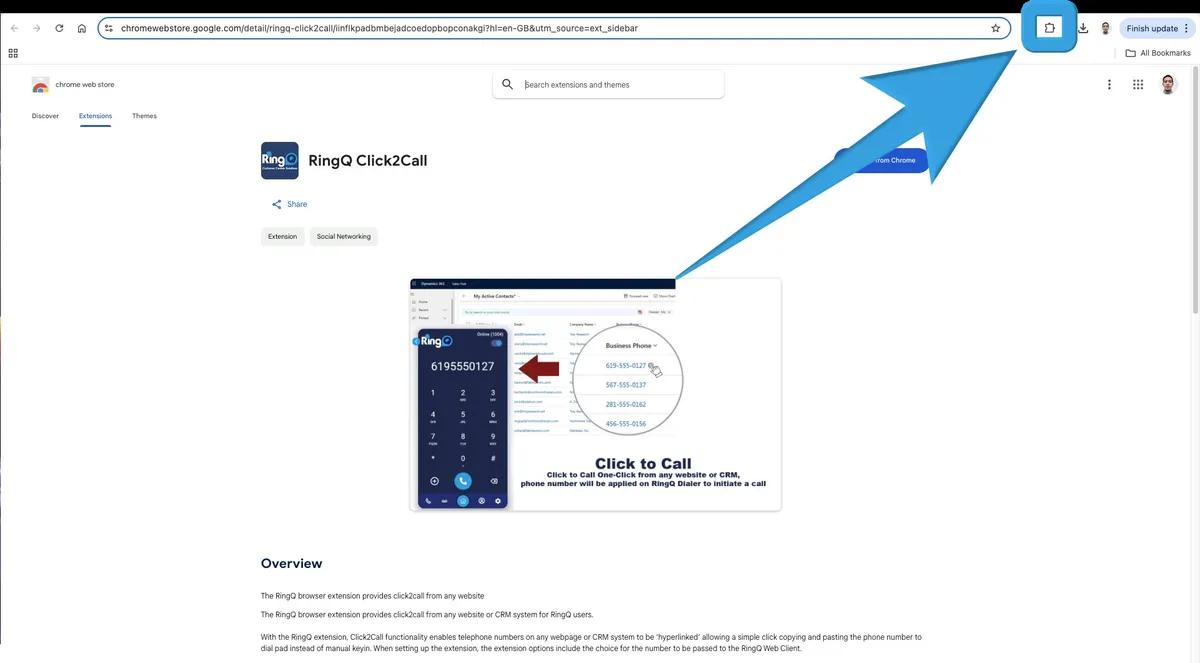
Locate and click the RingQ Click2Call extension icon in the upper-right corner of your browser to activate it.
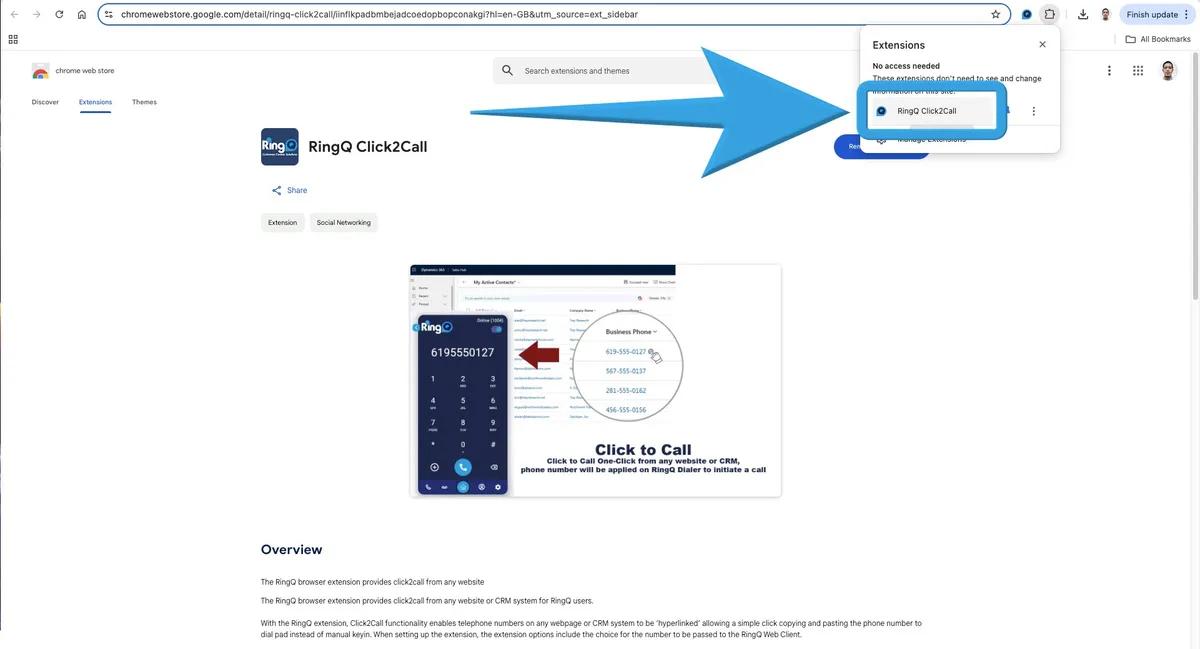
Select the RingQ Click2Call extension to automatically convert phone numbers on websites or within your CRM system into clickable links for easy dialing.
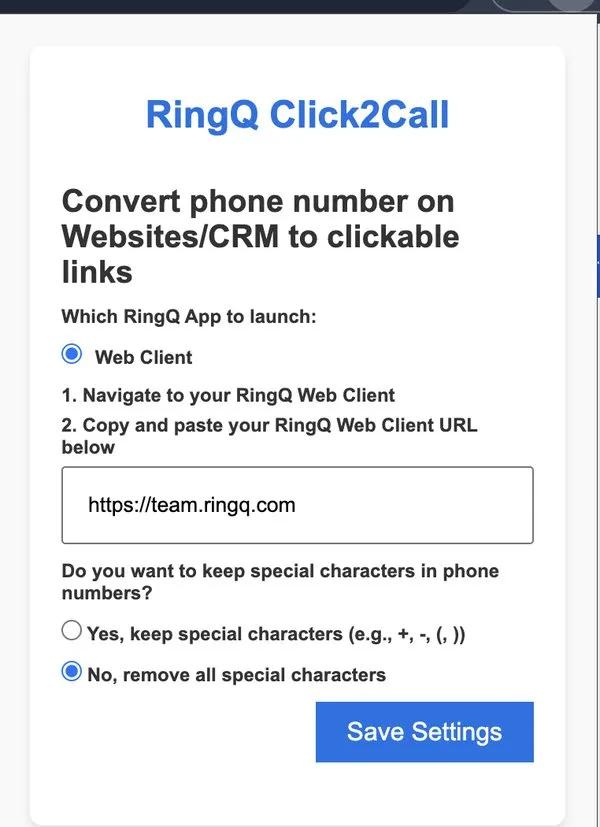
In the text field provided, paste your RingQ Web Client URL to connect the extension with your RingQ system.
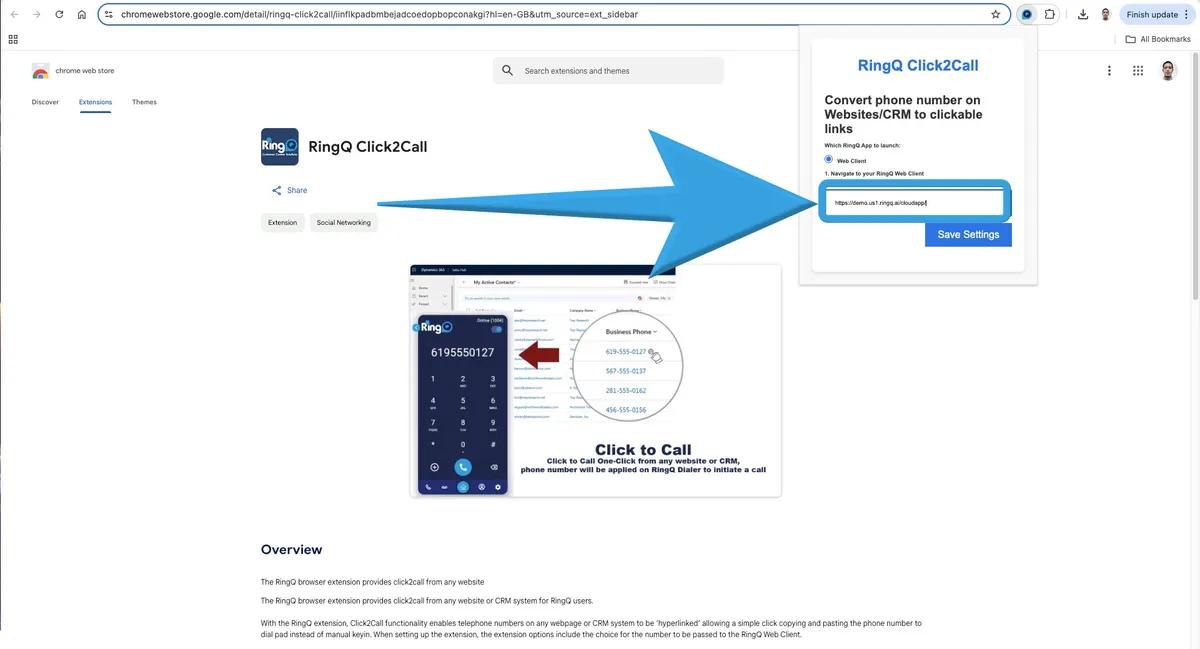
Click Save Settings to store your RingQ Web Client URL. Once saved, clicking a contact number automatically redirects you to the RingQ system for seamless calling.
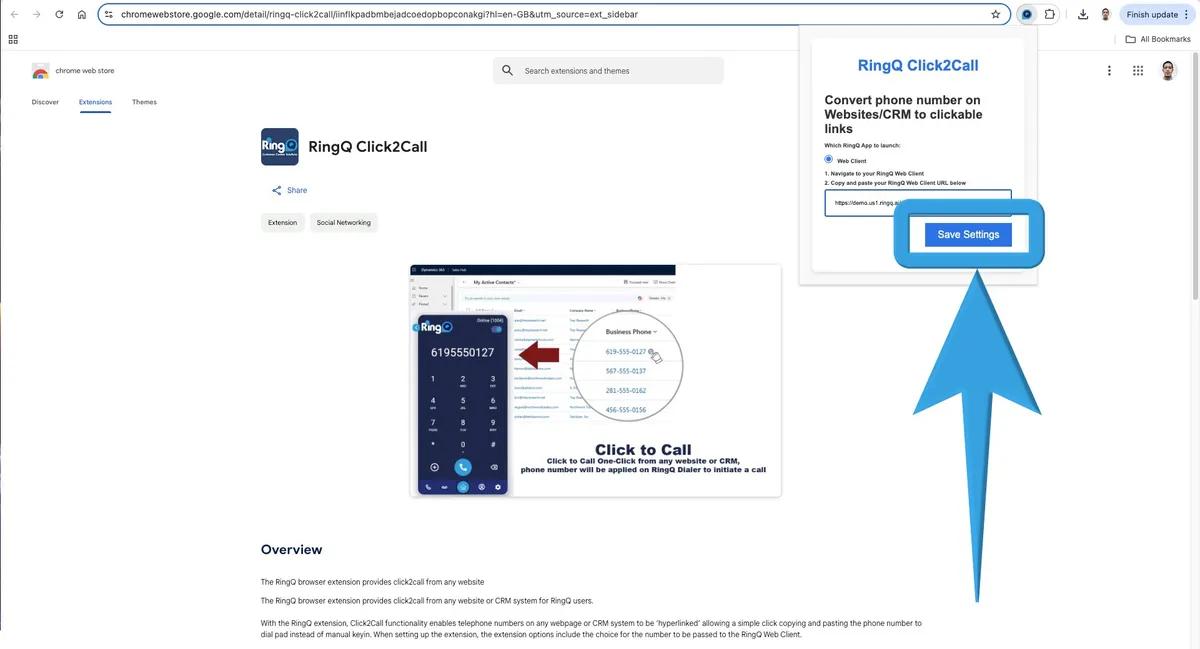
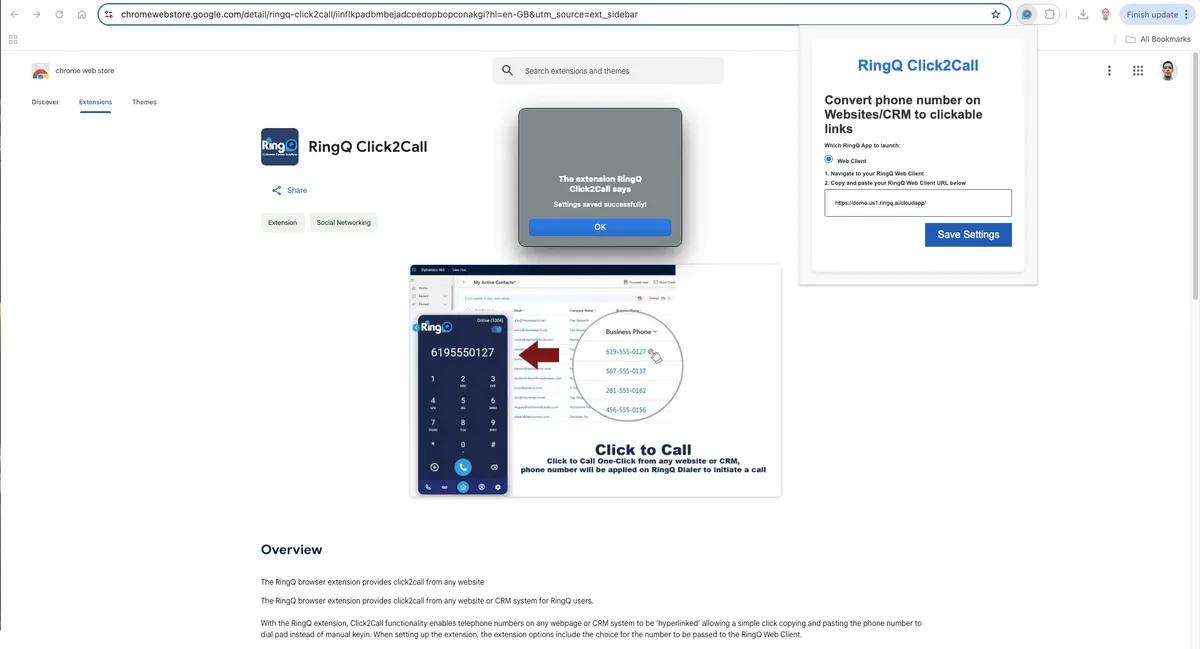
The complete extension settings panel — choose which RingQ app to launch, set your Web Client URL, and decide whether to keep special characters (+, -, parentheses) in detected phone numbers.
Now you’re all set! The RingQ Click2Call extension is installed and ready to use in your browser — you can start making phone calls with just a click.
Once the extension is installed and connected, making a call takes just one click. Here’s the full flow from spotting a number to talking — shown with real screens from a live call.
Download and install the RingQ Click2Call extension on your browser (usually Chrome). Once installed, it integrates directly with your browser, enabling one-click dialing.
Browse any website that contains phone numbers. The extension automatically detects phone numbers on the page — hovering over one shows a tooltip like "Call +1 281 822 5288 via RingQ."
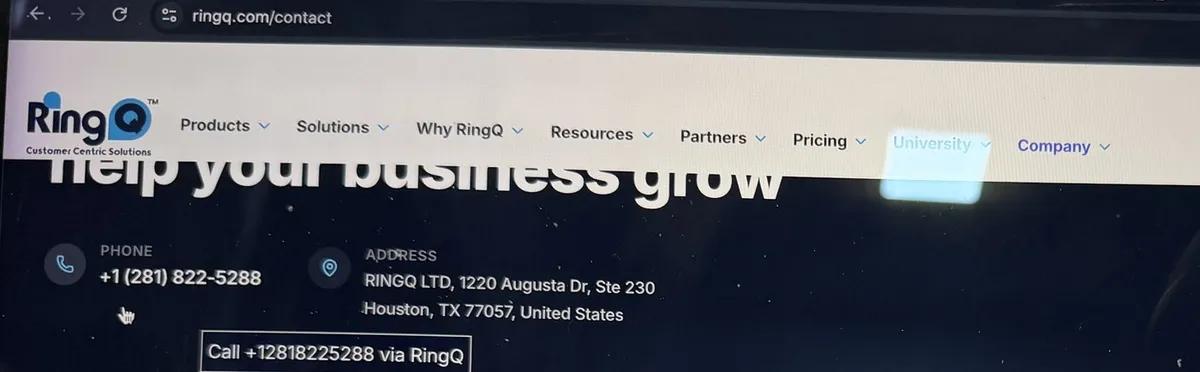
Clicking the number prompts a browser confirmation — "www.ringq.com says: Do you want to open the call for +1 281 822 5288?" Click OK to proceed.

RingQ Click2Call opens your RingQ Web Client dialer with the number already typed in and ready to dial — no manual entry needed.
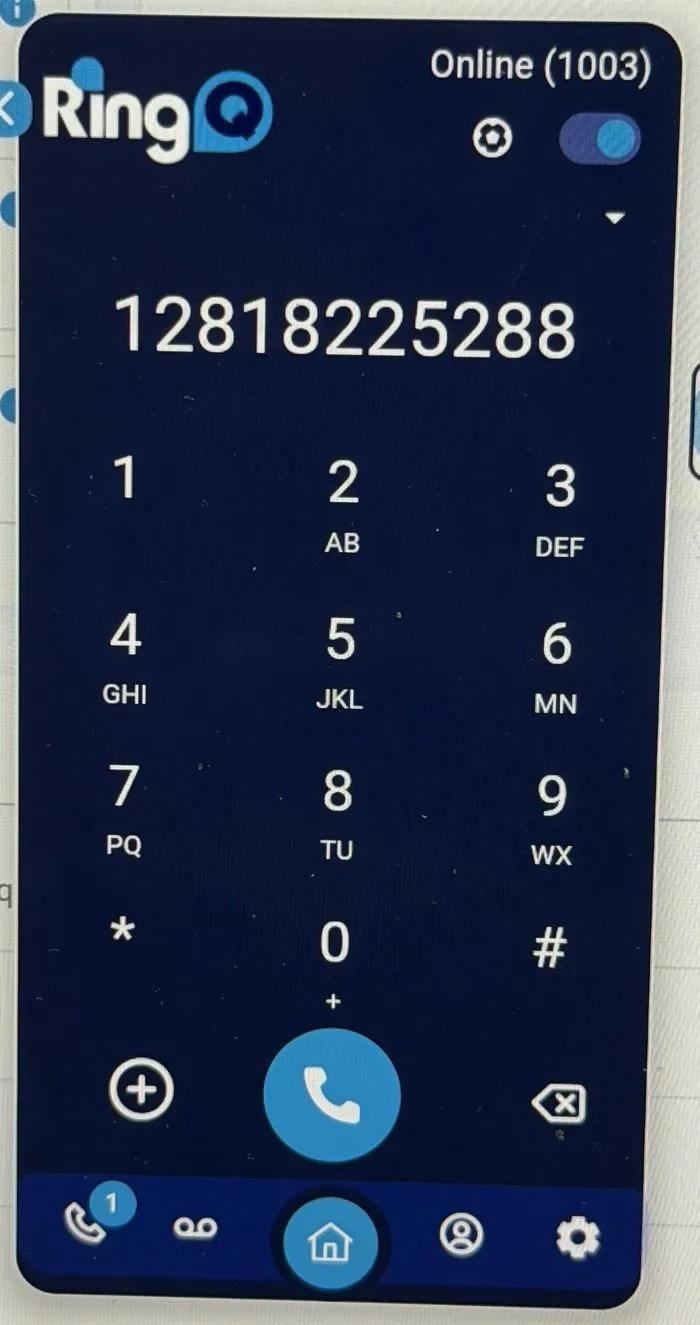
Tap the call button and RingQ places the call automatically. The dialer shows the connecting animation and a live call timer.

Once the call connects, start talking to the person on the other end using your preferred device — desk phone, mobile, or the RingQ Web Client itself.
That’s it! With just one click, RingQ Click2Call simplifies the process of making calls directly from your browser — no manual dialing required.
