Network & Codec Configuration Guide
General Settings
›
Contact Center
›
Network
This guide covers the two core configuration areas inside the RingQ Network settings dialog: IP configuration (network interface selection and external IP/NAT setup) and Codec configuration (negotiation strategy, transcoding, and codec priority). Correct settings in both areas ensure clear, reliable calls across all SIP trunk providers and connected endpoints.
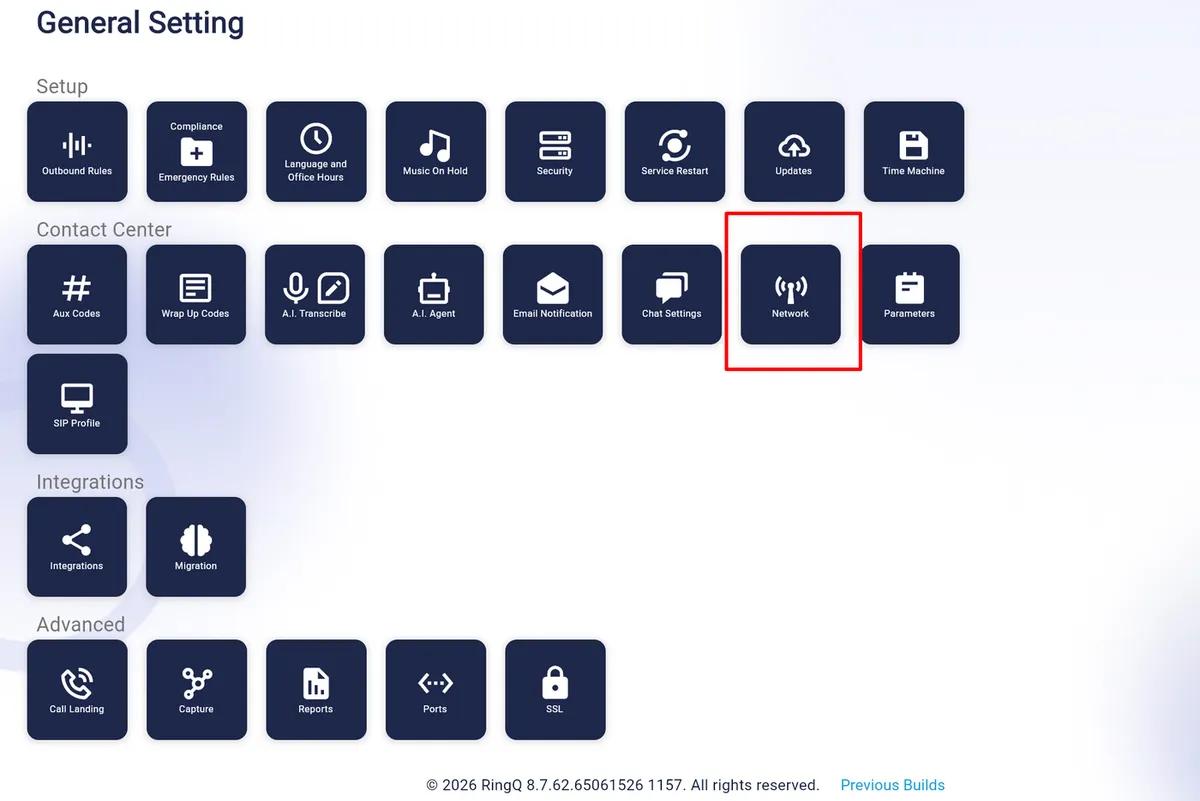
Open General Settings and locate the Contact Center section. Click the Network tile (highlighted below) to open the Network configuration dialog.
General Settings — Network tile highlighted in the Contact Center section
The Network dialog contains two tabs: IP and Codec. Each tab controls a distinct aspect of the PBX’s communication stack.
The IP tab determines which server network card RingQ listens on for SIP and RTP traffic, and what public IP address it advertises to remote SIP endpoints for correct media routing.
Network dialog — IP tab showing NIC dropdown and External IP field
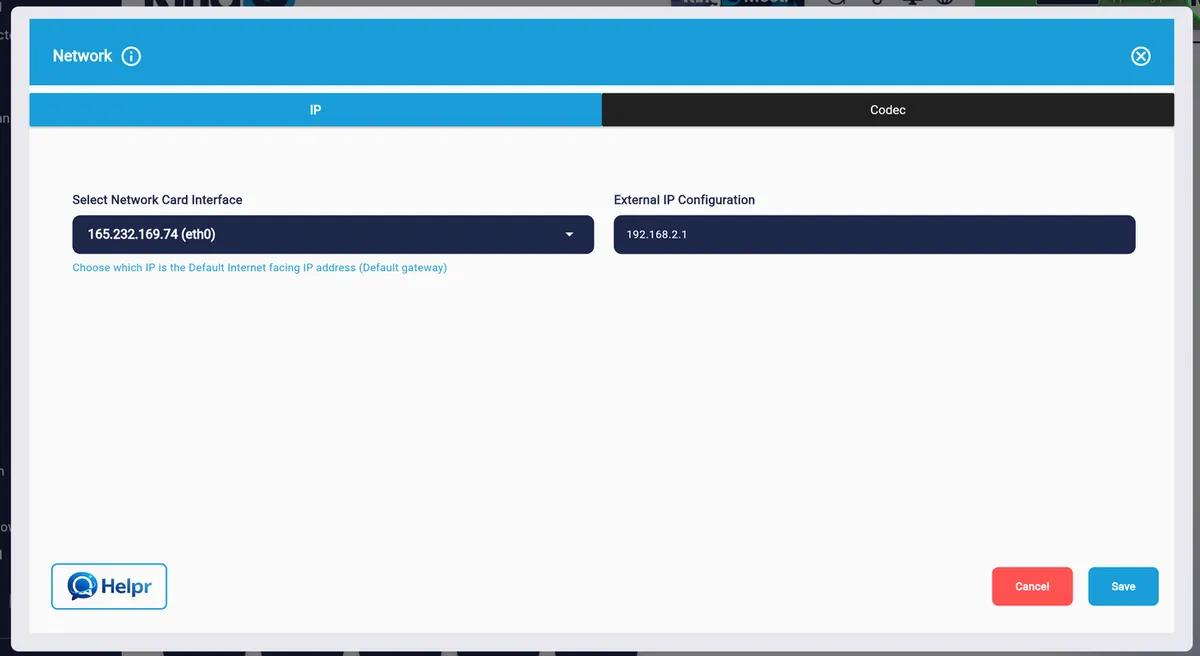
This dropdown lists all network interface cards (NICs) detected on the server. Each entry shows the interface name and its assigned IP, for example 165.232.169.74 (eth0). The selected interface is where RingQ binds its SIP listener and RTP media engine.
What this setting controls
RingQ binds its SIP listener and RTP media engine to the IP of the selected interface.
All SIP REGISTER, INVITE, and RTP media packets flow through this interface.
This must be the Default Internet-facing interface (Default gateway interface).
⚠ Warning
Selecting an internal-only NIC without setting the External IP field will cause one-way audio or SIP registration failures on external calls.
Enter the public-facing IP address of your server or NAT gateway. RingQ embeds this value into outbound SIP headers (Contact, Via) and SDP connection lines so that remote endpoints know where to send return audio.
| Scenario | What to enter |
|---|---|
| Server behind a home / office router | The WAN (public) IP of your router — verify via whatismyip.com from the server |
| Cloud VM (AWS, DigitalOcean, etc.) | The Elastic IP or floating IP assigned to the instance, not the private 10.x or 172.x address |
| Server with a direct public IP on NIC | May match the NIC IP; confirm with: curl ifconfig.me |
| Multiple SIP trunks from different providers | A single External IP is sufficient if all trunks share the same public route |
⚠ Dynamic IPs
If your public IP changes (dynamic ISP), update this field whenever the IP changes, or use a DDNS hostname maintained by your firewall or router.
The Codec tab controls how RingQ negotiates audio encoding with SIP trunks and endpoints, and whether it converts audio between codec formats in real time during a call.
Network dialog — Codec tab with Codec Negotiation dropdown expanded
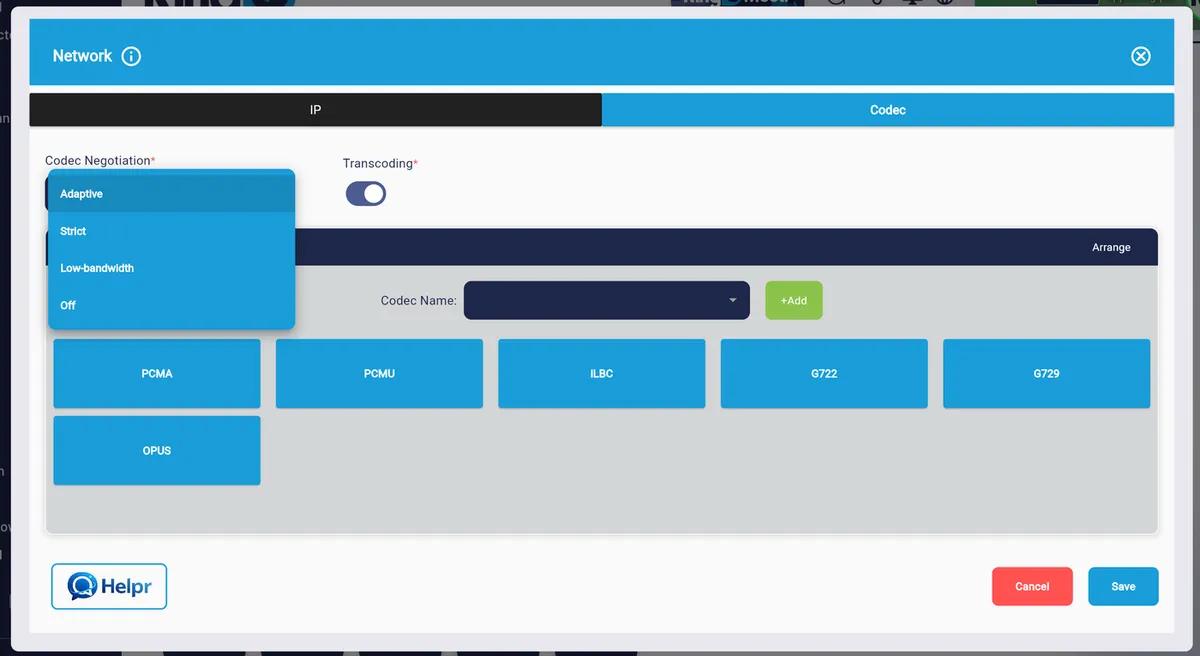
This dropdown controls the strategy RingQ uses when offering or accepting codecs during SIP call setup (SDP offer/answer). Four modes are available:
| Mode | Behaviour and best use |
|---|---|
| Adaptive | Dynamically selects the best mutually-supported codec from both sides. Recommended for most deployments — flexible and fault-tolerant. |
| Strict | Only accepts codecs from RingQ’s priority list. Calls fail if no match is found. Use for compliance, recording, or quality-controlled environments. |
| Low-bandwidth | Prefers narrowband / low-bitrate codecs (G.729, PCMA) to conserve bandwidth. Ideal for sites with limited internet or high call concurrency. |
| Off | No negotiation — RingQ accepts whatever codec the remote side proposes. For testing and diagnostics only. Not recommended for production. |
Transcoding is real-time audio conversion between different codec formats. When enabled (toggle shown active in the screenshot), RingQ acts as a media bridge — decoding the inbound audio stream and re-encoding it in the codec preferred by the other leg of the call.
✓ How transcoding works — example
SIP trunk → RingQ: Trunk sends audio encoded as PCMU (G.711 µ-law).
RingQ decodes the PCMU stream and re-encodes it as G.722 (wideband HD).
RingQ → IP Phone: Phone receives high-quality G.722 audio.
Result: Both legs operate at their best supported quality even though they use different codecs.
The codec tiles in the Codec tab represent the active codecs offered by RingQ during SIP negotiation. Codecs listed first are offered with higher priority. RingQ supports the following codecs out of the box:
| Codec | Type | Bitrate | Typical Use Case |
|---|---|---|---|
| PCMA | Narrowband | 64 kbps | Standard telephony — Europe & Asia SIP trunks (G.711 a-law) |
| PCMU | Narrowband | 64 kbps | Standard telephony — North America SIP trunks (G.711 µ-law) |
| iLBC | Narrowband | 13–15 kbps | Poor network conditions — resilient to packet loss |
| G.722 | Wideband | 64 kbps | HD voice for internal calls between compatible IP phones |
| G.729 | Narrowband | 8 kbps | Low-bandwidth links with high call concurrency |
| OPUS | Fullband / Wideband | 6–510 kbps | WebRTC, softphones, browsers — modern adaptive quality |
Use the Codec Name dropdown and +Add button at the top of the codec section to add a codec not shown in the default list.
⚠ Note
Only add codecs supported by both your SIP trunk provider and your endpoint devices. Adding unsupported codecs will not cause failures but generates unnecessary SDP offer lines.
Click the Arrange button (top-right of the codec grid) to enter drag-and-drop reorder mode. Drag codec tiles into your preferred order, then save.
Recommended priority order for most deployments
1. OPUS — Best quality for WebRTC softphones and modern devices.
2. G.722 — Wideband HD voice for compatible IP phones.
3. PCMA / PCMU — Universal compatibility with all SIP trunk providers.
4. G.729 — Low-bandwidth fallback for constrained links.
5. iLBC — Packet-loss resilient; useful for poor network conditions.
⚠ Service Impact
Changing the Network Card Interface or External IP will affect all active calls. Schedule network changes during a maintenance window to avoid disrupting ongoing calls.
| Symptom | Likely Cause & Fix |
|---|---|
| One-way audio on external calls | External IP is blank or set to the private NIC address. Enter the correct public / WAN IP in the External IP field. |
| SIP trunk registration fails | Wrong NIC selected. Ensure the selected interface has connectivity to the trunk provider’s network. |
| Poor call quality / audio distortion | Codec mismatch without transcoding active. Enable Transcoding and verify the codec priority list matches the trunk. |
| High CPU on the PBX server | Transcoding active for all calls. If all devices share a common codec, disable transcoding to allow passthrough. |
| 488 Not Acceptable Here error | Strict negotiation mode with no matching codec. Switch to Adaptive or add the trunk’s required codec to the list. |
| Fax or modem calls fail or corrupt | Transcoding is re-encoding fax tones. Disable transcoding or use a dedicated SIP profile with T.38 pass-through. |
© 2026 RingQ. All rights reserved. — For support, contact your RingQ administrator or visit the RingQ Help Centre.
